When your service spans multiple regions, users far from the primary cluster experience high read latency because every read request must travel to that cluster. Enabling Orca on a Global Database Network (GDN) lets each secondary cluster store Key-Value pairs—compatible with the Redis protocol—locally and serve reads without contacting the primary cluster. Write requests are automatically forwarded to the primary cluster, so you do not need to maintain separate connection pools or build custom routing logic in your application.
How it works
Orca in a GDN separates reads and writes at the cluster level:
Data synchronization: All Orca Key-Value pairs on the primary cluster are asynchronously synchronized to every secondary cluster through the PolarDB physical replication channel, using parallel playback of physical logs. Replication latency is typically under 2 seconds. Synchronization runs independently and does not affect the performance or stability of the primary cluster, ensuring eventual consistency across all regions.
Local reads: When an application connects to the Orca endpoint of a secondary cluster and sends a read request such as
GET, the secondary cluster processes and returns the result directly—no round-trip to the primary cluster.Write forwarding: When an application connects to the Orca endpoint of a secondary cluster and sends a write request such as
SET, the secondary cluster does not execute the write locally. Instead, it forwards the request to the primary cluster. The primary cluster performs the write and returns the result to the application. The change is then synchronized back to the secondary cluster through the physical replication channel.
Prerequisites
Before you begin, make sure that:
Your PolarDB for MySQL cluster runs MySQL 8.0.2 with minor engine version 8.0.2.2.24 or later
You have a GDN, or are prepared to create one (see Create a global database network)
Orca accounts can only be created on the primary cluster—accounts are automatically synchronized to all secondary clusters after creation
You cannot perform write operations directly on secondary clusters—write requests are automatically forwarded to the primary cluster
Enable Orca on a GDN cluster
The following steps walk you through enabling Orca on a GDN cluster, creating an Orca account, and verifying that read/write splitting and data synchronization work correctly.
Step 1: (Optional) Create a GDN
Skip this step if you already have a GDN.
Log on to the PolarDB console. In the left navigation pane, click Global Database Network.
On the GDN page, click Create GDN.
In the Create GDN dialog box, configure the parameters and click OK.
Step 2: Enable Orca on the primary cluster
On the GDN page, click the GDN ID to open the GDN details page.
In the Clusters section, click the primary cluster ID.
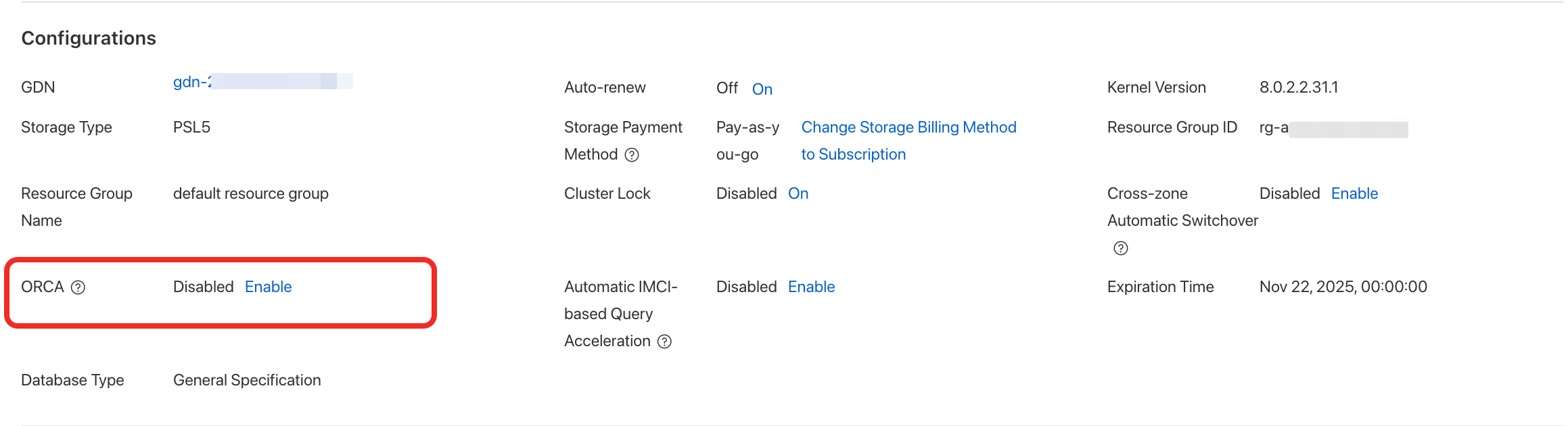
On the Basic Information tab, in the Configurations section, click Enable next to ORCA Feature.
Step 3: Create an Orca account on the primary cluster
In the Clusters section, click the primary cluster ID.
In the left navigation pane, go to Settings and Management > Accounts. On the Account Management page, click Create Account.
On the Create Account page, select ORCA Account, enter the account name and password, and click OK.
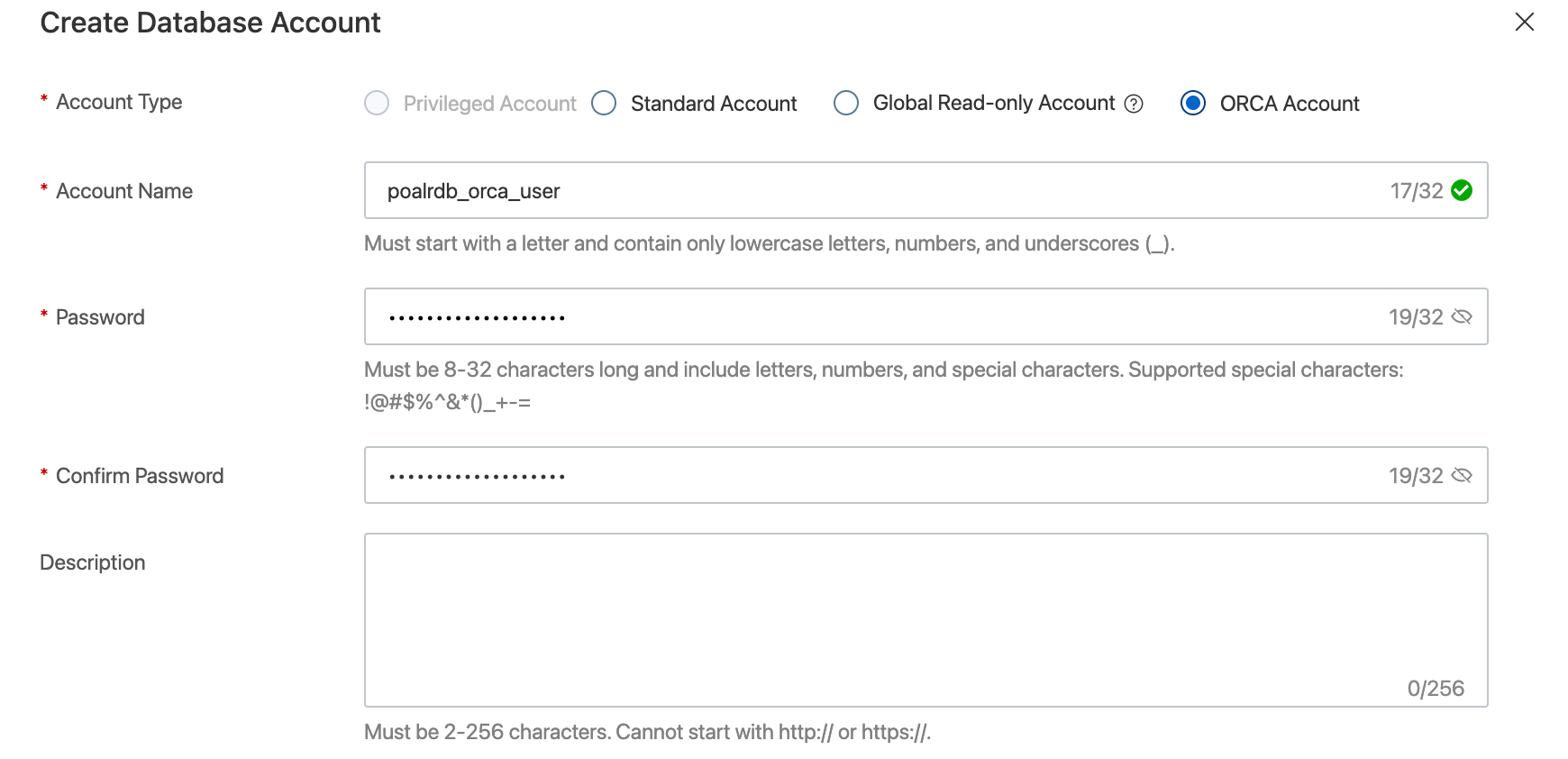
Orca accounts cannot be created on secondary clusters. Any account created on the primary cluster is automatically synchronized to all secondary clusters.
Step 4: (Optional) Enable Orca on secondary clusters
Skip this step if no secondary clusters have been added to the GDN. Repeat the steps below for each secondary cluster.
In the Clusters section, click a secondary cluster ID.
On the Basic Information tab, in the Configurations section, click Enable next to ORCA Feature.
After the feature is enabled, go to Settings and Management > Accounts and confirm that the ORCA Account has been synchronized.
Step 5: Configure access permissions
Add the IP address of your application environment (for example, an ECS instance) to the cluster whitelist of each cluster you plan to connect to. Choose the cluster geographically closest to your application.
Step 6: Verify read/write splitting and data synchronization
Use redis-cli or a compatible client to run the following checks. All commands connect on port 6379.
This step verifies data synchronization across clusters. For verification purposes, add the application IP address to the whitelists of both the primary and secondary clusters. In production, only add the IP address to the whitelist of the cluster your application connects to.
1. Write data on the primary cluster
Connect to the ORCA Endpoint of the primary cluster and write a Key-Value pair:
# Connect to the primary cluster
redis-cli -h <Primary_Cluster_Orca_Endpoint> -p 6379 -a <Orca_Account:Password>

# Write a test key
SET gdn_orca_test_key "hello_from_primary_cluster"
# > OK

# Read back to confirm
GET gdn_orca_test_key
# > "hello_from_primary_cluster"
2. Read data from a secondary cluster
Connect to the ORCA Endpoint of a secondary cluster and verify that the data has been replicated:
# Connect to the secondary cluster
redis-cli -h <Secondary_Cluster_Orca_Endpoint> -p 6379 -a <Orca_Account:Password>

# Read the key written on the primary cluster
GET gdn_orca_test_key
# > "hello_from_primary_cluster"
This is a local read—the secondary cluster returns the result without contacting the primary cluster.
3. Verify write forwarding from a secondary cluster
In the same connection to the secondary cluster, run a write command and then read the result:
# Write from the secondary cluster (forwarded to the primary cluster automatically)
SET gdn_orca_write_test "write_from_secondary_cluster"
# > OK

# Read back to confirm the write was applied
GET gdn_orca_write_test
# > "write_from_secondary_cluster"
A successful OK response confirms that write forwarding is working correctly.
4. View Orca performance metrics
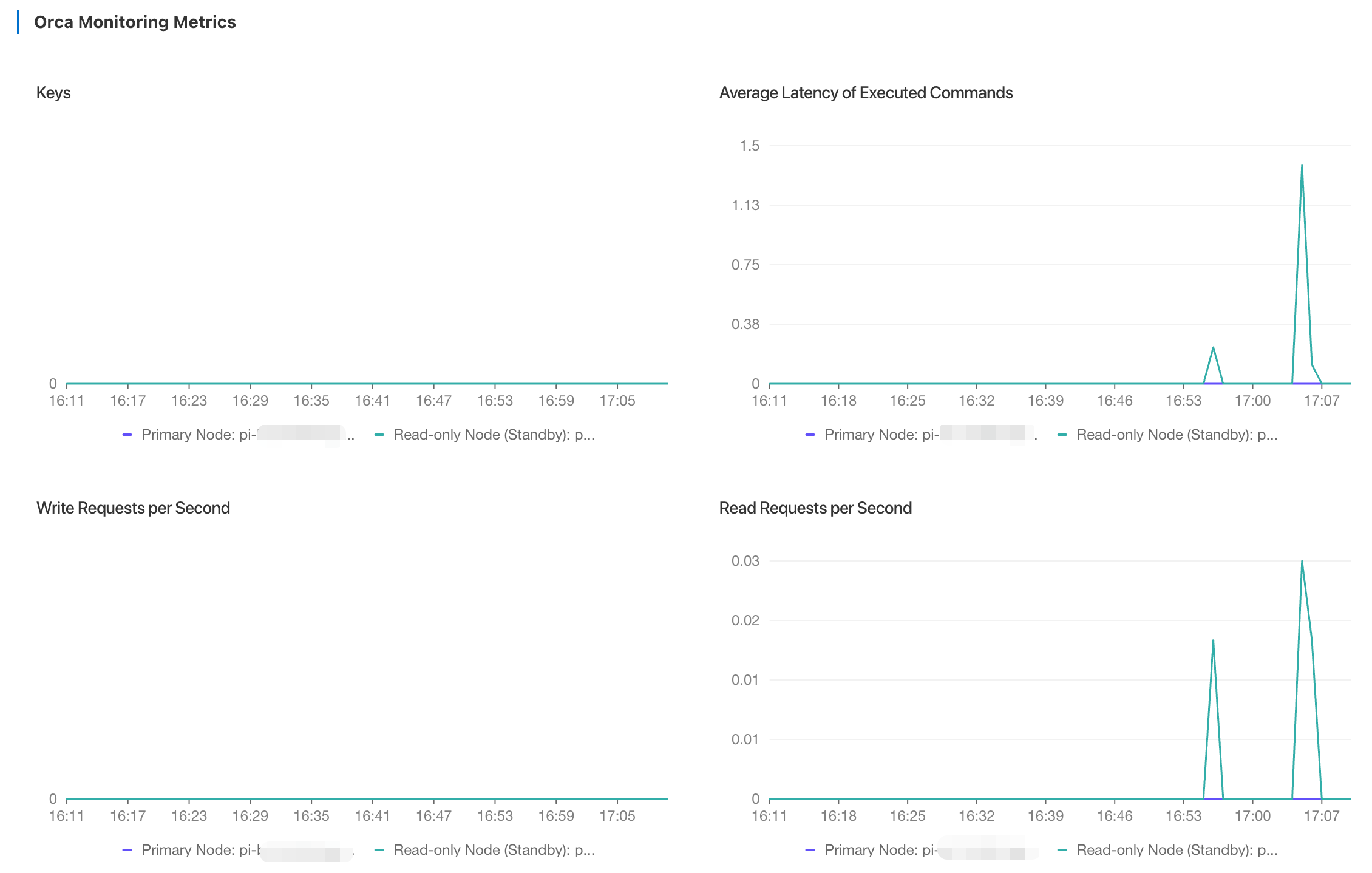
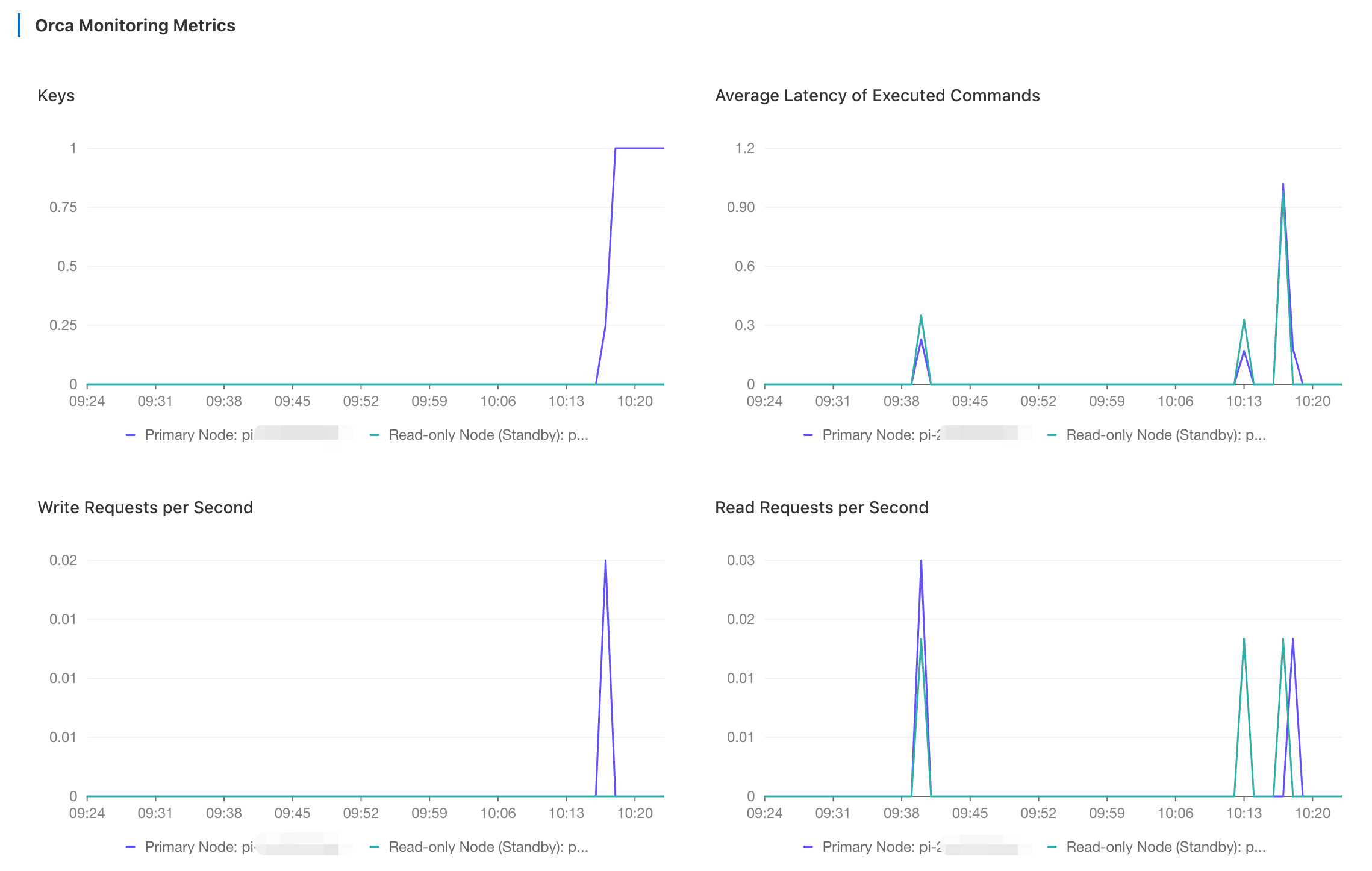
All write operations are executed on the primary cluster, so write-related metrics appear only on the primary cluster. Open the Performance Monitoring page of each cluster and select the Cluster tab to view Orca metrics.
| Cluster | Metrics available |
|---|---|
| Primary cluster | All Orca metrics, including Write Requests per Second and Keys |
| Secondary cluster | Read metrics only—Write Requests per Second and Keys are not displayed |
Primary cluster metrics:
Secondary cluster metrics: