QA supports MA custom task display, task management solution with deep integration of QA and marketing automation (MA), multi-dimensional visual kanban and intelligent strategy optimization, helping enterprises to realize rapid configuration of marketing tasks, accurate execution of marketing delivery, and overall improvement of marketing efficiency and customer experience.
1. Scenarios
By realizing the dynamic management of "thousands of people and hundreds of faces" of resource bits, the problems of rigid display of APP fixed content and low operation efficiency are solved. Supports configuring multiple sets of content for resource bits such as diamond bits, banner bits, and open screen pages, and accurately targeting target users by audience tags (such as gender, region, and behavior attributes) or custom rules (such as "new users" and "high-value users") to realize the same resource bit to display differentiated content to different users. The system matches user characteristics and content rules in real time to reduce manual configuration costs. At the same time, the system provides data kanban to track exposure, click, and conversion effects, which helps dynamic optimization of operation strategies and significantly improves content relevance, user participation, and conversion rate.
2. Operation instructions
2.1. Material library management
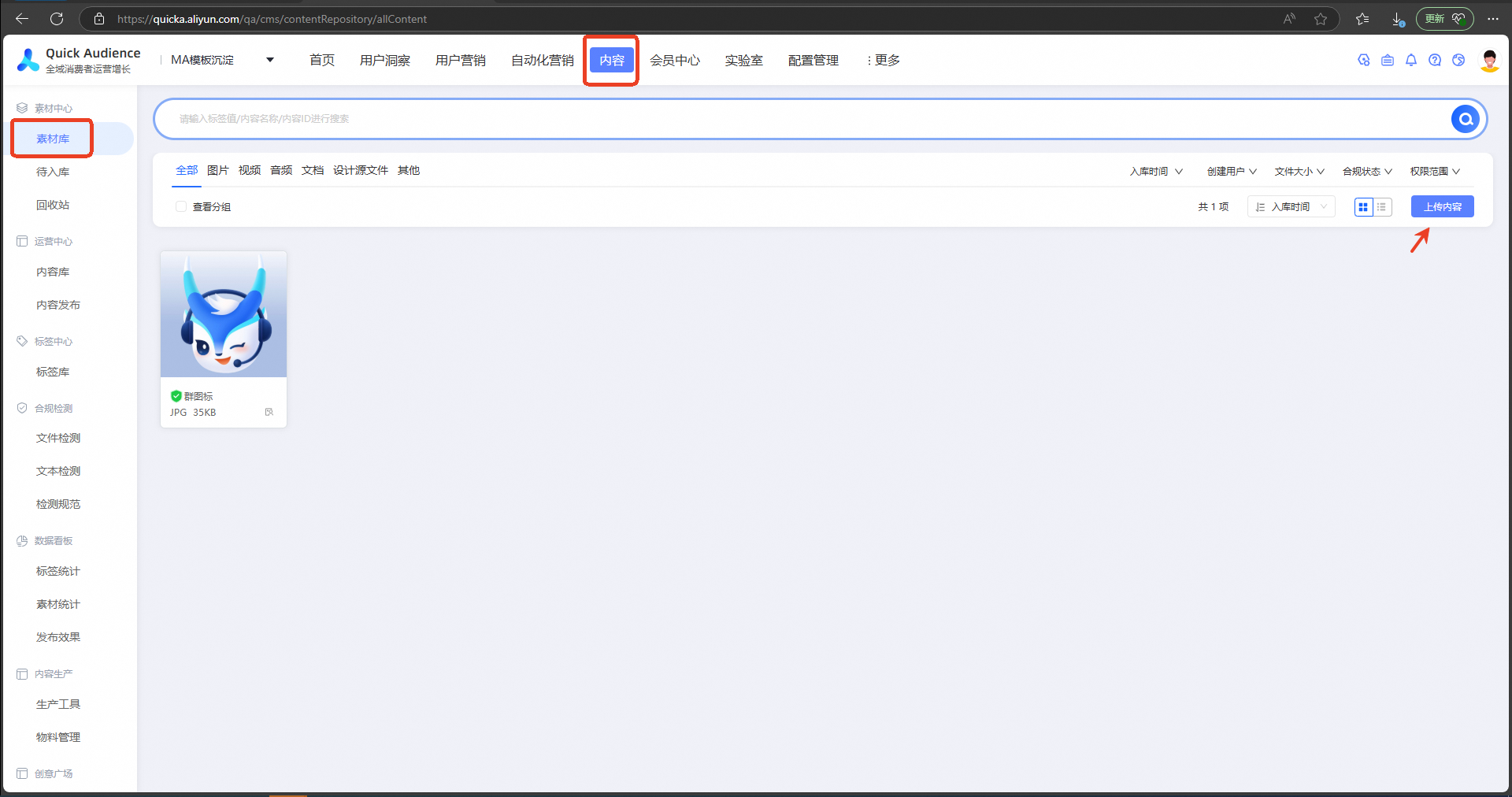
You must upload the required content to the material library in advance. For more information, see Material Hub.
2.2 Create Custom Channel
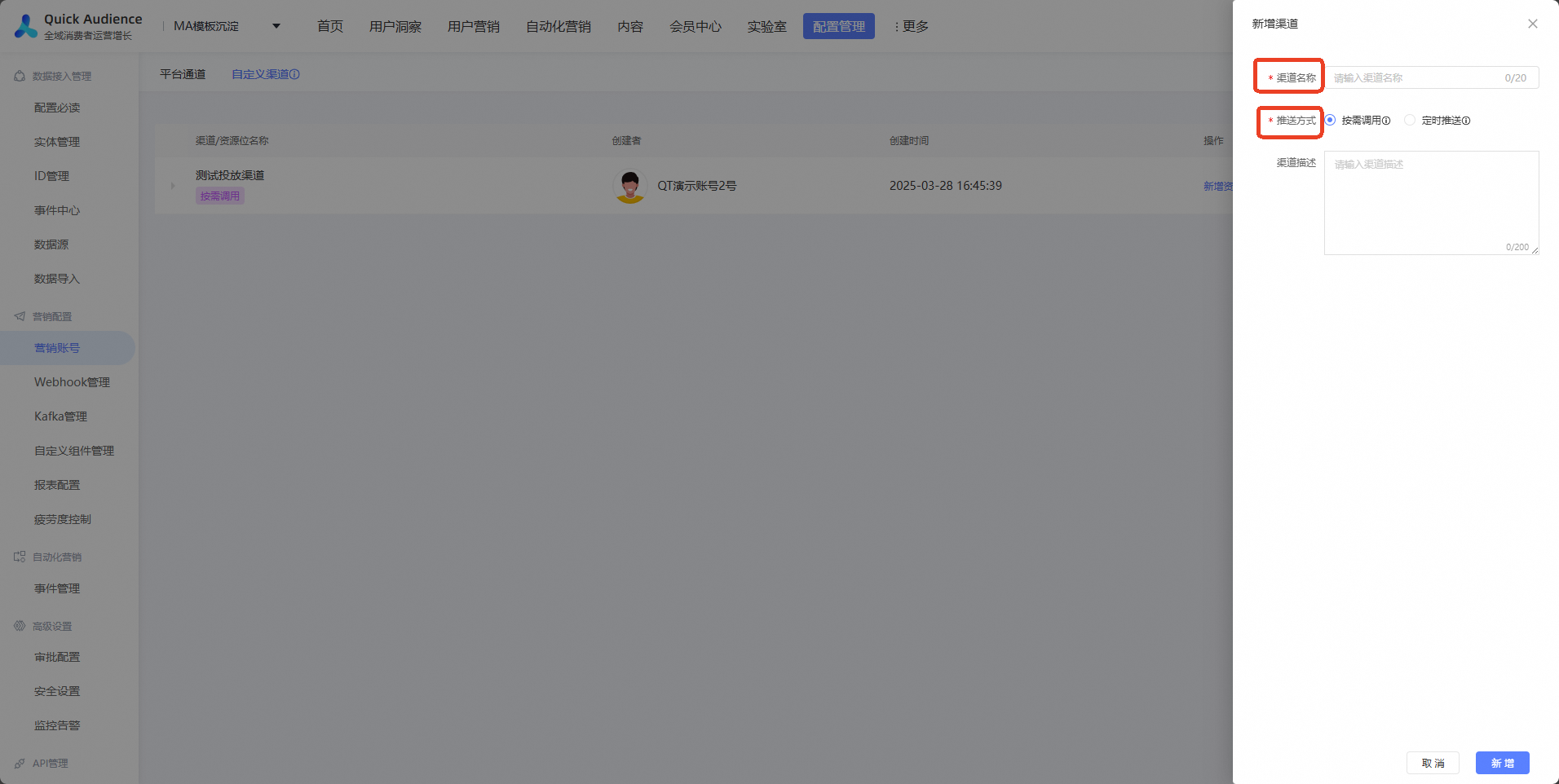
In QuickAudience, the publishing of a custom content requires the creation of corresponding channels and resource bits. Channels are used to distinguish different push /call methods (on-demand call and regular push). Resource bits can be determined according to the business requirements of the enterprise, such as King Kong bit, banner bit, recommend bit, etc. The created resource bits can be selected when the content is published.
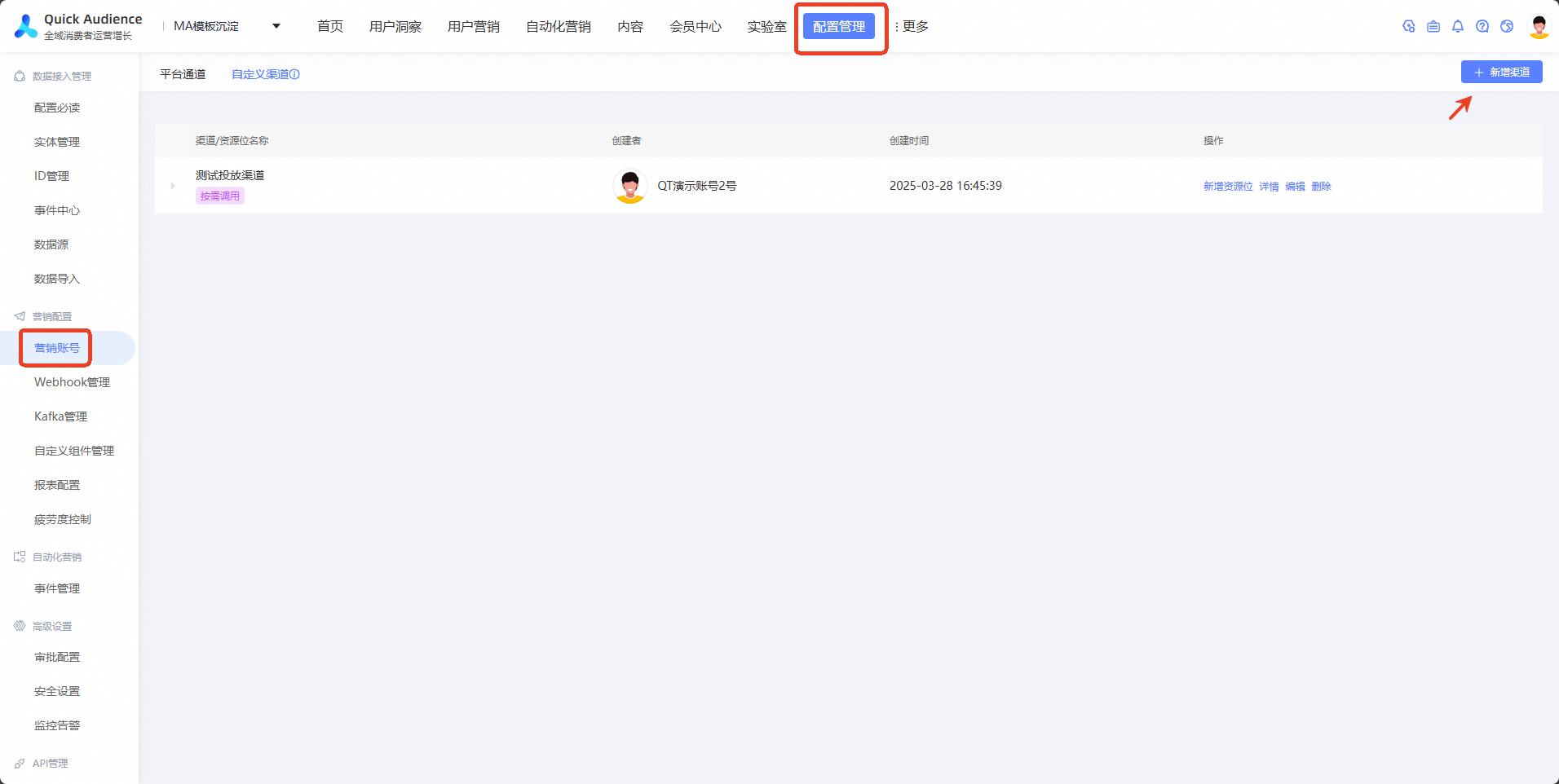
Configuration Management-> Marketing Account Click the Add Channel button
Enter the channel name and push method based on the popup box.
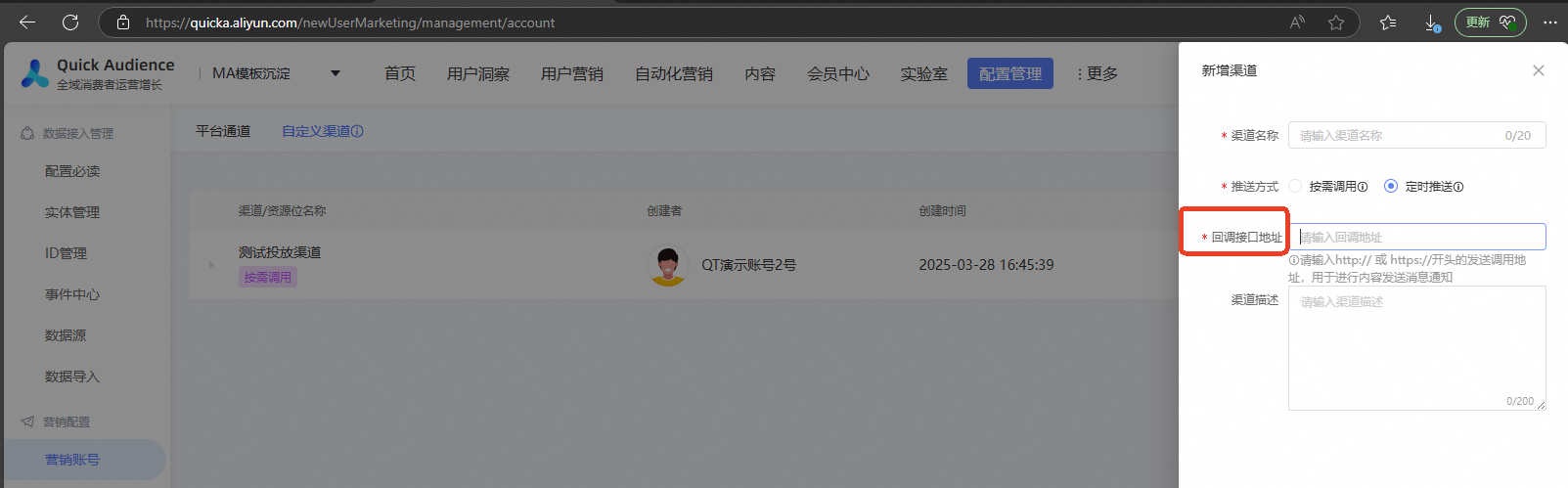
You can call this operation at any time based on your business requirements. For more information about how to call this operation, see Open API operations documentation.
Scheduled push: Polling is executed every 30 minutes. After the push result is generated, a notification is sent to the specified callback address. The polling interval can be configured and adjusted.
ImportantIf you select Scheduled Push, you must enter the callback API address.
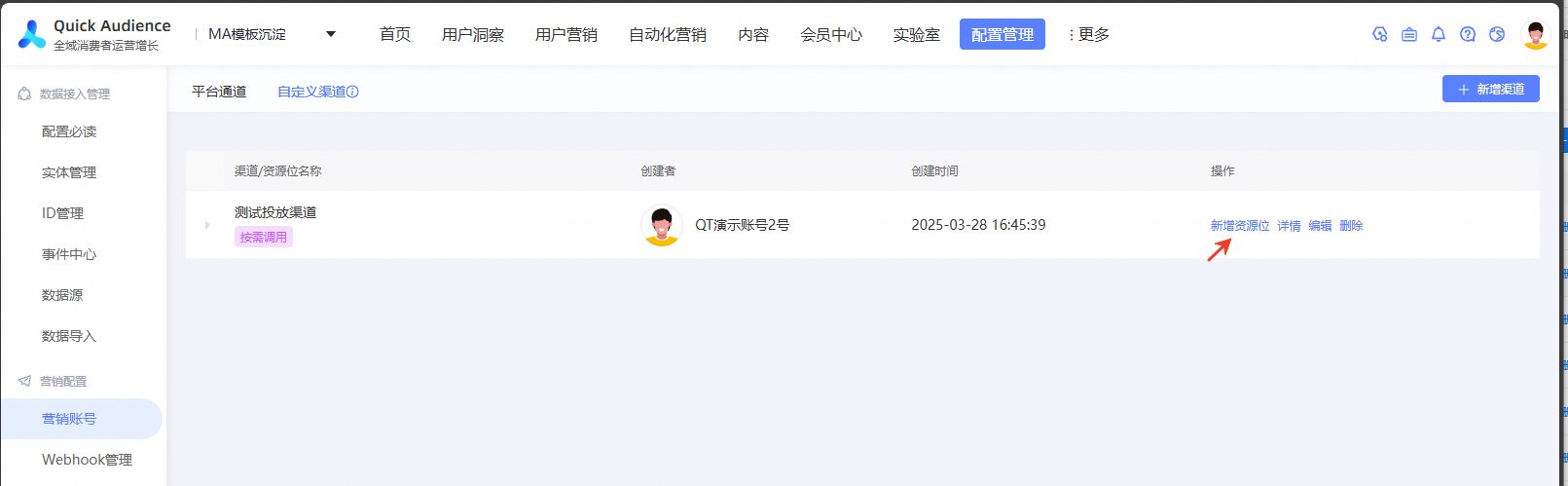
Add a resource bit. After the custom channel is created, click Add Resource Bit.
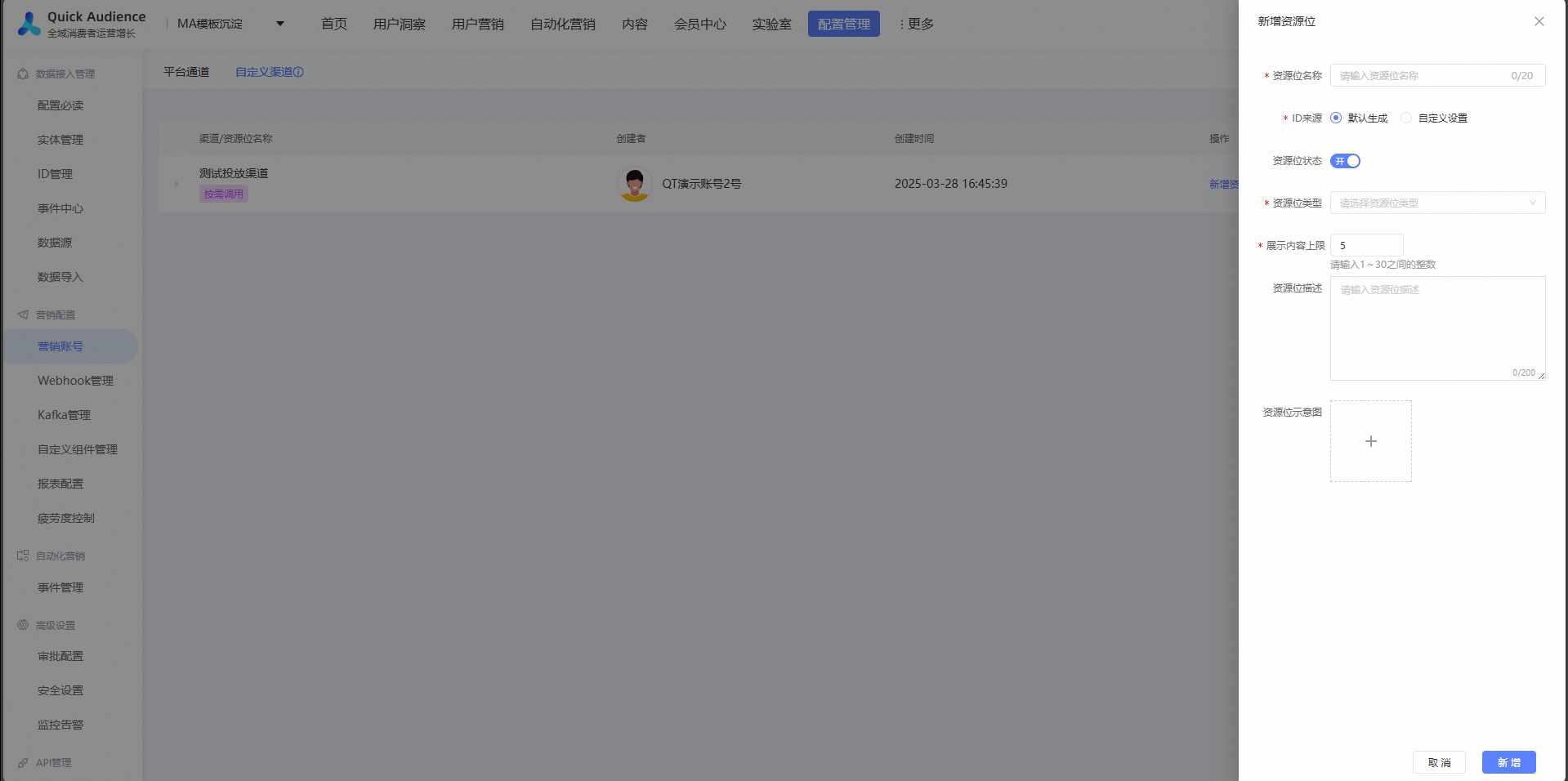
ID Source: If you select Generated by Default, the QA system randomly generates the ID. If you select Custom, enter the ID based on the actual situation.
ImportantThe resource bit ID is one of the required parameters for the API operation.
Resource bit status switch: After the resource bit is disabled, the resource bit cannot be selected during content publishing. Content delivery tasks that use the resource bit before the disabled are not affected (including those that are periodically executed).
Resource Type: The resource bit type can be selected from image, copy, video, article, and other types,
The maximum number of displayed content ranges from 1 to 30.
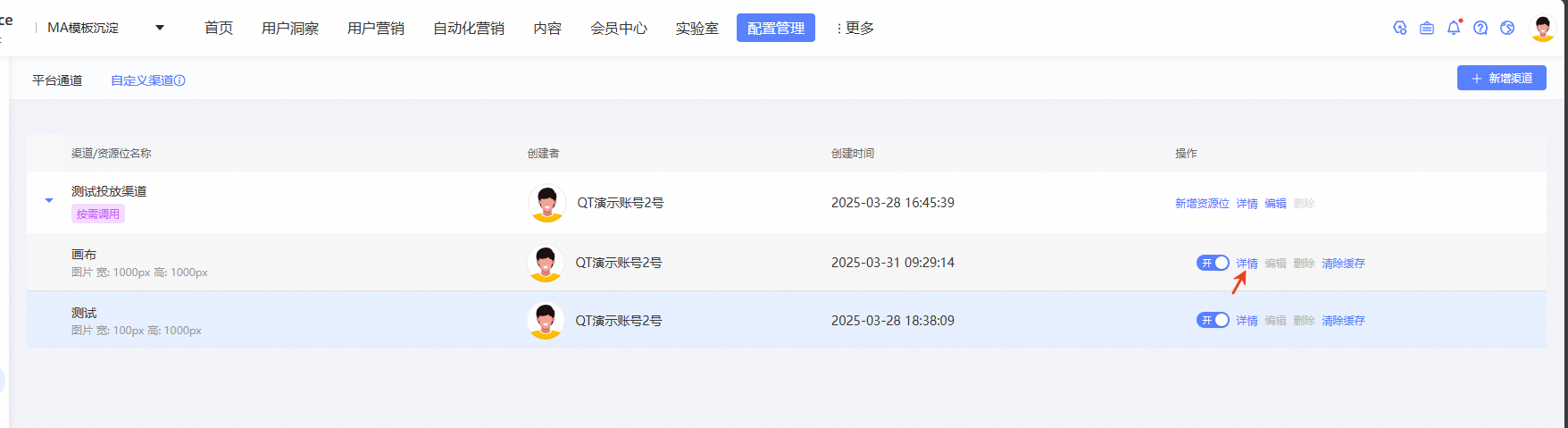
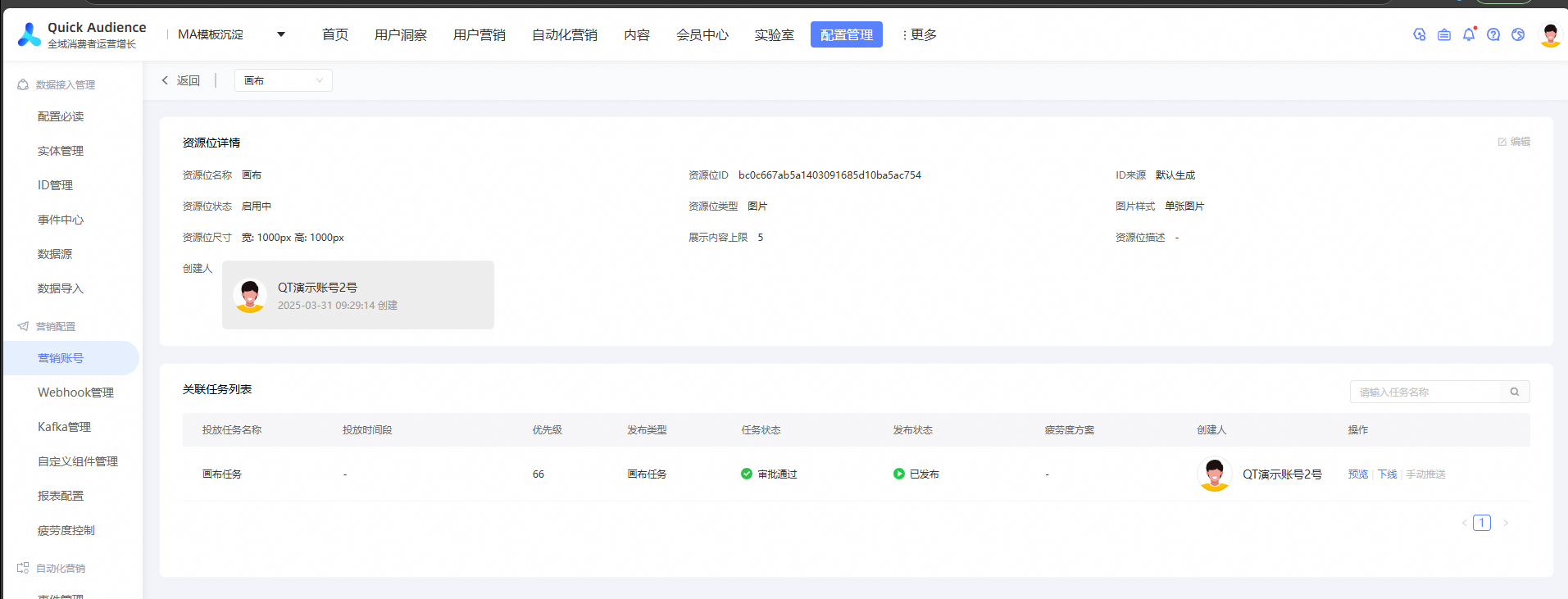
Resource Bit Details
The details of a resource bit are displayed and the list of associated tasks. In the task list, you can view the name, delivery time period, priority, release type, task status, release status, fatigue scheme, and creator of the delivery task. You can also preview, unpublish, and manually push any task.
Preview: View task details
Unpublish: Once the content is unpublished, the corresponding booth in the downstream will no longer display this content. This operation is irreversible. Please handle it with caution.
Manual push: You can manually push only the scheduled push mode. If the push mode is real-time call, this feature is unavailable.
2.3 Custom content creation
After the channel and resource bits are created, you can create a sending task for a specific resource bit.
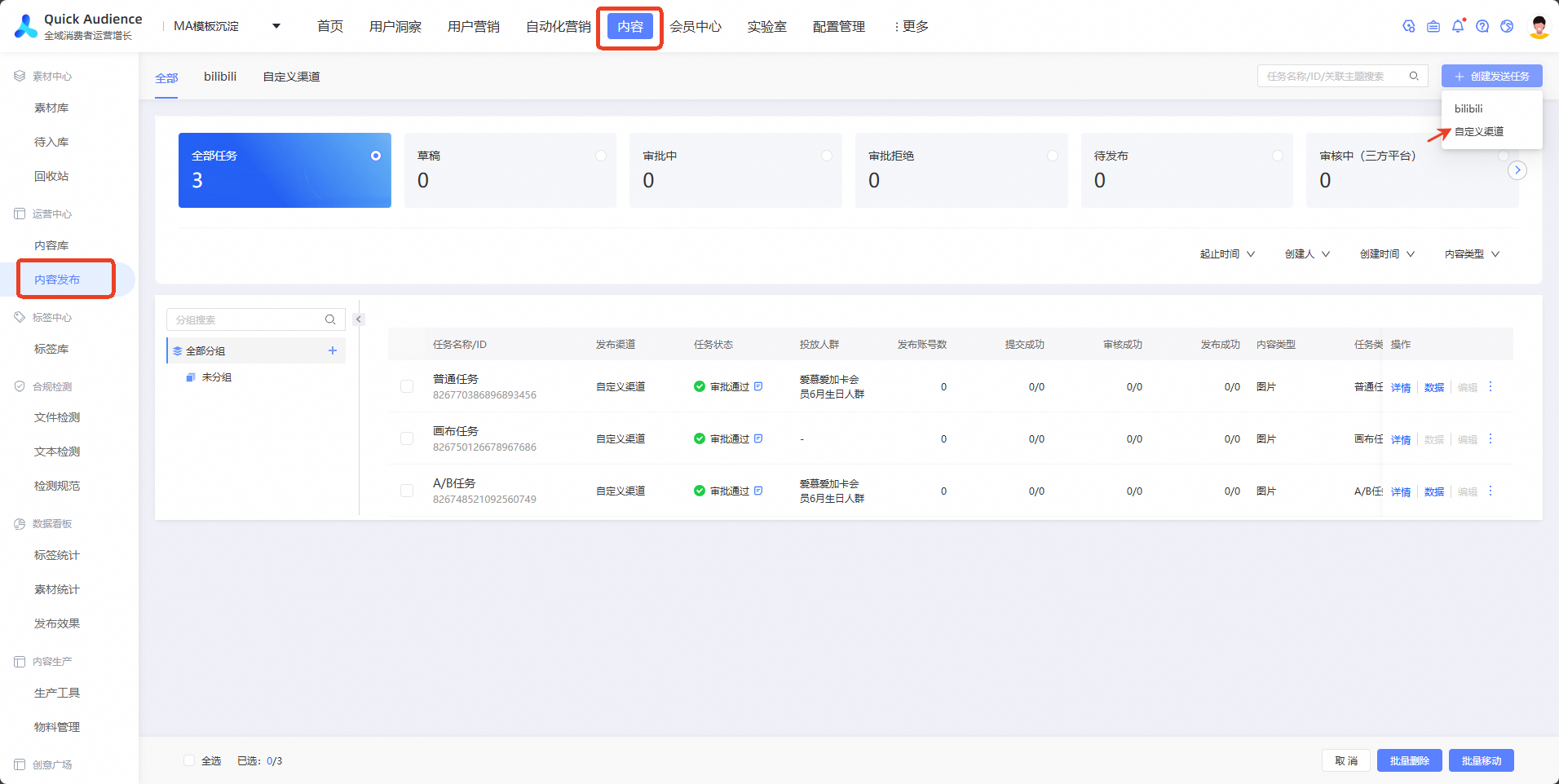
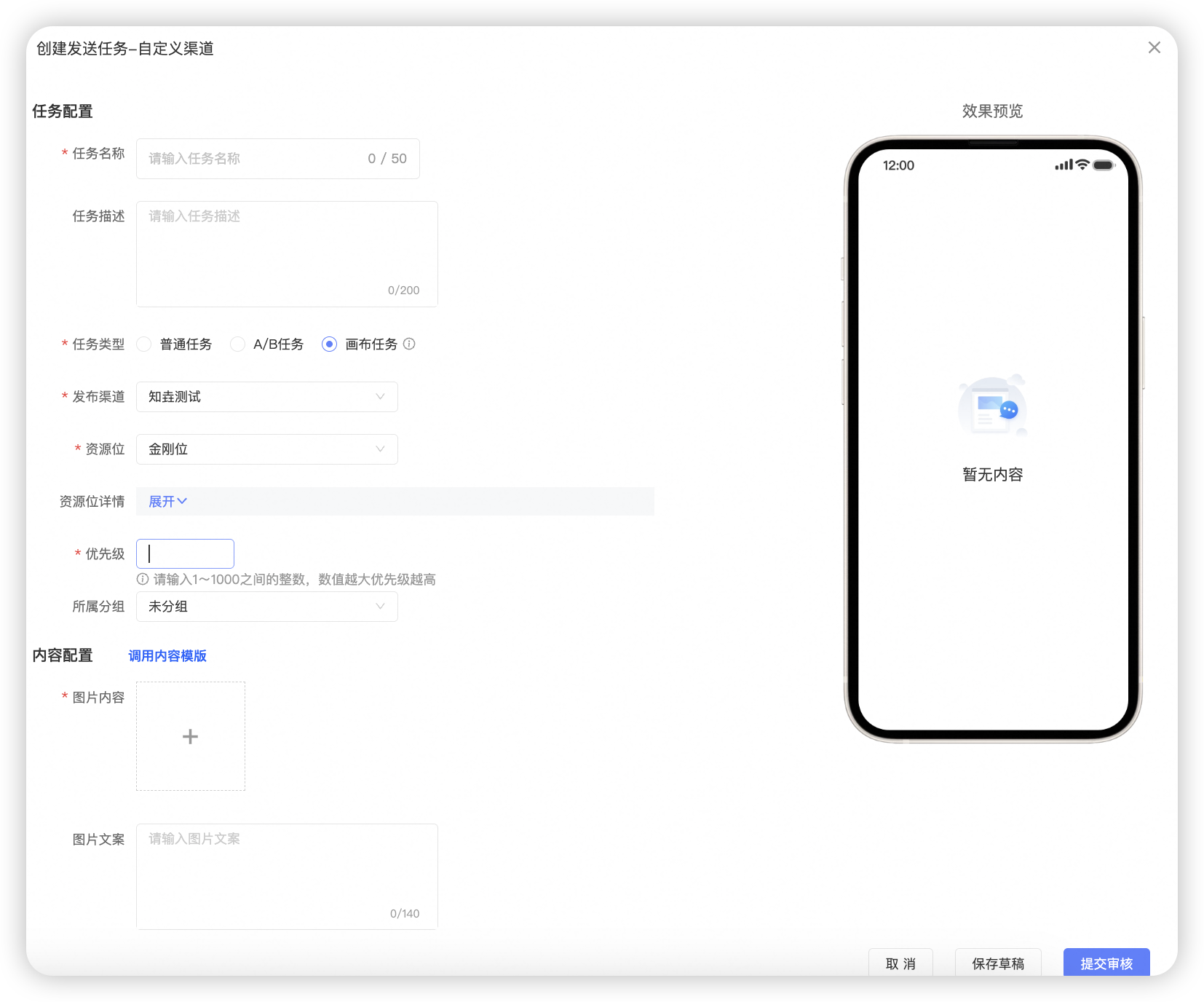
Task Type: Select Normal Task, A/B Task, and Canvas Task.
2.3.1 Create a common task
Task configuration
Release Channel: Select the channel to which the resource bit you want to operate belongs.
Resource Bit: Select the resource bit that you want to operate.
Resource Bit Details: displays the resource bit ID, type, style, size, and the published content of the resource bit. You can also view the details. You can determine the priority of the published content based on the published content.
Priority: Enter an integer between 1 and 1000. The higher the value, the higher the priority.
Delivery Time: the validity period of the delivery. You can specify a time period, one year, a long-term (permanent) period, or a dynamic period.
Content Configurations
Image /Video /Article Content: Upload the content you want to deliver.
Image /Video /Article Copy: Enter the content description of the image, video, and article
Rule configuration
audience: The content of this delivery needs to be delivered to the audience package and the audience ID agreed with the business system.
Fatigue control: After you enable this feature, you can set the corresponding fatigue level. For example, the fatigue level disappears after being displayed five times within seven days.
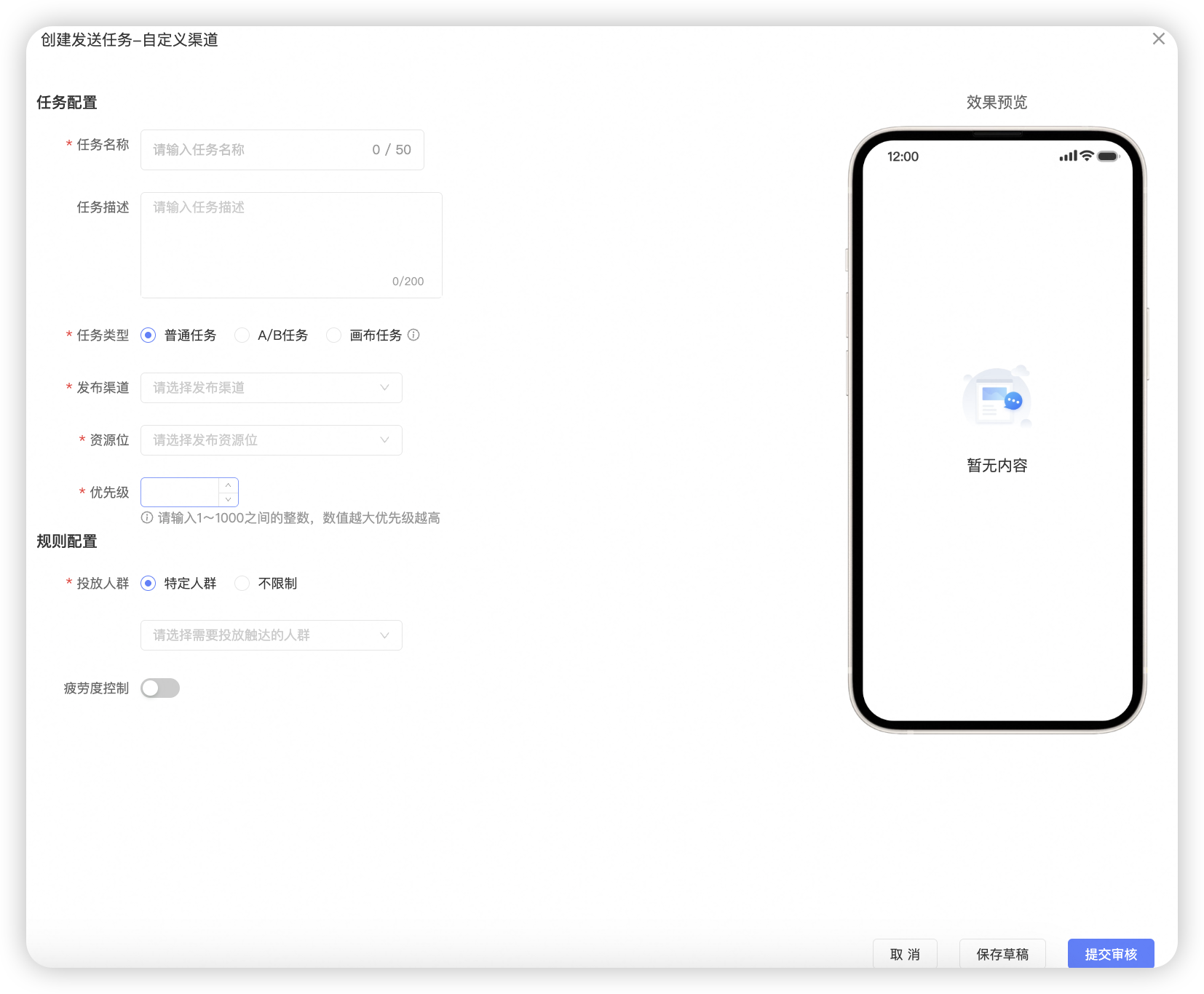
2.3.2 A/B Task Creation
Task configuration
Release Channel: Select the channel to which the resource bit you want to operate belongs.
Resource Bit: Select the resource bit that you want to operate.
Resource Bit Details: displays the resource bit ID, type, style, size, and the published content of the resource bit. You can also view the details. You can determine the priority of the published content based on the published content.
Priority: Enter an integer between 1 and 1000. The higher the value, the higher the priority.
Delivery Time: the validity period of the delivery. You can specify a time period, one year, a long-term (permanent) period, or a dynamic period.
Content 1 Configuration
Image /Video /Article Content: Upload the content you want to deliver.
Image /Video /Article Copy: Enter the content description of the image, video, and article
Proportion of triage: the proportion of people flowing into Content 1 in the total population
Rule configuration
audience: The content of this delivery needs to be delivered to the audience package and the audience ID agreed with the business system.
Fatigue control: After you enable this feature, you can set the corresponding fatigue level. For example, the fatigue level disappears after being displayed five times within seven days.
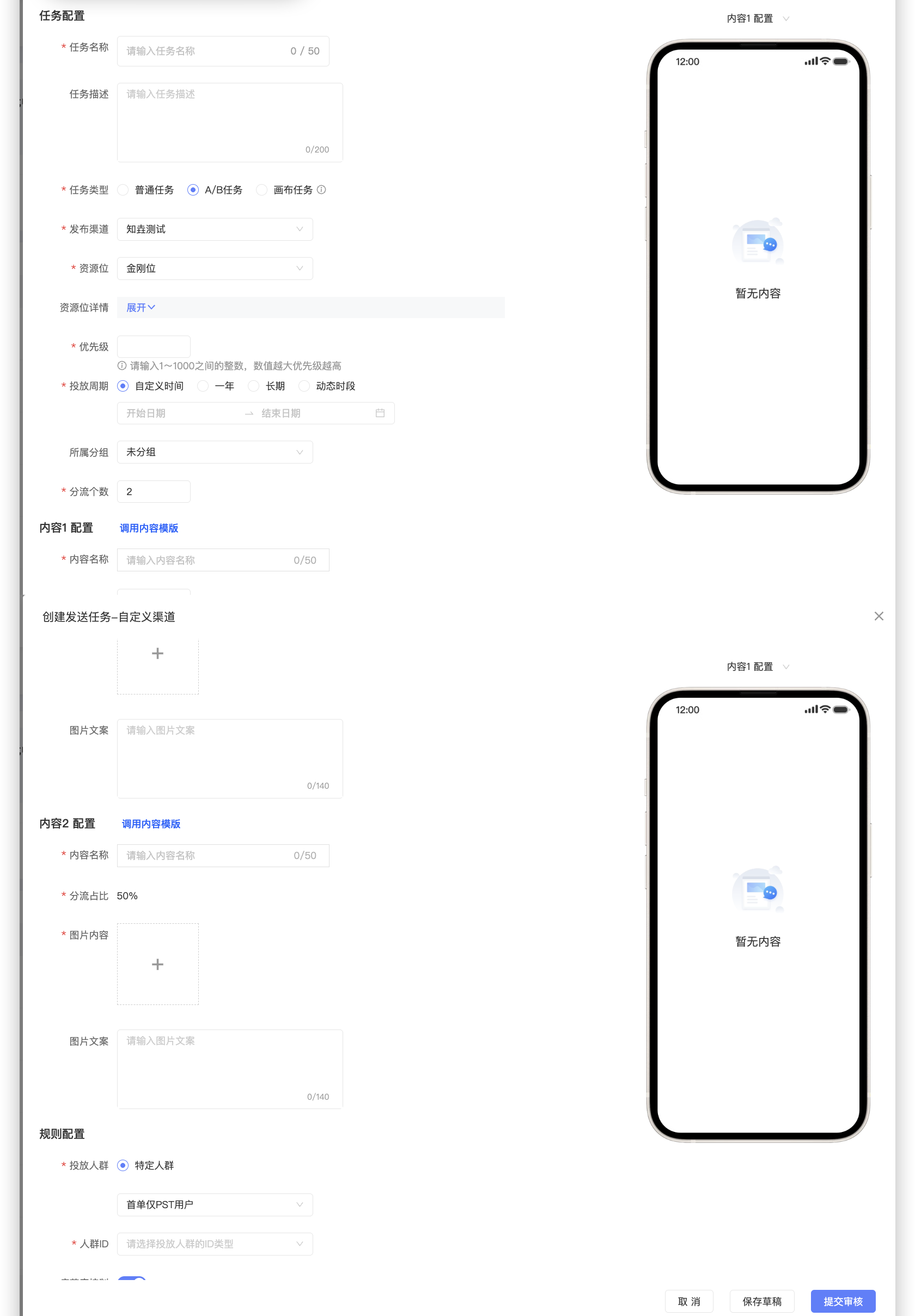
2.3.3 Create a canvas task
Compared with other tasks, canvas tasks do not need to set delivery time, delivery population, and fatigue control. These settings need to be set in specific MA tasks.
Task configuration
Release Channel: Select the channel to which the resource bit you want to operate belongs.
Resource Bit: Select the resource bit that you want to operate.
Resource Bit Details: displays the resource bit ID, type, style, size, and the published content of the resource bit. You can also view the details. You can determine the priority of the published content based on the published content.
Priority: Enter an integer between 1 and 1000. The higher the value, the higher the priority.
Content Configurations
Image /Video /Article Content: Upload the content you want to deliver.
Image /Video /Article Copy: Enter the content description of the image, video, and article
Rule configuration
Push ID: Appoint the audience ID with the business system
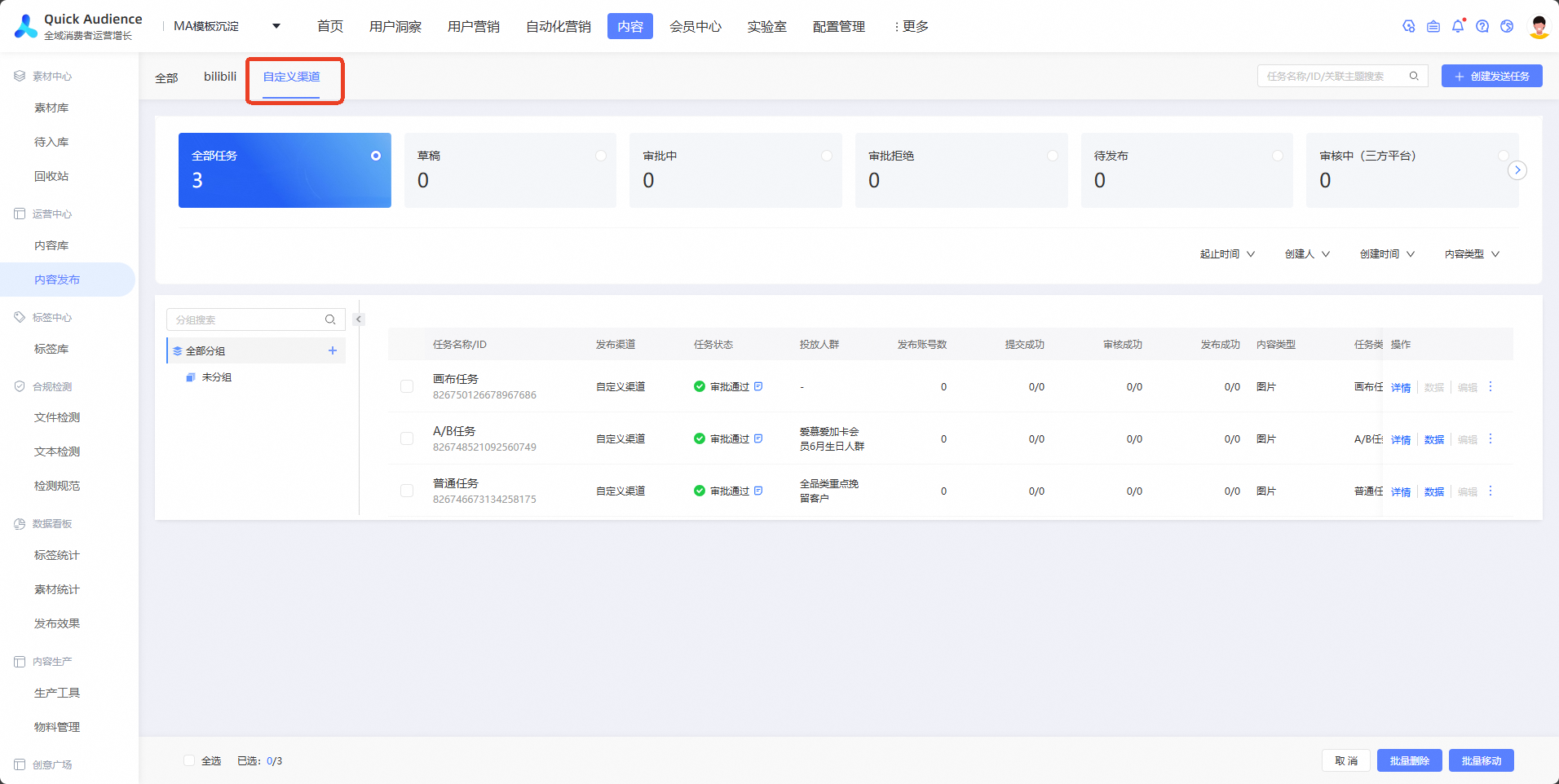
2.4 Task Details
Content-> Custom Channel Select a specific task to view the task details
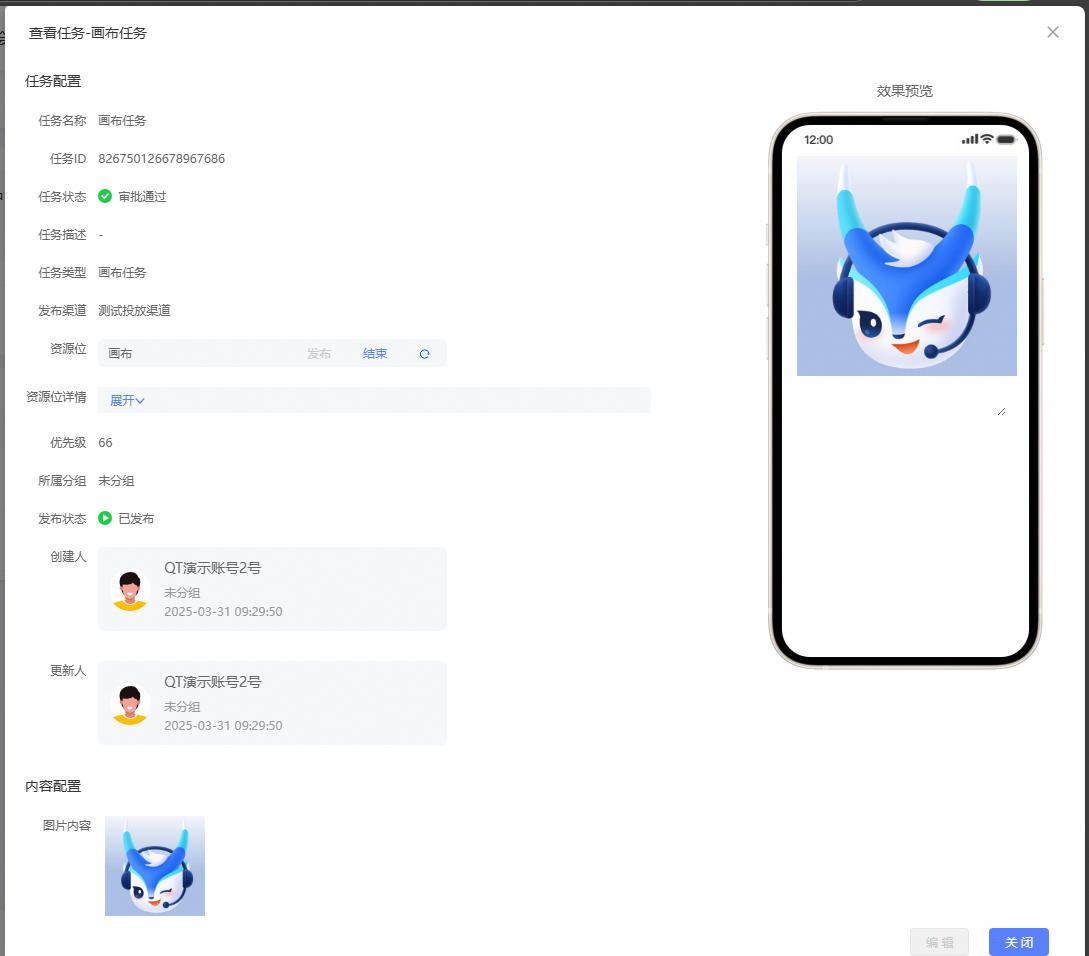
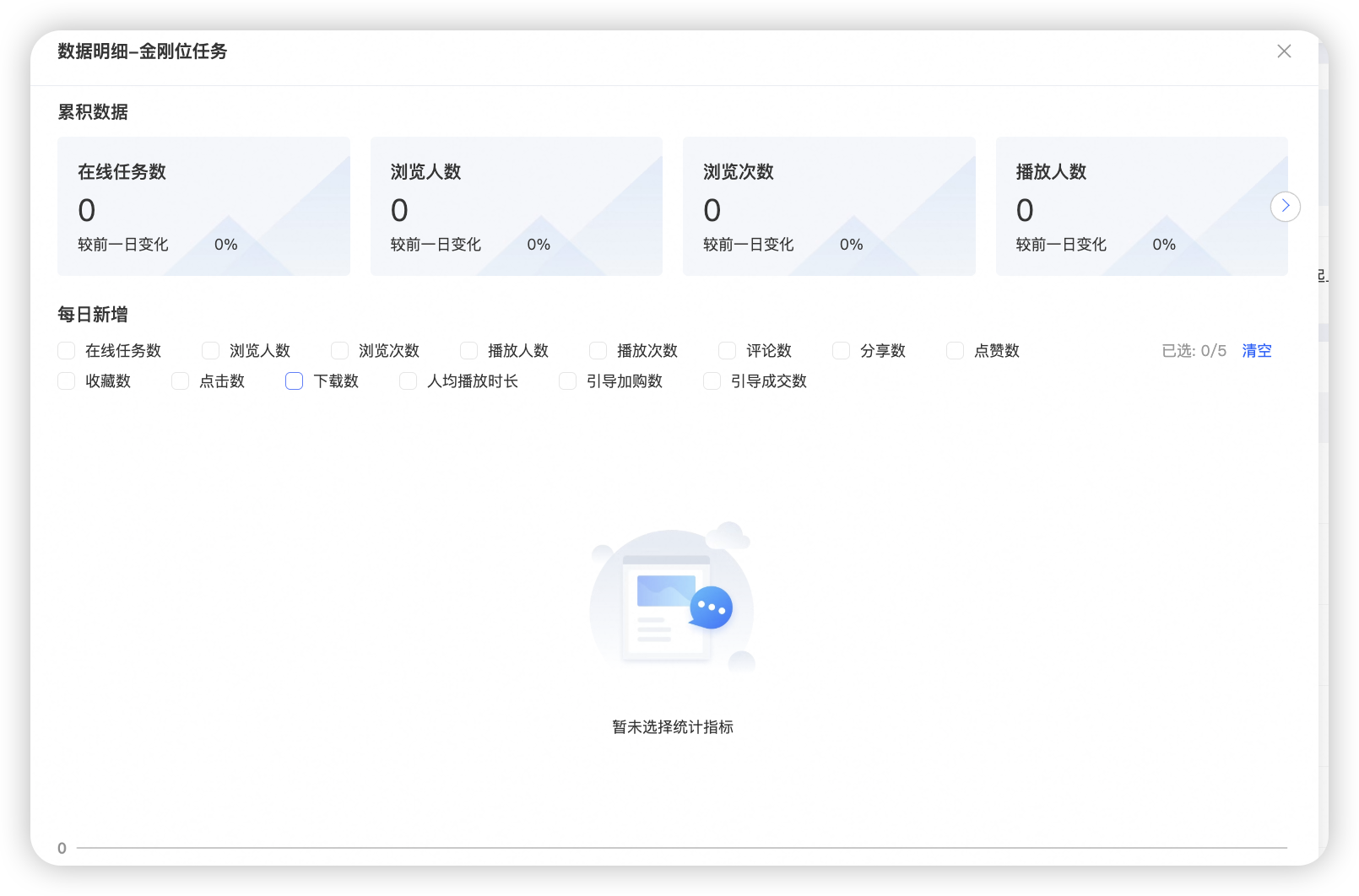
Task data: After a task is delivered, you can select a specific task to view the data details after delivery.
2.5 Canvas task configuration
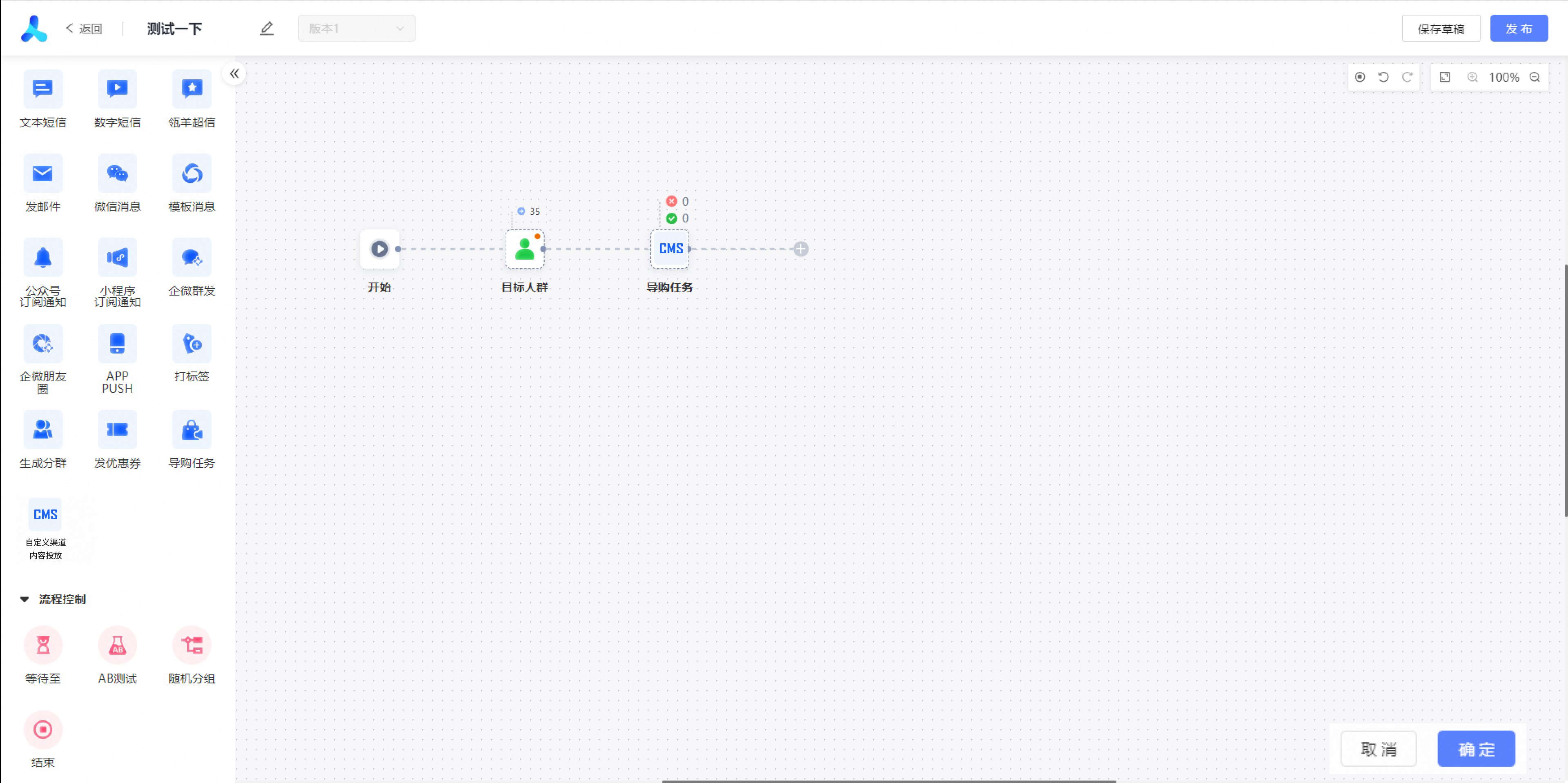
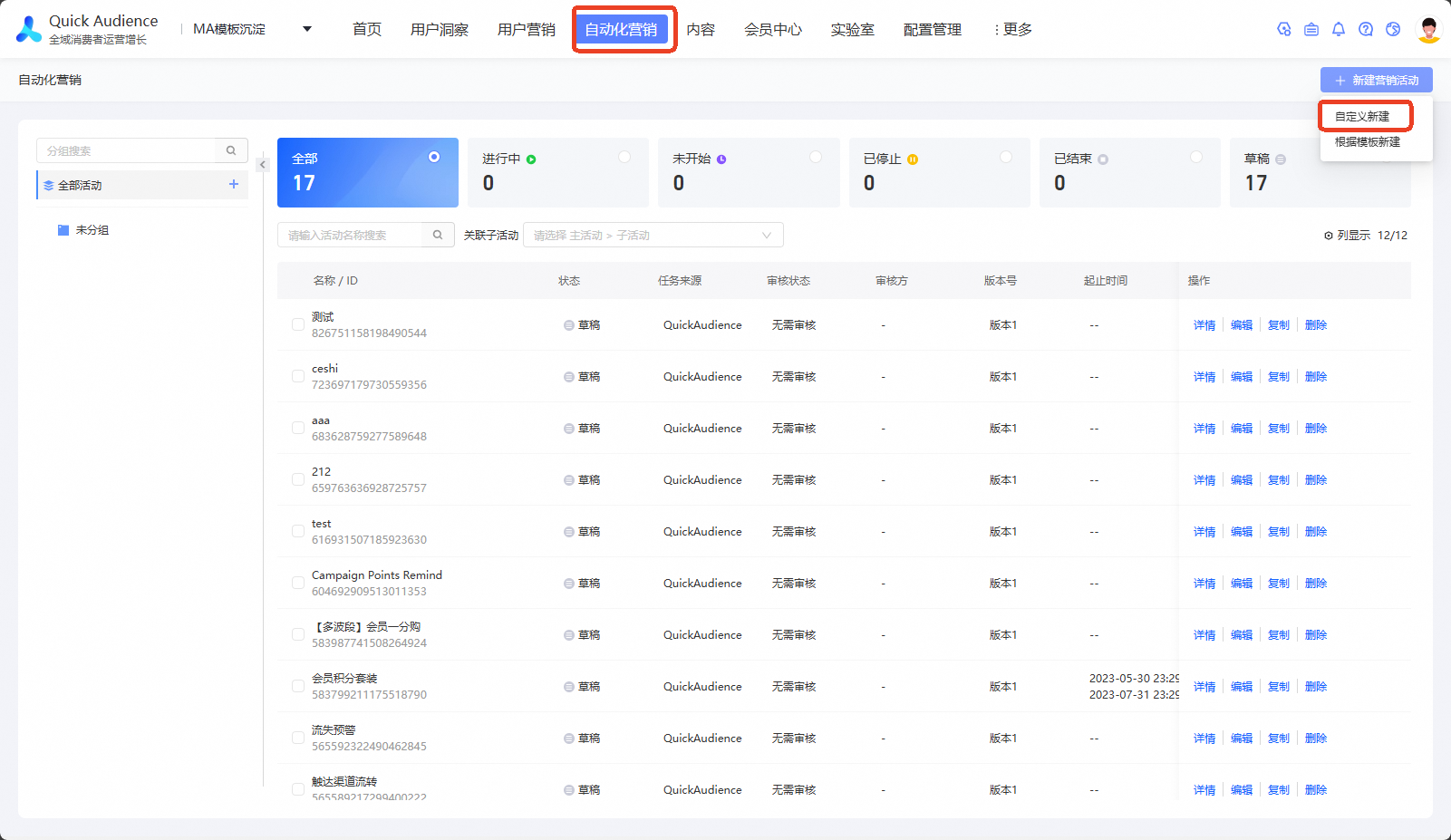
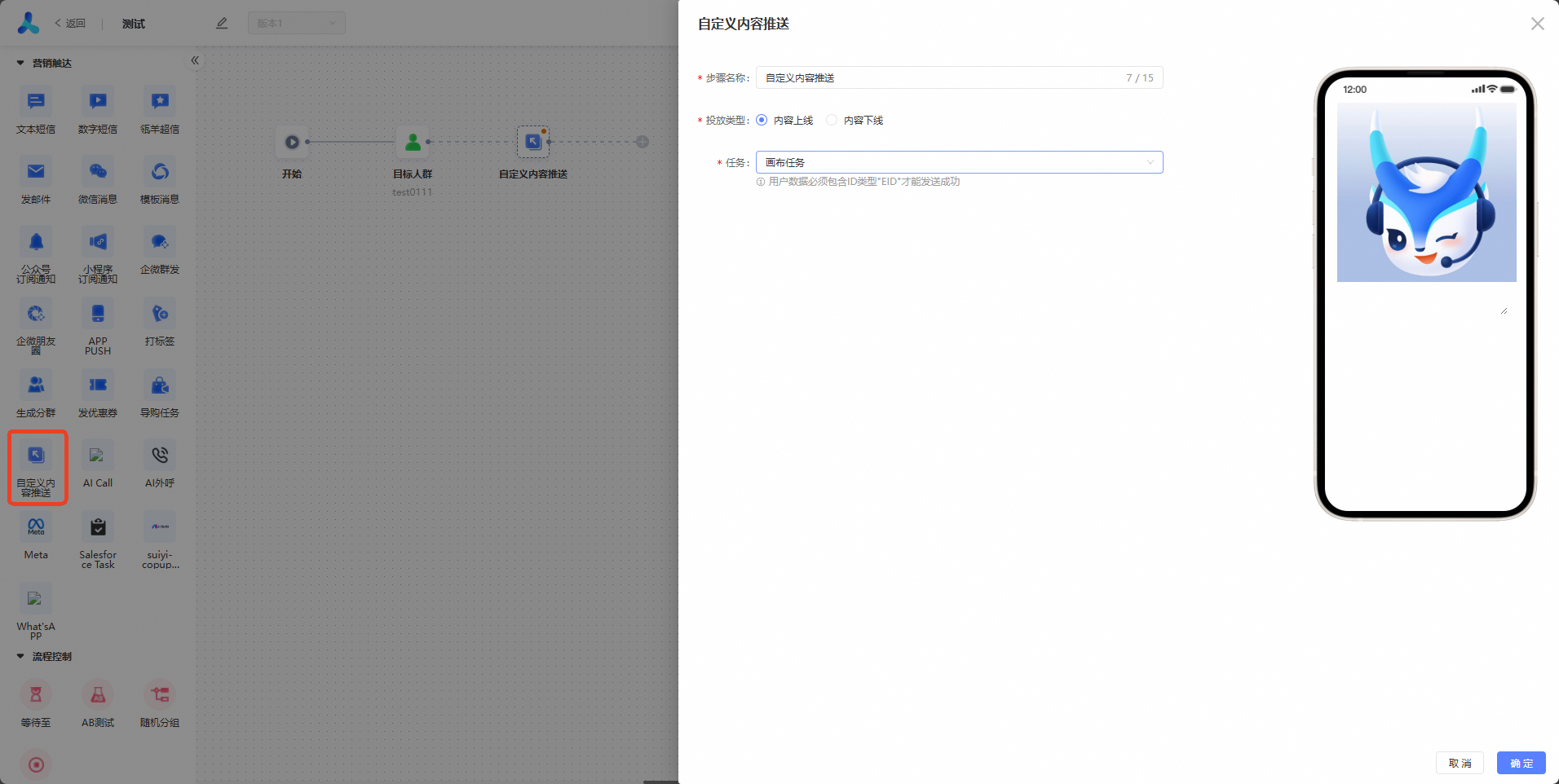
You can create a custom content push component in the Automated Marketing> Create a marketing activity. You can add a custom content push component after any trigger method. The component supports setting the delivery type (shelved or unshelved content) and selecting a specific task (the task type must be canvas task). The content is recommend based on the people filtered by the trigger type selected by the canvas.
Canvas tasks can be customized in automated marketing-> new marketing activities
Select a custom content delivery component in the canvas Push select the created canvas task
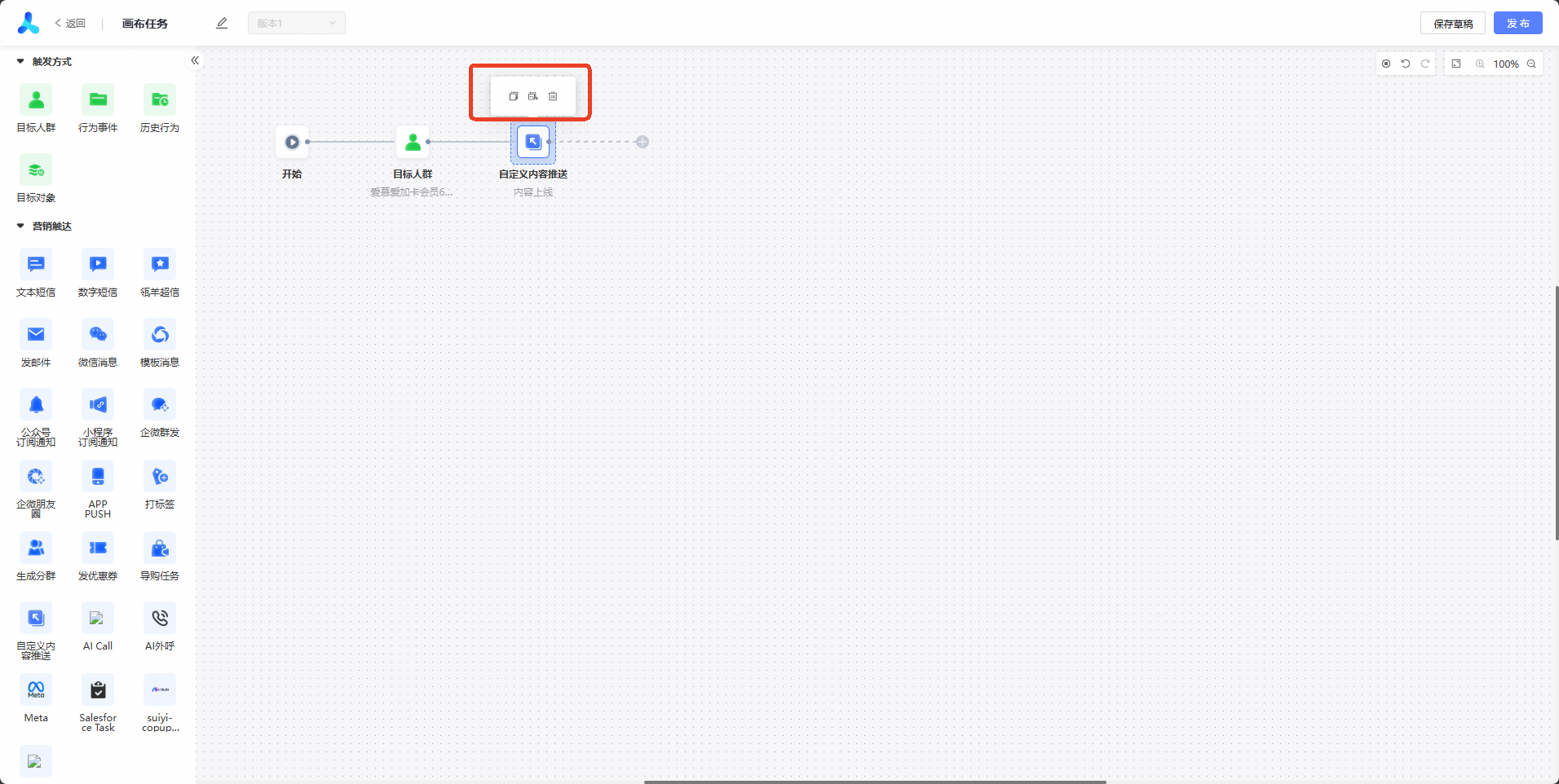
Custom Channel Content Delivery After New
Indicates that functions such as copying, copying links, and deleting links will be displayed after the mouse hover.
After the creation is complete, you can view the execution results in the automated marketing interface.
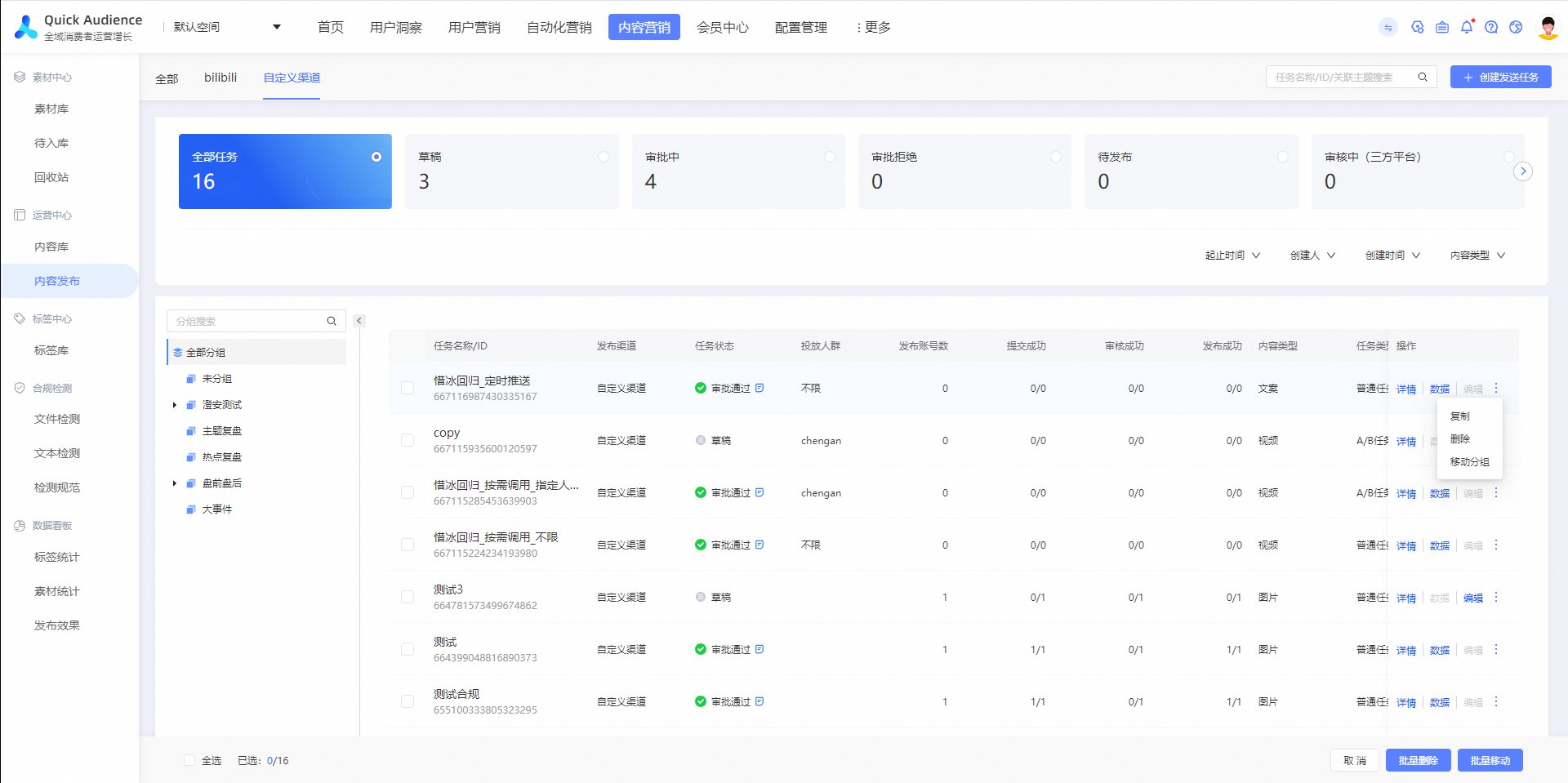
Click an execution record to view the push result of the canvas task.