Exclusive resource groups of DataWorks can improve the efficiency and security for your scheduling jobs, facilitating resource management and team collaboration. This topic describes how to install FeatureStore SDK for Python by using an exclusive resource group of DataWorks.
Prerequisites
Method | Prerequisite |
Method 1: Use a new-version exclusive resource group and a built-in image (recommended) |
|
Method 2: Use a new-version exclusive resource group and a custom image (recommended) |
|
Method 3: Use an old-version exclusive resource group for scheduling |
|
Procedure
Method 1: Use a new-version exclusive resource group and a built-in image (recommended)
Log on to the DataWorks console, create an exclusive resource group, and associate the resource group with the DataWorks workspace.
The following table describes the key parameters. For information about other parameters, see Create a serverless resource group.
Parameter
Description
VPC
Select a VPC.
vSwitch
Select a vSwitch.
In the left-side navigation pane, choose Data Development and O&M > Data Development. Then, select a Dataworks workspace and click Go to Data Development.
On the page that appears, move the pointer over Create and choose Create Node > MaxCompute > PyODPS 3. In the Create Node dialog box, configure the Path and Name parameters and click Confirm.
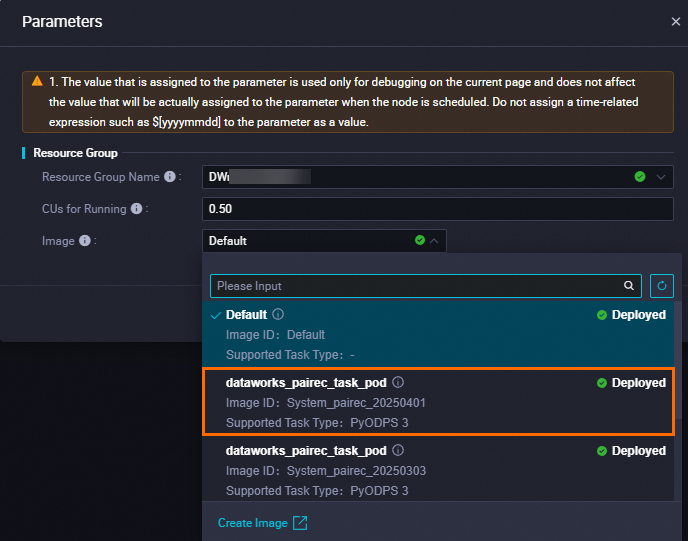
Write and run the code on the node. On the page that appears, configure the parameters.
Parameter
Description
Resource Group Name
Select an exclusive resource group.
Image
Select the latest PAI-Rec image that includes FeatureStore SDK for Python.
Method 2: Use a new-version exclusive resource group and a custom image (recommended)
Log on to the DataWorks console, create an exclusive resource group, and associate the resource group with the DataWorks workspace.
The following table describes the key parameters. For information about other parameters, see Create a serverless resource group.
Parameter
Description
VPC
Select a VPC.
vSwitch
Select a vSwitch.
Log on to the Internet NAT Gateway console and create a NAT gateway.
The following table describes the key parameters. For information about other parameters, see Use the SNAT feature of an Internet NAT gateway to access the Internet.
Parameter
Description
VPC
Select a VPC.
Associate vSwitch
Select a vSwitch.
EIP
Select an EIP instance.
Log on to the DataWorks console and configure a custom image.
Create a custom image.
The following table describes the key parameters. For information about other parameters, see Create a custom image.
Parameter
Description
Image Namespace
Select DataWorks Default.
Image Name/ID
Select dataworks_pyodps_task_pod.
Supported Task Type
Select PyODPS 3.
Installation Package
Select Script and enter the following code:
/home/tops/bin/pip3 install https://feature-store-py.oss-cn-beijing.aliyuncs.com/package/feature_store_py-1.8.0-py3-none-any.whlAssociate the custom image with a workspace.
Select the created PAI (DataWorks) workspace.
Use the exclusive resource group and the created custom image.
For more information, see Use the custom image.
Method 3: Use an old-version exclusive resource group for scheduling
Log on to the DataWorks console.
In the left-side navigation pane, click Resource Groups.
On the Exclusive Resource Groups tab, find the resource group with Data Scheduling as Purpose. Click
 and select O&M Assistant.
On the page that appears, click Create Command and configure the following parameters.
Parameter
Recommended value
Command Name
Specify a custom name. In this example, "install" is used.
Command Type
Manual Installation(You cannot run pip commands to install the third-party packages.)
Command Content
/home/tops/bin/pip3 install -i https://pypi.tuna.tsinghua.edu.cn/simple https://feature-store-py.oss-cn-beijing.aliyuncs.com/package/feature_store_py-1.3.1-py3-none-any.whlTimeout
Specify a custom time.
Click Create to create the command.
In the Actions column of the command, click Run Command. Click Run in the panel that appears.
When the command is running, you can click Refresh to view the latest Execution Status. When the status is Successful, the installation is complete.