This topic describes how to use a uni-app scaffold.
Use GitLab to download the scaffolding
Download the uni-app scaffold provided by Enterprise Mobile Application Studio (EMAS) in GitLab.
Download HBuilderX from the HBuilderX download page and install HBuilderX.
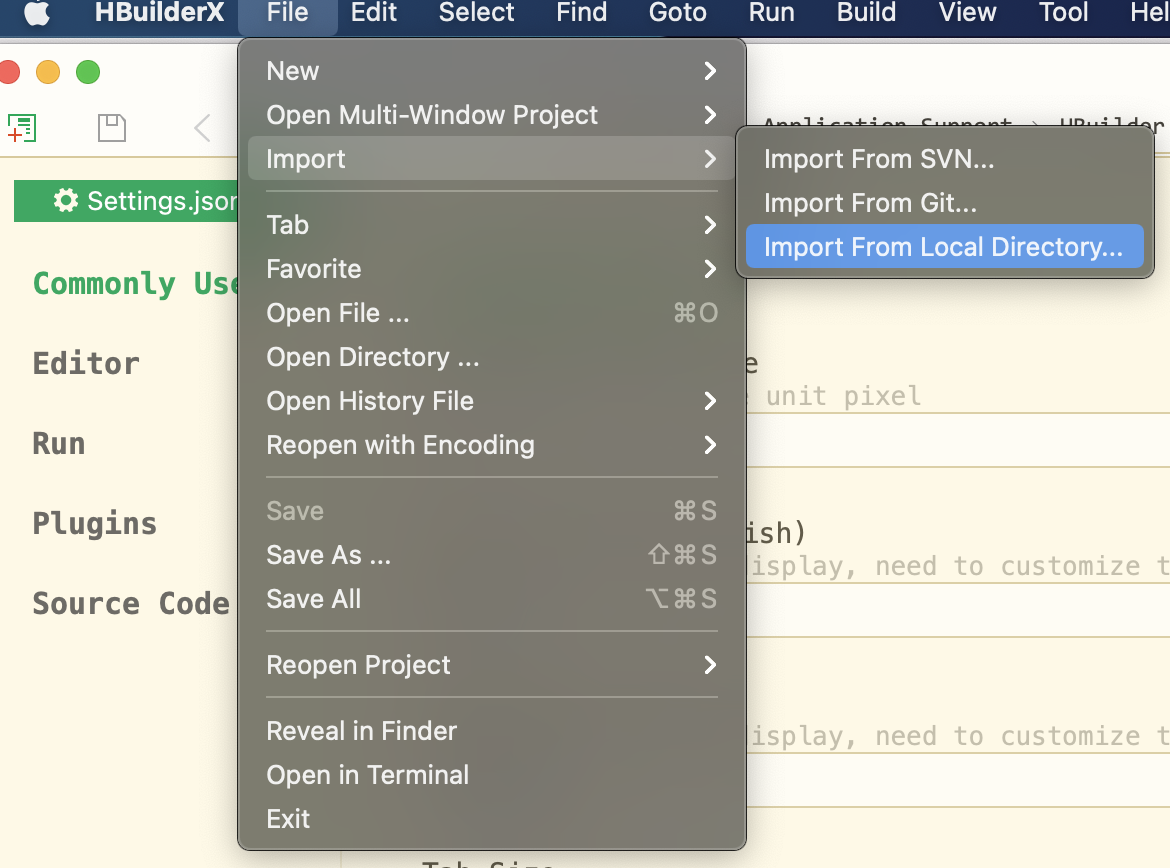
Start HBuilderX, and choose File > Import > Import from Local Directory... from the menu bar. Select the uni-app scaffold to open it in HBuilderX.
ImportantYou must use the uni-app scaffold provided by EMAS. If you use the official uni-app scaffold, a failure occurs when you package and build the uni-app miniapp after you specify the app ID.
Connect the uni-app project to EMAS.
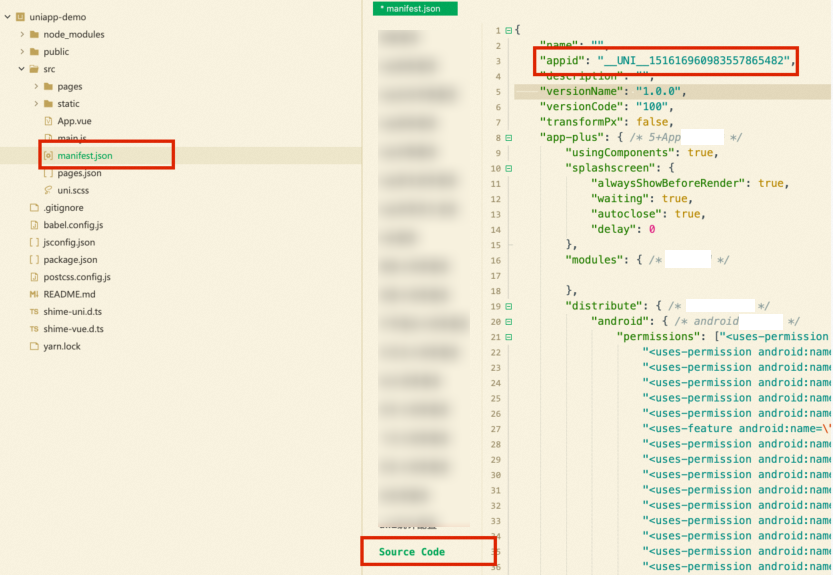
In HBuilderX, click the
manifest.jsonfile. In the right-side window, select Source View. In the code section, setappidto the ID of the app that you created. For more information, see Create an app.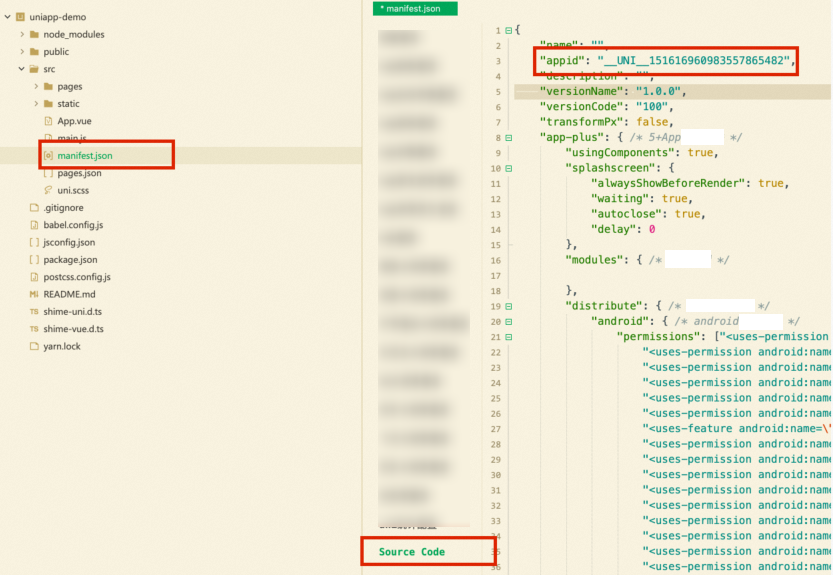
Use VUE CLI to work with the scaffolding
Install the environment. Install the Vue CLI tool in global mode. We recommend that you use Vue CLI V4.x.
npm install -g @vue/cli@4NoteFor information about Vue CLI V5.x and its support for Webpack 5, see support webpack5 #3723.
Download the official uni-app scaffold and use it to create a uni-app project.
NoteWhen you download the scaffold, if a message which indicates that the Node.js version does not match, update the Node.js.
Official version
vue create -p dcloudio/uni-preset-vue my-projectAlpha
vue create -p dcloudio/uni-preset-vue#alpha my-alpha-projectVue3/Vite
To create a JavaScript project, run the following command. If the command fails to create the project, download the template from gitee.
npx degit dcloudio/uni-preset-vue#vite my-vue3-projectTo create a TypeScript project, run the following command. If the command fails to create the project, download the template from gitee.
npx degit dcloudio/uni-preset-vue#vite-ts my-vue3-project
Select a template when prompted. This does not apply to Vue3/Vite uni-app projects, which support only the default template. We recommend that you select
hello uni-appwhen you create your first uni-app project.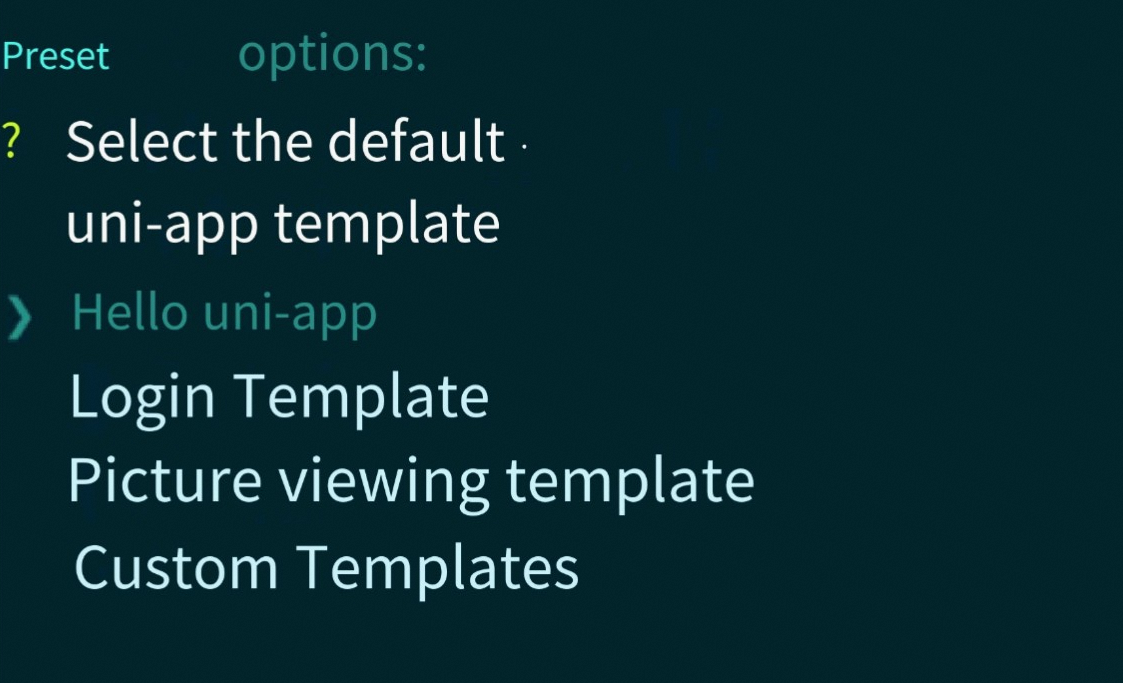
Configure a custom template.
If you select a custom template, you are required to specify the location of the template. The location is the URL of the repository that hosts the template. For information about how to download the repository, see download-git-repo.
You may fail to download a template due to network errors. For information about how to troubleshoot template download failures, see "Failure to download the template when un-app is integrated" of the FAQ.
Connect the uni-app project to EMAS.
If you use other editors such as Visual Studio Code or Sublime Text to open the project, you can directly open the
manifest.jsonfile and setappidto the ID of the app that you created. For more information, see Create an app.If you use HBuilderX to open the project, you must click the
manifest.jsonfile, select Source View in the right-side window, and then setappidto the ID of the app that you created. For more information, see Create an app.