You can grant permissions on tables in a project, business unit, or data source to users or tenant accounts in another project, business unit, or data source, or request permissions on fields in a table to enable data sharing. This topic describes how to batch grant or batch revoke table permissions.
Prerequisites
You need to configure collection tasks for MySQL and Oracle databases in the Metadata Center to use data source table permissions.
Limits
Only Oracle and MySQL data source tables support batch grant or batch revoke operations.
Permission description
Super administrators can batch grant or batch revoke all table permissions.
Project administrators can batch grant or batch revoke permissions on physical tables, meta tables, mirror tables, physical views , and materialized views in the projects they manage.
Business unit architects can batch grant or batch revoke permissions on logical tables and logical views in the business units they manage.
Data source administrators and custom global roles with data source management permissions can batch grant or batch revoke permissions on data source tables, data source views, and data source materialized views in the data sources they manage.
Table owners can batch grant permissions on tables they own.
Batch grant table permissions
On the Dataphin homepage, choose Management Center > Permission Management from the top navigation bar.
In the left-side navigation pane, choose Permission Management > Table Permission. The Manage Permissions tab appears by default. Click Batch Grant on the Manage Permissions tab.
In the Batch Grant dialog box, configure the parameters.
Parameter
Description
Grant Account
Based on your business scenario, you can grant table permissions to User Account, Project Account, and User Group simultaneously, or grant permissions to them individually.
User Account is used for data modeling and development in the production environment, and publishing the developed data to the production environment. If you select User Account, you need to select Valid Until. You can select multiple users for authorization.
Project Account is used to manage and run tasks submitted to the production environment. If you select Project Account, you need to select Project.
User Group is used to manage the permissions of members in the user group. If you select User Group, you need to select User Group and Valid Until. You can select up to 20 user groups for authorization.
Grant Scope
Select the tables to be authorized. The options include Given Table, All Project Tables, and All Logical Tables.
Given Table: Grants the selected permissions on the selected tables.
All Project Tables: This option is available when only Project Account is selected for Grant Account. It grants the selected permissions on all physical tables, meta tables, mirror tables, physical views , and Materialized View in the project (including tables that will be added later).
All Logical Tables: This option is available when only Project Account is selected for Grant Account. It grants the selected permissions on all logical tables and logical views in the business unit (including tables that will be added later).
Table Type
You can select Physical Table, Logical Table, View, Logical View , Materialized View, Meta Table, Mirror Table, Datasource Table, Datasource View, and Datasource Materialized View.
Business Unit
When the table type is Logical View or Logical Table, you need to select the business unit to which the logical table belongs. When Project Account is selected for Grant Account, you can select up to 20 business units.
Project
When the table type is Physical Table, Meta Table, Mirror Table, View , or Materialized View, you need to select the project to which the physical table belongs.
When Project Account is selected for Grant Account, you can select up to 20 projects.
Datasource
When the table type is Datasource Table, Datasource View, or Datasource Materialized View, you need to select the data source to which the table belongs.
Only tables in Oracle and MySQL data sources are supported.
Table Name
Select the tables to be authorized. You can select up to 200 tables in a single authorization operation.
If you want to grant permissions on all tables in a project to a user, we recommend that you add the user to the project.
If you want to grant permissions on all tables in a data source to a user, we recommend that you grant the user execute permissions on the entire data source.
Select Fields
When the grant scope is Given Table, you can select fields. By default, the entire table is selected, but you can change to field-level permissions.
Permission Granularity:
Table-Level Permission: Shows the highest sensitivity level of the table (requires the Asset Security feature to be enabled). Grants permissions on the entire table, including all fields in the table. Any field changes to the table are automatically authorized. Table-level authorization is more efficient. Recommended when there is no sensitive data.
Field-Level Permission: Grants permissions based on the current fields. Permissions for newly added fields need to be requested/granted separately. Recommended when the table contains sensitive data and field permissions need to be controlled.
Select By Sensitivity Level: When selected, the system updates the selected fields below based on the highest sensitivity level (fields without data classification, represented by -, will also be selected).
Field List: Displays Serial Number, Field Name, Field Description, Data Type, Data Class, and Data Sensitivity Level information.
When the requested data table and account are subject to row-level permission control, you can click Row-Level Permission Effect to view row-level permission information.
NoteFor table data query permissions, if some fields match the rules that prohibit permission requests, you cannot request table-level permissions, but you can request field-level permissions. When requesting field-level permissions, the system automatically ignores permission requests for fields that cannot be requested. For more information about data permission approval rules, see Data Permission Approval Configuration.
Permission Type
The available permissions vary depending on the table type. Valid values:
When the table type is Logical Table, Logical View, or View: Only Select is supported.
When the table type is Physical Table or Materialized View: Select, Write, Delete, and Alter are supported.
When the table type is Meta Table or Mirror Table: Select and Write are supported.
When the table type is Datasource Table, Datasource View, or Datasource Materialized View: Only Select is supported.
Grant Reason
Enter the reason for granting the table permissions. The reason cannot exceed 128 characters.
Click OK to complete the table permission grant.
Batch revoke table permissions
On the Manage Permissions tab, click Batch Revoke.
In the Batch Revoke dialog box, configure the parameters.
Parameter
Description
Revoke Account
You can select User Account, Project Account, or User Group.
If you select User Account, select the user accounts from which you want to revoke permissions.
If you select Project Account, select the project accounts from which you want to revoke permissions.
If you select User Group, select the user groups from which you want to revoke permissions.
Revoke Scope
You can select the scope of table permissions to revoke. When User Account or User Group is selected for Revoke Account, only Given Table is supported. When Project Account is selected for Revoke Account, the supported revoke scopes are Given Table, All Project Tables, and All Logical Tables.
Given Table: Revokes all permissions on the selected tables from the account.
All Project Tables: Revokes all permissions on physical tables, meta tables, mirror tables, physical views , and materialized views from the account. Tables added later will no longer be automatically authorized.
All Logical Tables: Revokes all permissions on logical tables and logical views from the account. Logical tables added later will no longer be automatically authorized.
Revoke Account - User Account/User Group
Table Type
You can select Logical Table, Physical Table, Meta Table, Mirror Table, View, Logical View , Materialized View, Datasource Table, Datasource View, or Datasource Materialized View.
Business Unit
When the table type is Logical View or Logical Table, you need to select the business unit to which the logical table belongs.
When Project Account is selected for authorization, you can select up to 20 business units.
Project
When the table type is Physical Table, Meta Table, Mirror Table, View , or Materialized View, you need to select the project to which the physical table belongs.
When Project Account is selected for authorization, you can select up to 20 projects.
Datasource
When the table type is Datasource Table, Datasource View, or Datasource Materialized View, you need to select the data source to which the table belongs.
Only tables in Oracle and MySQL data sources are supported.
Table Name
Select the tables from which you want to revoke permissions. You can select up to 200 tables in a single revoke operation.
Select Fields
When the authorization scope is Given Table, you can revoke table-level and field-level permissions. Table-level and field-level permissions are revoked separately. You can modify the selected fields.
Revoke Reason
Enter the reason for revoking the table permissions. The reason cannot exceed 128 characters.
Revoke Account - Project Account
Project/Business Unit
Select the projects or business units from which you want to revoke permissions. You can select up to 20.
Revoke Reason
Enter the reason for revoking the table permissions. The reason cannot exceed 128 characters.
Click OK to complete the table permission revocation.
Table permission management details
On the table permission management page, click the Manage Permissions tab and the Operation Log tab to view table permission details and operation record details.
Manage permissions details
Displays the name, table type, business unit/project/data source, data owner, and number of permissions for the data object.
You can search for data tables by name keyword, or filter by business unit/project/data source, table type, or data owner.
You can perform the following operations on the filtered data tables.
Operation
Description
Grant
You can select a single data table to grant permissions. The current table name is filled in by default, but you can modify it. For more information, see Batch grant table permissions.
View Table Permission Details
You can click the table name of a data object or the Actions
 icon in the column to view table permission details. For more information, see View the table permission list.
View table permission list
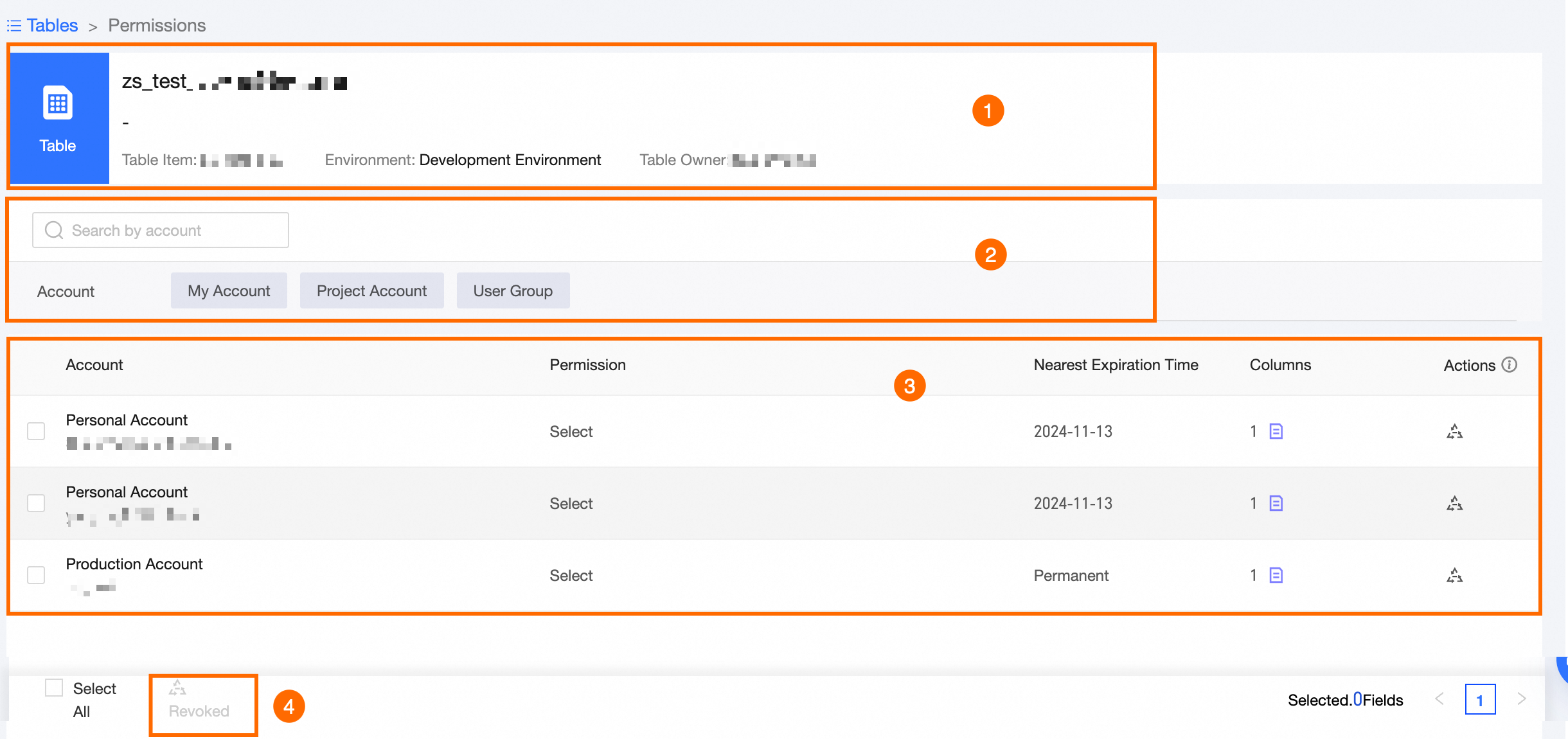
Area | Parameter |
① Basic Information Area | Displays the name of the data table, the business unit/project/data source to which the table belongs, the environment, and the table owner information. |
② Filter and Search Area | You can search by account name keyword or filter by permission account. |
③ List Area | Displays the account, permission type, latest permission expiration date, number of fields, and other information for the data object. You can also perform revoke operations on the data table. Revoke: Revokes all table permissions (including table and field permissions) from a single account. In the Table Revoke dialog box, enter the Revoke Reason (not exceeding 128 characters), and click OK. |
④ Batch Operation Area | Revoke: Batch revokes all table permissions (including table and field permissions) from accounts. In the Table Revoke dialog box, enter the Revoke Reason (not exceeding 128 characters), and click OK. |
Operation log
You can view the details of table permission grant or revoke records on the Operation Log tab.
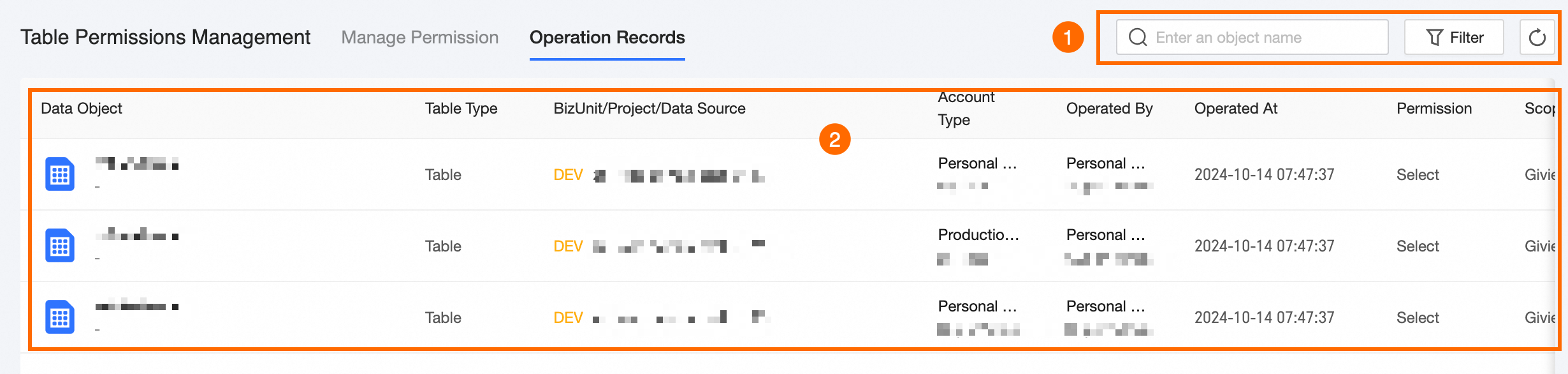
Area | Description |
① Filter and Search Area | You can perform fuzzy searches based on data object name keywords, or precise filtering based on permission type, operation scope, and operation type. |
② List Area | Displays the name, table type, business unit/project/data source, operation object, operator, operation time, permission type, operation scope, operation type, and reason for the data object. |