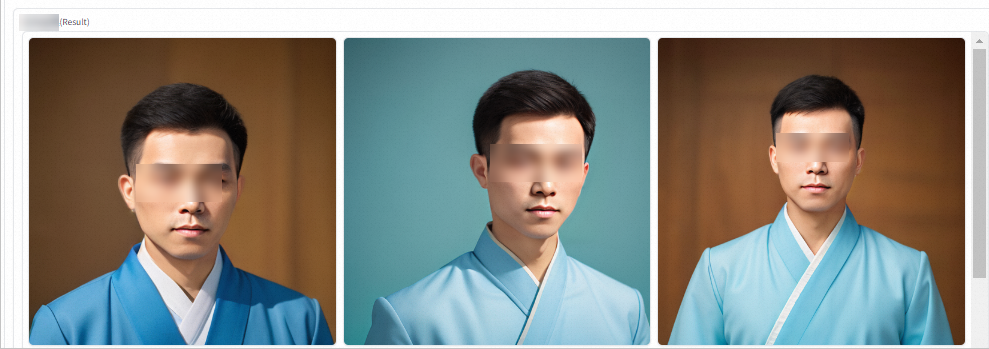
This topic describes how to build an application similar to Miaoya Camera by deploying the AIGC portrait foundation model (ly261666/cv_portrait_model) from the ModelScope community. This topic also demonstrates how to use a data cache to accelerate application deployment. By pulling model data in advance with a data cache and then mounting the data cache directly when you create an application instance, you can eliminate the wait time for pulling model data.
Background information
Miaoya Camera is an AIGC-based portrait application. You can upload personal photos in the application to obtain your digital identity and then select your favorite style template to obtain a set of personal photos.
Alibaba DAMO Academy recently published an open source application named FaceChain in ModelScope. FaceChain is similar to Miaoya Camera. FaceChain is a fusion of Stable Diffusion (SD) and Low-Rank Adaptation of Large Language Models (LoRA). The following items describe how FaceChain works:
Trains existing personal photos (original photos) to obtain face-specific LoRA weights.
Generates various styles of personal photos (resulting photos) based on the standard SD base model.
NoteFaceChain optimizes photos based on various portrait-related and skin-related models and then generates photos that have better effects.
You can configure and use open source FaceChain after you download the FaceChain application. However, FaceChain has the following issues:
During training and inference, FaceChain downloads models from the model hub that contains multiple models whose sizes are approximately 25 GB. As a result, the models require an extended period of time to download. In addition, you must have a stable network connection and a specific bandwidth when you download the models over the Internet. You may fail to download the models due to network-related and bandwidth-related reasons.
FaceChain does not support facial memory. The application cannot retain the LoRA weights that are obtained from historical training and performs inference based only on the most recent training results.
If you want to change a model or change the version of a model, you must manually modify the code. FaceChain is complex to maintain and has non-flexible configurations.
To address the preceding issues, Elastic Container Instance published the optimized version of FaceChain called eci-facechain. eci-facechain provides the following benefits:
Stores model data into the DataCache of Elastic Container Instance. The application does not need to download models from the model hub after the application is started.
Supports facial memory. You can add tags to faces during training, and select faces that have been trained based on tags during inference.
Adds environment variables. You can specify the model, version, directory, and application port of the SD by using the environment variables of containers without modifying the application code. For more information about environment variables, see the
env.pyfile.Optimizes web pages. For example, you can specify the number of pixels for the photos that you want to generate.
Prerequisites
The virtual private cloud (VPC) that you use is associated with an Internet NAT gateway. An SNAT entry is configured for the NAT gateway to allow resources in the VPC or resources connected to vSwitches in the VPC to access the Internet.
If the VPC is not associated with an Internet NAT gateway, you must associate an elastic IP address (EIP) with the VPC when you create the DataCache and deploy the application. This way, you can pull data from the Internet.
Prepare a runtime environment
Hardware requirements
You must use an elastic container instance that is based on a GPU-accelerated Elastic Compute Service (ECS) instance type to deploy the application. The application does not have specific vCPU and memory requirements. We recommend that you select an ECS instance type that has a high GPU memory specification. For information about the GPU-accelerated ECS instance types that you can use to create elastic container instances, see Supported instance families.
Software requirements
Elastic Container Instance provides a public container image based on eci-facechain. You can directly use the image or use the image as a base image for secondary development. The image address is registry.cn-hangzhou.aliyuncs.com/eci_open/facechain:1.0.2.
Procedure
Create a data cache
Console
Access ModelScope to obtain the ID of the model.
In this example, the version of the base model (ID: ly261666/cv_portrait_model) of the portrait AIGC is v4.0. Find the model that you want to use in ModelScope and copy the model ID in the upper part of the model details page.
Log on to the Elastic Container Instance console.
In the top navigation bar, select a region.
In the left navigation pane, click Data Cache.
Create a data cache for the AIGC portrait foundation model.
Click Create Data Cache.
Configure the data cache parameters.
The following table shows the sample parameters used in this topic. The data source is a fixed configuration required to pull the AIGC portrait foundation model. You can customize other parameters as needed. For more information, see Create a data cache.
Configuration item
Sample value
Cache Bucket
test
Cache Directory
/model/cv
Cache Name
cv
Cache Size
20 GiB
Cache Data Source
Type: URL
Parameters
repoSource: ModelScope/Model
repoId: ly261666/cv_portrait_model
revision: v4.0
Click OK.
Check the data cache status.
On the Data Cache page, refresh the page to view the cache status. The cache is ready to use when its status changes to Available.
OpenAPI
Access ModelScope to obtain the ID of the model.
In this example, the version of the base model (ID: ly261666/cv_portrait_model) of the portrait AIGC is v4.0. Find the model that you want to use in ModelScope and copy the model ID in the upper part of the model details page.
Create a data cache for the AIGC portrait foundation model.
The following sample code shows the parameters used to call the CreateDataCache operation to create a data cache. This operation pulls the specified model data from ModelScope and saves it to the
/model/cv/directory in a bucket named test. The data cache is named cv and is retained for one day.ImportantIf you use an SDK to create a DataCache, you do not need to prefix the length of the parameter name to each parameter in DataSource.Options. For example, write
repoSourceinstead of#10#repoSource. WriterepoIdinstead of#6#repoId.{ "RegionId": "cn-beijing", "VSwitchId": "vsw-2ze23nqzig8inpr******", "SecurityGroupId": "sg-2ze1003ujo0fuv******", "Bucket": "test", "Path": "/model/cv/", "Name": "cv", "DataSource": { "Type": "URL", "Options": { "#6#repoId": "ly261666/cv_portrait_model", "#10#repoSource": "ModelScope/Model", "#8#revision": "v4.0" } }, "RetentionDays": 1 }Query the data cache status.
Use the returned DataCache ID to call the DescribeDataCaches API operation and query the information of the DataCache. If the status of the DataCache that is indicated by DataCaches.Status is Available, the DataCache is ready for use.
Build "Miaoya Camera"
Console
On the Container Group page in the Elastic Container Instance console, click Create Container Group.
Enter the instance configuration details, and then click Confirm Configuration.
The following table shows the sample parameters used in this topic. The instance uses a GPU instance type and mounts the AIGC portrait foundation model data cache. The container in the instance uses the prebuilt facechain image that is provided by ECI. After the container starts, it runs a web service that can be accessed on port 8888.
NoteIf the VPC is attached to an Internet NAT gateway, you do not need to attach an EIP when you create the ECI instance. After the instance is created, you can configure a DNAT entry to enable external access to the ECI instance.
The container exposes port 8888 by default. To change the port, you can set the APP_PORT environment variable for the container.
Configuration area
Parameter
Sample value
Container Group Configurations
Specify Instance Type
ecs.gn6i-c4g1.xlarge
Name
cv
Container Configurations
Container Name
cv
Image
Image: registry.cn-hangzhou.aliyuncs.com/eci_open/facechain
Image Version: 1.0.2
Data Cache
Data Cache Bucket
test
Click Add to mount the data cache of the AIGC portrait foundation model
Data Cache Directory: /model/cv/
Destination Container: cv
Container Mount Directory: /mnt/workspace/.cache/modelscope/ly261666/cv_portrait_model/
EIP
EIP
Auto Create
Maximum Bandwidth: 5 Mbps
Confirm the instance configuration, accept the Terms of Service, and click Confirm Order.
Return to the Container Group page to confirm the application deployment status and view the instance EIP.
On the Container Group page, you can view the instance status. To view the container status, click the instance ID to open the instance details page. The application is successfully deployed when both the instance status and the container status are Running. You can find the EIP of the instance in the IP Address section.

OpenAPI
Use a data cache to create an ECI instance and deploy the "Miaoya Camera" application.
The following sample code shows the parameters used to call the CreateContainerGroup operation to create an ECI instance. The instance uses a GPU instance type and mounts the AIGC portrait foundation model.
NoteIn the following example, the system automatically creates and attaches an EIP to the ECI instance. If the VPC is attached to an Internet NAT gateway, you do not need to attach an EIP when you create the ECI instance. After the instance is created, you can configure a DNAT entry to enable external access to the ECI instance.
The container exposes port 8888 by default. To change the port, you can set the APP_PORT environment variable for the container.
{
  "RegionId": "cn-beijing",
  "SecurityGroupId": "sg-2ze1003ujo0fuv******",
  "VSwitchId": "vsw-2ze23nqzig8inpr******",
  "ContainerGroupName": "cv",
  "InstanceType": "ecs.gn6i-c4g1.xlarge",
  "DataCacheBucket": "test",
  "AutoCreateEip": true,
  "Container": [
    {
      "Image": "registry.cn-hangzhou.aliyuncs.com/eci_open/facechain:1.0.2",
      "Name": "cv",
      "VolumeMount": [
        {
          "MountPath": "/mnt/workspace/.cache/modelscope/ly261666/cv_portrait_model/",
          "Name": "model-cv"
        }
      ]
    }
  ],
  "Volume": [
    {
      "Type": "HostPathVolume",
      "HostPathVolume.Path": "/model/cv/",
      "Name": "model-cv"
    }
  ]
}
Confirm the application deployment status.
Use the returned instance ID to call the DescribeContainerGroupStatus API operation and query the status of the instance and the container. If the status of the instance that is indicated by Status and the status of the container that is indicated by ContainerStatuses.State are Running, the instance is created and the container is running.
Query the EIP of the instance.
Call the DescribeContainerGroups operation with the returned instance ID to query the instance details. You can obtain the EIP of the instance from the `InternetIp` parameter.
Test the model
In the security group of the ECI instance, add an inbound rule to open port 8888.
Open a browser and access the web page of the "Miaoya Camera" application.
The "Miaoya Camera" application in this example has an EIP attached to it. You can access the application directly by entering the EIP of the instance and the port exposed by the container, for example,
47.94.XX.XX:8888.Test whether the base model of the portrait AIGC has a similar effect as Miaoya Camera.
On the Train tab, upload your face photos.
Add tags to the face photos based on your requirements, and then click Start training.
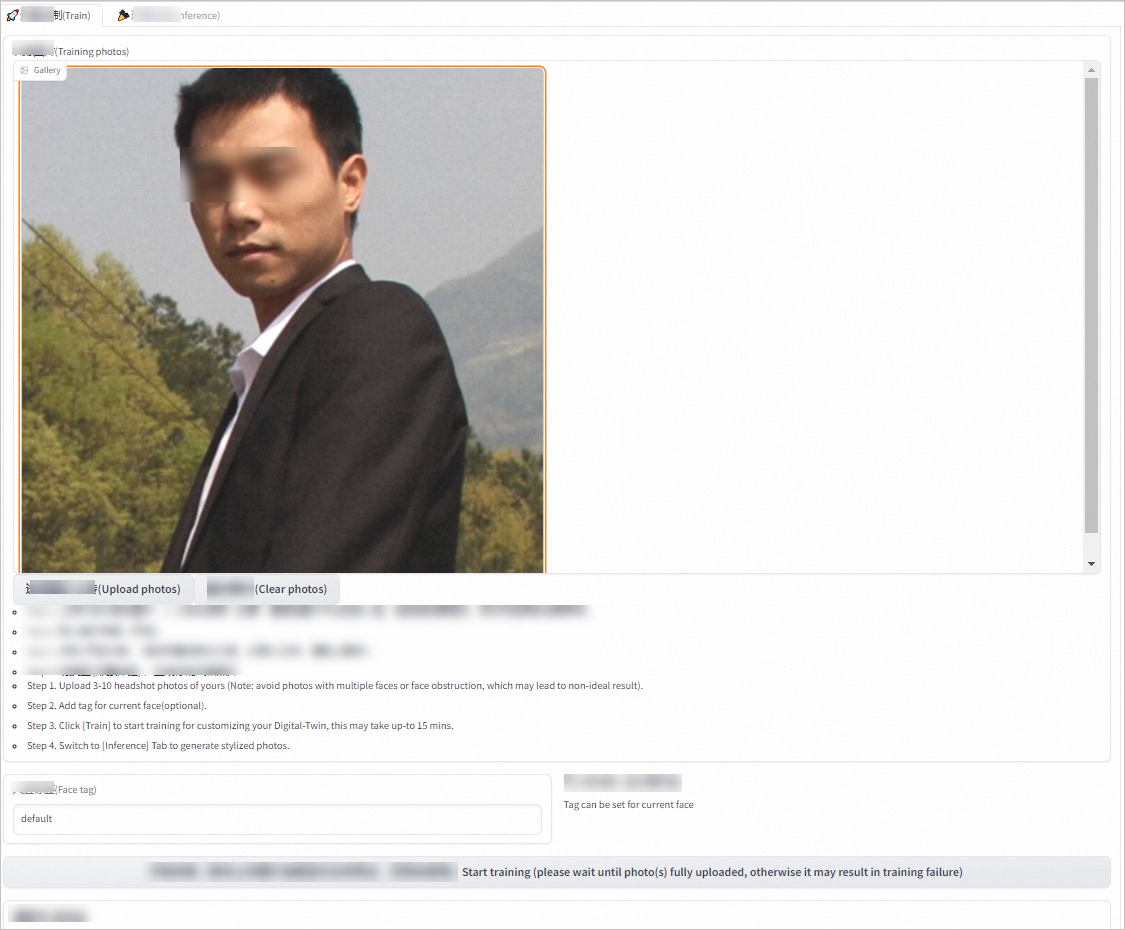
After the training is complete, click the Inference tab.
Select a style model and a cloth style based on your requirements, specify the quantity, height, and width of the photos that you want to generate, and then click Generate.
Wait and view the generation result.
NoteIf an Error message is displayed, view the container log to identify the cause of the error. If the error type is out of memory (OOM), we recommend that you decrease the width and height of the image or use an ECS instance type that has a larger GPU memory to deploy the application.