All Products
Search
Document Center

Container Registry:Use the passwordless component to pull images from an ACR Enterprise Edition instance within the same account

Last Updated:Feb 06, 2026

The passwordless component automates authentication for pulling container images, eliminating the need to repeatedly configure imagePullSecrets. This topic describes how to install, configure, and use the passwordless component, along with important considerations.

How it works

When you use Container Registry (ACR) as the image source without enabling public anonymous pulling, the ACK cluster must provide a username and password for authentication each time it pulls an image. A common solution is to store the credentials in a Secret. However, this approach has the following drawbacks:

  • A Secret is Base64-encoded plaintext, which poses a security threat.

  • You must manually add imagePullSecrets to each workload.

  • Secrets cannot be used across namespaces.

The passwordless component operates as follows:

  1. The passwordless component obtains temporary credentials from the ACR instance.

  2. The component stores these credentials in a Secret.

  3. The component associates the Secret with the service accounts specified in its configuration.

  4. Workloads that use these service accounts automatically pull images using the temporary credentials stored in the Secret.

The passwordless component can manage service accounts across multiple namespaces simultaneously and regularly refreshes the temporary credentials based on its configuration. This reduces the risk of credential leakage and eliminates the need to manually add imagePullSecrets to workloads. The passwordless component is provided at no additional cost.

image

Comparison of passwordless components

ACK provides the aliyun-acr-credential-helper component, available in both managed and self-managed editions. You can install only one edition at a time. The following table compares the two editions.

Differences

aliyun-acr-credential-helper (managed)

aliyun-acr-credential-helper (self-managed)

Supported cluster versions

ACK managed clusters, ACK serverless clusters, and ACK Edge clusters that run Kubernetes 1.22 or later

ACK managed clusters and ACK dedicated clusters that run Kubernetes 1.20 or later

Features

  • No self-management required

  • Supports pulling images across accounts using RRSA

  • Supports querying component logs

  • Supports pulling images across accounts using a worker RAM role, RRSA, or an AccessKey pair

To upgrade a cluster, see Manually upgrade a cluster.

Prerequisites

  • The cluster version is supported by the passwordless component. For more information, see the table above.

  • The Container Registry (ACR) instance is an Enterprise Edition instance.

    Important
    • The passwordless component supports only ACR Enterprise Edition instances and ACR Personal Edition instances created on or before September 8, 2024. If you cannot use the passwordless component, see How do I use imagePullSecrets?.

  • You have granted permissions to the RAM role used by the passwordless component.

  • Network connectivity is established between the ACR Enterprise Edition instance and the ACK cluster.

    Configure network connectivity

    Before pulling an image, ensure that the ACR Enterprise Edition instance and the ACK cluster can communicate and that related domain names resolve correctly. When pulling an image from an instance in the same account, you can use one of the following methods:

    • ACR VPC access control: If the ACR Enterprise Edition instance and the ACK cluster are in the same region, the ACK cluster can access the ACR instance through a VPC. For more information, see Network access control.

    • VPC peering connection: If the ACR instance and the ACK cluster are not in the same VPC, you can establish a VPC peering connection to link the two VPCs, enabling the ACK cluster to access the ACR Enterprise Edition instance. The VPC peering connection feature is free if the VPCs are in the same region and incurs charges if they are in different regions. For more information, see Billing. To use this feature, the CIDR blocks of the two VPCs must not overlap. If they do, you must modify the existing network architecture.

      VPC peering connection procedure

      1. Attach a VPC to an ACR instance for internal same-region endpoint resolution

        After you connect the ACR Enterprise Edition instance to the VPC, you can access the Enterprise Edition instance from the VPC using an internal domain name. After the configuration is complete, obtain the VPC ID and the internal IP address of the ACR Enterprise Edition instance.
      2. Obtain the domain names and IP addresses related to the ACR instance

        Obtain the domain name and IP address of the authentication service and the domain name and IP address of the associated OSS Bucket that are used to access the ACR Enterprise Edition instance.
      3. Create a VPC peering connection and configure a route table

        Add a route that points to the peer VPC at each end of the VPC peering connection to enable private connectivity between the VPC of the ACK cluster and the VPC of the ACR Enterprise Edition instance. At the VPC peering connection end of the ACK cluster, you also need to configure routes for the IP address of the authentication service and the IP address of the associated OSS Bucket.
      4. Resolve the domain name of the ACR instance for the ACK cluster

        Use methods such as adding an internal DNS resolution or using a node pool custom data script to modify the /etc/hosts file in batches. This resolves the domain name of an ACR instance to its internal IP address for the ACK cluster, which allows traffic to be forwarded through a route entry of the VPC peering connection to the VPC to which the ACR instance is attached.
    • Internet: If both the ACR Enterprise Edition instance and the ACK cluster have Internet access, you can transfer images over the Internet. For more information, see Configure public access control for an ACR instance and Enable Internet access for a cluster.

Use the managed passwordless component

Step 1: Install the component

  1. Log on to the ACK console. In the left-side navigation pane, click Clusters.

  2. On the Clusters page, find the cluster you want and click its name. In the left navigation pane, click Add-ons.

  3. On the Add-ons page, select the Security tab. Find the aliyun-acr-credential-helper (Managed) card and click Install.

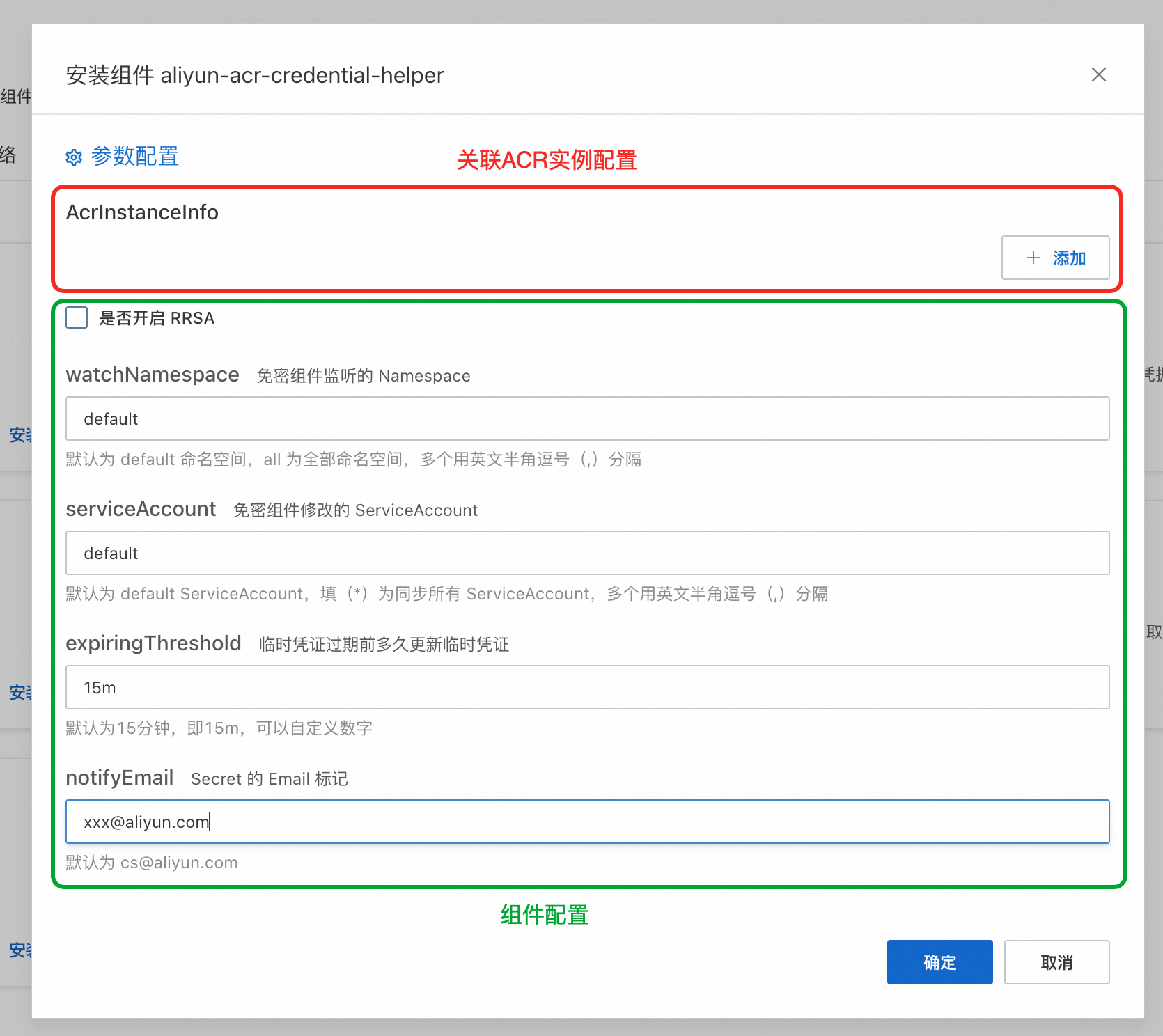
  4. On the Install aliyun-acr-credential-helper page, you can view the AcrInstanceInfo configuration and other options. AcrInstanceInfo contains configurations for each ACR instance associated with the component. The other options are general component settings. If you do not need to modify the namespaces or service accounts that the component monitors, keep the default settings.

    After installation, you can update the component configuration. On the Add-ons page, click Configuration on the aliyun-acr-credential-helper (Managed) card.

    image

    Configuration of associated ACR instances:

    AcrInstanceInfo

    Description

    InstanceId

    The ID of the ACR instance. You can obtain the ID in the Container Registry console.

    Important

    Leave this parameter empty for a Personal Edition ACR instance. This parameter is required for an Enterprise Edition ACR instance.

    regionId

    The region ID of the ACR instance. You can obtain the region ID in the Container Registry console.

    Important

    This parameter is required when you pull images across regions.

    domains

    The domain names that the passwordless plug-in uses to access the ACR instance. By default, all domain names (public and VPC) of the specified ACR instance are used. To specify individual domain names, separate them with commas (,).

    Configuration for pulling images across accounts

    This applies to scenarios where you pull images across accounts. If you do not have this requirement, leave the fields empty.

    assumeRoleARN

    Not required for pulling images within the same account. To pull images across accounts, see Pull images across accounts.

    expireDuration

    rrsaRoleARN

    rrsaOIDCProviderRoleARN

    Component configuration

    Configuration item

    Description

    Enable RRSA

    Select this to enable RRSA. This is not required for pulling images within the same account. To pull images across accounts, see Pull images across accounts.

    watchNamespace

    The namespaces from which you want to pull images without a password. The default value is default. A value of all means all namespaces. To specify multiple namespaces, separate them with commas (,). We recommend that you configure your business namespaces. Avoid configuring all or namespaces related to system components to prevent issues with pulling system component images.

    serviceAccount

    The service accounts that the managed passwordless component applies to. The default value is Default. A value of Default applies to the default service account in all specified namespaces. An asterisk (*) applies to all service accounts in the specified namespaces. To configure multiple service accounts, separate them with commas (,).

    expiringThreshold

    The expiration threshold for the component's credentials. The default value is 15m.

    notifyEmail

    No configuration is required.

Step 2: Pull an image

After installing and configuring the passwordless component, specify a service account associated with the component when creating a workload to pull images without a password.

apiVersion: apps/v1
kind: Deployment
metadata:
  name: nginx-deployment
  labels:
    app: nginx
spec:
  replicas: 3
  selector:
    matchLabels:
      app: nginx
  template:
    metadata:
      labels:
        app: nginx
    spec:
      serviceAccountName: my-service-account # Specify a service account that is associated with the passwordless component.
      containers:
      - name: nginx
        image: "******.cn-hangzhou.cr.aliyuncs.com/nginx/nginx:latest" # Specify the address of the ACR image.
        ports:
        - containerPort: 80

Use the self-managed passwordless component

Step 1: Install the component

  1. Log on to the ACK console. In the left-side navigation pane, click Clusters.

  2. On the Clusters page, find the cluster you want and click its name. In the left navigation pane, click Add-ons.

  3. On the Add-ons page, click the Security tab. Find aliyun-acr-credential-helper and click Install.

  4. On the Parameter Settings page, select a permission mode for the component from the tokenMode drop-down list, then click OK. After installation, configure the component before pulling an image. For more information, see Step 2: Change the component configuration (add an ACR instance).

    tokenMode

    Description

    auto

    (Recommended) The component detects the cluster creation time and automatically determines the permission mode. For clusters created before April 3, 2023, the workerRole mode is used. For clusters created on or after April 3, 2023, the managedRole mode is used.

    Important

    Versions of aliyun-acr-credential-helper released after April 3, 2023 provide configuration items to customize the RAM role that the component depends on. For more information, see [Product Change] Announcement on changing the permissions that aliyun-acr-credential-helper depends on.

    managedRole

    The component uses the AliyunCSManagedAcrRole role, which is granted permissions in the Prerequisites section, to obtain permissions.

    workerRole

    The component uses the cluster's worker RAM role to obtain permissions. You must grant specific permissions to the worker RAM role.

    Select workerRole as the component mode

    When you select workerRole as the permission mode, the cluster's worker RAM role must have the following permissions. For more information about how to grant permissions, see Grant permissions to a RAM role.

    {
        "Version": "1",
        "Statement": [
            {
                "Action": [
                    "cr:GetAuthorizationToken",
                    "cr:ListInstanceEndpoint",
                    "cr:PullRepository"
                ],
                "Resource": "*",
                "Effect": "Allow"
            }
        ]
    }
    Important

    Select this mode to pull images across accounts using role assumption.

Step 2: Change the component configuration (add an ACR instance)

After installing the passwordless component, you must configure the acr-configuration ConfigMap to add an ACR instance before pulling an image. You can do this in the console or using kubectl.

Console

  1. On the Clusters page, click the name of the one you want to change. In the left-side navigation pane, choose Configurations > ConfigMaps.

  2. On the ConfigMaps page, select kube-system from the Namespace drop-down list. Then, click the acr-configuration ConfigMap and modify the configuration as described in the following table.

    Component configuration

    Description

    watch-namespace

    The namespaces from which you want to pull images without a secret. The default value is default. A value of all lets you pull images from all namespaces without a secret. To configure multiple namespaces, separate them with commas (,). We recommend that you specify your business namespaces. Avoid specifying all or namespaces that are related to cluster system components to prevent issues with pulling images for the cluster system components.

    acr-api-version

    Keep the default value.

    expiring-threshold

    The expiration threshold for the component's credentials. The default value is 15m (15 minutes).

    acr-registry-info

    An array of instance information for container images, in a multi-line YAML string format. Each instance is configured as a trituple.

    • instanceId: The ID of the ACR instance. You can obtain the ID in the Container Registry console.

      Important

      Leave this parameter empty for a Personal Edition ACR instance. This parameter is required for an Enterprise Edition ACR instance.

    • regionId: The region ID of the ACR instance. You can obtain the region ID in the Container Registry console.

      Important

      This parameter is required when you pull images across regions. See the configuration example below.

    • domains: The domain names that the passwordless plug-in uses to access the ACR instance. By default, all domain names of the ACR instance in instanceId are entered. To specify individual domain names, separate them with commas (,).

    Configuration example for cross-region pulls

    When you use multiple ACR instances in different regions, you must specify the ID and region for each ACR instance.

    data:
        service-account: "default"
        watch-namespace: "all"
        expiring-threshold: "15m"
        notify-email: "c*@aliyuncs.com"
        acr-registry-info: |
          - instanceId: "cri-instanceId"
            regionId: "cn-beijing"
          - instanceId: "cri-instanceId"
            regionId: "cn-hangzhou"      

    service-account

    The service accounts associated with the passwordless component. Separate multiple service accounts with commas (,). A value of default associates the component with the default service account in each specified namespace. A value of "*" associates the component with all service accounts in the specified namespaces.

kubectl

  1. Run the following command to edit acr-configuration based on the configuration description below.

    kubectl edit cm acr-configuration -n kube-system

    Configuration key

    Configuration item keys

    Configuration value

    service-account

    Applies the passwordless component to the specified service accounts.

    The default value is default.

    Note

    To specify multiple service accounts, separate them with commas (,). An asterisk ("*") applies to all service accounts in the specified namespaces.

    acr-registry-info

    An array of instance information for container images, formatted as a multi-line YAML string. Each instance is configured as a trituple.

    Note

    The instance information trituple includes:

    • instanceId: The instance ID. This is required for Enterprise Edition instances.

    • regionId: Optional. The default value is the local region.

    • domains: Optional. By default, all domain names of the instance are used. To specify individual domain names, separate them with commas (,).

    Example configuration for an Enterprise Edition ACR instance:

    - instanceId: <cri-instanceId>
      regionId: "cn-hangzhou"
      domains: "xxx.com,yyy.com"

    watch-namespace

    The namespaces from which you want to pull images without a password.

    The default value is default. A value of all means all namespaces. To specify multiple namespaces, separate them with commas (,).

    Note

    We recommend that you configure only your business namespaces. Avoid configuring all or namespaces related to system components to prevent issues with pulling system component images.

    expiring-threshold

    The expiration threshold for the locally cached credentials.

    The default value is 15m (15 minutes).

Step 3: Pull an image

After installing and configuring the passwordless component, specify a service account associated with the component when creating a workload to pull images without a password.

apiVersion: apps/v1
kind: Deployment
metadata:
  name: nginx-deployment
  labels:
    app: nginx
spec:
  replicas: 3
  selector:
    matchLabels:
      app: nginx
  template:
    metadata:
      labels:
        app: nginx
    spec:
      serviceAccountName: my-service-account # Specify a service account that is associated with the passwordless component.
      containers:
      - name: nginx
        image: "******.cn-hangzhou.cr.aliyuncs.com/nginx/nginx:latest" # Specify the address of the ACR image.
        ports:
        - containerPort: 80

FAQ

How do I enable the feature to use service accounts immediately after creation?

Important

To enable immediate use of service accounts after creation, you must upgrade the passwordless component to v23.02.06.1-74e2172-aliyun or later.

When enabled, the passwordless component monitors service account changes in the cluster using a webhook. When a new service account is created, the component immediately injects the passwordless Secret into it. This feature is useful in scenarios where a service account must be used immediately after creation, such as when deploying a Helm Chart that creates both a service account and a deployment simultaneously. Because this feature affects component performance, we do not recommend enabling it in other scenarios.

Managed component

You must install the acr-credential-helper-webhook component in the cluster:

  1. On the ACK Clusters page, click the name of the target cluster. In the left navigation pane, click Add-ons.

  2. On the Add-ons page, select the Security tab. Find the acr-credential-helper-webhook (Managed) card and click Install.

Self-managed component

To enable this feature, add the following fields to acr-configuration:

data:
  webhook-configuration: |
    enable: true
    failure-policy: Ignore
    timeout-seconds: 10

Configuration item

Description

enable

Specifies whether to enable the webhook feature.

  • true: Enable.

  • false: Do not enable.

failure-policy

The policy for handling a service account when this feature encounters an exception.

  • Ignore: Ignores the exception. The service account is created normally, but the Secret for pulling images might not be attached.

  • Fail: Interrupts the creation of the service account if an exception occurs. This is not recommended because it might cause the business deployment to fail.

Important

Due to limitations of the cluster API Server, if timeout-seconds is set to 15, failure-policy is set to Fail, and 10 service accounts are continuously created per second, the service accounts may fail to be created.

timeout-seconds

The timeout period for a single service account creation request for this feature. If the timeout period is exceeded, the system responds based on the failure-policy configuration. The default value is 10. The unit is seconds (s).

Why does the image pull still fail after the passwordless component is configured?

A possible cause is an incorrect configuration of the passwordless component, such as:

  • The instance information in the passwordless component does not match the ACR instance.

  • The image address used for pulling does not match the domain name in the component's instance information.

Follow the steps in this topic to troubleshoot the issue.

If the component is configured correctly but the pull still fails, the issue might stem from a conflict between the manually specified imagePullSecrets field in the workload YAML and the passwordless component. To resolve this, delete the imagePullSecrets field manually, then delete and recreate the pod.

How do I use imagePullSecrets?

ACR Personal Edition instances created on or after September 9, 2024 do not support the passwordless component. For new ACR Personal Edition instances, we recommend saving the username and logon password in a Secret and referencing it in the imagePullSecrets field.

Important
  • The passwordless component cannot be used simultaneously with a manually specified imagePullSecrets field.

  • The Secret must reside in the same namespace as the workload.

Example of using imagePullSecrets

Run the following command and replace the parameters with your own to create a Secret from a username and password.

kubectl create secret docker-registry image-secret-1 \
  --docker-server=<registry-server> \
  --docker-username=<name> \
  --docker-password=<password> \
  --docker-email=<email>

Using keys in workloads

apiVersion: apps/v1
kind: Deployment 
metadata:
  name: nginx-test
  namespace: default 
  labels:
    app: nginx
spec:
  replicas: 2
  selector:
    matchLabels:
      app: nginx
  template:
    metadata:
      labels:
        app: nginx 
    spec:
      imagePullSecrets:
      - name: image-secret-1  # Use the Secret created in the previous step.
      containers:
      - name: nginx 
        image: <acrID>.cr.aliyuncs.com/<repo>/nginx:latest  # Replace with the ACR link.

References