For ad-hoc data exploration and quick validation, such as previewing table data or testing a function, configuring a local client or a formal DataWorks project often introduces unnecessary overhead. SQL Analysis provides an immediate, web-based environment within the MaxCompute console for these exact scenarios. It enables you to write, execute, and analyze SQL queries on the fly, streamlining temporary tasks and accelerating your data discovery process.
Features
Write and run SQL queries in an interactive editor, and visualize query results with built-in charting tools.
Explore MaxCompute features instantly using built-in public dataset demos.
Use cases
Quick exploration: Explore the core features of MaxCompute with public datasets.
Ad hoc queries: Run temporary queries, such as previewing table data.
SQL analysis UI
Editor area
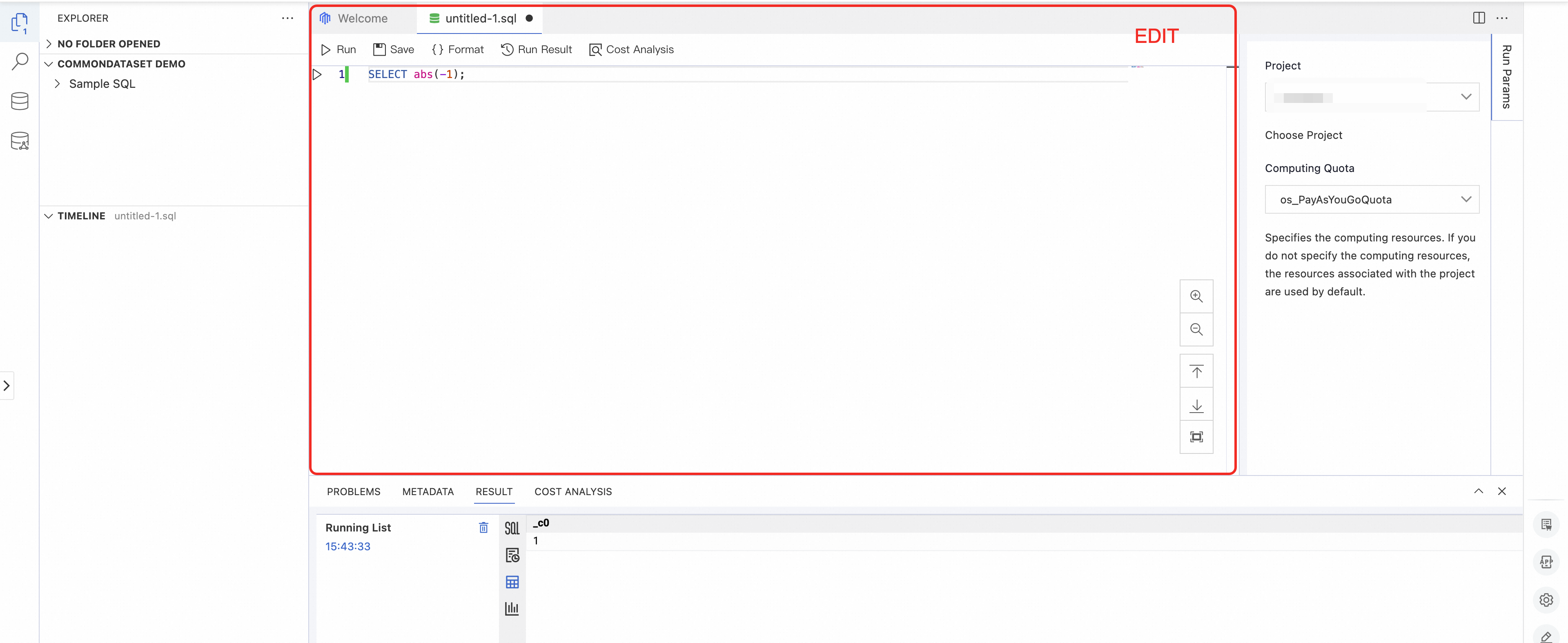
Module | Description |
Tab bar | File tabs. You can open multiple files at the same time.
|
Toolbar |
|
Editor |
|
Run configurations area
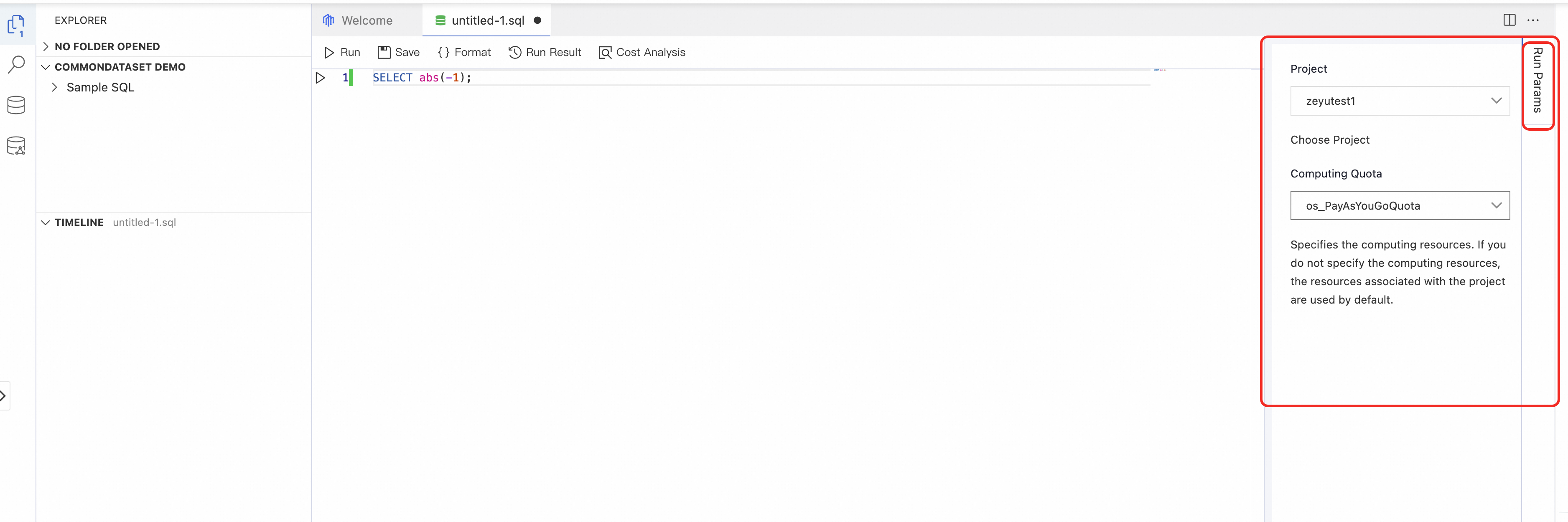
Module | Description |
Project |
|
Computing Quota |
|
Result area
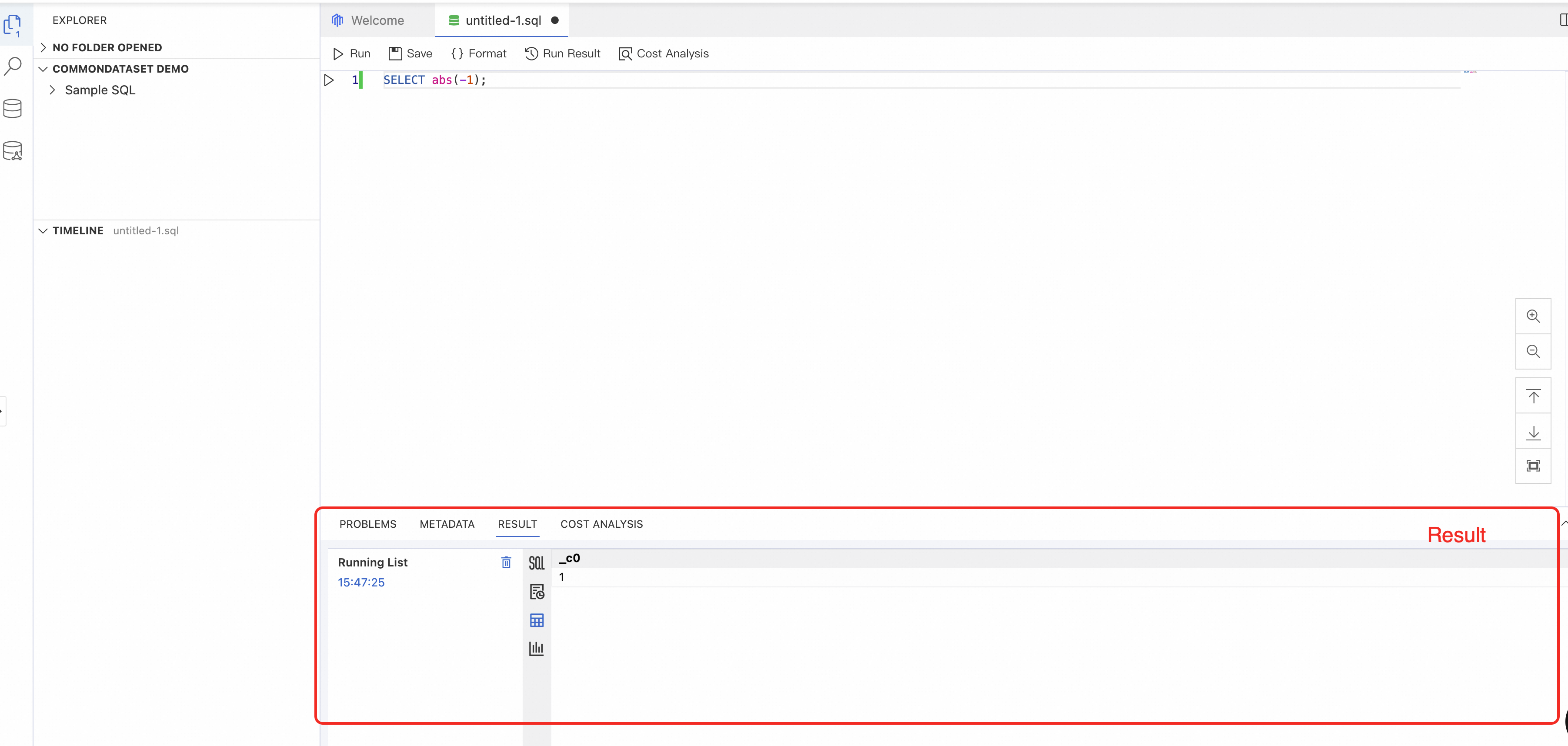
Module | Description |
PROBLEMS | Before a script is run, the syntax and specifications of all scripts in open files in the editor are automatically checked. |
METADATA | Select an object, such as a table, resource, or user-defined function, in Table Data or Public Dataset to view its metadata details. Details include basic information, column information, DDL generation, and data preview. Note: You must have the required database permissions on the object. |
RESULT | The results of the script run:
|
COST ANALYSIS | Displays the results of the COST SQL statement that is run for the Cost analysis. The results include the execution log and the result data. |
Explorer
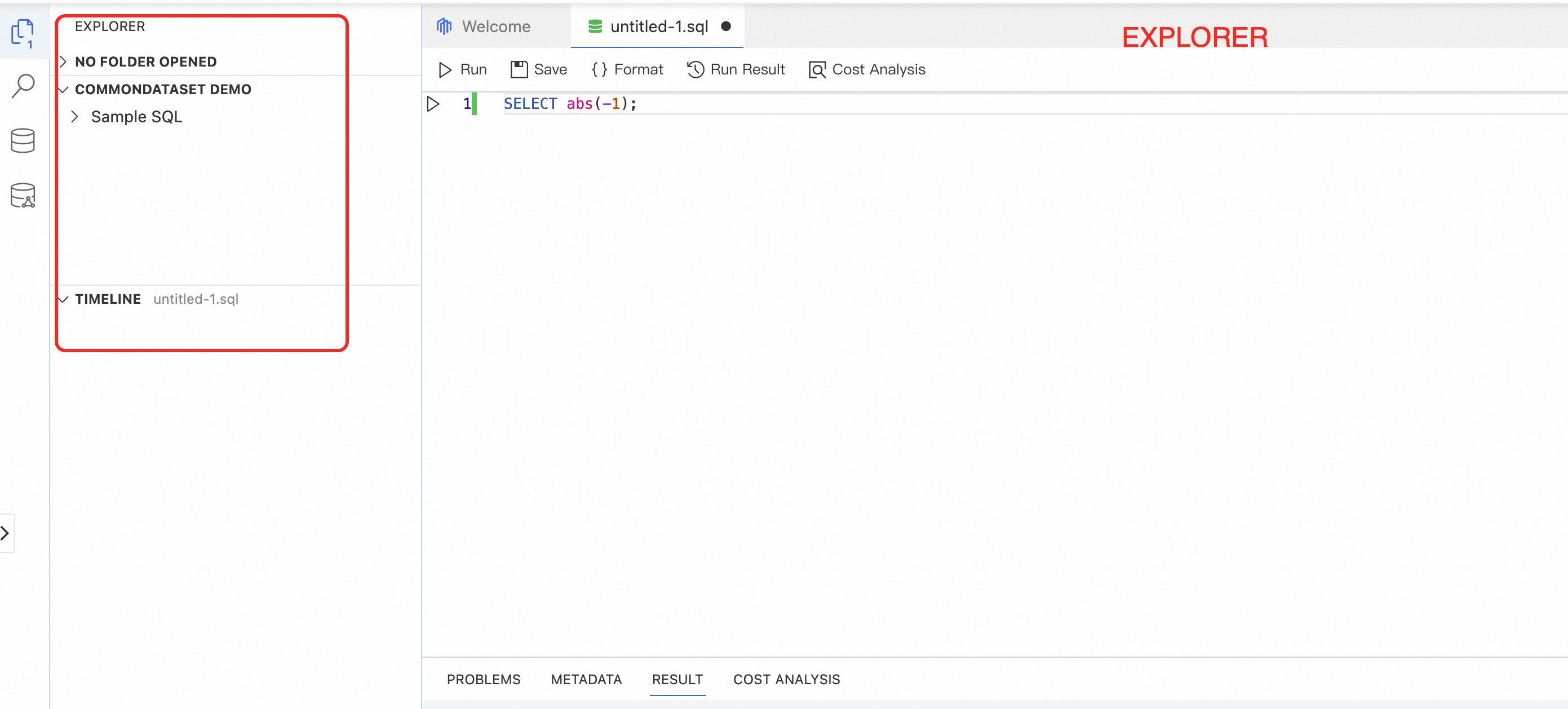
Right-click the empty area in the EXPLORER to configure which modules are displayed. For example, you can hide the TIMELINE module.
Module | Description |
File List |
Important Each time the system tries to read an on-premises folder, manually grant access permissions to all files in the folder to ensure data security. The content of the folder is not saved on the server. |
COMMONDATASET DEMO |
|
TIMELINE | Records the operation logs for files opened in the editor. The log information is stored in the cache. If you clear the cache, the logs are deleted. |
Search
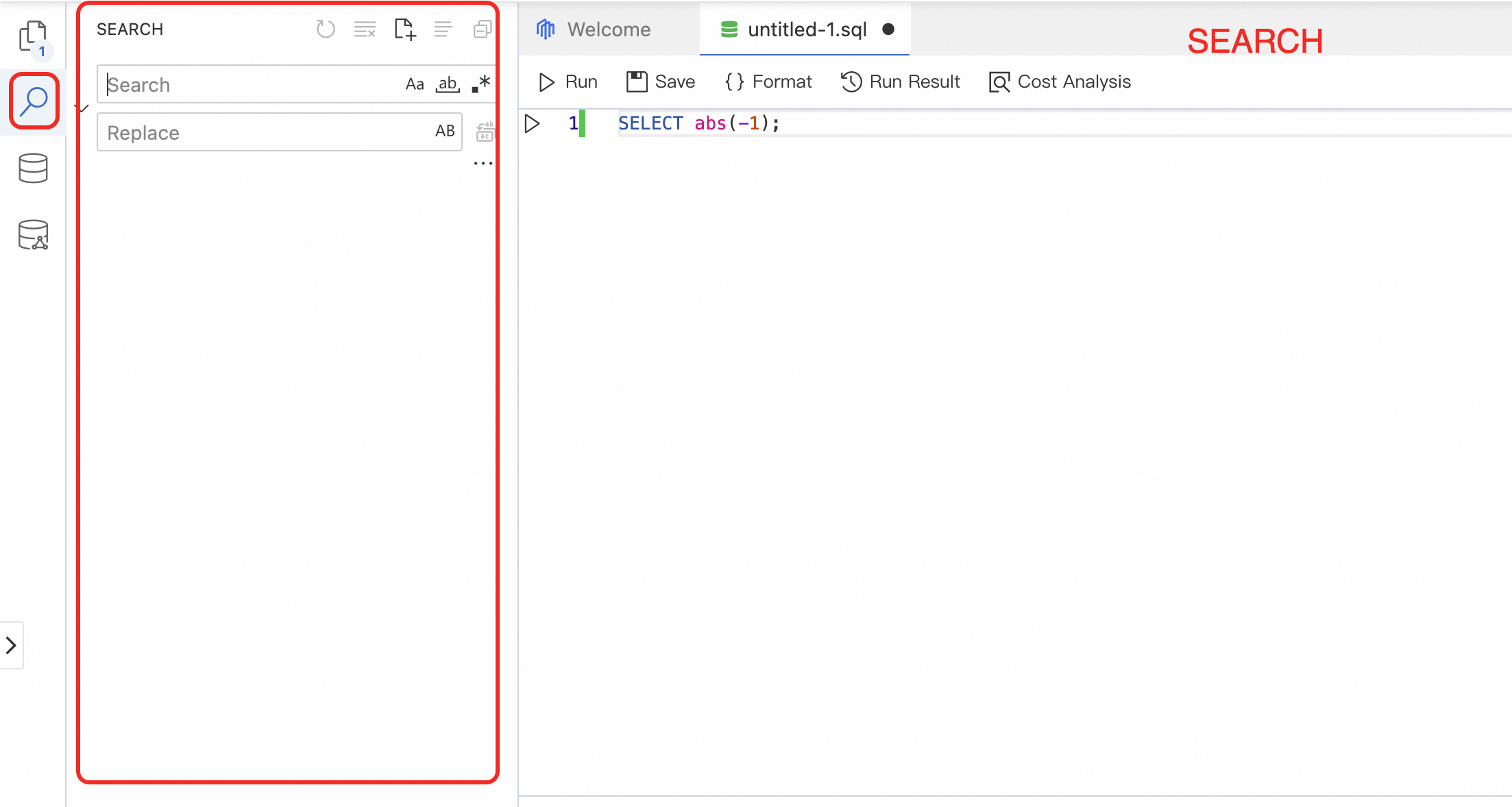
Module | Description |
Search |
|
Replace |
|
 button to perform the replacement.
Table data
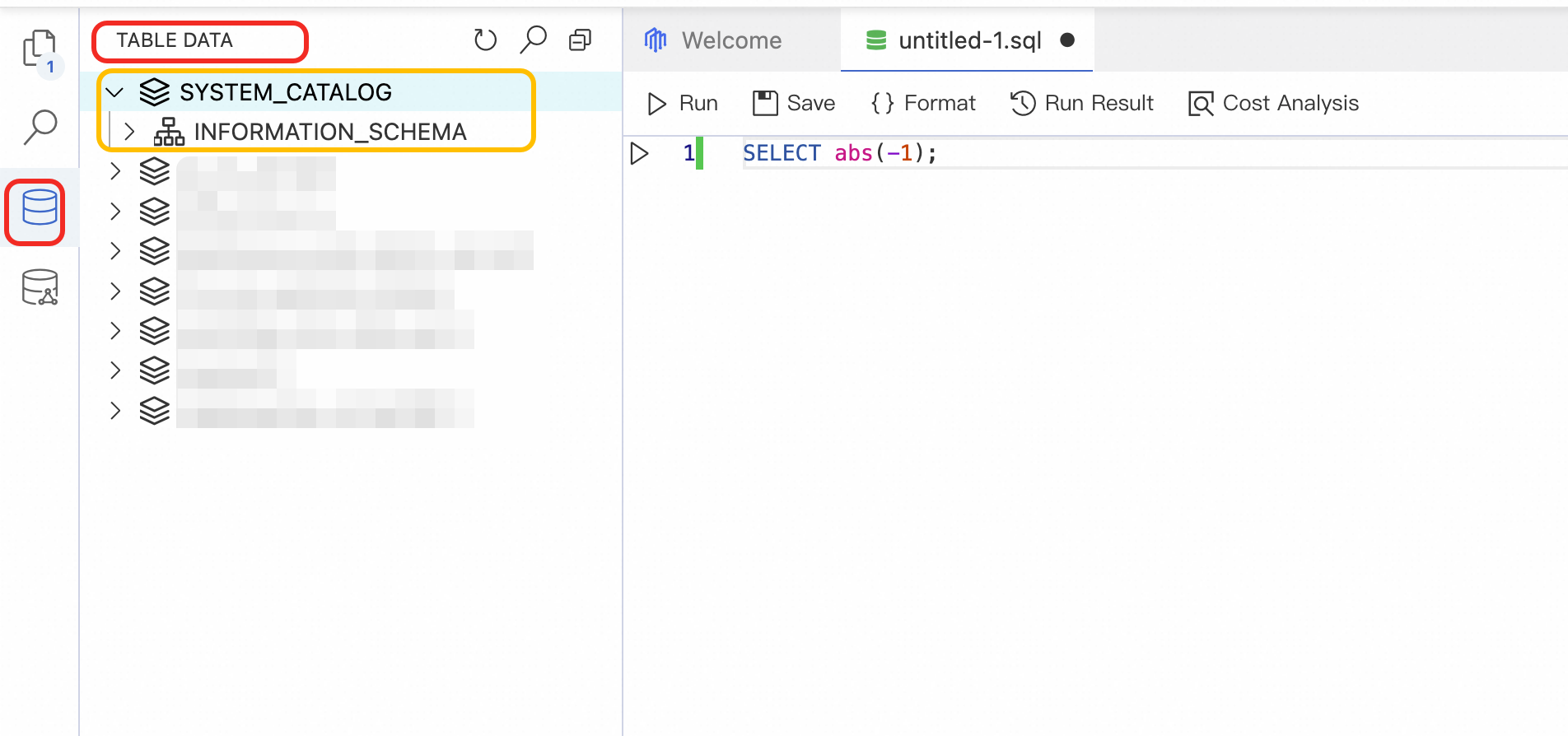
Lists data objects (such as schema, tables, views, resources and functions) for all projects in the current region that you have access to.
Display scope: An Alibaba Cloud Account can view all projects. A RAM User can only view Projects to which they have been added.
The
SYSTEM_CATALOGproject in the list is a system project for the tenant-level Information Schema. The project is created by the system by default. The INFORMATION_SCHEMA is placed as a view under the "INFORMATION_SCHEMA" schema of this project and can be viewed directly.View permissions: To view the list of objects in a project, you must have the required List permission.
For a table object, if the current logon account has the
SELECTpermission, the table icon in the list is a green table icon . This helps you quickly identify the tables that you have permission to access.
Schema level: After you expand a project, if the project has a schema level, the schema list is displayed first. Otherwise, the data object categories are displayed directly. You can click a category to expand the list of objects of that type.
Click an object to view its metadata on the Metadata tab in the right-hand results area.
Public dataset
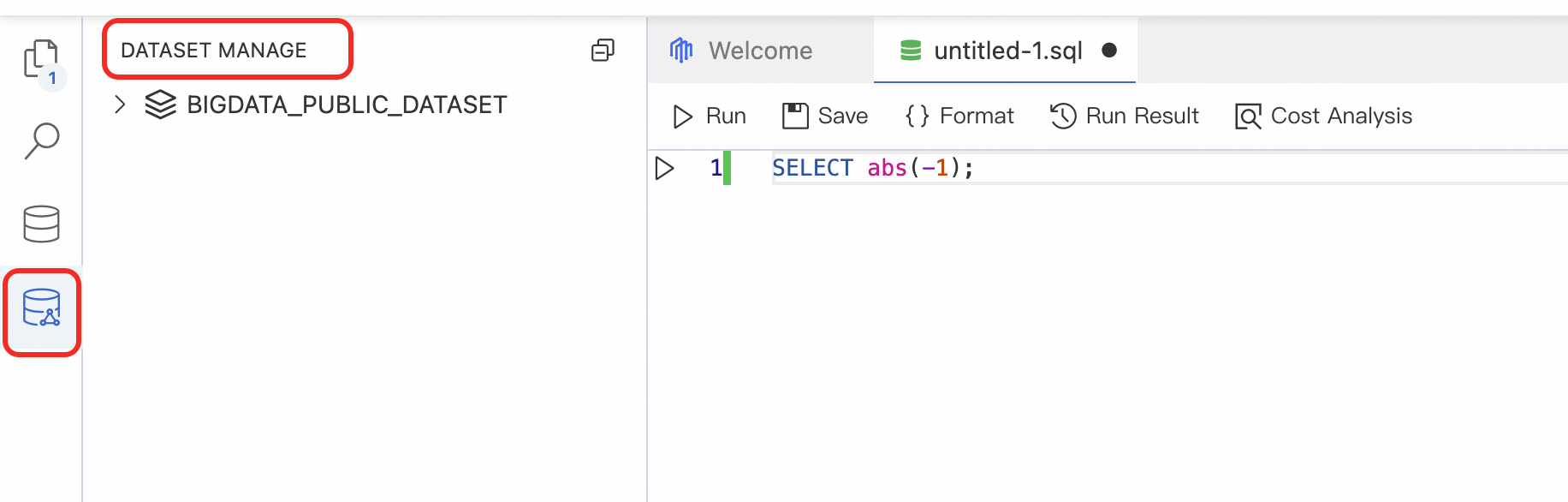
This section displays the table metadata of the public datasets provided by the system.
Use SQL analysis
Log on to the MaxCompute console and select a region in the top-left corner.
Create a MaxCompute project. You must have a Project because all SQL Jobs run within one.
In the navigation pane on the left, choose .
On the Data Exploration > SQL Analysis page, create an SQL file.
When you open the SQL Analysis page for the first time, an SQL file named
untitled_xis created and opened by default. You can edit this file directly.Double-click a blank area on the file tab bar in the editor to create an SQL file.
Right-click the file tab bar in the editor and select New File.
After you enter SQL in the SQL editor, click Run Configurations on the right and configure the Project and Computing Quota.
Project: Required. The project in which to execute the SQL statements. You must have the
CREATE instancepermission for this project.Computing Quota: Optional. This parameter specifies the compute resource quota for the job. If you specify a quota, your account must have the
USAGEpermission for it. If you do not specify a quota, the SQL statements are executed using the default compute resource quota configured for the project.
Click Run and wait for the query to complete. In the execution results, you can click the
 icon to perform a simple visual analysis.
The SQL Analysis does not directly support downloading query results. Use one of the following workarounds:
Run the SQL task in the MaxCompute Client (odpscmd), then use the Tunnel command to download the results. For more information, see Download instance data.
Run the SQL task in an ODPS SQL node in DataWorks, then use the export button in the interface to download the results. For more information, see Export, share, and download a workbook.
Click Save to save the current SQL file to your local computer.