JindoTable's native engine accelerates Spark, Hive, and Presto queries on ORC and Parquet files stored in JindoFS or Object Storage Service (OSS). The feature is disabled by default.
Prerequisites
Before you begin, ensure that you have:
-
An E-MapReduce (EMR) cluster running V3.35.0 or later, or V4.9.0 or later
-
ORC or Parquet files stored in JindoFS or OSS
For instructions on creating an EMR cluster, see Create a cluster.
Supported engines and formats
The native engine supports the following engine and file format combinations:
| Engine | ORC | Parquet |
|---|---|---|
| Spark2 | Supported | Supported |
| Presto | Supported | Unsupported |
| Hive2 | Unsupported | Supported |
Limitations
-
Data of the binary type is not supported.
-
Partitioned tables whose values of partition key columns are stored in files are not supported.
-
Defining a schema with
spark.read.schema(userDefinedSchema) is not allowed, because the schema may conflict with the existing file schema. -
Data of the date type must be in the
YYYY-MM-DDformat and fall within the range1400-01-01to9999-12-31. -
Queries on case-sensitive columns in the same table cannot be accelerated. For example, if a table has both an
IDcolumn and anidcolumn, queries on those columns cannot be accelerated.
Enable query acceleration for Spark
Query acceleration uses off-heap memory. Add --conf spark.executor.memoryOverhead=4g to your Spark task to allocate enough memory for the native engine.
Configure global parameters
To apply query acceleration to all Spark jobs in a cluster, set the spark.sql.extensions parameter globally:
-
Log on to the Alibaba Cloud EMR console.
-
In the top navigation bar, select the region where your cluster resides and select a resource group.
-
Click the Cluster Management tab.
-
Find your cluster and click Details in the Actions column.
-
In the left-side navigation pane, choose Cluster Service > Spark.
-
Click the Configure tab.
-
Find the
spark.sql.extensionsparameter and set its value to:io.delta.sql.DeltaSparkSessionExtension,com.aliyun.emr.sql.JindoTableExtension -
Click Save in the upper-right corner of the Service Configuration section.
-
In the Confirm Changes dialog box, specify Description and click OK.
-
Choose Actions > Restart ThriftServer in the upper-right corner.
-
In the Cluster Activities dialog box, specify Description and click OK.
-
In the Confirm message, click OK.
Configure job-level parameters
To enable query acceleration for a single Spark Shell or Spark SQL job, add the following startup parameter when you submit the job:
spark.sql.extensions=io.delta.sql.DeltaSparkSessionExtension,com.aliyun.emr.sql.JindoTableExtensionFor configuration details, see Configure a Spark Shell job and Configure a Spark SQL job.
Verify that acceleration is active
-
Open the Spark History Server web UI.
-
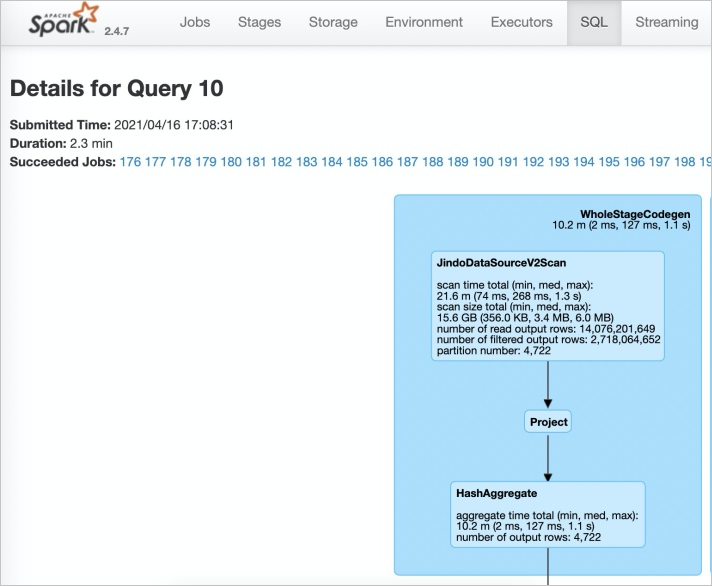
On the SQL tab, open the execution task for your job. If JindoDataSourceV2Scan appears in the plan, query acceleration is active. If it does not appear, check your configuration in the steps above.
Enable query acceleration for Presto
Presto includes a built-in catalog named hive-acc. Connect to this catalog to enable query acceleration:
presto --server https://emr-header-1.cluster-xxx:7778/ --catalog hive-acc --schema defaultReplace emr-header-1.cluster-xxx with the hostname of your emr-header-1 node.
Complex data types (MAP, STRUCT, and ARRAY) are not supported when using this feature in Presto.
Enable query acceleration for Hive
If stable job scheduling is a priority, keep this feature disabled in Hive.
EMR Hive V2.3.7 (EMR V3.35.0) includes a JindoTable plug-in that accelerates Parquet queries. Set the hive.jindotable.native.enabled parameter to enable it.
Option 1: Set the parameter in your Hive job
set hive.jindotable.native.enabled=true;Option 2: Set the parameter in the Hive configuration page (Hive on MapReduce and Hive on Tez)
-
On the Hive configuration page, click the hive-site.xml tab.
-
Add the custom parameter
hive.jindotable.native.enabledand set its value totrue. -
Save the configuration and restart Hive.
Complex data types (MAP, STRUCT, and ARRAY) are not supported when using this feature in Hive.