Anycast Elastic IP Address (Anycast EIP) is a product that improves the availability and performance of your globally distributed applications. This topic explains how to use an Anycast EIP to improve public network access for your users and helps you get started quickly.
Background information
A company deployed applications on Alibaba Cloud in the Singapore region. The applications are hosted on Elastic Compute Service (ECS) instances that are associated with a Classic Load Balancer (CLB) instance in a virtual private cloud (VPC). The CLB instance is bound to an EIP to provide public-facing services. When users in the UK (London) and China (Hong Kong) access the service through the EIP, they often experience high latency, jitter, and packet loss due to geographic distance and public network quality. To resolve this issue, the company plans to deploy an Anycast EIP and bind it to the backend CLB instance. This allows users in the access areas to connect to the applications through the nearest Alibaba Cloud access point by using a single IP address. The following figure shows the architecture.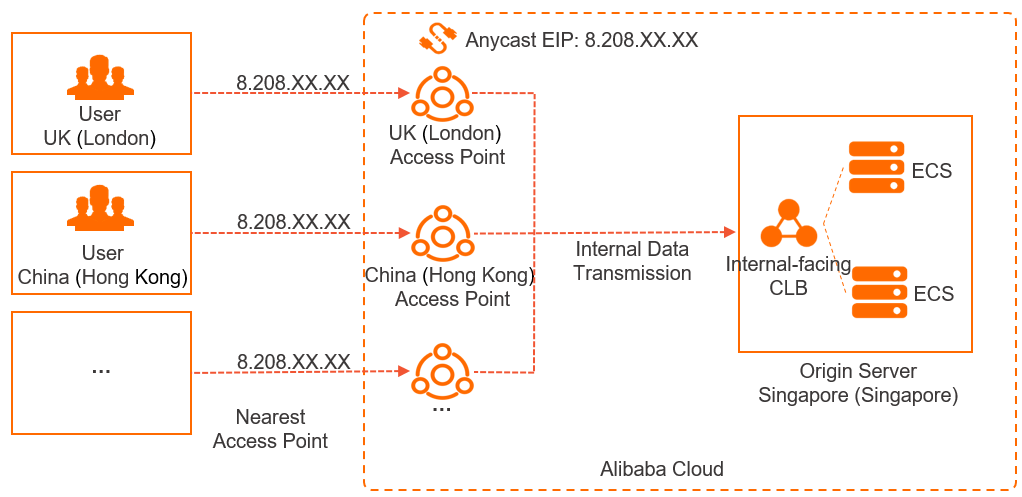
Procedure
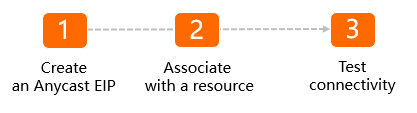
Step 1: Create an Anycast EIP instance
After you create an Anycast EIP instance, the system assigns it a public IP address. Users can access your services through this IP address.
- Log on to the Anycast EIP console.
-
On the Anycast Elastic IP Addresses page, click Purchase Anycast EIP.
-
If this is your first time purchasing an Anycast EIP, activate Cloud Data Transfer (CDT) first. CDT manages Anycast EIP billing.
-
Read and select the Terms of Service, and then click Activate Now.
-
In the dialog box that appears, click Continue to Purchase.
NoteIf you used Anycast EIPs before 00:00:00 (UTC+8) on June 1, 2023 without activating CDT, the pay-by-data-transfer metering method applies by default. Billing.
To activate CDT, go to the CDT page. CDT traffic types: Internet traffic and Inter-region traffic.
-
-
On the purchase page, configure the parameters and click Activate Now.
Parameter
Description
Region
Select a region. Default: Areas Outside Chinese Mainland.
Instance type
Select an instance type. Default: Standard.
Billing method
Select a billing method. Default: pay-by-data-transfer. Billing.
Resource Group
Select the resource group for the Anycast EIP.
The resource group must be created in Resource Management by the current Alibaba Cloud account. Create a resource group.
Name
Enter a name for the Anycast EIP.
Quantity
Specify the number of Anycast EIPs to purchase.
Step 2: Bind a resource
After creating the instance, you must bind it to a backend resource. Once bound, client traffic sent to the Anycast EIP is routed to the resource.
- Log on to the Anycast EIP console.
On the Anycast Elastic IP Addresses page, find the Anycast EIP and click Actions in the Manage column.
On the Anycast EIP details page, on the Bound Instances tab, click Associate with Resource.
In the Associate Anycast EIP with Resource dialog box, configure the parameters and click OK.
Parameter
Description
Instance Type
Select the type of cloud resource.
SLB Instance (default)
ENI
ImportantYou can associate an Anycast EIP with only one cloud resource in a region.
You can associate an Anycast EIP only with Classic Load Balancer (CLB) instances deployed in a VPC.
If you select ENI, the elastic network interface must be attached to an ECS instance and not associated with a public IP address. Otherwise, the association fails.
Resource Group
Select the cloud resource's resource group.
Set as Default
Determines if the cloud resource is the default endpoint. Requests from unmapped access points are routed to the default endpoint.
Yes: Sets this cloud resource as the default endpoint.
No: Sets this cloud resource as a regular endpoint.
Region
Select the cloud resource's region. This is the endpoint region.
Supported endpoint regions include China (Hong Kong), Japan (Tokyo), Singapore, US (Silicon Valley), US (Virginia), and Germany (Frankfurt).
Areas
Specifies the access points for the endpoint region. This allows you to map access points to an endpoint.
This parameter is available only when you set Set as Default to No.
Select an instance to associate
Select the target resource instance.
Step 3: Test the configuration
After completing the configuration, you can test the public network performance.
The network quality of an Anycast EIP is subject to carrier public network conditions, so actual performance will vary. This example shows how to test packet latency.
-
Open the command-line interface (CLI) on a computer in an access location.
-
Run the following command to check the packet latency.
curl -o /dev/null -s -w "time_connect: %{time_connect}\ntime_starttransfer: %{time_starttransfer}\ntime_total: %{time_total}\n" "<IP_address_to_access>"Description of parameters:
-
time_connect: The time, in seconds, from the start until the TCP connection is established.
-
time_starttransfer: The time, in seconds, from the start of the request until the first byte is received from the backend server.
-
time_total: The total time, in seconds, from the start of the request until the entire response is received.
The test result shows that using an Anycast EIP reduces the latency when you access the application service on the server in Singapore.
C:\Users\wb-zxxx>curl -o /dev/null -s -w "time_connect: %{time_connect}\ntime_starttransfer: %{time_starttransfer}\ntime_total: %{time_total}\n" "139.xxx.184" time_connect: 0.563000 time_starttransfer: 2.297000 time_total: 2.297000 -