This topic describes how to use instance-level operation strategies in the console to diversify your recommendation results.
Note: Instance-level operation strategies apply to the entire instance. All scenarios within the instance are subject to these strategies. If a scenario has its own operation strategy of the same type, the scenario-level strategy takes precedence.
1. Reduce user browsing fatigue
How it works
After a user views or clicks an item, AIRec does not recommend that item again for a specified period.
Exposure within a single scenario
For example, an item shown in scenario 1 will not reappear in either scenario 1 or scenario 2 during the filter's time window.
The default setting applies the exposure filter across the entire instance. You can choose to enable scenario-specific recording instead. If you do, an item shown in scenario 1 will not reappear in scenario 1 within the filter window, but it might reappear in scenario 2. This option is not recommended.
Procedure
Modify the settings in the console
In the navigation pane on the left, choose Operation Strategy and click the Global Operations tab. In the Fatigue Rules section, you can view and configure the following three rules, all of which are enabled by default: Filter items by user exposure behavior (prevents recommending an exposed item for 2 days), Filter items by user click behavior (prevents recommending a clicked item for 7 days), and Ensure a personalized experience for frequent users (allows re-recommending exposed items if the total number of unviewed items falls below 3,000). To change these settings, click Edit Global Rules in the upper-right corner. Note: If you have a small number of items, consider reducing the exposure filter time to avoid running out of items to recommend.
2. Diversify recommendation results
How it works
AIRec supports diversification based on an item's category (category_path), item type (item_type), shop (shop_id), or author (author) from the item table.
For example, you can specify a category level and a window size for diversification. If your categories have only one level, diversification is applied to all items. If you have multiple category levels, diversification is applied to items at the specified level. The diversification window works as follows: 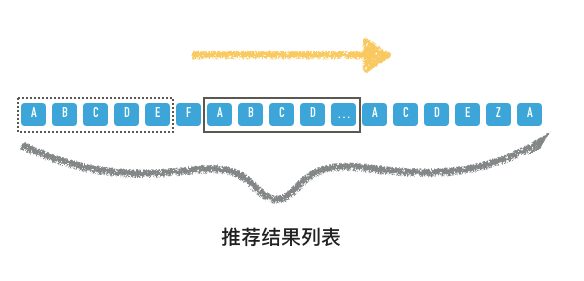 As shown in the preceding figure, if you set the window size to 5, the system ensures that within any sliding window of 5 consecutive items, each item belongs to a different subcategory. This prevents items of the same category from clustering together and improves the user experience.
Procedure
1. If an item does not have the required attribute field for diversification, the system handles it according to its default behavior.
2. If an item has category attributes, ensure that category_level and category_path correspond correctly. Otherwise, the system filters the item out as invalid data.
3. If the category level is configured incorrectly, the system may return an empty result.
4. If the window size is set to 1, diversification has no effect.
5. We recommend setting the window size to one more than the number of items displayed per screen in your application. The maximum recommended size is 1.5 times the number of items per screen. In the Diversity Rules section of the console, you can configure diversification strategies. Key rules include: Increase diversity of recommended item authors (ensures every 5 consecutive items have different authors), Increase diversity of recommended item categories (ensures every 5 consecutive items belong to a different level-1 category), and Increase diversity of recommended item types (ensures every 5 consecutive items have a different type). You can also configure the Ensure a fixed ratio of recommended item types rule (for example, 50% image and 50% article), as well as the filter settings at the top of the page: Filter items by user click behavior (prevents recommending items clicked within a set number of days) and Ensure a personalized experience for frequent users (allows re-recommendation if unviewed items fall below a threshold). Each rule can be individually enabled or disabled with a switch.
3. Set fixed item type ratios
How it works
AIRec performs blending based on the item's item_type field. This allows you to specify a blending ratio for different item types. For example, you can set a ratio of 50% for items of type 'item' and 50% for items of type 'image'.
Procedure
Configure the blending module to use a fixed ratio. Select your item types and set their corresponding percentages. The system then returns the recommendation results according to the specified ratio.
In the Diversity Rules section, enable the Ensure a fixed ratio of recommended item types rule. For example, set items of type image to 50% and items of type article to 50%. You can adjust the type entries by using the +Add or −Remove buttons. Note:
1. If the number of items for a specific type calculated from the ratio is not an integer, the system automatically rounds it.
2. If a specified item type does not exist, the system returns an empty result.
3. If you do not configure blending, the system returns results based on the default settings.
4. The percentages for all specified types must add up to 100%.