After you enable the system disk encryption feature for an E-MapReduce (EMR) cluster, the operating system, program files, and other system-related data on the system disk are encrypted. You can use this feature if your business has security compliance requirements. This feature helps you protect the privacy, autonomy, and security of data without the need to build or maintain a key management infrastructure.
Background information
For more information about system disk encryption, see Overview.
Prerequisites
Key Management Service (KMS) is activated and a customer master key (CMK) is created. For more information, see Purchase a dedicated KMS instance and Create a CMK.
Limits
Only Enterprise SSDs (ESSDs), standard SSDs, and ultra disks can be encrypted. Local disks cannot be encrypted.
You can enable system disk encryption only when you create a cluster. You cannot enable system disk encryption for an existing cluster.
Precautions
You cannot disable system disk encryption after it is enabled. We recommend that you enable this feature only when it is necessary.
Procedure
Log on to the EMR console. In the left-side navigation pane, click EMR on ECS.
On the EMR on ECS page, click Create Cluster.
In the Basic Configuration step, click the
 icon in the Advanced Settings section.
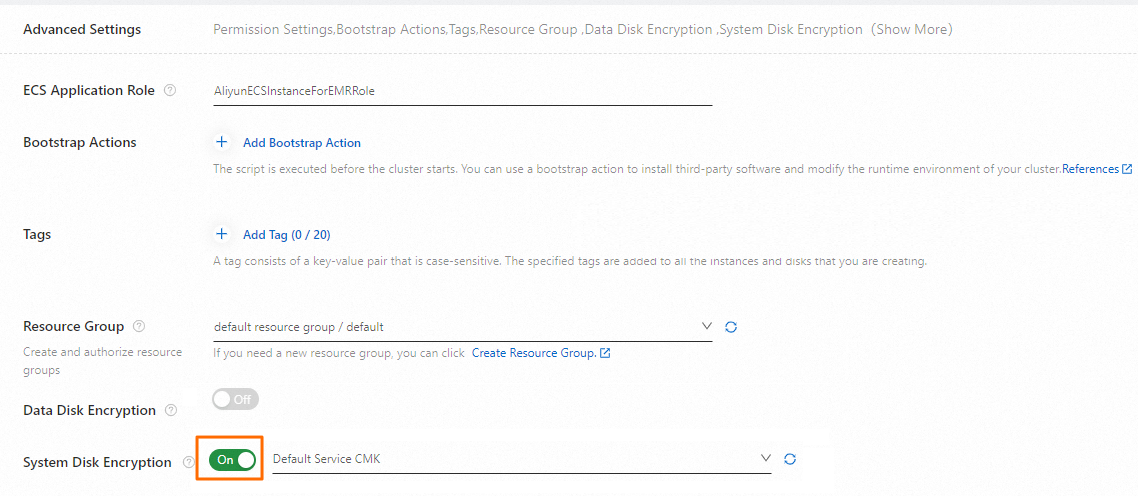
 Turn on System Disk Encryption and select a CMK from the drop-down list.
When you create the cluster, you need to configure the software and hardware, specify basic information, and confirm the order for the cluster. For more information, see Create a cluster.