Share a snapshot with other Alibaba Cloud accounts or across your enterprise through a resource directory. Recipients use the shared snapshot to create cloud disks, enabling cross-account collaboration and batch deployment without duplicating data.
Before sharing, verify that the snapshot contains no sensitive data or files. Recipients get full read access to all snapshot data.
How it works
Snapshot sharing uses Resource Sharing from Resource Management. The workflow has three stages:
The sharer adds the snapshot to a resource share and specifies principals (recipients).
The recipient accepts the sharing invitation.
The recipient uses the shared snapshot to create cloud disks or copy the snapshot.
Sharing methods
Choose a sharing method based on your scenario:
Method | Scope | Best for |
Share with specific accounts | Any Alibaba Cloud account | Cross-department sharing, partner collaboration |
Share within a resource directory | Accounts in a resource directory | Enterprise-wide sharing, automatic access for new members |
When sharing within a resource directory, all accounts in the directory or folder get access automatically. New accounts that join inherit access; removed accounts lose access.
Prerequisites
Before you begin, ensure that you have:
A snapshot that does not contain sensitive data or files
The sharing target information ready:
To share with a specific account: The recipient's Alibaba Cloud account ID. To find the account ID, hover over the profile picture in the upper-right corner of the console. If the account is identified as a Main Account, the displayed ID is the Alibaba Cloud account ID.
To share within a resource directory: An Alibaba Cloud account that meets one of these conditions:
The account has not enabled a resource directory but is a member of one
The account has passed enterprise verification, enabled the resource directory feature, and enabled resource sharing
(For encrypted snapshots using a CMK) The
AliyunECSShareEncryptSnapshotDefaultRoleResource Access Management (RAM) role created with required permissions. For details, see Share encrypted resources across accounts.
Share a snapshot
Console
Go to ECS console - Snapshots.
In the top navigation bar, select the region and resource group of the snapshot.

On the Disk Snapshots tab, find the target snapshot, then choose
 > Share Snapshot in the Actions column.
In the Add to Resource Share dialog box, set Method to Existing Resource Share or New Resource Share.
NoteSnapshot sharing uses Resource Sharing from Resource Management. A resource share groups shared resources and principals together.
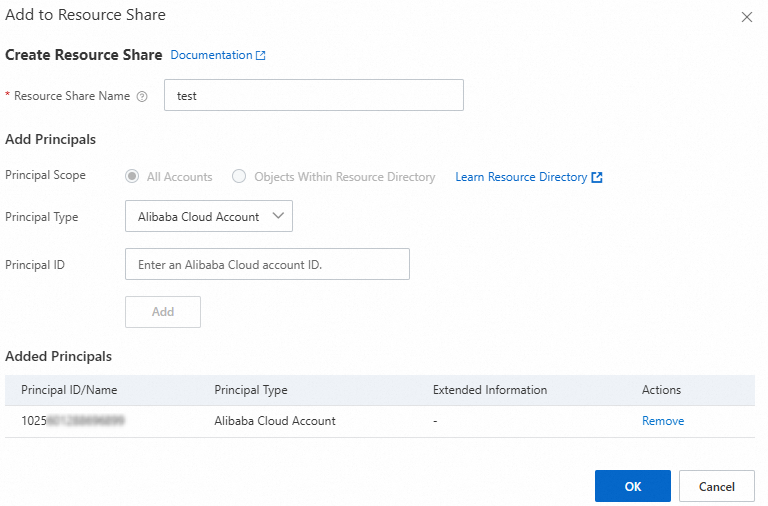
(Required only for New Resource Share) Set the Principal Scope:
All Accounts: Share with any Alibaba Cloud account.
Objects Within Resource Directory: Share only within your resource directory. The management account or members can share with the directory itself, its folders, and its members.
Click Add Principals and configure the recipients: Share with a specific Alibaba Cloud account: Set Principal Type to Alibaba Cloud Account and enter the recipient's Alibaba Cloud account ID in Principal ID. Share within a resource directory:
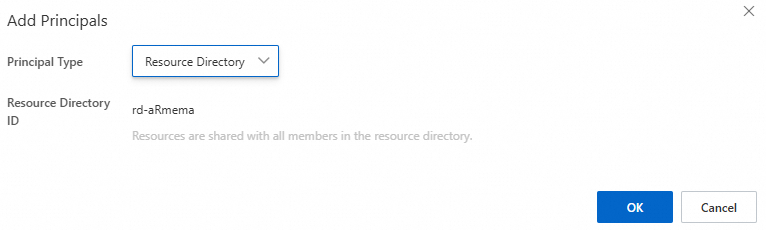
If the sharer has not enabled the resource directory feature but is a member of one: Set Principal Type to Resource Directory or Folder (Organizational Unit). For folders, enter the folder ID.
If the sharer has enabled the resource directory feature: Select the target resource directory or folder from the list, or add them manually.
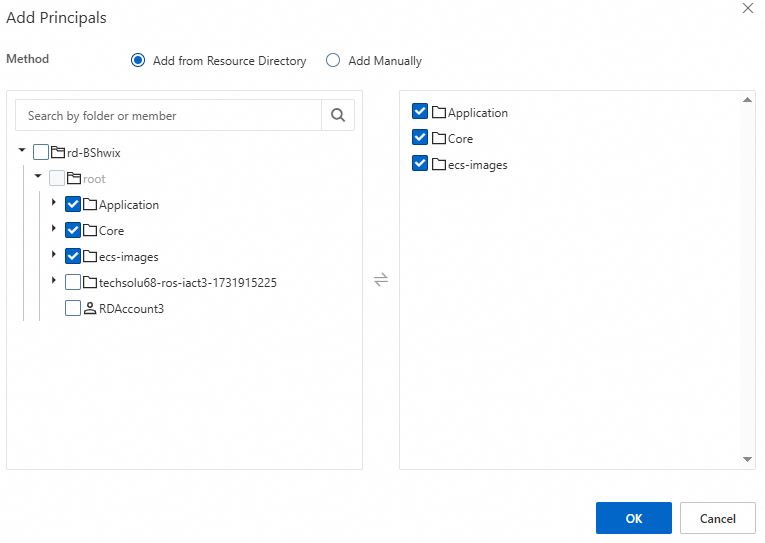
Note- If Principal Scope is set to Objects Within Resource Directory, only accounts within the directory are available. - To share with multiple accounts, add each one separately.
Note- You can also share snapshots from the Resource Management console. For details, see Manage shared resources as a resource owner. - When sharing with an entire resource directory or folder, all accounts within it can access the snapshot. New accounts that join automatically receive access. Removed accounts automatically lose access.
Click OK.
API
A Java SDK sample project demonstrates cross-account snapshot sharing and cloud disk creation from a shared snapshot.
Download the snapshot sharing sample project. The project includes three code samples:
Sample
Description
CreateResourceShareThe sharer creates a resource share and initiates snapshot sharing
ReceiveResourceShareThe recipient accepts the sharing invitation
UseResourceShareThe recipient creates a cloud disk from the shared snapshot
Configure SDK dependencies in
pom.xml. For details, see Java SDK call examples.NoteSDK packages are updated frequently. Get the latest dependency version from the GitHub links in SDK overview.
   <!--Resource Sharing SDK-->
   <dependency>
     <groupId>com.aliyun</groupId>
     <artifactId>resourcesharing20200110</artifactId>
     <version>${lastVersion}</version>
   </dependency>
   <!--ECS SDK-->
   <dependency>
     <groupId>com.aliyun</groupId>
     <artifactId>alibabacloud-ecs20140526</artifactId>
     <version>${lastVersion}</version>
   </dependency>
Add the
ALIBABA_CLOUD_ACCESS_KEY_IDandALIBABA_CLOUD_ACCESS_KEY_SECRETenvironment variables and set them to your AccessKey ID and AccessKey secret.Replace the placeholder variables in the project with your actual values, such as the snapshot ID, the recipient's account UID, and the cloud disk type.
Compile and run each code sample as needed.
Verify the results in the console. For example, the sharer can check the Resource Management console for the new resource share, and the recipient can check the ECS console for the shared snapshot and created disk.
Accept and use a shared snapshot
After the sharer completes the sharing process, the recipient must accept the invitation before using the snapshot.
Accept the sharing invitation
This step is required the first time a new or existing resource share is used.
Log on to the Resource Management console.
In the left-side navigation pane, choose Resource Sharing > Resources Shared To Me.
In the upper-left corner of the top navigation bar, select the region of the shared snapshot.
On the Shared To Me page, find the resource share and click Accept in the Status column.
In the Accept Resource Sharing Invitation dialog box, click OK.
After accepting, any new resources added to this resource share are accepted by default.
View the shared snapshot
Go to ECS console - Snapshots.
In the upper-left corner of the top navigation bar, select the region of the shared snapshot.
Find the shared snapshot in the list. Identify it by: Alternatively, choose
> View Shared Snapshot in the Actions column to view details in the Resource Management console.Hovering over the
 icon to view a tag in the format
 acs:ecs:sharedFrom:<UID of the sharer>:<Region>:<Source snapshot ID>.The Creation Method column showing Shared Snapshot.
Hovering over the
 icon to view the sharer's account UID and source snapshot ID.
Use the shared snapshot
Create a data disk from the shared snapshot or copy the shared snapshot.
For encrypted shared snapshots, change the encryption key when creating a cloud disk or copying the snapshot.
Cloud disks created from a shared encrypted snapshot are limited to ESSD, ESSD AutoPL, and ESSD Entry disks. To create other disk types, copy the snapshot first and create a disk from the copy.
Unshare a snapshot
When a snapshot is unshared, recipients can no longer query the snapshot through the ECS console or API, and cannot re-initialize disks created from the shared snapshot. Snapshots that recipients previously copied from the shared snapshot are not affected.
Go to ECS console - Snapshots.
In the top navigation bar, select the region and resource group of the snapshot.
On the Disk Snapshots tab, find the snapshot and choose
> Share Snapshot in the Actions column.In the Principals section, click Edit.
In the Principals section, click Remove in the Actions column for the recipient to remove.

Click OK.
Limitations
Billing
Sharing a snapshot is free of charge.
Recipients are charged for resources they create from a shared snapshot, such as cloud disks or cross-region snapshot copies.
A shared snapshot that expires but is not unshared is not automatically released and continues to incur storage charges.
Quotas
Resource | Limit |
Maximum accounts per shared snapshot | 64 |
Maximum snapshots shared per account | 1,024 |
Account restrictions
Sharing between China site accounts and international site accounts is not supported.
Sharer restrictions
Cannot delete a shared snapshot directly. Unshare it first.
Cannot share snapshots created from imported custom images.
Cannot share snapshots encrypted with a service key. To share an encrypted snapshot that uses a service key, copy the snapshot to change the encryption to a customer master key (CMK), then share the copy. For more information about encryption keys, see Disk encryption.
Recipient restrictions
Cannot create custom images from shared snapshots.
Cannot roll back cloud disks using shared snapshots because the shared snapshot ID differs from the source snapshot ID.
Cannot delete shared snapshots directly. The sharer must unshare them first.
Cannot archive shared snapshots.
Cannot re-share shared snapshots. To work around this, either:
Create a cloud disk from the shared snapshot, create a new snapshot from that disk, and share the new snapshot.
Copy the shared snapshot and share the copy.
Cannot extend the retention period of a shared snapshot.
If the original snapshot has permanent retention, the shared copy has a retention period of 1,096 days.
If the original snapshot has a custom retention period, the shared copy follows the same period.