All Products
Search
Document Center

:Create an email template

更新時間:Sep 11, 2025

You can create a template for email marketing tasks. After the template is approved, you can use it when you create an email marketing task.

Create an email template

Procedure:

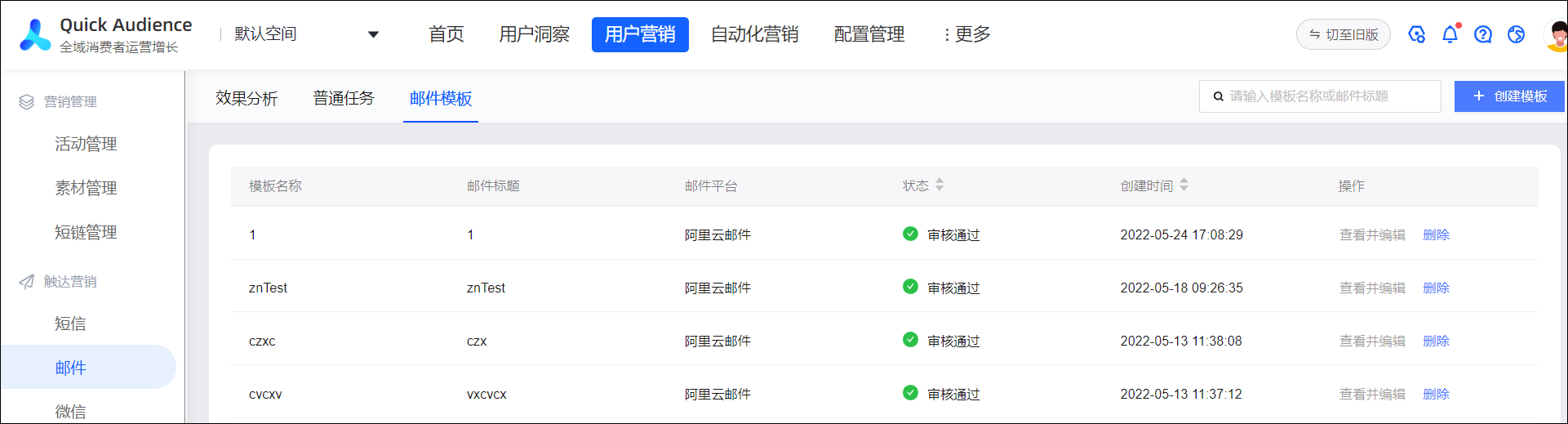
  1. Choose Workspace> User Marketing > Touch Marketing > Email > Email Template. image

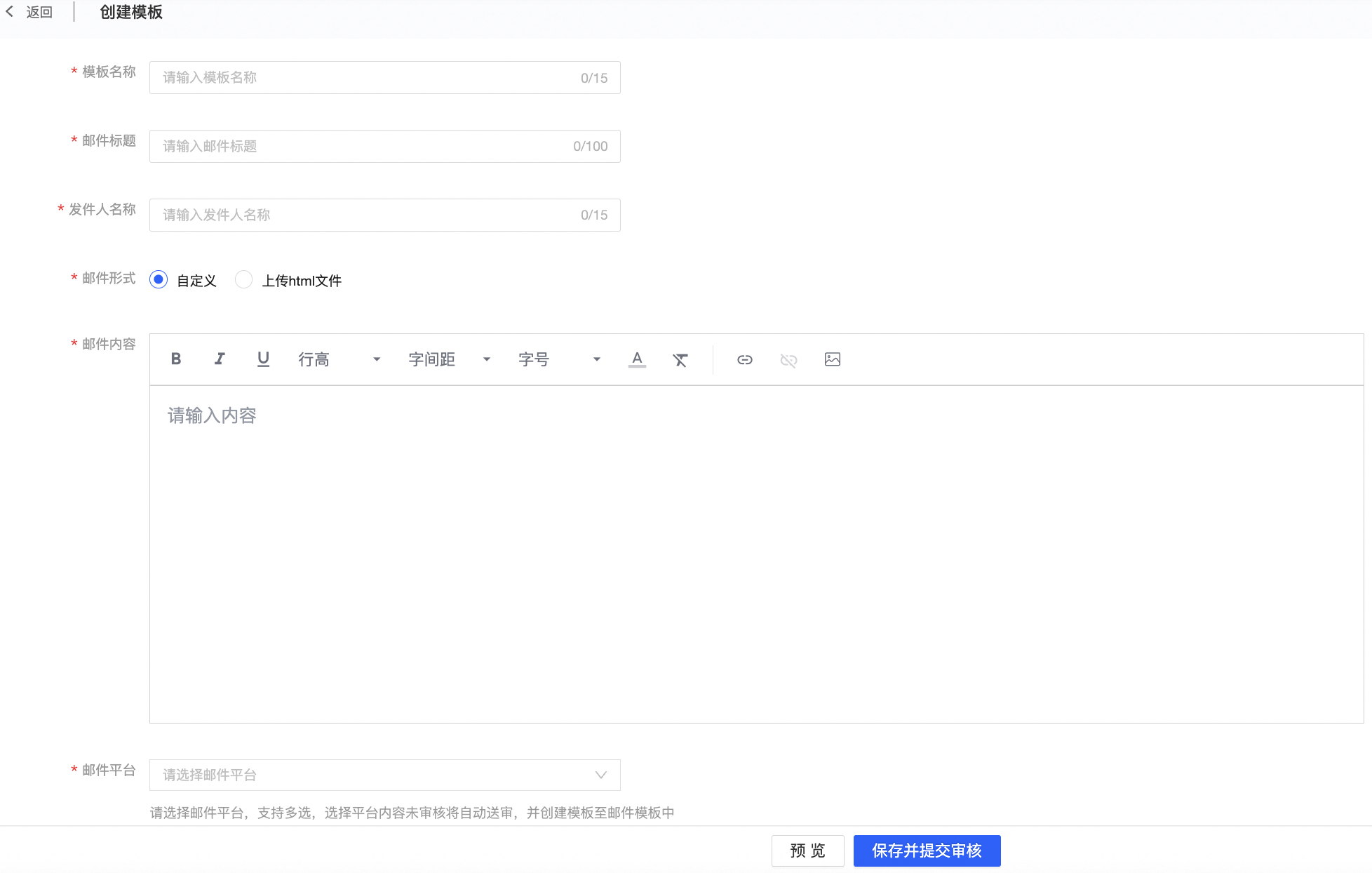
  2. Click Create Template in the upper-right corner.

    image.png

  3. Enter Template Name, Email Title, Sender Name, and body.

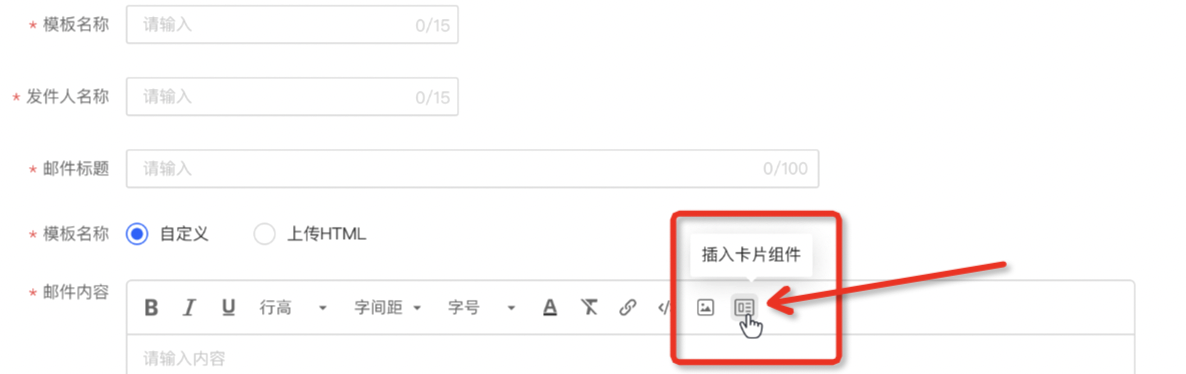
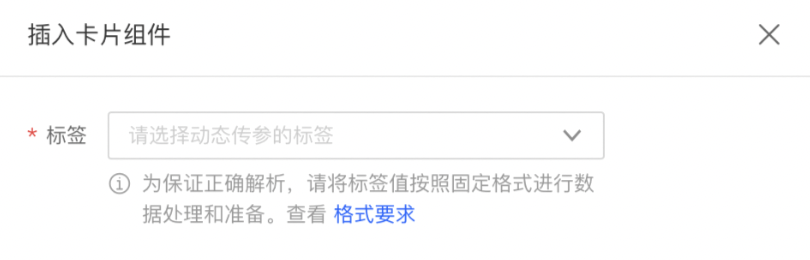
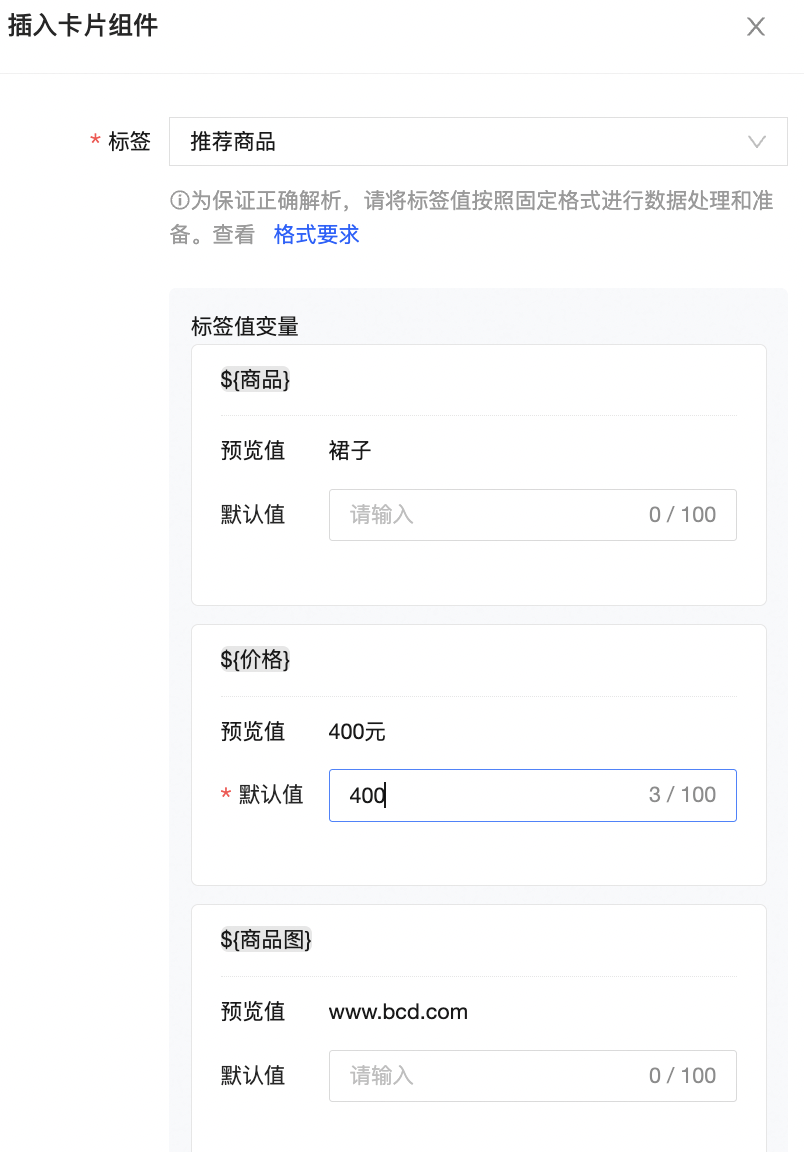
  4. In the body, click the Card widget and enter the card widget information to insert a card style in the email. When you use the card widget, you can select whether to upload an image, and select the display tag value variable and tag value. You can add up to five card widget styles.

    image.png

    image.png

  5. The data format to be prepared can be by clicking on the format requirements. If there is a URL link, it is recommended to prepare the data in a short chain, otherwise the link characters may exceed the length of the tag value, which may lead to failure. Take the product preference tag as an example. When the tag is inserted to push differentiated information to people with different product purchase preferences, the following data needs to be prepared: the system will automatically split according to the compliance content.

  6. User

    Time

    recommend products [logo and separator are in Chinese :,;]

    001

    725

    Commodity: skirt, price: 400, commodity map:www.bcd.com;

    Commodity: clothes, price: 100, commodity map:ww.google.com;

    Commodity: pants, price: 150, commodity map:;

    The system splits into multi-value labels based on; as follows

    001

    725

    Commodity: skirt, price: 400, commodity map:www.bcd.com;

    001

    725

    Commodity: clothes, price: 100, commodity map:ww.google.com;

    001

    725

    Commodity: pants, price: 150, commodity map:;

    Tag value variables are previewed after data is uploaded:

    image.png

  7. If a variable is selected in the input content such as title /description /jump link, the default value must be filled in the label variable. When the target customer cannot hit the label, the default value will be displayed.

  8. Select one or more email platforms from the Email Platform section.

    The email template you create will only be available to email tasks that use that email platform.

  9. Optional. Click Preview to preview the body.

  10. Click Save and Submit.

    The selected email platform will be reviewed for the template.

Manage email templates

As shown in the following figure, the created email templates are displayed in the Pending for Review, Reviewed, Approved, and Reviewed. The approved template can be used when you create an email marketing task. image

You can perform the following operations:

  • View and Edit: You can edit only the template that fails to be reviewed. Modify the template name, email title, sender name, and body, and then save and submit the template for review.

  • Delete: You can delete a template in any state. After the deletion, the email task cannot use the template. Do not delete the template used by the pending or sending email task.