グローバルテーブルは、複数のリージョン間でデータを自動的に同期し、クロスリージョンディザスタリカバリを提供します。クロスリージョンのビジネスにおいて、低レイテンシーアクセス、高可用性、最寄りのレプリカからの読み書き、および災害対策の切り替えが求められる場合に、グローバルテーブルを使用します。
仕組み
グローバルテーブルは、Tablestore のマルチリージョンレプリケーション技術を使用して、複数リージョンのインスタンス間にデータ同期チャネルを確立します。あるリージョンのテーブル内のデータが変更されると、その変更は他のリージョンのレプリカテーブルに自動的に同期され、クロスリージョンのデータ整合性が確保されます。テーブルレプリカは、異なるインスタンスおよびリージョン間での動的な拡張と削除をサポートします。
レプリケーションプロセスは、手動の介入なしにバックグラウンドで自動的に実行されます。この仕組みにより、データ整合性を確保しつつ、許容可能な目標復旧時点 (RPO) を実現し、多くの業務システムにおける災害対策とビジネス継続性のニーズを満たします。
日常利用では、ユーザーおよびアプリケーションは最寄りのレプリカから読み書きを行えるため、アクセスレイテンシーを低減できます。データセンターの停止や自然災害など、リージョン障害または大規模災害が発生した場合は、複数レプリカに基づいて災害対策の切り替えを迅速に開始し、重要なアプリケーションとデータを再構築することで、ビジネス継続性を確保できます。
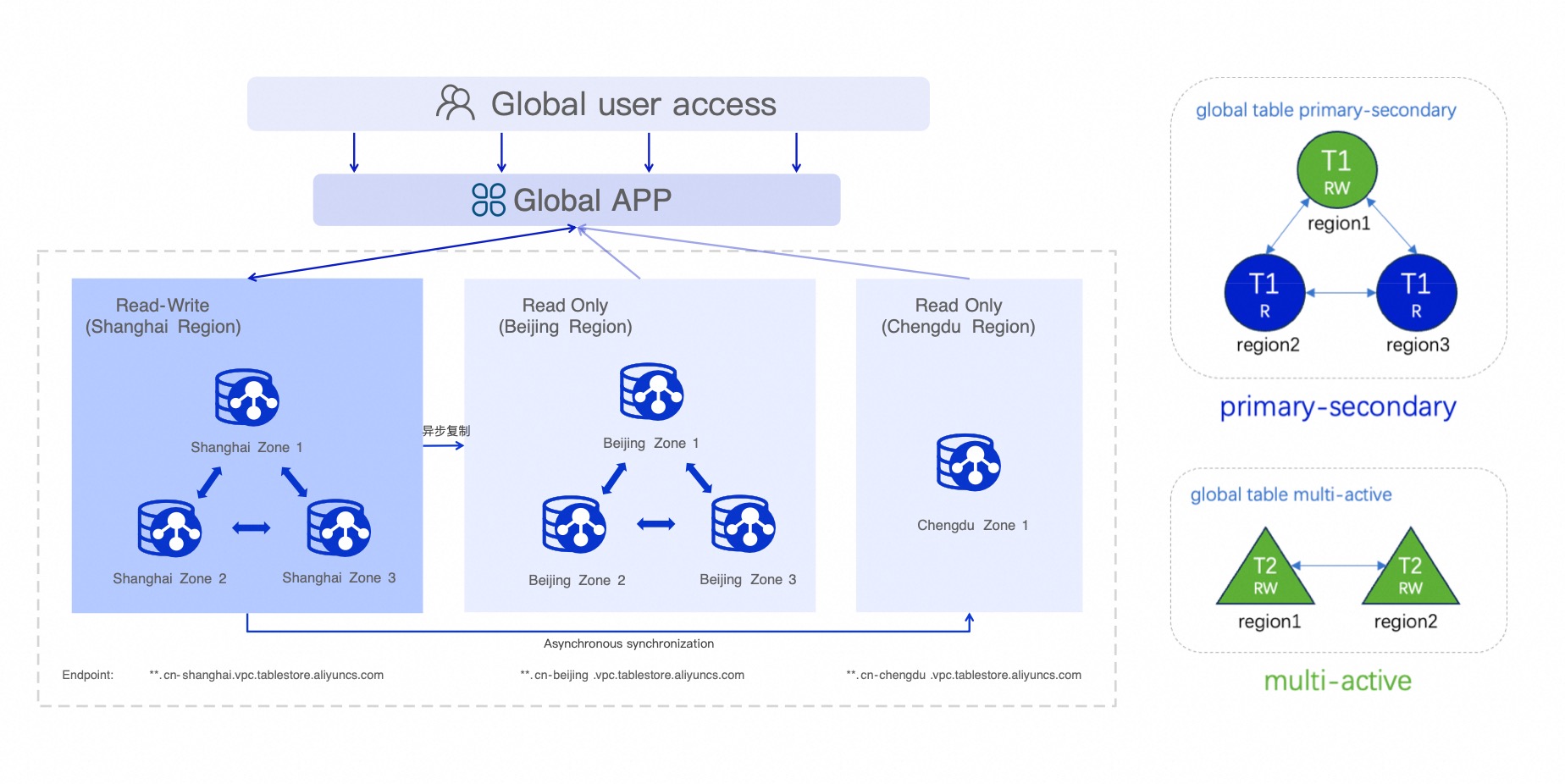
グローバルテーブルは、次の機能を提供します:
クロスリージョンディザスタリカバリ — クロスリージョンのテーブルレプリカ。リージョンレベルの障害が発生した場合でも、他のリージョンのレプリカが継続してサービスを提供できます。
低レイテンシーアクセス — ユーザーまたはアプリケーションは最寄りのレプリカから読み書きを行えるため、操作レイテンシーを低減できます。
結果整合性 — 結果整合性モデルを使用します。複数のレプリカは非同期に同期され、データは最終的に整合します。
自動競合解決 — システムは、最終書き込み者優先 (LWW) アルゴリズムを使用して、リージョン間の同時書き込み競合を自動的に解決します。
同期モード
グローバルテーブルは 2 つの同期モードをサポートします。グローバルテーブルの作成時にモードを選択します。
アクティブ/パッシブモード — 書き込みは、プライマリレプリカのみがインスタンスエンドポイント経由で受け付けます。他のすべてのレプリカは、アクティブ/パッシブの切り替え中を除き読み取り専用です。このモードは、クロスリージョンディザスタリカバリ、および読み取り専用レプリカによる読み取りキャパシティの拡張に使用します。
アクティブ/アクティブモード — 複数のレプリカが、それぞれのインスタンスエンドポイント経由で書き込みを受け付けます。宛先インスタンスごとに読み書きモードを設定します。複数リージョンに書き込み、グローバルなデータセットが必要な場合に、このモードを使用します。
両方のモードで結果整合性を使用します。レプリカは非同期に同期され、データは最終的に整合します。アクティブ/アクティブモードおよびアクティブ/パッシブの切り替え中は、同一行への同時書き込みは最終書き込み者優先 (LWW) アルゴリズムで解決されます。詳細については、「制限」をご参照ください。
シナリオ
グローバルテーブルは、高可用性、低レイテンシーのクロスリージョン読み書き、およびクロスリージョンディザスタリカバリが必要な業務シナリオに適しています。代表的なシナリオは次のとおりです:
クロスリージョンバックアップ — プライマリリージョンで障害が発生した場合、セカンダリリージョンに切り替えて読み取りサービスの提供を継続し、ビジネス継続性を確保します。たとえば、EC システムのユーザーテーブルについて、プライマリレプリカを China (Hangzhou)、セカンダリレプリカを China (Beijing) リージョンの Tablestore に保存します。China (Hangzhou) リージョンで障害が発生した場合でも、China (Beijing) リージョンが引き続きクエリサービスを提供します。推奨モード:アクティブ/パッシブ。
1 つのリージョンに書き込み、複数リージョンから読み取り — 最寄りのリージョンにデータを書き込み、他のリージョンでは最寄りのレプリカから読み取ります。これはリモートアクセスの高速化に最適です。たとえば、サービスのプライマリ書き込み先を China (Hangzhou) リージョンにし、低レイテンシーのクロスリージョン読み取り需要に対応するため、China (Beijing) および China (Shanghai) リージョンに読み取り専用レプリカをデプロイします。推奨モード:読み取り専用レプリカを使用したアクティブ/パッシブ。
複数リージョンに書き込み、グローバルに読み取り — 複数リージョンへの書き込みによりグローバルなデータセットを作成し、結果整合性のある読み取りを提供します。ゲームのユーザープロファイルやソーシャルメッセージングシステムのクロスリージョン配信など、グローバルなデータセットへのアクセスが必要なシナリオに適しています。推奨モード:アクティブ/アクティブ。
制限
グローバルテーブルを作成する前に、次の制限を確認してください。一部の制限は、グローバルテーブルを正常に作成できるかどうかに影響します。詳細については、「制限」をご参照ください。
サポートされるリージョン — グローバルテーブルは、China (Hangzhou)、China (Shanghai)、China (Qingdao)、China (Beijing)、China (Zhangjiakou)、China (Hohhot)、China (Ulanqab)、China (Shenzhen)、China (Guangzhou)、China (Chengdu) リージョンで利用できます。データコンプライアンスなどの理由により、異なる国のリージョン間でグローバルテーブルを作成することはできません。グローバルテーブルでサポートされているリージョンについては、「サポートされるリージョン」をご参照ください。
テーブルタイプ — データテーブルのみサポートされます。時系列テーブル、検索インデックス、およびセカンダリインデックスのクロスリージョン同期はサポートされていません。
レプリカ数 — 1 つのグローバルテーブルは最大 10 リージョンをサポートしています。
同期レイテンシー — 同期の RPO は通常数秒以内であり、リージョン、ネットワーク状況、およびデータ量に依存します。本サービスは、データ転送レイテンシーの信頼性保証を提供しません。
変更不可の設定 — 有効期限 (TTL) 設定や事前定義列など、グローバルテーブルのプロパティは変更できません。
列モードテーブル — 既存のデータテーブルはデフォルトで列モードで作成され、グローバルテーブルに直接アップグレードすることはできません。
グローバルテーブルの再作成 — グローバルテーブル機能を 2 回目に使用する場合、既存の同名のテーブルでは同期関係を再確立できません。最初に検索インデックスとセカンダリインデックスを削除し、次にテーブルを削除してから、グローバルテーブルを作成する必要があります。ここで「2回目の使用」とは、以前にグローバルテーブルの一部であったものの、同期関係が削除されたデータテーブルを、再度グローバルテーブルとして作成するシナリオを指します。
データの上書きリスク — アクティブ/アクティブモードでの日常的な書き込み、およびアクティブ/パッシブの切り替え中は、同期書き込みとユーザー書き込みが同時に同一データ行を変更する場合があります。バージョン番号が大きい行が、バージョン番号が小さい行を上書きします (LWW)。その結果、バージョン番号の低い書き込みデータは上書きされるか破棄されます。
前提条件
プライマリリージョンおよび各ターゲットレプリカリージョンでインスタンスが作成済みであること。手順については、「インスタンスの作成」をご参照ください。
ベーステーブルがグローバルテーブルの構成要件を満たしていること。既存のデータテーブルをベーステーブルとして使用する場合は、次の表の要件を満たしていることを確認してください。
| パラメーター | グローバルテーブルに必要な値 | 説明 |
| Time to live | -1 | データは期限切れになりません。 |
| Max versions | 1 | 最大バージョン数は 1 です。 |
| Row versioning | 有効 | テーブルを行モードに設定します。行バージョンをサポートするかどうか を有効にした後、無効にすることはできません。行バージョン管理を有効にすると、次の制限が適用されます:1 行あたり最大 256 列までサポートされます。データ書き込み時にバージョン番号を手動指定できません (システムが自動生成します)。また、各 Update 操作では最初に現在の行バージョンを読み取るため、わずかな追加の読み取り負荷が発生します。 |
| Max version offset | MaxInt32 (2147483647) | バージョンオフセットを Int32 の最大値に設定します。これは、制限がないことを意味します。 |
行モード以外の既存テーブルでは、グローバルテーブルを作成できません。このようなテーブルを使用する場合は、テクニカルサポートに連絡して本機能を有効にしてください。
グローバルテーブルの作成
プライマリリージョンでベーステーブルを作成し、その後、ターゲットリージョンにレプリカを追加してグローバルテーブルに変換します。
手順 1:ベーステーブルの準備
プライマリリージョンで、グローバルテーブルのベースとして使用するデータテーブルを作成します。
インスタンスの管理 ページに移動します。
Tablestore コンソール にログインします。
上部メニューで、リソースグループとリージョンを選択します。
概要 ページで、インスタンスのエイリアスをクリックするか、インスタンスの [操作] 列で インスタンスの管理 をクリックします。
インスタンスの詳細 タブで、テーブルの作成 をクリックします。
テーブルの作成 ダイアログボックスで、[データテーブル名] と [プライマリキー] を設定します。
[詳細設定] スイッチをオンにし、続いて グローバルテーブルの依存関係をクイック設定する スイッチをオンにします。システムは、「前提条件」に記載のとおり、グローバルテーブルに必要な依存関係を自動的に構成します。
[データテーブル名] に
exampletableを入力します。[プライマリキー] セクションで 2 つのプライマリキーを追加します。1 つ目のプライマリキーの名前をuser_id、タイプを [String] に設定し、パーティションキーとして設定します。2 つ目のプライマリキーの名前をregion_id、タイプを [String] に設定します。作成 をクリックします。
手順 2:グローバルテーブルの作成
ベーステーブルをグローバルテーブルに変換し、レプリカリージョンを追加します。グローバルテーブルの作成後、システムは選択したレプリカリージョンに対応するデータテーブルを自動的に作成し、データ同期チャネルを確立します。
プライマリリージョンで、テーブルリスト タブのベーステーブルの [操作] 列にある グローバルテーブルの新規作成 をクリックします。別の方法として、データテーブル名をクリックし、[グローバルテーブル] タブに移動してから グローバルテーブルの同期関係を作成する をクリックして続行します。
グローバルテーブルの作成 ダイアログボックスで、選択した同期モードに基づいてパラメーターを設定します。
宛先インスタンスにグローバルテーブルと同名のデータテーブルがすでに存在する場合、グローバルテーブルの作成は失敗します。
アクティブ/パッシブモードの設定
現在のリソース エリアで、グローバル同期モード を プライマリ / セカンダリモード (クロスリージョンレプリケーション) (クロスリージョンレプリケーション) に設定します。
ターゲットテーブル エリアで、宛先インスタンスのリージョンとインスタンス名を選択します。一度に複数の宛先インスタンスを追加できます。グローバルテーブルの作成後、システムは選択したリージョンのインスタンスに、現在のベーステーブルと同名のターゲットテーブルを自動的に作成します。
宛先インスタンスの読み書き権限は [読み取り専用] です。
アクティブ/アクティブモードの設定
現在のリソース エリアで、グローバル同期モード を 複数の読み取り / 書き込み (リージョン間レプリケーション) (クロスリージョンレプリケーション) に設定します。
ターゲットテーブル エリアで、宛先インスタンスのリージョン、インスタンス名、および読み書きモードを選択します。一度に複数の宛先インスタンスを追加できます。グローバルテーブルの作成後、システムは選択したリージョンのインスタンスに、現在のベーステーブルと同名のターゲットテーブルを自動的に作成します。
OK をクリックします。
成功を確認するには、グローバルテーブルの作成 ダイアログボックスで リストの表示 をクリックします。新しいグローバルテーブルが [グローバルテーブル] タブに表示されます。
手順 3:グローバルテーブルの検証と利用
グローバルテーブルの作成後、基本的な読み書きテストを実行してデータ同期を検証します。
テストデータの書き込み — プライマリリージョンのデータテーブルにテストデータを書き込みます。
プライマリリージョンの テーブルリスト タブで、ベーステーブルの 操作 列にある クエリ をクリックします。
データのクエリ タブで 挿入 をクリックします。
挿入 ダイアログボックスでプライマリキーを設定し、列を追加 をクリックして属性を追加してから、OK をクリックします。
データ同期の検証 — 1~3 秒待ってから、レプリカリージョンでデータをクエリします。
レプリカリージョンの テーブルリスト タブで、レプリカテーブルの [操作] 列にある クエリ をクリックします。
ベーステーブルの [グローバルテーブル] タブで、レプリカリージョン内のレプリカテーブル名をクリックします。
レプリカテーブルの データのクエリ タブで、ベーステーブルから同期されたデータを確認します。レプリカテーブルに、プライマリリージョンに書き込んだデータと同一のデータが含まれていれば、同期が成功したことを確認できます。
グローバルテーブルの読み書き
グローバルテーブルのレプリカテーブルに対する データ読み取りとデータ書き込みの操作は、標準のデータテーブルに対する操作と同じです。
読み取り時には、該当するレプリカテーブルが配置されているインスタンスのエンドポイントを取得します。
アクティブ/パッシブモードでは、プライマリレプリカのみがインスタンスエンドポイント経由の書き込みを受け付けます。他のすべてのレプリカは、アクティブ/パッシブの切り替え中を除き読み取り専用です。
アクティブ/アクティブモードでは、書き込み可能なすべてのレプリカが、それぞれのインスタンスエンドポイント経由の書き込みを受け付けます。
アクティブ/アクティブモードでは、同期書き込みとユーザー書き込みが同時に同一行を変更する場合があります。バージョン番号が大きい行が、バージョン番号の低い書き込みを上書きします (LWW)。バージョン番号の低いデータは破棄されます。詳細については、「制限」をご参照ください。
グローバルテーブルの管理
プライマリレプリカの切り替え (アクティブ/パッシブモード)
プライマリレプリカの切り替えは、アクティブ/パッシブモードのグローバルテーブルにのみ適用されます。アクティブ/パッシブモードでは、プライマリレプリカテーブルに障害が発生した場合、または書き込みリージョンを切り替える必要がある場合に、別のレプリカテーブルを新しいプライマリレプリカとして設定し、サービス提供を継続します。
切り替え中は、現在のプライマリレプリカテーブルと、新しいプライマリとして選択したレプリカテーブルの両方が読み書き可能になるため、データ不整合のリスクがあります。アプリケーションの書き込みパスを切り替える前に、データの整合性を確認してください。同時書き込みは最終書き込み者優先 (LWW) アルゴリズムで解決されます。詳細については、「制限」をご参照ください。
[グローバルテーブル] タブで、パッシブテーブルの 操作 列にある プライマリテーブルへの切り替え をクリックします。
プライマリ / セカンダリ関係の変更 ダイアログボックスで、プライマリテーブルの切り替えタスクを送信してデータ同期を開始します。同期は、データ量やシステムリソースなどの要因に応じて一定期間継続します。
データ同期 手順で、データ同期の開始 をクリックします。
プライマリ / セカンダリの切り替え ダイアログボックスで 詳細の表示 をクリックし、同期の RPO ステータスを確認します。
プライマリテーブルとパッシブテーブルのデータの整合性がとれていることを確認してから、任意のテーブルの 同期モード 列で 書き込みリンクの切り替えを確定する をクリックします。
アプリケーション層書き込みリンクの切り替え 手順で、同期が完了していること、およびアプリケーション内のすべての書き込みエンドポイントを新しいプライマリのエンドポイントに変更したことを確認してから、書き込みリンクの切り替えが完了しました をクリックします。
書き込みパスの切り替え後は、できるだけ早くプライマリテーブルの切り替えを確定してください。これにより、元のプライマリテーブルの書き込み機能が無効になります。任意のテーブルの 同期モード 列で 表示 をクリックします。
プライマリテーブルの切り替えの確定 手順で、同期が完了しました。今すぐプライマリテーブルが切り替わります をクリックします。
切り替えが成功すると、元のプライマリレプリカは読み取り専用になり、新しいプライマリレプリカは読み書き可能になります。
アクティブ/パッシブテーブルの切り替えをキャンセルするには、プライマリテーブル切り替えのキャンセル をクリックし、キャンセル確認を完了してから、確認ダイアログボックスで OK をクリックします。
グローバルリージョンの追加
グローバルテーブルに 1 つ以上のグローバルリージョンを追加します。
[グローバルテーブル] タブで、レプリカテーブルの 操作 列にある グローバルリージョンの追加 をクリックします。
グローバルリージョンの追加 ダイアログボックスで、宛先インスタンスのリージョンとインスタンス名を選択します。複数のグローバルリージョンを追加するには、インスタンスの追加 をクリックして続行します。
OK をクリックします。
宛先インスタンスにグローバルテーブルと同名のデータテーブルがすでに存在する場合、グローバルリージョンの追加は失敗します。
ターゲットインスタンスの編集 (アクティブ/アクティブモード)
グローバルテーブルのターゲットインスタンスを編集して、ターゲットインスタンスを追加する、または既存インスタンスの読み書きモードを変更します。
[グローバルテーブル] タブで、レプリカテーブルの 操作 列にある 編集 をクリックします。
グローバルテーブルの編集 ダイアログボックスで、次のいずれかの操作を行います:
ターゲットインスタンスの追加 — 宛先インスタンスのリージョン、インスタンス名、および読み書きモードを選択します。複数のグローバルリージョンを追加するには、インスタンスの追加 をクリックして続行します。
インスタンスの読み書きモードの変更 — 既存インスタンスの読み書きモードを選択します。
OK をクリックします。
宛先インスタンスにグローバルテーブルと同名のデータテーブルがすでに存在する場合、グローバルリージョンの追加は失敗します。
同期関係の削除
同期関係を削除すると、レプリカテーブルのデータ同期が停止します。グローバルテーブルのすべてのリージョンで同期を停止するには、各レプリカテーブルの同期関係を個別に削除します。特定のリージョンの同期のみを削除する場合は、そのリージョンのレプリカテーブルに対してのみ操作します。
アクティブ/パッシブモードでは、最初にパッシブテーブルの同期を削除し、その後にプライマリレプリカの同期を削除する必要があります。
アクティブ/パッシブモード
[グローバルテーブル] タブで、次のいずれかの方法で同期関係の削除を開始します:
単一レプリカの削除 — レプリカテーブルの 操作 列で 同期関係の解除 をクリックします。
複数レプリカの一括削除 — 削除するレプリカテーブルを選択し、リストの下にある 同期関係の解除 をクリックします。
データテーブルを削除する前に、関連する検索インデックスを手動で削除する必要があります。削除しない場合、データテーブルの削除は失敗します。確認ダイアログボックスで OK をクリックします。
アクティブ/アクティブモード
[グローバルテーブル] タブで、レプリカテーブルの 操作 列にある 同期の解除 をクリックします。確認ダイアログボックスで OK をクリックします。
システムは同期関係の削除を開始します。処理が完了するまで待機してください。
開発者向け統合
Java SDK を使用してグローバルテーブルを利用できます。
ベストプラクティス
本番環境でグローバルテーブルを適用する際は、次のベストプラクティスに従ってください:
既存テーブルからグローバルテーブルを作成 — 元の読み書き API は変更不要です。データは新しいレプリカに自動同期され、読み取り負荷を分散できます。
新規にグローバルテーブルを作成 — テーブルスキーマを確定し、ベーステーブルを作成してから、グローバルテーブルを作成します。グローバルテーブルのスキーマは変更できないため、作成前にベーステーブルがすべてのテストに合格していることを確認してください。
新しいレプリカの動的バインド — グローバルテーブルの使用中でも、既存レプリカの読み書き操作に影響を与えることなく、新しいレプリカを動的に追加できます。新しいレプリカには、グローバルテーブルの最新データが含まれます。
既存レプリカのアンバインド — レプリカテーブルが不要になった場合は、先にアンバインドしてください。アンバインド後、レプリカは他のレプリカからのデータ同期を行いませんが、テーブルとそのデータは保持されます。レプリカを削除する場合は、アンバインド後に手動で削除してください。
適切なリージョンの組み合わせの選定 — ユーザー分布と業務要件に基づき、適切なプライマリリージョンとセカンダリリージョンを選択します。
プライマリリージョンのフェールオーバー計画 — アクティブ/パッシブモードでは、プライマリリージョンが利用できない場合、最初にコンソールで新しいプライマリレプリカテーブルを選択し、その後にアプリケーションレイヤーの書き込みパスを切り替えます。データが新しいプライマリレプリカテーブルに同期された後、それをプライマリレプリカテーブルに切り替えます。切り替え中に短時間の書き込み中断が発生する場合があるため、アプリケーション側でリトライ機構を実装してください。
アプリケーションおよびサービスの切り替え順序とタイミングを管理し、データ損失を回避してください。
課金
グローバルテーブルでは、データストレージ、データ読み取り、データ書き込み、およびクロスリージョンレプリケーショントラフィックに対して料金が発生します。
各レプリカテーブルのデータストレージと読み取り/書き込み操作の課金方法は、標準のデータテーブルと同じです。詳細については、「課金の概要」をご参照ください。
料金の詳細は以下の通りです:
データストレージ料金:各レプリカテーブルは独立してデータを保存します。各テーブルのリージョンに保存されている実際のデータ量に対して個別に課金されます。
データ読み取り料金:この料金は、すべてのレプリカテーブルでのローカル読み取り操作に対して発生します。
データ書き込み料金:書き込み操作は、書き込み可能なレプリカでのみ実行できます。書き込み料金は、データが直接書き込まれるテーブルに対してのみ発生します。非同期レプリケーションによってデータを同期するレプリカテーブルでは、書き込み料金は発生しません。
クロスリージョンレプリケーショントラフィック料金:この料金は、データが各レプリカテーブルに非同期でレプリケートされる際に生成される、クロスリージョンのデータ転送トラフィックに対して請求されます。
重要各レプリカのクロスリージョンレプリケーショントラフィック料金は個別に計算されます。料金は、データがプルされるインスタンスに請求されます。
よくある質問
有効期限 (TTL) の設定やカスタム列の追加など、グローバルテーブルの設定を変更するにはどうすればよいですか。
現時点では、グローバルテーブルの設定を直接変更することはできません。設定を変更するには、最初にグローバルテーブルを完全にアンバインドし、変更を行ってから、グローバルテーブルを再作成します。グローバルテーブルを再作成する前に、上位レイヤーの読み書きへの影響を避けるため、すべての読み書き操作をプライマリレプリカに向け、その後に他のレプリカを削除してください。
レプリカテーブルを削除するにはどうすればよいですか。
最初に、レプリカテーブルをグローバルテーブルからアンバインドします。アンバインドが成功したら、コンソールのインスタンスのテーブルリストからレプリカテーブルを削除します。
アクティブ/パッシブモードで、プライマリ以外のインスタンスのレプリカテーブルから読み取るにはどうすればよいですか。
プライマリインスタンス内のベーステーブルの [グローバルテーブル] タブで、関連付けられているレプリカテーブルのインスタンス名を確認し、そのインスタンスのエンドポイントを使用してデータを読み取ります。
行モードで、UpdateRow 操作が異なるリージョンで同じ行の別々の列の値を更新した場合 (a が先に更新し、b が後に更新したと仮定)、行データはどのようになりますか。
行データは最終的に整合性がとれた状態になります。最終的な値は、b のレプリカ上にある行全体のデータです。具体的なデータは、次の 2 つのケースのいずれかになります:
現在のレプリカテーブルが、b の更新前に a の更新を [まだ同期していない] 場合、行には b の値は含まれますが、a の値は含まれません。
現在のレプリカテーブルが、b の更新前に a の更新を [すでに同期している] 場合、行には b と a の両方の値が含まれます。