Qtは、グラフィカルユーザーインターフェイス (GUI) 、ネットワーク、データベース、OpenGLなど、複数のタイプのアプリケーションを開発するために使用されるクロスプラットフォームのフレームワークです。 このトピックでは、OpenTelemetry SDK for C ++ を使用してQtプロジェクトからSimple Log Serviceにトレースデータをインポートする方法について説明します。
前提条件
トレースインスタンスが作成されます。 詳細については、「フルスタックの観察可能性」をご参照ください。
OpenTelemetry SDK for C ++ をコンパイルして実行できる開発環境を用意します。
CMakeを使用する場合は、CMakeのバージョンが3.1以降であることを確認してください。
GCCまたはG ++ を使用する場合は、GCCまたはG ++ のバージョンが4.8以降であることを確認してください。
MSVCを使用する場合は、MSVCのバージョンがVS2015以降であることを確認してください。 VS2019の使用を推奨します。
次のC ++ バージョンがサポートされています。
ISO/IEC 14882:2011 (C ++ 11、C ++ 0x)
ISO/IEC 14882:2014 (C ++ 14、C ++ 1y)
ISO/IEC 14882:2017 (C ++ 17、C ++ 1z)
ISO/IEC 14882:2020 (C ++ 20)
バージョン管理ツールGitがインストールされています。
依存関係とバージョンの詳細については、「opentelemetry-cpp」をご参照ください。
手順1: Microsoft Visual Studioの構成
Qtプロジェクトと一緒にOpenTelemetry SDK for Cをコンパイルするには、QtのコンパイルツールとしてMSVCを使用します。 MSVCを使用するには、Qt Visual Studio ToolsプラグインをVisual Studioにインストールする必要があります。
Visual Studioの上部メニューバーで、[拡張機能] > [拡張機能の管理] を選択し、[Qt Visual Studioツール] を検索します。
Qt Visual Studio Toolsの横にある [ダウンロード] をクリックします。
プラグインをダウンロードしたら、Visual Studioのすべてのウィンドウを閉じます。
[VS IXインストーラー] ダイアログボックスで、[変更] をクリックします。 プラグインは自動的にインストールされます。
インストール結果を確認します。
Visual Studioプロジェクトを再度開きます。 [拡張機能] メニューに [Qt VS Tools] オプションが表示されている場合、Qt Visual Studio Toolsプラグインがインストールされます。
Qt Visual Studioツールの詳細については、「Qt Visual Studioツール」をご参照ください。
ステップ2: SDKの統合
opentelemetry-cppプロジェクトをビルドおよびコンパイルするには、CMakeが必要です。 QtのコンパイルツールとしてCMakeを使用する必要があります。 この例では、opentelemetry-cpp 1.9.0が使用されます。
(推奨) ソースコードを使用してSDKを統合する
opentelemetry-cppソースコードを、Qtプロジェクトが格納されているフォルダーに複製します。
$ cd <your qt project directory>
$ git clone --recurse-submodules https://github.com/open-telemetry/opentelemetry-cpp
QtプロジェクトのCMakeLists.txtファイルを開き、次のコードをファイルに追加します。
# CMakeLists.txt add_subdirectory(opentelemetry-cpp) ... target_include_directories(OTelExample4QT2 PRIVATE ${CMAKE_SOURCE_DIR}/opentelemetry-cpp/api/include PRIVATE ${CMAKE_SOURCE_DIR}/opentelemetry-cpp/sdk/include PRIVATE ${CMAKE_SOURCE_DIR}/opentelemetry-cpp/exporters/ostream/include PRIVATE ${CMAKE_SOURCE_DIR}/opentelemetry-cpp/exporters/otlp/include PRIVATE ${CMAKE_SOURCE_DIR}/opentelemetry-cpp/ext/include) target_link_libraries(OTelExample4QT2 PRIVATE Qt${QT_VERSION_MAJOR}::Widgets opentelemetry_trace opentelemetry_common opentelemetry_http_client_curl opentelemetry_exporter_ostream_span opentelemetry_exporter_in_memory opentelemetry_exporter_ostream_span opentelemetry_exporter_otlp_grpc opentelemetry_exporter_otlp_grpc_client opentelemetry_exporter_otlp_grpc_log opentelemetry_exporter_otlp_grpc_metrics opentelemetry_exporter_otlp_http opentelemetry_exporter_otlp_http_client opentelemetry_exporter_otlp_http_metric opentelemetry_metrics opentelemetry_http_client_curl opentelemetry_otlp_recordable opentelemetry_proto opentelemetry_resources opentelemetry_trace opentelemetry_version)プロジェクトのコンパイルおよびビルド構成ページで、[現在の構成] をクリックして、opentelemetry-cppプロジェクトがコンパイルおよびビルドされているかどうかを確認します。
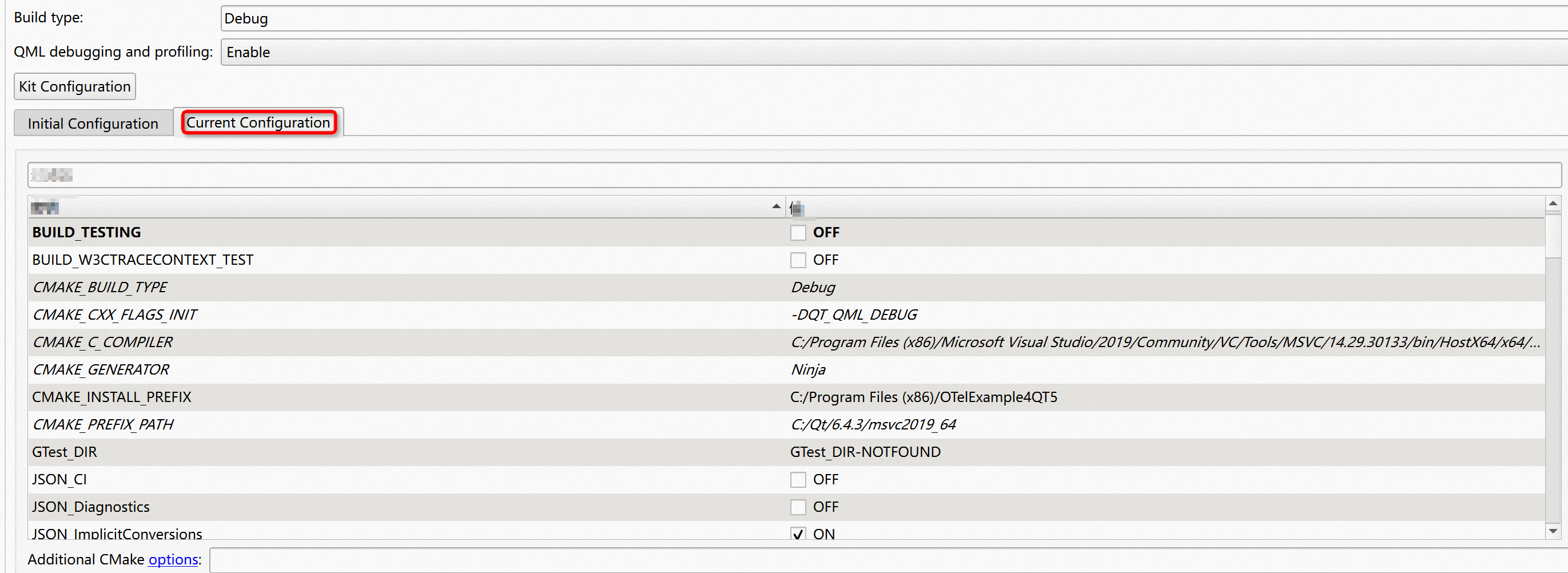
[現在の構成] タブにopentelemetry-cpp関連のパラメーター (WITH_ABSEILなど) が表示されている場合、opentelemetry-cppプロジェクトはコンパイルおよびビルドされます。
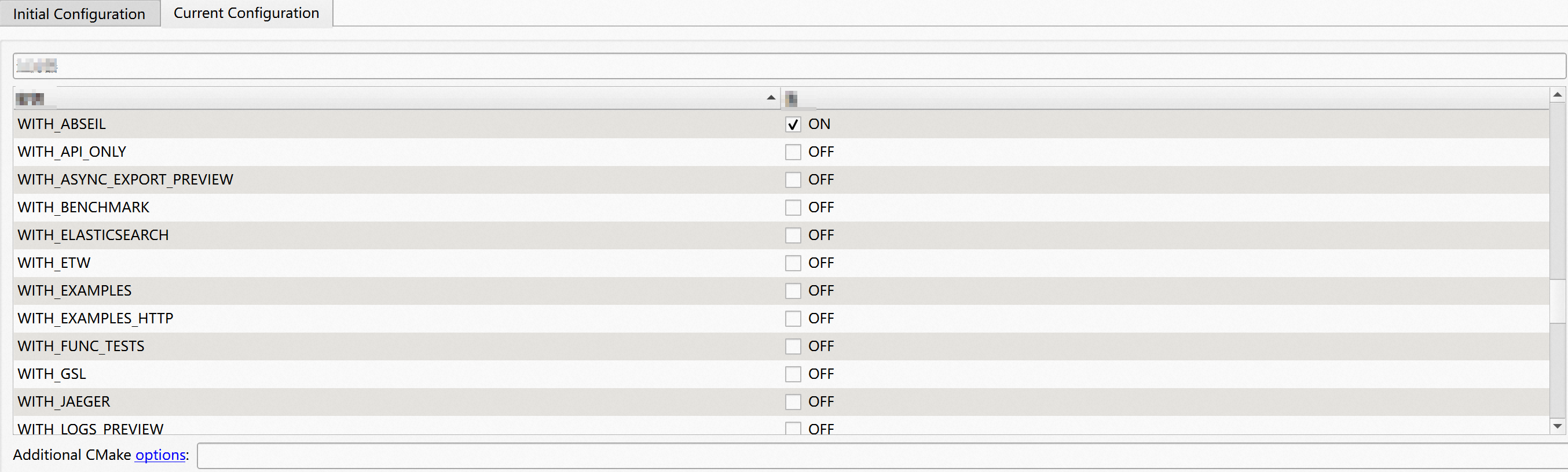
現在の設定タブにopentelemetry-cpp関連のパラメーターが表示されていない場合は、ページの右側にある [追加] > [ブール値] を選択し、
[BUILD_TESTING=OFF]を追加し、[CMakeの実行] をクリックします。操作の実行後にopentelemetry-cpp関連のパラメーターが表示されない場合は、エラーメッセージに基づいて問題のトラブルシューティングを行うことを推奨します。
opentelemetry-cpp関連のCMake設定には、次の変更のみを加えることをお勧めします。 c-ares_DIR、re2_DIR、gRPC_DIR、absl_DIR、およびnlohmann_json_DIRパラメーターのデフォルト値を使用することを推奨します。
重要Qtプロジェクトがライブラリと統合されている場合は、ビジネスシナリオに基づいて設定を構成します。
WITH_EXAMPLES:BOOL=OFF
WITH_OTLP:BOOL=ON
WITH_OTLP_GRPC:BOOL=ON
WITH_OTLP_HTTP:BOOL=ON
WITH_STL:BOOL=ON
c-ares_DIR:PATH=<your c-ares path>
re2_DIR:PATH=<your re2 path>
gRPC_DIR:PATH=<your gRPC path>
absl_DIR:PATH=<your absl path>
WITH_ABSEIL:BOOL=ON
nlohmann_json_DIR:PATH=<your nlohmann_json path>
CURL_DIR:PATH=<your curl path>
OPENSSL_ROOT_DIR:PATH=<your openssl path>
OPENSSL_USE_STATIC_LIBS:BOOL=ON
Protobuf_DIR:PATH=<your proto path>
Protobuf_PROTOC_EXECUTABLE:FILEPATH=<your protoc exe filepath>
PROTO_INCLUDE_DIR:FILEPATH=<your proto filepath>
CMAKE_CXX_FLAGS=D_HAS_EXCEPTIONS=0
gRPC_CPP_PLUGIN_EXECUTABLE:FILEPATH=<your grpc plugin exe filepath>
gRPC_ZLIB_PROVIDER=package
ZLIB_ROOT=<your zlib install path>
ZLIB_USE_STATIC_LIBS=True
ZLIB_LIBRARY_RELEASE=<your zlib release lib path>
ZLIB_LIBRARY_DEBUG=<your zlib debug lib path>
設定を構成すると、QTプロジェクトのビルド構成が完了します。 コンパイルが失敗した場合は、対応するエラーメッセージに基づいて問題をトラブルシューティングします。
vcpkgパッケージマネージャーを使用してSDKを統合する
vcpkgパッケージマネージャーを使用して取得したSDKバイナリファイルは、プロジェクトと互換性がない可能性があります。 パッケージマネージャーを使用する前に、テストを実行することを推奨します。 詳細については、「using-package-managers」をご参照ください。
vcpkgパッケージマネージャを使用してバイナリファイルを取得します。
作業ディレクトリで、コマンドプロンプトウィンドウまたはターミナルを開きます。
git cloneコマンドを実行して、vcpkgパッケージマネージャーを複製します。
$ git clone https://github.com/microsoft/vcpkgbootstrap-vcpkg.batスクリプトを実行します。
$ .\vcpkg\bootstrap-vcpkg.bat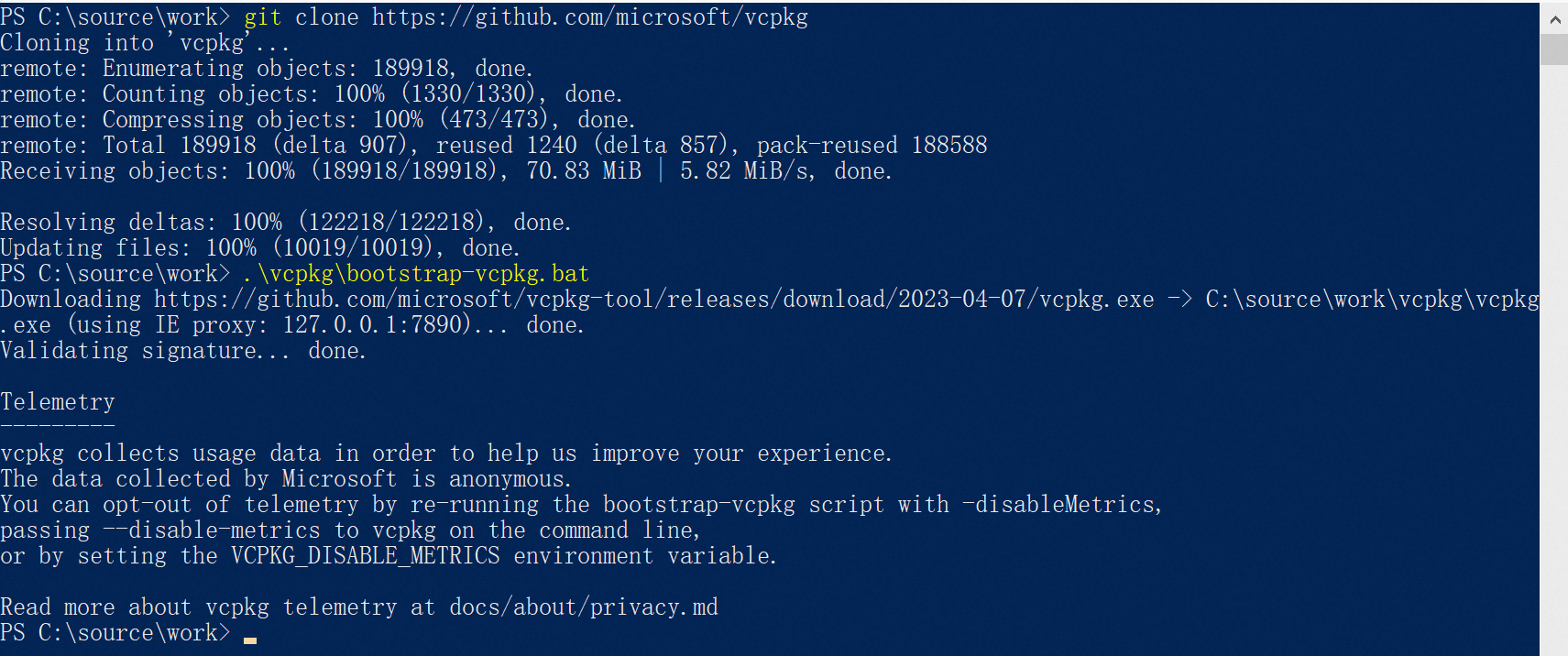
vcpkgディレクトリに移動し、次のスクリプトを実行します。
$ .\vcpkg.exe install opentelemetry-cpp[otlp-http]:x64-windows --recurse上記のコマンドを実行すると、OpenTelemetry SDK for C ++ および対応する依存SDKが
vcpkg/installed/x64-winddowsディレクトリにインストールされます。 次のセクションでは、関連するディレクトリについて説明します。bin/ directory: ダイナミックリンクライブラリファイル (.dllファイル) が含まれます。
lib/ directory: 静的にリンクされたライブラリファイル (.libファイル) を含みます。
include/ directory: ヘッダーファイル (.hファイル) を含みます。
オプションです。 Qtプロジェクトで依存ライブラリを後で使用しやすくするには、次のコマンドを実行してvcpkg cmake構成ファイルをシステム変数にインストールします。
$ .\vcpkg.exe integrate --install
Qtプロジェクトを設定します。
QtプロジェクトのコンパイルツールがMSVCに切り替えられているかどうかを確認します。
詳細については、「手順1: Visual Studioの構成」をご参照ください。
CMakeオプションを設定します。
プロジェクトのコンパイルおよびビルド設定ページで、[初期設定] をクリックします。
CMAKE_TOOLCHAIN_FILEパラメーターを追加します。CMAKE_TOOLCHAIN_FILEパラメーターをvcpkgディレクトリのvcpkg.cmakeファイルに設定する必要があります。 ファイルディレクトリは<vcpkg root>/scripts/buildsystems/vcpkg.cmakeです。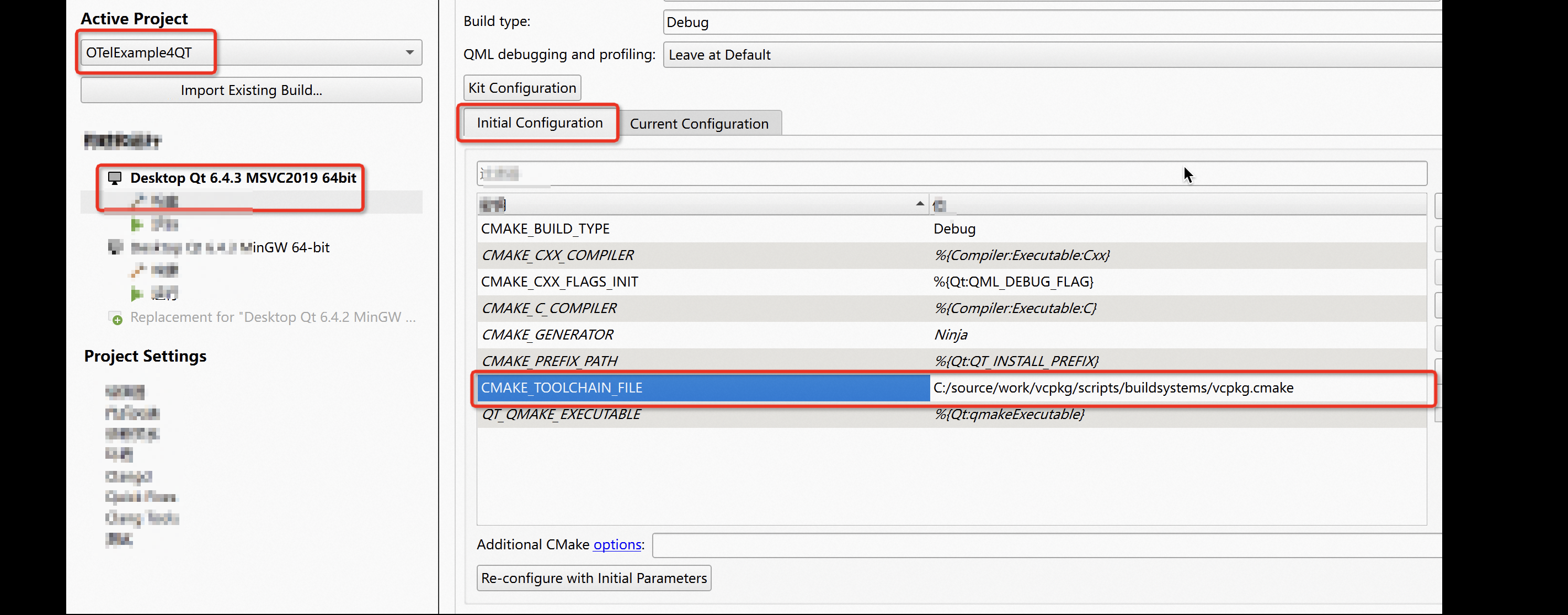
プロジェクトをコンパイルし、コンパイルが成功したかどうかを確認します。
エラーメッセージが返された場合は、問題のトラブルシューティングを行います。 たとえば、コンパイルツールがMSVCに切り替えられているかどうか、およびCMAKE_TOOLCHAIN_FILEパラメーターが正しく設定されているかどうかを確認します。
CMakeLists.txtを設定します。
CMakeLists.txtファイルに次の設定を追加します。
# opentelemetry-cpp
find_package(curl CONFIG REQUIRED)
find_package(nlohmann_json CONFIG REQUIRED)
find_package(grpc CONFIG REQUIRED)
find_package(protobuf CONFIG REQUIRED)
find_package(opentelemetry-cpp CONFIG REQUIRED)
# end

# opentelemetry-cpp
target_include_directories(
    ${PROJECT_NAME}
    PUBLIC
    ${PROJECT_SOURCE_DIR}
    ${VCPKG_INCLUDE_DIR}
    ${OPENTELEMETRY_CPP_INCLUDE_DIRS}
)
target_link_directories(
    ${PROJECT_NAME}
    PUBLIC
    ${VCPKG_LIB_DIR}
    ${OPENTELEMETRY_CPP_LIBRARY_DIRS}
)
# ${PROJECT_NAME} PRIVATE Qt${QT_VERSION_MAJOR}::Widgets Configure this setting based on your business scenario.
target_link_libraries(${PROJECT_NAME} PRIVATE Qt${QT_VERSION_MAJOR}::Widgets ${OPENTELEMETRY_CPP_LIBRARIES})
# en
設定を構成すると、QTプロジェクトのビルド構成が完了します。 コンパイルが失敗した場合は、対応するエラーメッセージに基づいて問題をトラブルシューティングします。
ステップ3: インポート結果を確認する
次のコードをQtプロジェクトに追加し、プロジェクトを実行します。
#include "mainwindow.h"

#include <QApplication>

#include "opentelemetry/exporters/ostream/span_exporter_factory.h"
#include "opentelemetry/exporters/otlp/otlp_http.h"
#include "opentelemetry/exporters/otlp/otlp_http_exporter_factory.h"
#include "opentelemetry/exporters/otlp/otlp_http_exporter_options.h"
#include "opentelemetry/sdk/trace/simple_processor_factory.h"
#include "opentelemetry/sdk/trace/tracer_provider_factory.h"
#include "opentelemetry/trace/provider.h"
#include "opentelemetry/sdk/trace/tracer_provider.h"

#include "opentelemetry/sdk/version/version.h"
#include "opentelemetry/trace/provider.h"
#include "opentelemetry/sdk/resource/resource.h"
#include "opentelemetry/sdk/resource/semantic_conventions.h"

#include "opentelemetry/sdk/common/global_log_handler.h"


namespace trace = opentelemetry::trace;
namespace trace_sdk = opentelemetry::sdk::trace;
namespace otlp = opentelemetry::exporter::otlp;
namespace trace_exporter = opentelemetry::exporter::trace;
namespace resource = opentelemetry::sdk::resource;

namespace
{
    opentelemetry::exporter::otlp::OtlpHttpExporterOptions opts;
    void InitTracer()
    {
        opts.url = "https://<your project>.<your endpoint>/opentelemetry/v1/traces";
        opts.console_debug = true;
        opts.content_type = otlp::HttpRequestContentType::kBinary;
        // Setup credentials info
        opts.http_headers.insert(std::pair<std::string, std::string>("x-sls-otel-project", "<your project>"));
        opts.http_headers.insert(std::pair<std::string, std::string>("x-sls-otel-instance-id", "<your instanceId>"));
        opts.http_headers.insert(std::pair<std::string, std::string>("x-sls-otel-ak-id", "<your accesskey id>"));
        opts.http_headers.insert(std::pair<std::string, std::string>("x-sls-otel-ak-secret", "<your accesskey secret>"));

        // Create OTLP exporter instance
        auto exporter = otlp::OtlpHttpExporterFactory::Create(opts);
        auto processor = trace_sdk::SimpleSpanProcessorFactory::Create(std::move(exporter));

        resource::ResourceAttributes attributes = {
          {resource::SemanticConventions::kServiceName, "test"},
          {resource::SemanticConventions::kServiceNamespace, "OTelExample4QT"},
          {resource::SemanticConventions::kServiceVersion, "1.0.0"},
          {resource::SemanticConventions::kHostName, "Win64"},
          {resource::SemanticConventions::kDeploymentEnvironment, "dev"}
        };
        auto resource = opentelemetry::sdk::resource::Resource::Create(attributes);

        std::shared_ptr<opentelemetry::trace::TracerProvider> provider =
            trace_sdk::TracerProviderFactory::Create(std::move(processor), std::move(resource));
        // Set the global trace provider
        trace::Provider::SetTracerProvider(provider);
    }

    void CleanupTracer()
    {
        // We call ForceFlush to prevent to cancel running exportings, It's optional.
        opentelemetry::nostd::shared_ptr<opentelemetry::trace::TracerProvider> provider =
            trace::Provider::GetTracerProvider();
        if (provider)
        {
            static_cast<trace_sdk::TracerProvider*>(provider.get())->ForceFlush();
        }

        std::shared_ptr<opentelemetry::trace::TracerProvider> none;
        trace::Provider::SetTracerProvider(none);
    }
}  // namespace

namespace trace = opentelemetry::trace;
namespace nostd = opentelemetry::nostd;

namespace
{
    nostd::shared_ptr<trace::Tracer> get_tracer()
    {
        auto provider = trace::Provider::GetTracerProvider();
        return provider->GetTracer("foo_library", OPENTELEMETRY_SDK_VERSION);
    }

    void basic_f1()
    {
        auto span = get_tracer()->StartSpan("basic_f1");
        // do your stuff
        // ...
        span->End();
    }

    void basic_f1_with_attributes()
    {
        auto span = get_tracer()->StartSpan("basic_f1_with_attributes");
        span->SetAttribute("ags", 12);
        span->SetAttribute("sex", "man");
        span->SetAttribute("height", 154.5);


        span->AddEvent("message: success");

        span->SetStatus(trace::StatusCode::kError);

        span->End();
    }

    void basic_active_f1()
    {
        auto span_child = get_tracer()->StartSpan("operation B");
        // do your stuff
        // ...
        span_child->End();
    }

    void basic_active()
    {
        auto span = get_tracer()->StartSpan("operation A");
        auto scope = get_tracer()->WithActiveSpan(span);

        basic_active_f1();

        span->End();
    }


    void f1()
    {
        auto scoped_span = trace::Scope(get_tracer()->StartSpan("f1"));
    }

    void f2()
    {
        auto scoped_span = trace::Scope(get_tracer()->StartSpan("f2"));

        f1();
        f1();
    }
}  // namespace

void foo_library()
{

    basic_f1();
    basic_active();
    basic_f1_with_attributes();

    auto scoped_span = trace::Scope(get_tracer()->StartSpan("library"));

    f2();

}

int main(int argc, char *argv[])
{
    QApplication a(argc, argv);
    MainWindow w;
    w.show();

    InitTracer();

    foo_library();

    CleanupTracer();

    return a.exec();
}
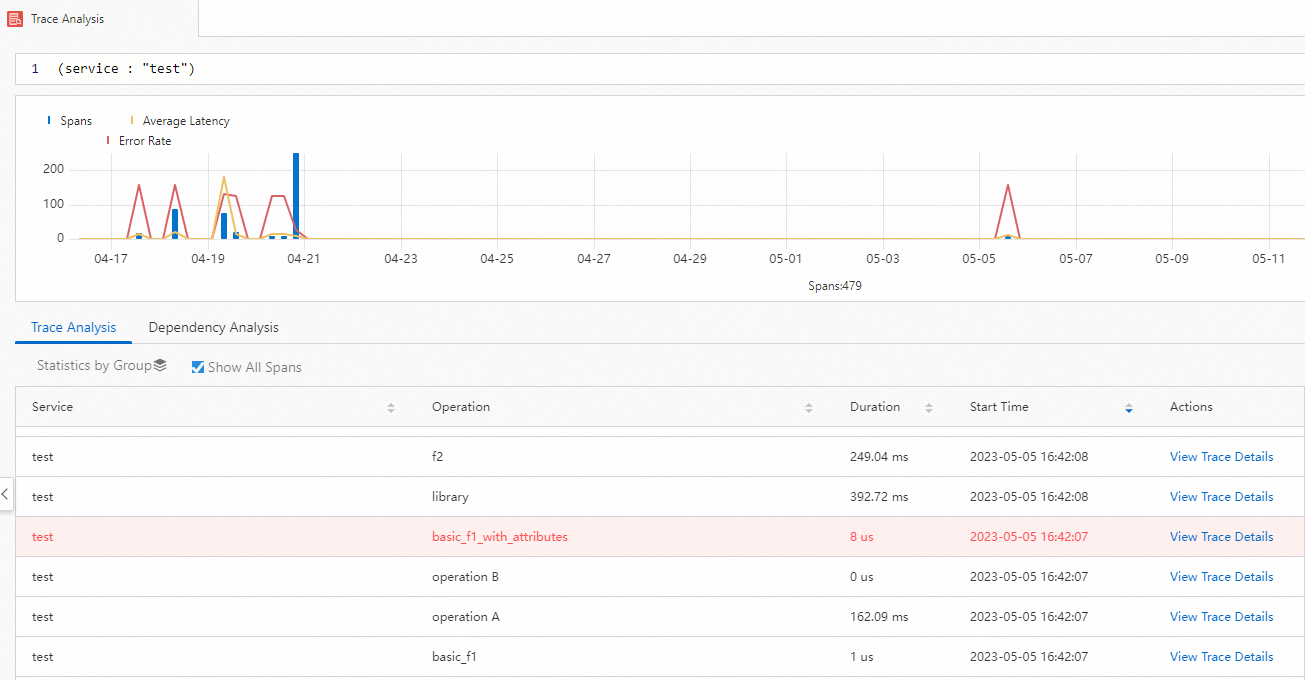
Log Serviceコンソールで、トレースアプリケーションのトレースデータを表示します。
フィルター条件
service : "test"を追加して、インポートしたQtトレースデータを表示します。