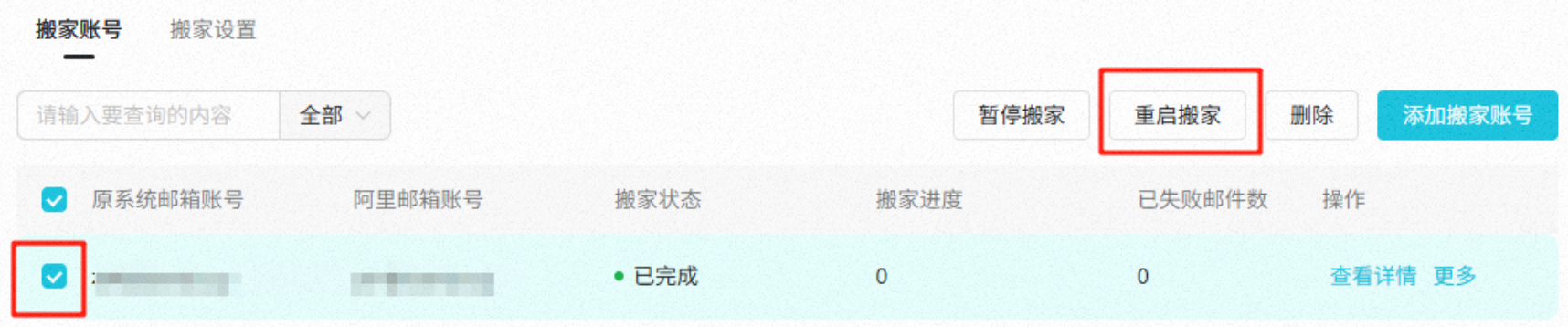
After purchasing Alibaba Cloud Mail, you can migrate emails from your source system to Alibaba Cloud Mail. As an administrator, log in to the Mail admin console to start the mailbox migration and select a migration plan.
Before you begin
If you upgrade from the free version of Alibaba Cloud Mail to a paid version, you do not need to perform a mailbox migration.
This guide covers only mailbox migration procedures. For the complete transfer process, see Email Service Transfer Process.
Before the migration is complete, ensure the following for your source mailboxes:
Passwords remain unchanged.
The IMAP/POP service is enabled and running normally.
The source system is stable and the service has not expired.
During the migration, avoid the following actions:
Deleting or moving emails in the source system.
Renaming folders.
After the migration is complete:
Reconfigure your third-party clients.
Unbind the domain from your source email provider to prevent same-domain authentication conflicts.
Source system requirements
To ensure a smooth migration, configure your source system by following the requirements in the relevant guide.
Specific instructions for major email services:
For Lark Mail, see Migration prerequisites for Lark Mail.
For Gmail, see Migration prerequisites for Gmail.
For Microsoft Exchange, see Migration prerequisites for Microsoft Exchange.
For Office 365, see Migration prerequisites for Office 365.
Procedure
Create migration task
Before you start the migration, ensure you have created the necessary user accounts in Alibaba Cloud Mail. For more information, see Create employee accounts.
If you are migrating from one Alibaba Cloud Mail tenant to another, log on to the destination tenant's Mail admin console to start the migration. Do not start the migration from the source tenant.
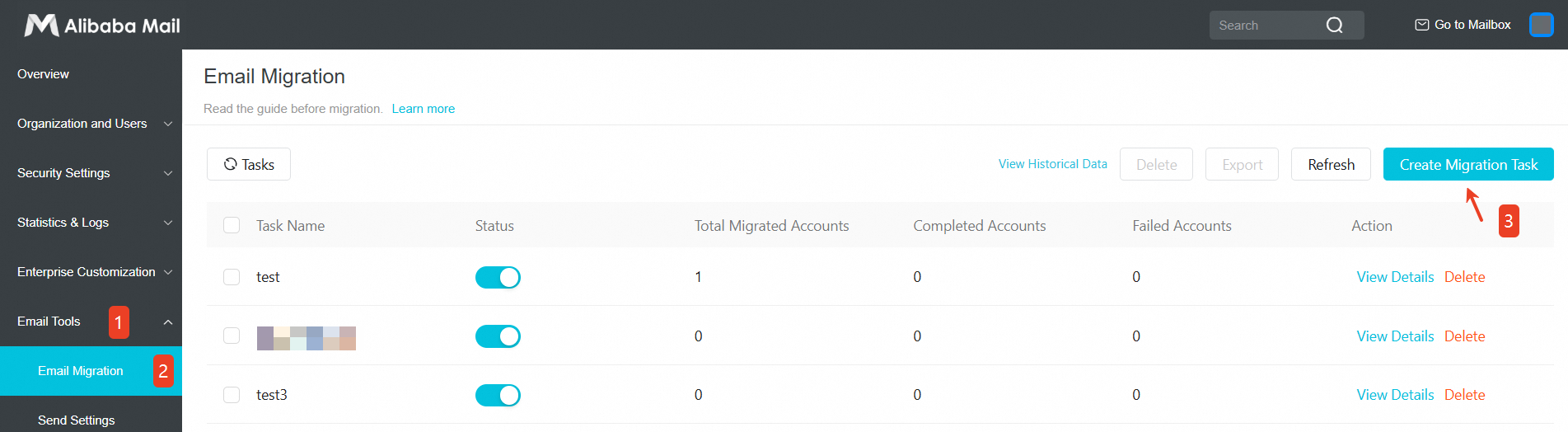
Log in to the Mail admin console. In the left-side navigation pane, click Mailbox Tools > Mailbox Migration, and then click Create Migration Task.
1. Prepare for migration
Ensure you have created and assigned Alibaba Cloud Mail accounts for all users to be migrated on the Contacts - Member Management page.
Confirm that your source system is running and its IMAP/POP service is enabled.
For all user accounts in the source system, disable any email retrieval limits (for example, change "Fetch last 30 days" to "Fetch all"), IP-based login restrictions, two-factor authentication (such as SMS, WeChat, or authenticator apps), and application-specific passwords.
Complete any data deletion or moving operations in the source system beforehand. Avoid modifying data during the migration.
We recommend that folder names in the source system do not contain special characters such as "+", "*", "\", or "/".
Depending on the features of your source system, the administrator can either disable these settings in bulk or by using the source system's API.
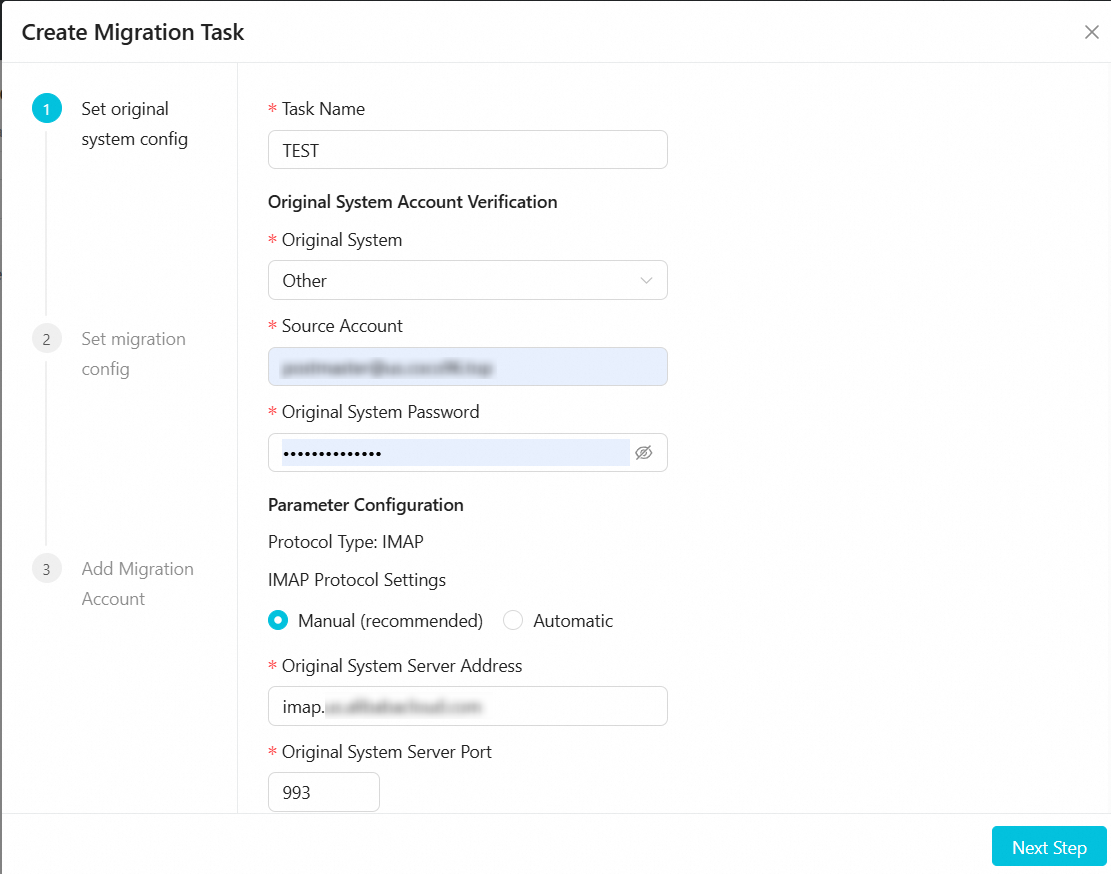
2. Configure source system parameters
Enter a Task Name, select the Source System, and enter the Source System Email Account, Source System Email Password, and Source System Server Address. We recommend using the default settings for other options. Click Next.
3. Configure migration settings

Under Folders to Migrate, select an option:
All Folders: You can exclude specific folders from the migration.
Specific Folders: Select only the folders you want to migrate.
Under Emails to Migrate, select an option:
All Emails
Emails in a specified date range
Under Folder Location, select an option:
Store Separately (unified storage mode, named by email address)
A dedicated folder is created in the destination mailbox, named after the source email address.

Merge into System Folders (folder mapping mode)
Automatically maps source folders to system folders (for example, "Sent Items" to "Sent").
Preserves the structure of custom folders.

Migration Time Settings:
Start Immediately: Data transfer begins within 2 hours.
Start at a scheduled time: Set a custom start time for the migration.
Click Next.
4. Add migration accounts
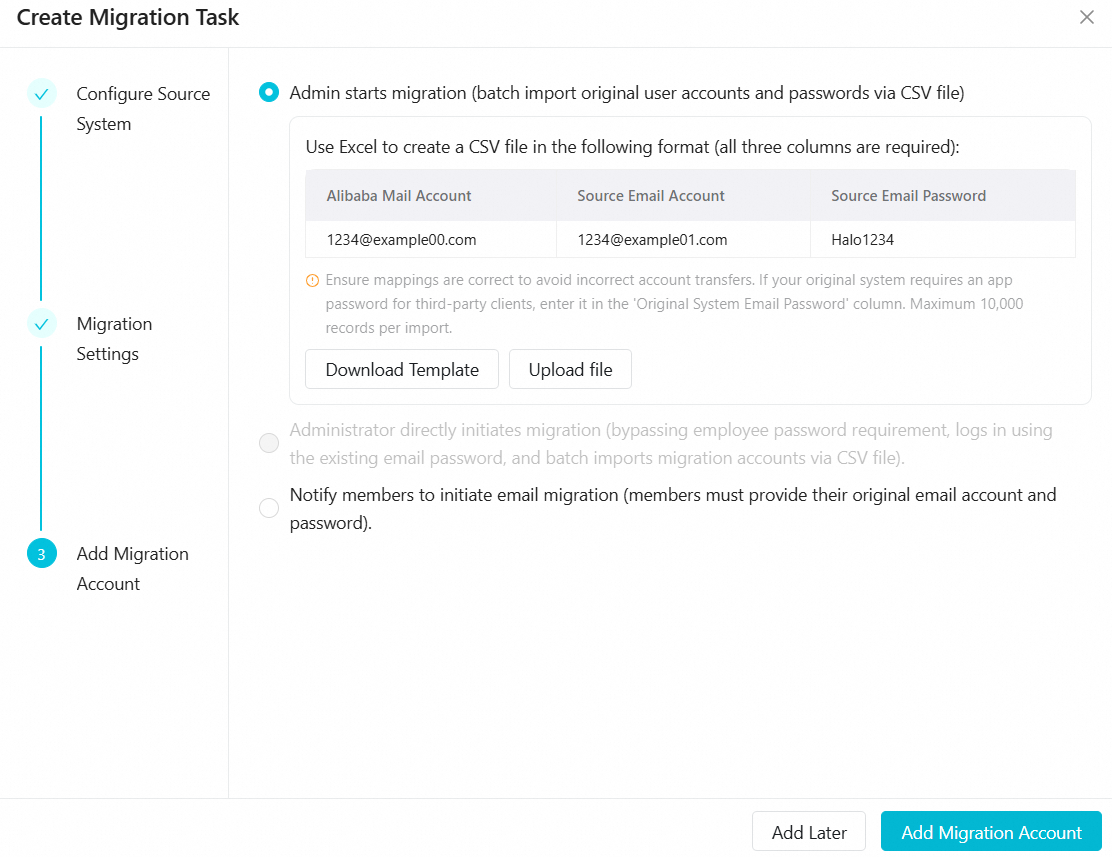
There are three methods for adding migration accounts. Choose the one that best fits your needs:
Method 1: The administrator uploads account credentials and starts the migration directly.
Use case: You have the source system usernames and passwords for all accounts to migrate and want the migration to be seamless for users.
Method 2: The administrator uploads a list of accounts and notifies employees to log in with their source credentials to start the migration.
Use case: You have a list of all source email accounts. After you configure the migration parameters, employees can trigger their own migration by logging in to Alibaba Cloud Mail with their source system username and password.
Method 3: The administrator selects the scope of users and notifies them to enter their own credentials.
Use case: You have not collected source system usernames and passwords. After you configure the migration parameters, you can notify employees to enter and verify their credentials to start the migration.
Click Add Migration Accounts.
If you need to change the migration parameters later, go to Migration Settings > Edit > Edit Migration Configuration, make your changes, and click OK.
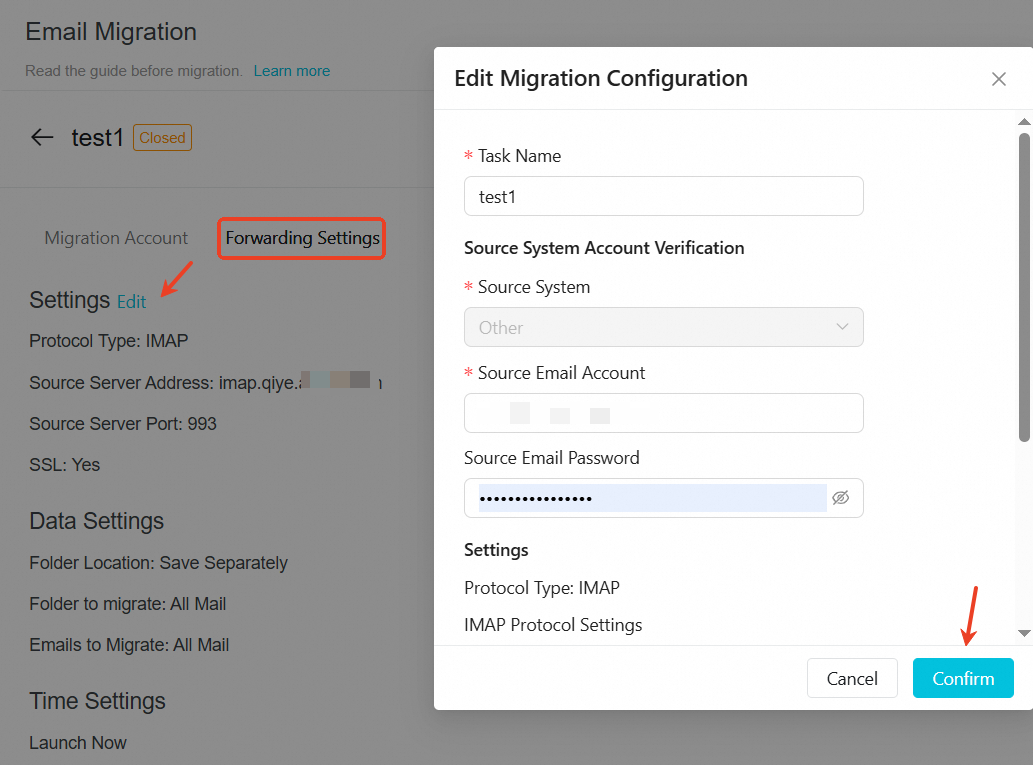
Select migration plan
Click Add Migration Accounts.
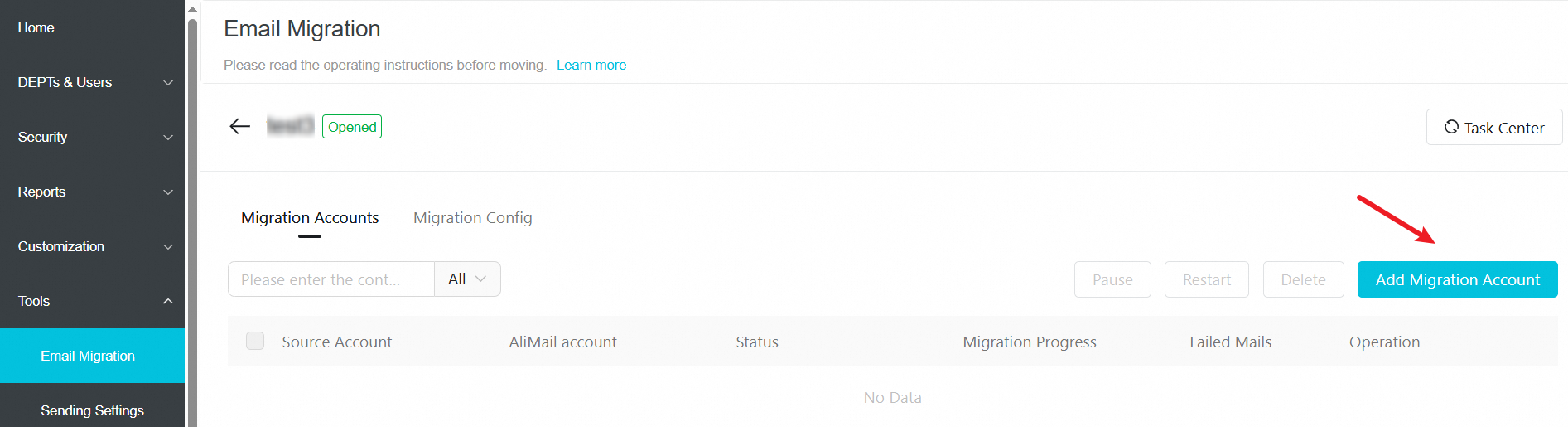
Choose one of the three plans based on your situation.
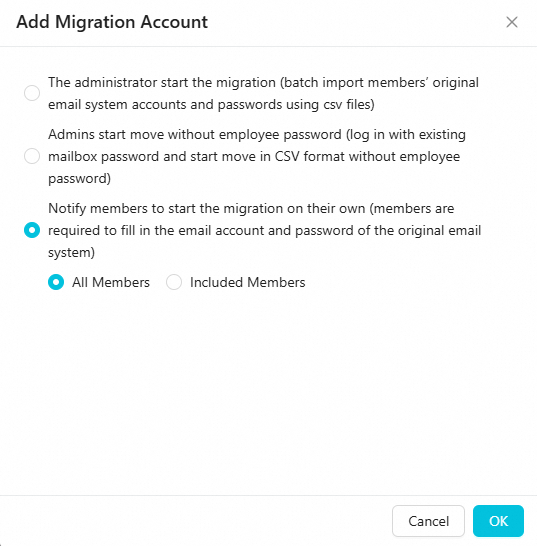
Key points overview
Plan type | Use case | Key points |
Batch migration (with passwords) | The administrator has the passwords for all employee accounts. |
|
Batch migration (without passwords) | Administrator only has a list of accounts. |
|
Employee self-service migration | When a decentralized approach is needed. |
|
The administrator starts the migration directly by importing a CSV file containing the source system usernames and passwords.
Summary: The administrator provides the passwords, the system migrates the data automatically in the background, and the process is seamless for employees.
 Prepare a CSV file with the following three required columns:
Alibaba Cloud account | Source account | Source password |
1234@example00.com | 1234@example01.com | Halo1234 |
Use cases
The administrator has all employees' source email passwords (or application-specific passwords/delegated access).
You want a zero-touch, silent migration for employees.
The migration involves complex authentication, such as a Microsoft Exchange delegated account or third-party application passwords.
How it works
The administrator provides the source account and password in a CSV file. The system uses these credentials to fetch data directly from the source system in the background.
Roles and actions
Role | Actions | Key considerations |
Administrator | 1. Create accounts: Batch-create employee accounts in the Alibaba Cloud Mail admin console. | • A single upload supports up to 10,000 entries. |
Employee | No action required. | • No login or configuration needed. |
Risk assessment
Password validity: Ensure that the provided passwords are valid and unchanged throughout the migration. If a source password becomes invalid, the migration for that account will fail.
Privacy compliance: This mode involves the administrator handling employee passwords. Ensure that the procedure complies with your company's information security policies and legal requirements.
For migrating from Microsoft Exchange using a delegated account (see Set up a delegated account for Microsoft Exchange), we recommend the following format for the migration file:
user2@example.com,superman@example.com/user1,password
Field descriptions:
user2@example.com: The Alibaba Cloud Mail account.
superman@example.com/user1: The source mailbox in delegated account format (where user1 is the source mailbox prefix, and access is delegated to superman@example.com).
password: The password for superman@example.com.
The administrator initiates the migration by importing a list of accounts. Employees trigger their own migration by logging in with their source email password.
Summary: The administrator provides an account list. Employees log in with their source system username and password, which automatically starts the migration.
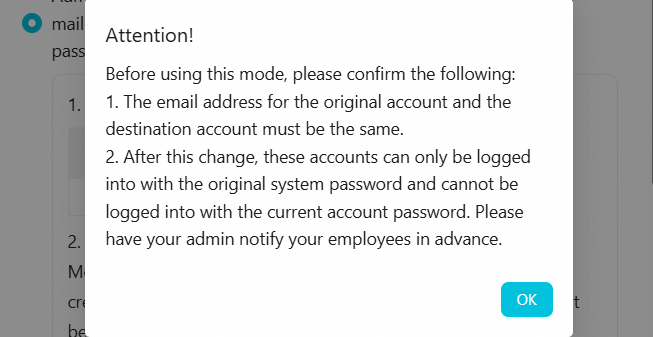
Prepare a CSV file with only one column of data:
Migration account |
1234@example00.com |
Use cases
The administrator does not have access to employee passwords, protecting user privacy.
To start the migration in batches while minimizing manual configuration for employees.
Employees can use their source credentials to log in to the new system and agree not to change their source password during the migration.
How it works
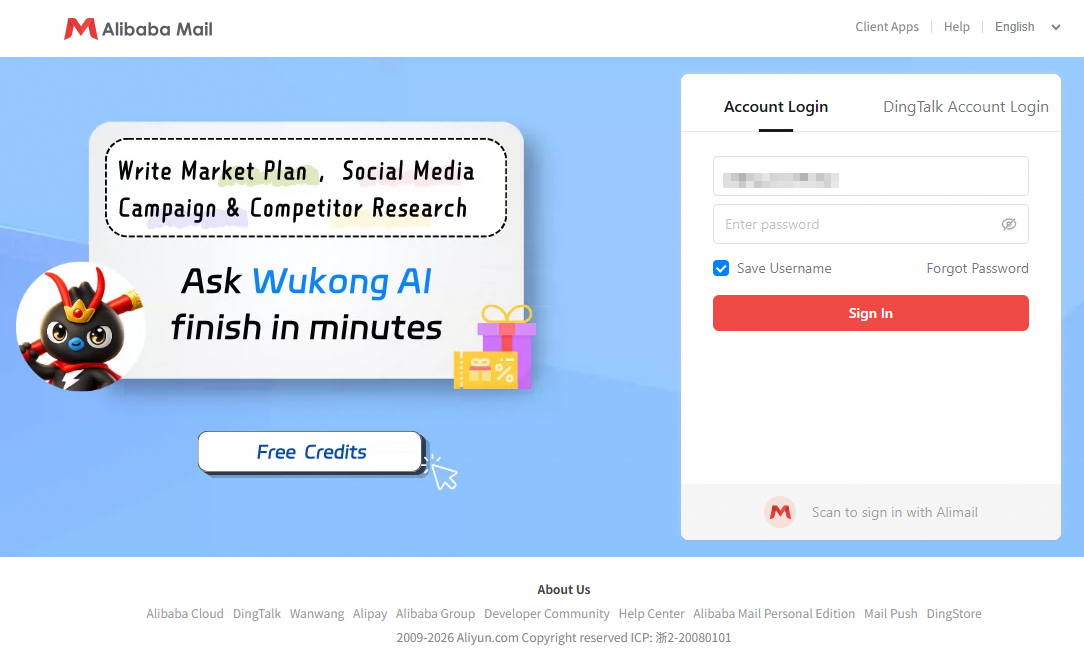
The administrator imports a list of accounts to be migrated. When an employee first logs in to Alibaba Cloud Mail, they must use their source system username and password for authentication. A successful login automatically triggers the migration.
Roles and actions
Role | Actions | Key considerations |
Administrator | 1. Create accounts: When creating accounts in Alibaba Cloud Mail, the email address must be identical to the source email address. | • Important: The Alibaba Cloud Mail account name must be identical to the source email account name. |
Employee | 1. Log in to new mailbox: Use the source system username and password to log in to the Alibaba Cloud Mail web client. | • Do not change the password in the source email system. This will cause the migration to fail. |
Risk assessment
Allowed actions
After logging in to Alibaba Cloud Mail, employees can change their new login password in the web client. This action does not affect the background migration process.
Forbidden actions (High risk)
Do not change the password in the source email system until the migration is complete.
Consequence: If the source password is changed, Alibaba Cloud Mail cannot authenticate, and the migration will fail.
Remedy: If this occurs, the employee must go to Settings > View More Settings > Mailbox Settings > Mailbox Migration in Alibaba Cloud Mail and manually update the source password to resume the migration.
Notify employees to start the migration themselves by entering their source system username and password.
Summary: The administrator creates a migration task for all or selected members. Employees enter their own credentials to start the migration, giving them control over the process.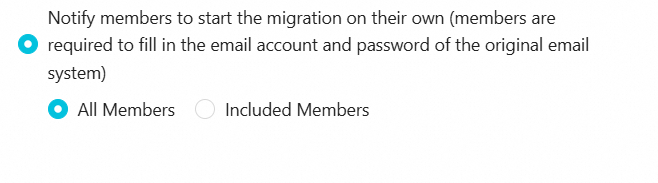
 Use cases
Employees manage their own passwords and prefer not to share them with the administrator.
Employees want to schedule their own migration time.
When a decentralized approach is preferred to reduce the administrator's workload.
How it works
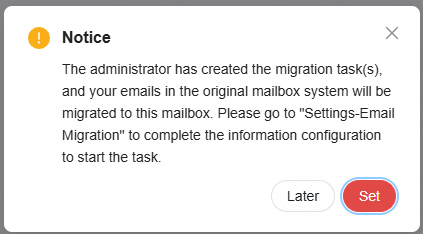
The administrator first creates the Alibaba Cloud Mail accounts and a migration task. After logging in, employees go to the settings page and enter their source account credentials to authorize the migration.
Roles and actions
Role | Actions | Key considerations |
Administrator | 1. Create accounts: Batch-create employee accounts in the admin console and distribute initial passwords. | • No CSV file preparation required. |
Employee | 1. Log in to new mailbox: Log in to the Alibaba Cloud Mail web client using the initial credentials provided by the administrator. | • Ensure the source password is entered correctly. |
Monitor and manage progress
1. Migration speed: After an account's migration starts:
For fewer than 3,000 emails, the migration is typically completed within 24 hours.
For 3,000 to 25,000 emails, the migration is typically completed within 3 to 5 business days.
2. Migration status
Not Started: This status applies to accounts included in a "notify employees for self-service migration" task, where users have not yet entered their source credentials to start the migration.
In Progress: Emails are actively being migrated, with continuous incremental updates.
Paused: The administrator has paused the migration, and the process has stopped.
Pending User Login: This status applies to accounts included in a "batch migration (without passwords)" task, where users have not yet logged in to Alibaba Cloud Mail with their source credentials to trigger the migration.
Migration Not Started: No migration method has been applied to this account from the admin console, and the user has not self-configured migration parameters.
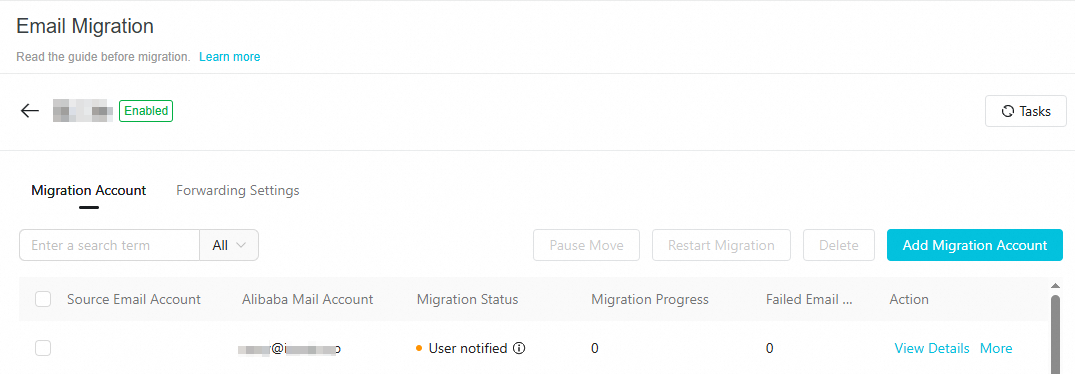
User Notified: The user has been notified to enter their source system information but has not yet done so.
If the migration status remains In Progress after the initial setup, it means the source mailbox credentials are still valid and the migration task is active. As long as the status is In Progress, new emails received in the source mailbox will continue to be migrated.
Completed: The migration status changes to Completed if no new emails are received in the source mailbox for 7 consecutive days.
Authentication Failed: There is an issue with account authorization.
You can filter accounts by migration status, search for a specific account, or export the migration status of all accounts in the domain.
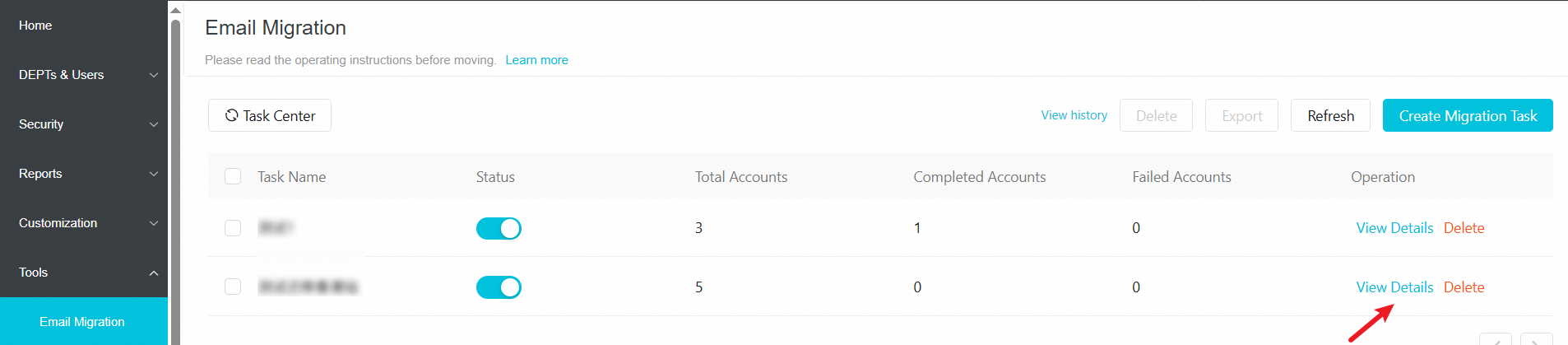
Click View Details for the migration task you want to check.
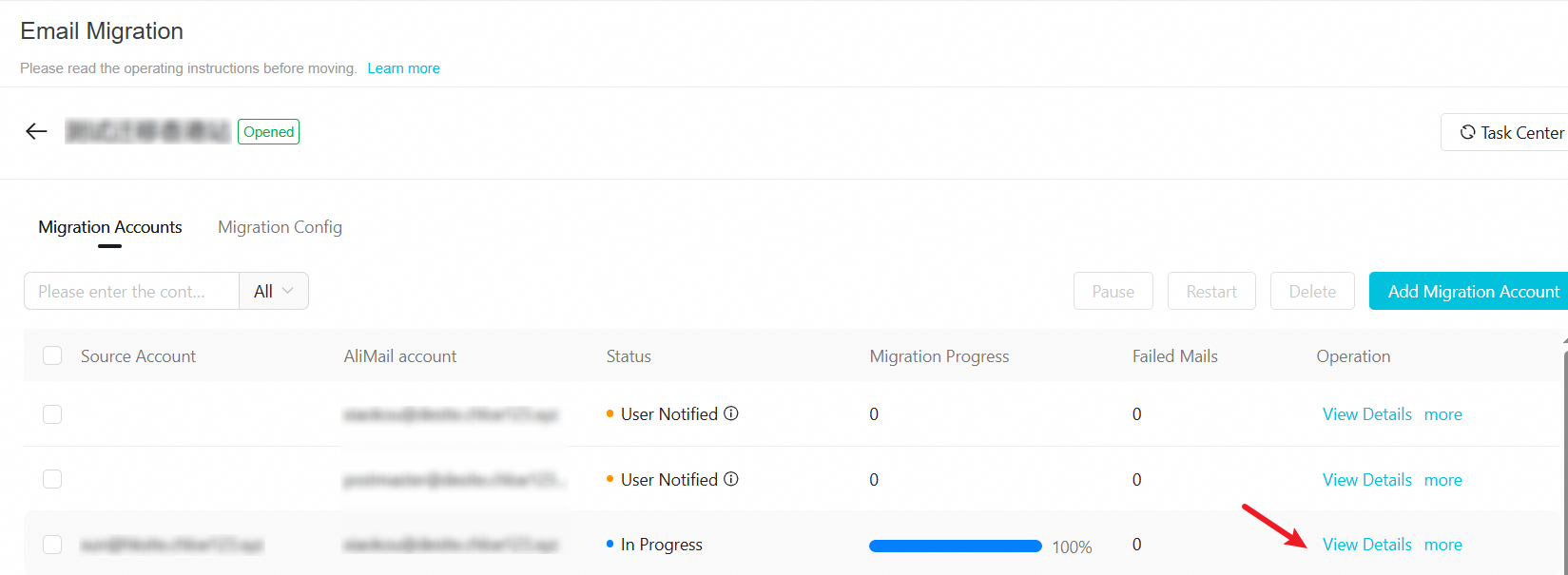
Check the progress bar to understand the account's migration progress. You can also get specific information by clicking View Details for the migration account.


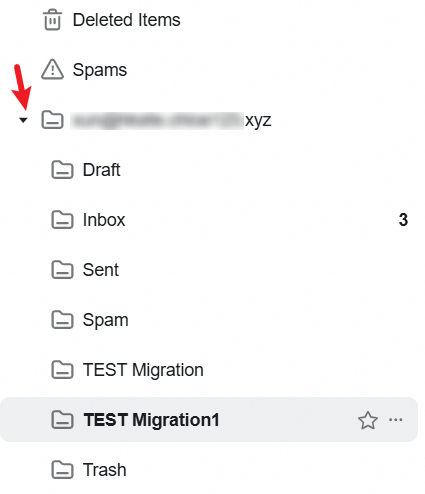
If the administrator set the folder location to Store Separately in the migration task, your historical emails will be stored as shown in the figure below. Expand the root folder named after your email address to find your historical emails in the subfolders.
Troubleshoot migration failures
To troubleshoot a failed migration:
Try to access the source mailbox by using a third-party client with IMAP.
If it fails: This indicates an issue with the source mailbox's IMAP configuration.
Solution: 1. Check the source mailbox's IMAP server address/port and ensure the retrieval scope is set to "All". 2. Refer to the source system requirements mentioned earlier in this guide or contact your original service provider to configure the IMAP service.
Next steps
We recommend switching your DNS resolution records only after the migration is complete.
To avoid same-domain authentication issues (where the new mailbox cannot send emails to mailboxes still on the old provider), you must replace or unbind the domain in your source email system after completing the DNS resolution switch. For specific steps, contact your previous email service provider for assistance.
After switching your DNS resolution records:
Unbind the domain from your source email system (we recommend contacting your source provider to confirm the unbinding steps).
Try sending and receiving emails with your Alibaba Cloud Mail account.
Client configuration:
Incremental sync
The system continuously syncs new emails received in the source mailbox during the migration.
If no new emails are received within 7 days, the migration status changes to Completed.
Once an account's status is Completed, it no longer syncs new emails. If an account with a Completed status needs to receive new emails from the source again, you must restart the migration.