Learn how to create, configure, and run your first pipeline in Flow.
Prerequisites
-
You have created an organization (Create and manage organizations).
-
You have pipeline creation permissions (Permission management).
-
You have created a generic artifact repository (named
pipeline-package-repoin this tutorial) and a Maven repository. Create an artifact repository.
Overview

Step 1: Create a pipeline
-
Log in to the Flow console.
-
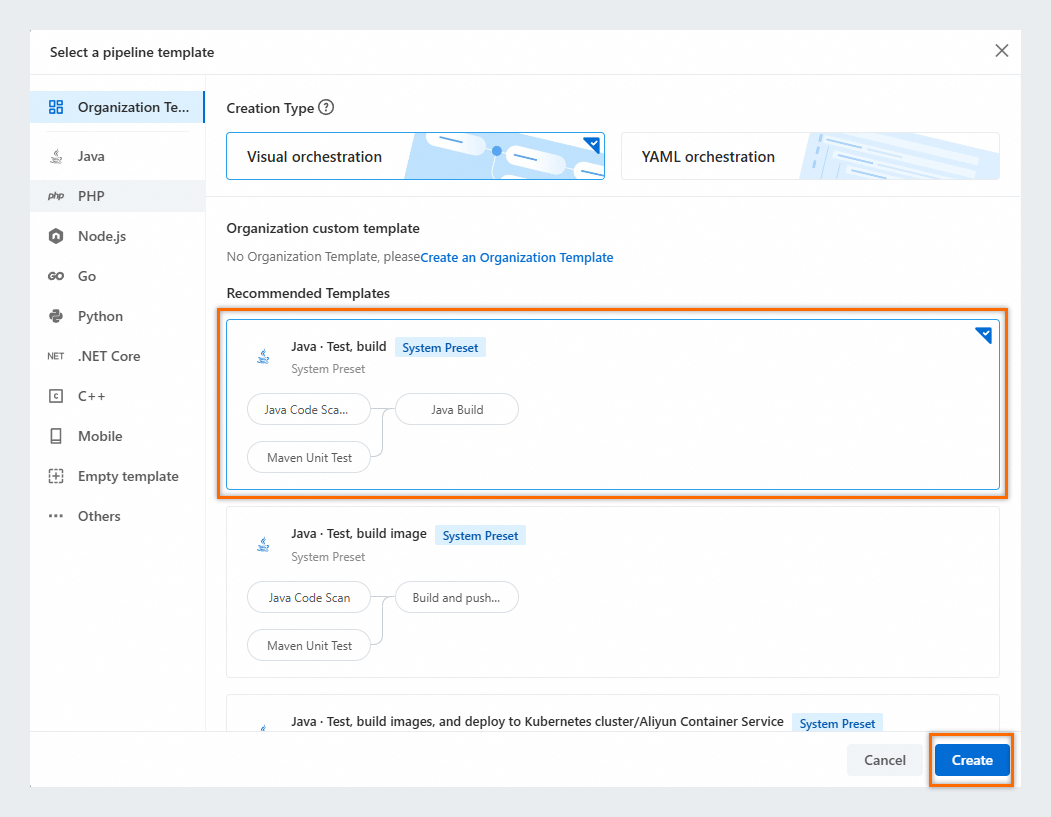
On the My Pipelines page, click Create Pipeline in the upper-right corner. In the Select a pipeline template dialog box, select the Java · Test, build template, and click Create.
Flow provides built-in templates for popular languages such as Java, PHP, and Node.js, letting you set up a CI/CD process with just a few clicks. It also supports custom organization templates to meet enterprise-specific requirements.
Step 2: Configure the pipeline source
-
In the pipeline source stage, click Add Pipeline Source.
-
Add a code source. Using the sample code from Flow, select and click Add.
Step 3: Configure the test stage
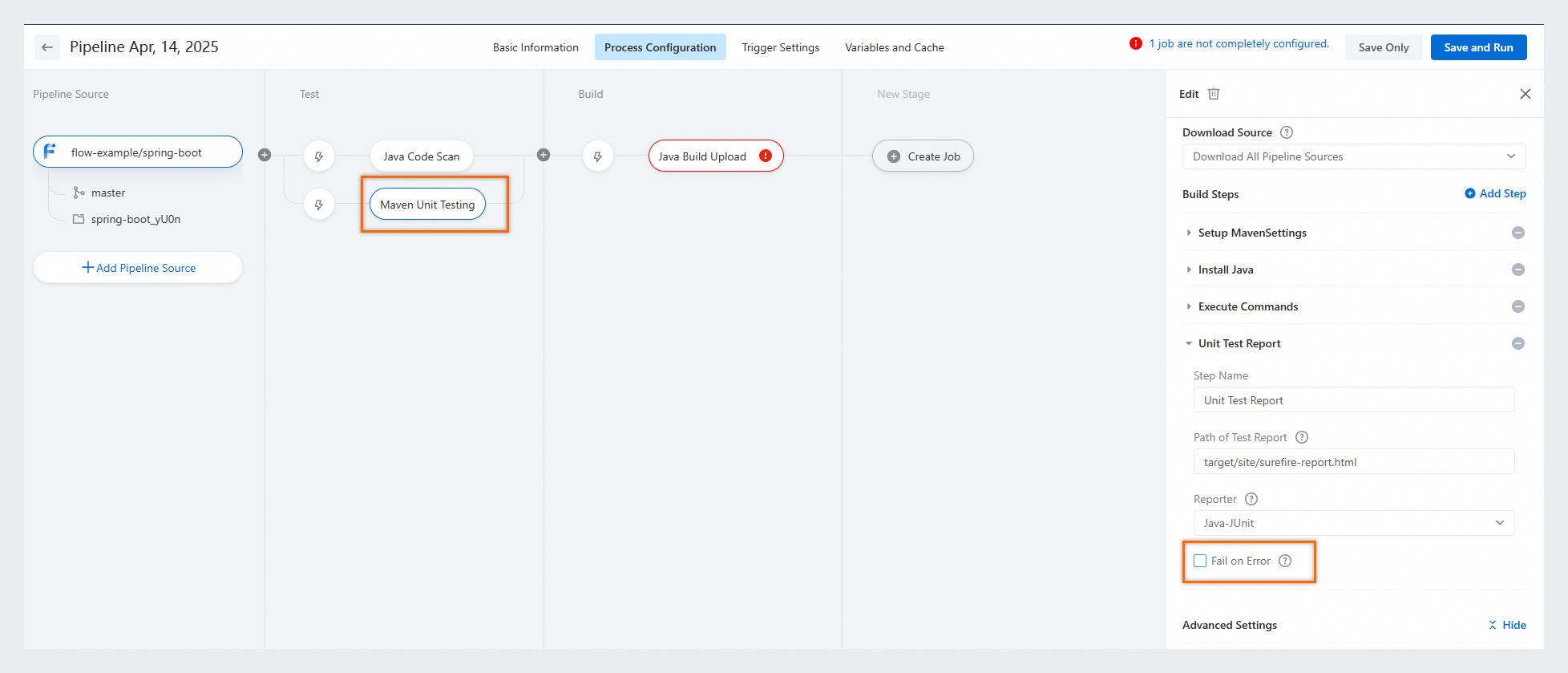
Configure the Java code scan and Maven unit testing jobs in the Test stage:
-
Java code scan: Keep the default settings.
-
Maven unit testing: In the , clear the Fail On Error checkbox. Keep the default settings for all other parameters.
Step 4: Configure the build stage
-
Configure basic parameters: Keep the default settings for Job Name, Build Cluster, Build Environment, and Download Pipeline Source.
-
Configure the job steps.
-
Keep the default settings for the Setup MavenSettings, Install Java, and Run Command steps.
-
Configure the Artifact Upload step. Key parameters are below; keep defaults for others.
-
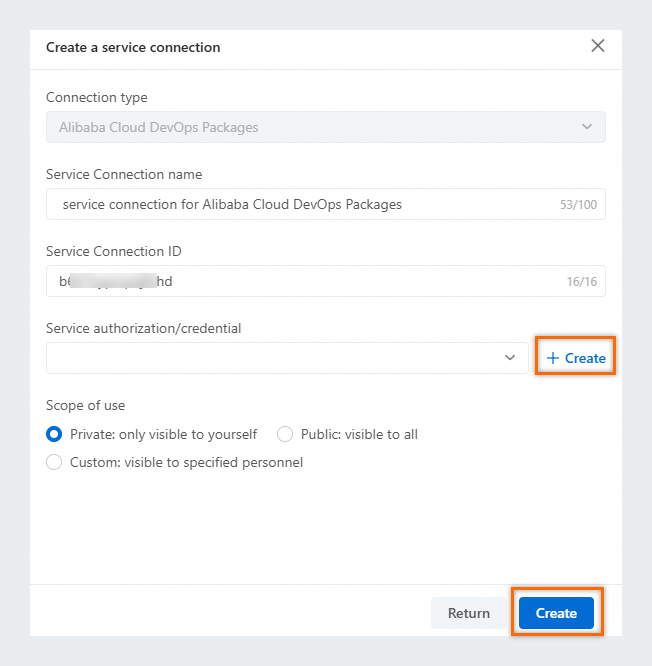
Add a service connection: Click Add Service Connection, click New to generate a Service authorization/credential, then click Create.
-
Repository: Select the
pipeline-package-repoartifact repository.NoteAfter adding a service connection, select a Generic Artifact type repository in Packages as the target.
-
-
Step 5: Run the pipeline and view the artifact
-
On the pipeline editor page, click Save and Run in the upper-right corner, then click Run in the confirmation dialog box.
-
Flow generates separate logs for each job. Click Logs on any job card to view execution details.
For example, click Logs on the Java build upload card, then click the Artifact Upload step. In the log, find the Artifact Name, such as
Artifacts_4089952.The Artifact Name identifies build outputs for deployment. Use a dynamic variable — this tutorial uses the default:
Artifacts_${PIPELINE_ID}.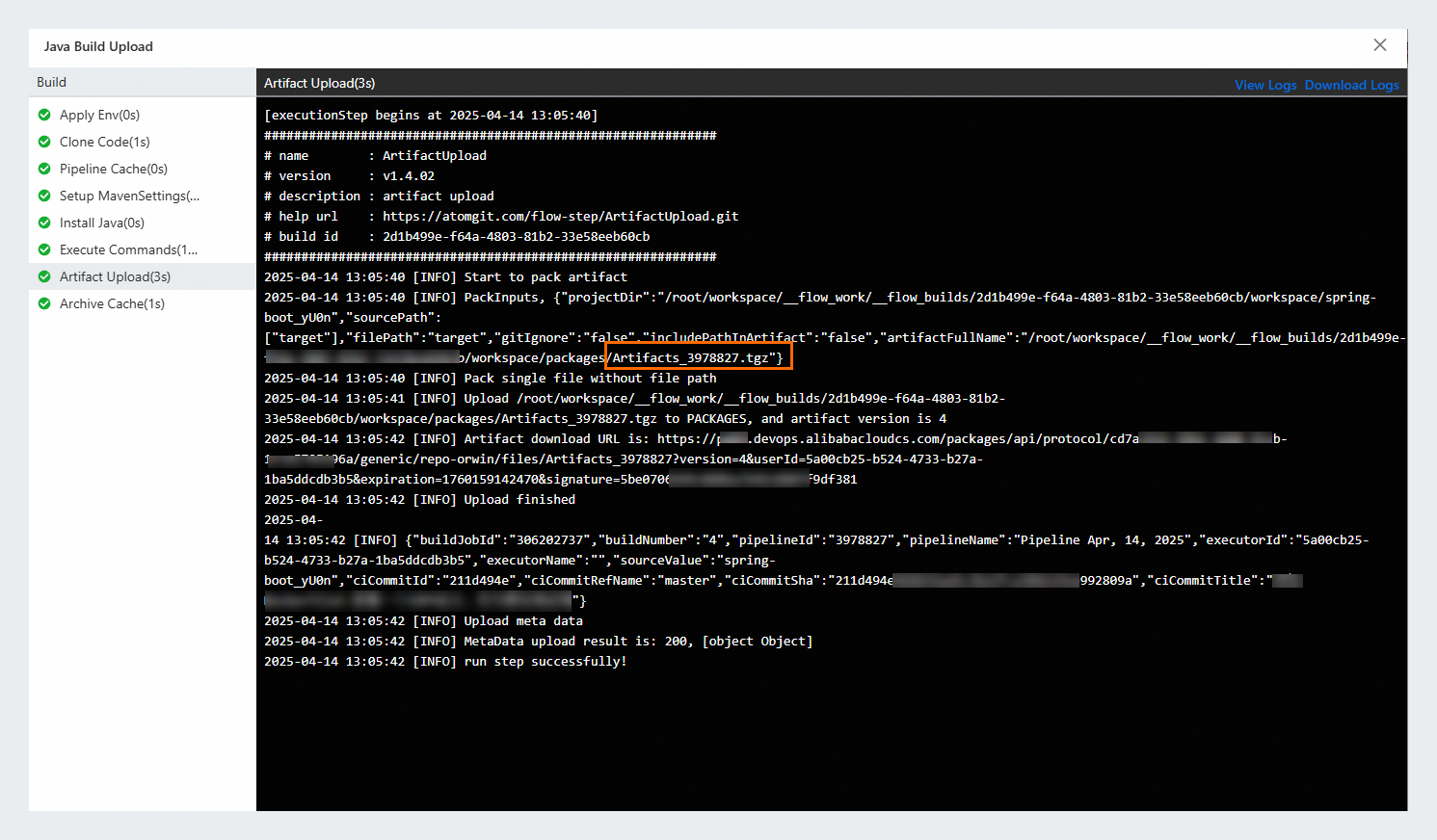
-
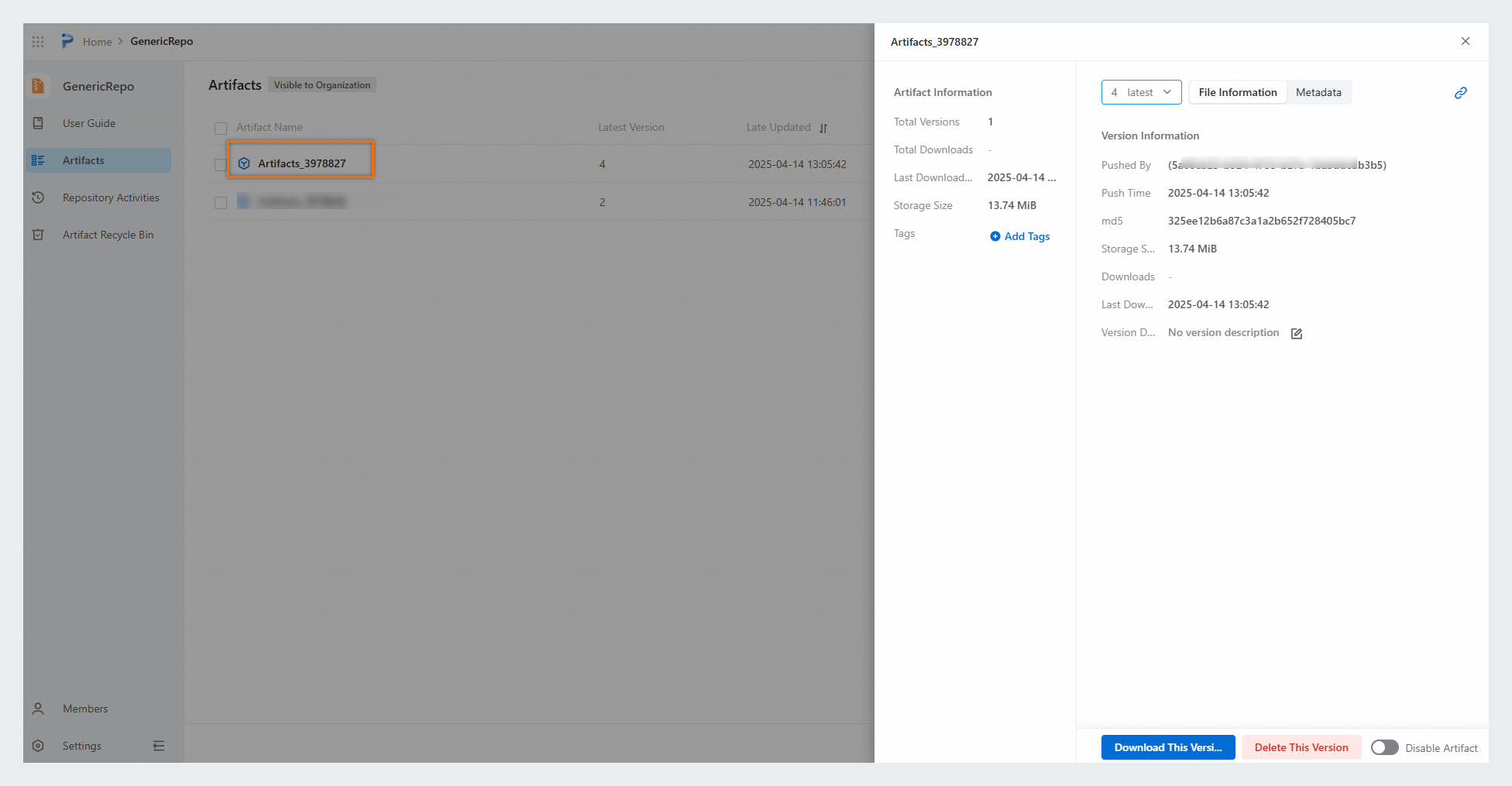
(Optional) In the Packages console, navigate to your repository to view the uploaded artifact.
Next steps
Extend your pipeline configuration: