The WUYING Workspace desktop client is designed for desktop environments. It includes the Windows client and the macOS client. You can use the client to connect to and use WUYING Workspace.
This topic uses the macOS client V7.13 and the Enterprise Edition as an example. If your experience differs from the description in this topic, you may be using a different client or an outdated version. Upgrade to the latest version.
Get to know the client interface
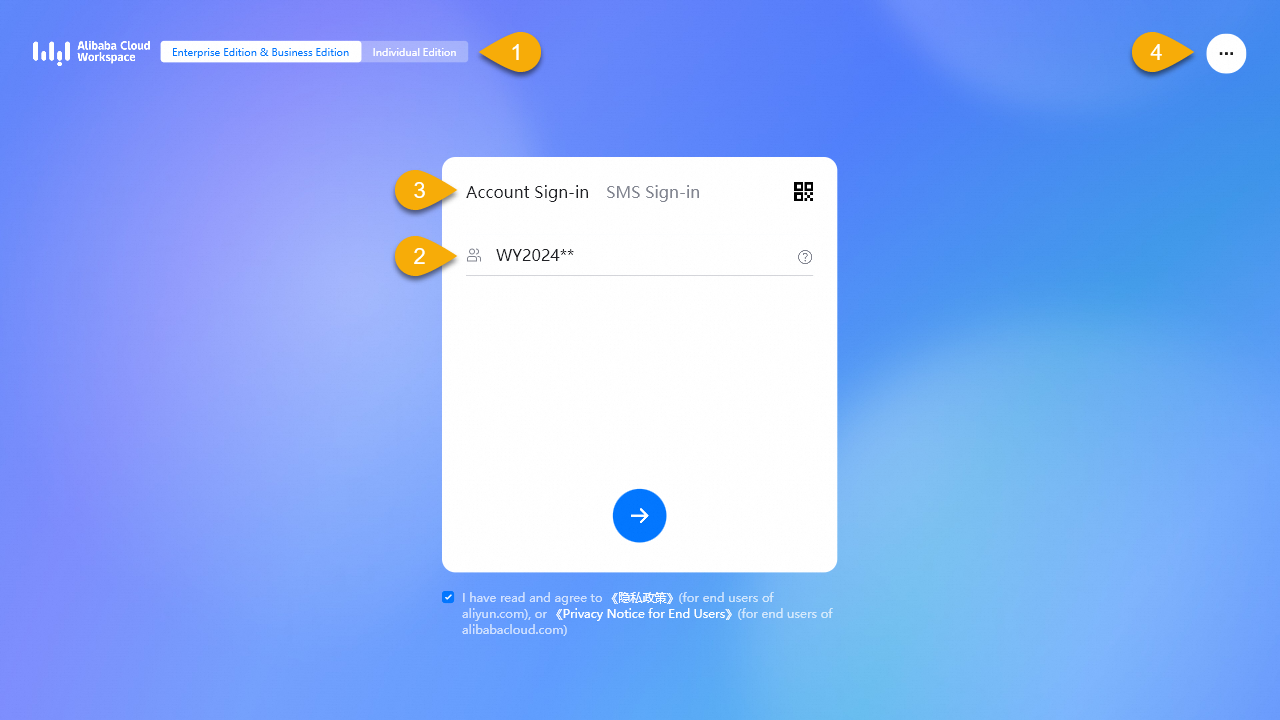
Logon interface 1
|
| ||
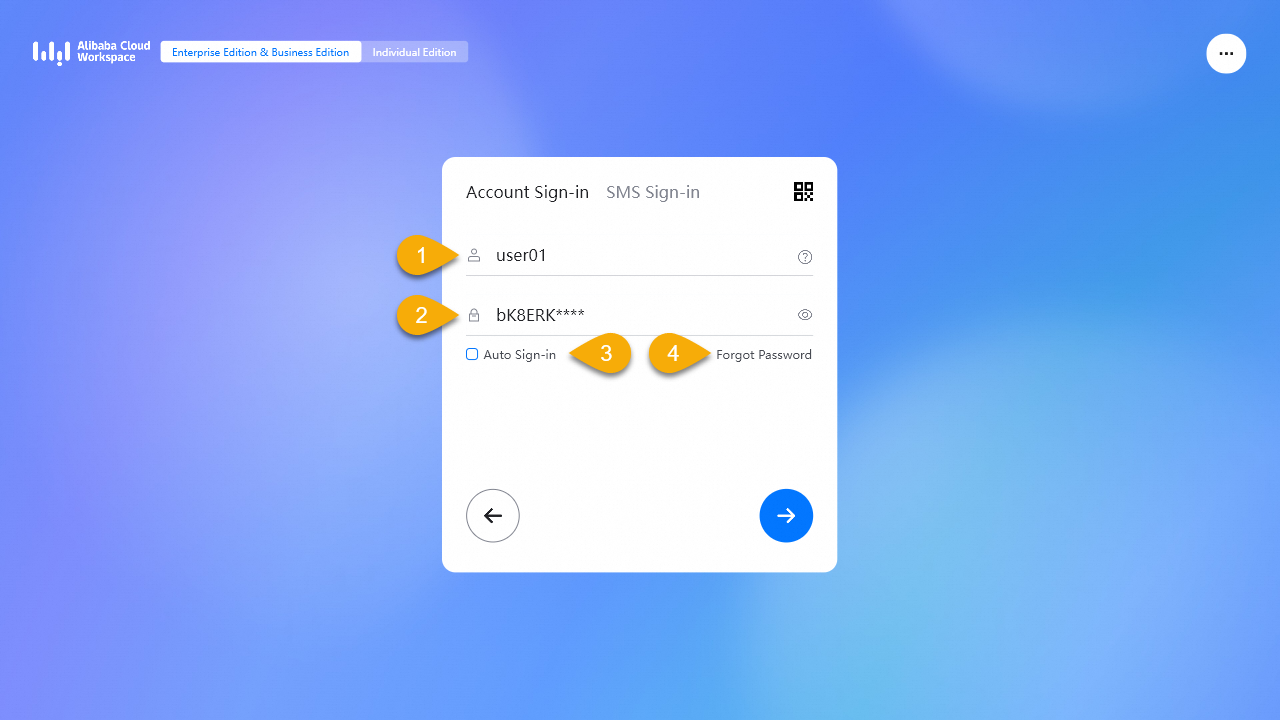
| Logon interface 2
| ||
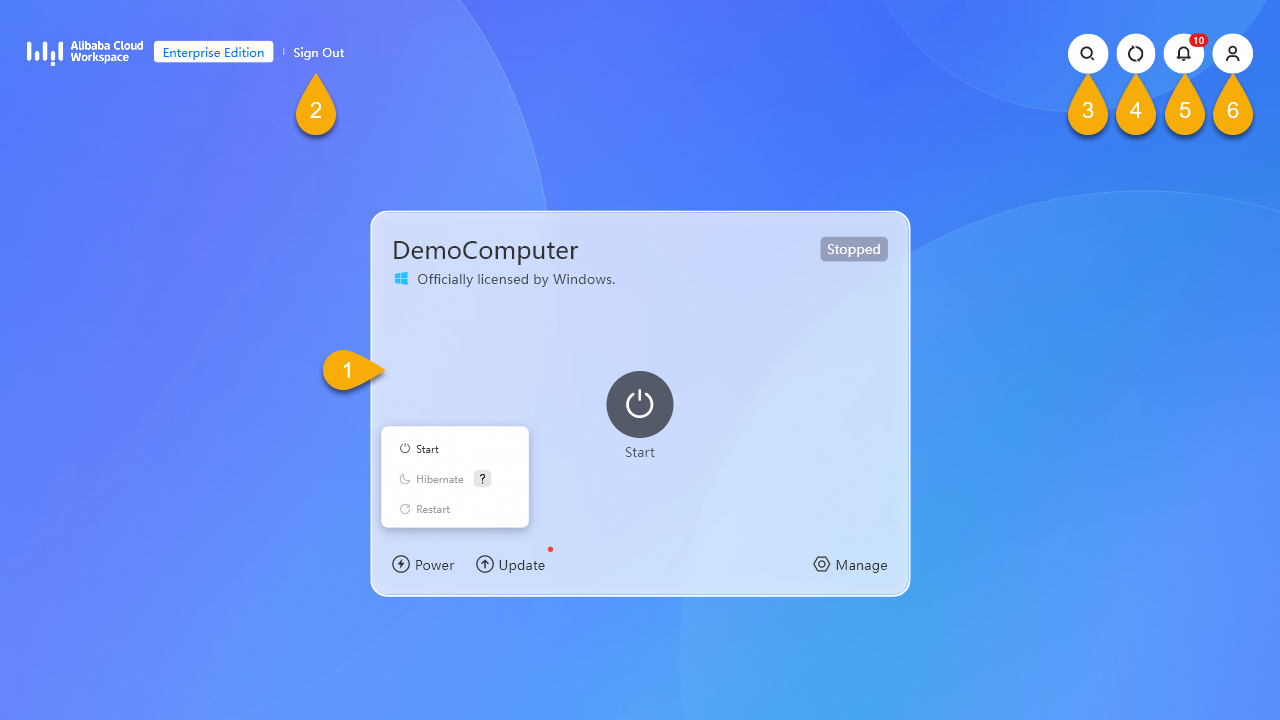
Cloud resource list interface
|
| ||
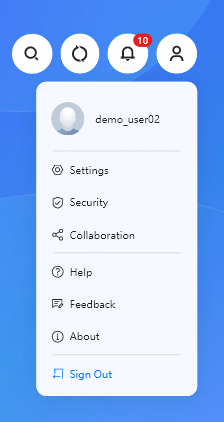
The Personal Center provides access to multiple feature modules, such as Account Information, Settings, and Product Suggestions. | Personal Center
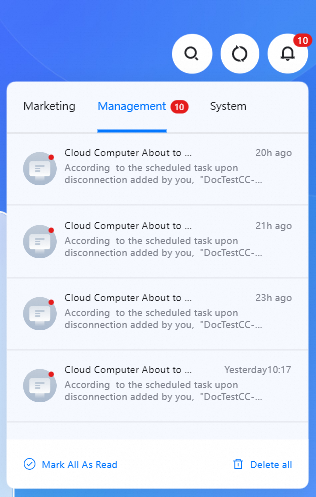
| Notification Center
| The Notification Center contains three types of event messages: Campaigns, Management Messages, and System Messages. |
Management capabilities of the Enterprise Edition desktop client
WUYING Workspace Enterprise Edition supports terminal management. An Enterprise Edition administrator can register an employee's desktop client to the organization. After registration, the administrator can use terminal policies to manage the client's user experience and mode. Enterprise Edition administrators can also group managed clients and attach different terminal policies to different groups as needed.
Policy Item | Description | Supported Types | Supported Versions |
Logon entry settings | |||
Personal Edition logon | Enabled by default. If disabled, the Personal Edition logon entry is hidden on the desktop client. | Windows client macOS client | V7.8 and later |
Enterprise Edition QR code logon | Enabled by default. If disabled, the Enterprise Edition QR code logon entry is hidden on the desktop client. | Windows client macOS client | V7.8 and later |
Enterprise Edition text message logon | Enabled by default. If disabled, the Enterprise Edition text message logon entry is hidden on the desktop client. | Windows client macOS client | V7.8 and later |
Immersive mode settings | |||
Immersive mode | Disabled by default. If enabled, only the client interface is visible on the on-premises device that runs the Windows client. This provides end users with an immersive cloud computer experience and eliminates distractions from the on-premises device. Note This feature is in invitational preview. To use it, ask your Enterprise Edition administrator to submit a ticket to request access.
| Windows client | V7.10 and later |
System Control Panel | This configuration item is visible after Immersive Mode is enabled. Disabled by default. When disabled, the client hides the System control entry. Note You must log on to the client account again for the setting to take effect. | Windows client | V7.10 and later |
References
For more information about how Enterprise Edition administrators can create terminal policies, see Manage terminal groups and policies.