Web Application Firewall (WAF) protects against web attacks such as SQL injection, cross-site scripting (XSS), HTTP flood attacks, and malicious bots. This topic describes how to activate a pay-as-you-go WAF 3.0 instance based on your business requirements.
Usage notes
Make sure that no WAF instance of any version is activated in your Alibaba Cloud account. If you have a WAF 2.0 instance and want to use WAF 3.0, perform one of the following operations based on your situation:
Running services exist in the WAF 2.0 instance: Use the migration tool to upgrade your WAF 2.0 instance to WAF 3.0.
No running services in the WAF 2.0 instance: Terminate the WAF 2.0 service and then follow the steps in this topic to activate a new instance.
Activate a pay-as-you-go WAF instance
In addition to request processing fees, a pay-as-you-go WAF instance also incurs feature fees, including the base fee for the WAF instance itself. Therefore, billing starts immediately after you activate WAF, regardless of whether you configure it. For detailed billing rules, see Pay-as-you-go billing guide.
Go to the Web Application Firewall 3.0 (Pay-as-you-go) buy page.
Set Product Type to Web Application Firewall 3.0, and set Billing Method to Pay-as-you-go, and then configure the following parameters.
Parameter
Description
Region
Determines the location of WAF protection nodes, which affects access latency and data compliance. If your website server is located in the Chinese mainland, select Chinese Mainland. Otherwise, select Outside Chinese Mainland.
Version
The default value is Pay-as-you-go 3.0. No configuration is required.
Service-Linked Role
To provide traffic access control, monitoring and analytics, and other services, WAF needs to access your cloud service resources. Click Create Service-Linked Role to allow the system to automatically create the AliyunServiceRoleForWaf role. Do not manually modify this role.
Click Purchase Now and complete the order.
(Optional) If your website traffic and protection feature usage will remain relatively stable for at least one month, and you are not in an extremely low-traffic or short-term trial scenario, we recommend that you purchase a SeCU resource plan to further reduce pay-as-you-go costs.
Get started
After you activate an instance, you can follow these steps to use WAF 3.0:
Add your services to WAF 3.0. For more information, see Overview.
Configure protection policies for the protected objects added to WAF 3.0. For more information, see Overview.
View protection data. For more information, see View security reports.
Cost optimization suggestions
To control costs and avoid unexpectedly high charges for a pay-as-you-go WAF instance, consider the following optimization measures:
Enable features as needed: Some features incur additional fees after being enabled. Enable features selectively based on your actual business needs. Avoid enabling multiple features indiscriminately or creating a large number of protection rules.
Agentic API security: Enable this feature only if your services use API interfaces.
Bot management: Use this feature to protect against automated scripts, crawlers, and other bot traffic. If your business does not require this type of protection, keep it disabled.
Core web protection: Modules such as scan protection and region blocking start to incur charges after you create protection rules. We recommend that you fully understand the functionality of each module before configuring them. If you no longer need a module, promptly delete the corresponding protection template.
CNAME record mode: Configuring non-standard ports, enabling IPv6, or using exclusive IP addresses incur additional fees. For example, if you add only a single domain name, you do not need to enable an exclusive IP address.
Use a prepaid model: If your monthly SeCU consumption is high and your business requirements prevent you from reducing the configuration, we recommend purchasing a prepaid SeCU resource plans or a subscription WAF instance for a better unit price.
FAQ
Why am I still being charged even though I haven't configured WAF or added any assets?
In addition to request processing fees, a pay-as-you-go WAF instance also incurs feature fees, including the base fee for the WAF instance itself. Therefore, after you activate the WAF service, billing starts immediately regardless of whether traffic reaches it.
When you no longer plan to use WAF, after you remove the last added asset, the console displays the following page prompting you to terminate WAF to stop billing. If Web Core Protection, Bot Management, or API Security protection rules still exist, the WAF instance continues to incur feature fees. If you no longer need the pay-as-you-go instance, you can terminate the WAF instance on the Overview page.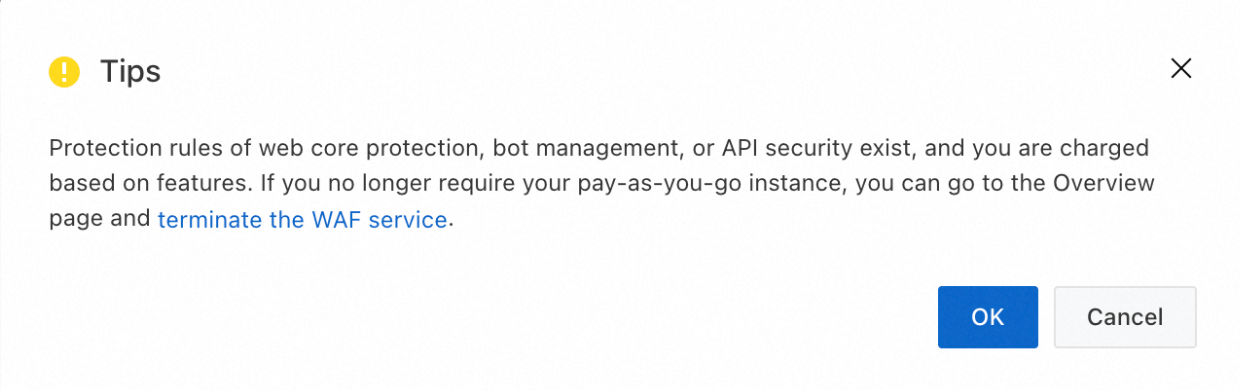
What is SeCU? How do I view daily WAF consumption?
Introduction to SeCU: The total cost of pay-as-you-go WAF 3.0 consists of request processing fees and feature fees. Both fees are measured in SeCUs (Security Capacity Units). The unit price of a SeCU is USD 0.01, which means 1 SeCU costs USD 0.01. For more information about how SeCUs are calculated, see Pay-as-you-go billing.
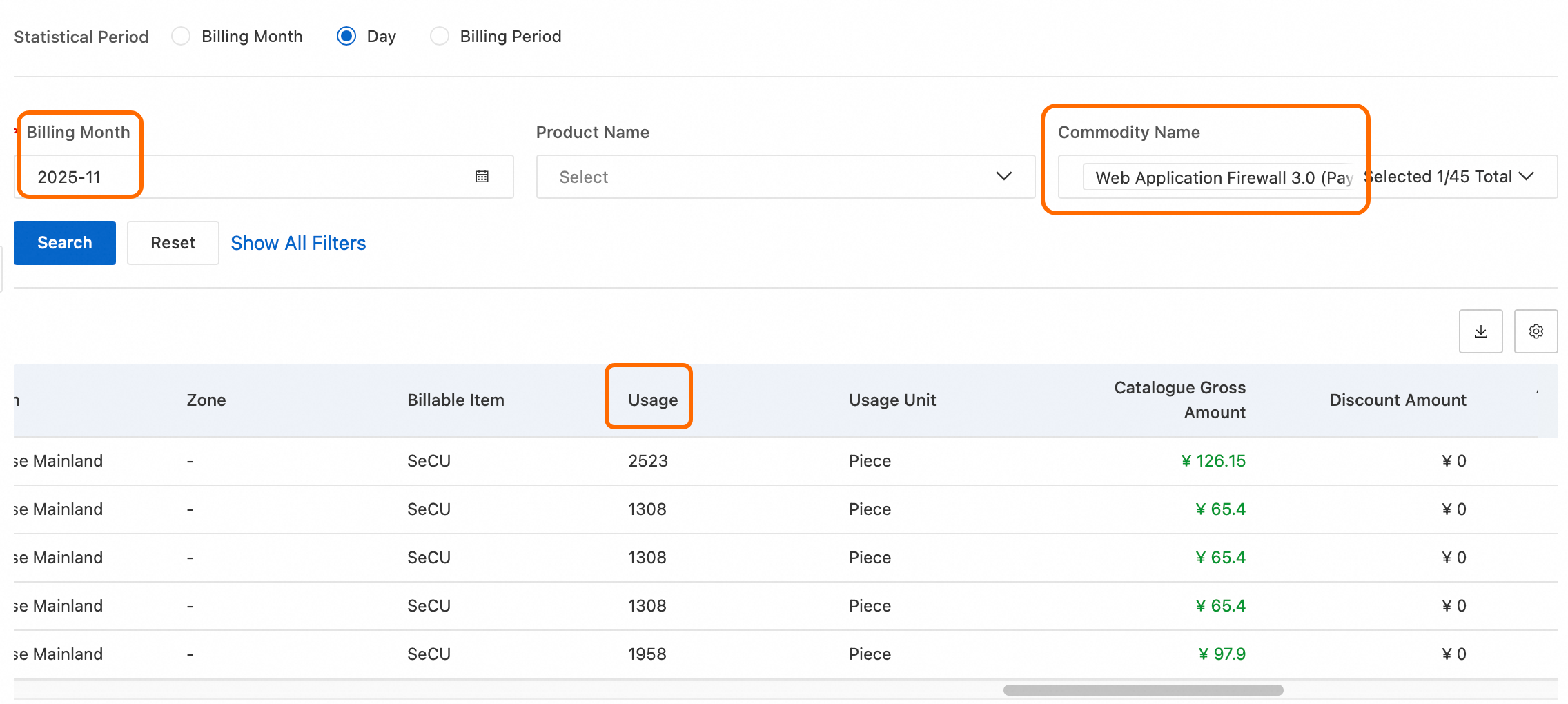
View consumption: In the left-side navigation pane of the WAF console, choose to view the daily SeCU consumption for the last seven days. You can click View Billing Details to view the consumption of specific billable items. To view SeCU consumption from more than seven days ago, see Bill details (new console) and Bill details (legacy console). Log in to Billing Management, go to the Bill Usage Details page. Set the Billing Cycle to Day, select the target Billing Month, filter by Product Name for Web Application Firewall 3.0 (Pay-as-you-go), and click Search. You can then view the daily SeCU consumption in the Usage column of the results table.
What is a SeCU resource plan? How do I use it?
A SeCU resource plan is a cost-optimization solution for pay-as-you-go WAF 3.0. After you purchase a pay-as-you-go WAF instance, you can purchase a SeCU resource plan to offset the total fees incurred by the pay-as-you-go WAF instance. A SeCU resource plan is prepaid and takes effect immediately after purchase without any configuration required. For more information, see SeCU resource plans.
How do I terminate WAF to stop billing?
If you no longer plan to use WAF and want to stop billing, follow these steps to terminate the WAF instance.
Before you terminate the WAF instance, make sure that the DNS records of website domain names added to WAF have been resolved back to the origin server.
After the WAF instance is terminated, all website domain name configuration information is deleted. If requests are still sent to the WAF instance, they cannot be forwarded properly, causing website inaccessibility.
Go to the Overview page. In the top menu bar, select the resource group and region (Chinese Mainland, Outside Chinese Mainland) of the WAF instance.
If the following page appears, click Go to Console in the upper-right corner. If this page does not appear, skip this step.

On the right side of the page, click Terminate WAF Service. In the dialog box that appears, select the required checkboxes and click OK.

Why am I still being charged after terminating WAF?
If you are still being charged after terminating WAF, it may be due to the following reasons:
The termination process was not correctly completed: You may have only removed assets from WAF or disabled the WAF protection switch. Make sure that you strictly follow the steps in How do I terminate WAF to stop billing? to terminate the service.
Bills are generated with a delay: Bills for pay-as-you-go WAF are generated on the following day. For example, if you terminate WAF on October 2, a bill for October 2 is generated on October 3. Starting from October 3, no new bills are generated.
The region was not correctly switched: If you purchased a WAF instance for the Outside Chinese Mainland region, you need to switch to that region on the Overview page in the top menu bar before performing the termination. Log in to the Web Application Firewall 3.0 console and select Chinese Mainland or Outside Chinese Mainland in the region selector in the top navigation bar.
