You can use cost units to group scattered cloud resource costs. This helps you aggregate costs within your enterprise based on dimensions such as organization and project.
What is a cost unit
A cost unit is a system of configurable rules that combines multiple dimensions, such as resource tags, resource groups, resource names, product types, regions, and accounts. The system automatically executes these rules to allocate costs. This process re-aggregates original spending to create cost views that match your organizational structure or business model.
The core capabilities of cost units are as follows:
Multi-conditional rule combination: Supports AND/OR logic to flexibly combine dimensions such as tags, products, regions, accounts, and resource instances.
Hierarchical tree management: Supports the creation of a multi-level tree structure to map your actual organizational structure. This allows for hierarchical cost analysis and aggregation.
Shared resource cost allocation: For resources shared by multiple services, such as traffic and storage, you can allocate the shared costs based on specified ratios.
Integration with budget management: You can set separate budgets for each cost unit and trigger alert notifications for budget overruns.
Visual cost analysis: Integrates with cost analysis to help you view spending and cost trends for each cost unit.
Cost units can meet complex cost allocation needs:
Allocate costs by department or cost center: To understand the monthly cloud resource expenses for each department, you can create a cost unit for each department. The rule can be based on accounts or specific department tags, such as
department:rd. The costs of all resources that belong to that department are then automatically aggregated.Allocate costs by project or product line: For example, a product line includes multiple microservices and projects, and you need to calculate its independent return on investment (ROI). You can create a cost unit for a specific project and set the rule to
all resources with the tag project:e-commerce.Allocate costs by environment (production, staging): To prevent uncontrolled resource usage and high costs in staging environments, you can create "production environment" and "staging environment" cost units. You can set the rules to
tag env:prodandtag env:test. You can also set a lower budget and an alert for the "staging environment" to effectively control non-production expenses.Fine-grained allocation of shared resources: For shared resources such as Kubernetes or database clusters that serve multiple business projects, you can group them into a "shared resource pool" cost unit. You can then use the cost allocation feature to automatically distribute the total cost based on ratios such as CPU/memory usage or the number of calls for each business project.
User guide (New console)
The new version of cost units is being rolled out in phases. It adds features such as cost allocation effect preview, automatic creation of cost units, and historical rule viewing. This guide highlights the differences between the new and old versions.
You can determine which version you are using from the cost unit home page. If you are using the old version, please wait for the system upgrade.
New cost unit console
| Legacy Cost Center
|
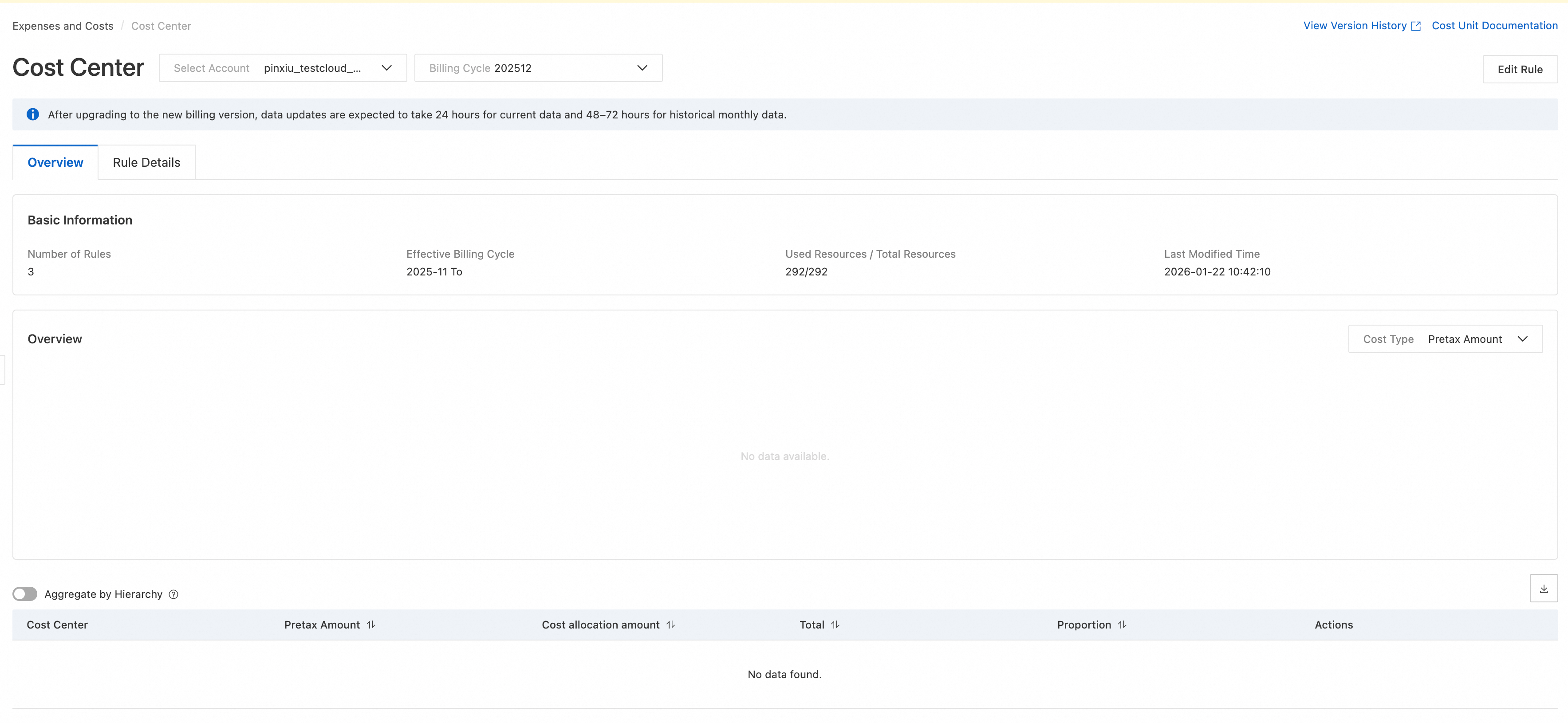
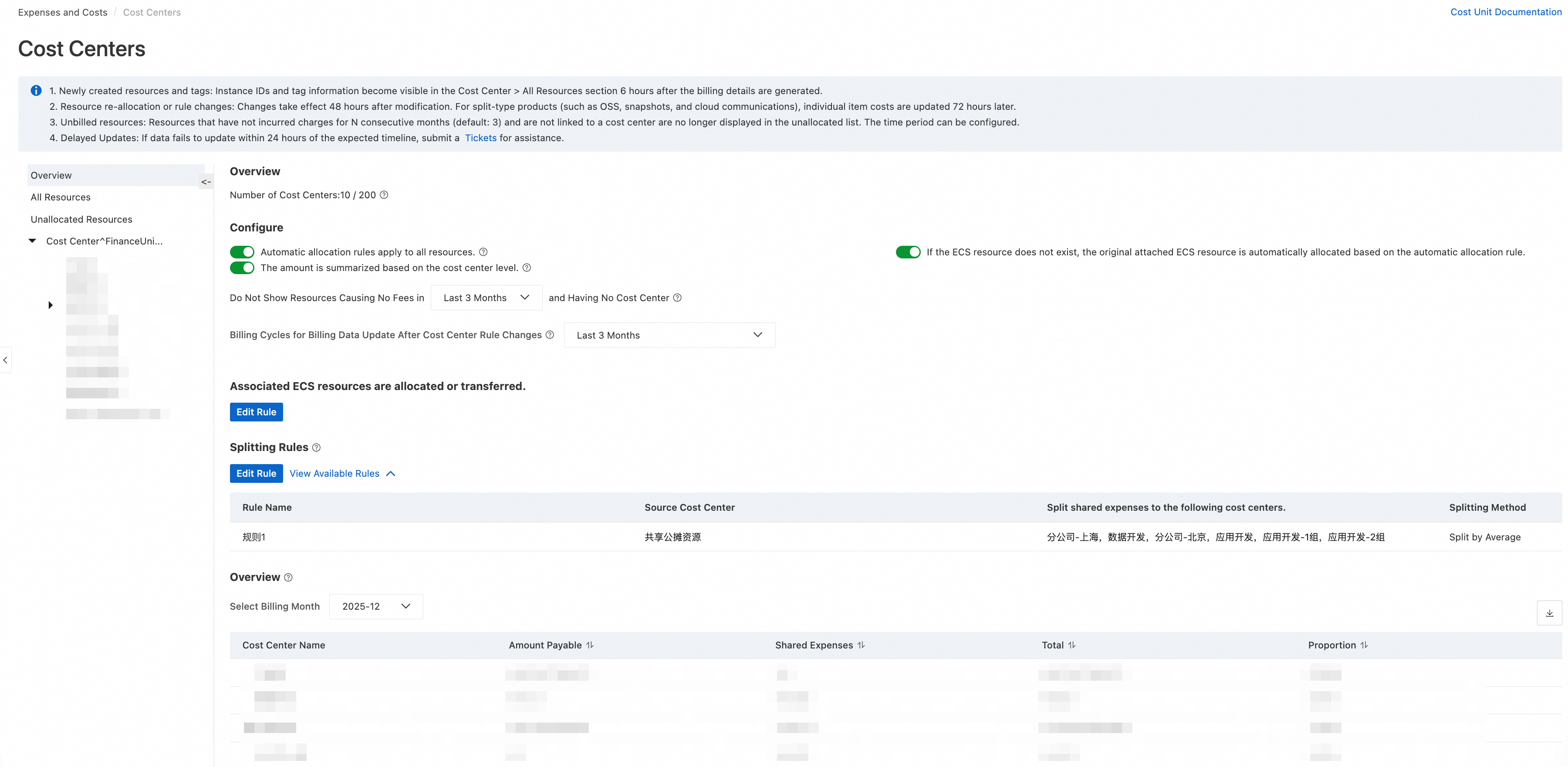
In the new version, the rule editing page is displayed by default if you have never used cost units. Otherwise, the overview page is displayed.
Create a cost center
Cost units can be created manually or automatically (a new feature).
Manual creation: Customize the orchestration based on scenarios such as your organizational structure or business category.
Automatic creation: Quickly creates an environment based on an existing account structure or resource group.
Manually create a cost center
Log on to the Expenses and Costs console.
In the navigation pane on the left, choose .
Go to the Cost Centers page.
New cost unit console
Click the Edit Rule button on the right to go to the Cost Unit Rule Management page.

Click the
 button next to Cost Center to add a new cost center.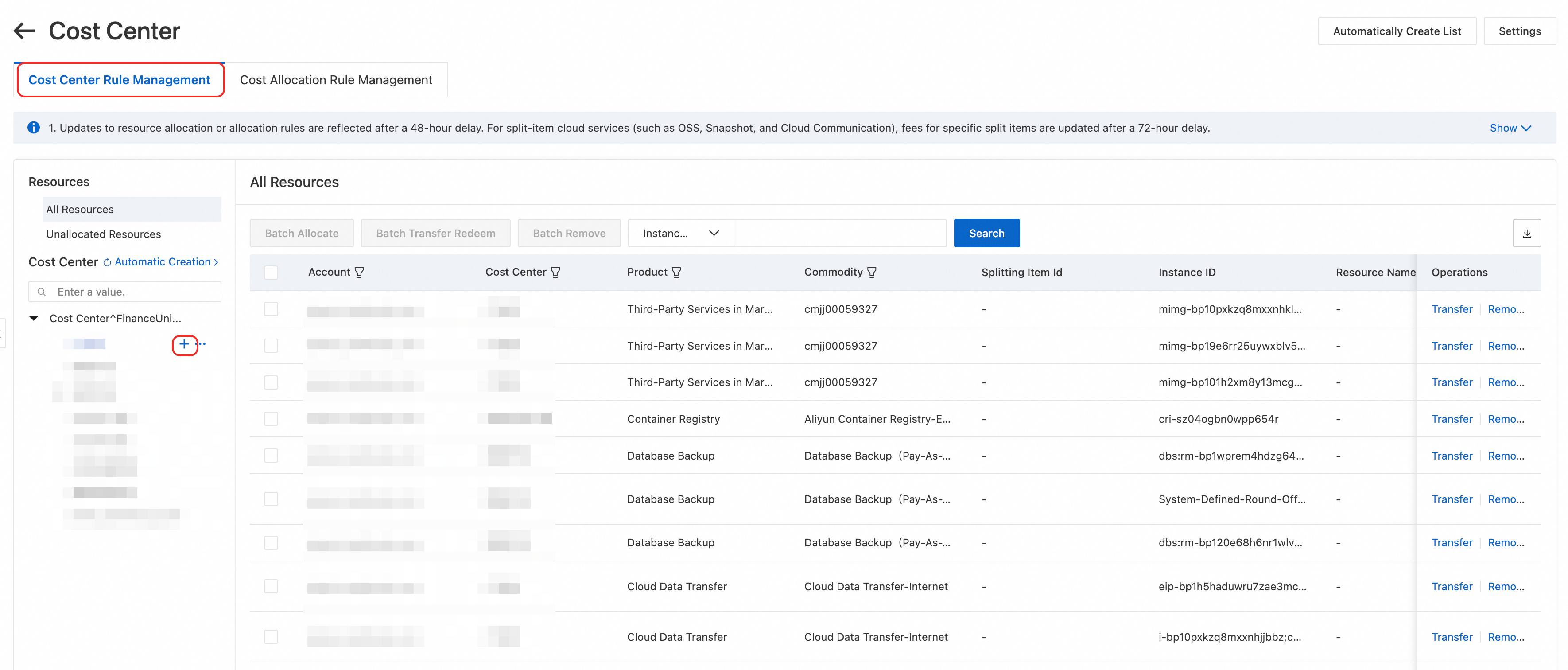
Legacy cost centers
Click the
button next to Cost Center to add a new cost center.
For a created cost unit, you can click the buttons on the right to modify its name, copy it, or delete it.

Automatically create a cost unit (New cost unit console)
Log on to the Expenses and CostsExpenses and Costs console.
In the navigation pane on the left, choose to go to the Cost Centers page.
Click the Edit Rule button on the right to go to the Cost Unit Rule Management page.
Click Automatic Creation. In the dialog box that appears, select the information that you want to synchronize.
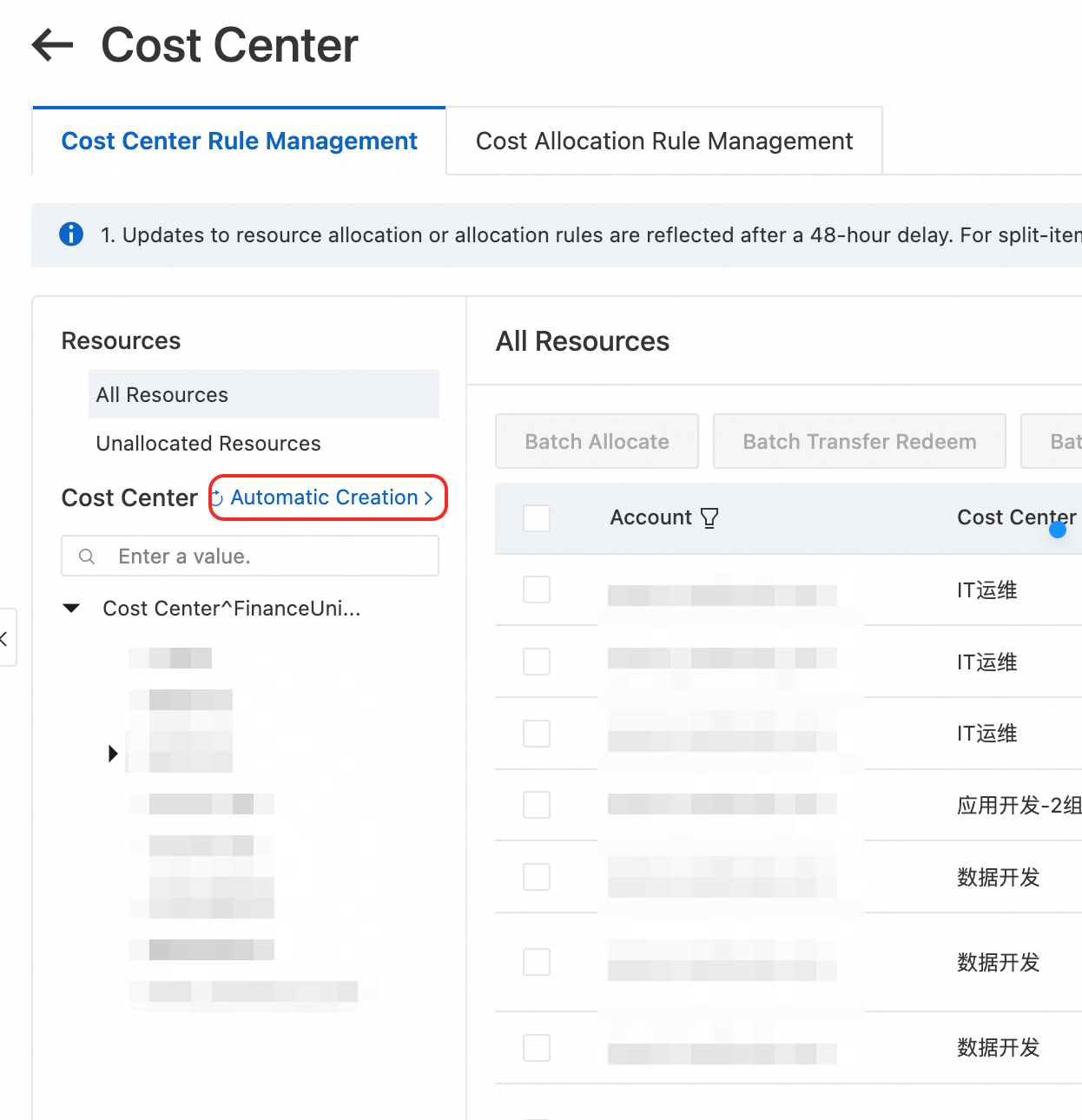
Enterprise/Organization/Account: If you have enabled Enterprise Account Center, you can synchronize the account list and names from the Account Center to use as the cost unit directory tree.
Resource group: This option is suitable for scenarios where costs are allocated by resource group.
After you make your selection, click Confirm Creation. The system automatically creates the cost units. You can view the creation details in the Automatic Creation List. After the creation is successful, click the
 icon to refresh the directory tree.
OpenAPI
You can use the following API operations to create and modify cost units.
API | Description |
You can create cost centers in a batch. | |
Modifies one or more cost units. | |
Queries the information of cost unit nodes. | |
Deletes a cost unit. |
A cost unit tree supports a maximum of 4 levels.
By default, a single account can have a maximum of 200 cost units.
You can drag and drop cost units to adjust their order in the directory tree. The rule priority decreases from top to bottom.
Assign resources to a cost unit
After you create a cost unit, you need to associate it with the corresponding resources. You can do this by creating allocation rules or using manual allocation.
Create allocation rules
You can create allocation rules to automatically assign qualifying resource instances to a specified cost unit.
New cost center
Go to the Cost Unit Rule Management page and select a cost unit that you created.
In the Allocation Rule area on the right, click the Edit button.
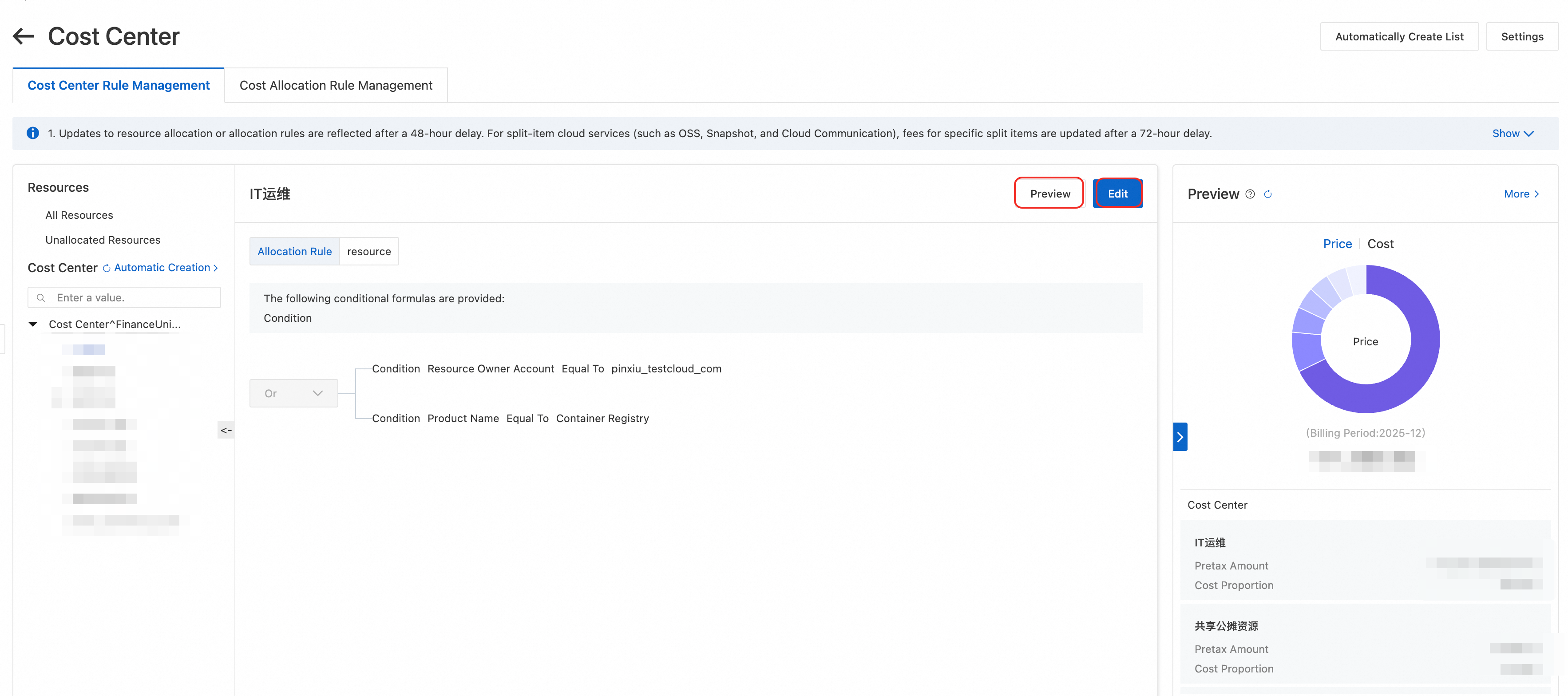
In the area that appears, edit the rule based on dimensions such as Resource Ownership Account, Product Name, Offering Name, Region, Instance ID (Billing Granularity), and Resource Tag. You can combine multiple conditions.
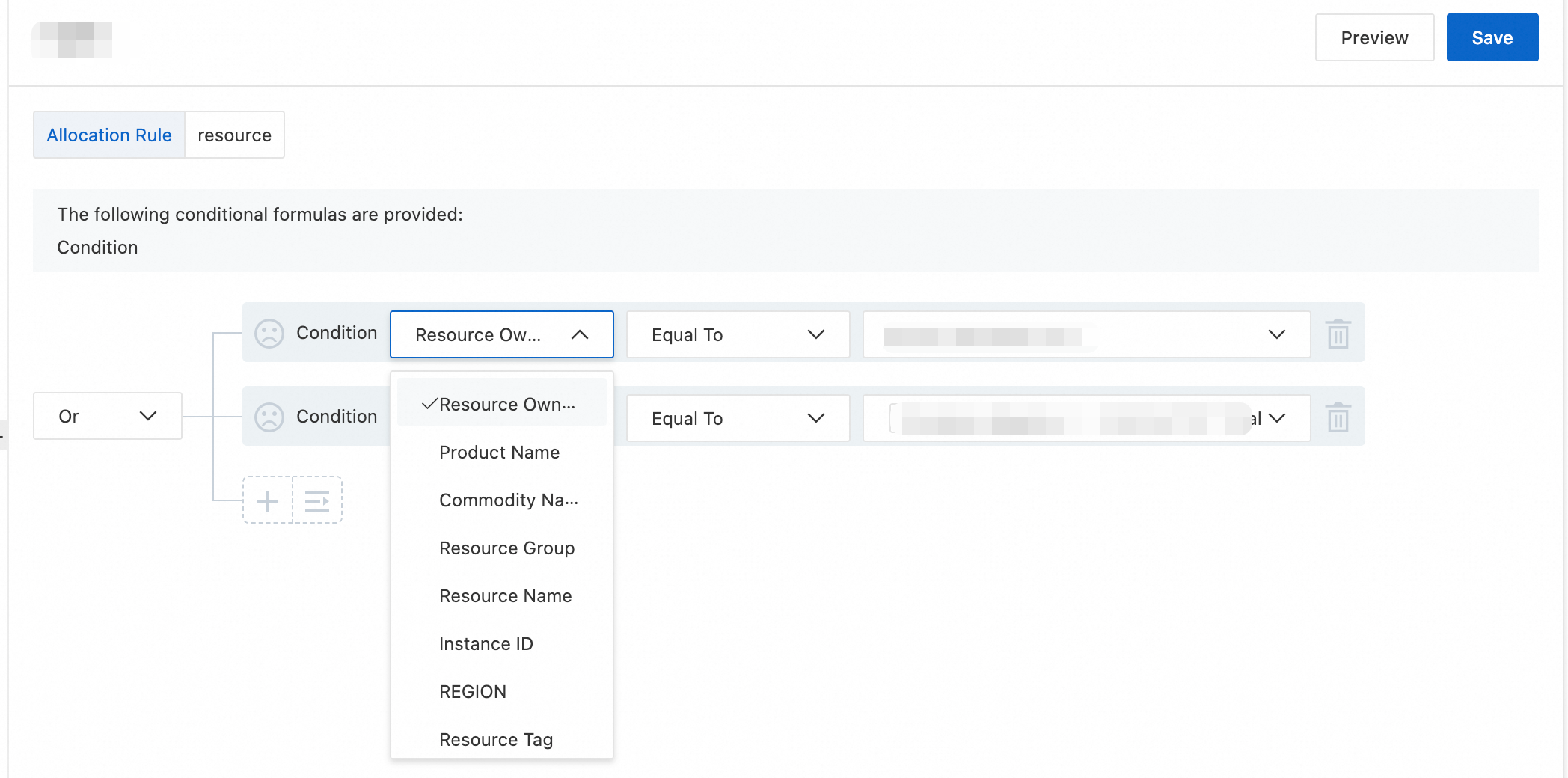
Rule configuration
Supported configuration types
Resource Ownership Account, Product Name, Offering Name, Resource Group, Region
Equals or Not equals. Multiple selections are supported.
Resource Name, Tag, Instance ID (Billing Granularity)
Equals or Not equals. To enter multiple values, separate them with commas (,). Contains, Does not contain, Starts with, and Ends with are also supported.
After you set the conditions, click the Preview button. On the right, you can view the cost allocation effect on the consumption data from the last billing cycle. The preview data is for reference only and may not be consistent with the split bill details or other billing pages.
After you confirm the settings, click Submit and Save to complete the automatic allocation rule configuration.
Legacy cost center
Select a cost unit. On the Automatic Allocation Rule tab, click Edit.

Add a condition or a condition group. From the condition drop-down list, you can create custom rules based on the resource purchase account, product name, product details, tags, resource group, or instance name.

Click Submit.
Manually allocate resources
Manual allocation involves assigning resources to a cost unit by hand. Manual allocation has a higher priority than automatic allocation.
On the All Resources (or All Resources in the old version) or Unallocated Resources list of the cost unit, you can view the current allocation status of your resources.
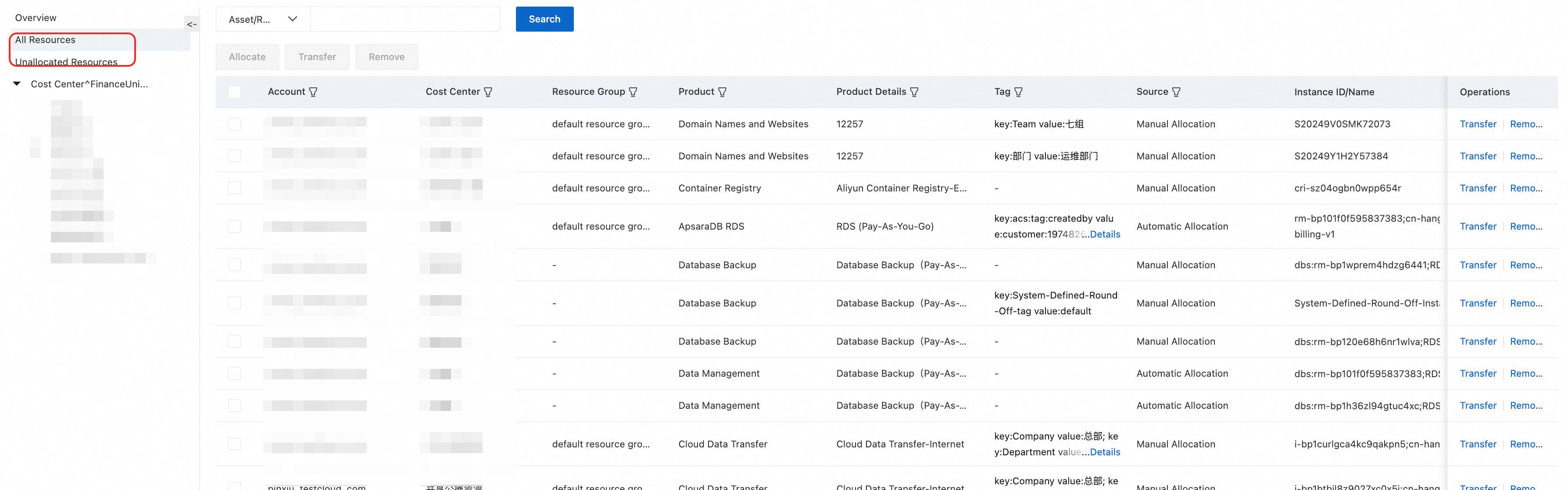
Find the resources that you need to adjust and perform operations such as assign, transfer, or remove. You can select multiple resources to perform batch operations.
Assign: For Unallocated Resources that do not belong to any cost unit, click Assign to manually allocate them.
Transfer: For resources that need to be moved to a different cost unit, click Transfer. In the dialog box that appears, select the destination cost unit.
Remove: For resources that do not need to be allocated, click Remove to remove them from the current cost unit.
Set rules for shared costs
This rule lets you split the costs from a specified cost unit among other cost units. This is useful for allocating the costs of shared resources.
New cost center
Log on to the Expenses and Costs console. In the navigation pane on the left, choose .
Go to the Cost Center page. Click the Edit Rule button on the right to go to the Cost Unit Rule Management page.
Switch to the Shared Cost Rule Management tab and click Add Splitting Rule to add your first shared cost splitting rule.
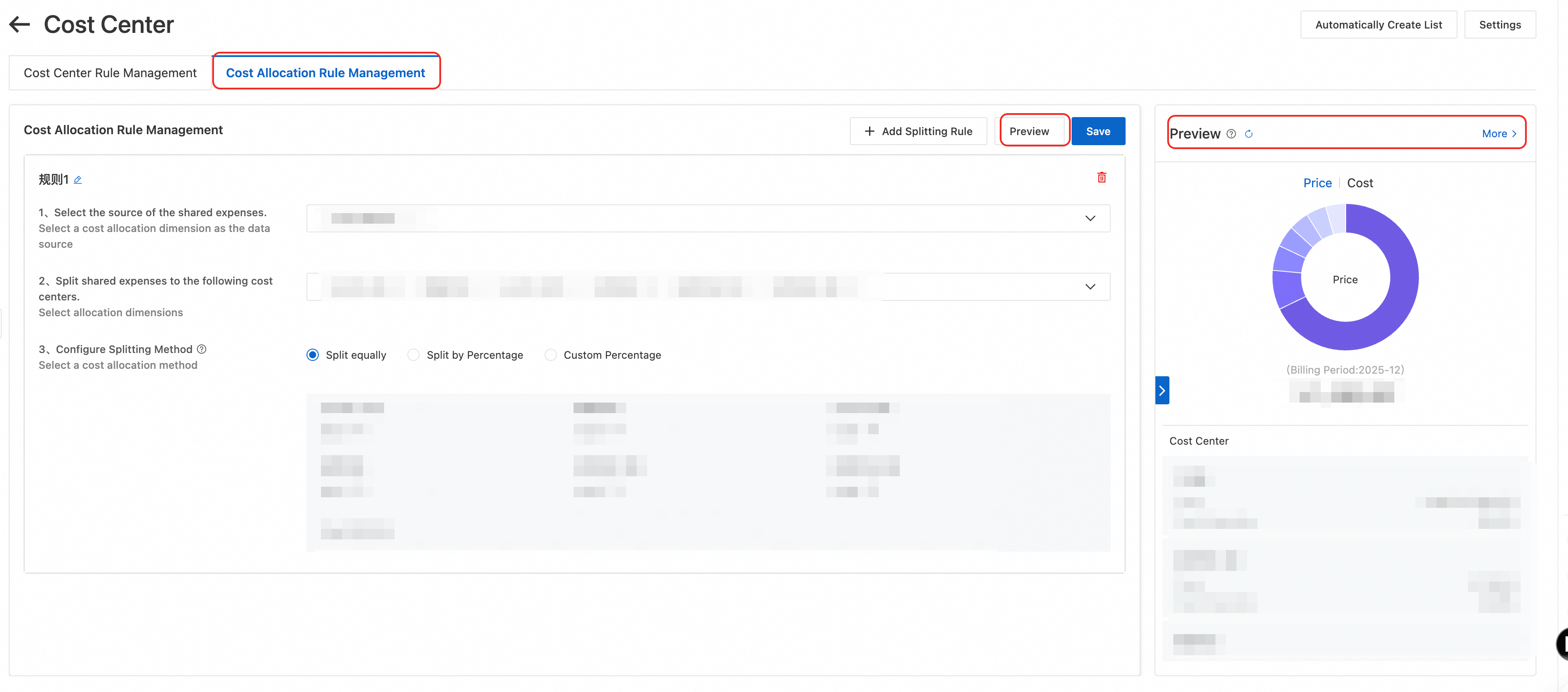
Confirm the source of the shared costs, the destination cost units, and the splitting method.
Click Preview to see the effect of the shared cost rule.
Click More to the right of Preview. By default, you can view the allocation results for all resources under the root account and RAM users. You can switch accounts and billing cycles (current and previous month) for the preview.
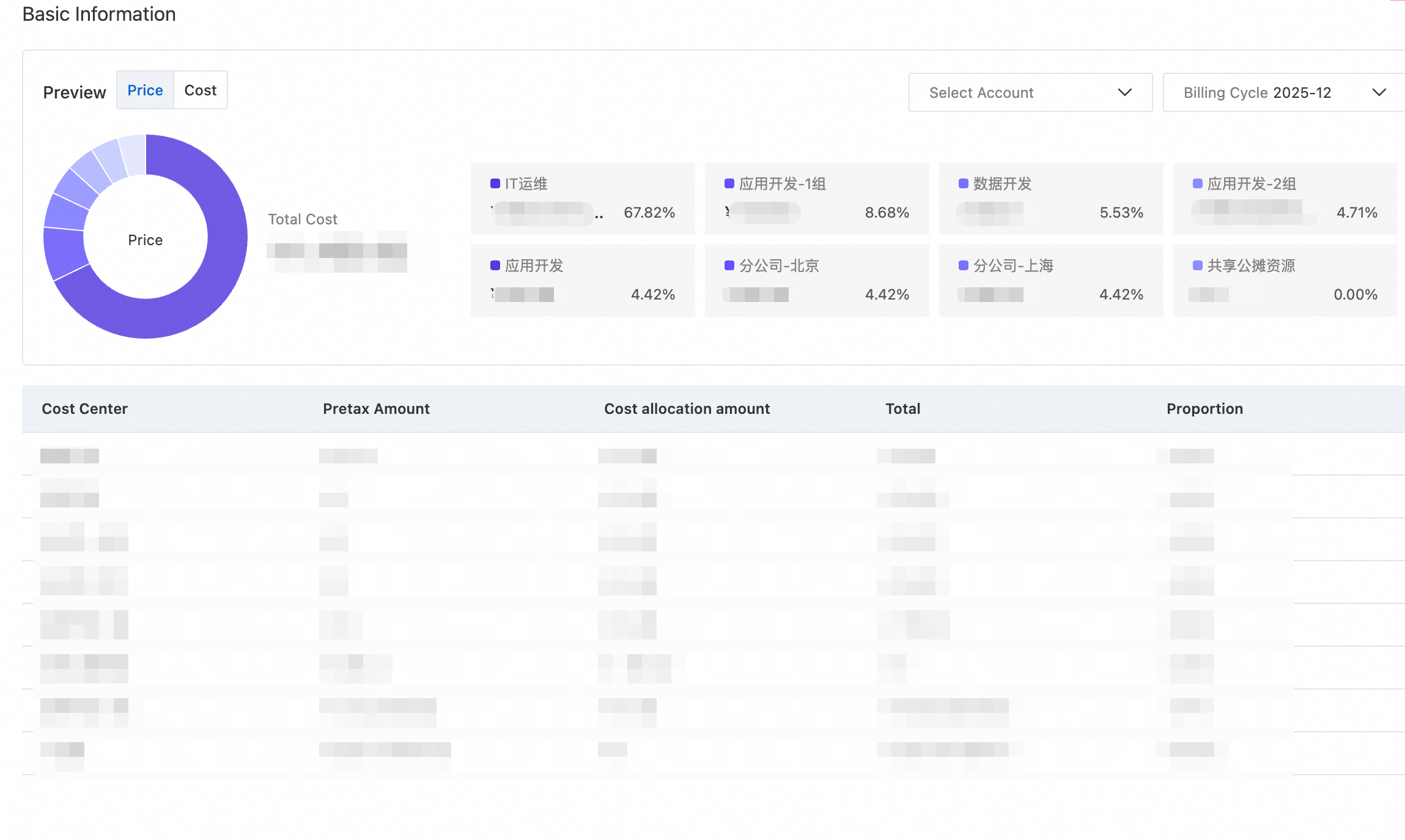
After you confirm the settings, click Submit and Save.
Legacy cost centers
Log on to the Expenses and Costs console. In the navigation pane on the left, choose .
On the Cost Units page, click Overview. Find the Shared cost splitting rule section and click Edit Rule.
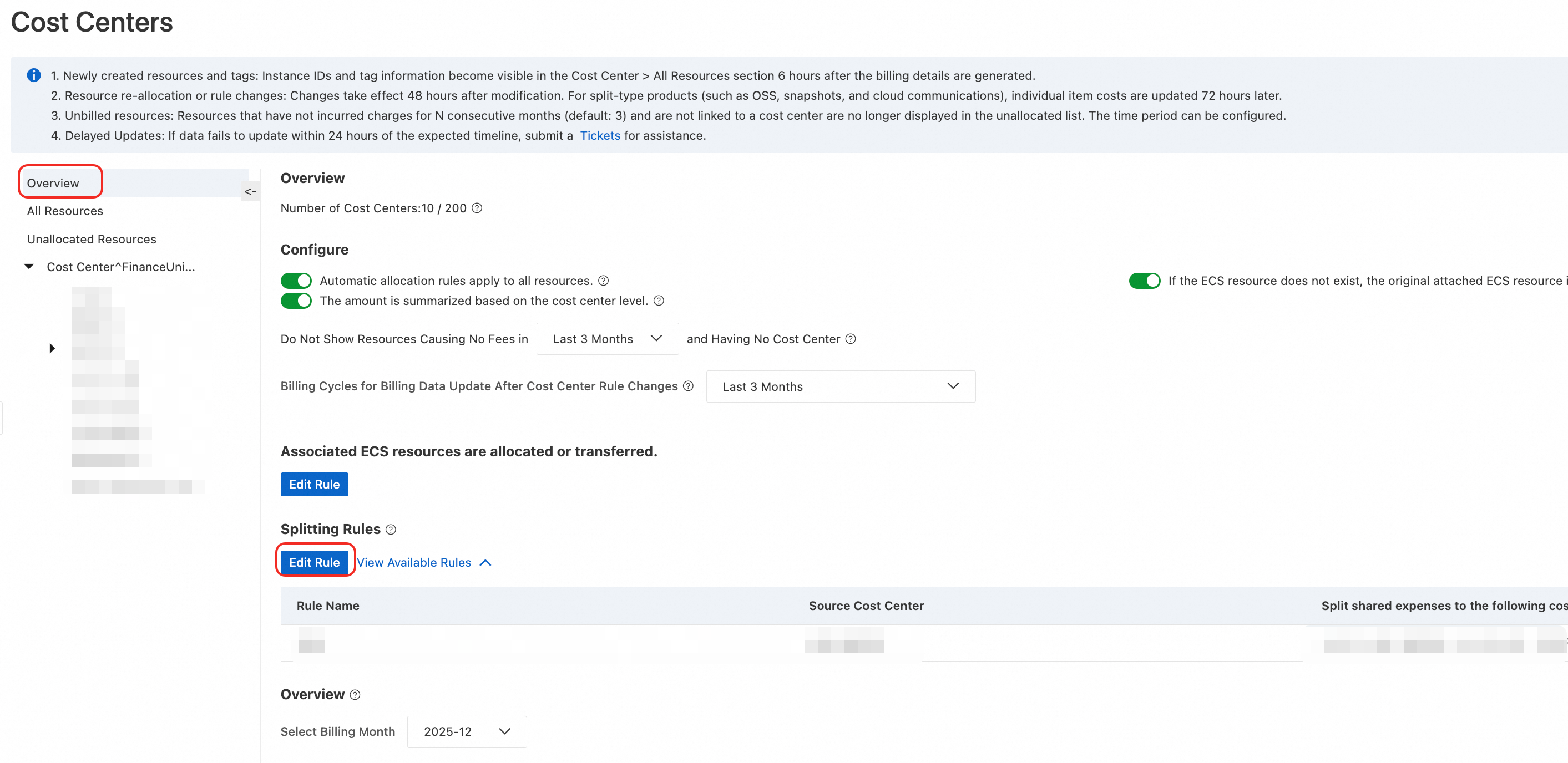
On the Shared cost splitting rule page, click Add Splitting Rule to add your first shared cost splitting rule.
Confirm the source of the shared costs, the destination cost units, and the splitting method. Click Save.
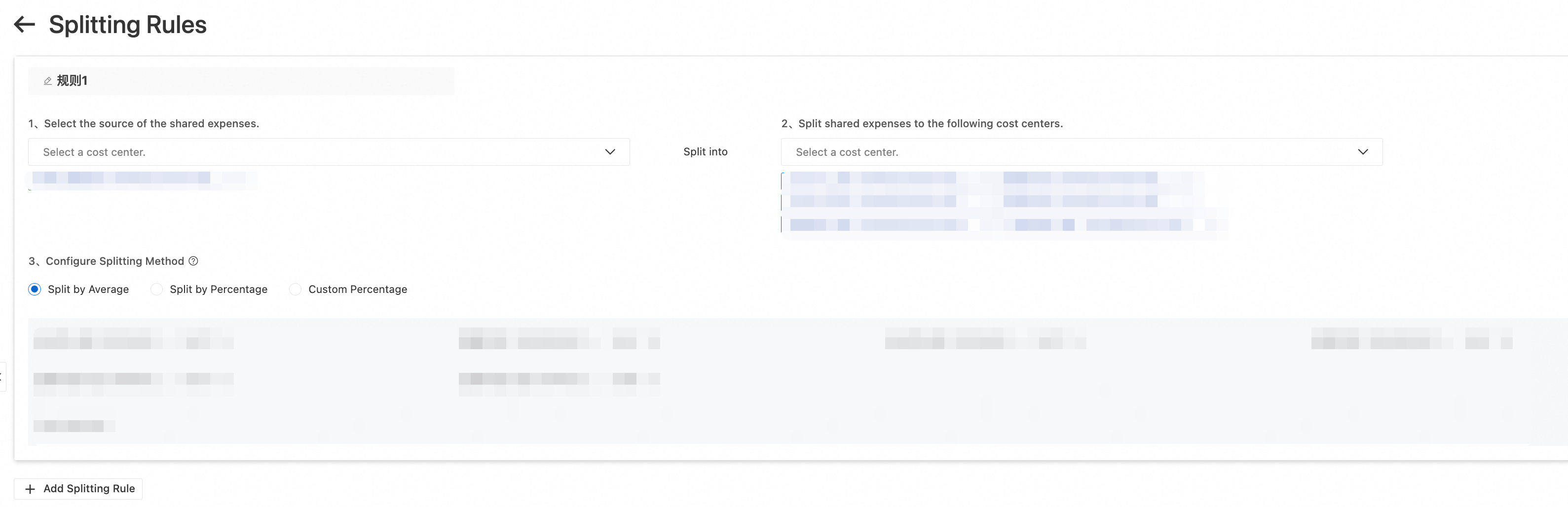
You can add multiple splitting rules at once. Return to the overview page to View Available Rules.
Set global rules
Global rules can automatically allocate all products and enable attached-resource allocation for ECS resources. This reduces the chance of missed or incorrect allocations.
New cost unit console
Go to the Cost Center page. Click the Edit Rule button on the right to go to the Cost Unit Rule Management page.
Click the Settings button in the upper-right corner to configure global rules in the dialog box.
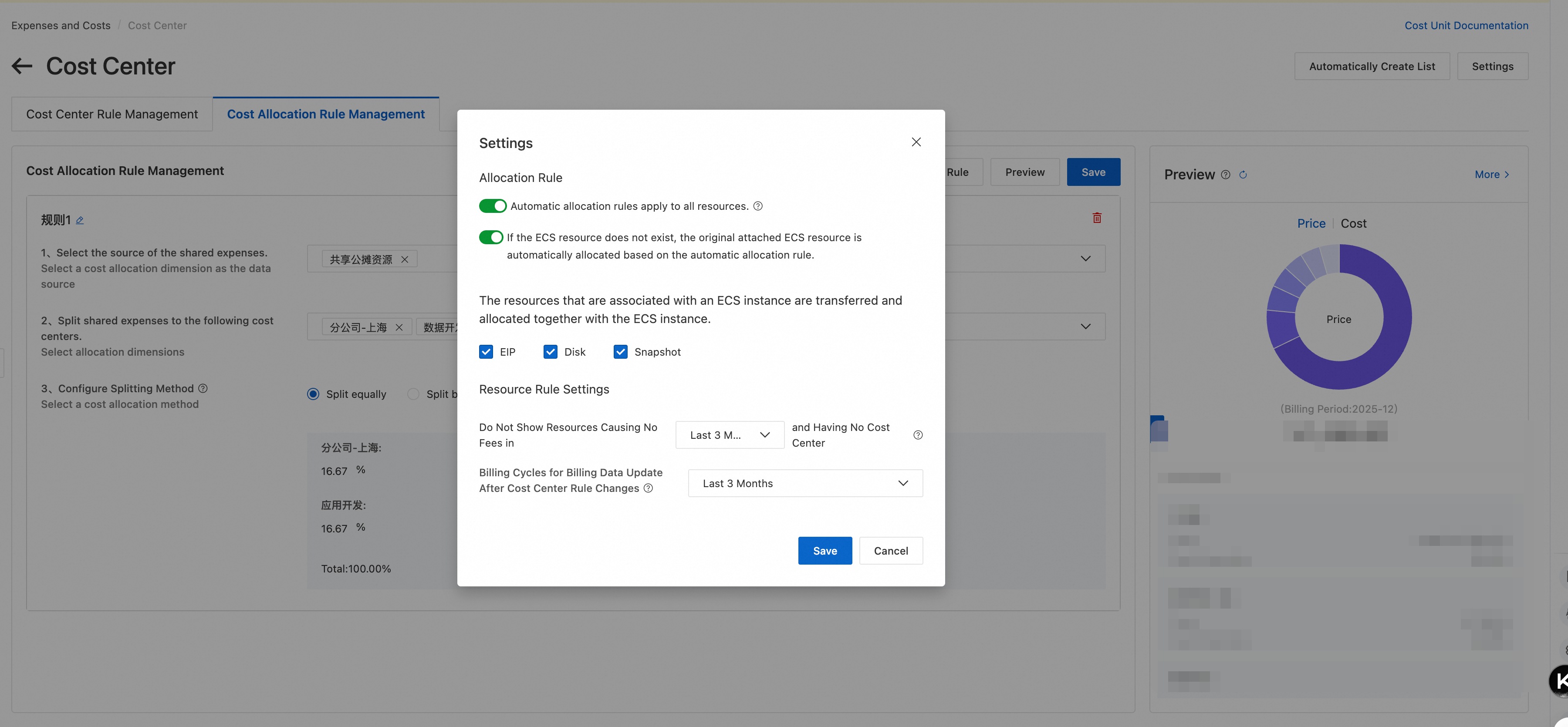
Legacy cost center
On the Cost Units page, click Overview to configure the rules:
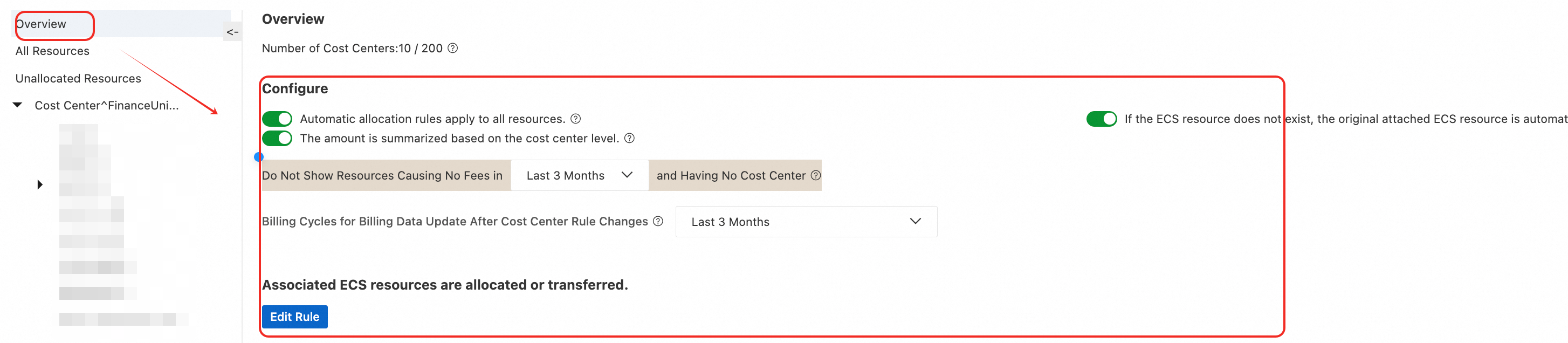
The following rules can be configured:
Automatic allocation rules apply to all resources.
When enabled, changes to automatic allocation rules apply to all cloud resource instances that are not manually allocated.
When disabled, changes to automatic allocation rules apply only to unallocated cloud resource instances.
The amount is summarized based on the cost center level.
When enabled, the cost report on the Cost Units > Overview > Overview page aggregates cost allocation data for each cost unit according to the directory tree. You can choose to view the billable amount, post-discount amount, cost amount, or cost amount excluding coupons.
When disabled, the cost overview report displays a flat list and does not aggregate amounts hierarchically for each cost unit.
Automatically hide resources that have no costs and are not associated with a cost unit for N months
You can set this to the last 1, 2, or 3 months. The default is the last 3 months.
For example, if you set this to the last 2 months, resources that have incurred no costs in the last two months (the current and previous month) and have never been associated with a cost unit are automatically filtered out. These resources will not be displayed on the All Resources and Unallocated Resources pages.
Billing Cycles for Billing Data Update After Cost Center Rule Changes
After a cost unit rule is changed, the bill data for the last N months is refreshed based on the latest rule.
Cost units for historical billing cycles are not refreshed.
Associated ECS resources are allocated or transferred.
This rule determines whether Elastic IP addresses, disks, and are allocated along with their associated ECS instances. If you select this option, Elastic IP addresses and disks are allocated to the same cost unit as their source ECS instance. Otherwise, they are not allocated with the source instance.
If the ECS resource does not exist, the original attached ECS resource is automatically allocated based on the automatic allocation rule.
When enabled, attached resource instances that are set to be allocated with an ECS instance can be allocated by other custom allocation rules if the source ECS instance does not exist.
When disabled, attached resource instances that are set to be allocated with an ECS instance cannot be allocated by other custom allocation rules if the source ECS instance does not exist.
The rule priority is as follows: Manual allocation > Attached-resource allocation > Automatic allocation.
If a resource instance matches multiple automatic allocation rules, it is assigned based on the order of the rules in the cost unit directory tree. The first matching rule is applied, and all subsequent rules are ignored.
If a resource matches rules for both a root account and a RAM user, it is assigned to the cost unit of the root account by default.
Resource instances that have not generated a bill in the last 3 months and are not assigned to any cost unit are automatically removed from the Unallocated Resources list in Cost Units. They cannot be reallocated.
View cost center information
New cost unit console
View overview information
Log on to the Expenses and Costs console. In the navigation pane on the left, click .
Go to the Cost Center overview page to view the following information:
Basic Information: This section provides the number of cost unit rules, the effective billing cycle for the rules, the number of allocated resources, the total number of resources, and the last modification time.
Cost Overview:
This section supports cost analysis by billable amount, post-discount amount, cost amount, and cost amount including coupons.
The pie chart shows the top 8 cost units with their corresponding amounts and percentages.
The table shows the amount, shared amount, total (sum of amount and shared amount), and percentage (percentage of the total) for each cost unit. You can also click to go to the Cost Analysis page and the Rule Details page.
Aggregate by tree structure: This feature is disabled by default. You can enable it manually. When enabled, amounts for each cost unit are aggregated according to the cost unit tree. The amount for a parent cost unit equals the sum of its own amount and the amounts of all its child cost units.
NoteFor enterprise users with multiple accounts, if you select all accounts, the overview will include all costs incurred by all sub-accounts for the corresponding billing cycle. The cost units will also display information for resources under all accounts.
View historical rule details
Click the Rule Details tab to view information about automatic rules and shared cost rules:
On the automatic rules page, you can view Rule Details, Rule Type, and other information in the order of the cost unit directory tree. Automatic rules are sorted by effective priority, with 1 being the highest.
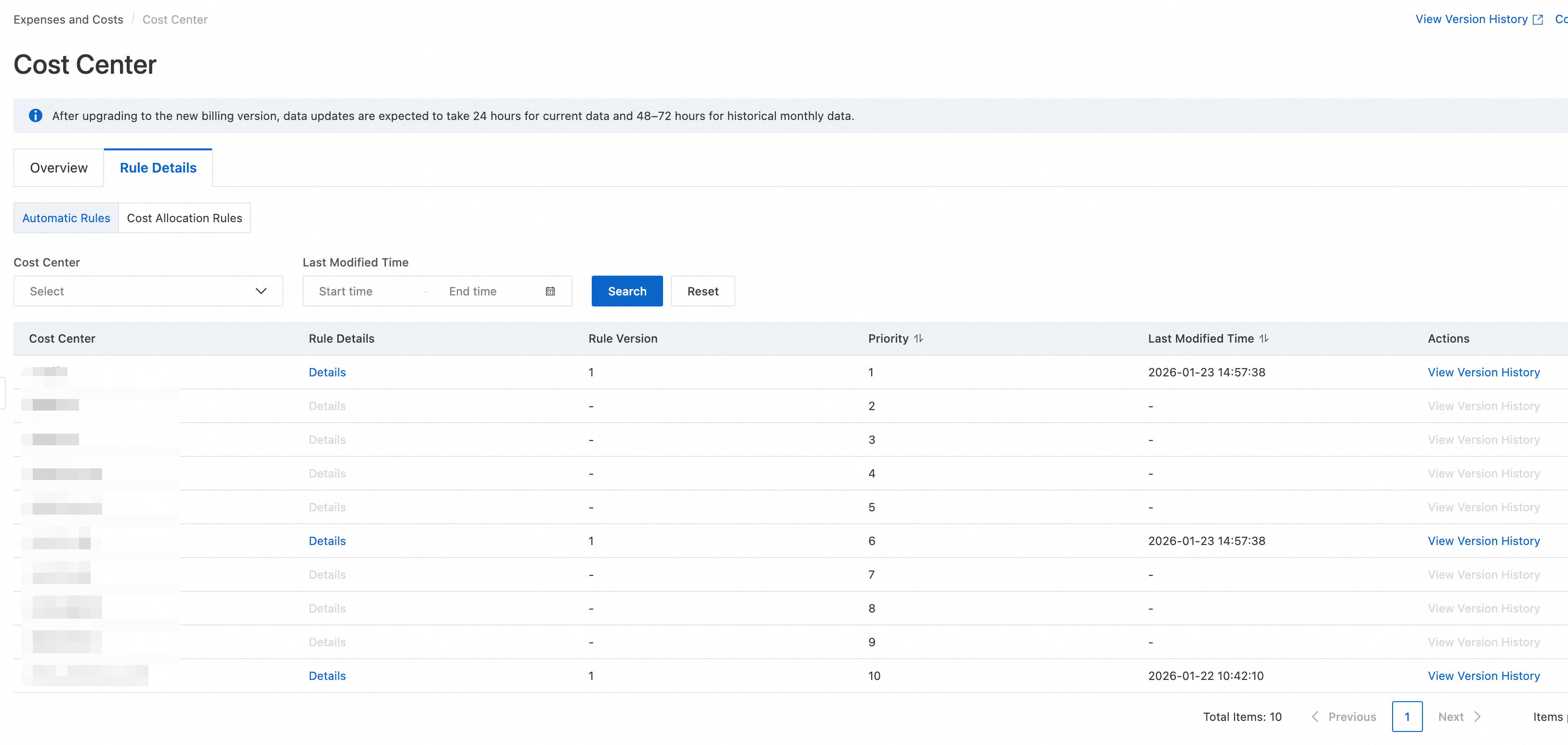
Click View Historical Rules to go to the historical rule query page and view the change history for that cost unit.
On the shared cost rules page, you can view the details of the shared cost rules.
For cost units created before you upgrade to the new version, you cannot view rule details or perform other related operations.
View the resource list
Go to the Cost Center home page. Click the Edit Rule button on the right to go to the Cost Unit Rule Management page.
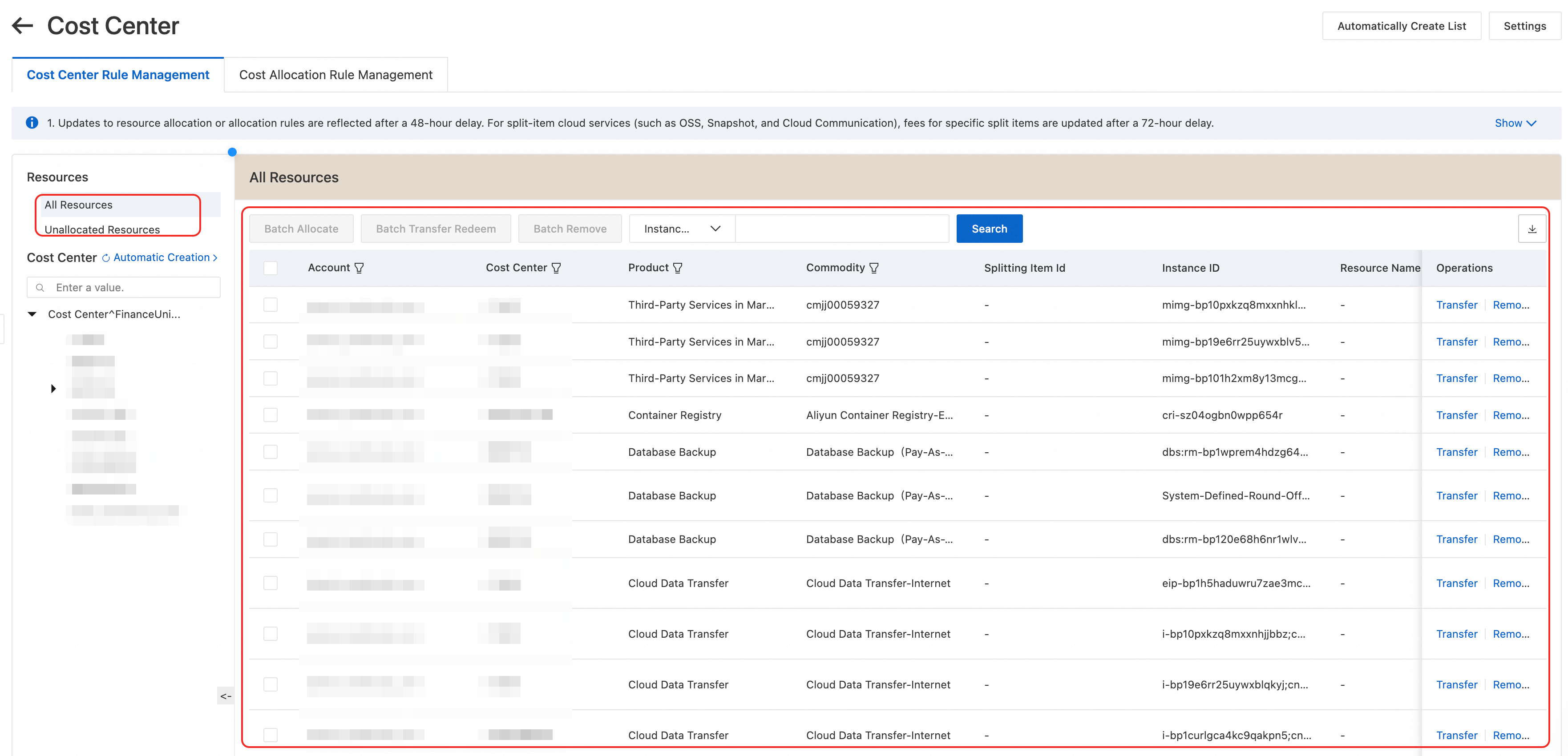
In the resource list menu, you can query and manage all resources and unallocated resources.
When you query, you can search for resources by Instance ID (Billing Granularity), Resource Name, or Attached-resource Allocation Instance ID.
You can query all resources for the root account and RAM users. The displayed fields are Account, Cost Unit, Product, Offering, Instance ID (Billing Granularity), Resource Name, Resource Group, Resource Tag, Region, Last Billing Cycle of Resource, Rule Source, Rule Version, Number of Billing Cycles for Rule Refresh, Attached-resource Allocation Instance ID, and Operation.
View the split bill
You can view detailed cost allocation information in the split bill details. For more information, see Split Bill Details.
Legacy cost centers
After the rules are configured, you can view the specific information for the cost units, resource allocation details, and the costs for each cost unit.
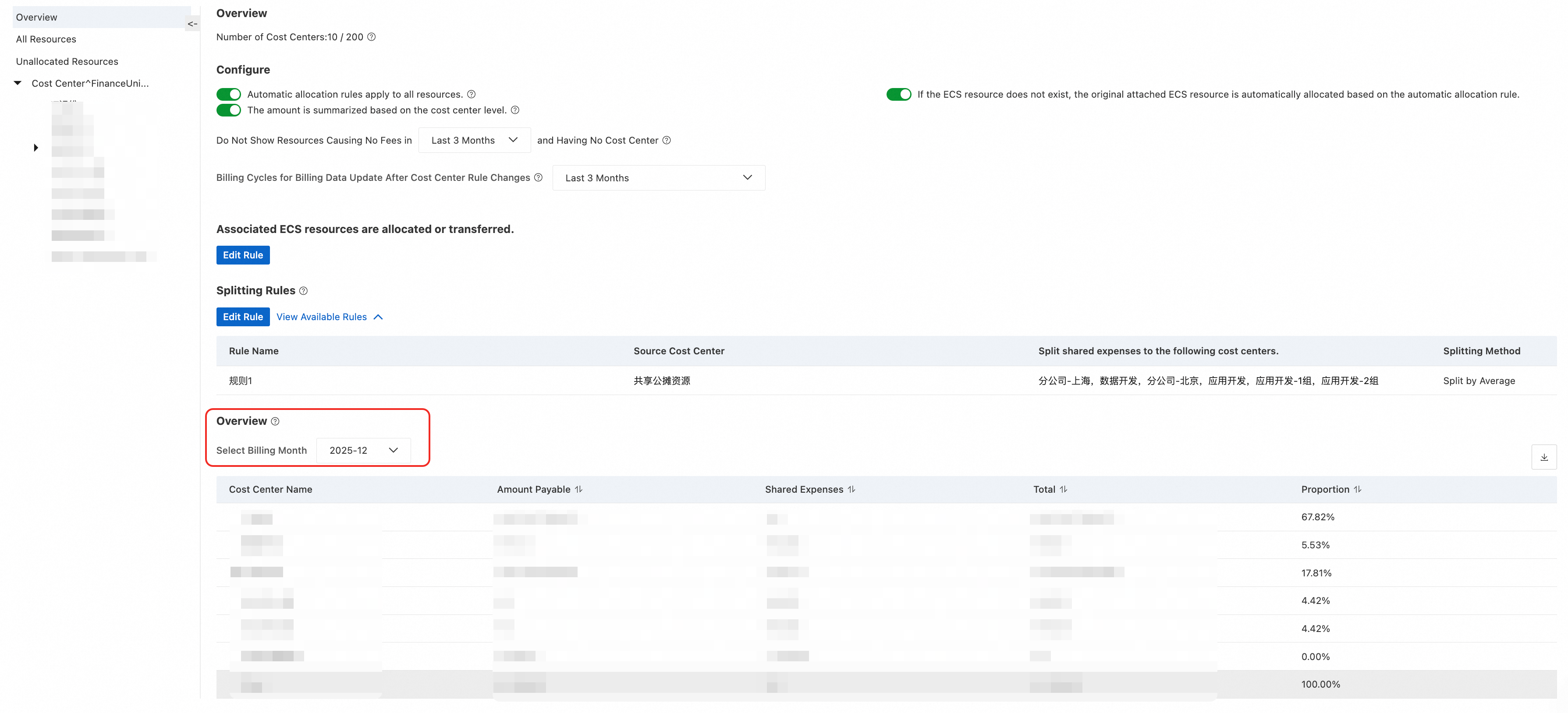
Go to the Cost Units page to view the monthly cost overview.
 Note
NoteOverview data is updated with a 48-hour delay compared to actual costs. For split-billing products, such as OSS, snapshots, and Alibaba Cloud Communications, the specific costs for each split item are updated with a 72-hour delay.
The cost overview supports viewing data for the last 12 months.
Click a specific cost unit to view and modify its automatic allocation rules and currently allocated resources. On the Resources tab, use the Resource Source field to determine if the allocation was automatic or manual. You can transfer or remove resources.
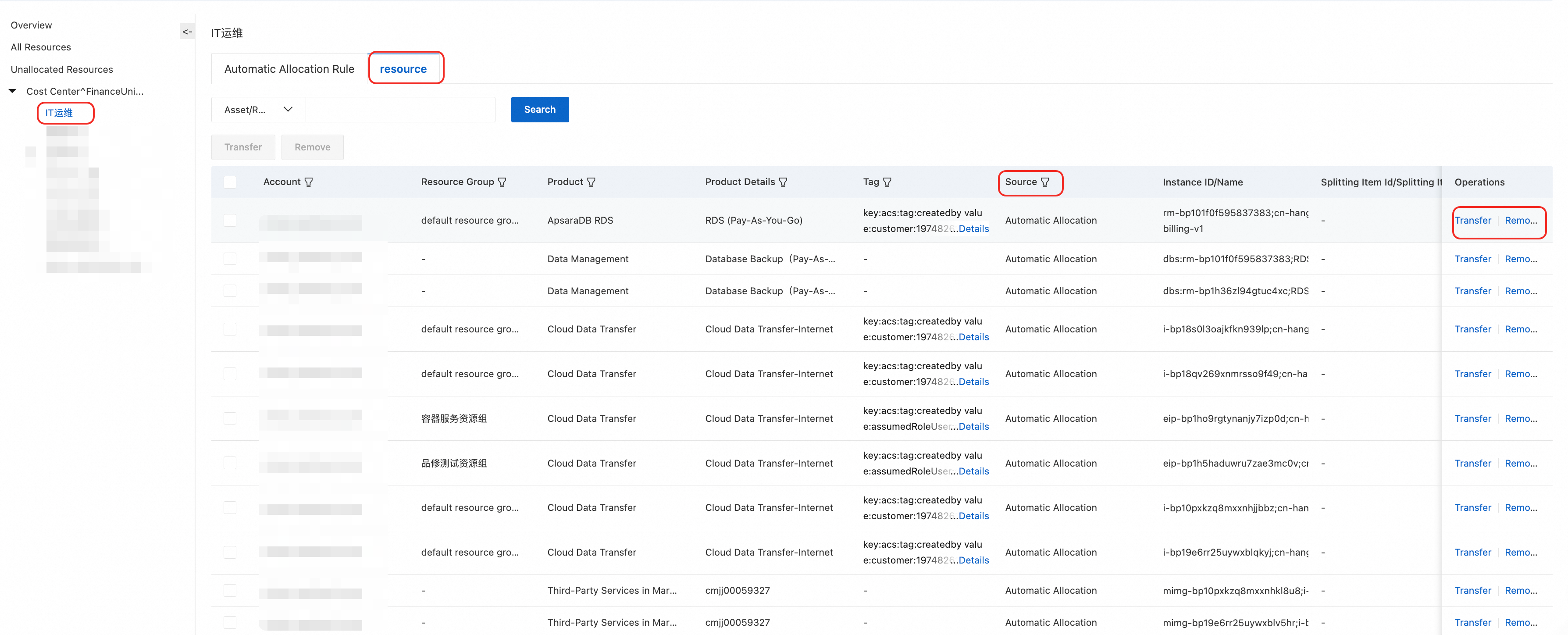 Note
NoteIf you reallocate a resource or modify an automatic allocation rule, the update is delayed by 48 hours from the time of the change. For split-billing products, such as OSS, snapshots, and Alibaba Cloud Communications, the specific costs for each split item are updated with a 72-hour delay.
You can also view detailed cost allocation information in the split bill details. For more information, see Split Bill Details.
User guide (Legacy console)
Create a cost center
Log on to the Expenses and Costs console. In the navigation pane on the left, choose Cost Allocation > Cost Units.
On the Cost Units page, click the button to add a new cost unit, enter a name for the cost unit, and click OK.
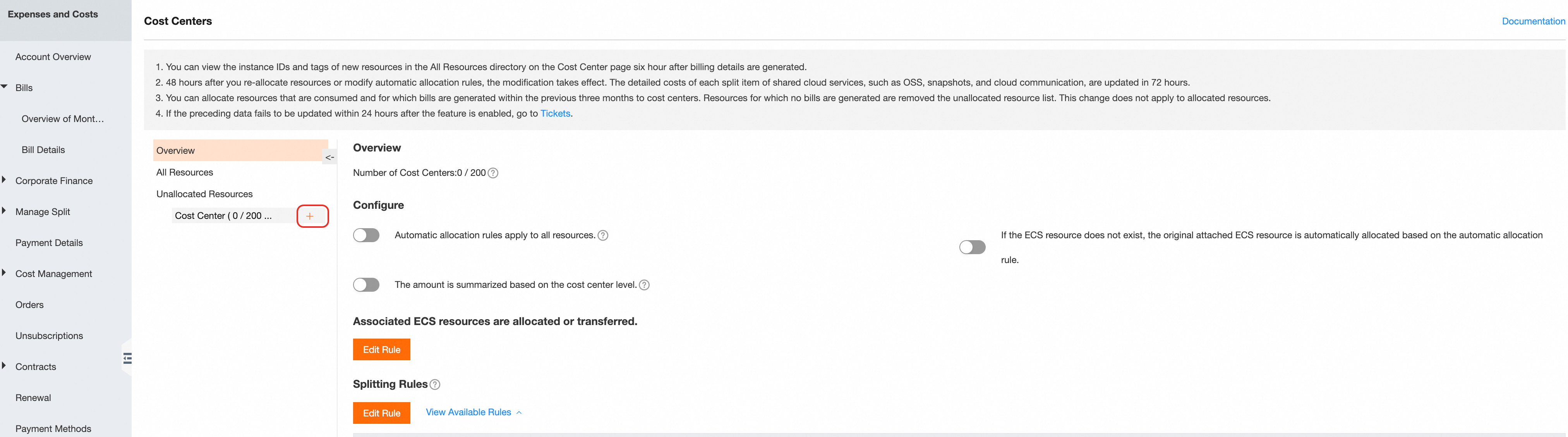
For a created cost unit, you can use the buttons on the right to Edit, Delete, or Copy it.
Assign resources to a cost unit
You can use automatic allocation rules and manual allocation to match cloud resource instances to cost units. This process assigns the bills for those instances to the specified cost unit for cost allocation.
Create automatic allocation rules
You can define rules to match cloud resource instances to cost units. This automatically assigns the bills for those instances to the specified cost unit for cost allocation.
Find the cost unit that you want to edit. On the automatic allocation rules tab on the right, click Add.
You can allocate resources based on rules such as account, product, tag, resource group, and instance name. Both AND and OR logic are supported.
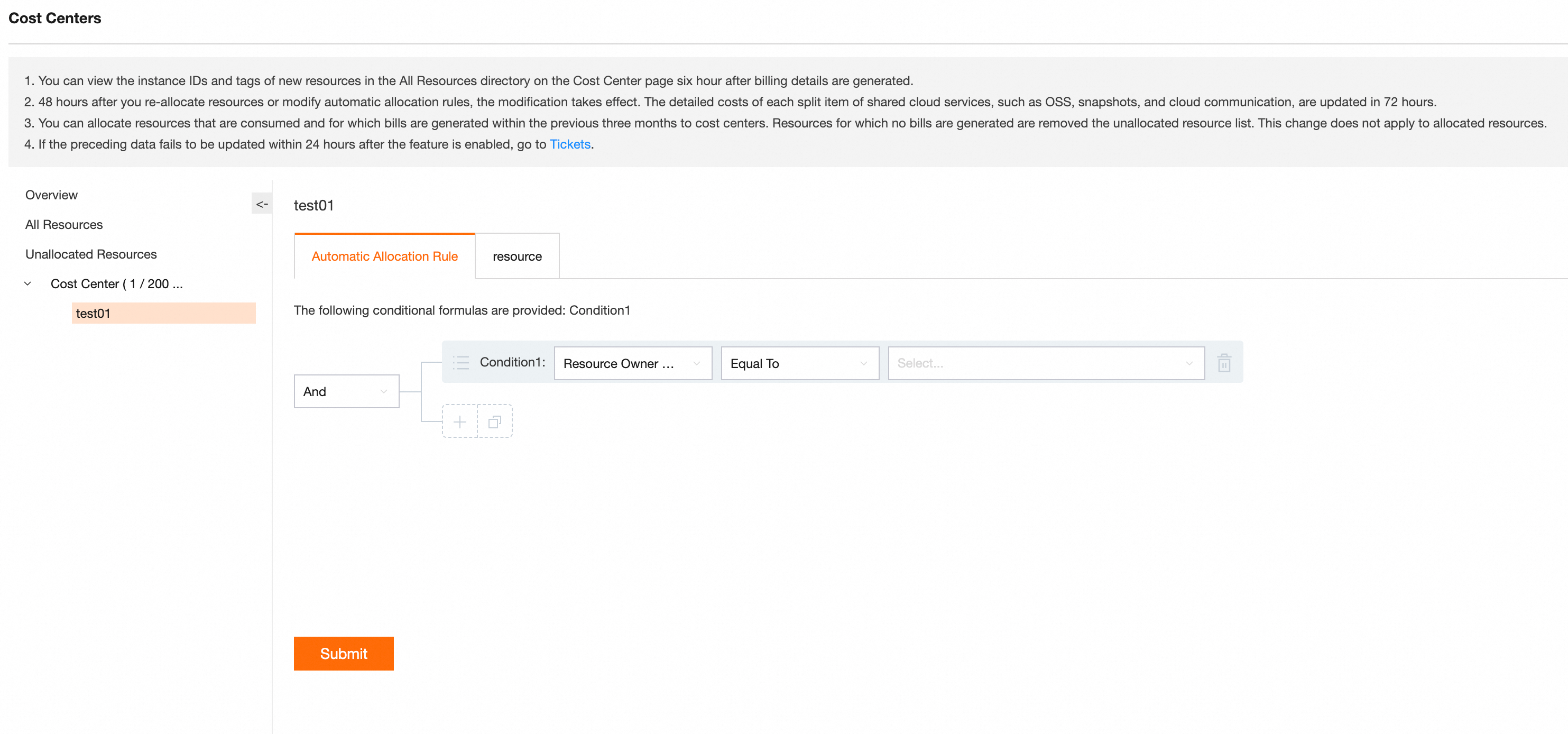
Click Submit to complete the cost unit setup.
Manually allocate resources
Manual allocation involves creating a mapping relationship between a cloud resource instance and a cost unit by hand.
Log on to the Expenses and Costs console. In the navigation pane on the left, choose Cost Allocation > Cost Units.
On the Cost Units page, click All Resources or Unallocated Resources in the pane on the left. Find the resource instance that you want to adjust and perform an operation such as assign, transfer, or remove.
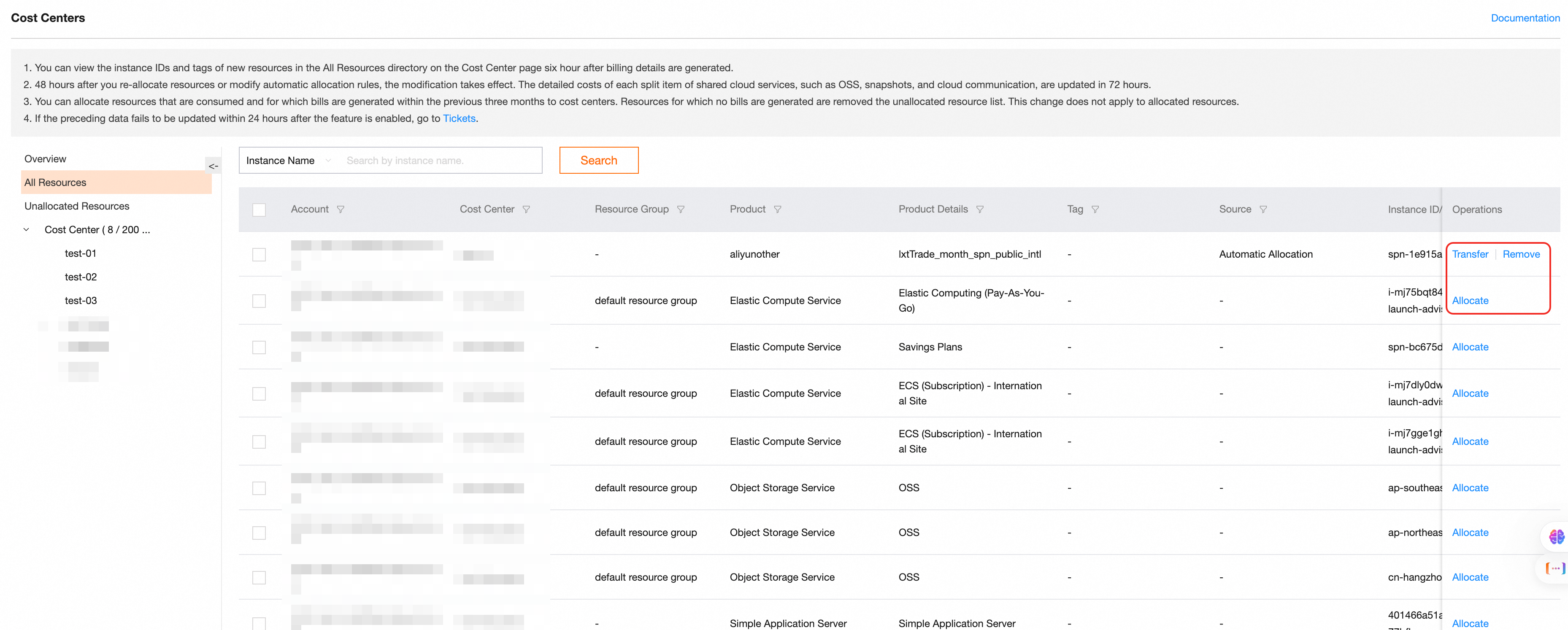
Assign: For Unallocated Resources that do not belong to any cost unit, click Assign to manually allocate them.
Transfer: For resources that need to be moved to a different cost unit, click Transfer. In the dialog box that appears, select the destination cost unit.
Remove: For resources that do not need to be allocated, click Remove to remove them from the current cost unit. After removal, the resource is categorized as "Unallocated".
Set rules for shared costs
This rule lets you split the costs from a specified cost unit among other cost units. This is useful for allocating the costs of shared resources.
Log on to the Expenses and Costs console. In the navigation pane on the left, choose Cost Allocation > Cost Units.
On the Cost Units page, click Overview. Find the Shared cost splitting rule section and select Edit Rules.
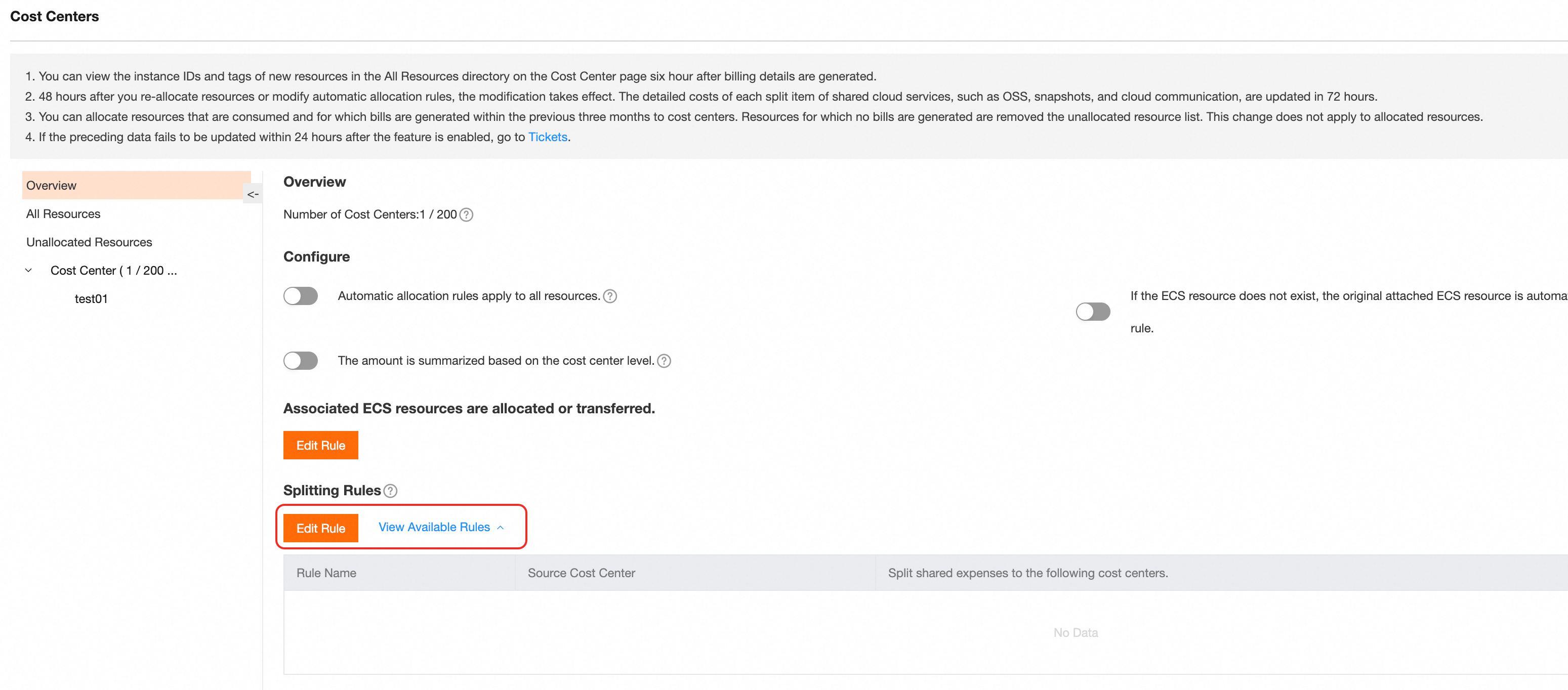
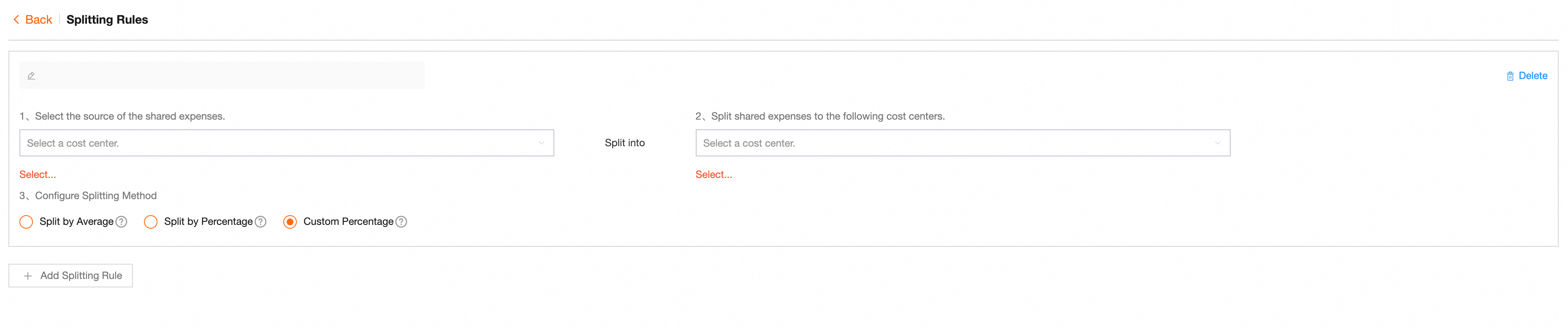
On the Shared cost splitting rule page, click Add Splitting Rule to add your first shared cost splitting rule.
Confirm the source of the shared costs, the destination cost units, and the splitting method. Click Save.
Rule priority: Manual allocation > Attached-resource allocation > Automatic allocation.
If a resource instance matches multiple automatic allocation rules, it is assigned based on the order of the rules in the cost unit directory tree. The first matching rule is applied, and all subsequent rules are ignored.
Resource instances that have not generated a bill in the last 3 months and are not assigned to any cost unit are automatically removed from the Unallocated Resources list in Cost Units. They cannot be reallocated.
If a resource matches rules for both a root account and a RAM user, it is assigned to the cost unit of the root account by default.
Resource instances that have not generated a bill in the last 3 months and are not assigned to any cost unit are automatically removed from the Unallocated Resources list in Cost Units. They cannot be reallocated.
Set global rules
Global rules can automatically allocate all products and enable attached-resource allocation for ECS resources. This reduces the chance of missed or incorrect allocations.
On the Cost Units page, click Overview to configure the rules:
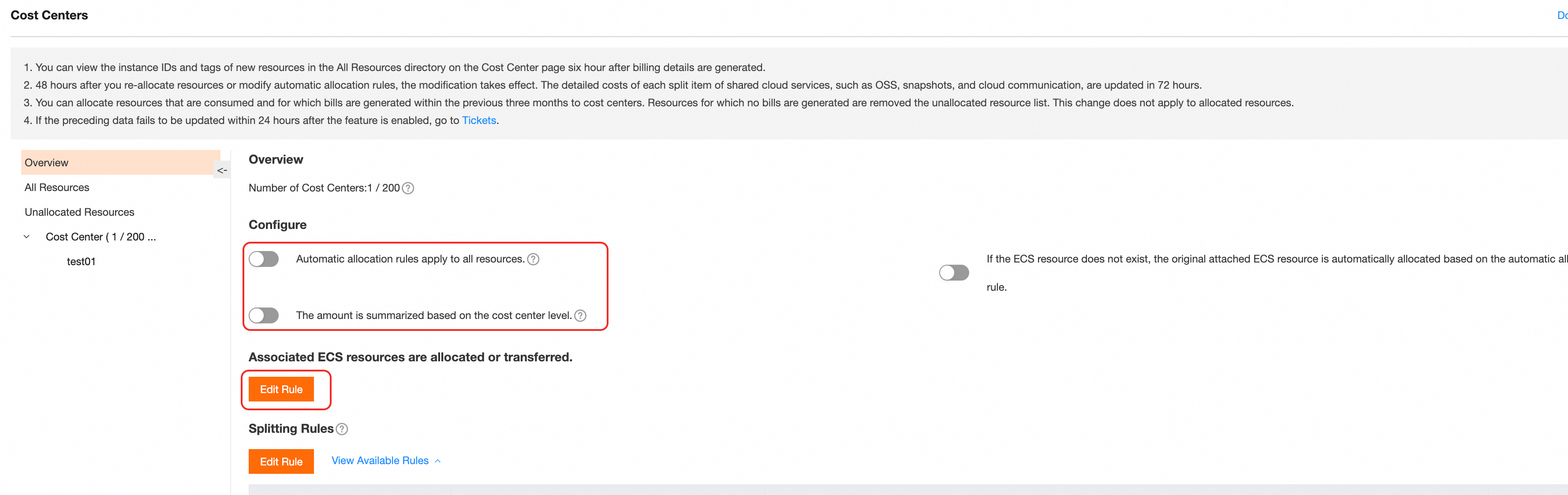
Apply automatic allocation rules to all resources
When enabled, changes to automatic allocation rules apply to all cloud resource instances that are not manually allocated.
When disabled, changes to automatic allocation rules apply only to unallocated cloud resource instances.
Aggregate amounts by cost unit hierarchy
When enabled, the cost report on the Cost Units > Overview > Cost Overview page aggregates the billable amounts for each cost unit according to the directory tree.
When disabled, the cost overview report displays a flat list and does not aggregate amounts hierarchically for each cost unit.
ECS attached-resource allocation settings
This rule determines whether Elastic IP addresses and disks are allocated along with their associated ECS instances. If you select this option, Elastic IP addresses and disks are allocated to the same cost unit as their source ECS instance. Otherwise, they are not allocated with the source instance.
Allow automatic allocation for attached resources if the source ECS instance does not exist
When enabled, attached resource instances that are set to be allocated with an ECS instance can be allocated by other automatic allocation rules if the source ECS instance does not exist.
When disabled, attached resource instances that are set to be allocated with an ECS instance cannot be allocated by other automatic allocation rules if the source ECS instance does not exist.
View cost unit information
After the rules are configured, you can view the specific information for the cost units, resource allocation details, and the costs for each cost unit.
Go to the Cost Units page and click Overview to view the monthly cost overview.
NoteOverview data is updated with a 48-hour delay compared to actual costs. For split-billing products, such as OSS, snapshots, and Alibaba Cloud Communications, the specific costs for each split item are updated with a 72-hour delay.
The cost overview supports viewing data for the last 12 months.

Click a specific cost unit to view and modify its automatic allocation rules and currently allocated resources. On the Resources tab, use the Resource Source field to determine if the allocation was automatic or manual. You can transfer or remove resources.
NoteIf you reallocate a resource or modify an automatic allocation rule, the update is delayed by 48 hours from the time of the change. For split-billing products, such as OSS, snapshots, and Alibaba Cloud Communications, the specific costs for each split item are updated with a 72-hour delay.

You can also view detailed cost allocation information in the split bill details. For more information, see Split Bill Details.
FAQ
Why does resource allocation not take effect after I set an automatic allocation rule for a cost unit?
If resource allocation does not take effect after you set an automatic allocation rule, it may be for one of the following reasons:
Tag issues: Check whether the tags are set correctly. Make sure that there are no spaces in the tag names or values, because spaces can cause allocation problems. Go to Cost Allocation Tags to delete tags that contain spaces and then add them again.
Allocation rule issues: Make sure that your automatic allocation rules are set correctly. On the allocation rules tab for the relevant cost unit, you can check and adjust the automatic allocation rules.
Effective time issues: The data updates may take time to process. If the status has not been updated for more than 24 hours after the times listed below, submit a ticket and provide the specific cost unit name and unallocated instance ID.
If a resource is unallocated, a new automatic allocation rule typically takes effect within 24 hours.
If you reallocate a resource or modify an automatic allocation rule, the update is delayed by 48 hours from the time of the change. For split-billing products, such as OSS, snapshots, and Alibaba Cloud Communications, the specific costs for each split item are updated with a 72-hour delay.
Allocation rules do not take effect after modification, and new cost units fail to allocate costs:
Cause: The option to apply automatic allocation rules to all resources is not enabled. After you modify the cost unit rules, resources that are already allocated are not automatically reallocated.
Solution: Manually reallocate the resources, or enable Apply automatic allocation rules to all resources. You can check the allocation details again after 48 hours.
If a resource is in a resource group and also has a cost allocation tag, how is it matched to a cost unit allocation rule?
If a single cost unit allocation rule includes both a resource group and a tag, the resource is assigned to that cost unit if it meets either condition. Within a single rule, neither condition has priority over the other.
I have tagged a resource, so why is it not shown correctly in the split bill details?
Check if the cost allocation tag is enabled: Split bill details usually show only enabled cost allocation tag keys and values.
Check if the resource type supports cost allocation: Not all taggable resources can be displayed in bills or split bill details.
Check if the tag existed at the time of billing: Split bill details are typically based on the tag records that were effective during the period defined by the bill's start and end times. If the resource was tagged after the bill's end time, the tag may not be displayed.
After configuring the cost unit rules, why is the data in the cost overview not updating?
After you reallocate resources or modify automatic allocation rules, there is a data refresh delay. The update is typically delayed by 48 hours. For split-billing products, such as OSS, snapshots, and Alibaba Cloud Communications, the specific costs for each split item may be delayed by 72 hours.
How should unallocated costs be allocated?
If there are shared costs or costs that cannot be directly attributed, you can configure allocation using the shared cost splitting rule. Currently, supported methods usually include equal splitting, proportional splitting, and custom ratio splitting.
Why can't I select a RAM user, resource group, or tag when configuring cost unit rules?
Cost unit rule configuration is usually based on the resource dimensions from your bills. If an account has not generated any bill data recently, you may not be able to select the corresponding RAM user, resource group, or tag from the drop-down list. We recommend that you configure the rules after you confirm that the corresponding account has generated bill data.
There are no unallocated resources in the cost unit, but there are unallocated costs in the bill. Why?
Check if the rule is set for a specific effective billing cycle or rule application period. Also, confirm whether the account, instance ID, and other details that correspond to the unallocated bill can be found in the cost unit's resource lists (All Resources/Unallocated Resources).