Cost Analysis summarizes your spending on cloud resources using multidimensional charts and detailed tables. It supports conditional filtering and report saving, and provides an expense prediction capability.
What is Cost Analysis
Cost Analysis is a free tool that provides insight into your spending on cloud resources.
It uses visualizations, such as line charts and bar charts, to help you understand overall cost trends and distribution. You can filter by account, product, region, billing item, instance type, time range, custom tags, and other dimensions to drill down into your costs from different business perspectives.
Cost Analysis is suitable for scenarios such as monthly cost reviews, abnormal expense investigations, cost allocation for multiple projects, budget execution tracking, and consumption forecasting.
Data Sources and Update Schedule
-
Cost Analysis data is aggregated by dimension from billed invoices and is updated with a one-day delay.
-
Consumption costs for the current month are updated 48 hours after detailed billing statements are issued.
-
The final data for the current month is available to view after 12:00 on the 4th day of the following month.
-
Data for the current month does not include unbilled pay-as-you-go charges, such as charges that are pending or being accumulated.
How to Use Cost Analysis
-
Log on to the Expenses and Costs console. In the navigation pane on the left, choose to go to the Cost Analysis page.
-
If you are using Cost Analysis for the first time, activate it for free. After activation, if you have existing spending data, you can start using the feature normally following a 48-hour delay.
To use the legacy Expenses and Costs console, choose in the navigation bar.
If you have multiple enterprise accounts that share the same identity verification, you must first establish financial associations between them using Account Linking. After each account activates Cost Analysis, the administrator of the root account can view the cost analysis data for all member accounts.
RAM users must be granted the AliyunBSSReadOnlyAccess permission to view Cost Analysis data.
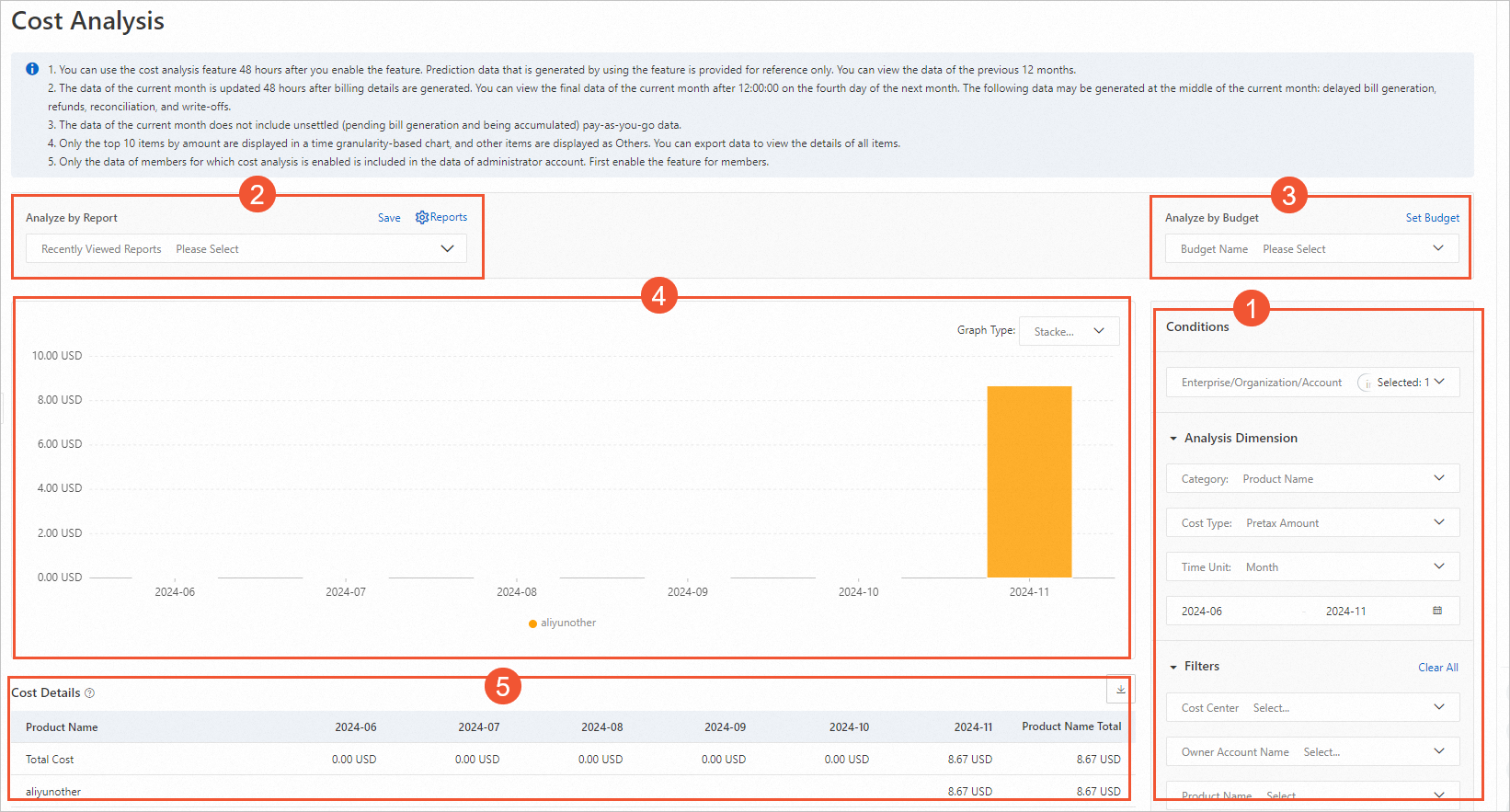
You can set filter conditions to view cost analysis data that meets your criteria. You can view historical analysis records by the report dimension or view cost data for periods that are associated with configured budgets by the budget dimension.
View Expense Distribution
In the Conditions section, set the Analysis Dimension and Filters.
-
Set the Category:. You can analyze by Product, Product Detail, Cost Center, Account, Owner Account, Consumption Type, Bill Type, Resource Group, Region, Zone, Instance Type, Billing Item, Instance ID, or Instance Tag.
NoteThe Instance ID dimension supports the analysis of up to 10 instances.
-
Cost Type: Select one of the following spending data types: Payable Amount, List Price, Discounted Amount, and Amortized Payable Amount – Current Period.
NoteAmortized Payable Amount – Current Period does not support hourly granularity or the Instance ID dimension.
-
Time Unit:: Select Month, Day, or Hour.
-
When analyzing by month, you can view data for up to the last 12 months.
-
When viewing data by day, the selected time range cannot exceed 92 days.
-
-
Set Filters By default, all items are included. You can select either "Include" or "Exclude". Charts will display only data that meets the specified criteria.
-
The chart on the left displays data based on your analysis dimension and filters. It supports stacked column charts, line charts, and bar charts. For each time granularity, only the top 10 items are displayed. The rest are grouped into an "Other" category. You can view more details about the products that you used on the Bill Details page.
-
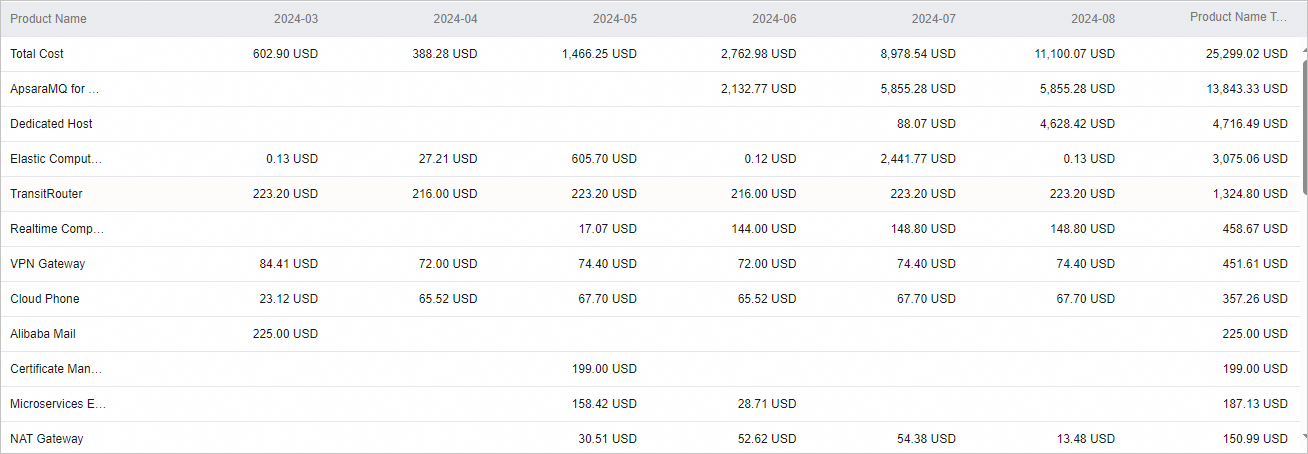
In the Cost Details list, you can preview or export data for the selected scope. The “Total Cost” shows the sum of the selected costs.
View Budget Execution Progress
If you have created a budget, choose Analyze by Budget and select your budget to view cost data for the corresponding time granularity. Choose Estimate-to-Actual Analysis to go to the estimate-to-actual comparison page for that budget and view a detailed comparison between actual spending and your budget.
If you have not created a budget, choose Set Budget to go to the Budget Management page and create or manage budgets. For more information, see Budget Management.
Export Analysis Reports
You can save analysis data with your chosen dimensions and filters to reuse and share.
-
On the Cost Analysis page, click Save, enter a name, and save the report.
-
Go to the Reports page, where you can view and open the cost analysis chart for a saved report or delete reports.
-
Return to the Cost Analysis page and choose Analyze by Report to select a report to analyze.
Predict Future Expenses
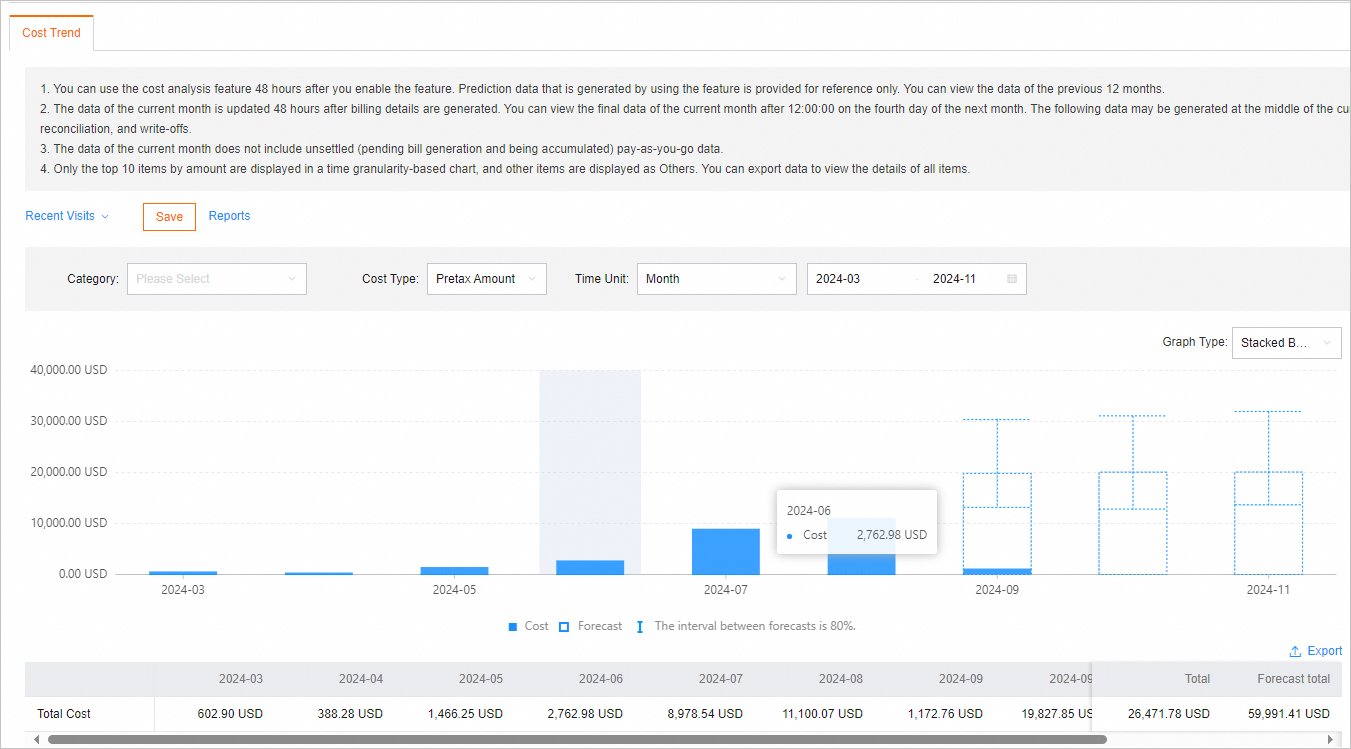
You can select a future date range in the time granularity control to view predictions of your total expenses. The predicted expenses are for reference only.
-
Enable prediction: If the selected time granularity includes future dates, click Enable Prediction in the pop-up window to enable expense predictions.
NotePrediction is not supported if you select a classification dimension. If prediction is enabled, you cannot use a classification dimension.
-
View prediction trends: After you enable prediction, you can view predicted trends for up to 12 months in the future.
-
You can view payable amount predictions 48 hours after activating Cost Analysis.
-
You can view amortized cost predictions 48 hours after activating the amortization feature.
-
Your spending history must be longer than 60 days, and your average daily spending must be greater than 1 USD.
-
Daily granularity predictions support only pay-as-you-go charges. Monthly granularity predictions support both subscription and pay-as-you-go charges.
-
Cost Analysis supports only predictions of the total amount, not predictions by detailed dimensions.