View monthly bills and cost details for analysis and reconciliation.
How bills are generated
Bills are generated based on the billing method for your cloud products:
-
Subscription (pay before you use): You pay for resources such as subscriptions, savings plans, and resource plans at the time of purchase. The cost is added to that month's bill.
-
Pay-as-you-go (use before you pay): You use resources first, such as pay-as-you-go ECS instances. The system calculates fees based on usage over a billing cycle (hourly, daily, or monthly) and adds them to that month's bill.
Learn about billing methods.
Cloud products are billed based on actual usage, and metering granularity varies by product. Bills are generated for a fixed billing cycle. If you release a resource mid-cycle, the bill still spans the full cycle but only includes charges for actual usage. Pay-as-you-go bills are typically available after a delay of several minutes to a few hours. For specific rules, refer to the billing documentation for each product.
Bill types and generation times
The current month's bill is updated in real time but finalized only after the following month's bill is generated.
All times on your bills, including the bill month, bill date, and consumption time, are in UTC+8 (Beijing Time). You may need to convert these times to your local time zone.
|
Type |
Description |
Generation time |
Link |
|
Monthly bill |
View the total amount payable for the month. You can export a spending summary PDF for reconciliation, settlement. |
12:00 on the 3rd of the following month |
|
|
Billing details |
View detailed charges for each resource for cost verification and analysis. You can export the details as a CSV file. |
12:00 on the 3rd of the following month |
|
|
Split bill |
Split bills by department or project for internal cost allocation and budget management. This information is for internal use only and cannot be used for settlement. |
12:00 on the 4th of the following month |
View bills
Log on to the Alibaba Cloud console. In the upper-right corner, clickPrice > Billsto view your expenses.
-
The main account has access by default.
-
A RAM user must have the AliyunBSSReadOnlyAccess policy (read-only access to Billing Management).
The Bill Details page is available in two versions: legacy and new. You can identify the version by its page style.
The new Bill Details page is rolling out by invitation. You can view bill data only from the date it was enabled for your account. To query earlier bill details, switch back to the legacy version.
Key improvements in the new version include:
-
New features: Cost Details (resource-level cost analysis) and bill subscription (automatically pushes bills to OSS or MaxCompute).
-
Field information: Adds Discount Details, Coupon Deduction Details, Deduction Duration, Usage Details, List Price Usage Tiers, and Cumulative Usage Tier Rules. Some fields have been removed or adjusted, and all fields are now grouped.
The following table compares the new and legacy Bill Details pages.
|
New version:
|
Legacy version:
|
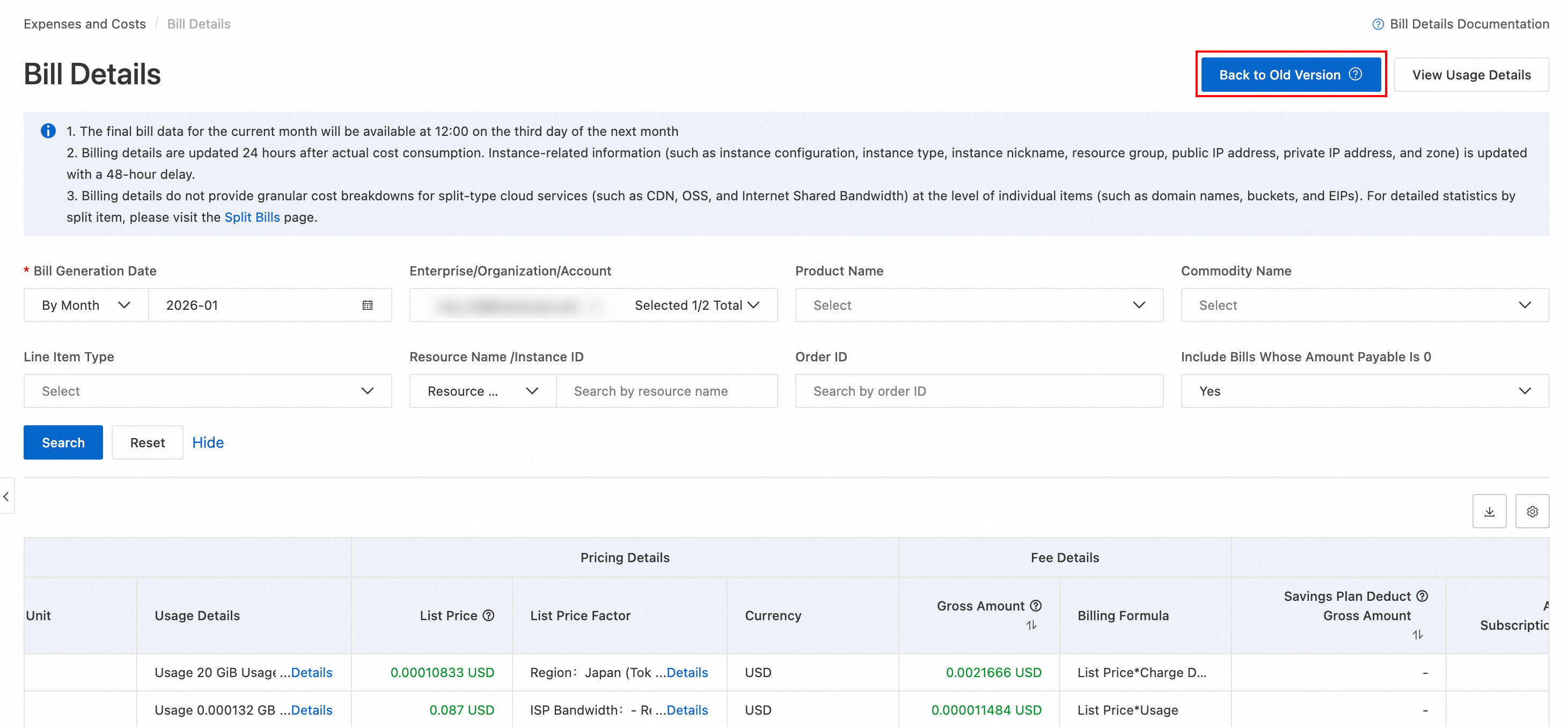
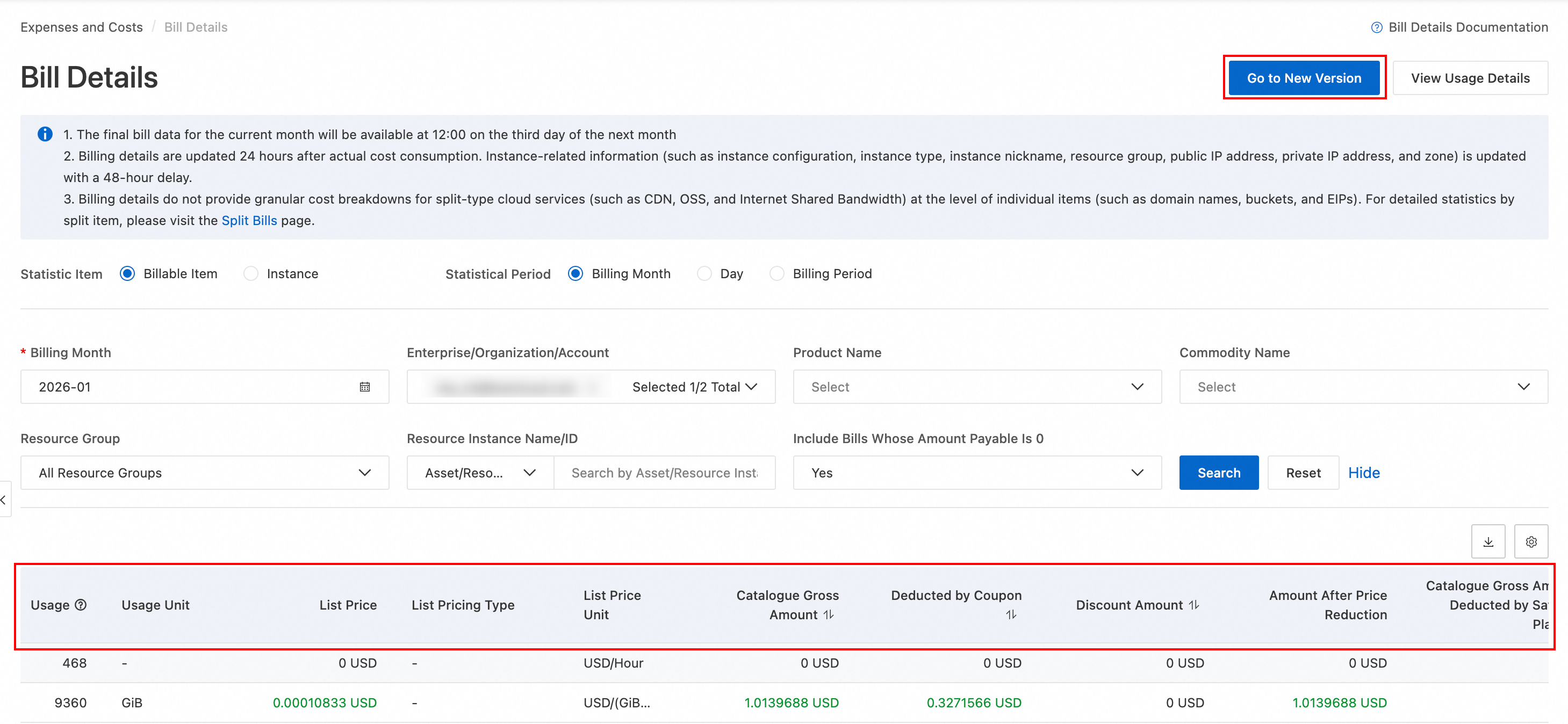
The legacy Expenses and Costs console does not include the new bill version.
For information about the differences between versions, seeNew billing report fields.
View monthly bill summaries
Legacy console
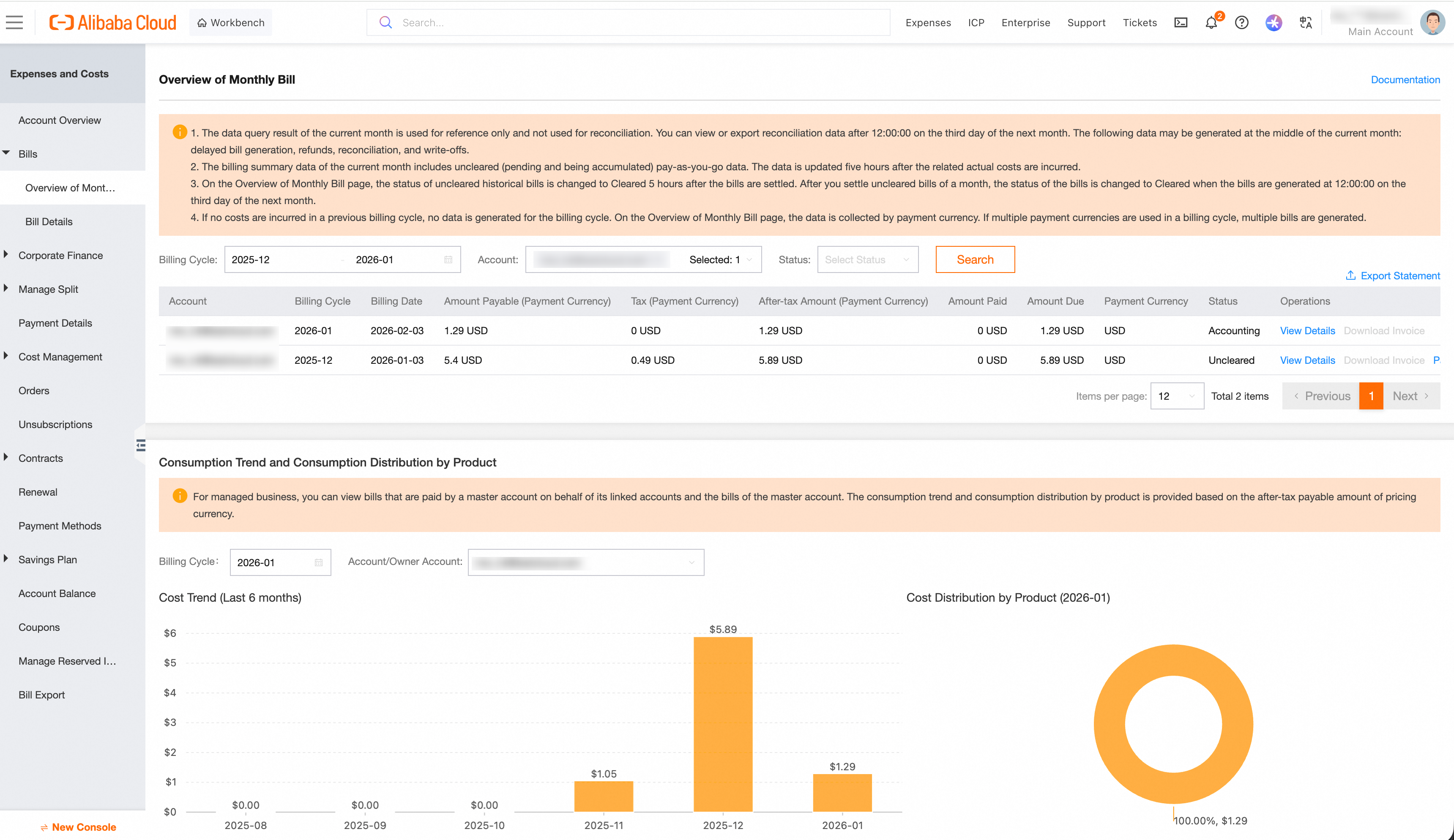
Go to User Center - Bill Overview, where you can view your expense summary by billing cycle (bill month). You can also switch accounts to view the expense summaries of linked financial sub-accounts.
The page displays:
-
The monthly bill for the selected account, reflecting the final settlement with Alibaba Cloud.
-
The spending trend over the last six months and product-specific spending distribution for the selected account.
New console
On the Bill Overview page, you can view total expenses and bill summaries, verify discounts, make repayments, or export bills.
In the monthly summary area, note the following key information:
-
Tax-inclusive Payable Amount: The final amount that you must pay for cloud resources for the billing period. This amount is calculated after all discounts, subscription deductions such as for savings plans, and coupon deductions are applied. Formula:
Amount Payable = list price - Discount Amount - Coupon Deduction Amount - Rounding-off Amount. -
Paid Amount: The total amount that you have paid, including payments made with cash and prepaid cards.
-
OutStanding Amount: The outstanding amount that you have not paid. Formula: OutStanding Amount = Tax-inclusive Payable AmountPaid Amount.
On the Overview of Monthly Bill page, you can view bill summary data by different dimensions. Select a dimension tab and filter the summary data by Billing Month:
|
Dimension |
Use case |
|
By Resource Purchase Account |
View the amount payable and payment status per account to identify high-spending accounts in multi-account scenarios. |
|
By Product |
Compare amounts payable across products to identify which cloud products drive the most cost. |
|
By Organization (enterprise accounts only) |
View the amount payable per organization in multi-account enterprise scenarios. |
|
By Service Entity |
View the amount payable per service entity for separate reconciliation. |
|
By The Status Of Hit Discounts |
Compare list price vs. amount payable to evaluate discount effectiveness. Pay attention to bills not eligible for discounts. |
View daily bill details
Legacy console
-
On the Bill Details page, set Statistic Period to By Day.
-
Click Search. In the bill details, view Product Detail, Usage, and Amount After Discount to understand the usage and costs for the day, aggregated by billable item, instance, product, and financial unit.
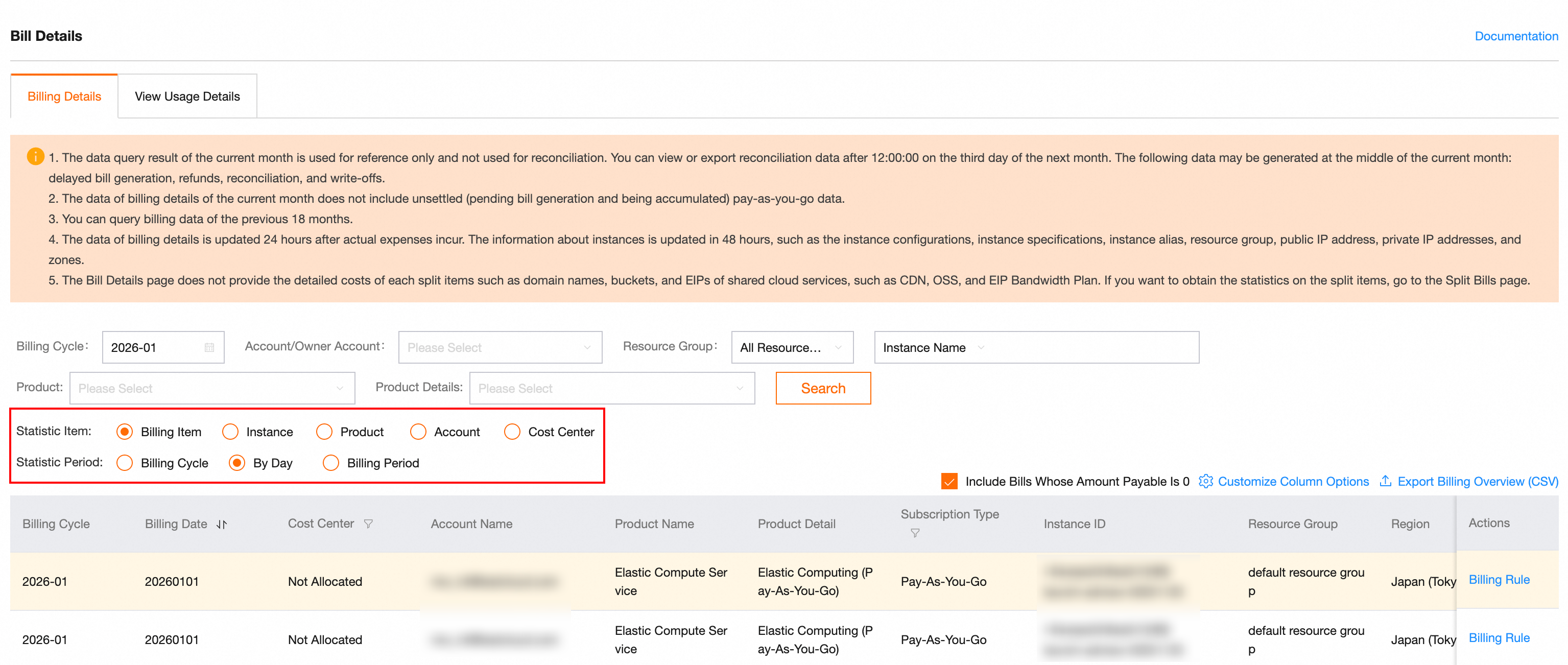
Click the Customize Column Options button on the right to customize the columns displayed in the bill.
New console
On the Bill Details page, filter by date to view your daily spending.
Legacy bills
-
On the Bill Details page, set Statistic Item to Billing Item or Instance.
-
Set Statistic Period to Day to view daily summaries or Billing Period to view hourly details, then select a Billing Month.
-
Click Search. In the bill details, check Product Name and Amount Payable to understand your daily spending.
New bills
-
On the Bill Details page, click the Bill Generation Date filter, select statistics by day, then set the From and To to the same day, such as 2025-10-15.
-
Click Search. In the bill details, view Product Information, Usage Information, and Payable Information to understand the usage and costs of each cloud product for the day.
Click the  icon on the right to customize the displayed columns.
View cloud product bill details
Legacy console
-
On the Bill Details page, enter or select a product name such as ECS or OSS in the Product or Product Details filter box.
-
Select a Billing Cycle (Billing Month) and click Search.
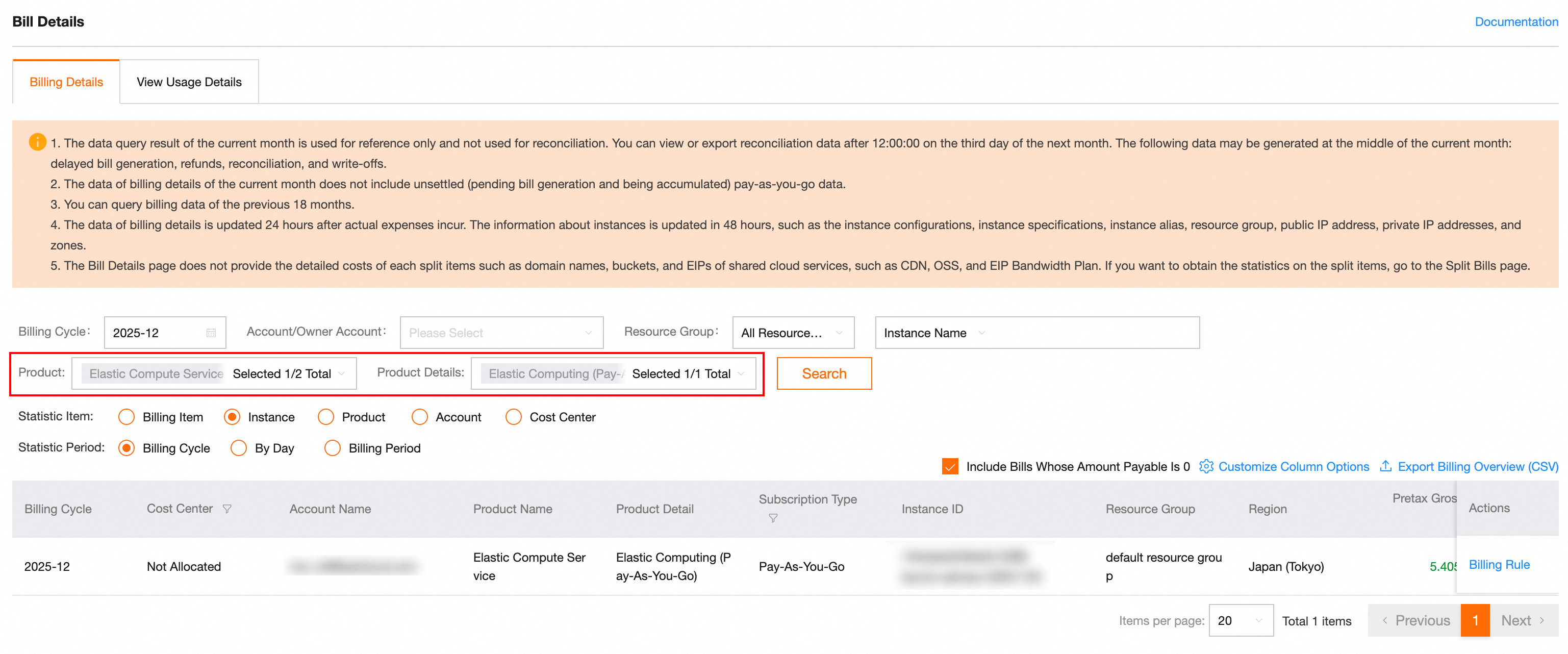
Click the Customize Column Options button on the right to customize the columns displayed in the bill.
New console
On the Bill Details page, filter by Product Name to view all spending details for a product.
Legacy bills
-
On the Bill Details page, set Statistic Item to Billing Item or Instance.
-
Set Statistical Period to Day or Details, select a Product Name and Billing Month, then click Search.
New bills
-
On the Bill Details page, enter or select a product name such as ECS or OSS in the Product Name filter box.
-
Select a Billing Month and click Search.
Click the icon on the right to customize the displayed columns.
The Resource Group field has been removed from Bill Details and cannot be added back by customizing columns. To view resource group information, go to the Split Bills page (Expenses and Costs > Cost Allocation > Split Bills). On this page, you can use the Resource Group column to view the resource group of each record, or use the Resource Group filter to filter bills by resource group.
Aggregate costs by instance
To calculate monthly expenses by instance, perform the following steps:
-
On the Bill Details page, click the export icon in the upper-right corner to export the bill as a CSV file. You can filter the data by fields such as Asset/Resource Instance ID, Bill Generation Date, and Cost Type. You can export up to six months of data at a time. To query data across years, export the data in batches.
-
Download the CSV file and use Microsoft Excel or a similar tool to filter and aggregate data by the instance ID column. You can then calculate the total monthly cost of a specified instance.
View discount details
On the Bill Details page, use the Discount Amount and Discount Details fields to view the discounts applied to each item and the sources of the discounts.
To analyze discount data in batches, export the bill as an Excel file on the Bill Details page. Then, filter and sort the data by the Discount Amount column to quickly locate discounted items.
Bills for enterprise accounts
Legacy console
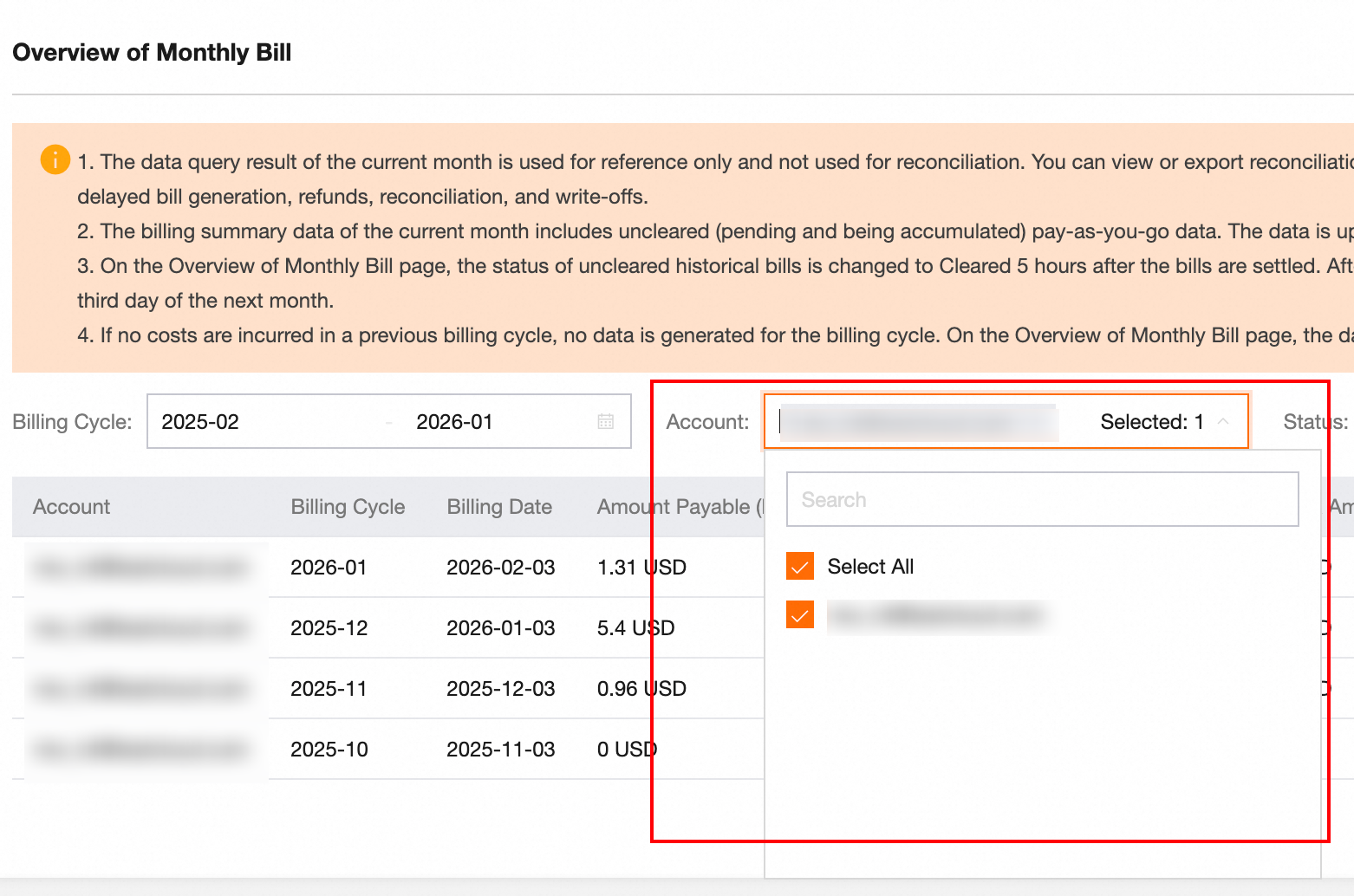
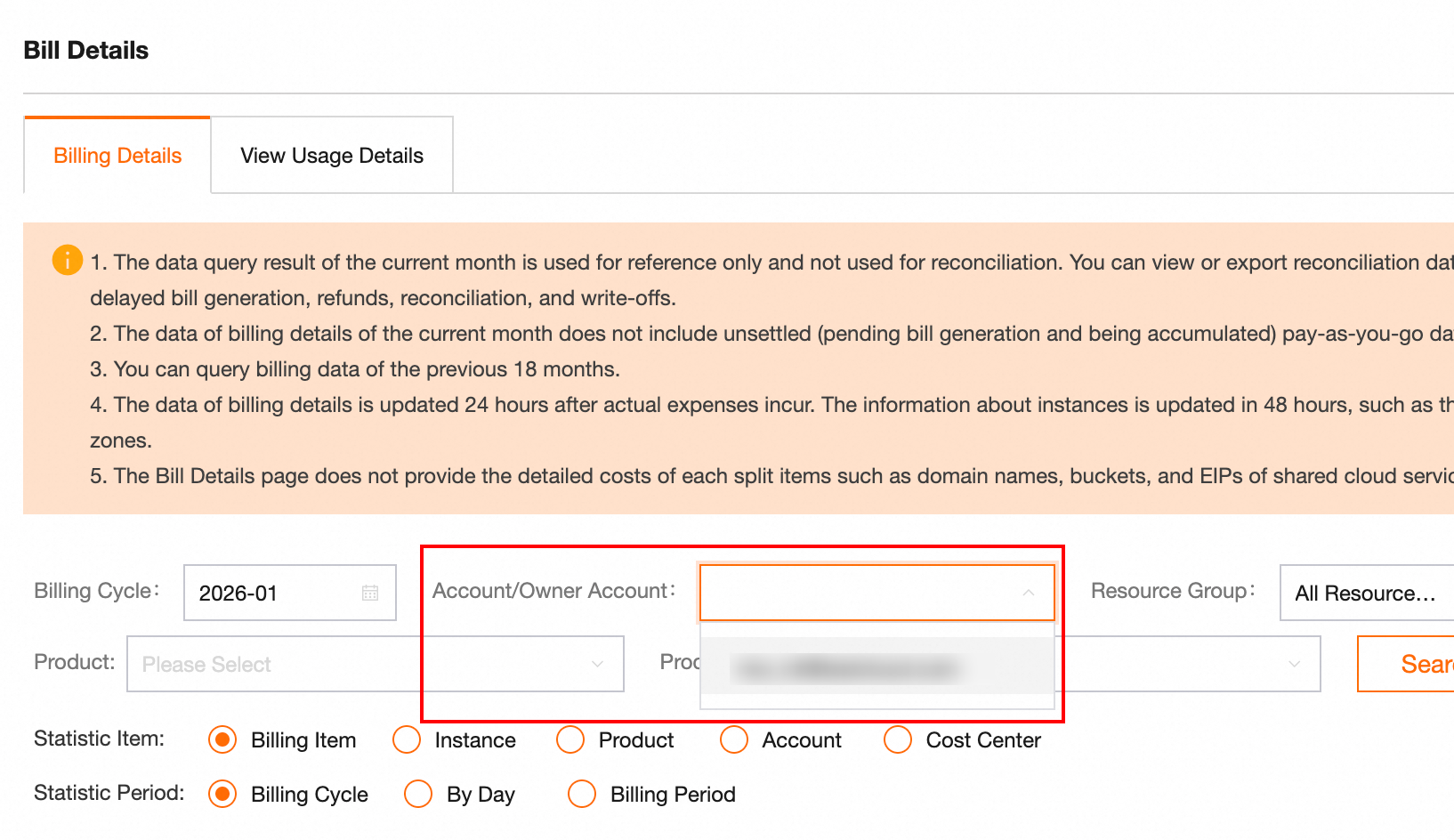
In an enterprise finance scenario where multiple accounts in the same organization are managed, the enterprise management account can go to the Bill Overview and Bill Details pages and filter by Account to view the bills of member accounts.
New console
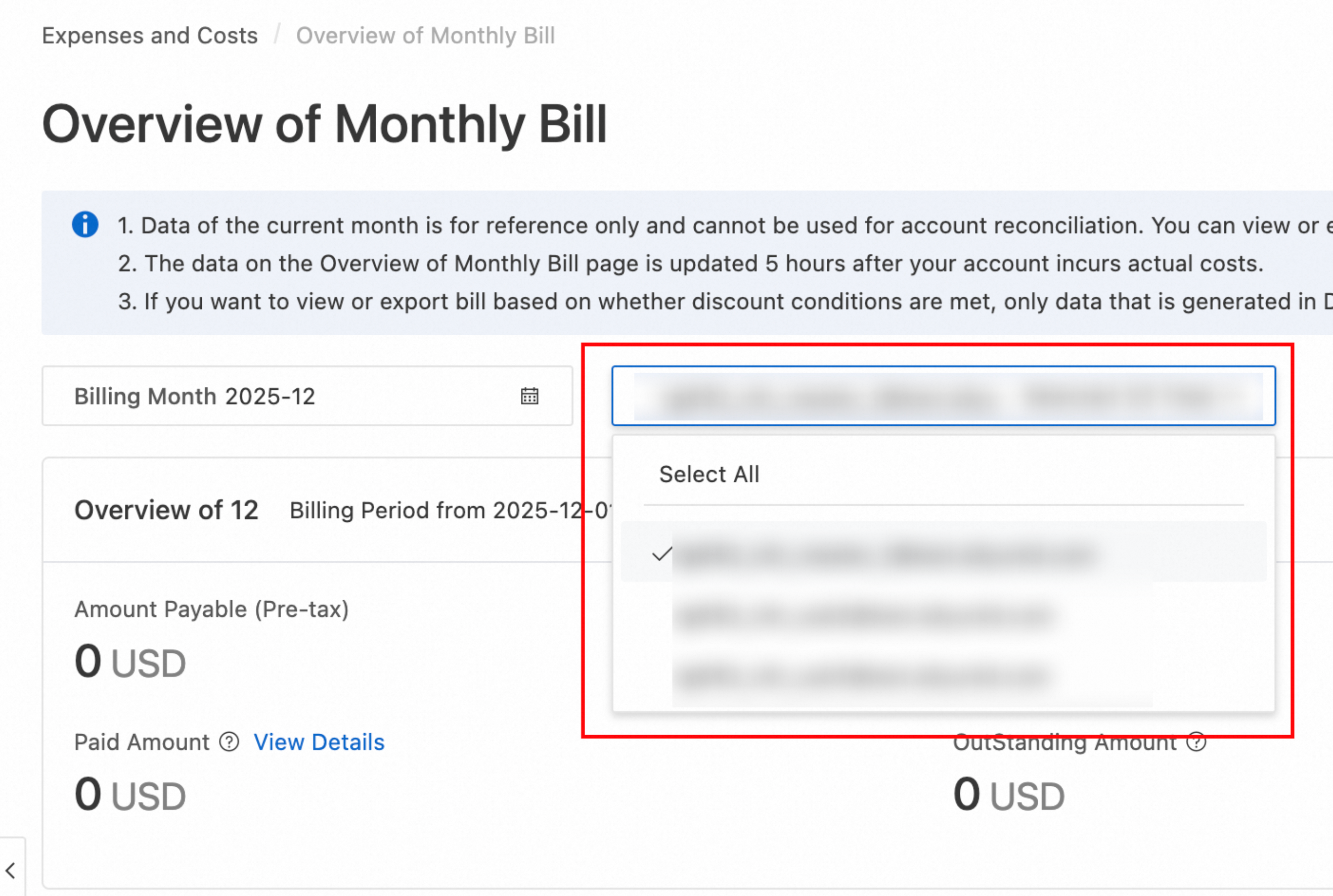
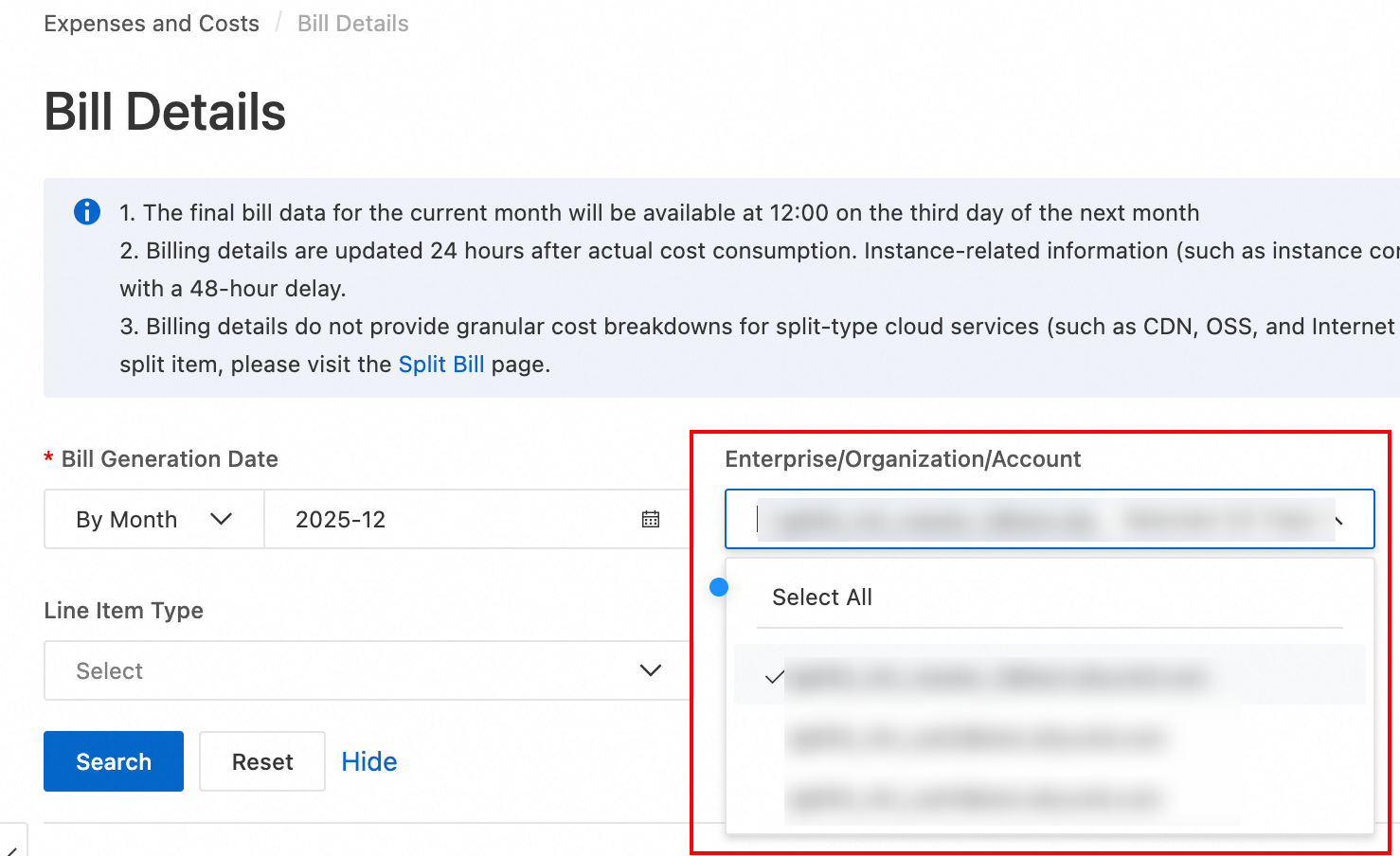
In a multi-account enterprise, an enterprise administrator (MA) can go to the Bill Overview and Bill Details pages and filter by Enterprise/Organization/Account to view the bills of member accounts.
Verify bill costs
Legacy console
When you reconcile your cloud resource bill on the Bill Details page, use the following formula to calculate the Amount Payable (Before Tax):
Amount Payable (Before Tax) = list price - discount amount - coupon deduction - Savings Plans Deduction (List Price).
-
list price: The original cost of usage, calculated based on the standard rate. It is also known as the catalog price.
-
discount amount: The discount from contractual agreements or official promotions.
-
coupon deduction: The amount deducted by a coupon.
-
Savings Plans Deduction (List Price): The total list price of pay-as-you-go cloud resources covered by Savings Plans.
After calculating the Overview of Monthly Bill, verify the Amount Payable (Payment Currency) on the Overview of Monthly Bill page. This amount is typically less than or equal to the calculated pre-tax amount due to a View Details that truncates values from the 3rd to the 10th decimal place. To confirm the exact amount, click View Details for the relevant entry on the Overview of Monthly Bill page.
New console
To verify bill costs, check the Catalogue Gross Amount , Catalogue Gross Amount Deducted by Savings Plan, Discount Amount, and Deducted Amount by Coupons fields and use this formula to verify the Tax-inclusive Payable Amount:
Amount Payable = List Price - Savings Plan Deduction (List Price) - discount amount - coupon deduction amount
|
Reconciliation process |
Console display |
|
Verify the Catalogue Gross Amount The List Price is the total undiscounted price for the selected resource configurations.
|
|
|
Verify Invoice Discount application
|
|
|
Verify coupon usage
|
|
|
Verify Savings Plan deductions
|
|
|
Verify resource plan deductions
|
|
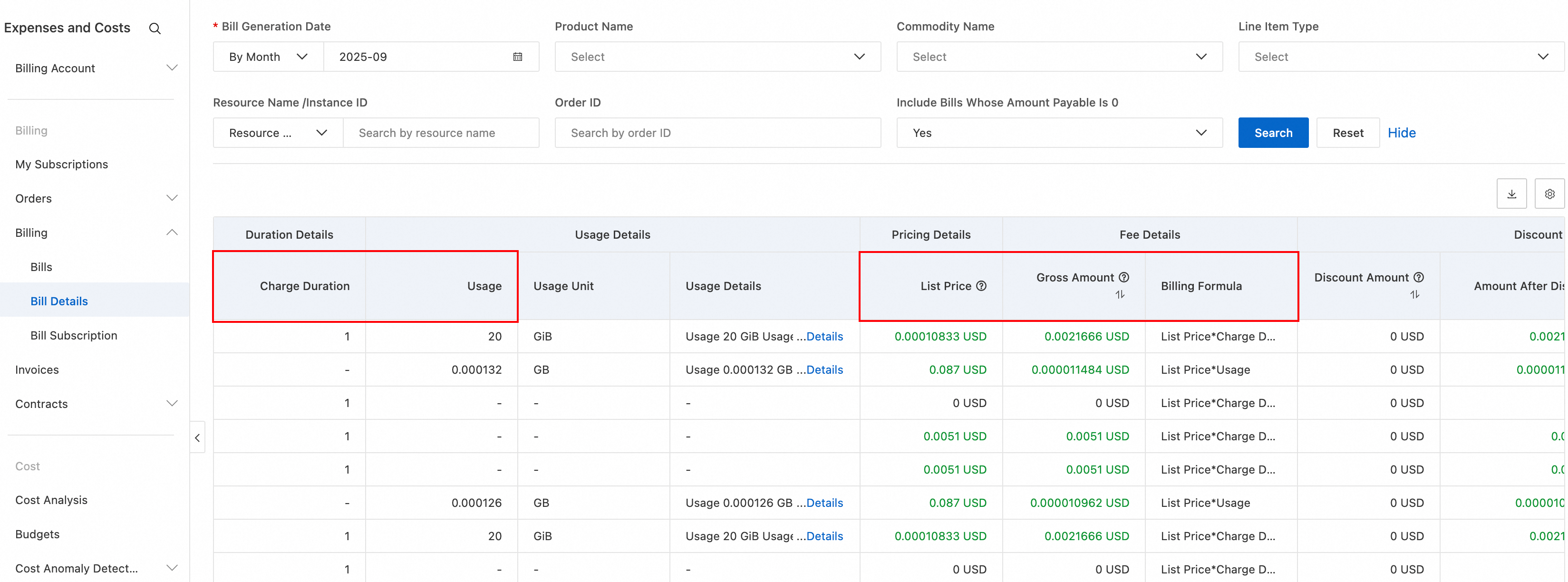
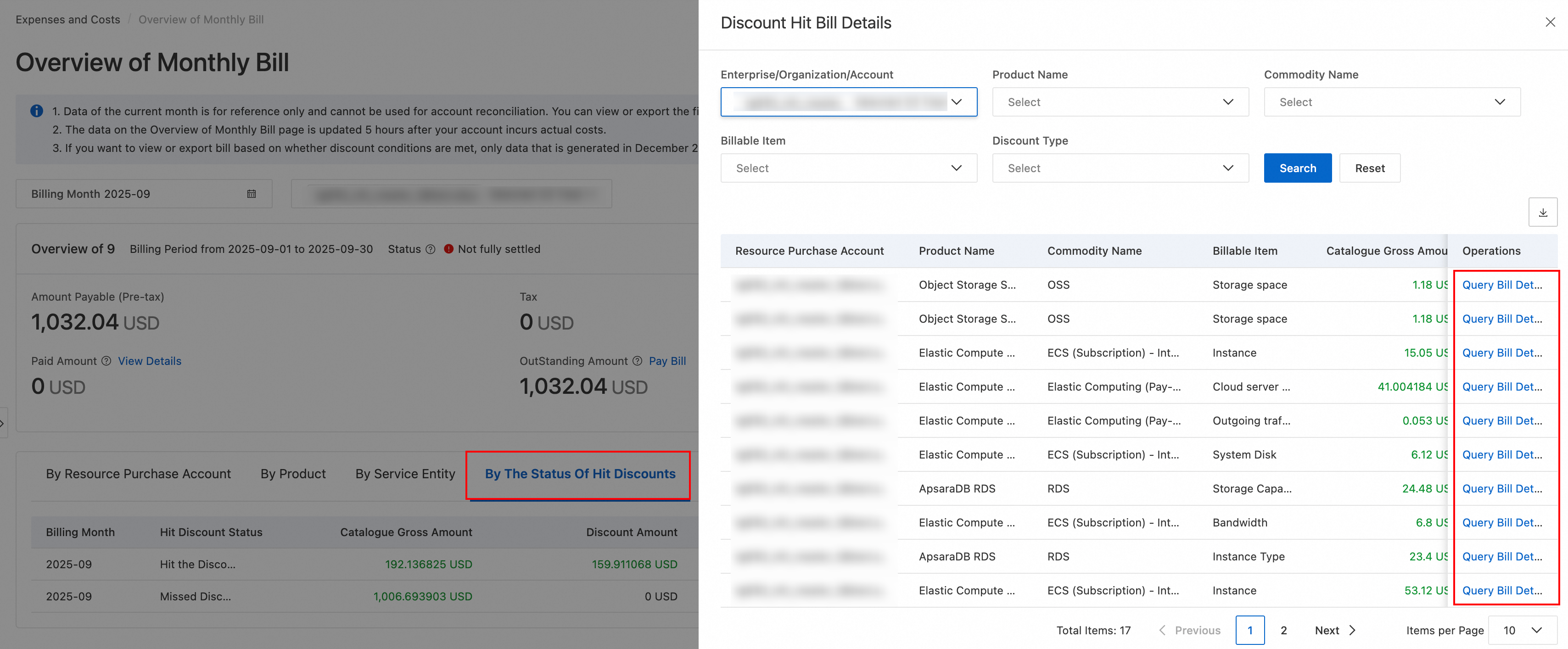
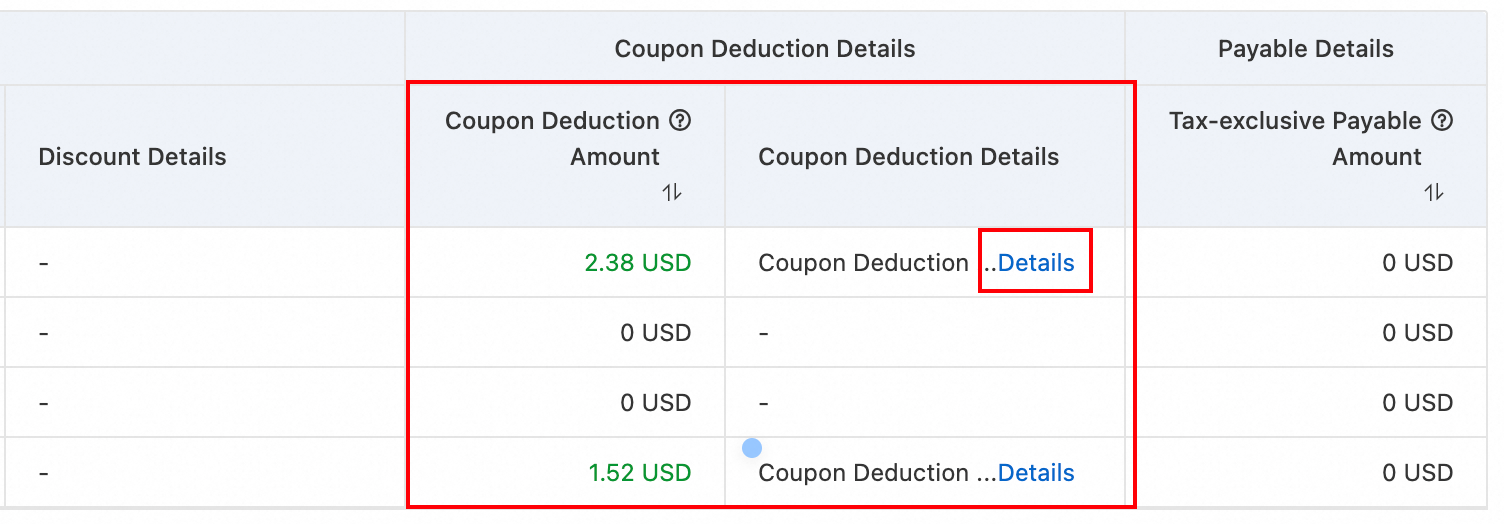
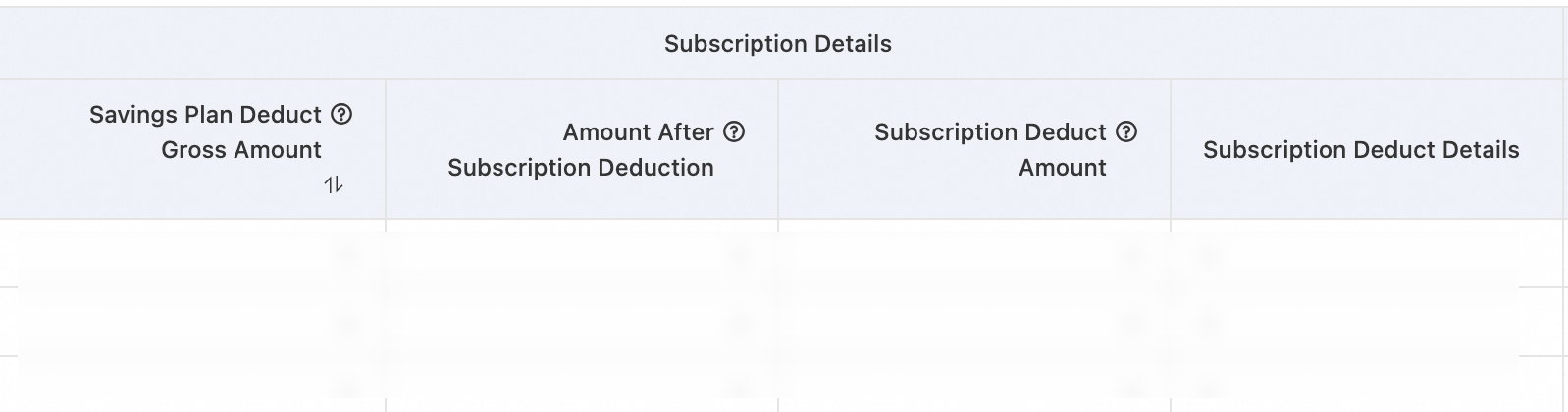
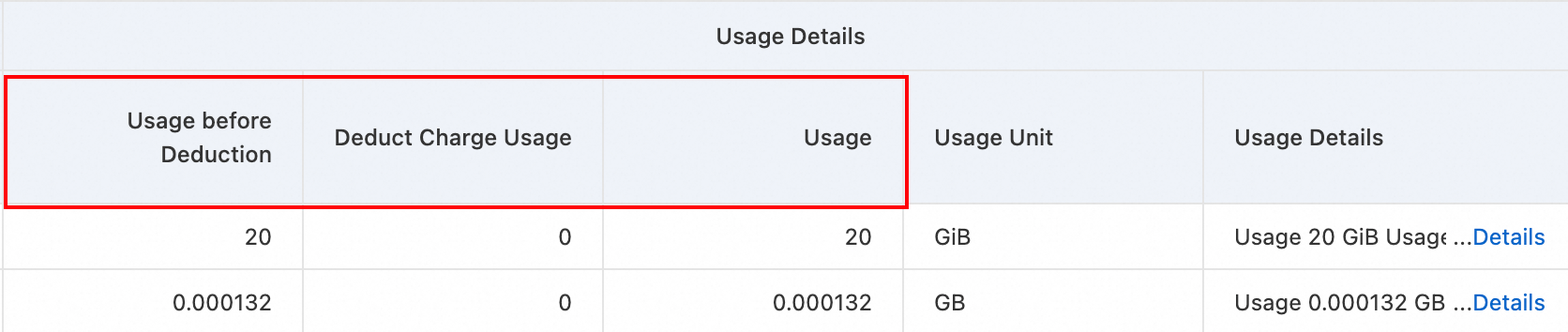
After verifying these values, substitute the Catalogue Gross Amount , Amount Offset, discount amount, and Deducted Amount by Coupons into the formula to verify the Tax-inclusive Payable Amount.
FAQ
Multiple billing records for a single instance
A single instance may have multiple line items because:
-
Separate metering for input and output: Model Studio inference meters input and output tokens separately. Verify by checking the "resource instance ID" or "instance ID (for billing granularity)" field.
-
Different billing items: Batch and non-batch calls are separate billing items. Multimodal and text consumption are also separate. Verify by checking the "billing item" or "billing item name" field.
-
Different billing cycles: Starting from 10:00:00 on November 6, 2025, the billing cycle for Model Studio inference services (excluding batch calls) changed from hourly to per-minute. This generates multiple records per minute for an instance. Verify by checking the "consumption time", "service start time", or "service end time" fields.
The 'generating' bill status
The Overview of Monthly Bill page shows up-to-date charges. The final bill for a month becomes available after 12:00 on the 2nd of the following month. Before then, the status shows Being billed as the system is still accumulating charges.
How do I troubleshoot a sudden increase in my bill?
Troubleshooting steps
-
Log on to the Expenses and Costs console. On the Overview of Monthly Bill > By Product tab, compare bills for the last several months to identify the product that caused the cost increase.
-
Go to the Bill Details page. Set Statistic Period to By Day or Billing Period to identify the date and Billing Item associated with the cost increase. Focus on the Instance ID to determine the source.
Common cost increase scenarios
|
Scenario |
Description |
|
A surge in Internet data transfer |
A surge in outbound Internet data transfer for ECS or Cloud Data Transfer (CDT). The pay-by-data-transfer rate is approximately CNY 0.8 per GB. Possible causes include increased business traffic, DDoS attacks, or abnormal API calls. |
|
Increased storage or request volume |
The OSS storage capacity or number of API requests increases. |
|
Abnormal SMS volume |
The number of messages sent by Short Message Service (SMS) increases abnormally, possibly because an API is abused. |
|
Resource plans, savings plans, or free quotas are exhausted |
After a resource plan, savings plan, or free quota is exhausted, the system automatically switches to pay-as-you-go billing, which significantly increases costs. |
|
A subscription instance incurs additional data transfer fees |
If the bandwidth billing method of a subscription instance is set to Pay-by-data-transfer, data transfer fees are still billed on a pay-as-you-go basis and are independent of the prepaid instance fee. |
The balance decreases, but no bill details are displayed
Pay-as-you-go products accumulate fees in real time. The fees appear as virtual deductions in balance changes, but the official bill is generated after a delay. Set Statistic Period to Billing Period (hourly) to view near-real-time expense details and identify the source of balance deductions.
How do I find the resources and services that are currently incurring charges in my account?
Entry point
Log on to the Expenses and Costs console > Bills > Bill Details.
Filtering tips
-
Set Statistic Period to By Day or Billing Period to view the products and instances that incurred charges in the last 24 hours.
-
Focus on records whose Billing Method is Pay-as-you-go. These resources continue to incur charges based on usage.
-
Filter by Product Name and check each product for unexpected active instances.