The DataWorks Data Integration service can be used to perform a full data export from Tablestore to OSS. This process is useful for creating low-cost backups or for exporting data to a local machine for further analysis. After you export the full data to OSS, you can download the files to your local machine for further processing.
Prerequisites
Ensure the following prerequisites are met before starting the data export:
Obtain the instance name, endpoint, region ID, and other information for the source Tablestore table.
Create an AccessKey for your Alibaba Cloud account or a Resource Access Management (RAM) user that has permissions for Tablestore and OSS.
Activate DataWorks and create a workspace in the region where your OSS bucket or Tablestore instance is located.
Create a Serverless resource group and attach it to the workspace. For information about billing, see Serverless resource group billing.
If your DataWorks workspace and Tablestore instance are in different regions, you must create a VPC peering connection to enable cross-region network connectivity.
The following example demonstrates a scenario where the source Tablestore instance is in the China (Shanghai) region and the DataWorks workspace is in the China (Hangzhou) region.
Attach a VPC to the Tablestore instance.
Log on to the Tablestore console. In the top navigation bar, select the region where the target table is located.
Click the instance alias to navigate to the Instance Management page.
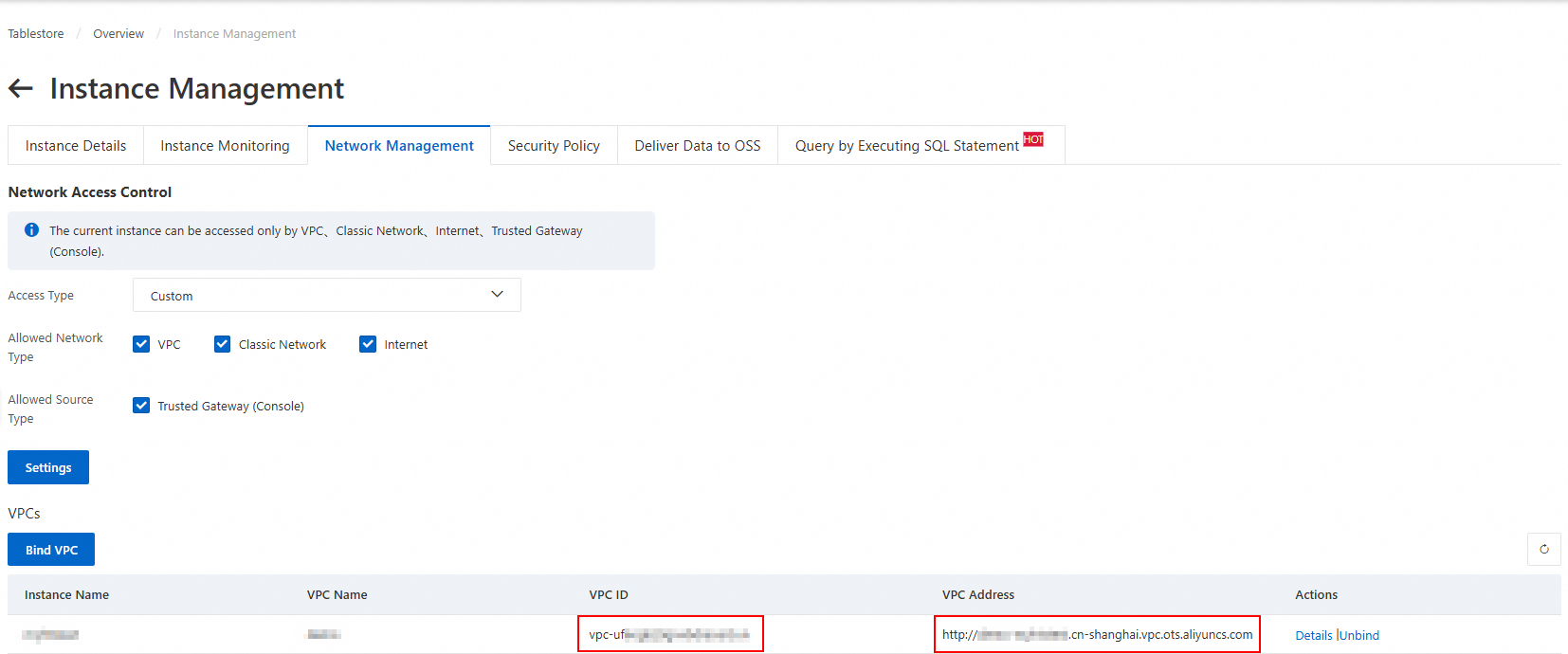
On the Network Management tab, click Bind VPC. Select a VPC and vSwitch, enter a VPC name, and then click OK.
Wait for the VPC to attach. The page automatically refreshes to display the VPC ID and VPC Address in the VPC list.
NoteWhen you add a Tablestore data source in the DataWorks console, you must use this VPC address.
Obtain the VPC information for the DataWorks workspace resource group.
Log on to the DataWorks console. In the top navigation bar, select the region where your workspace is located. In the navigation pane on the left, click Workspace to go to the Workspaces page.
Click the workspace name to go to the Workspace Details page. In the left navigation pane, click Resource Group to view the resource groups attached to the workspace.
To the right of the target resource group, click Network Settings. In the Data Scheduling & Data Integration section, view the VPC ID of the attached virtual private cloud.
Create a VPC peering connection and configure routes.
Log on to the VPC console. In the navigation pane on the left, click VPC Peering Connection and then click Create VPC Peering Connection.
On the Create VPC Peering Connection page, enter a name for the peering connection and select the requester VPC instance, accepter account type, accepter region, and accepter VPC instance. Then, click OK.
On the VPC Peering Connection page, find the VPC peering connection and click Configure route in the Requester VPC and Accepter columns.
For the destination CIDR block, enter the CIDR block of the peer VPC. For example, when you configure a route entry for the requester VPC, enter the CIDR block of the accepter VPC. When you configure a route entry for the accepter VPC, enter the CIDR block of the requester VPC.
Procedure
Follow these steps to configure and run the data export task.
Step 1: Add a Tablestore data source
First, configure a Tablestore data source in DataWorks to connect to the source data.
Log on to the DataWorks console. Switch to the destination region. In the navigation pane on the left, choose . From the drop-down list, select the workspace and click Go to Data Integration.
In the navigation pane on the left, click Data source.
On the Data Sources page, click Add Data Source.
In the Add Data Source dialog box, search for and select Tablestore as the data source type.
In the Add OTS Data Source dialog box, configure the data source parameters as described in the following table.
Parameter
Description
Data Source Name
The data source name must be a combination of letters, digits, and underscores (_). It cannot start with a digit or an underscore (_).
Data Source Description
A brief description of the data source. The description cannot exceed 80 characters in length.
Region
Select the region where the Tablestore instance resides.
Tablestore Instance Name
The name of the Tablestore instance.
Endpoint
The endpoint of the Tablestore instance. Use the VPC address.
AccessKey ID
The AccessKey ID and AccessKey secret of the Alibaba Cloud account or RAM user.
AccessKey Secret
Test the resource group connectivity.
When you create a data source, you must test the connectivity of the resource group to ensure that the resource group for the sync task can connect to the data source. Otherwise, the data sync task cannot run.
In the Connection Configuration section, click Test Network Connectivity in the Connection Status column for the resource group.
After the connectivity test passes, click Complete. The new data source appears in the data source list.
If the connectivity test fails, use the Network Connectivity Diagnostic Tool to troubleshoot the issue.
Step 2: Add an OSS data source
Configure an OSS data source as the destination for the data export.
Click Add Data Source again. In the dialog box, search for and select OSS as the data source type, and then configure the data source parameters.
Parameter
Description
Data Source Name
The data source name must consist of letters, digits, and underscores (_). It cannot start with a digit or an underscore (_).
Data Source Description
A brief description of the data source. The description cannot exceed 80 characters.
Access Mode
RAM Role Authorization Mode: The DataWorks service account accesses the data source by assuming a RAM role. If this is the first time you select this mode, follow the on-screen instructions to grant the required permissions.
AccessKey Mode: Access the data source using the AccessKey ID and AccessKey secret of an Alibaba Cloud account or RAM user.
Role
This parameter is required only when you set Access Mode to RAM Role Authorization Mode.
AccessKey ID
These parameters are required only when you set Access Mode to AccessKey Mode. The AccessKey ID and AccessKey secret of the Alibaba Cloud account or RAM user.
AccessKey Secret
Region
The region where the bucket is located.
Endpoint
The OSS domain name. For more information, see Regions and endpoints.
Bucket
The name of the bucket.
After you configure the parameters and the connectivity test passes, click Complete to add the data source.
Step 3: Configure a batch sync task
Create and configure a data sync task to define the data transfer rules from Tablestore to OSS.
Create a task node
Go to the Data Development page.
Log on to the DataWorks console.
In the top navigation bar, select the resource group and region.
In the navigation pane on the left, choose .
Select the corresponding workspace and click Go To Data Studio.
On the Data Studio console, click the
 icon to the right of Workspace Directories and select .
In the Create Node dialog box, select a Path, set data source to Tablestore and data destination to OSS, enter a Name, and click OK.
Configure the sync task
Under Workspace Directories, click your batch sync task node and configure the sync task in the codeless UI or the code editor.
Codeless UI (default)
Configure the following parameters:
Data Source: Select the source and destination data sources.
Runtime Resource: Select a resource group. After you make a selection, the system automatically tests the data source connectivity.
Data Source:
Table: Select the source table from the drop-down list.
Primary Key Range (Start): The starting primary key of the range to read. The value is a JSON array.
inf_minrepresents negative infinity.When the primary key includes an
intcolumn namedidand astringcolumn namedname, the following configurations are examples:Specified primary key range
Full data
[
  {
    "type": "int",
    "value": "000"
  },
  {
    "type": "string",
    "value": "aaa"
  }
]
[ { "type": "inf_min" }, { "type": "inf_min" } ]Primary Key Range (End): The end of the primary key range for the data read, specified as a JSON array.
inf_maxrepresents positive infinity.When the primary key includes an
intcolumn namedidand astringcolumn namedname, the following configurations are examples:Specified primary key range
Full data
[
  {
    "type": "int",
    "value": "999"
  },
  {
    "type": "string",
    "value": "zzz"
  }
]
[ { "type": "inf_max" }, { "type": "inf_max" } ]Splitting Configuration: The custom shard configuration in JSON array format. Typically, leave this parameter unconfigured by setting it to
[].If hotspots occur in Tablestore data storage and the automatic sharding policy of Tablestore Reader is ineffective, we recommend that you use custom sharding rules. Custom sharding rules allow you to specify shard keys within the primary key range. You need to configure only the shard keys, not all primary keys.
Destination: Select the Text Type and configure the corresponding parameters.
Text Type: Valid values are csv, text, orc, and parquet.
Object Name (Path Included): The full path to the file in the OSS bucket. For example,
tablestore/resource_table.csv.Column Delimiter: The default value is
,. If the separator is a non-printable character, enter its Unicode encoding, such as\u001bor\u007c.Object Path: The path of the file in the OSS bucket. This parameter is required only for the parquet file type.
File Name: The name of the file in the OSS bucket. This parameter is required only for files in parquet format.
Destination Field Mapping: Maps fields from the source table to the destination file. Each line represents a field in JSON format.
Source Field: The primary key fields and attribute columns of the source table.
When the primary key includes an
intcolumn namedidand astringcolumn namedname, and the attribute columns include anintfield namedage, the following configuration is an example:{"name":"id","type":"int"} {"name":"name","type":"string"} {"name":"age","type":"int"}Target Field: The primary key fields and attribute columns of the source table.
When the primary key includes an
intcolumn namedidand astringcolumn namedname, and the attribute columns include anintfield namedage, the following configuration is an example:{"name":"id","type":"int"} {"name":"name","type":"string"} {"name":"age","type":"int"}
After the configuration, click Save at the top of the page.
Code editor
Click Code Editor at the top of the page. The code editor opens. Edit the script.
The following example shows a configuration where the destination file type is CSV. The source table has a primary key that includes anintcolumn namedidand astringcolumn namedname. The attribute column is anintfield namedage. When you configure the script, replace thedatasource, table nametable, and destination file nameobjectin the example script with your actual values.
{
    "type": "job",
    "version": "2.0",
    "steps": [
        {
            "stepType": "ots",
            "parameter": {
                "datasource": "source_data",
                "column": [
                    {
                        "name": "id",
                        "type": "int"
                    },
                    {
                        "name": "name",
                        "type": "string"
                    },
                    {
                        "name": "age",
                        "type": "int"
                    }
                ],
                "range": {
                    "begin": [
                        {
                            "type": "inf_min"
                        },
                        {
                            "type": "inf_min"
                        }
                    ],
                    "end": [
                        {
                            "type": "inf_max"
                        },
                        {
                            "type": "inf_max"
                        }
                    ],
                    "split": []
                },
                "table": "source_table",
                "newVersion": "true"
            },
            "name": "Reader",
            "category": "reader"
        },
        {
            "stepType": "oss",
            "parameter": {
                "dateFormat": "yyyy-MM-dd HH:mm:ss",
                "datasource": "target_data",
                "writeSingleObject": false,
                "column": [
                    {
                        "name": "id",
                        "type": "int"
                    },
                    {
                        "name": "name",
                        "type": "string"
                    },
                    {
                        "name": "age",
                        "type": "int"
                    }
                ],
                "writeMode": "truncate",
                "encoding": "UTF-8",
                "fieldDelimiter": ",",
                "fileFormat": "csv",
                "object": "tablestore/source_table.csv"
            },
            "name": "Writer",
            "category": "writer"
        }
    ],
    "setting": {
        "errorLimit": {
            "record": "0"
        },
        "speed": {
            "concurrent": 2,
            "throttle": false
        }
    },
    "order": {
        "hops": [
            {
                "from": "Reader",
                "to": "Writer"
            }
        ]
    }
}
After you edit the script, click Save at the top of the page.
Run the sync task
Click Run at the top of the page to start the sync task. The first time you run the task, you must confirm the debug configuration.
Step 4: View the sync results
After the task completes, verify its execution status in the logs and inspect the resulting file in the destination OSS bucket.
View the task running status and result at the bottom of the page. The following log information indicates that the sync task ran successfully.
2025-11-18 11:16:23 INFO Shell run successfully!
2025-11-18 11:16:23 INFO Current task status: FINISH
2025-11-18 11:16:23 INFO Cost time is: 77.208s
View the file in the destination bucket.
Go to the Bucket List. Click the destination bucket to view or download the result file.