After you connect Tablestore to Grafana, use Grafana to visualize Tablestore data.
Prerequisites
You have created a Resource Access Management (RAM) user and granted the RAM user the AliyunOTSFullAccess permission to manage Tablestore.
WarningIf your Alibaba Cloud account’s AccessKey pair is leaked, your cloud resources are at risk. Use the AccessKey pair of a RAM user instead to reduce this risk.
Enable the Tablestore service and create an instance. Then, you can create a data table and its mapping relationship, or create a time series table and its multi-value model mapping relationship.
You have installed open source Grafana version 8.0.0 or later. This guide uses Grafana v12.3.1 as an example. For more information about installing Grafana, see the Grafana official documentation.
Background information
Grafana is an open source visualization and analytics platform that supports querying and visualizing data from multiple data sources, such as Prometheus, Graphite, OpenTSDB, InfluxDB, Elasticsearch, MySQL, and PostgreSQL. For more information, see the Grafana official documentation.
After you connect Tablestore to Grafana, you can generate dashboard panels based on Tablestore table data and display the data in real time.
Usage notes
The regions that support the Grafana visualization feature depend on the data model used.
Wide table model: supports all regions.
Time series model: supports China (Hangzhou), China (Shanghai), China (Beijing), China (Zhangjiakou), China (Ulanqab), China (Shenzhen), China (Chengdu), China (Hong Kong), Japan (Tokyo), Singapore, Malaysia (Kuala Lumpur), Indonesia (Jakarta), Germany (Frankfurt), UK (London), US (Silicon Valley), US (Virginia), and SAU (Riyadh - Partner Region).
Step 1: Install the Tablestore plug-in
Windows
Download the Tablestore Grafana plugin package.
Unzip the Tablestore Grafana plugin package and move its contents to the data/plugins directory in your Grafana installation.
Modify the Grafana configuration file.
Open the defaults.ini configuration file in the conf directory of the Grafana plugin with a text editor.
In the [plugins] section of the configuration file, set the allow_loading_unsigned_plugins parameter.
allow_loading_unsigned_plugins = 'aliyun-tablestore-grafana-datasource-adapt-react'
Restart the grafana-server.exe process in Task Manager.
Mac/Linux
Run the following command to download the Tablestore Grafana plug-in package.
wget https://help-static-aliyun-doc.aliyuncs.com/file-manage-files/zh-CN/20260203/qbqmxg/aliyun-tablestore-grafana-datasource-adapt-react.zipDecompress the Tablestore Grafana plug-in package into the Grafana plug-in directory.
Run the command that corresponds to your Grafana installation method.
If you installed Grafana from a Yellowdog Updater, Modified (YUM) repository or an RPM Package Manager (RPM) package (Linux only): unzip aliyun-tablestore-grafana-datasource-adapt-react.zip -d /var/lib/grafana/plugins
If you installed Grafana from a .zip file: unzip aliyun-tablestore-grafana-datasource-adapt-react.zip -d {PATH_TO}/grafana-{VERSION}/data/plugins
NoteIn the command,
{PATH_TO}/grafana-{VERSION}specifies the Grafana installation path, and{VERSION}specifies the Grafana version number.
Modify the Grafana configuration file.
Go to the directory and open the configuration file.
If you installed Grafana from a YUM repository or an RPM package (Linux only): /etc/grafana/grafana.ini
If you installed Grafana from a .zip file: {PATH_TO}/grafana-{VERSION}/conf/defaults.ini
NoteIn the path,
{PATH_TO}/grafana-{VERSION}is the Grafana installation path, and{VERSION}is the Grafana version number.
In the [plugins] section of the configuration file, set the allow_loading_unsigned_plugins parameter.
allow_loading_unsigned_plugins = 'aliyun-tablestore-grafana-datasource-adapt-react'
Restart Grafana.
Run the kill command to stop the Grafana process.
Run the command that corresponds to your installation method to start Grafana.
If you installed Grafana from a YUM repository or an RPM package (Linux only): systemctl restart grafana-server
If you installed Grafana from a .zip file: ./bin/grafana-server web
Step 2: Configure a data source
Log on to Grafana.
In a browser, enter
http://<x.x.x.x>:3000/to open the Grafana logon page.Note<x.x.x.x>specifies the IP address of the server where Grafana is installed. For example, if Grafana is installed on Windows, the logon address ishttp://localhost:3000.Enter your Email or username and Password, and then click Log in.
NoteThe default username and password are both admin. When you log on for the first time, you are prompted to change the password.
In the Grafana left-side navigation pane, choose .
On the Data sources page, click + Add new data source.
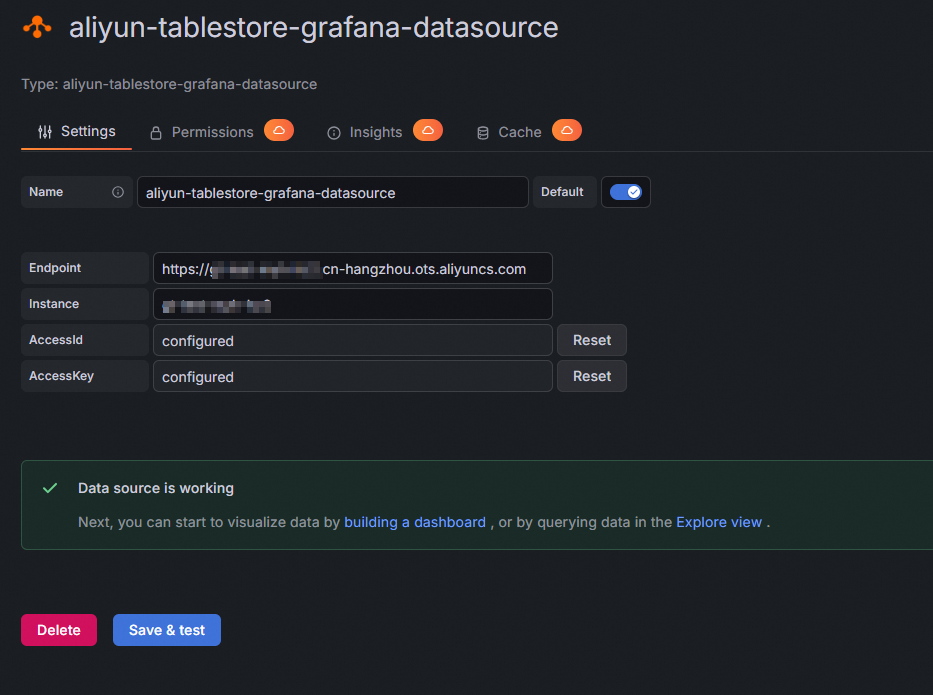
On the Add data source page, in the Others section, click aliyun-tablestore-grafana-datasource.
On the Settings tab, configure the parameters as described in the following table.
Parameter
Example
Description
Name
aliyun-tablestore-grafana-datasource
The name of the data source. Enter a custom name if needed. The default value is aliyun-tablestore-grafana-datasource.
Default

Set the Tablestore data source as the default data source.
Endpoint
https://myinstance.cn-hangzhou.ots.aliyuncs.com
Enter the endpoint of the Tablestore instance that you want to access.
Instance
myinstance
The name of the Tablestore instance.
AccessId
************************
The AccessKey ID of the Alibaba Cloud account or RAM user that has permissions to access Tablestore.
AccessKey
********************************
The AccessKey secret of the Alibaba Cloud account or RAM user that has permissions to access Tablestore.
Click Save & test.
After the connection succeeds, the interface displays the Data source is working message.
Step 3: Create a dashboard panel
In the Grafana left-side navigation pane, click Dashboards.
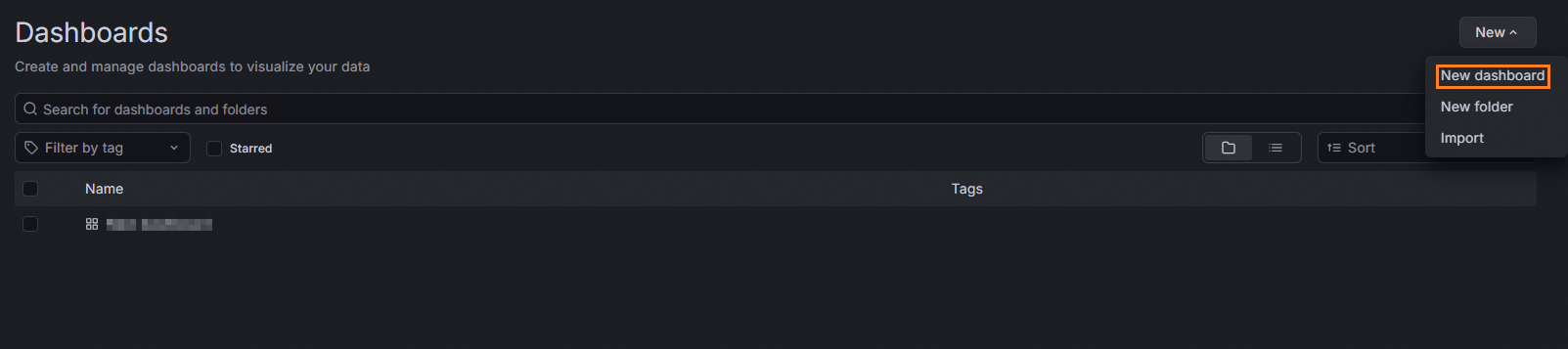
On the Dashboards page, click New and then select New dashboard.
On the New dashboard page, click + Add visualization.
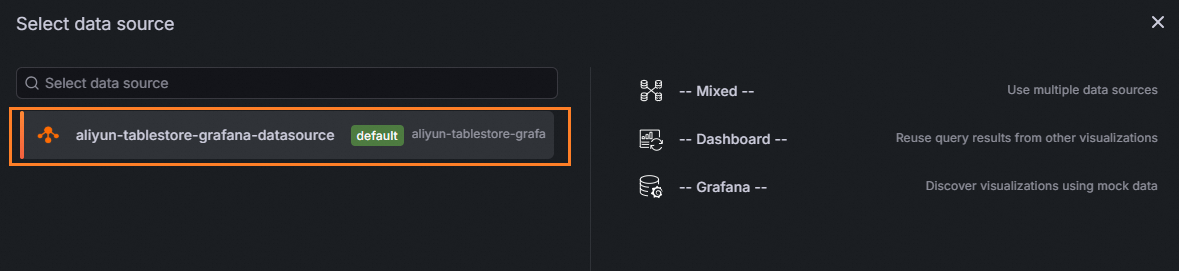
In the Select data source dialog box, select the Tablestore data source that you configured.
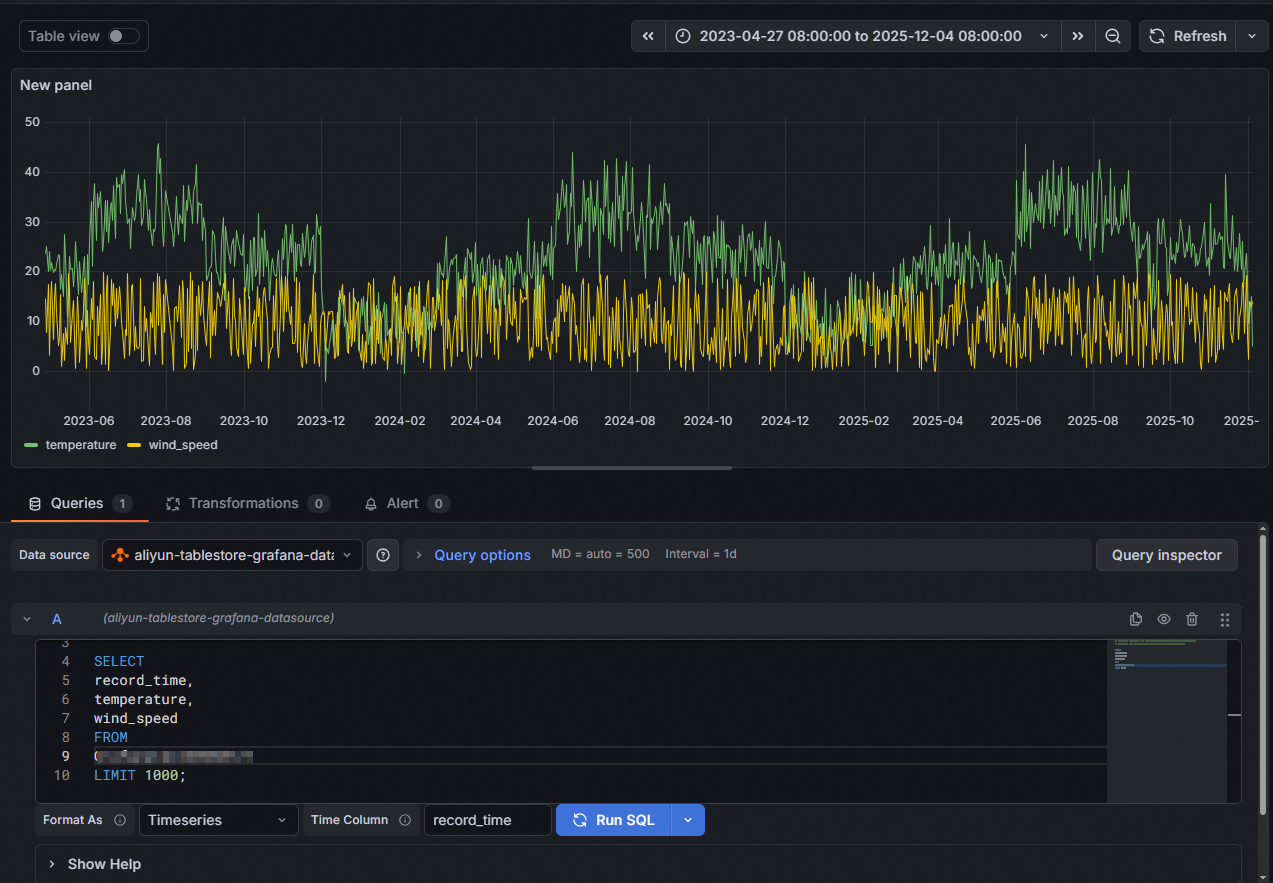
On the Edit panel page, configure the query conditions on the Queries tab.
The following table describes the parameters.
Parameter
Example
Description
Query
SELECT * FROM your_table WHERE $__unixMicroTimeRangeFilter(_time)AND _m_name = "your_measurement" AND tag_value_at(_tags, "your_tag")="your_tag_value" LIMIT 1000The SQL query statement. For more information, see Query data.
ImportantIn the WHERE clause, you must use a predefined macro to filter data by time range, such as
$__unixMicroTimeRangeFilterin the example. To view more time macros, click "Show Help" on the configuration page.If you want to display data in a time series chart, the query must return a time column that is represented by a numeric timestamp. Also, configure the name of the time column.
Format As
Timeseries
The format of the results. Valid values:
Timeseries (Default): A standard time series chart.
FlowGraph: A multi-dimensional chart.
Table: A standard table.
NoteIf the table data lacks a time column when you query it from a wide table model using SQL, click Switch to table to display the query results in table format, or click Open visualization suggestions to view and select additional recommended visualization options.
Time Column
_time
The name of the time column in the returned data. The time column is used as the x-axis of the time series chart. This parameter is available when you set Format As to Timeseries or FlowGraph.
Aggregation Column
_field_name#:#_double_value
Converts multiple rows of single-column data at the same point in time into a single row of multi-column data. This parameter is used to convert data in single-value model into data in multi-value model. The data in single-value model is the results that are obtained when you use SQL to query a time series table in Tablestore. This parameter is available when you set Format As to FlowGraph. The format is
<Data point name column>#:#<Value column>.Click Run SQL to execute the SQL statement and view or debug the results.
Configure and save the dashboard panel.
In the right-side pane, specify the name, type, and display style of the monitoring chart.
In the upper-right corner, click Save dashboard. In the Save dashboard dialog box, specify the Title, Description, and Folder for the dashboard. Then, click Save.
In the upper-right corner, click Save dashboard. In the Save dashboard dialog box, click Save.
Step 4: View monitoring data
In the Grafana left-side navigation pane, choose Dashboards. Click the dashboard in the destination folder to view all its monitoring charts.