Join Logstore data with a MySQL database for federated query and analysis using SQL JOIN.
Before you begin
-
Logs collected in a Logstore. Data collection.
-
Indexes created for log fields. Create an index.
-
A MySQL database is available. Create a database and an account.
Scenario
A gaming company collects two data types: user game logs (actions, targets, HP, MP, network, payments, clicks, status codes, user IDs) in SLS, and user metadata (gender, registration time, region) in MySQL. The goal is to join both datasets for operational analysis.
SLS supports federated queries between a Logstore and external stores (MySQL, OSS). Use SQL JOIN to combine game logs with user metadata, and write results back to an external store.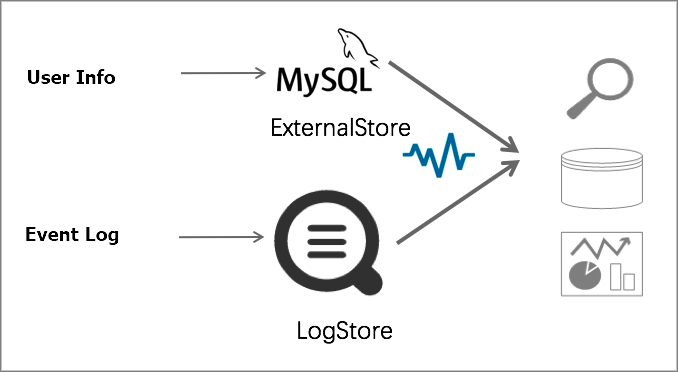
Procedure
-
In your MySQL database, create a table for user properties.
Create a
join_metatable to store user properties (ID, nickname, gender, age, registration time, balance, region).CREATE TABLE `join_meta` ( `uid` int(11) NOT NULL DEFAULT '0', `user_nick` text, `gender` tinyint(1) DEFAULT NULL, `age` int(11) DEFAULT NULL, `register_time` timestamp NOT NULL DEFAULT CURRENT_TIMESTAMP ON UPDATE CURRENT_TIMESTAMP, `balance` float DEFAULT NULL, `region` text, PRIMARY KEY (`uid`) ) ENGINE=InnoDB DEFAULT CHARSET=utf8 -
Add IP addresses to a whitelist.
ApsaraDB RDS for MySQL
Add the CIDR blocks 100.104.0.0/16, 11.194.0.0/16, and 11.201.0.0/16 to the whitelist. For more information, see Configure an IP address whitelist.
Self-managed MySQL on ECS
Add security group rules to allow access from the 100.104.0.0/16, 11.194.0.0/16, and 11.201.0.0/16 CIDR blocks. For more information, see Add a security group rule.
AnalyticDB for MySQL
Add the CIDR blocks 100.104.0.0/16, 11.194.0.0/16, and 11.201.0.0/16 to the whitelist. For more information, see Configure a whitelist.
-
Create an ExternalStore.
-
Log on to the CLI server and run
touchto create /home/shell/config.json. Add the following content to config.json. Replaceregion,vpc-id,host,port,username,password,db, andtablewith your values.{ "externalStoreName":"sls_join_meta_store", "storeType":"rds-vpc", "parameter":{ "region":"cn-qingdao", "vpc-id":"vpc-m5eq4irc1pucp*******", "host":"rm-bp1******rm76.mysql.rds.aliyuncs.com", "port":"3306", "username":"user", "password":"****", "db":"scmc", "table":"join_meta" } }Parameter
Description
externalStoreNameThe name of the ExternalStore. Must be lowercase.
storeTypeFixed value:
rds-vpc.regionThe region of the database.
-
For RDS MySQL, set region to the RDS instance region.
-
For ADB MySQL, set region to the ADB instance region.
-
For a self-managed MySQL on ECS in a VPC, set region to the ECS instance region.
ImportantThe database instance (RDS, ADB, or ECS) must be in the same region as your SLS project.
vpc-idVPC ID of the database.
-
For RDS MySQL, set vpc-id to the VPC ID.
-
For ADB MySQL, set vpc-id to the VPC ID.
-
For a self-managed MySQL on ECS, set vpc-id to the VPC ID.
hostFor VPC databases, the backend resolves the host to an IP at creation time and does not auto-update it. If the instance IP changes (for example, after a migration), update or recreate the external table.
-
For RDS MySQL in a VPC, set host to the internal endpoint of the RDS instance.
-
For ADB MySQL in a VPC, set host to the internal endpoint of the ADB instance.
-
For a self-managed MySQL on ECS in a VPC, set host to the private IP of the ECS instance.
-
For internet-accessible databases, use the public endpoint or IP.
portThe port number of the database.
-
For RDS MySQL, set port to the RDS instance port.
-
For ADB MySQL, set port to the ADB instance port.
-
For a self-managed MySQL on ECS, set port to the MySQL service port.
usernameUsername for database access.
passwordPassword for the specified username.
dbDatabase name.
tableDatabase table name. Supported formats:
-
table_name. Example:test. -
schema_name.table_name. Example:public.test.
-
-
Run the following command to create the ExternalStore. Replace
<project-name>with your Project name.aliyunlog log create_external_store --project_name=<project-name> --config="file:///home/shell/config.json"
-
-
Use the JOIN syntax to run a federated query.
Log on to the Simple Log Service console.
In the Projects section, click the project you want.
On the tab, click the logstore you want.
-
Run a query and analysis statement.
Join the Logstore with MySQL by matching the log userid field to the database uid field.
-
Analyze gender distribution of active users.
* |
select
  case gender when 1 then 'Male' else 'Female' end as gender,
  count(1) as pv
from log l join sls_join_meta_store u on l.userid = u.uid
group by gender
order by pv desc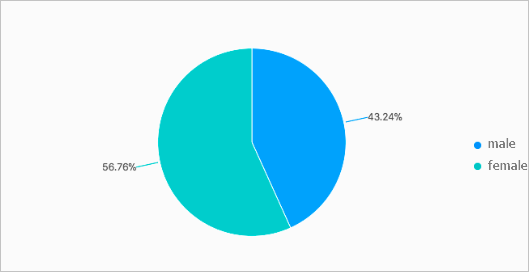
-
Analyze user activity by region.
* |
select region , count(1) as pv
from log l join sls_join_meta_store u on l.userid = u.uid
group by region
order by pv desc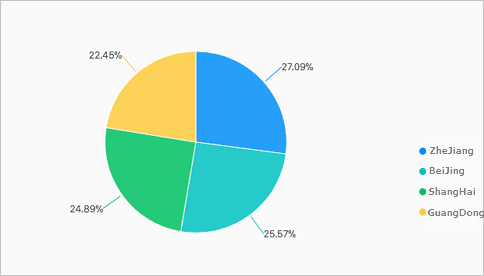
-
Analyze spending patterns by gender.
* |
select
  case gender when 1 then 'Male' else 'Female' end as gender,
  sum(money) as money
from log l join sls_join_meta_store u on l.userid = u.uid
group by gender
order by money desc
-
-
Save the query results to the MySQL database.
-
In MySQL, create a
reporttable to store per-minute page view (PV) counts.CREATE TABLE `report` ( `minute` bigint(20) DEFAULT NULL, `pv` bigint(20) DEFAULT NULL ) ENGINE=InnoDB DEFAULT CHARSET=utf8 -
Create an ExternalStore for the
reporttable by repeating Step 3. -
On the query and analysis page of the Logstore, run the following statement to save results to the
reporttable.sls_report_storeis the ExternalStore name for thereporttable.* | insert into sls_report_store select __time__- __time__ % 300 as min, count(1) as pv group by minView the results in MySQL:
mysql> select * from report;
+------------+-------+
| minute     | pv    |
+------------+-------+
| 1526448600 |  3000 |
| 1526448540 |  9900 |
| 1526448780 |  3100 |
| 1526448480 |  5400 |
| 1526448720 |  3000 |
| 1526448960 |  3000 |
| 1526448900 |  3000 |
| 1526449080 |  3000 |
| 1526449140 |  3000 |
| 1526448660 |  2900 |
| 1526449260 |  3000 |
+------------+-------+
-