Cloud Config is an automated resource auditing service that continuously assesses the compliance of IT resources in the cloud. Cloud Config can generate scheduled snapshots, record configuration changes, and detect non-compliance events. You can collect Cloud Config logs to a specified Logstore of Simple Log Service for subsequent query and analysis. This topic describes how to collect Cloud Config logs to the new version of Log Audit Service.
Background information
Cloud Config is a resource auditing service that allows you to trace configuration changes of your resources and evaluate configuration compliance. For more information, see What is Cloud Config?
The new version of Log Audit Service is based on Alibaba Cloud Simple Log Service. You can use multiple projects to manage logs. You can aggregate, query, and analyze cloud service logs in a centralized manner, and you can process logs to meet region-specific data compliance requirements. This way, you can manage data in a legal and orderly manner. For more information, see Overview of Log Audit Service (new version).
Overview
The following figure shows the flowchart of collecting Cloud Config logs to the new version of Log Audit Service.

Prerequisites
Simple Log Service is activated. For more information, see Getting Started.
Cloud Config is activated. For more information, see Activate Cloud Config.
1. Associate a project
Log on to the Simple Log Service console and create a project and a Logstore. The Logstore name must be prefixed with
cloudconfig_. For this example, create a project namedsample-config-cn-hangzhouin the China (Hangzhou) region and a Logstore namedcloudconfig_samplein the project.In the Log Application section, click the Audit & Security tab. Then, click Log Audit Service (New Version).

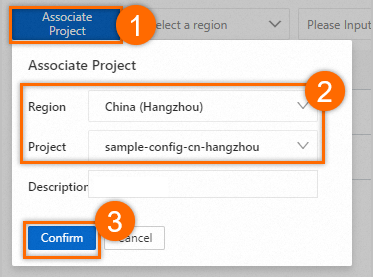
On the Log Audit (New Version) page, click Associate Project. In the Associate Project dialog box, configure the parameters and click Confirm.
NoteCloud Config logs are collected to the project that you associate with the new version of Log Audit Service.
On the Log Audit (New Version) page, click the associated project.

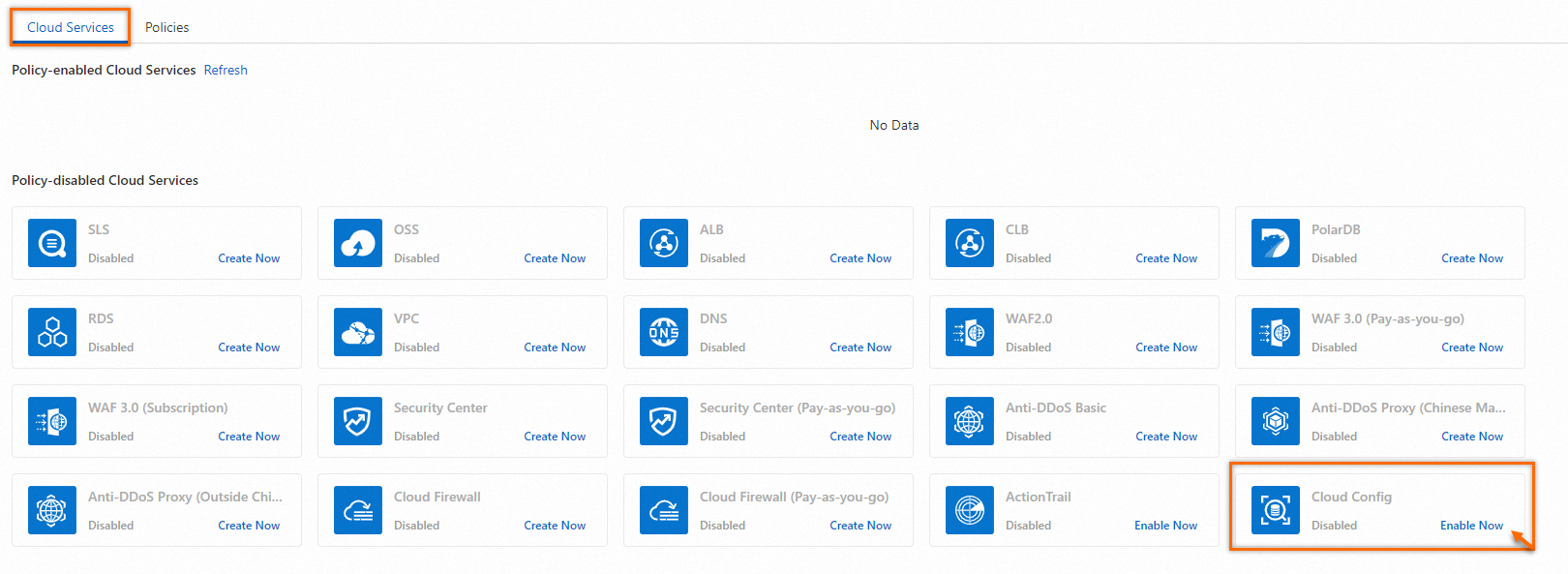
On the Cloud Services tab, click Enable Now for Cloud Config.
2. Create a data delivery task
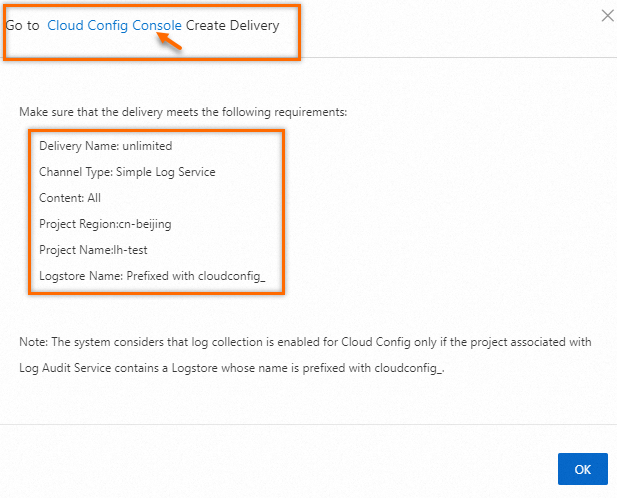
In the Go to Cloud Config Console Create Delivery panel, read the requirements for creating a data delivery task. Then, click Cloud Config Console.
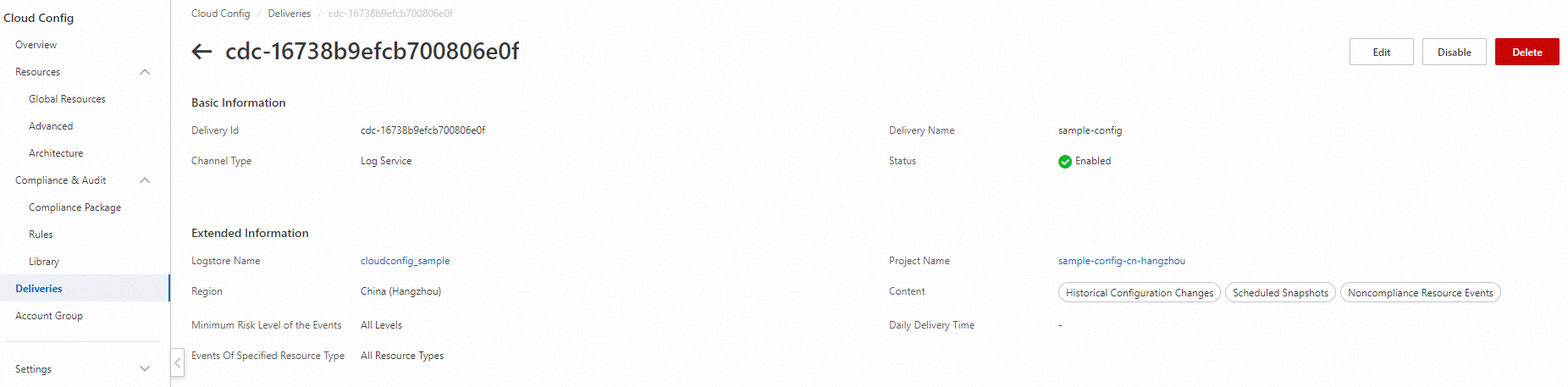
In the Cloud Config console, configure parameters to create a data delivery task named
sample-config. The following figure shows sample configurations.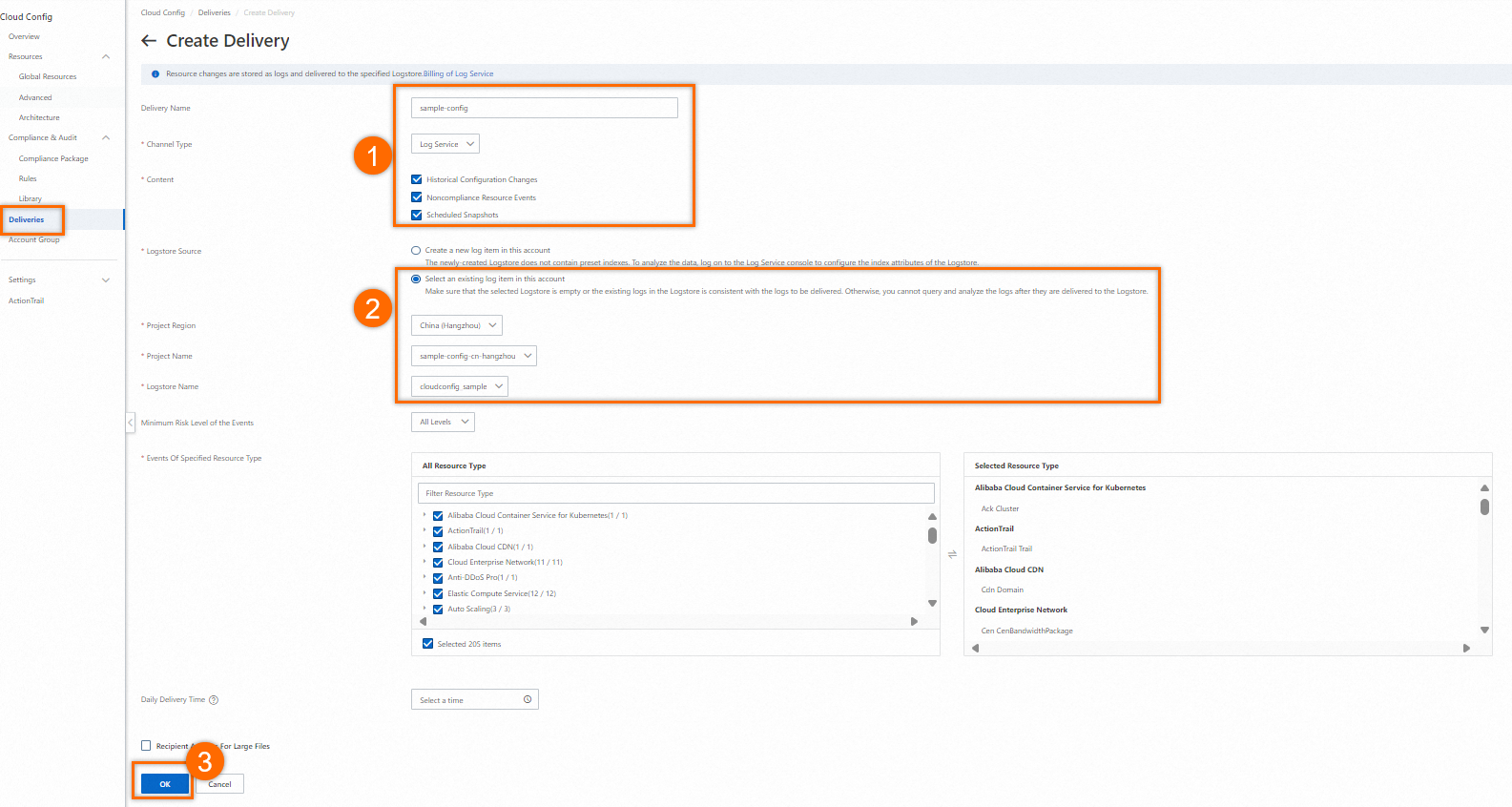
After you create the data delivery task, view the details of the task.
3. Query and analyze logs
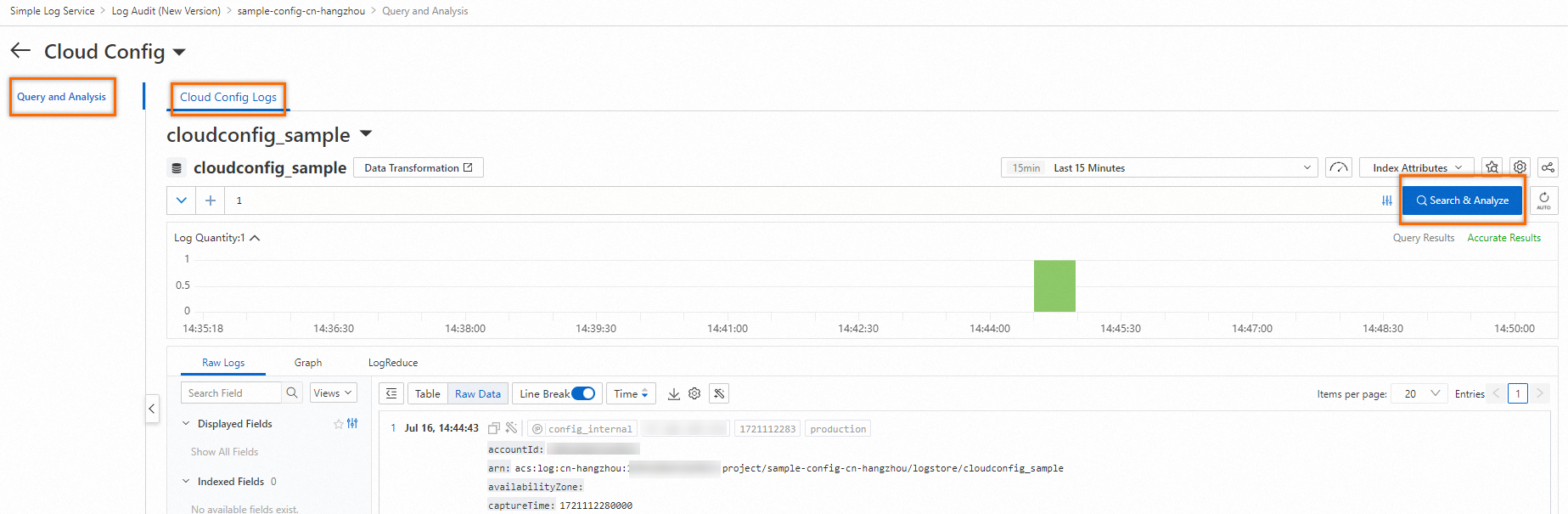
On the Log Audit (New Version) page, click the project that you want to manage. On the Cloud Services tab of the page that appears, click View for Cloud Config in the Policy-enabled Cloud Services section.

On the Cloud Config Logs tab of the Query and Analysis page, query and analyze logs.
NoteThe first time you access the Logstore that you specify for the data delivery task in the Cloud Config console, indexing is disabled for the Logstore. Errors may occur. Make sure that indexing is enabled for your Logstore. For more information, see Create indexes.
References
For more information about how to enable indexing for a Logstore, see Create indexes. For more information about how to query and analyze logs in a Logstore, see Query and analyze logs.
In this topic, Cloud Config logs are used only as an example. For more information about the log types, default project and Logstore names, and billing details of other supported cloud services, see Usage notes of cloud service configuration.