You can use a Log4j2 appender or Logtail to collect Java application logs recorded by Log4j2 and send them to Simple Log Service for query and analysis.
Log4j overview
Log4j is an open source Apache project that lets you configure log destinations such as consoles, files, GUI components, socket servers, NT event recorders, and UNIX Syslog daemons. You can control the output format of each log entry and fine-tune log generation by defining log levels, all through a configuration file without modifying application code. Log4j consists of three components:
layouts
Layouts format log messages. Common layouts include:
Layout
Description
HTMLLayout
Formats logs as HTML tables.
SimpleLayout
Uses a simple output format, such as the default format for INFO-level messages.
PatternLayout
Outputs logs in a custom format. You can specify the order and format of elements such as timestamp, log level, thread name, class name, method name, and log message.
appenders
Appenders define log output destinations. Common appenders include:
Appender
Description
ConsoleAppender
Outputs logs to the console.
FileAppender
Outputs logs to a file.
DailyRollingFileAppender
Outputs logs to a file and creates a new log file each day.
RollingFileAppender
Outputs log messages to a file up to a specified size. When the file reaches the size limit, it is renamed and a new file is created.
JDBCAppender
Saves log messages to a database.
loggers
A logger captures log messages and serves as the entry point for logging. Each logger is assigned a log level based on importance or severity. Log4j defines eight log levels in descending order of priority: OFF, FATAL, ERROR, WARN, INFO, DEBUG, TRACE, and ALL. Child loggers inherit log levels from their parents. The following table describes the log levels.
Log level
Description
OFF
Turns off all logging.
FATAL
Indicates a severe error event that will cause the application to exit.
ERROR
Indicates an error event that might still allow the system to continue running.
WARN
Indicates a potentially harmful situation.
INFO
Highlights the progress of the application at a coarse-grained level.
DEBUG
Provides fine-grained information useful for debugging applications.
TRACE
Traces program execution, outputs variables, and shows the execution flow.
ALL
Prints all log records.
A logger can be associated with multiple appenders, but an appender can be associated with only one layout.
Prerequisites
A Project and a Logstore have been created. For more information, see Manage Projects and Manage Logstores.
If you use a RAM user instead of an Alibaba Cloud account, you must grant the RAM user the permissions to write data to a Logstore. To grant the permissions, you must first create a custom policy and then grant permissions to the RAM user.
Procedure
The examples in this topic use Java and Log4j2. You can also use Log4j for programs in other languages, such as C, C++, .NET, and PL/SQL. The syntax and usage are the same as in Java.
Step 1: Add the Log4j2 configuration file
Add dependencies to your Maven project.
<dependencies>
  <dependency>
    <groupId>org.apache.logging.log4j</groupId>
    <artifactId>log4j-api</artifactId>
    <version>2.23.1</version>
  </dependency>
  <dependency>
    <groupId>org.apache.logging.log4j</groupId>
    <artifactId>log4j-core</artifactId>
    <version>2.23.1</version>
  </dependency>
</dependencies>
Modify the configuration file.
By default, Log4j2 searches for the configuration file in the classpath. If the file does not exist, create it manually. The following example uses log4j2.xml. Two appenders are defined to output logs to the console and the
app.logfile, respectively. The root logger level is set toerrorwith output to the console. The logger namedcom.example.demo.logis set towarnwith output to the file. For more information about configuring Log4j2, see the official documentation at Log4j – Configuring Log4j 2 (apache.org)<!-- status="WARN" sets the internal status of Log4j 2 itself, not the application's logging. It is used to capture and report potential issues during the configuration process. --> <Configuration status="WARN"> <!-- Start: Define two appenders for log output --> <Appenders> <!-- Defines a console appender named "Console". Logs are printed to the standard system output. --> <Console name="Console" target="SYSTEM_OUT"> <PatternLayout pattern="%d{yyyy-MM-dd HH:mm:ss:SSS zzz} [%t] %-5level %logger{36} - %msg%n"/> </Console> <!-- Defines a file appender named "MyFile". Logs are written to the "app.log" file. --> <File name="MyFile" fileName="app.log"> <PatternLayout pattern="%d{yyyy-MM-dd HH:mm:ss:SSS zzz} [%t] %-5level %logger{36} - %msg%n"/> </File> </Appenders> <!-- End: Define two appenders for log output --> <!-- Start: Configure logger behavior --> <Loggers> <!-- Defines a logger named "com.example.demo.log" and sets its level to warn. It references the "MyFile" appender, which means logs at the warn level and above from this logger are sent to "MyFile". --> <Logger name="com.example.demo.log" level="warn"> <AppenderRef ref="MyFile" /> </Logger> <!-- Defines the root logger and sets its level to error. It references the "Console" appender, which means logs at the error level and above are sent to the console. --> <Root level="error"> <AppenderRef ref="Console" /> </Root> </Loggers> <!-- End: Configure logger behavior --> </Configuration>Use the logger.
Write test code to get a logger instance and generate logs:
    public void logExampleDemo() {
        // Get the logger instance named "com.example.demo.log".
        Logger logger = LogManager.getLogger("com.example.demo.log");
        // Record log messages at different levels.
        logger.trace("trace level");
        logger.debug("debug level");
        logger.info("info level");
        logger.warn("warn level");
        logger.error("error level");
        logger.fatal("fatal level");
    }
Sample log output:
2024-05-28 13:37:16:295 CST [http-nio-8080-exec-8] TRACE com.example.demo.log - trace level
2024-05-28 13:37:16:296 CST [http-nio-8080-exec-8] DEBUG com.example.demo.log - debug level
2024-05-28 13:37:16:296 CST [http-nio-8080-exec-8] INFO  com.example.demo.log - info level
2024-05-28 13:37:16:296 CST [http-nio-8080-exec-8] WARN  com.example.demo.log - warn level
2024-05-28 13:37:16:296 CST [http-nio-8080-exec-8] ERROR com.example.demo.log - error level
2024-05-28 13:37:16:296 CST [http-nio-8080-exec-8] FATAL com.example.demo.log - fatal level
Step 2: Collect Log4j logs
The Log4j2 appender is a built-in collection method. For applications already integrated with Log4j2, minimal configuration is needed to send logs in real time without writing them to a server disk. This method suits big data applications that require real-time processing of large volumes of log data.
To collect logs using Logtail, you must install the Logtail agent on your server. The Logtail agent supports various processing plug-ins.
Via Log4j2 appender

Add dependencies to your Maven project.
<dependency>
    <groupId>com.google.protobuf</groupId>
    <artifactId>protobuf-java</artifactId>
    <version>2.5.0</version>
</dependency>
<dependency>
    <groupId>com.aliyun.openservices</groupId>
    <artifactId>aliyun-log-log4j2-appender</artifactId>
    <version>0.1.12</version>
</dependency>
Modify the configuration file.
The following example uses the XML configuration file
log4j2.xml. If the file does not exist, create it in the project's root directory. Configure theLoghubappender and logger as follows:<Appenders> <Loghub name="Loghub" project="your project" logStore="your logStore" endpoint="your project endpoint" accessKeyId="your accessKey id" accessKeySecret="your accessKey secret" totalSizeInBytes="104857600" maxBlockMs="0" ioThreadCount="8" batchSizeThresholdInBytes="524288" batchCountThreshold="4096" lingerMs="2000" retries="10" baseRetryBackoffMs="100" maxRetryBackoffMs="100" topic="your topic" source="your source" timeFormat="yyyy-MM-dd'T'HH:mmZ" timeZone="UTC" ignoreExceptions="true"> <PatternLayout pattern="%d %-5level [%thread] %logger{0}: %msg"/> </Loghub> </Appenders> <Loggers> <Root level="warn"> <AppenderRef ref="Loghub"/> </Root> </Loggers>The
project,Logstore,endpoint,accessKeyId, andaccessKeySecretparameters are required. Optional parameters use default values if not specified. The following table describes the parameters.Parameter
Description
project
The name of your Project in Simple Log Service.
Logstore
The name of your Logstore in Simple Log Service.
endpoint
The public endpoint for Simple Log Service. For more information, see Service endpoint.
accessKeyId
The AccessKey ID. For more information, see Create an AccessKey.
accessKeySecret
The AccessKey secret. For more information, see Create an AccessKey.
Test code example:
import org.apache.logging.log4j.LogManager;
import org.apache.logging.log4j.Logger;
public class Log4j2AppenderExample {
    private static final Logger LOGGER = LogManager.getLogger(Log4j2AppenderExample.class);
    public static void main(String[] args) throws InterruptedException {
        LOGGER.trace("log4j2 trace log");
        LOGGER.debug("log4j2 debug log");
        LOGGER.info("log4j2 info log");
        LOGGER.warn("log4j2 warn log");
        LOGGER.error("log4j2 error log", new RuntimeException("Runtime Exception"));
        Thread.sleep(1000 * 5);
    }
}
Via Logtail

When you configure Logtail, you must specify the file path. Make sure that application logs can be written to the log files.
Simple Log Service provides a configuration wizard for quick text log collection using Logtail. If your ECS instance and Simple Log Service Project are under the same account and in the same region, see Collect text logs from servers. Otherwise, see Manually install Logtail to collect text logs from servers.
Step 3: View logs
Log on to the Simple Log Service console.
In the Projects section, click the one you want.

On the tab, click the logstore you want.
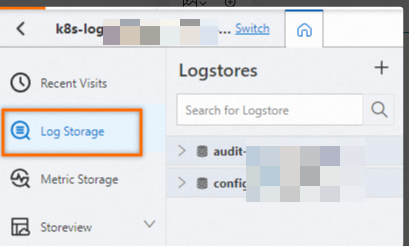
Verify that the log data is uploaded. In the Logstore, click Consumption Preview to quickly view the logs. For more information, see Query and analysis quick start.
Query and analyze the logs.
ImportantAfter logs are uploaded to a Logstore, you must create an index before you can query and analyze them. For information about index configuration, see Create indexes.
Enter a query statement, and then click Last 15 Minutes to specify a time range. The following is a sample log:
level: ERROR
location: com.aliyun.openservices.log.log4j.example.Log4jAppenderExample.main(Log4jAppenderExample.java:16)
message: error log
throwable: java.lang.RuntimeException: xxx
thread: main
time: 2018-01-02T03:15+0000
log: 0 [main] ERROR com.aliyun.openservices.log.log4j.example.Log4jAppenderExample - error log
__source__: xxx
__topic__: yyy
Query and analyze logs on the Logstore page.
Enter a query statement to view, search for, and filter log data. For more information, see Query and analyze logs. Examples:
Query the top three locations with the most errors in the last hour.
level: ERROR | select location ,count(*) as count GROUP BY location ORDER BY count DESC LIMIT 3Count the number of logs for each log level in the last 15 minutes.
| select level ,count(*) as count GROUP BY level ORDER BY count DESC
Troubleshooting
If log collection fails after you configure the Log4j2 appender, check the following common causes.
1. Dependency selection
Spring Boot uses Logback by default. If your application uses Spring Boot, add the aliyun-log-logback-appender dependency instead of the Log4j2 appender. If your application uses Log4j2, use the aliyun-log-log4j2-appender dependency.
2. Endpoint configuration
Make sure that you have configured the correct public endpoint, such as cn-hangzhou.log.aliyuncs.com.
3. AccessKey ID and AccessKey secret permissions
Make sure that the Resource Access Management (RAM) user is granted the AliyunLogFullAccess permission or write permissions on the target LogStore.
4. Project and LogStore names
Make sure that the Project and LogStore names in your configuration match the names shown in the Simple Log Service console.
Related documents
To learn how to use Logtail to collect logs from a server, see Collect text logs from servers. Various plug-ins are available for processing. For more information, see Data parsing plugins.
If the preview page is blank or no data appears on the query page after using Logtail to collect logs, see Troubleshoot Logtail collection errors. Errors such as regex parsing failures, incorrect file paths, or traffic exceeding shard capacity can occur. To view Logtail collection errors, see How do I view Logtail collection errors?. For common data collection errors, see Common collection errors.
For use cases and frequently asked questions (FAQs) about collecting Log4j logs with a Log4j2 appender, see Log4j2 Appender. For earlier versions, see Log4j Appender.
When using a Log4j2 appender to collect Log4j logs, you must configure your
accessKeyIdandaccessKeySecret. For information about how to obtain them, see Create an AccessKey. To configure the Simple Log Service endpoint, see Service endpoint.