Create a Logtail collection configuration in the Simple Log Service console to collect data from Beats and Logstash by using the Lumberjack protocol.
Prerequisites
-
Logtail is installed on your server. Logtail 0.16.9 or later is required for Linux. Logtail 1.0.0.8 or later is required for Windows. Install Logtail on a Linux server or Install Logtail on a Windows server.
-
Data has been collected using Logstash or Beats.
-
To collect data using Logstash, see Logstash-Lumberjack-Output.
-
To collect data using Beats software, see Beats-Lumberjack-Output.
The following example uses PacketBeat to collect local network packets and the Logtail Lumberjack plugin to upload data to Simple Log Service. The PacketBeat output is configured for Logstash:
output.logstash:
  hosts: ["127.0.0.1:5044"]
-
Background information
Logstash and Beats software (MetricBeat, PacketBeat, Winlogbeat, Auditbeat, Filebeat, and Heartbeat) support the Lumberjack protocol. Logtail uses this protocol to upload data from Logstash and Beats to Simple Log Service.
-
Multiple Lumberjack plugins can run on the same Logtail instance, but each must listen on a different port.
-
The Lumberjack plugin supports SSL, which is required for uploading data from Logstash.
Procedure
Log on to the Simple Log Service console.
On the right-side of the page, click Import Data, then select Custom Data Plug-in.
-
Select the destination project and Logstore, and then click Next.
In the Machine Group Configurations step, configure a machine group.
Configure the Scenario and Installation Environment parameters as needed.
ImportantYou must configure the Scenario and Installation Environment parameters regardless of whether a machine group is available. The parameter settings affect subsequent configurations.
Ensure that a machine group is displayed in the Applied Server Groups section, and click Next.
Machine group available
Select a machine group from the Source Machine Group section.
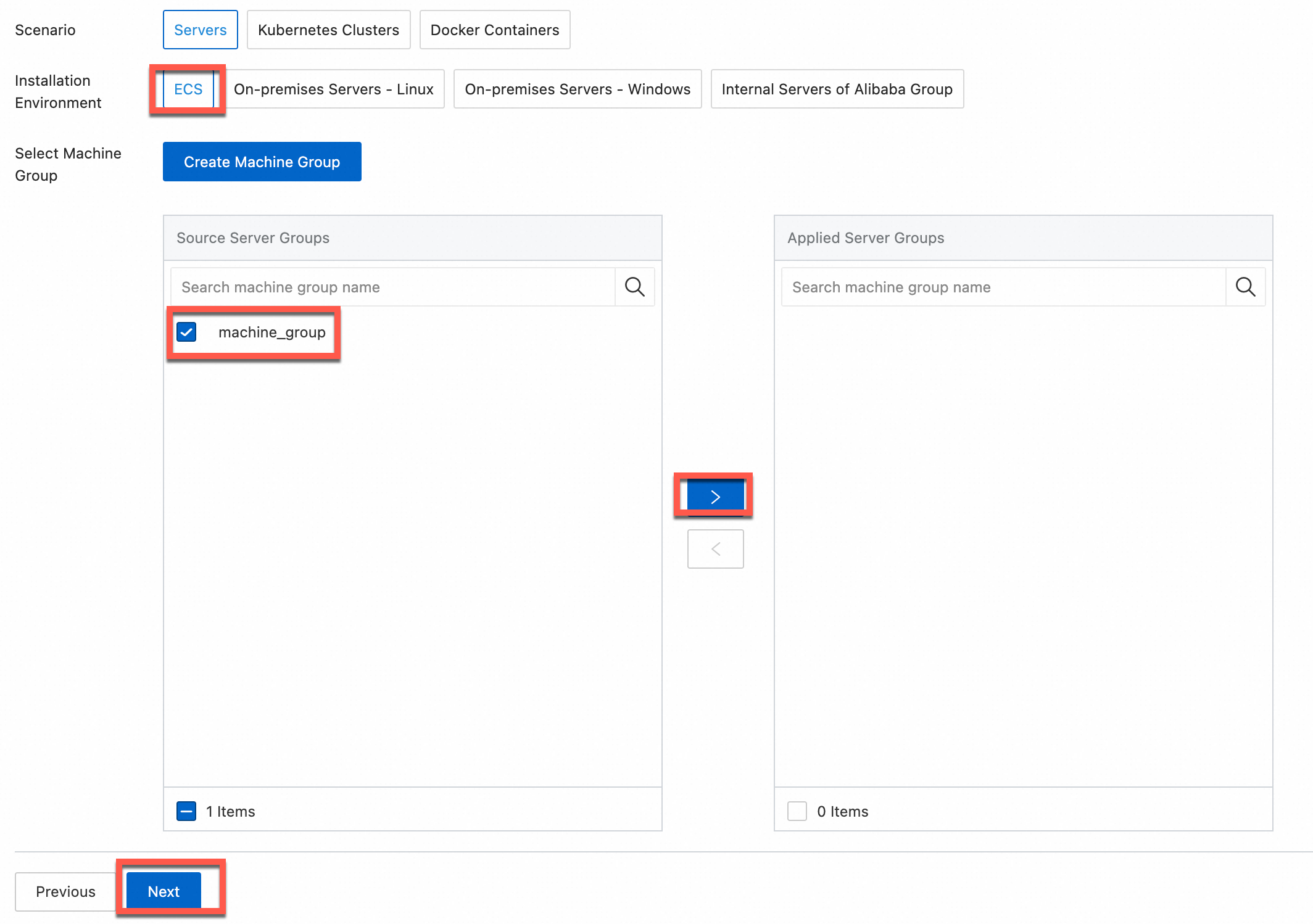
No machine group available
Click Create Machine Group. In the Create Machine Group panel, configure the parameters. You can set the Machine Group Identifier parameter to IP Address or Custom Identifier. For more information, see Create a custom identifier-based machine group or Create an IP address-based machine group.
ImportantIf you apply a machine group immediately after you create the machine group, the heartbeat status of the machine group may be FAIL. This issue occurs because the machine group is not connected to Simple Log Service. To resolve this issue, you can click Automatic Retry. If the issue persists, see What do I do if no heartbeat connections are detected on Logtail?
-
On the Data Source Configuration tab, set Configuration Name and Plugin Configuration, and then click Next.
-
inputs is required and is used to configure the data source settings for the Logtail configuration.
ImportantYou can specify only one type of data source in inputs.
-
processors is optional and is used to configure the data processing settings for the Logtail configuration to parse data. You can specify one or more processing methods.
If your logs cannot be parsed based only on the setting of inputs, you can configure processors in the Plug-in Configuration field to add plugins for data processing. For example, extract fields, extract log time, mask data, and filter logs. For more information, see Logtail plugins for data processing.
Beats and Logstash output data in JSON format. Use the
processor_anchorplugin to parse JSON data.{ "inputs": [ { "detail": { "BindAddress": "0.0.0.0:5044" }, "type": "service_lumberjack" } ], "processors": [ { "detail": { "Anchors": [ { "ExpondJson": true, "FieldType": "json", "Start": "", "Stop": "" } ], "SourceKey": "content" }, "type": "processor_anchor" } ] }Parameter
Type
Required
Description
type
string
Yes
Data source type. Set to service_lumberjack.
BindAddress
string
No
Listening address for the Lumberjack protocol. Default: 127.0.0.1:5044. Set to 0.0.0.0:5044 to allow access from other LAN hosts.
V1
boolean
No
Whether to use the Lumberjack V1 protocol. Default: false. Logstash uses Lumberjack V1.
V2
boolean
No
Whether to use the Lumberjack V2 protocol. Default: true. Beats uses Lumberjack V2.
SSLCA
string
No
Path of the CA-issued signing certificate. Default: empty. Not required for self-signed certificates.
SSLCert
string
No
Path of the SSL certificate. Default: empty.
SSLKey
string
No
Path of the private key for the certificate. Default: empty.
InsecureSkipVerify
boolean
No
Whether to skip SSL verification. Default: false (SSL verification is performed).
-
Create indexes and preview data. Then, click Next. By default, full-text indexing is enabled in Simple Log Service. You can also manually create field indexes for the collected logs or click Automatic Index Generation. Then, Simple Log Service generates field indexes. For more information, see Create indexes.
ImportantIf you want to query all fields in logs, we recommend that you use full-text indexes. If you want to query only specific fields, we recommend that you use field indexes. This helps reduce index traffic. If you want to analyze fields, you must create field indexes. You must include a SELECT statement in your query statement for analysis.
-
Click Query Log to go to the Query & Analysis page for the Logstore.
You may need to wait about one minute for the indexes to become effective. You can then view the collected logs on the Raw Logs tab. For more information, see Quick start for log query and analysis.
Troubleshooting
If no data appears on the preview or query page after you configure Logtail to collect logs, see Troubleshoot Logtail collection failures.
What to do next
After Logtail collects and sends data to Simple Log Service, you can view the data in the console. The following example shows PacketBeat output:
_@metadata_beat:  packetbeat
_@metadata_type:  doc
_@metadata_version:  6.2.4
_@timestamp:  2018-06-05T03:58:42.470Z
__source__:  **.**.**.**
__tag__:__hostname__:  *******
__topic__:
_beat_hostname:  bdbe0b8d53a4
_beat_name:  bdbe0b8d53a4
_beat_version:  6.2.4
_bytes_in:  56
_bytes_out:  56
_client_ip:  192.168.5.2
_icmp_request_code:  0
_icmp_request_message:  EchoRequest(0)
_icmp_request_type:  8
_icmp_response_code:  0
_icmp_response_message:  EchoReply(0)
_icmp_response_type:  0
_icmp_version:  4
_ip:  127.0.0.1
_path:  127.0.0.1
_responsetime:  0
_status:  OK
_type:  icmp