CLB Health Check FAQ
This topic helps you identify and resolve health check issues with Classic Load Balancer (CLB).
This topic answers the following questions:
Category | Common questions |
Principles and configuration | |
Troubleshooting | |
Logging |
How do health checks work?
A health check confirms the status of a backend server by sending periodic requests.
Health checks refer to sending requests periodically to backend servers to check the servers' status.
CLB performs health checks by using the 100.64.0.0/10 CIDR block. You must ensure that your backend servers do not block traffic from this CIDR block. You do not need to add an allow rule to the security group of your ECS instance. However, if you use other security policies like iptables, you must allow this CIDR block. The 100.64.0.0/10 CIDR block is reserved by Alibaba Cloud and poses no security risk.

For more information, see CLB health checks.
What are the recommended health check configurations?
We recommend the following health check configurations.
Parameter | TCP/HTTP/HTTPS listener | UDP listener |
Health check response timeout | 5 seconds | 10 seconds |
Health check interval | 2 seconds | 5 seconds |
Healthy threshold | 3 | 3 |
Unhealthy threshold | 3 | 3 |
To prevent frequent state changes from affecting system availability, a health check changes its status only after it succeeds or fails multiple consecutive times within a time window. For more information, see Configure and manage CLB health checks.
For faster failure detection, you can reduce the response timeout. However, you must ensure that your service can respond within this period.
Can I disable health checks?
Yes. For more information, see Disable health checks.
If you disable health checks, CLB forwards requests to all backend ECS instances, including unhealthy ones, which can cause service disruptions.
If your services are sensitive to load, high-frequency health checks might affect normal service access. You can reduce the impact by decreasing the health check frequency, increasing the interval, or switching to Layer 4 health checks. However, to ensure continuous service availability, we do not recommend disabling health checks.
How do I choose a health check method for a TCP listener?
TCP listeners support HTTP and TCP health check methods:
The TCP method verifies that the server port is active by sending SYN packets to perform a basic three-way handshake.
The HTTP method sends HEAD or GET requests to simulate browser access and check whether the server application is healthy.
TCP health checks consume fewer server resources. If your backend servers are highly sensitive to load and you only need to confirm port availability, choose the TCP method. If you need to more accurately confirm the application's health status, choose the HTTP method.
What happens if I set the weight of an ECS instance to zero?
Setting the weight of a backend ECS instance to 0 stops CLB from forwarding traffic to it, though health checks will continue to pass. This practice is common during planned maintenance, such as reboots or configuration changes.
Default method for HTTP health checks
The HEAD method.
We recommend testing this locally on the ECS instance by sending a HEAD request to its private IP address:
curl -v -0 -I -H "Host:" -X HEAD http://IP:portHealth check source IP addresses
CLB health checks use the 100.64.0.0/10 CIDR block. You must ensure that your backend servers do not block this CIDR block. You do not need to add a specific allow rule in your ECS security group, but if you use other security policies like iptables, you must allow traffic from this block. The 100.64.0.0/10 CIDR block is a reserved address space used by Alibaba Cloud and does not pose a security risk.
When does a CLB health check start?
A CLB health check starts immediately after you configure it for a listener, sending periodic requests at the specified health check interval.
Health check failure due to faulty database
Symptom
An ECS instance hosts two websites:
www.example.com(a static website) andaliyundoc.com(a dynamic website), and both are configured with load balancing. An issue with the backend database service causes a 502 error when you accesswww.example.com.Cause
The health check is configured with the health check domain
aliyundoc.com. A failure in the backend ApsaraDB RDS instance or a self-managed database makesaliyundoc.cominaccessible, which causes the health check to fail for the entire backend server.Solution
Change the health check domain in your CLB listener configuration to a static domain that does not depend on the database, such as
www.example.com.
Connection errors despite successful TCP health checks
Symptom
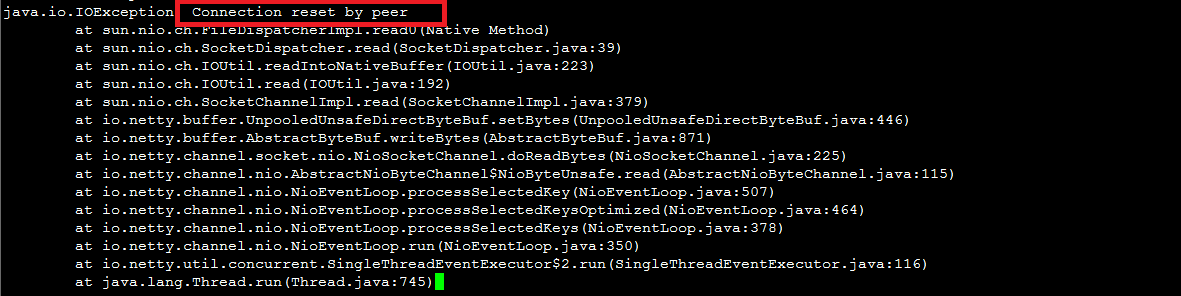
After you configure a TCP listener on CLB, the backend application logs frequently show network connection errors. Packet capture analysis shows that the requests originate from CLB servers, which actively send RST packets to terminate the connection.
Cause
This issue occurs because of the TCP health check mechanism. CLB checks a TCP listener's port health by completing a three-way handshake and then immediately sending an RST packet to close the connection. The process is as follows:
The CLB server sends a SYN packet to the backend server.
The backend server responds with a SYN+ACK packet.
After receiving the response, the CLB server considers the port healthy and marks the health check as successful.
The CLB server sends an RST packet to terminate the connection without sending any application data.
Because the connection is terminated immediately after a successful health check, some application frameworks (like a Java connection pool) might interpret this as an abnormal connection, resulting in errors such as
Connection reset by peer.Solution
Change the health check protocol for the listener from TCP to HTTP.
At the application level, filter out log entries originating from the CLB health check CIDR block (100.64.0.0/10) to ignore these expected errors.
Health check failures on a healthy server
Symptom
The CLB listener's HTTP health checks consistently fail, but testing the backend server directly with a
curlcommand returns a normal status code.Cause
A health check fails if the server's HTTP response code does not match the expected status codes in the listener configuration. For example, if you configure
http_2xxas the expected status code, any non-2xx response from the backend server is considered a health check failure.In a Tengine/Nginx configuration, the
curlcommand runs without issues, but theechocommand matches the default site, causing the test file test.html to return a 404 error.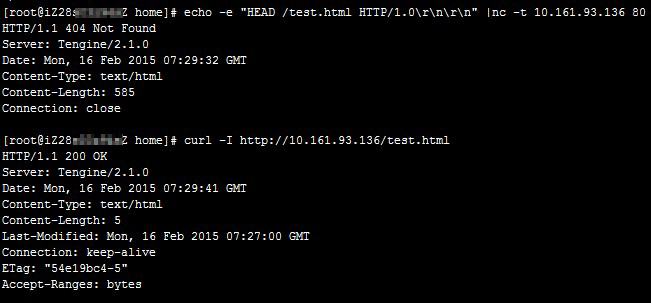
Solution
In your web server's main configuration file, comment out or correctly configure the default virtual host.
Specify a health check domain in the CLB listener's health check configuration to ensure requests are routed to the correct virtual host.
Health check frequency mismatch in logs
The CLB health check service runs on a cluster of nodes to prevent single points of failure. Each node in the cluster performs health checks independently. This architecture increases the total number of health check requests sent to your backend servers. As a result, the frequency of health check entries in your web server logs will be higher than the frequency you configure in the console. This is expected behavior.
How do I separate health check logs from application logs?
Symptom
Health check request logs are mixed with normal application traffic logs, making log files large and difficult to analyze.
Cause
Health checks send HTTP, TCP, or UDP requests to test backend server availability. These requests are logged by the backend service like any other traffic, mixing them with application logs.
Solution
Reduce health check frequency: Increase the health check interval to generate fewer health check log entries.
Use a dedicated health check path (for HTTP health checks): Set the health check path to a dedicated, non-business path, such as
/health. You can then filter your logs by request path to separate health check traffic.Disable health checks (not recommended): If you are certain that health checks are not required for your use case, you can disable them to stop generating health check logs.
How do I troubleshoot a health check failure?
Health checks determine whether backend servers are working correctly. When a health check fails, it often indicates an issue with the backend server, but an incorrect health check configuration can also cause failures. Follow these steps to troubleshoot the issue.
Step 1: Verify that the
100.64.0.0/10CIDR block is not blocked.Ensure that your backend servers do not block the
100.64.0.0/10CIDR block by using iptables or other third-party firewall or security software. CLB uses IP addresses from the100.64.0.0/10internal reserved CIDR block to communicate with backend servers. If this CIDR block is blocked, health check exceptions will occur.Step 2: Probe the backend service based on the listener protocol.
Choose the appropriate probing method based on the listener type:
Layer 4 (TCP/UDP)
In the CLB console, navigate to the listener details page and check the health check configuration. Confirm the Health Check Port, which defaults to the backend server port. Then, from a machine with access to the server, run the
telnetcommand to attempt a connection to the health check port:telnet 172.17.58.131 80Replace
172.17.58.131with the private IP address of the backend server and80with the actual health check port.Normal case: Returns
Connected to xxx.xxx.xxx.xxx, indicating that the specified port on the backend server is working correctly and the health check is normal.Unexpected result: The command fails with a "Connection refused" or "Unable to connect" message. This indicates that no process is listening on that port. Check that your backend service is running and that it is listening on the same port specified in the health check configuration.
If a Layer 4 listener uses the HTTP method for health checks, refer to the troubleshooting steps in the "Layer 7 (HTTP/HTTPS)" tab.
Layer 7 (HTTP/HTTPS)
In the CLB console, go to the listener details page to view the Layer 7 health check configuration and confirm the Health Check Port, Health Check Domain Name, and Health Check Path. Then, from a backend server (for example, a Linux system), run the
ncorcurlcommand to probe the backend HTTP service. The health check path, port, and domain must match the actual configuration on the backend server. Otherwise, health checks will fail.Example using the nc command:
echo -e "HEAD /test.html HTTP/1.0\r\nHost: www.slb-test.com\r\n\r\n" | nc -t 172.17.58.131 80Replace the path, domain, IP, and port with the values from your environment.
Normal case: A status code of
200or another2xx/3xxis returned, indicating that the backend HTTP service is healthy and the health check is successful.Abnormal situation: An error code such as
404is returned, and it does not match the2xx/3xxstatus codes configured for the CLB listener. Check whether the resource at the health check path exists, the health check domain is configured on the backend server, and the health check port is correct.
Missing health check failure logs
Health check logs are generated hourly and are retained for three days by default. If the health status of a CLB listener does not change within this period, no new health check logs are generated. To retain logs longer, you can store health check logs in Object Storage Service (OSS).