This topic describes how to use Application Load Balancer (ALB) to configure end-to-end HTTPS encryption.
Use cases
As more businesses move their operations to the cloud, application security is critical. Industries such as finance and government often have strict requirements for end-to-end encryption. This requires a load balancer to secure traffic not only from the client to the load balancer (frontend) but also from the load balancer to the backend servers (backend).
ALB provides end-to-end HTTPS encryption, securing traffic from the client to the backend server. This enhances the security of your sensitive applications.
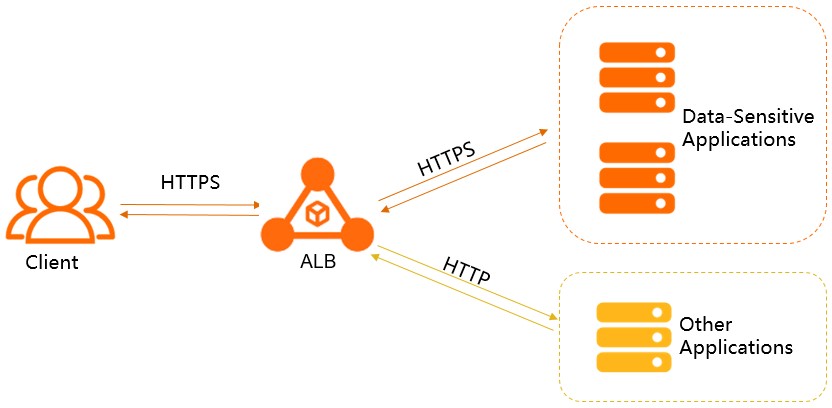
Configure end-to-end HTTPS encryption
Log on to the ALB console.
In the top navigation bar, select the region where your ALB instance is deployed.
In the left-side navigation pane, choose .
On the Server Groups page, click Create Server Group. Configure the parameters based on the following table, leave the rest at their default values, and then click Create.
Parameter
Description
Server Group Type
Select a server group type. In this example, Server is selected.
Server Group Name
Enter a name for the server group.
VPC Resource Group
Select the resource group to which the VPC belongs.
VPC
Select the VPC where the ALB instance is deployed.
Backend Protocol
Select a backend protocol. In this example, HTTPS is selected.
Scheduling Algorithm
Select a scheduling algorithm. In this example, the default value, Weighted Round-robin, is used.
Resource Group
Select the resource group to which the server group belongs.
IP Version
The default setting is IPv4. If IPv6 is enabled for your VPC, you can select IPv4/IPv6 dual-stack.
If you select IPv4, you can add only IPv4 backend servers to the server group.
If you select IPv4/IPv6 dual-stack, you can add both IPv4 and IPv6 backend servers to the server group.
Session Persistence
When enabled, ALB forwards requests from the same client to the same backend server. If disabled, ALB distributes requests among different backend servers. This feature is disabled by default, which is the setting used in this example.
Backend Persistent Connection
When enabled, ALB maintains persistent TCP connections with backend servers. This reduces TCP handshakes and server load. This feature is enabled by default.
Health Check
This example uses the default setting, which enables health checks.
Health Check Settings
The default settings are used in this example. For more information, see Create and manage server groups.
On the Server Groups page, find the server group that you created and click Modify Backend Server in the Actions column.
On the Backend Servers tab, click Add Backend Server.
In the Add Backend Server panel, select a backend server type, select the servers to add, and then click Next.
Set the server port to 443, use the default weight, and then click OK.
Create an HTTPS listener. For more information, see Add an HTTPS listener.
NoteIn the Server Group wizard, select the server group you just created.