Alibaba Cloud provides elastic IP addresses (EIPs) that are protected by Anti-DDoS (Enhanced). EIPs protected by Anti-DDoS (Enhanced) can mitigate DDoS attacks at the Tbit/s level, and are ideal for scenarios that require high security and low latency, such as large-scale gaming and major livestreaming activities. This topic describes how to associate an EIP protected by Anti-DDoS (Enhanced) with an Application Load Balancer (ALB) instance. This way, the ALB instance can access the Internet by using the EIP.
Introduction to EIPs protected by Anti-DDoS (Enhanced)
Alibaba Cloud provides EIPs that are protected by Anti-DDoS (Enhanced). You can purchase EIPs that are protected by Anti-DDoS (Enhanced) in the EIP console. EIPs protected by Anti-DDoS (Enhanced) can mitigate DDoS attacks at the Tbit/s level. If you use EIPs protected by Anti-DDoS (Enhanced), you do not need to perform additional configurations or change the IP address that is used by your ALB instance to provide services. For more information, see Anti-DDoS (Enhanced) EIP.
Limits
The ALB instance and the EIPs protected by Anti-DDoS (Enhanced) must belong to the same region.
Anti-DDoS (Enhanced) EIP limitations
Only pays-as-you-go EIPs of the BGP (Multi-ISP) line type support Anti-DDoS (Enhanced) protection.
You can only specify an IP address pool with Anti-DDoS (Enhanced) protection to create Anti-DDoS (Enhanced) EIPs from the IP address pool.
Regions where Anti-DDoS (Enhanced) EIPs are available:
Anti-DDoS (Enhanced) EIP
Area
Region
China
China (Beijing), China (Zhangjiakou), China (Hangzhou), China (Shanghai), China (Hong Kong)
Asia Pacific
Philippines (Manila), Japan (Tokyo), Singapore, Malaysia (Kuala Lumpur), Indonesia (Jakarta)
Europe and Americas
US (Virginia), US (Silicon Valley), Germany (Frankfurt), UK (London)
Anti-DDoS (Enhanced) IP address pool
Area
Region
China
China (Hong Kong)
Asia Pacific
Philippines (Manila), Japan (Tokyo), Singapore, Malaysia (Kuala Lumpur), Indonesia (Jakarta)
Europe and Americas
US (Virginia), US (Silicon Valley), Germany (Frankfurt), UK (London)
Limits on associating EIPs protected by Anti-DDoS Pro/Premium with ALB instances
You must specify an EIP that is protected by Anti-DDoS Pro/Premium for each zone of the ALB instance.
The EIP protected by Anti-DDoS Pro/Premium that you want to associate with an ALB instance cannot be associated with an Internet Shared Bandwidth instance. After you associate an EIP protected by Anti-DDoS Pro/Premium with an ALB instance, you can associate the ALB instance with an Internet Shared Bandwidth instance in the ALB console. Only Internet Shared Bandwidth instances that use BGP (Multi-ISP) lines are supported.
Billing rules
After you associate an EIP protected by Anti-DDoS Pro/Premium with an ALB instance, you are charged a security protection fee by Anti-DDoS.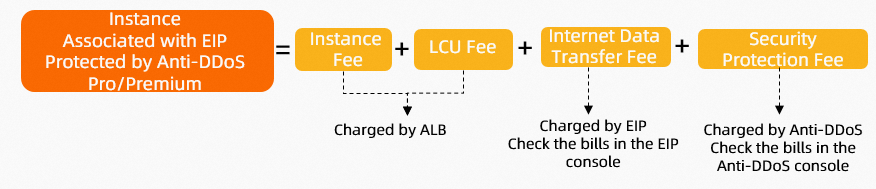
Billable item | Calculation formula | References |
Instance fee |
| |
Load Balancer Capacity Unit (LCU) fee |
| |
Internet data transfer fee | You are not charged Internet data transfer fees if you use internal-facing ALB instances. You are charged Internet data transfer fees only if you use Internet-facing ALB instances. After you associate an EIP protected by Anti-DDoS Pro/Premium with an ALB instance, you are charged an instance fee and a data transfer fee for the EIP. For more information, see Pricing. | |
Security protection fee | After you associate an EIP protected by Anti-DDoS Pro/Premium with an ALB instance, you are charged a security protection fee. For more information, see Anti-DDoS Native 2.0 (Pay-as-you-go). Warning To purchase an EIP protected by Anti-DDoS Pro/Premium, you must activate pay-as-you-go Anti-DDoS Origin. Pay-as-you-go Anti-DDoS Origin is activated on a monthly basis. You must use the service for at least 30 days before you can disable the service. | |
Prerequisites
A virtual private cloud (VPC) named VPC1 is created. For more information, see Create a VPC.
A virtual private cloud (VPC) named VPC1 is created. Two Elastic Compute Service (ECS) instances named ECS01 and ECS02 are created in VPC1.
For more information about how to create an ECS instance, see Create an instance by using the wizard.
The following code blocks show how to deploy testing applications on ECS01 and ECS 02.
An ALB server group named RS01 is created and ECS01 and ECS02 are added to the server group as backend servers. For more information, see Create and manage a server group.
If you want to associate the ALB instance with an Internet Shared Bandwidth instance, you must purchase an Internet Shared Bandwidth instance. In this example, an Internet Shared Bandwidth instance that uses BGP (Multi-ISP) lines is purchased. For more information, see Purchase an Internet Shared Bandwidth instance.
Procedure

Step 1: Create an EIP protected by Anti-DDoS Pro/Premium
Before you associate an EIP protected by Anti-DDoS Pro/Premium with an ALB instance, you must purchase an EIP protected by Anti-DDoS Pro/Premium in the EIP console.
Log on to the Elastic IP Addresses console.
On the Elastic IP Addresses page, click Create EIP.
The first time that you purchase an EIP protected by Anti-DDoS Pro/Premium, click Anti-DDoS Origin (pay-as-you-go)
on the Elastic IP page to activate pay-as-you-go Anti-DDoS Origin.
WarningTo purchase an EIP protected by Anti-DDoS Pro/Premium, you must activate pay-as-you-go Anti-DDoS Origin. Pay-as-you-go Anti-DDoS Origin is activated on a monthly basis. You must use the service for at least 30 days before you can disable the service.
After you activate pay-as-you-go Anti-DDoS Origin, you can log on to the Traffic Security console and choose or to view the details of the Anti-DDoS Origin instance.
After Anti-DDoS Origin is activated, configure the EIP based on the following information, click Buy Now, and then complete the payment.
The following table describes the parameters that are relevant to this topic. For more information, see Create an EIP.
Parameter
Description
Billing Method
Select a billing method for the EIP. In this example, Pay-as-you-go is selected.
Region
Select the region where you want to create the EIP.
Make sure that the EIP is deployed in the same region as the ALB instance. In this example, China (Hangzhou) is selected.
Line Type
Select a line type for the EIP. In this example, BGP(Multi ISP) is selected.
Security Protection
Select an edition of Anti-DDoS based on your business requirements. In this example, Anti-DDoS Pro/Premium is selected.
Default: Anti-DDoS Origin Basic, which can mitigate DDoS attacks at up to 5 Gbit/s.
Anti-DDoS Pro/Premium: can mitigate DDoS attacks at the Tbit/s level.
Data Transfer
Select a metering method for data transfer. In this example, Pay-By-Data-Transfer is selected.
Quantity
Select the number of EIPs that you want to purchase. The number of EIPs that you want to purchase must be the same as the number of zones of the ALB instance.
Step 2: Associate EIPs protected by Anti-DDoS Pro/Premium with your ALB instance
New ALB instance
When you purchase an ALB instance, you can associate EIPs protected by Anti-DDoS Pro/Premium with the ALB instance.
Log on to the ALB console.
On the Instances page, click Create ALB.
On the
Application Load Balancer page, configure the following parameters and click Buy Now.
The following section describes the parameters that are relevant to this topic. For more information about the other parameters, see Create an ALB instance.
Network Type: Select Public.
VPC: Select VPC1.
Zone: Select zones and vSwitches, and assign an EIP protected by Anti-DDoS Pro/Premium to each zone.
NoteFor service availability, ALB requires multi-zone deployment in most regions. Select at least two zones as prompted. The number of zones enabled does not affect the fees you are charged.
If no vSwitch is available in a zone, follow the instructions in the ALB console to create a vSwitch.
Configure a listener for the ALB instance. In this example, an HTTP listener is configured and the ALB server group RS01 is selected.
Return to the Instances page. Click Create Listener in the Actions column of the instance that you want to manage.
In the Configure Listener step, configure the parameters and click Next.
The following section describes the parameters that are relevant to this topic. Use default values for the other parameters. For more information, see Add an HTTP listener.
Listener Protocol: Select HTTP.
Listener Port: Enter 80.
In the Server Group step, select RS01 and click Next.
In the Configuration Review step, confirm the configurations and click Submit.
Existing internal-facing ALB instance
If you want to associate EIPs protected by Anti-DDoS Pro/Premium with an internal-facing ALB instance, you can change the network type of the ALB instance, and then assign EIPs protected by Anti-DDoS Pro/Premium to the ALB instance.
Log on to the ALB console.
In the top navigation bar, select the region where the ALB instance is deployed. In this example, China (Hangzhou) is selected.
On the Instances page, find the internal-facing ALB instance that you want to manage and click the instance ID.
On the Instance Details tab, find Network Type in the Basic Information section, and click Change Network Type on the right side of the private IPv4 address.
In the Change Network Type dialog box, select the EIP protected by Anti-DDoS Pro/Premium that is created in Step 1: Create an EIP protected by Anti-DDoS Pro/Premium from the Assign EIP drop-down list. After you assign an EIP protected by Anti-DDoS Pro/Premium to each zone, click OK.
Existing Internet-facing ALB instance
If EIPs protected by Anti-DDoS Origin Basic are associated with your Internet-facing ALB instance, and you want to associate EIPs protected by Anti-DDoS Pro/Premium with the ALB instance, perform the following steps:
Change the network type of the ALB instance from Internet-facing to internal-facing.
Change the network type again and assign EIPs protected by Anti-DDoS Pro/Premium to the internal-facing ALB instance.
By default, a new Internet-facing ALB instance is associated with pay-as-you-go EIPs that use the pay-by-data-transfer metering method. The EIPs use BGP (Multi-ISP) lines and are protected by Anti-DDoS Origin Basic.

Step 1: Change the Internet-facing ALB instance to an internal-facing ALB instance
On the Instances page, find the Internet-facing ALB instance, and then click the instance ID.
On the Instance Details tab, find Network Type in the Basic Information section, and click Change Network Type on the right side of the public IPv4 address.
In the Change Network Type message, confirm the impacts of the change and click OK.
It takes about 1 minute for the change to take effect. When the Network Type parameter on the Instance Details tab displays Private, the network type is changed.
Step 2: Change the internal-facing ALB instance to an Internet-facing ALB instance
On the Instances page, find the internal-facing ALB instance that you want to manage and click the instance ID.
On the Instance Details tab, find Network Type in the Basic Information section, and click Change Network Type on the right side of the private IPv4 address.
In the Change Network Type dialog box, select the EIP protected by Anti-DDoS Pro/Premium that is created in Step 1: Create an EIP protected by Anti-DDoS Pro/Premium from the Assign EIP drop-down list. After you assign an EIP protected by Anti-DDoS Pro/Premium to each zone, click OK.
Step 3: (Optional) Associate the ALB instance with an Internet Shared Bandwidth instance
If you require higher bandwidth, you need to associate the ALB instance with an Internet Shared Bandwidth instance.
On the Instances page, find the instance that you want to manage and associate the ALB instance with an Internet Shared Bandwidth instance by using one of the following methods:
Choose
 > Associate with Internet Shared Bandwidth in the Actions column or click Associate in the Internet Shared Bandwidth column.
Click the ID of the ALB instance that you want to manage. On the Instance Details tab, find the Billing Information section and click Associate with EIP Bandwidth Plan.
In the Associate with EIP Bandwidth Plan dialog box, select an Internet Shared Bandwidth instance and click OK.
Step 4: Add a DNS record
ALB allows you to map common domain names to the public domain name of the ALB instance by using CNAME records. This facilitates access to network resources. For more information, see Configure a CNAME record.
In the left-side navigation pane, choose .
On the Instances page, copy the domain name of the ALB instance.
Create a CNAME record:
Log on to the Alibaba Cloud DNS console.
On the Public Zone page, click Add Zone.
In the Add Zone dialog box, enter your host domain name, then click OK.
ImportantYour host domain name must complete TXT record verification.
In the Operations column of the target domain name, click Settings.
In the Settings panel, configure the following parameters, then click OK.
Parameter
Description
Record Type
Select CNAME from the drop-down list.
Hostname
The prefix of the your domain name.
DNS Query Source
Select Default.
Record Value
Enter the CNAME, which is the domain name of your ALB instance.
TTL
The time-to-live (TTL) of the CNAME record to be cached on the DNS server. In this example, the default value is used.
NoteAfter you create a CNAME record, it immediately takes effect. After you modify a record, the record takes effect based on the TTL of the record. By default, the TTL is 10 minutes.
If the CNAME record that you want to create conflicts with an existing record, specify another domain name. For more instructions, see DNS record conflict rules.
Step 5: Test network connectivity
In this example, an HTTP listener is configured for the ALB instance and the ALB server group RS01 is selected. For more information, see Add an HTTP listener.
After you configure a CNAME record for the ALB instance, you can enter the domain name that is specified in Step 4: Add a DNS record in the browser to check whether the ALB instance can provide Internet-facing services by using the EIPs protected by Anti-DDoS Pro/Premium.
If you refresh the page, requests are switched between ECS01 and ECS02.