All Products
Search
Document Center

ApsaraDB for SelectDB:Connect to an ApsaraDB for SelectDB instance using DMS

Last Updated:Sep 19, 2025

ApsaraDB for SelectDB uses the MySQL network connectivity protocol. You can connect to an ApsaraDB for SelectDB instance using tools that are compatible with the MySQL ecosystem, such as command line interfaces, Java Database Connectivity (JDBC)/Open Database Connectivity (ODBC) drivers, and visualization tools. This topic describes how to connect to an ApsaraDB for SelectDB instance using Data Management (DMS).

Background information

DMS is a graphical data management tool provided by Alibaba Cloud. You can use DMS to manage relational databases and NoSQL databases. DMS supports features such as data management, SQL operations, data import, data export, database cloning, performance optimization, and security audits. You can use DMS to easily manage databases, create databases and tables, and query data online. This enhances data security, improves management efficiency, and clarifies the value of your data.

Prerequisites

  • An ApsaraDB for SelectDB instance is created. For more information, see Create an instance.

  • The password for the admin user of the instance is reset. For more information, see Reset the admin password.

  • The IP addresses of DMS servers are added to the whitelist of the ApsaraDB for SelectDB instance. For more information about the DMS IP address list and how to configure a whitelist, see DMS IP address segments and Configure a whitelist.

Procedure

  1. Log on to the ApsaraDB for SelectDB console.

  2. In the upper-left corner of the page, select the region where the instance is located.

  3. On the Instance List page, click the target Instance ID to go to the Instance Details page.

  4. On the Instance Details page, click Log on with DMS in the upper-right corner.

  5. Configure the following parameters.

    Parameter

    Description

    Database Type

    The default value is SelectDB, which is the type for ApsaraDB for SelectDB instances. You do not need to change this.

    Instance Region

    The region where the current ApsaraDB for SelectDB instance is located. You do not need to change this.

    Note

    To log on to an ApsaraDB for SelectDB instance in another region, select the target region from the drop-down list.

    Instance ID

    The ID of the current ApsaraDB for SelectDB instance. You do not need to change this.

    Note

    To log on to another ApsaraDB for SelectDB instance, select the target instance ID from the drop-down list.

    Database Account

    The account used to log on to the database.

    Database Password

    The password for the database account.

    Remember Password

    Select Remember Password to automatically log on to this ApsaraDB for SelectDB instance next time without entering the account and password.

    Control Mode

    The following control modes are supported:

    • Flexible Management

    • Stable Change

    • Security Collaboration

    For more information, see Control modes.

    Note
    • When you log on to an ApsaraDB for SelectDB instance using DMS for the first time, the control mode is set to Flexible Management by default. After you successfully log on, you can change the control mode by editing the instance. For more information, see Edit an instance and Control modes.

    • After configuring the logon parameters, you can click Test Connection in the lower-left corner. If the connection test fails, check the instance information according to the error message.

  6. Click Logon.

    After you successfully log on, in the navigation pane on the left, double-click the name of the target database to open the SQL Console page. You can then execute SQL statements. For more information, see Create a database and write data.

FAQ

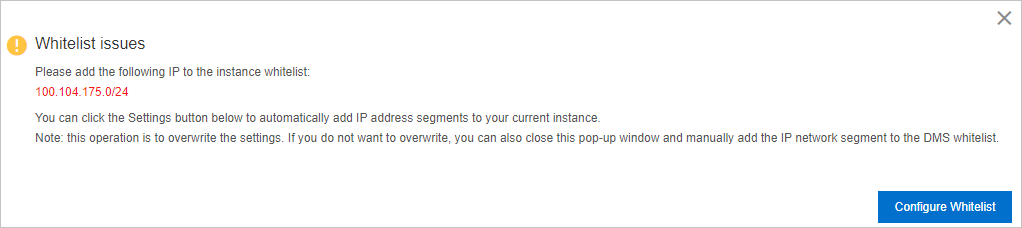
Q: What should I do if a whitelist error message appears when I log on to an ApsaraDB for SelectDB instance using DMS, as shown in the following figure?

设置白名单

A: Click Set Whitelist in the dialog box. The system attempts to automatically add the IP addresses of DMS servers to the database whitelist. If this attempt fails, you must add the IP addresses manually. For more information, see Add DMS IP address segments.