Playbook component action parameters support constants, variables, expressions, and functions. Parameter processing involves extraction, deduplication, and loop execution.
Parameter categories
Parameters fall into two classification dimensions:
By role: playbook input parameters, playbook output parameters, component action input parameters, and component action output parameters.
By source: system parameters and component parameters.
During component action execution, system parameters (default parameters other than component parameters) are accessible from any node.
Component (node) input and output parameters
A node's input can be a fixed (constant) value or the output of an upstream node. To reference an upstream node's output, that node must appear before the current node on the same orchestration path.
In multi-path playbooks, node names must be globally unique.
The following diagram illustrates the rule. Node B can access the outputs of Node A (a direct upstream) and the playbook's input parameters. It cannot access Node D (a different branch) or Node C (not a preceding node of Node B on any path).

System parameters
Playbook-level system parameters
Use ${event.parameter_name} to access these parameters from any node. event is the reserved name of the start node; do not name any component event during playbook orchestration.
| Parameter | Data type | Expression | Description |
|---|---|---|---|
_tenant_id | String | ${event._tenant_id} | Alibaba Cloud account ID that calls the playbook |
_domain_id | String | ${event._domain_id} | Role status of the logged-on user.
|
_trigger_user | String | ${event._trigger_user} | Alibaba Cloud account ID that triggers the playbook. If a RAM user triggers the playbook, the RAM user's ID is returned. |
_region_id | String | ${event._region_id} | Region ID |
_req_uuid | String | ${event._req_uuid} | Unique identifier for the current playbook execution |
parentTaskUuid | String | ${event.parentTaskUuid} | _req_uuid of the parent playbook. Present only when this playbook is called as a child playbook. |
parentTaskName | String | ${event.parentTaskName} | UUID of the parent playbook. Present only when this playbook is called as a child playbook. |
System parameters in component action output
Every node execution produces the following standard output fields. Custom output parameters from the component are stored inside datalist. Use ${node_name.datalist.*} to retrieve all output values.
| Parameter | Data type | Description |
|---|---|---|
datalist | JSONArray | Output parameters produced by the action. Custom component outputs are also stored here. |
total_data_successful | Int | Number of data entries successfully processed |
total_data | Int | Total number of data entries processed |
total_data_with_dup | Int | The volume of data that is successfully processed and deduplicated during the action execution |
total_exe_successful | Int | Number of times the action completed successfully |
total_exe | Int | Total number of times the action ran |
status | Boolean | Execution status: true (success) or false (failure) |
messageForUser | String | Error message shown to the user if the action fails |
message | String | Internal system error message if the action fails |
failed_exe_detail | String | Detailed error information if the action fails |
Parameter formats
Node input parameters support three basic formats — constants, variables, and expressions — and any combination of them.
| Format | Description | Example |
|---|---|---|
| Constant | A fixed string value | Ali |
| Variable | Extracts a value from playbook input parameters or an upstream node's output | ${event.aliuid} |
| Expression | Evaluates an embedded expression or function. Format: <%=expression|function%>. Only Java syntax is supported. For supported functions, see the built-in functions list below. | Expression: <%=2*60*60%>. Function: <%=currentTime()%>. |
| Combination | Mixes constants, variables, and expressions in a single value | Combination: Ali_${event.aliuid}_<%=currentTime()%>_<%=2*60*60%> — at runtime, variables and expressions resolve to their values: Ali_aliuid_<timestamp>_7200. Nesting (expressions can embed variables): <%=formatTimeStamp(secondstamp_add(${DateTime:event.datalist.*.gmt_create},-600L),"yyyy-MM-dd'T'HH:mm:ss.SSSXXX")%> — gets the gmt_create value from ${DateTime:event.datalist.*.gmt_create}, subtracts 600 seconds, and formats the result as a date. |
Built-in functions
| Function | Description | Example | Output |
|---|---|---|---|
currentTime | Returns the current timestamp | <%=currentTime()%> | 2025-06-05 10:30:00 |
secondstamp_add | Adds a specified number of seconds to a timestamp | <%=secondstamp_add(currentTime(),300L)%> | 2025-06-05 10:30:09 |
formatTimeStamp | Formats a timestamp using a specified pattern | <%=formatTimeStamp(currentTime(),"yyyyMMdd")%> | 20250605 |
timestampToseconds | Adds seconds to a timestamp, then converts the result to epoch seconds | <%=timestampToseconds(currentTime(),300L)%> | 1749099848 |
splitStr | Splits a string into a list by a delimiter | <%=splitStr("test,value",",")%> | [test,value] |
parseTimeMs | Parses a formatted time string into milliseconds | <%=parseTimeMs("2025-06-05 10:30:32","yyyy-MM-ddHH:mm:ss")%> | 1749090632000 |
currentTimeToMs | Returns the current timestamp in milliseconds | <%=currentTimeToMs()%> | 1749091369688 |
currentHourToMs | Returns the millisecond timestamp for the start of the current hour | <%=currentHourToMs()%> | 1749088800000 |
currentDayToMs | Returns the millisecond timestamp for the start of the current day | <%=currentDayToMs()%> | 1749052800000 |
parseTimeMsWDefault | Parses a time string to milliseconds. Returns the default value (parameter 2) if the input is empty | <%=parseTimeMsWDefault("2025-06-05 10:30:32",1749091369688L)%> | 1749090632000 |
splitStrToJsonArray | Splits a string into a JSONArray by a delimiter | <%=splitStrToJsonArray("test,value",",")%> | ["test","value"] |
concatListStr | Concatenates list elements with a delimiter. Use with splitStr | <%=concatListStr("|",splitStr("test,value",","))%> | test|value |
substring | Extracts a substring. Parameter 1: source string. Parameter 2: start index. Parameter 3: end index | <%=substring("012345",0,3)%> | 012 |
remainStrStartEnd | Keeps the first N and last M characters, joined by five underscores. Parameter 1: source string. Parameter 2: leading character count. Parameter 3: trailing character count | <%=remainStrStartEnd("012345",2,2)%> | 01_____45 |
toLong | Converts a value to Long type. Parameter 1: input value. Parameter 2: default value if conversion fails | <%=toLong("1234",12L)%> | 1234.0 |
toLowerCase | Converts all English letters in a string to lowercase | <%=toLowerCase("TEST")%> | test |
toUpperCase | Converts all English letters in a string to uppercase | <%=toUpperCase("test")%> | TEST |
toJSONObject | Parses a JSON string into a JSONObject | <%=toJSONObject("{\"name\":\"test\",\"age\":12}")%> | {"name":"test","age":12} |
base64encode | Encodes a string using Base64 | <%=base64encode("abc")%> | YWJj |
base64decode | Decodes a Base64-encoded string | <%=base64decode("YWJj")%> | abc |
replace | Replaces a substring. Parameter 1: source string. Parameter 2: target substring. Parameter 3: replacement string | <%=replace("abc123","abc","aaa")%> | aaa123 |
isNull | Returns true if the value is null or empty | <%=isNull("")%> | true |
Variable parameters
To reference output from a preceding node during playbook component execution, use the variable parameter format. For playbook input parameters, use event as the node name — treat it as the start node's output. Do not name any component event during playbook orchestration.
Only node output parameters can be referenced as variables.
Playbook input parameters equal the start node's output parameters.
The current node's input parameters equal the previous node's output parameters.
Syntax format
Use ${node_name.parameter_path} to retrieve node output parameters. The path follows JSONPath conventions and supports JSON nesting of any depth.
For JSONObject structures, use . to access nested fields. For JSONArray structures, * retrieves all items, and numeric indexes such as [0] retrieve a specific item. The following table uses the action output parameters as an example:
| Type | Syntax | Description |
|---|---|---|
| Get a parameter from JSON | ${node_name.datalist.*.param1.param2}. Start node syntax: ${event.param1.param2}. | Gets the value of param2 under param1. param1 must be a JSONObject. |
| Get all items from a JSON array | ${node_name.datalist.*.param1.*.param2}. Start node syntax: ${event.param1.*.param2}. | Gets param2 from all JSONObjects under param1. param1 must be a JSONArray. |
| Get a single item from a JSON array | ${node_name.datalist.*.param1.[0].param2}. Start node syntax: ${event.param1.[0].param2}. | Gets param2 from the first JSONObject under param1. param1 must be a JSONArray. |
Instead of writing variable syntax manually, use the drop-down list in the input box to select parameters and generate the syntax automatically. This approach is recommended after you finish debugging. For example, in the outputFields configuration, click the field mapping value area to display a data source drop-down menu (such as InputCheck, dataSetFilter, or SiemEventFormat). After you select a data source, the available field paths appear on the right side. Click a target field to generate the variable expression, such as ${InputCheck.datalist.*.records.*.hackerIP}.
Variable parameter examples
The following examples use a node named node1 with this output:
{
  "datalist": [
    {
      "person": {
        "weight": "120",
        "age": "12"
      }
    },
    {
      "person": {
        "weight": "121",
        "age": "13"
      }
    }
  ],
  "total_data_successful": 2,
  "total_data": 2,
  "total_exe_successful": 2,
  "total_exe": 2,
  "total_data_with_dup": 2,
  "status": true
}| Syntax | Description |
|---|---|
${event._req_uuid} | Gets the _req_uuid system parameter from the start node (playbook input). |
${event.parentTaskUuid} | In a child playbook, gets the parent playbook's _req_uuid (present only when called as a child playbook). |
${node1.total_data_successful} | Gets the successful data count from node1. Output: 2. |
${node1.datalist.*.person.age} | Gets all person.age values from node1's datalist. Output: {12,13}. |
${node1.datalist.[0].person.age} | Gets the first person.age value from node1's datalist. Output: 12. |
Data type conversion
During playbook execution, most data is handled as strings. When an action requires a specific type, use ${data_type:data} to convert.
| Target type | Description | Supported source types |
|---|---|---|
Boolean | Converts to true or false | Numeric: 1 → true, all other values → false. String: "true", "1", "Y", "T" → true; "false", "0", "N", "F" → false. Other strings cause an error. |
Long | Converts to a Long integer | Numeric types; strings containing only digits and commas (e.g., 1,000,000) |
Int | Converts to an integer | Numeric types (Long, Int, Double). String types containing only digits and commas (e.g., 1,000,000). |
Double | Converts to a double-precision float | Numeric types (Long, Int, Double). String types containing only digits and commas (e.g., 1,000,000). |
String | Converts to a string | All types |
DateTime | Converts to a date | Numeric types; strings that are numeric (e.g., 1696487400000) or in ISO 8601 format (e.g., 2023-10-05 14:30:00) |
JSONObject | Extracts key-value pairs from a JSONObject into a new JSONObject. Output format: {"fieldname":"fieldValue",...} | JSONObject only |
JSONArray | Extracts key-value pairs from a JSONObject into a JSONArray. Output format: [{"fieldname":"fieldValue",...}] | JSONObject only |
JSONObjectStr | Converts a JSONObject to its string representation | JSONObject |
JSONArrayStr | Converts a JSONArray to its string representation | JSONArray |
Examples:
JSONObject examples: Playbook input: {"src_ip":"127.0.0.1","dst_ip":"127.0.0.2","msg":"hello"}
| Expression | Result |
|---|---|
${JSONObject:event} | The entire event as a JSON string |
${JSONObject:event.src_ip} | {"src_ip":"127.0.0.1"} |
${JSONObject:event.src_ip|msg} | {"src_ip":"127.0.0.1","msg":"hello"} |
${JSONArray:event} | The entire event as a JSONArray |
${JSONArray:event.src_ip} | [{"src_ip":"127.22.22.1"}] |
${JSONArray:event.src_ip|msg} | [{"src_ip":"127.0.0.1","msg":"hello"}] |
JSONArray examples: Playbook input: {"datalist":[{"src_ip":"127.0.0.1","dst_ip":"127.1.0.1","msg":"hello"},{"src_ip":"127.1.0.1","dst_ip":"127.1.0.1","msg":"hello"}]}
| Expression | Result |
|---|---|
${JSONObject:event.datalist.*.src_ip} | Expands to multiple rows; each row: {"src_ip":"127.x.0.1"} |
${JSONObject:event.datalist.*.src_ip|msg} | Expands to multiple rows; each row: {"src_ip":"127.x.0.1","msg":"hello"} |
${JSONArray:event.datalist.*.src_ip} | [{"src_ip":"127.0.0.1"},{"src_ip":"127.1.0.1"}] |
${JSONArray:event.datalist.*.src_ip|msg} | [{"src_ip":"127.0.0.1","msg":"hello"},{"src_ip":"127.1.0.1","msg":"hello"}] |
Parameter processing and node execution flow
Node parameter extraction: After all required upstream nodes finish executing, the system extracts the current node's actual input data based on its input configuration. The extraction process is described in detail below.
Node execution: After the node's input parameters are assembled, the system deduplicates identical parameter sets and then executes the component action.
NoteWhen an action accepts multiple sets of parameter values, the action runs multiple times automatically.
For example, to run the "Purge Malicious File" action on all servers of a compromised application (multiple servers), set the Server IP parameter to
${node1.datalist.*.ip}. The system automatically runs the action on each IP address without requiring a loop.Output result aggregation and deduplication: After the node runs multiple times, the system aggregates and automatically deduplicates the results. An entry is considered a duplicate when all fields are identical.
Before deduplication:
[
    {
        "a":"11",
        "b":"22"
    },
    {
        "a":"11",
        "b":"22"
    },
    {
        "a":"11",
        "b":"33"
    }
]
After deduplication:
[
    {
        "a":"11",
        "b":"22"
    },
    {
        "a":"11",
        "b":"33"
    }
]
Parameter extraction process
Single data source
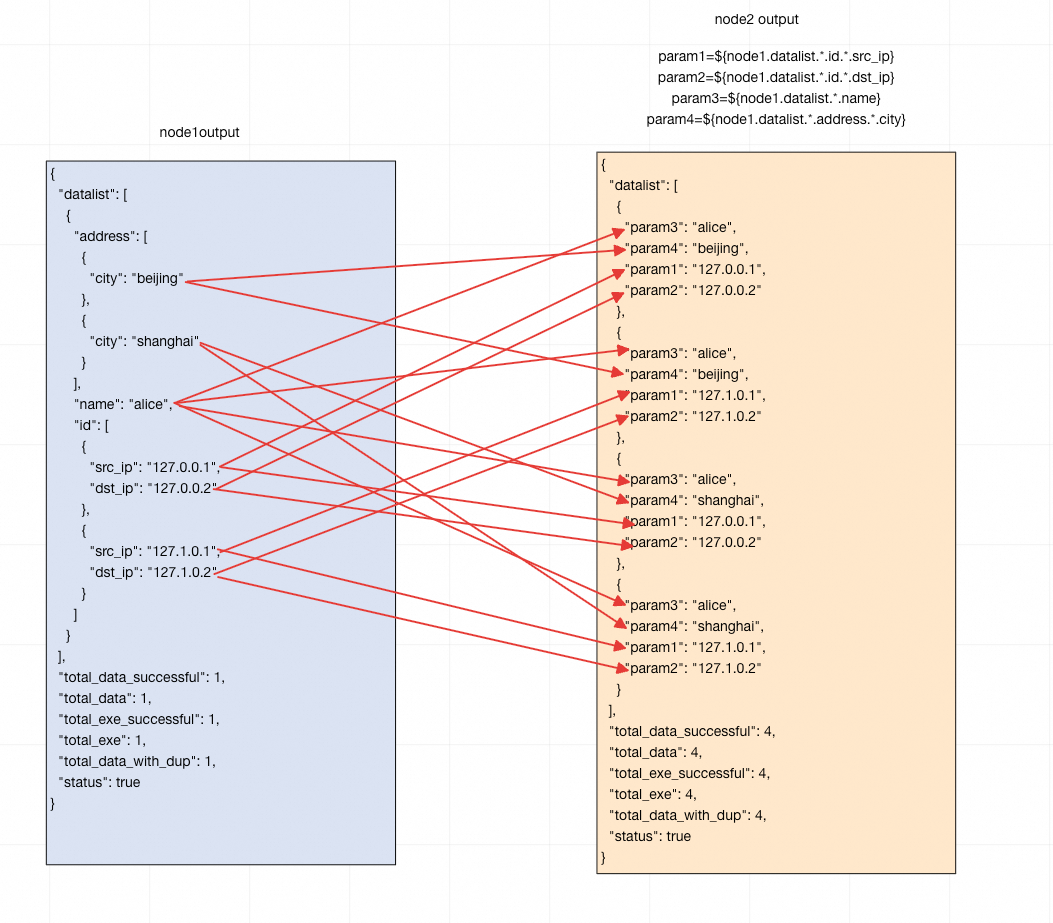
A complex JSON structure of any depth can be viewed as a tree. The principles for extracting parameters from JSON are: sibling relationships at the same depth are preserved, ancestor nodes are expanded, and fields that are neither siblings nor ancestors form a Cartesian product.
Automatically extracts data at any depth. Example:
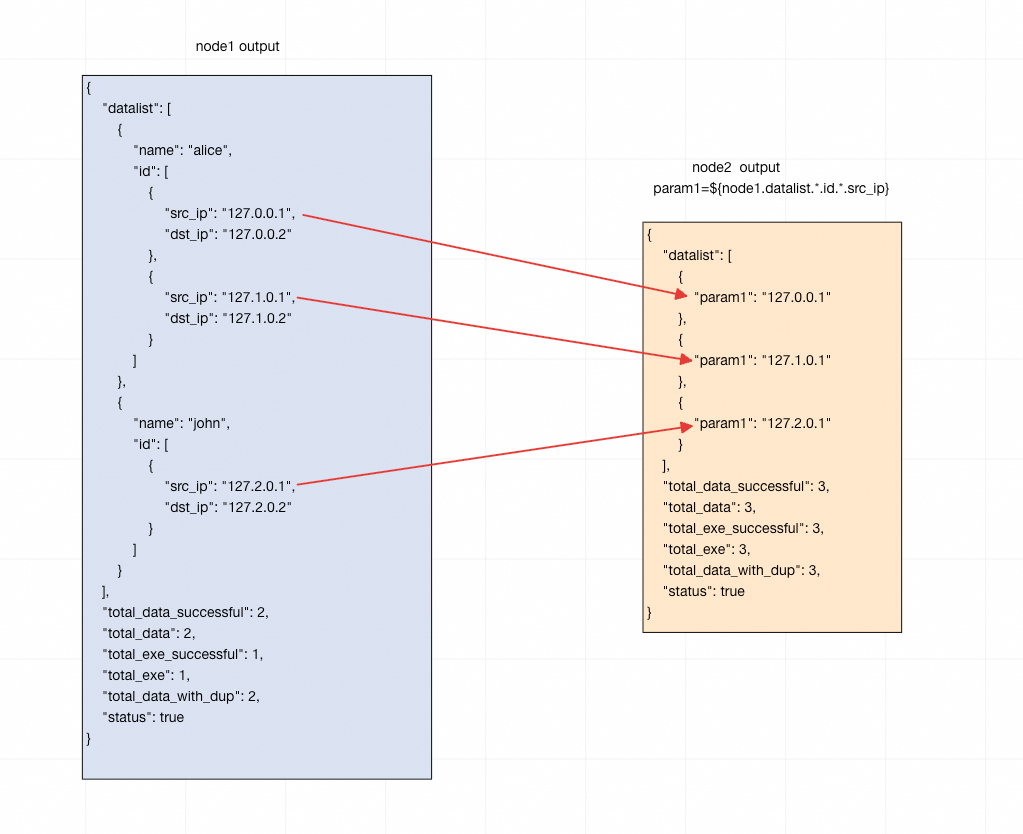
Sibling relationships are preserved: Fields at the same level in the JSON structure remain paired.
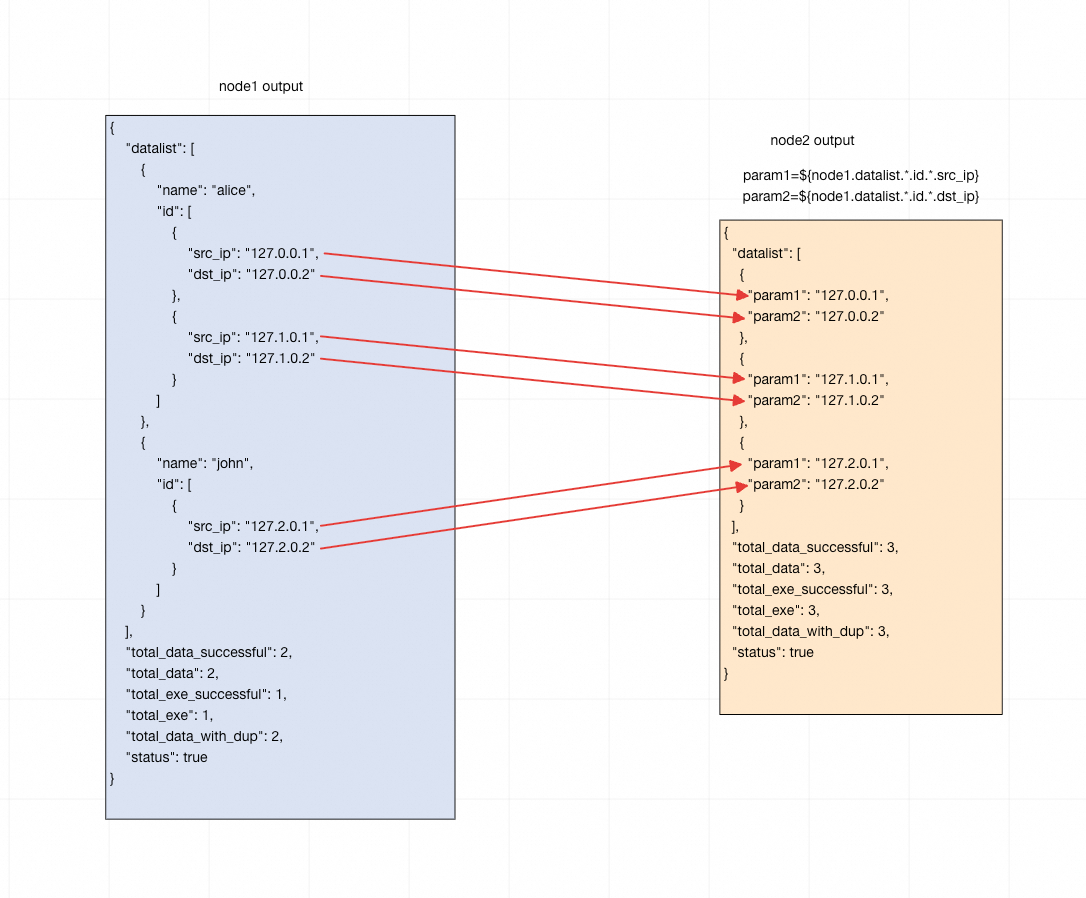
Ancestor nodes are expanded: When a parent node has multiple children, it expands to match the child count.
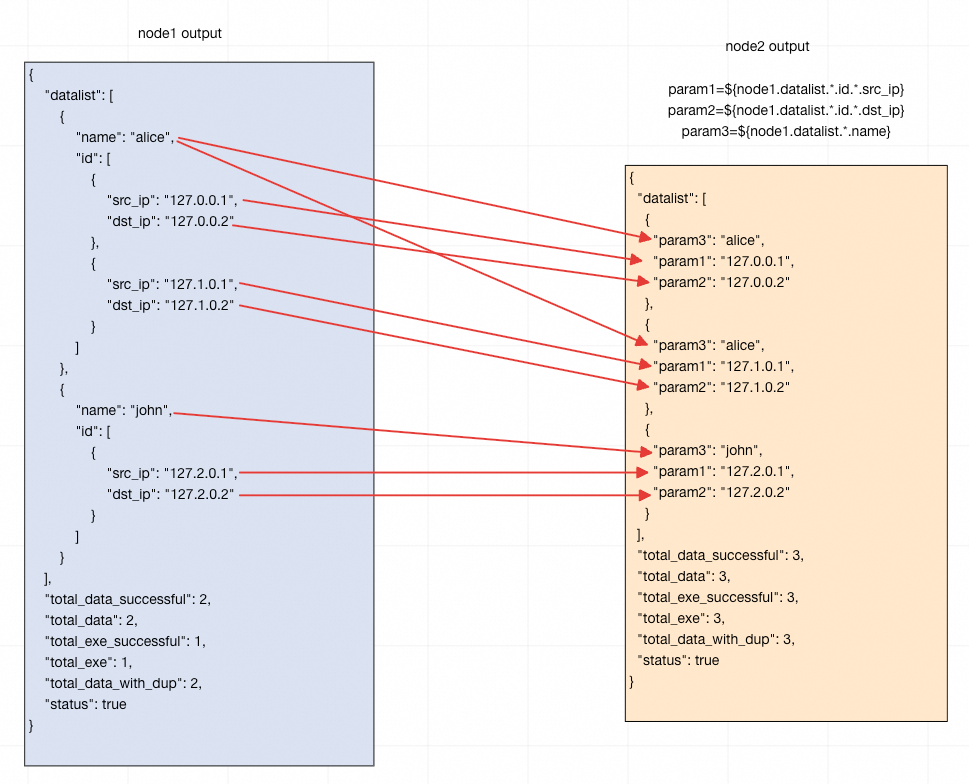
Non-sibling, non-ancestor nodes form a Cartesian product: When two fields have no sibling or ancestor relationship, every combination is produced.
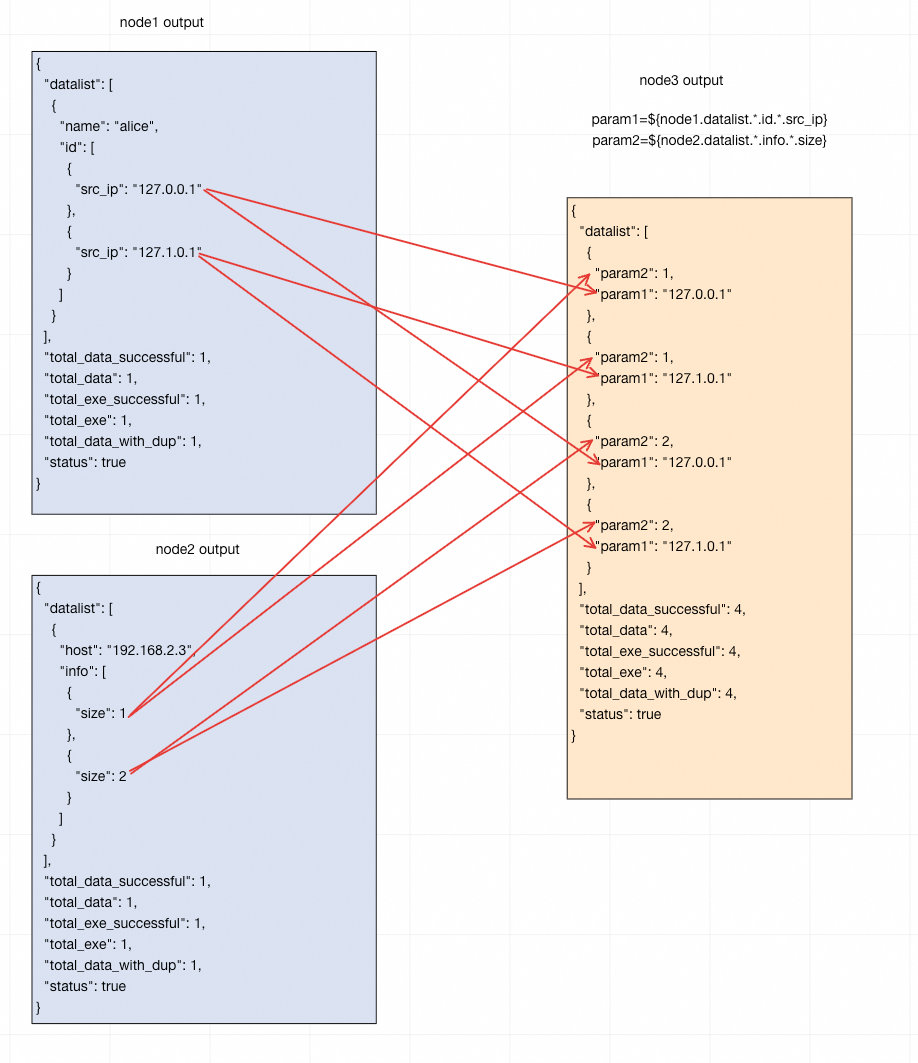
Multiple data sources
Apply a Cartesian product to the extraction results of each individual data source.