Malicious Behavior Defense identifies, blocks, and responds to malicious activities on your servers. Learn how to configure system and custom defense rules to protect your assets.
Scenarios
Malicious Behavior Defense supports system defense rules and custom defense rules.
Custom defense rules take precedence over system defense rules.
|
Rule type |
Description |
|
system defense rule |
System defense rules include two types: Network Threat Prevention and Process Protection.
|
|
custom defense rule |
Create Custom Defense Rule to allow or block specific behaviors. Best practices for custom defense rules in Malicious Behavior Defense. |
Manage system defense rules
Process Defense is available in the Advanced edition of Security Center. The Enterprise and Ultimate editions include all system defense rules.
-
Log on to the Security Center console.
-
In the left-side navigation pane, choose . In the upper-left corner of the console, select the region for your assets: Chinese Mainland or Outside Chinese Mainland.
-
On the Malicious Behavior Defense page, click the System Defense Rule tab to find and manage the target system defense rule.
-
Enable or disable a rule
You can disable a rule that is unsuitable for your business or affects your asset's security score.
ImportantAfter you disable a system defense rule, Security Center stops detecting and reporting its associated security risks. As a result, related alerts will not appear on the Alert page. Proceed with caution.
-
Select one or more target rules.
-
Click Batch Enable or Batch Disable below the rule list.
-
-
Manage hosts
ImportantAfter you remove an asset from a rule, that rule no longer protects the asset. Proceed with caution.
To remove a specific server from the protection scope of Malicious Behavior Defense (for example, if a server is blocked by ransomware decoy protection), go to the Host Rule Management > Malicious Behavior Defense page, select the corresponding defense rule (such as the anti-ransomware rule), and remove the server from the protection scope.
-
Find the system defense rule you want to manage and click Manage Assets in the Actions column.
-
In the Host Management panel, add or remove assets for the rule, and then click OK.
-
-
Create custom defense rules
To prevent false positives for normal business activities, create a custom defense rule to allowlist specific behaviors such as a command line or process hash.
-
Log on to the Security Center console.
-
In the left-side navigation pane, choose . In the upper-left corner of the console, select the region for your assets: Chinese Mainland or Outside Chinese Mainland.
-
On the Malicious Behavior Defense page, click the Custom Defense Rule tab, and then click Create Rule.
-
In the Create Rule panel, select a Rule Type based on your business needs, configure the parameters, set the Action for the rule, and then click Next.
Parameters vary by rule type. Available allowlist rule types:
-
Process hash
-
Command line
-
Process Network
-
Network interception (source IP/domain)
You can configure blacklist or whitelist rules for source IP addresses or domains. When a security alert indicates a reverse shell or persistent malicious outbound connection, you can block specific attack source IPs by creating custom network interception rules. Malicious IPs or domains provided by customer service or security teams can also be added to the blacklist for interception.
For example, after handling a reverse shell alert or a persistent malicious outbound connection alert, if the attacker source IP has been confirmed and the malicious process has been terminated, you can block the IP by performing the following steps:
-
On the Malicious Behavior Defense page, click the Custom Defense Rule tab, and then click Create Rule.
-
Select Network Interception as the rule type, add the confirmed attacker source IP or malicious domain to the blacklist, set the action to Block, and then select the servers where the rule takes effect.
We recommend that you also configure security group rules for protection: create a security group deny rule for the target instance in the ECS console and add the confirmed malicious IP to both the outbound and inbound deny lists to immediately block malicious traffic. For more information, see the security group rule configuration documentation in the ECS documentation.
-
-
File Read/Write
-
Registry Operation
-
Load Dynamic-link Library
-
File Rename
Configuration examples: Best practices for custom defense rules in Malicious Behavior Defense.
-
-
In the Create Rule panel, select the assets to apply the rule to, and then click Complete.
New custom rules are enabled by default. You can edit rules and manage their target servers afterward.
View and handle security alerts
Alert types and handling methods vary by rule type.
Process defense
Security Center generates Precise Defense alerts based on Process Protection rules. To view and handle these alerts:
-
Log on to the Security Center console.
-
In the left-side navigation pane, choose . In the upper-left corner of the console, select the region for your assets: Chinese Mainland or Outside Chinese Mainland.
NoteIf you have enabled Agentic SOC, in the left-side navigation pane, choose . In the upper-left corner of the console, select the region for your assets: Chinese Mainland or Outside Chinese Mainland.
-
On the Alert page, click the CWPP tab, and then click the number under Precise Defense.

-
In the alert list, view the automatically blocked alerts. For false positives, click Details in the Actions column and handle as follows.
Example: handling a false positive for Suspicious Worm Script Behavior.
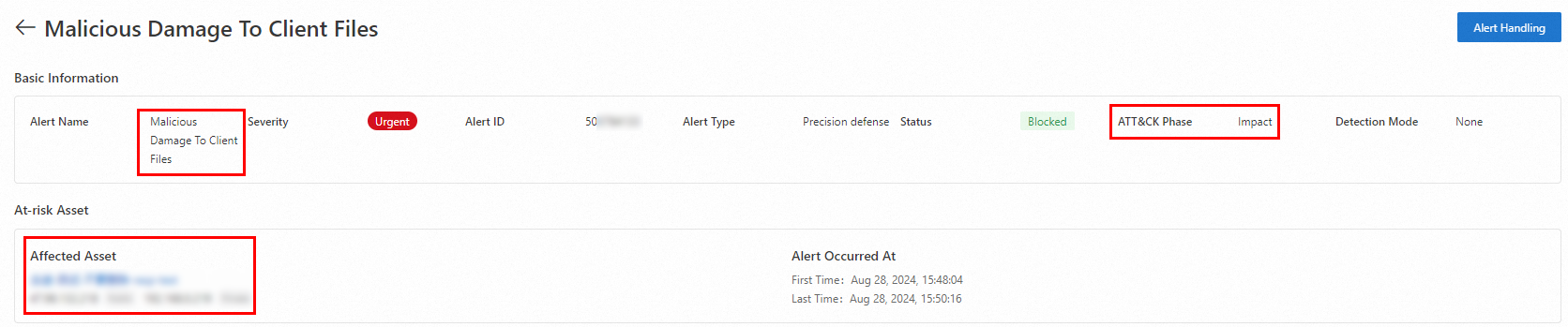
In the alert details panel, record the following information:
-
Record the name of the system defense rule that detected and reported the alert. In this example, the rule is Malicious Destruction of Client Process.
-
Record the alert's ATT&CK Attack Stage. In this example, it is Impact and Damage.
-
Record the name and IP address of the affected asset.
-
-
In the left-side navigation pane, choose . In the upper-left corner of the console, select the region for your assets: Chinese Mainland or Outside Chinese Mainland.
-
In the list of system defense rules, find the rule that reported the alert.
-
To find the rule, enter its name, Suspicious Worm Script Behavior, in the search box.
-
You can also find the rule by clicking Impact and Damage in the ATT&CK Attack Stage menu on the left.
-
-
In the system defense rule list, locate the rule named Suspicious Worm Script Behavior and manage it.
-
To stop alerts from this rule, click the
 icon in the Switch column to disable it.Important
After you disable a system defense rule, Security Center stops detecting and reporting security risks associated with that rule. As a result, related alerts will not appear on the Alert page. Proceed with caution.
-
To handle only this false positive, click Manage Assets in the Actions column and remove the affected asset from the rule's protection list.
Alternatively, handle the false positive on the Alert page. Assess and handle security alerts.
ImportantTo restore protection after handling this alert, add the asset back on the System Defense Rules tab of the Malicious Behavior Defense page.
-
Network defense
Based on Network Threat Prevention rules, Security Center automatically blocks basic network attacks and displays related data on the Security Alerts > Network Defense Alert page. Network defense alerts (formerly Attack Analysis).
-
For newly purchased cloud products, you must wait about 3 hours for Security Center to synchronize network attack data before you can view related attack analysis information.
-
Defensive alerts indicate that attacks are automatically blocked by Security Center. No manual action is required.
-
Log on to the Security Center console.
-
In the left-side navigation pane, choose . In the upper-left corner of the console, select the region for your assets: Chinese Mainland or Outside Chinese Mainland.
NoteIf you have enabled Agentic SOC, in the left-side navigation pane, choose . In the upper-left corner of the console, select the region for your assets: Chinese Mainland or Outside Chinese Mainland.
-
On the Alert page, click the CWPP tab, and then click the number under Network Defense Alert to view related information.

-
(Optional) Use security group rules and network firewall rules together to block malicious addresses for enhanced defense.
-
Block the attacker source IP through security group rules: create a security group deny rule for the target instance in the ECS console and add the confirmed malicious IP to both the outbound and inbound deny lists to immediately block malicious traffic. For more information, see the security group rule configuration documentation in the ECS documentation.
-
Add malicious addresses to the server firewall blacklist: after obtaining malicious IPs or domains from customer service or security alerts, configure blacklist rules on the server's internal firewall (such as iptables, firewalld, or Windows Firewall), or add corresponding network interception rules in the custom defense rules of Security Center.
NoteWhen you receive a ransomware risk warning or other security event notification, you can contact customer service or the technical support team to obtain malicious IP or domain addresses, and then add them to the blacklist for interception by using the preceding methods.
-