Automatically isolate traffic between your local development environment and the Serverless App Engine (SAE) testing environment by simulating a real-world call chain. This accelerates collaborative development and debugging.
Prerequisites
-
Cloud Toolkit is installed and configured in IntelliJ IDEA.
- An Elastic Compute Service (ECS) instance that can be accessed over Secure Shell (SSH) is created in the virtual private cloud (VPC) where your application resides to establish channels between on-premises and cloud applications. For more information, see Create and manage an ECS instance in the console (express version). Important
- The ECS instance and the application must reside in the same VPC.
- The SSH channel requires password logon. Key pair logon is not supported.
- If a proxy is configured for your operating system, the system may fail to establish a channel between on-premises and cloud applications. You must disable the proxy and then try again.
Background information
The following example uses a Spring Cloud microservice application. Without modifying any business code, you set a traffic tag. The end-cloud interconnection feature routes traffic to either the SAE testing environment or your local development environment based on this tag, automatically isolating the traffic.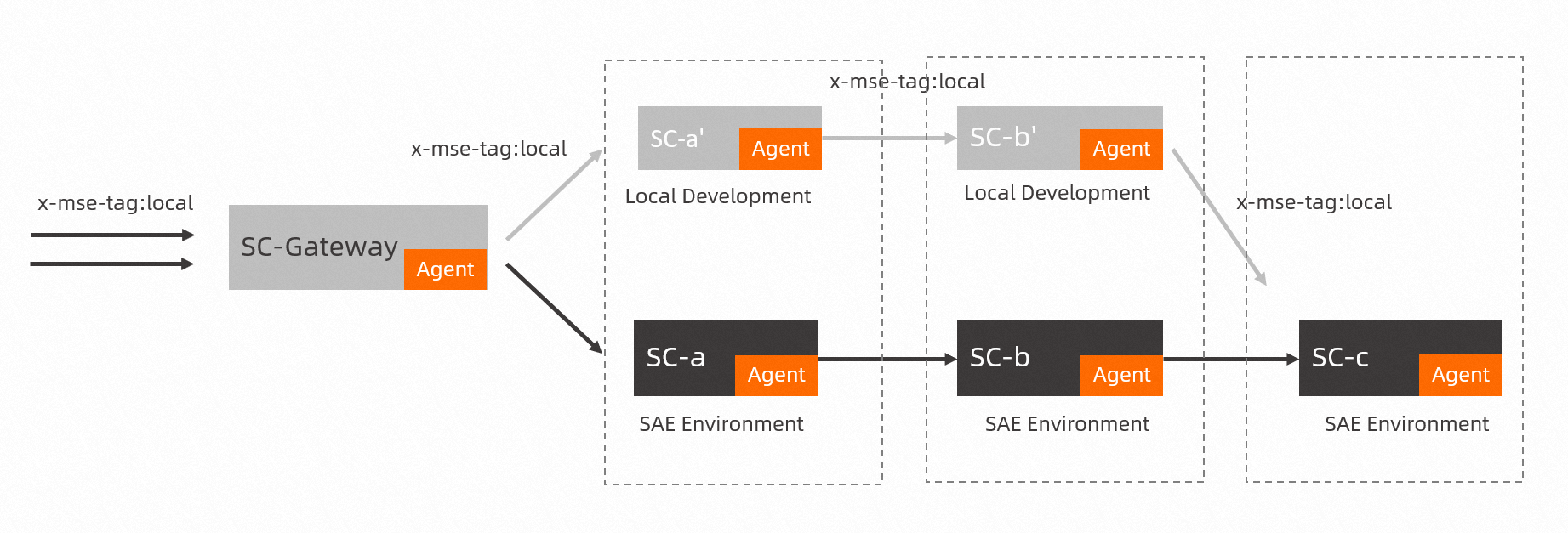
Step 1: Deploy the application to SAE
Deploy the Demo application and name the services spring-cloud-zuul, spring-cloud-a, spring-cloud-b, and spring-cloud-c. For detailed instructions, see Change the service registry of an application to Nacos.
We recommend that you deploy the application using an image or a JAR package and configure the -Dnacos.use.endpoint.parsing.rule=false and -Dnacos.use.cloud.namespace.parsing=false startup parameters to use your purchased service registry.
Step 2: Configure end-cloud interconnection
-
Start IntelliJ IDEA.
-
In the top menu bar, choose .
-
In the Settings dialog box, choose .
-
On the Microservice page, configure the parameters for end-cloud interconnection.
-
Proxy: To use an ECS instance as a proxy, purchase one with a public IP in the same VPC as your SAE application. Then, add it on the Proxy page.
-
Microservice: On the Microservice page, configure the proxy and your MSE service registry.
-
MSE: On the MSE page, configure the parameters.
-
Enter the License Key and App Name.
Log on to the SAE Webshell and run the following command to obtain the License Key and App Name. To access the Webshell, see View the Webshell.
env | grep javaExample output:
JAVA_TOOL_OPTIONS=-javaagent:/home/admin/.opt/ArmsAgent/arms-bootstrap-1.7.0-SNAPSHOT.jar -Darms.licenseKey=iioe7jcnuk@a0bcdaec24f**** -Darms.appId=8641dbc9-8663-4c47-95f7-683fa6dd**** -Darms.agent.env=Serverless -Darms.agent.args= -Dprofiler.micro.service.canary.enable=true -Dprofiler.micro.service.metadata.report.enable=true -Dprofiler.micro.service.http.server.enable=true -Dmsc.appName=cn-shenzhen-test-sc-gateway-****** -Dmsc.licenseKey=iioe7jcnuk@460d62050fa**** -
Set the tag. In the Tag field, enter local.
-
Download the agent to your local machine.
-
-
-
Click Apply, and then click OK.
-
Start your local application to verify the connection.
If the Info dialog box indicates that end-cloud interconnection was enabled successfully, the feature is active.
Step 3: Test traffic routing
For HTTP requests to the cloud-native gateway, add x-mse-tag=[local] to the request header. Traffic then automatically forms a closed loop within the specified environment.
The key x-mse-tag is fixed, and its value must match the environment tag.
After you configure the environment tag, use curl to send a request:
-
Main path:
curl http://47.106.XX.XX:8080/A/a -
Result:
A[10.0.1.160] -> B[10.0.1.161] -> C[10.0.1.162] -
Branch path:
curl http://47.106.XX.XX:8080/A/a \--header 'x-mse-tag: local' -
Result:
A[127.0.0.1] -> B[127.0.0.1] -> C[10.0.1.162]