The timeout parameter controls how long Tair (Redis OSS-Compatible) keeps an idle client connection open before closing it and reclaiming resources.
By default, timeout is 0, which means idle connections are never closed. In production, this creates risk: if client-side exceptions prevent proper connection cleanup, idle connections accumulate. Once the connection pool is exhausted, new requests fail.
Set a non-zero timeout on instances that run core business workloads so Tair can reclaim stale connections before the pool is exhausted.
How idle connection cleanup works
Tair does not close a connection the instant it reaches the timeout threshold. Background tasks periodically scan for idle connections and close them. The scan frequency is controlled by the hz parameter.
A low hz value means scans run less often, introducing a delay between when a connection exceeds the timeout and when it is actually closed. For example, with timeout set to 10 seconds, a connection may remain open for up to 12 seconds.
To reduce this lag, increase hz so background tasks run more frequently.
Set the timeout parameter
Confirm that you have a Tair (Redis OSS-Compatible) or Redis Open-Source Edition instance and permission to modify instance parameters.
Log on to the console and go to the Instances page. In the top navigation bar, select the region where the instance resides, then find the instance and click its ID.
In the left-side navigation pane, click Parameter Settings.
In the parameter list, find the
timeoutparameter and click Modify in the Actions column.-
In the dialog box, set a new value for
timeout.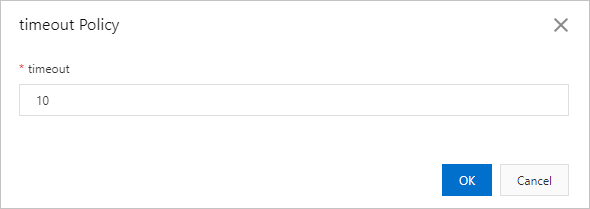
Property
Description
Valid range
0–100000
Unit
Seconds
Default
0 (never close idle connections)
Takes effect
Immediately
Click OK.
Verify the result
The new timeout value takes effect immediately after you save the change. Confirm the update by checking the current value on the Parameter Settings page.
API reference
|
API operation |
Description |
|
Query the configuration and operational parameters of an instance |
|
|
Modify the parameter settings of an instance |