Overview
Supports tracking verification for apps, mini programs, and web applications. You can scan the specified QR code to establish an end-to-end connection. This way, reported logs can be displayed online in real time after an operation is performed offline. Tracking verification allows you to verify the basic information, trigger positions, and reporting time of tracking to help ensure the quality of it. At the same time, tracking verification can verify the basic information of the device, including the device ID, user account, application version number, and channel.
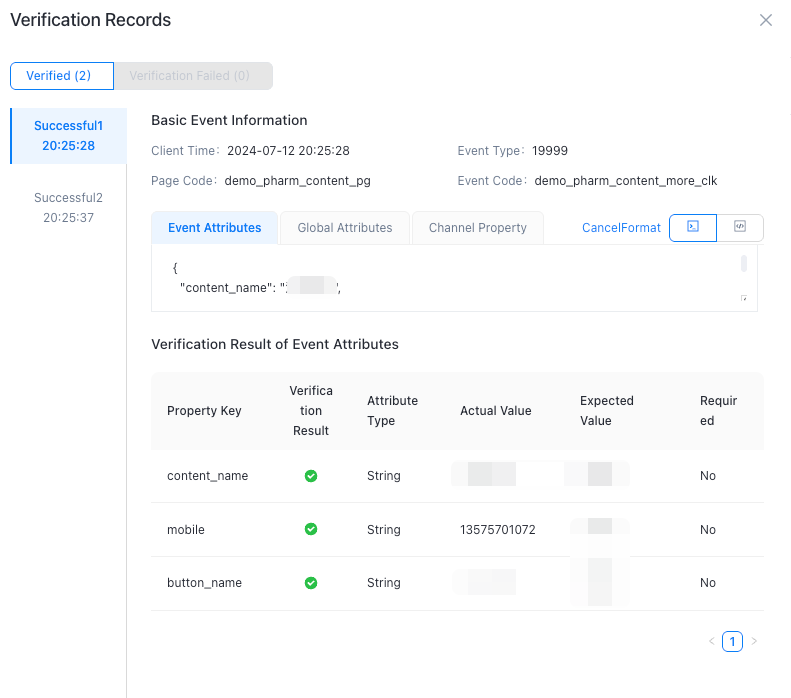
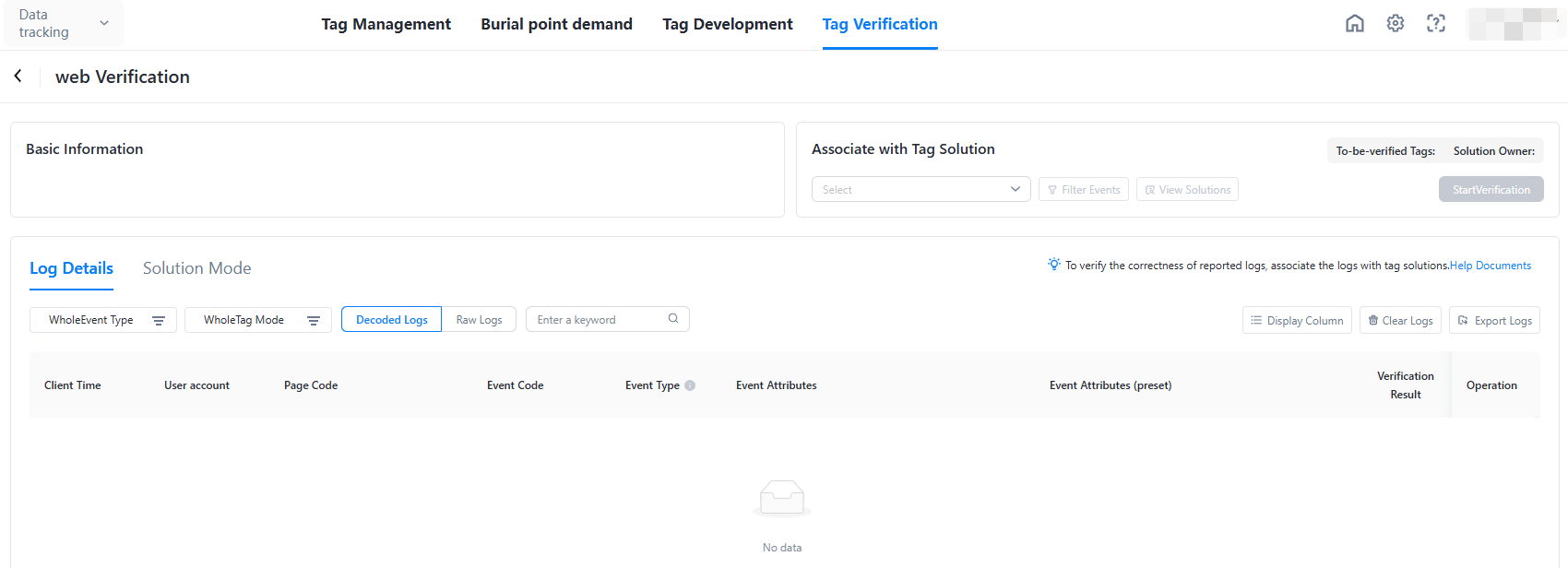
1. In the log details mode, you can view the details of correct or incorrect logs.
2) In the tracking solution mode, you can clearly view which tracking has been verified and which tracking needs to be triggered.
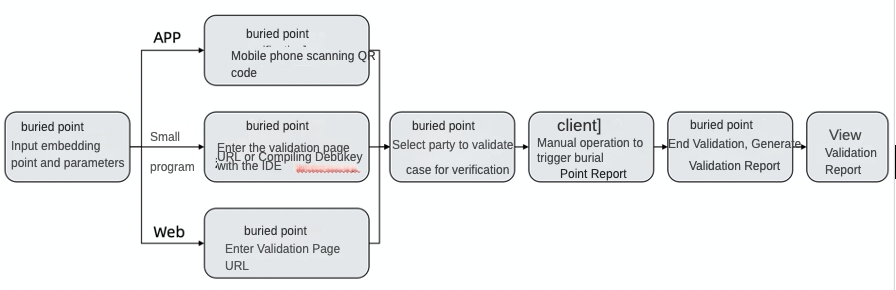
The tracking verification locations are as follows:
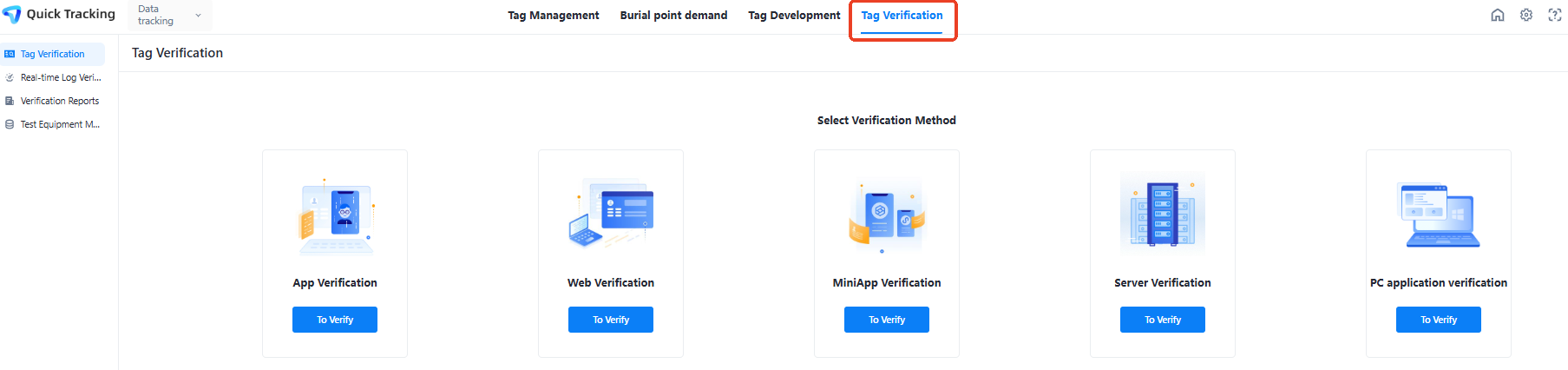
Go to the tracking verification
Android
Configuration evocation codes
When integrating app, find the activity of the response android.intent.action.MAIN (that is, the first Activity that the application can be evoked externally) in the AndroidManifest.xml file, and add the following code so that the application can be evoked by the specified connection scheme.
<intent-filter>
 <action android:name="android.intent.action.VIEW"/>
 <category android:name="android.intent.category.DEFAULT" />
 <category android:name="android.intent.category.BROWSABLE" />
 <data android:scheme="atm. Your appkey" />
</intent-filter>Use a separate intent-filter and associate it with other intent-filters. Do not add the preceding code to other intent-filters.
Please replace "your appkey" with your real appkey, the same below.
In the module, enter "atm. Your appkey", generate a two-dimensional code and use the browser to scan the
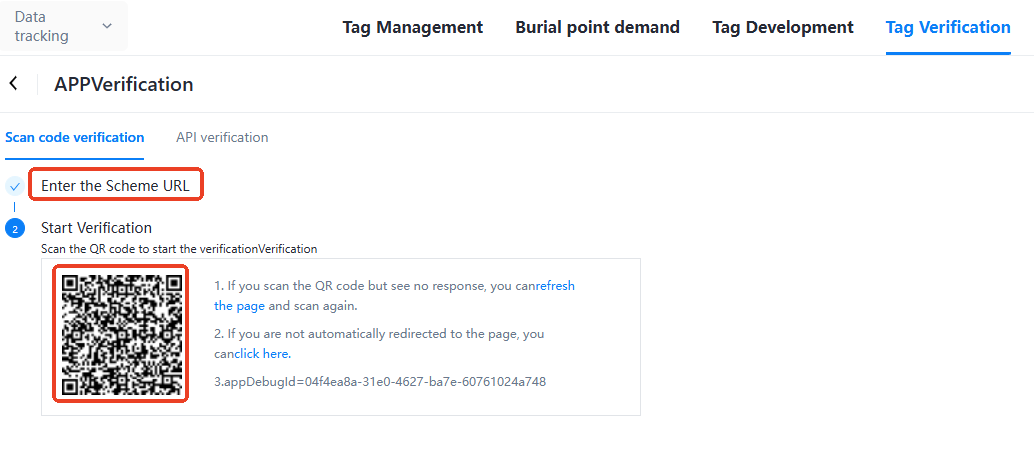
After scanning the code with the browser, a web page will be opened and click "Start Tracking Test (Intranet Valid)".
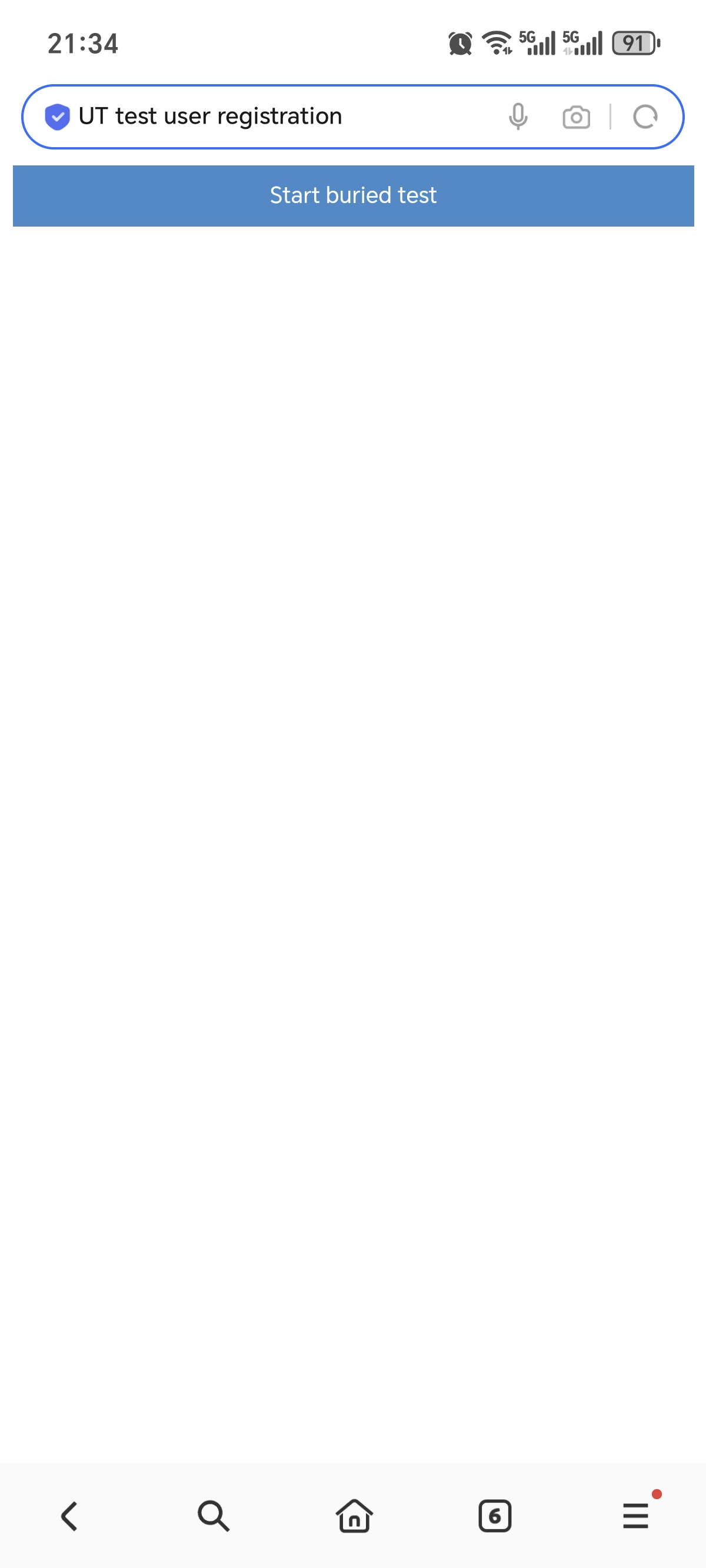
After clicking, the tracking verification module will automatically jump to the following page.
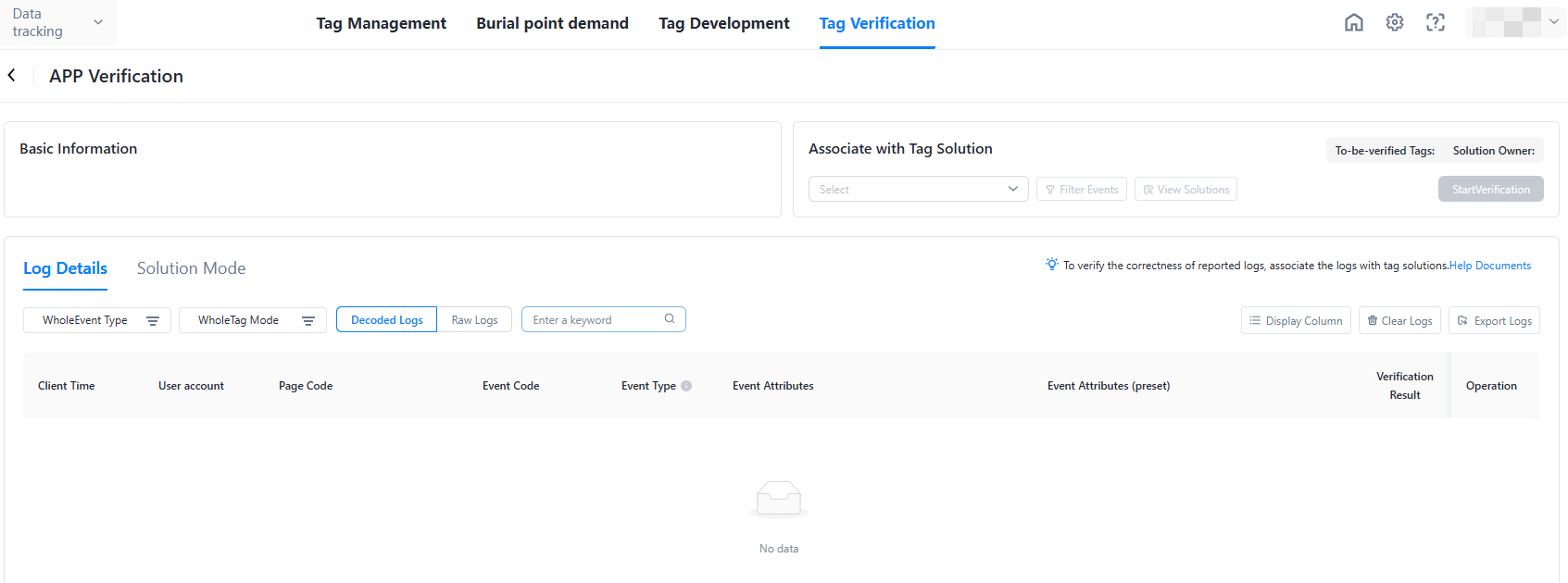
iOS
Configuration evocation codes
Add your URL Scheme to the project. The URL Scheme is located in the project settings target - > tab Info - > URL Types. The filled scheme:atm. Your appkey. Call function [MobClick handleUrl:url] in AppDelegate to receive URL
- (BOOL)application:(UIApplication *)application openURL:(nonnull NSURL *)url options:(nonnull NSDictionary<UIApplicationOpenURLOptionsKey,id> *)options { if ([MobClick handleUrl:url]) { return YES; } return YES; }
In the module, enter "atm. Your appkey", generate a two-dimensional code and use the browser to scan the .
After scanning the code with the browser, a web page will be opened and click "Start Tracking Test (Intranet Valid)".
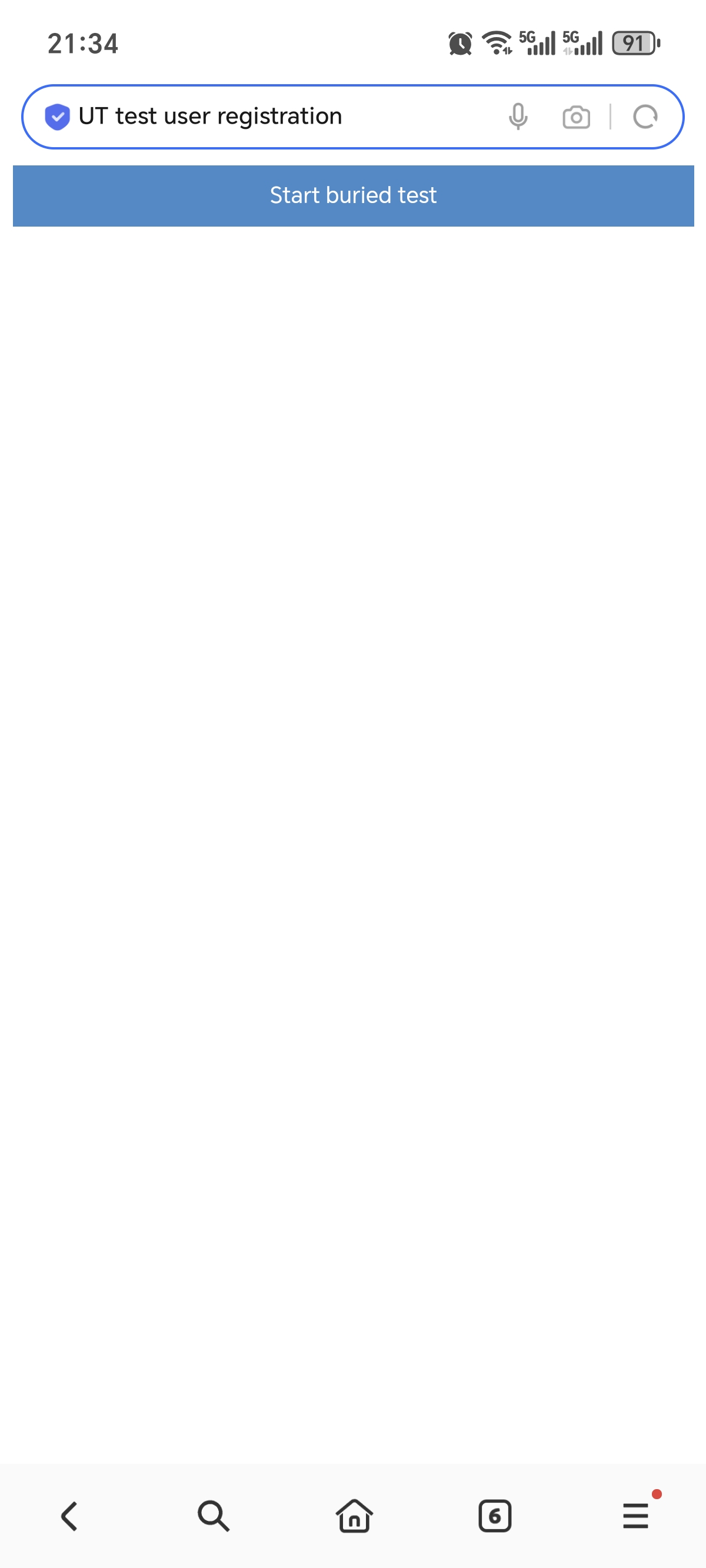
After clicking, the tracking verification module will automatically jump to the following page.
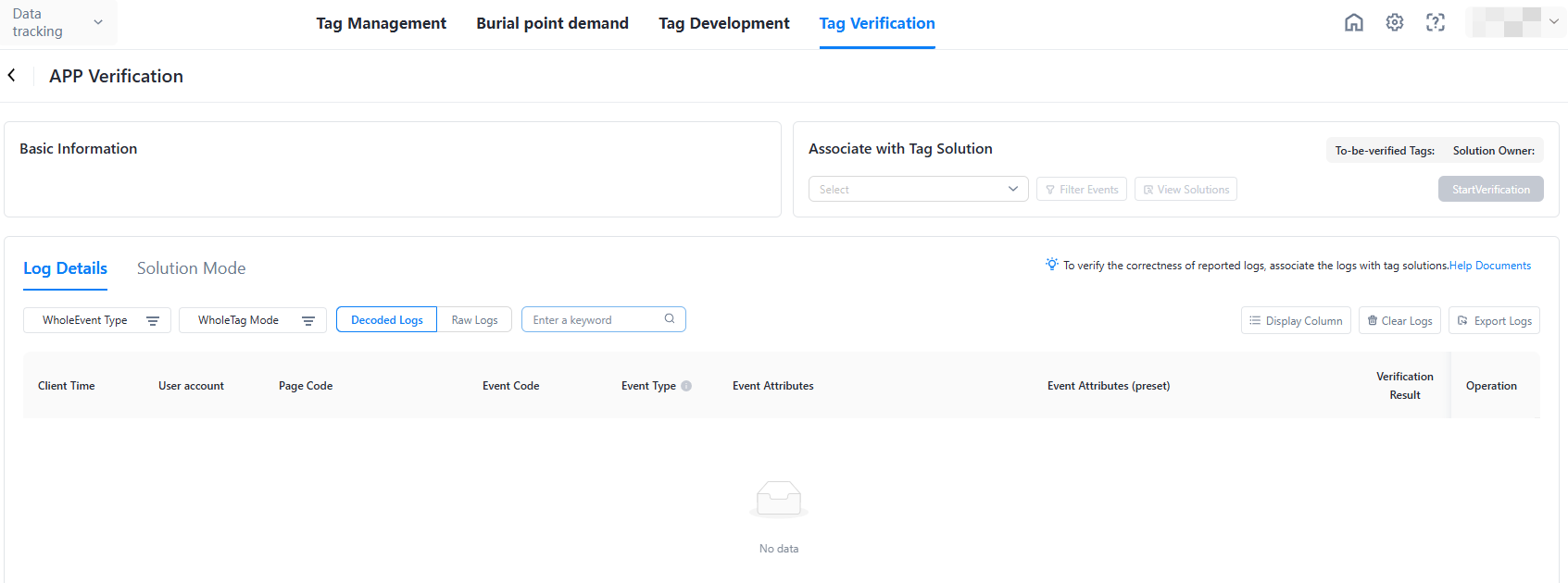
Web
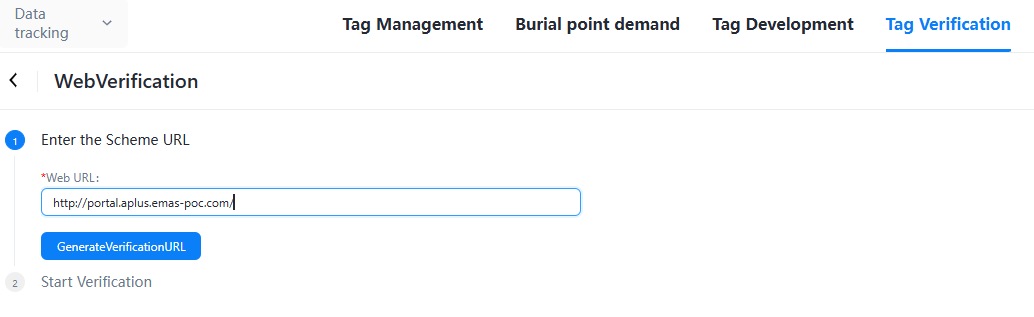
Fill in the web page link to be verified into the input box and click "Generate Verification Address" .
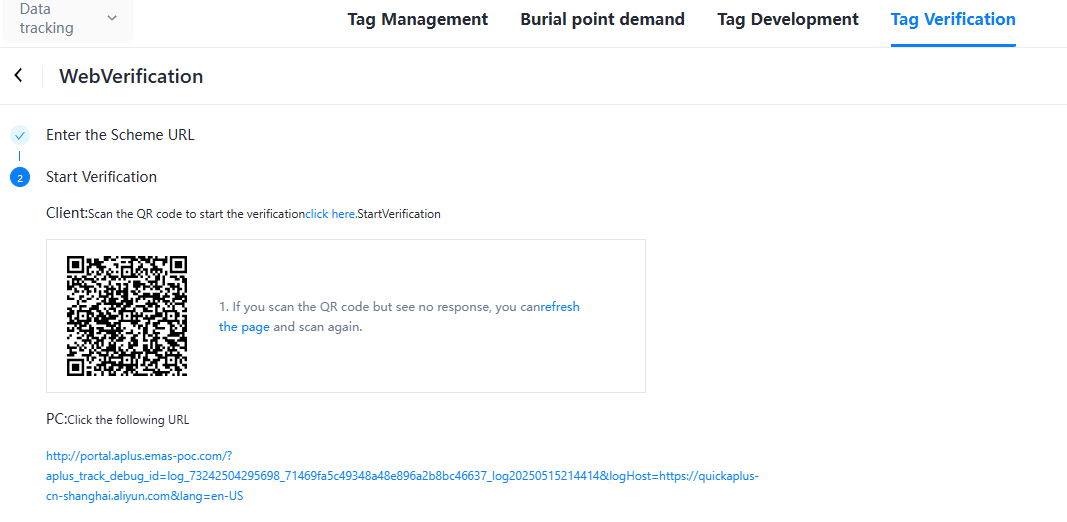
Scan code /click link as required
After clicking the link on the pc side, the browser will open a new tab to display the URL link content you entered. You can "tracking trigger point" here and return to "tracking verification" to view real-time logs.
Mini programs
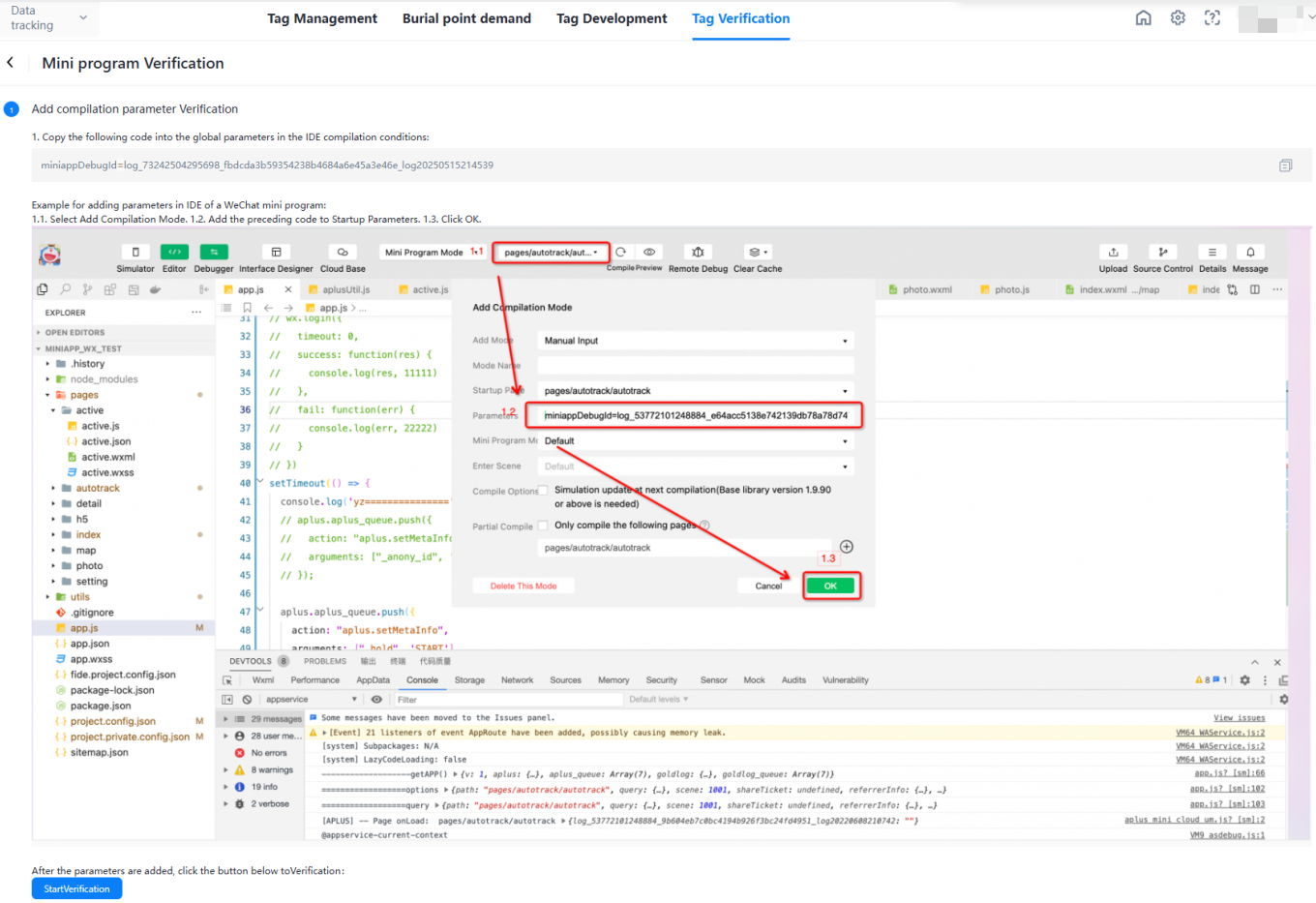
Enter "miniappDebugId" on the page into "Startup Parameters". The following example shows how to add parameters to a WeChat mini program in the IDE:
First, please select 「Add Compilation Mode」 here; Add the above code to 「Startup Parameters」; Click OK.
Log Verification
The corresponding log will be displayed here when the trigger point is Quick Tracking SDK on the page where APP, Web and applet are connected. For more information, see 「Tracking Verification Content」.
Content of tracking verification
Description of tracking trigger reporting logs
The tracking plan is as follows: 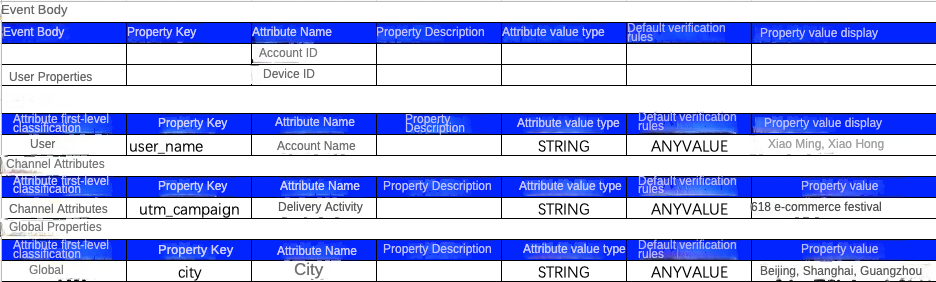
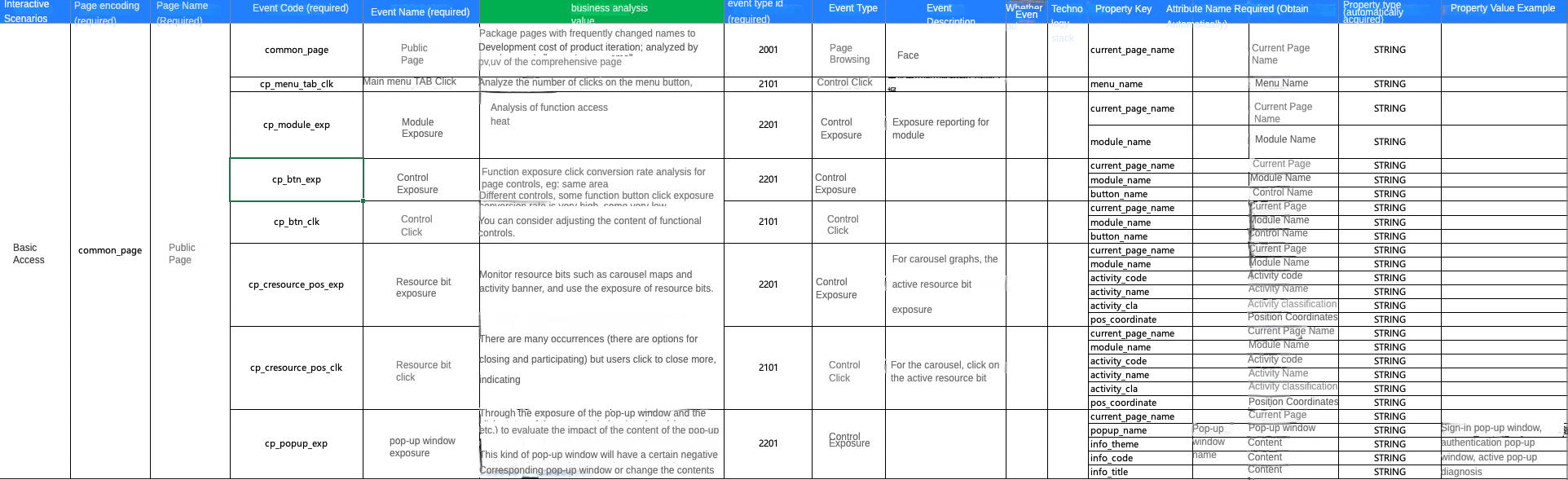
After the tracking is developed, the following log is triggered when the event type is "Click", "Expose", or "Custom":
{ User accounts; Device ID; System attributes; Global attributes; Events: { Event coding; Event attributes; The timestamp of the client. The page where it is located; Application usage duration; // Only the application exit event } }
A log that triggers an event of the type "page browsing" is as follows:
{ User accounts; Device ID; System attributes; Global attributes; Events: { Event code="$$_ page_start" or "$$_ page_end" Event attributes; The timestamp of the client. Page=Page Encoding Page access duration; // Only page exit events } }
The reporting of user properties is reported using a log with an event type of "Custom" event:
{ User accounts; Device ID; System attributes; Global attributes; Events: { Event code =$$_ user_profile Event Attributes=User Attributes The timestamp of the client. } }
User account & device ID verification 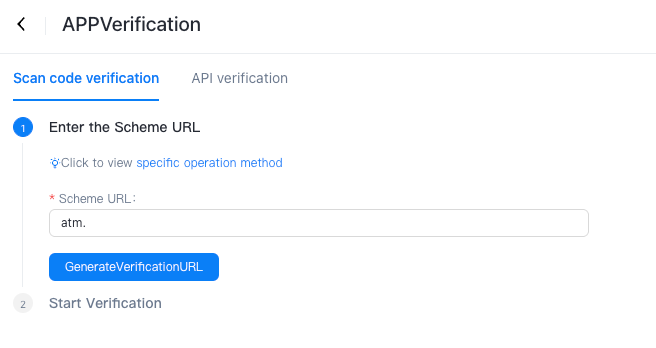
The user account information and device ID information carried in the log are displayed here.
User attribute verification 
Reports an event with the event code "$$_ user_profile" whose event attribute is the user attribute
Global attribute verification
In the global attribute column, the global attribute is carried in each event after setting, unless the clear interface is called.
Page event verification
The page encoding is equal to the event encoding and is consistent with the tracking plan, which is the page event. Description:
Page events on the app side are reported when the page exits.
If the page event of the mini program is automatic tracking, it is reported when the page exits. If it is a manual tracking, it is reported when the page event is called.
The page event code of the web is reported when the page event is called.
Other event verification
The event code is consistent with the page code and the tracking plan.
Preset event verification
The event code of the preset event is fixed. For more information, see the preset event list.
Verification Report
Overview
Generate a verification report for the above-mentioned tracking verification content so that the development team and business personnel can confirm the content.
Actions guide
The verification report will be displayed here in the form of each verification. Click on the specific report to see the complete information of this verification.
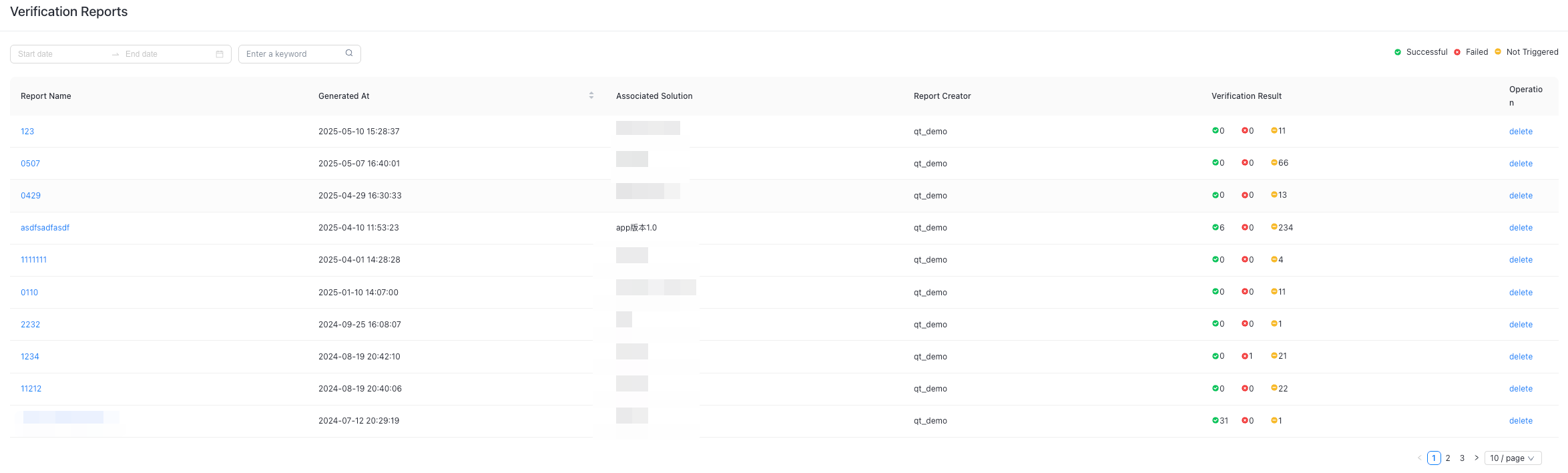
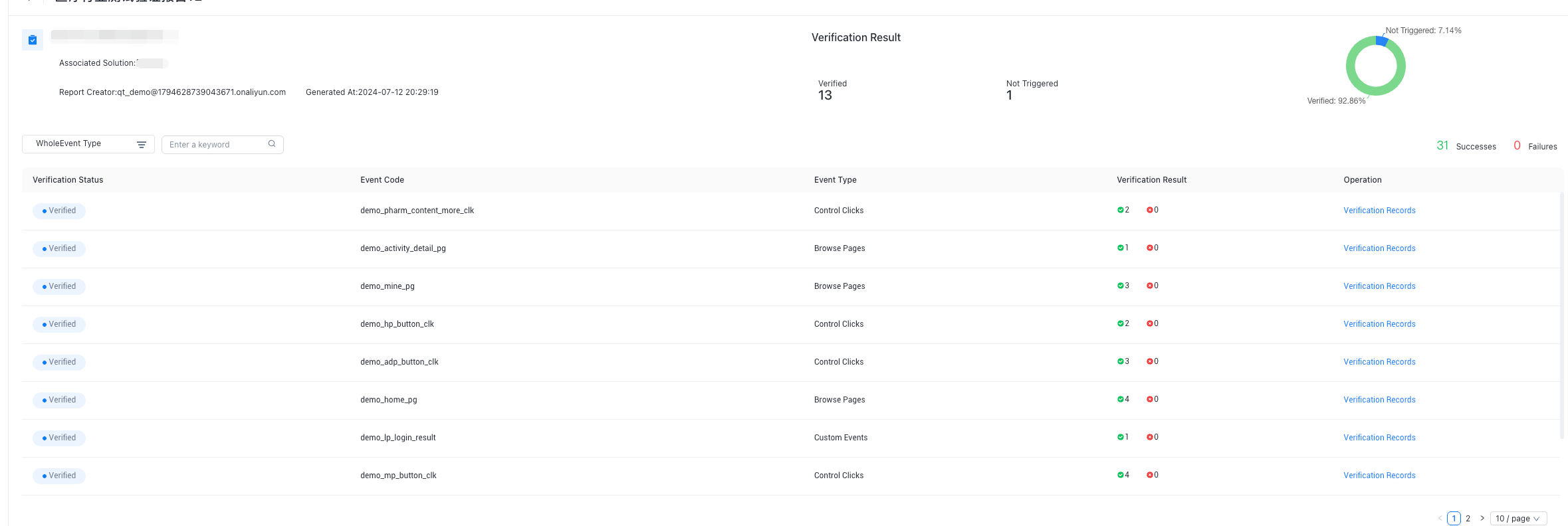
Click the verification record to view detailed information