This document is an introduction to Quick Tracking and technical integration and is not used as a sales basis. For specific products and technical services purchased by an enterprise, the commercial purchase contract shall prevail.
Audience Management lets you define, organize, and activate user segments for analytics and downstream targeting. Use it to build audiences from behavioral rules, user attributes, or uploaded ID lists — then reuse those audiences across Insights analysis and further segmentation.
Audience creation
Overview
An audience is a group of users defined by rules, tags, behaviors, or a file import. Once created, an audience can be used as an analysis object in Insights or as a condition when building another audience.
Creation methods
Two creation methods are available:
Rule creation: Define audiences using a visual rule builder. Combine user tags, behaviors, attributes, and existing audiences with set operations (intersection, union, or difference).
Import creation: Upload a local file containing user IDs. Quick Tracking matches the IDs against existing users and generates the audience from the matched results.
Rule creation
Rule creation lets you build an audience by combining up to four condition types: user tags, existing audiences, user behaviors, and user attributes. Apply intersection, union, or difference operations across conditions — up to 20 custom combination rules are supported. The difference operation subtracts the preceding conditions from the following conditions.
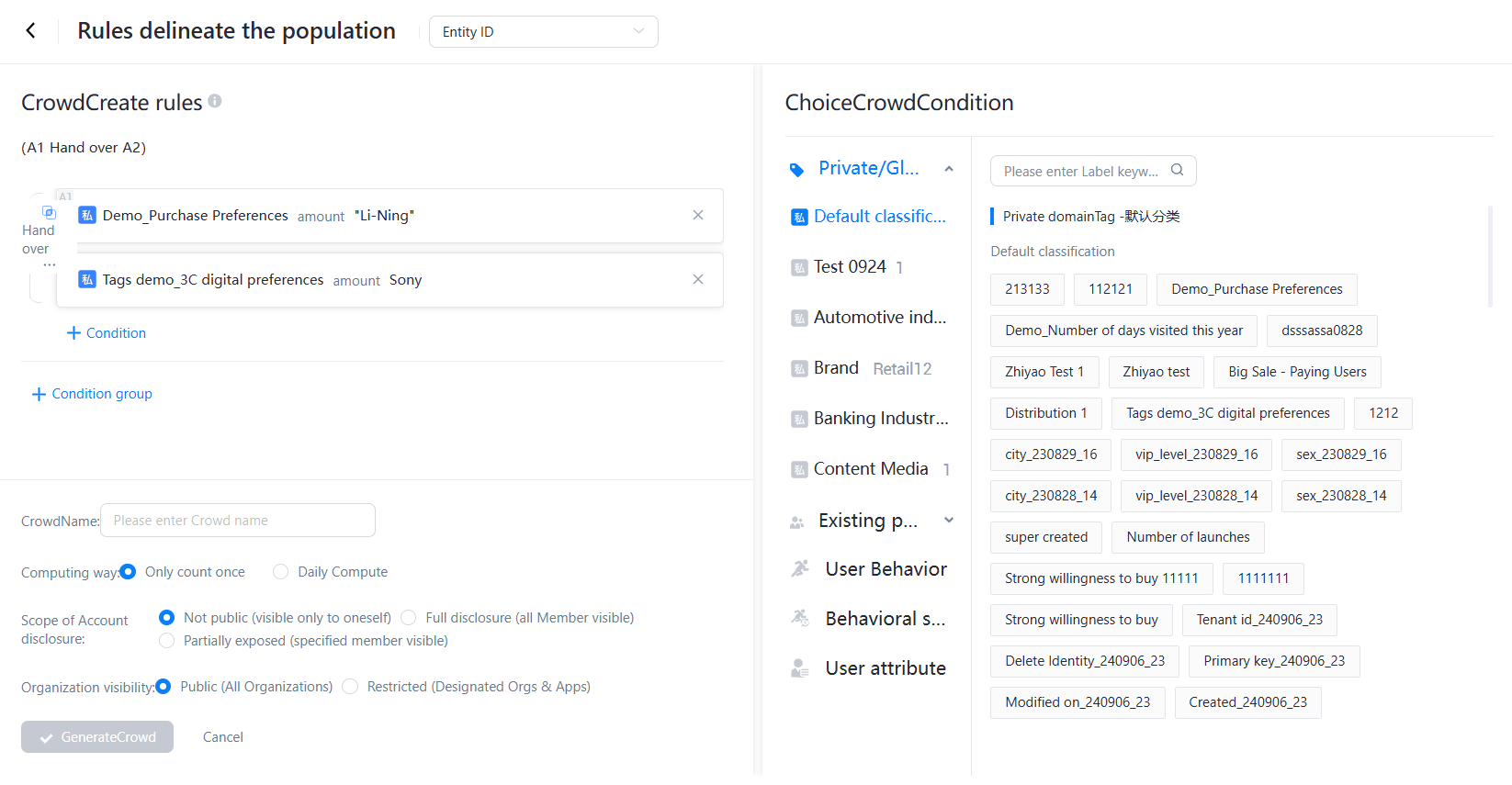
Condition types
User tags (private or global): Tags generated in User Profile > Tag System are available for selection. If the selected tags have tag values, you must filter the specified tag values in this step to complete the selection.
Existing audiences: Any audience already generated in Audience Management can be used as a condition, combined with other conditions to refine targeting. For example, intersect "users who purchased in the last 30 days" with "users who enabled push notifications" to reach a high-intent, reachable segment.
User behaviors: Filter by in-app behaviors tracked in your organization. For example, select users who clicked "Buy" or completed checkout.
User attributes: Filter by user-level attributes such as membership tier or acquisition channel.
Audience configuration
After defining conditions, configure the following fields:
|
Field |
Description |
|
Audience name |
Enter a name visible to others in the organization. |
|
Calculation method |
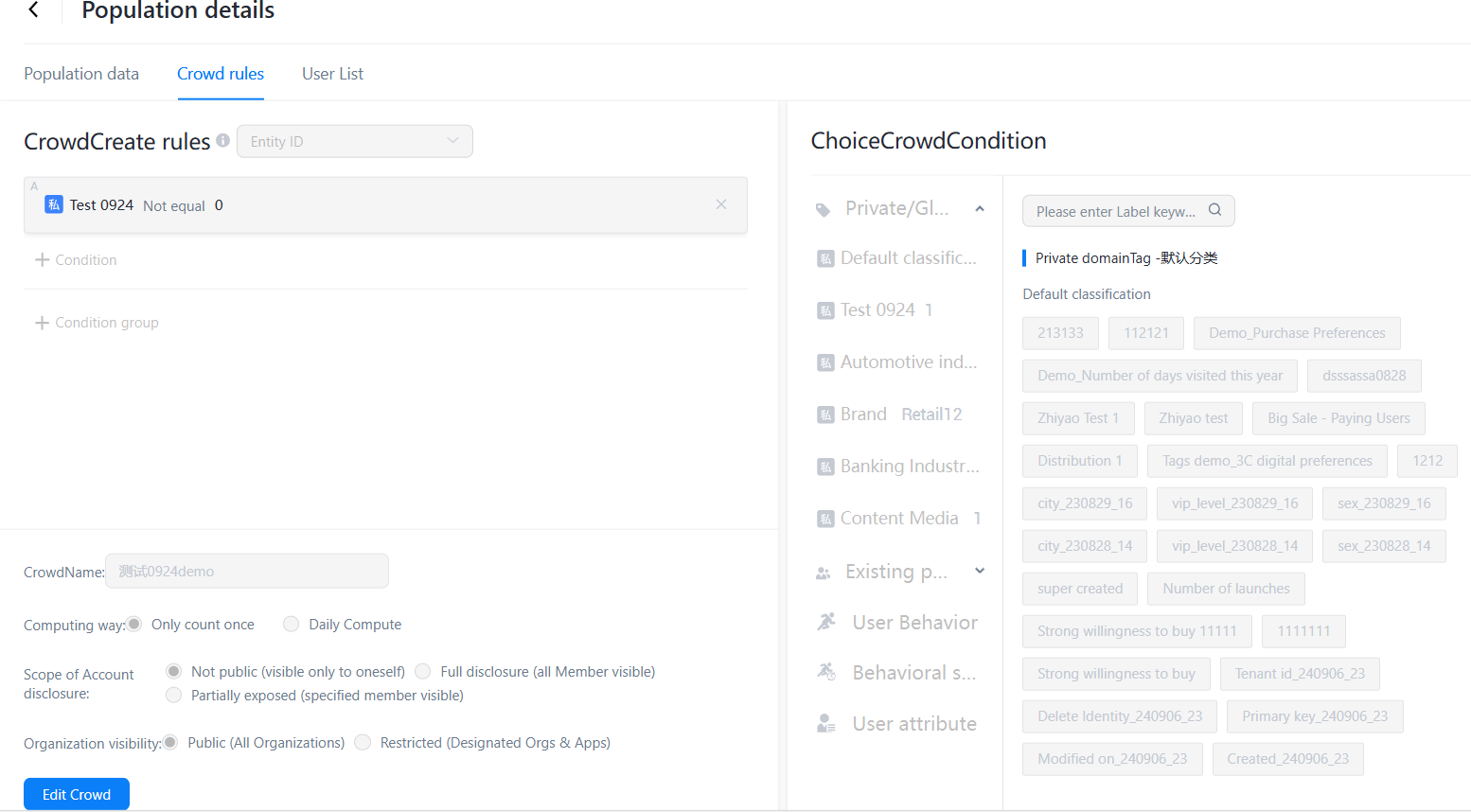
Daily calculation: recalculates once per day, keeping membership current. One-time calculation: calculated once and remains static until manually updated. |
|
Expose Scope |
Do not make public: only you can access this audience. Fully make public: all organization members can access. Partially make public: select specific members or teams. |
After saving, the audience appears on the Audience Management page.
Import creation
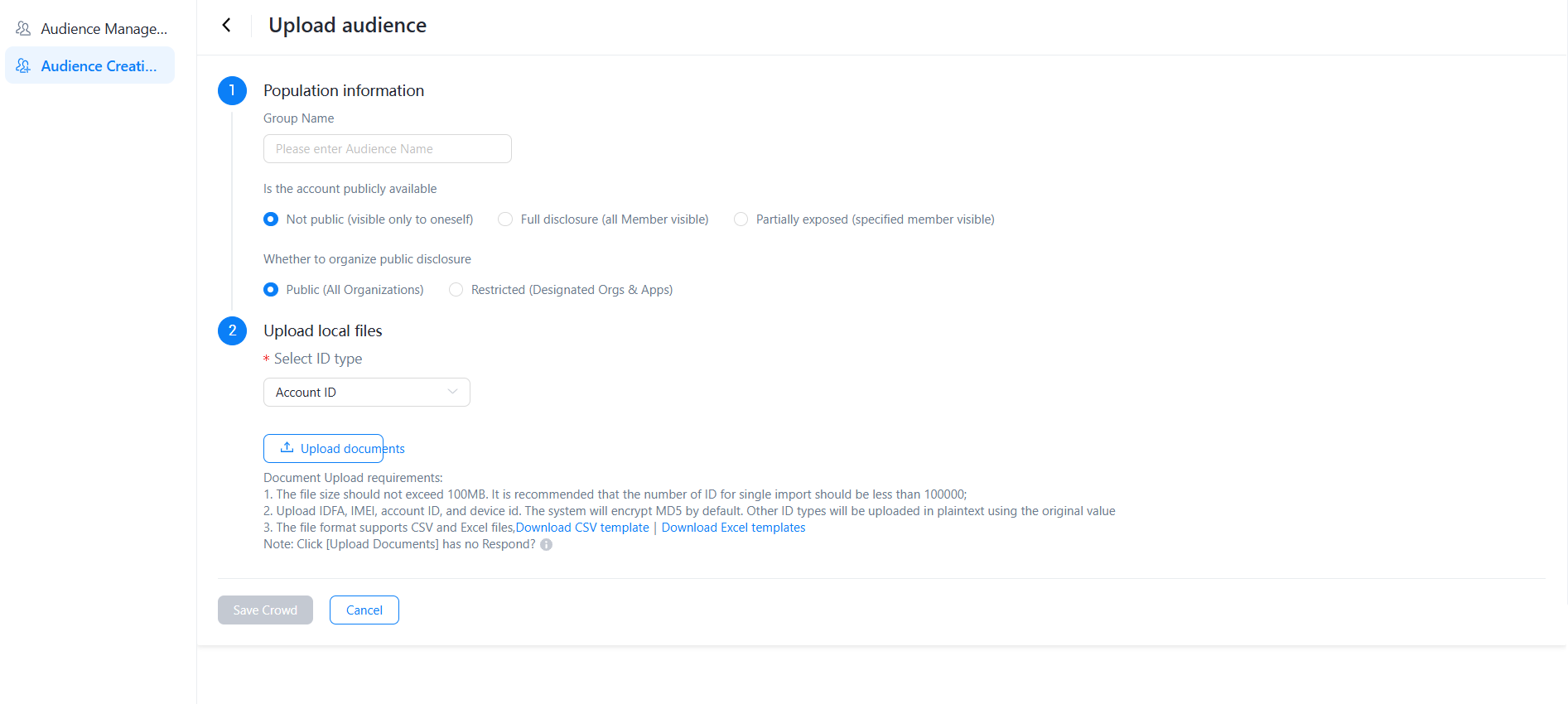
Import creation generates an audience by uploading a local file of user IDs. Quick Tracking matches the uploaded IDs against existing users; matched users are written into the audience. You can then use the audience for analysis or as a condition for further segmentation.
To create an audience by import:
Download the audience import template from the import dialog.
Populate the template with the user IDs you want to include — one ID per row, no extra columns or spaces.
Select the ID type that matches your file. The ID type determines how uploaded IDs are matched to users and affects subsequent analysis; select the type that reflects how users are identified in your system.
Set the Expose Scope for the audience.
Upload the file and save.
After saving, the audience appears in Audience Management.
Audience management
Overview
The audience list shows all audiences you have created, plus audiences that others have shared with you. From this list you can filter, inspect, update, and delete audiences.
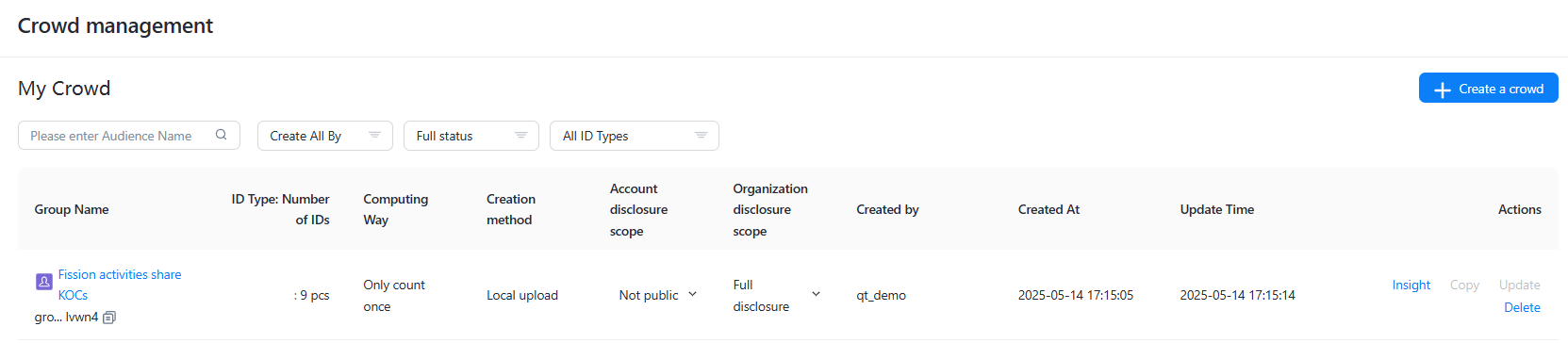
Filter audiences
Filter the audience list by audience name, creation method, or status to quickly locate a specific audience.
Audience Insights
Click Insights next to an audience to open the Audience Insights page. For details, see the Audience Insights documentation.
Audience details
The audience detail page has two tabs.
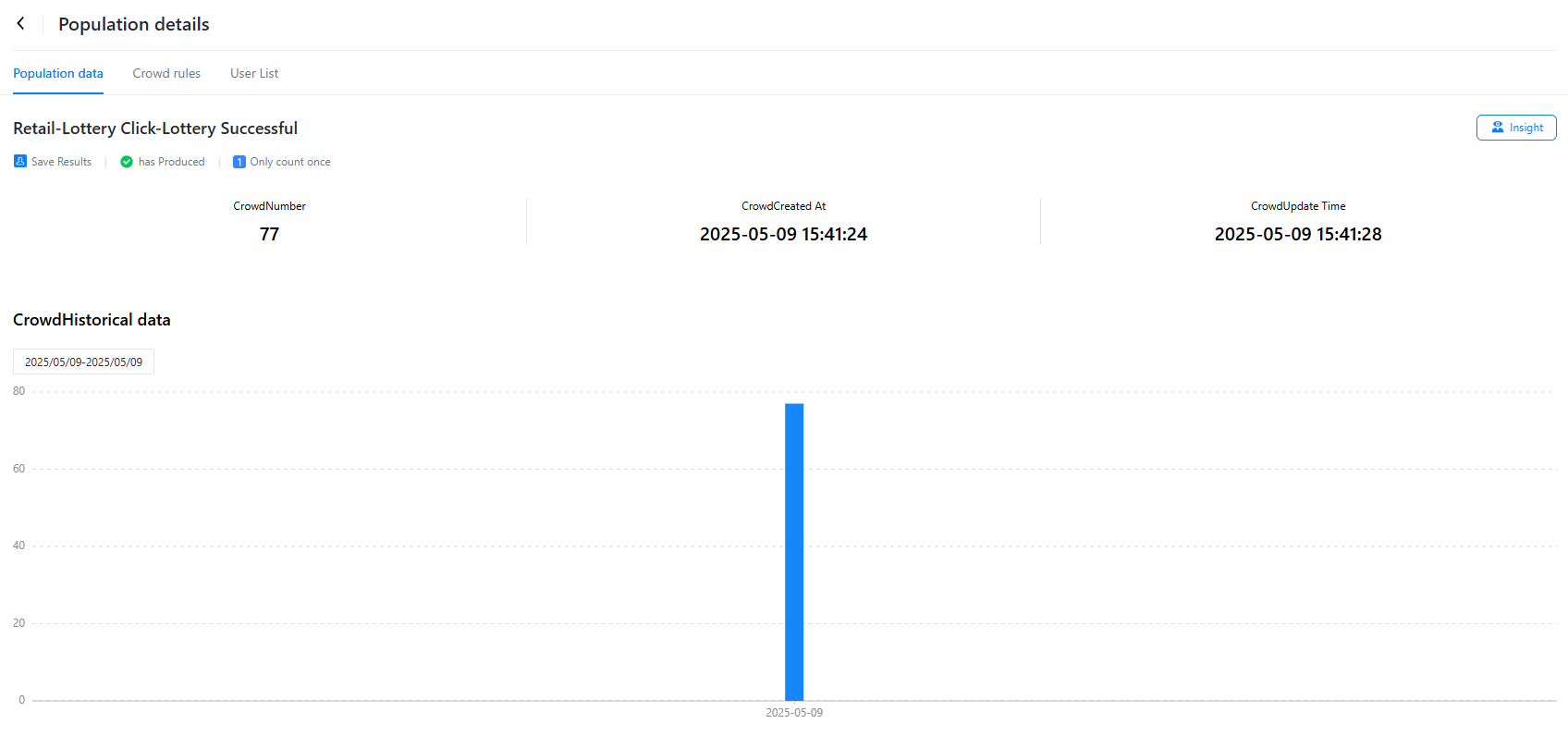
Audience data: Shows the creation time, completion status, calculation rules, and historical audience size data.
For audiences using daily calculation, the page shows the daily audience size output over time.
-
For audiences using one-time calculation, the page shows the size from the most recent manual update.
Create rule: Shows the full rule definition used to build this audience. To change the rule, click Edit.
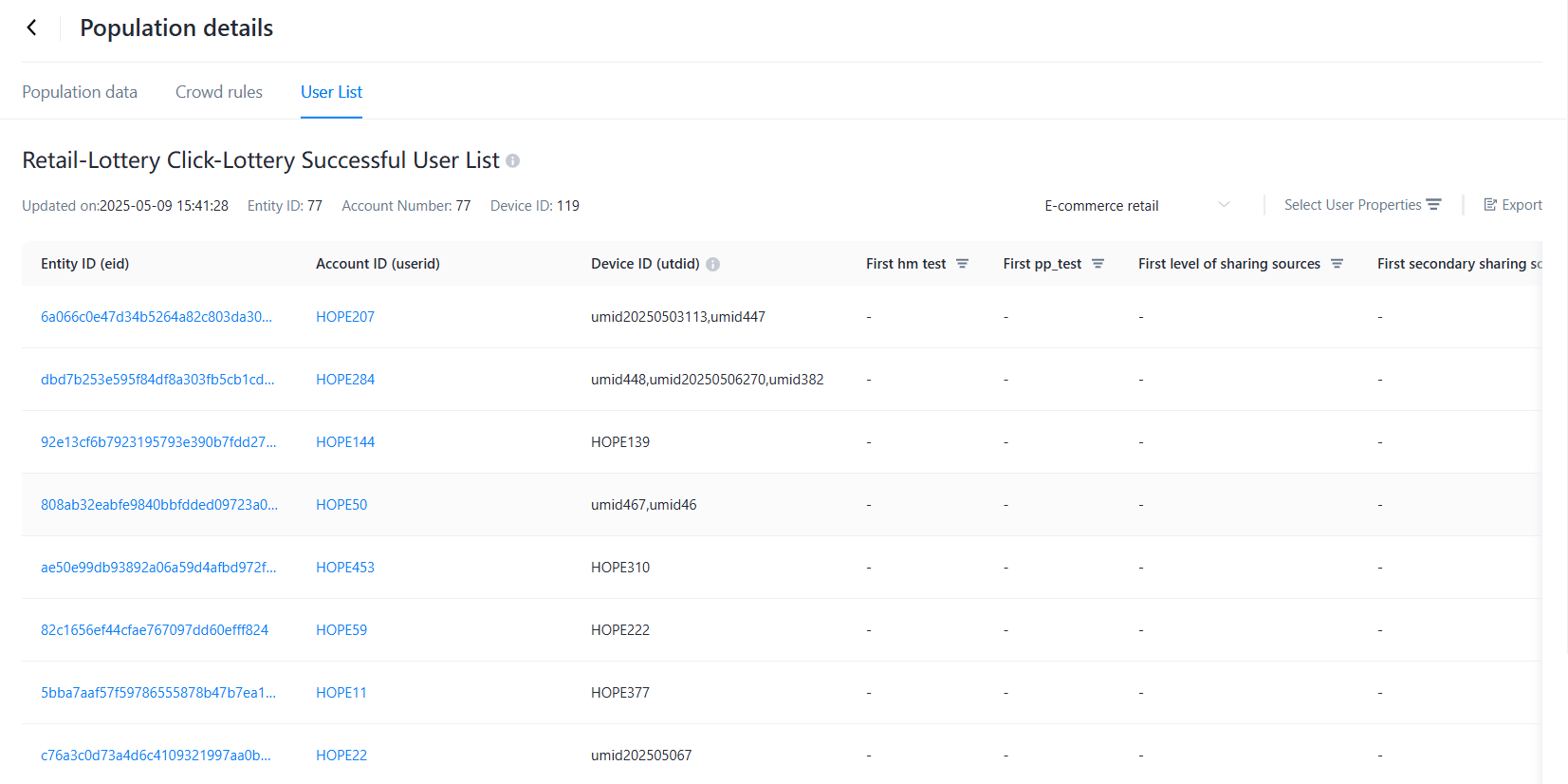
User list: Displays the complete, fully calculated list of users in the audience, including each user's entity ID, account ID, device ID, and other system attributes. Click Export to download the full user list. Use the exported list in downstream activation scenarios such as SMS campaigns, push notification targeting, or manual outreach workflows.
Update an audience
Click Update to trigger a manual recalculation of the audience.
For audiences using daily calculation, clicking Update recalculates the audience using current data for that day.
For audiences using one-time calculation, the audience is only recalculated when you click Update manually.
Delete an audience
To remove an audience you no longer need, click Delete on the audience entry.