Configure H5 bridging to control how data from H5 pages embedded in apps is reported to your App and H5 applications in QuickTracking.
1 H5 bridging scenario
1.1 how to report H5 data to H5 apps and apps at the same time?
Scenario example:
An H5 activity page, such as a “Spring Day” campaign, is embedded in multiple apps. With this configuration, you can meet the following analysis requirements:
-
App operators need to view complete end-to-end user journey data before and after users participate in H5 activities within the app.
-
H5 activity operators need to view aggregated H5 activity data across all apps.
Operation instructions:
-
Create two applications:
-
An App application that has its own Appkey_app
-
A Web/H5 application that has its own Appkey_h5
-
Call the attach interface in the app to perform H5 bridging
Reporting logs:
-
App reports a log:
-
Appkey is the App's "Appkey_app"
-
The user account is the user account for the app
-
Device ID is the device ID of the app
-
System properties are the app's system properties
-
Global attributes are global attributes of the tracking point in the app
-
The event code and the event attribute are the tracking points in H5
-
-
H5 reports a log:
-
Appkey is "Appkey_h5" of H5
-
A user account whose user account is H5
-
The ID of the device whose device ID is H5
-
System properties of H5
-
The global attribute is the global attribute of the tracking point in H5
-
The event code and the event attribute are the tracking points in H5
-
1.2 how to report H5 data only to the unique App application?
Scenario example:
Some pages use H5 as the underlying technology. With this configuration, you can meet the following analysis requirements:
-
App business, operations, and product teams can view complete end-to-end data in the app.
Operation instructions:
-
Create an app with only one Appkey_app
-
Call the attach interface in the app to perform H5 bridging
-
H5 Appkey is set to null and the call aplus-jsbridge-only is equal to true to disable H5 data reporting
Reporting logs:
-
Only the app reports a log:
-
Appkey is the App's "Appkey_app"
-
The user account is the user account for the app
-
Device ID is the device ID of the app
-
System properties are the app's system properties
-
Global attributes are global attributes of the tracking point in the app
-
The event code and the event attribute are the tracking points in H5
-
1.3 if H5 data is only reported to H5 applications?
Scenario example:
-
App business, operation and PD do not want to see H5 data in App
Operation instructions:
-
Create two applications:
-
An App application that has its own Appkey_app
-
A Web/H5 application that has its own Appkey_h5
-
No API calls
Reporting logs:
-
Only H5 reports one log:
-
Appkey is "Appkey_h5" of H5
-
A user account whose user account is H5
-
The ID of the device whose device ID is H5
-
System properties of H5
-
The global attribute is the global attribute of the tracking point in H5
-
The event code and the event attribute are the tracking points in H5
-
2 H5 Bridging Principle
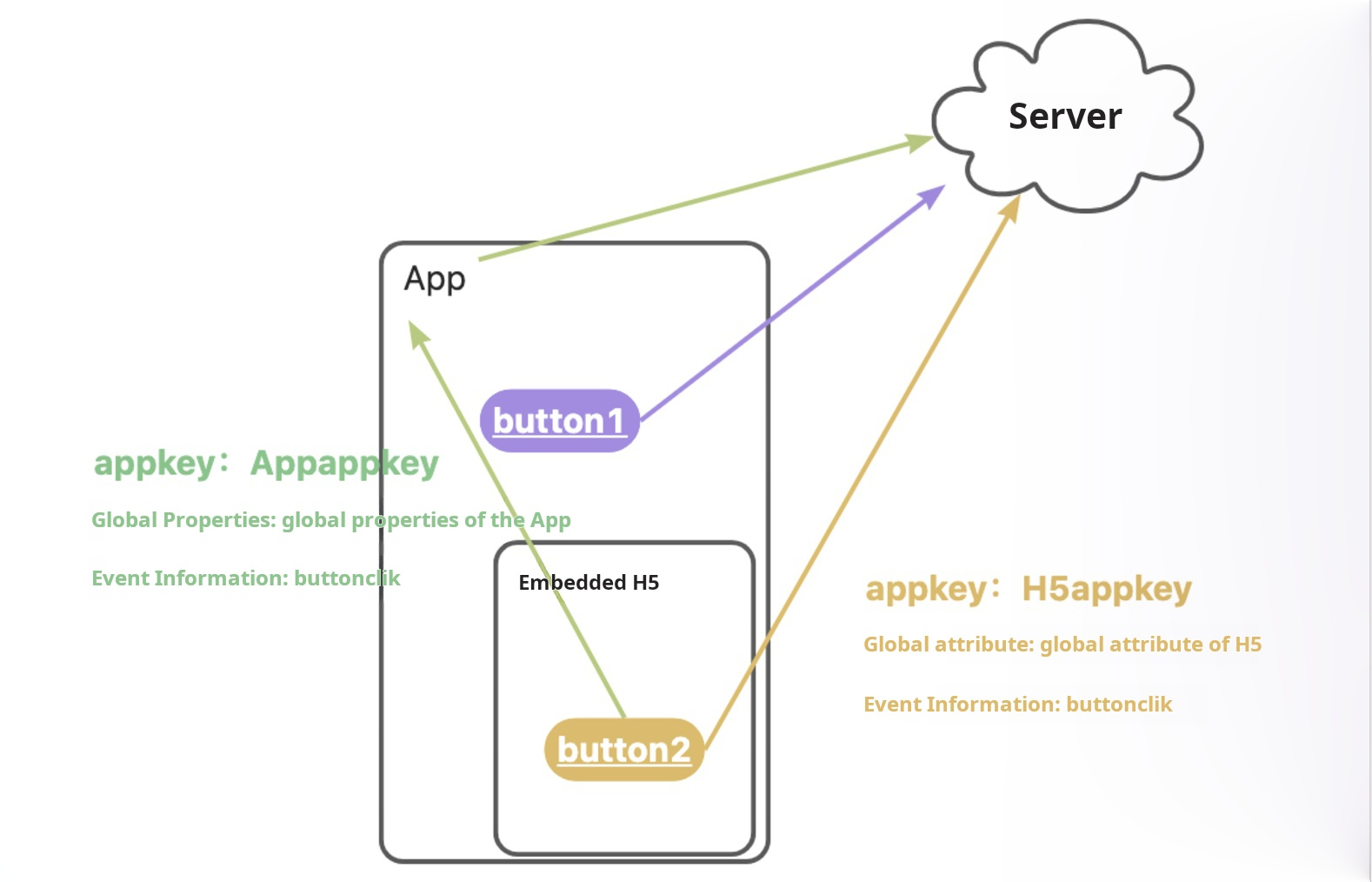
The prerequisites for H5 bridging are:
-
App integration QuickTrackingApp SDK
-
and H5 integration QuickTracking H5 SDK within the app
As shown in the figure above, when a user triggers button2 on the h5 page within the app, two logs are reported simultaneously:
-
Reported through App SDK: The appkey is the app’s appkey, the global attribute is the app’s global attribute, and the event code and event attribute are from the tracking point in H5. (Green arrow in the figure)
-
Reported through H5 SDK: The appkey is the H5 appkey, the global attribute is the H5 global attribute, and the event code and event attribute are from the tracking point in H5. (Yellow arrow in the figure)
3 App Bridge H5 Switch
On macOS, the H5 bridge is disabled by default. You can enable it by setting initialization parameters.
// H5 bridge switch
@property (nonatomic) BOOL enableJSBridge;
Examples
QTSDKConfig *sdkConfig = [[QTSDKConfig alloc] initWithAppkey:@"test_appkey"
                                                  trackDomain:@"https://xxxx.com"
                                                launchOptions:nil];
// Enable H5 bridging.
sdkConfig.enableJSBridge = YES;
[QuickTrackingSDK launchWithConfig:sdkConfig];
4 H5 SDK log reporting switch
The following API controls H5 SDK log reporting (the yellow arrow in the diagram):
H5 SDK API:
|
SDK parameters |
||
|
aplus-jsbridge-only |
true |
Disable H5 log sending (yellow arrow) |
|
false (Default value: false) |
Turn on H5 log sending (yellow arrow) |
|
aplus_queue.push({
  action: 'aplus.setMetaInfo',
  arguments: ['aplus-jsbridge-only', true]
});Note: If you set the aplus-jsbridge-only parameter to true, the utm parameter in the web link is not automatically recognized as a channel parameter. You must use the global attribute to set the parameter.
5 H5 global attribute synchronization API
If you disable this API in H5, global properties configured by using the globalproperty parameter in aplus.appendMetaInfo or aplus.setMetaInfo in H5 do not take effect in the native app. This API is enabled by default.
This API is supported starting from qt_web_v2.0.12.
aplus_queue.push({
  action: 'aplus.setMetaInfo',
  arguments: ['Disable aplus-globalproperty-sync-enable, false] // Disable synchronization
});
For example, if you set the global attribute “Current City: Beijing” in the app and set the global attribute “Current City: Shanghai” in the app H5, the global attribute for events triggered in both H5 and app native defaults to “Current City: Shanghai”. If you disable this API, global properties set in H5 are not synchronized to the native app.