This document is an introduction to Quick Tracking and technical integration and is not used as a sales basis. For specific products and technical services purchased by an enterprise, the commercial purchase contract shall prevail.
Overview
Distribution analysis refers to the distribution of users on an event metric within a specified interval. Common examples include viewing the distribution of the number of people based on the number of occurrences of an event, the distribution of the number of days a product is used, and the distribution of the number of users with a property value. Enterprises can use distribution analysis to further grasp user characteristics. After you query data by using distribution analysis, you can save it as a report and add it to a self-made dashboard for display and statistics.
Scenarios
distribution analysis can solve
Lock the core user group and implement refined operations. For example, you can identify deep users by observing the distribution of the duration of each user's use of a core feature on the day.
Remove extreme effects and measure product health. For example, statistics in 5%~95% of new users in the "number of login" distribution.
Take "statistics on the distribution of user APP active days in the last month" as an example
Select the number of days for which the event distribution metric is "application startup" events.
Set the distribution interval: 5 equal parts
Select a time range of the last month.
Click "Start Analysis"

Operating Instructions
Page Composition
The distribution analysis feature consists of the following components: 
Historical query list area: Users can click to select the list of historical saved queries.
Information configuration area: the user can select events, indicators and time.
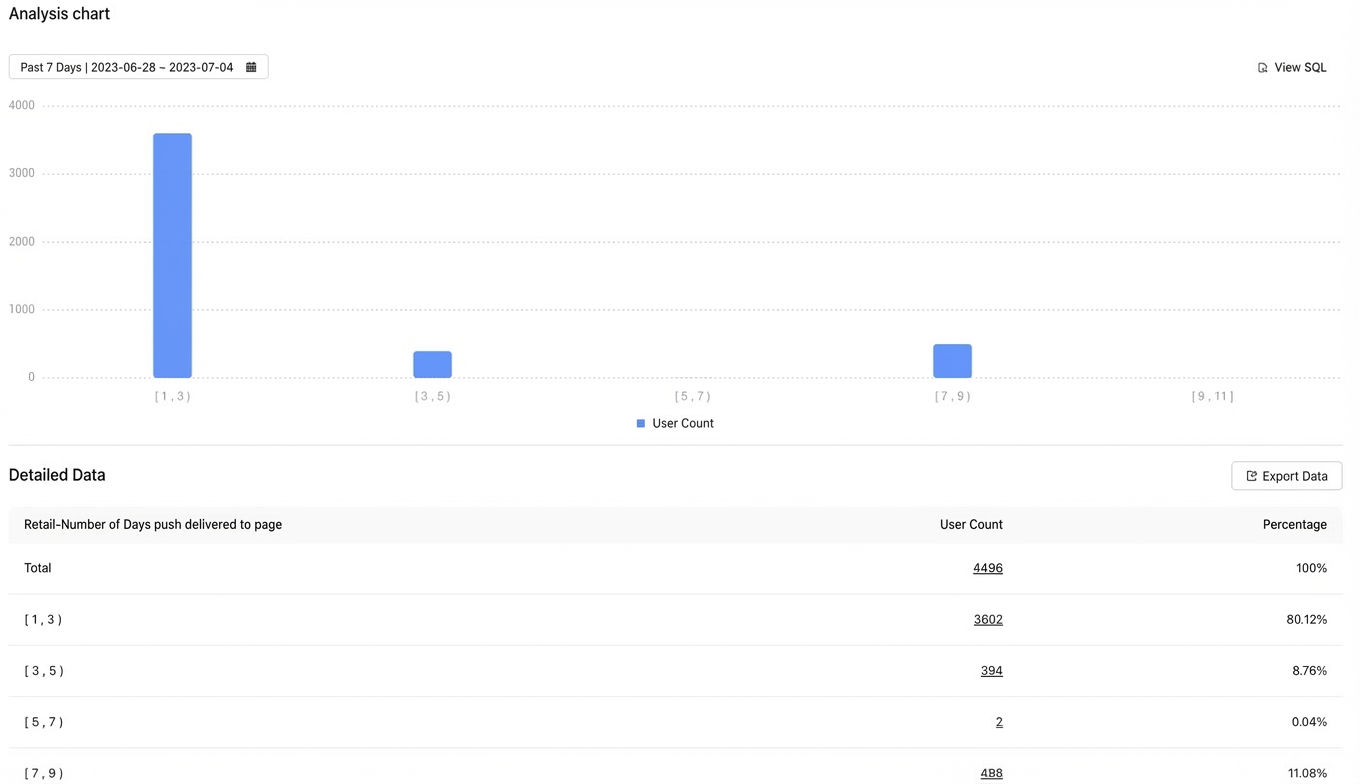
In the Analysis Results section, you can view the visual charts and detailed data of the analysis results.
Select Events and Metrics
1. Select an event: You can select All, Pages, Events, and Performance Events.
2. Select the metrics for distribution analysis, including preset metrics, system attributes, event attributes, channel attributes, user attributes, share return attributes, and AB testing.
Preset metrics: device times, hours, and days
A. Device Times: counts the number of times that a user performs an operation within a certain period of time. The operation is recorded once.
B. Hours: the number of natural time periods (hours /days) during which a user performed an operation. The number of times an event is triggered within one natural hour.
C. Days: the number of natural time periods (hours /days) in which a user performs an operation within a specified time range. The number of times an event is triggered within one natural day.
Attribute metrics are classified into character metrics and numeric metrics. Character metrics support "deduplication" and numeric metrics support "deduplication", "cumulative value", "maximum value", "minimum value", "average value", "lower quartile", "median", and "upper quartile". For more information, see Select an event indicator.
3. Add filter conditions: different filter symbols are supported according to different types of attributes. For more information about filter symbols and symbol definitions, see Add Filter Condition.
Select Distribution Interval 
The following three methods are supported: 5 equal points, 10 equal points, and custom equal points.
5 equal points and 10 equal points: groups the number of people corresponding to the distribution indicator by 5 equal points and 10 equal points.
Custom equal division: You can freely set the viewing area range of full data.
Select Time Range 
You can select the time range and time granularity as required. You can select a time range in the Relative Period or Fixed Period mode. In the Relative Period mode, the default time is set to the past seven days and is displayed by day.
The relative period of time is based on the date range pushed forward by an anchor point and will change over time. It has three dimensions: the past X days, weeks, and months. You can also customize the time filter conditions for the past X days, weeks, and months. The day is a complete natural day, and the week is selected from Monday to Sunday, and the month is the natural month (from the 1st to the last day of each month)
The detailed rules are as follows:
A. Past n days: Push forward the complete n days based on the current time.
B. Past n weeks: Push forward n complete weeks based on the current time. If the current time is the last day of the week, the past n weeks include the week in which the current time is located. Example: If the current time is the 7.20 (Tuesday), then the past week is 7.12-7.18 (Monday to Sunday). If the current time is the 7.18 (Sunday), then the past week is 7.12-7.18.
C. Past n Months: Push forward n complete months based on the current time. If the current time is the last day of the month, then the past n months include the month in which the current time is located. Example: If the current time is 7.20, then the past month is 6.1-6.30; If the current time is 6.30, then the past month is 6.01-6.30.
"Fixed period" You can directly select the start date in the calendar box, and click OK to select the current time range for data analysis (the maximum selection range of a fixed period is 366 days)
View analysis charts and detailed data 
After you set the query conditions and click Start Analysis, you can view the analysis results. The detailed data of the statistical results is displayed in Detailed Data.
"analysis chart" Click "view SQL" in the upper right corner to view the current query SQL and copy.
"detailed data" Click "export data" in the upper right corner to download the Excel file.
Save common metrics for subsequent re-query. You can click the Save button in the upper-right corner.
Save Data to Report 
1. Enter a report name
2. Select the time period for saving the report.
-Impact of different time periods on reports
Select a relative time period. The report date can be queried according to the time selected on the kanban.
Select a fixed period, the report date will not change according to the kanban selection time
No period is selected, the report date follows the time selected on the kanban
3. Click the OK button to save the data to the report list.
Save Report to Kanban Board 2.7
For an already saved report, you can choose to add the report to the kanban: 
Enter Report Name
Select the added kanban
Select the type of display you want the chart to display.
Select the display layout of the chart in the self-made kanban
Click "OK"