Quick BI allows you to split a text field into multiple fields based on a separator, or merge multiple text fields into a single field using a connector.
Prerequisites
You have created a dataset. For more information, see Create a dataset.
Limits
-
Only text fields are supported. You can merge a maximum of 10 fields.
-
Calculated fields are not supported.
Split a field
Split a text field into multiple fields based on a separator.
-
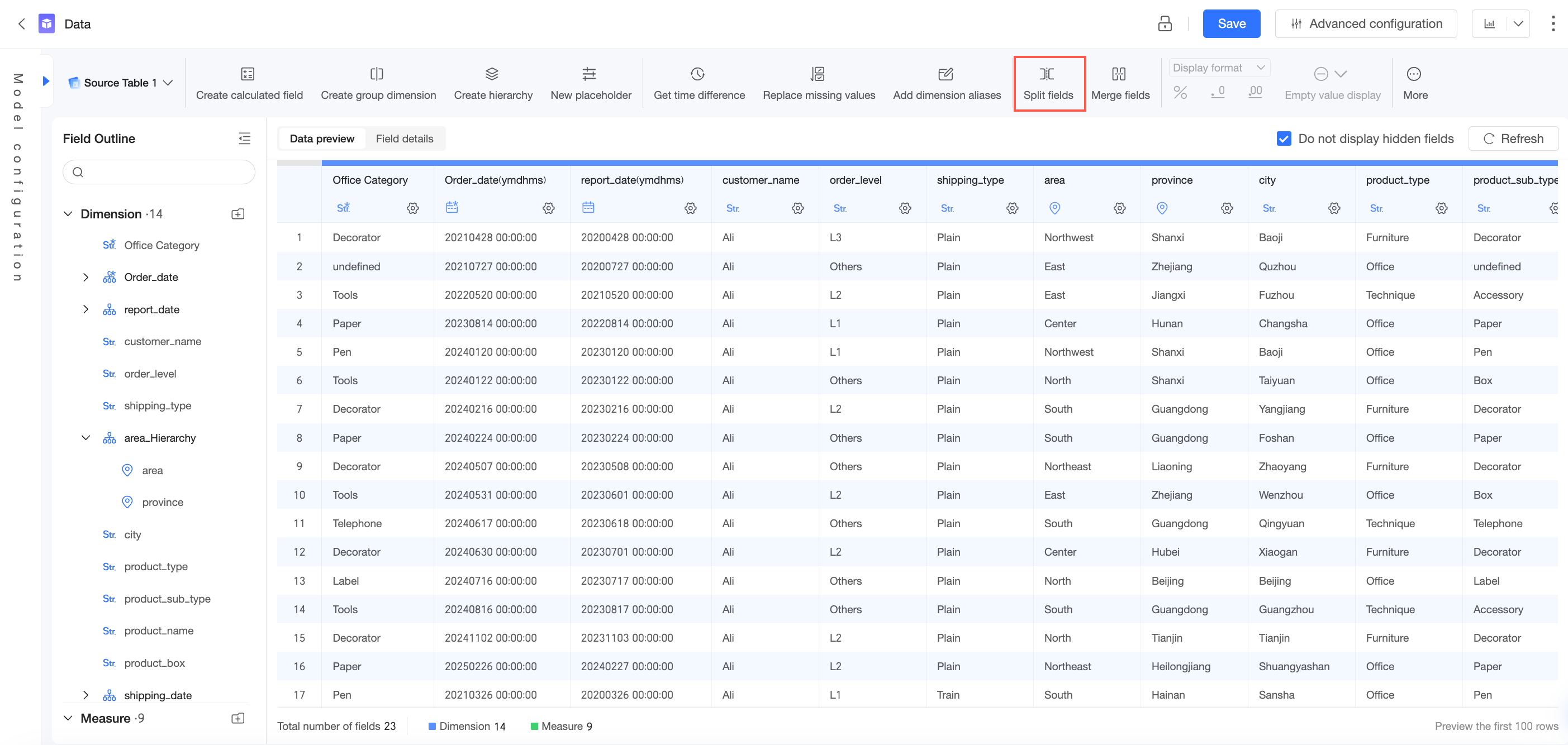
On the data processing page, click Split Field.
-
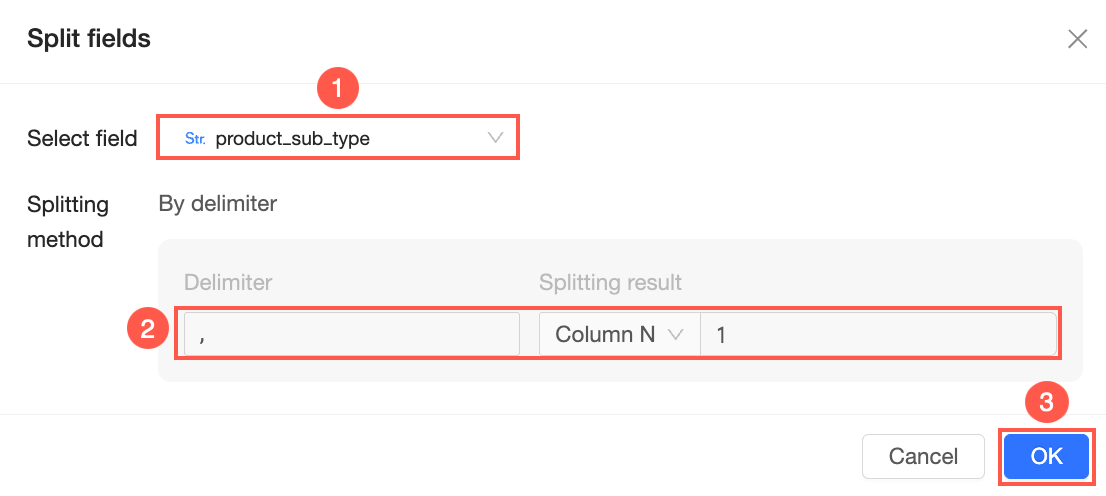
In the Split Field dialog box, select a field, set a Split Method, and then click OK.
-
View the result.
The new split fields are added to the dataset and can be displayed in dashboards, workbooks, data dashboards, and Downloads. Different split methods produce different results, as shown in the following examples:
-
Split the field into the First N columns.
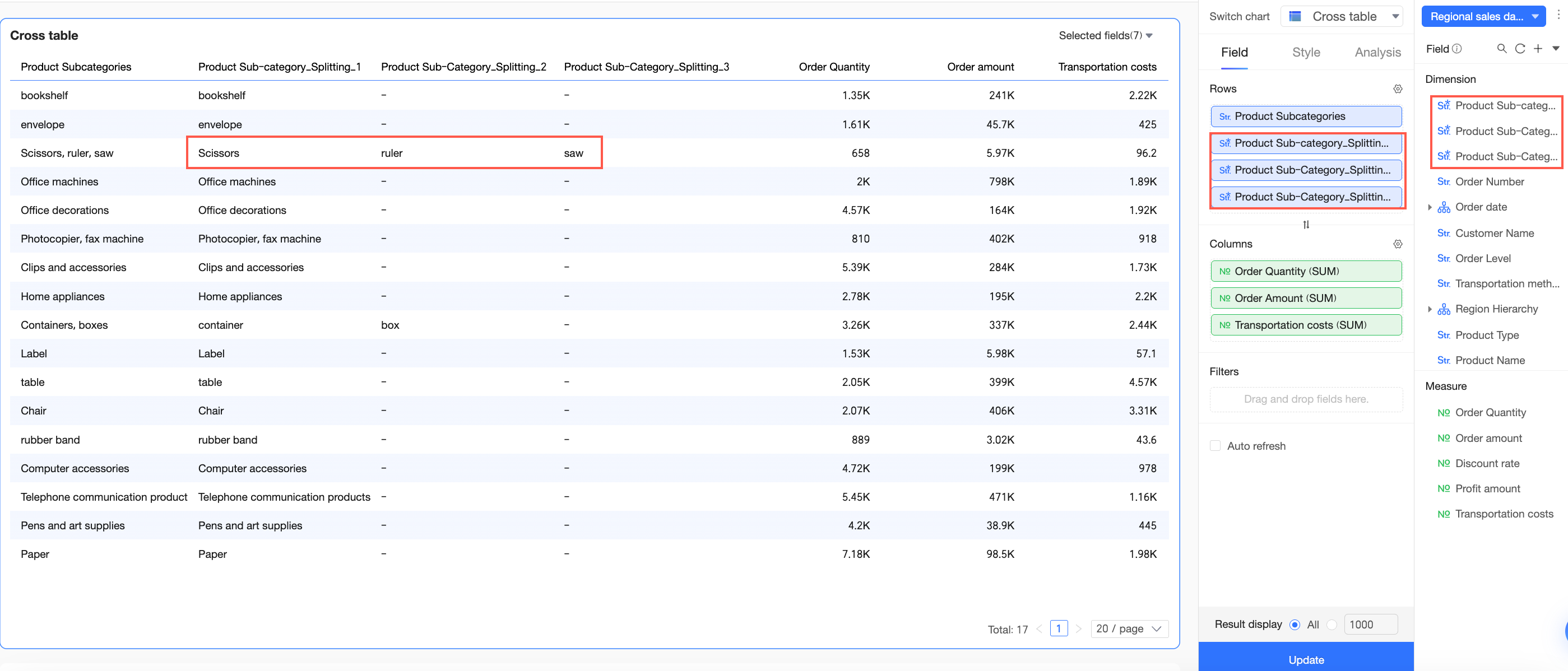
The First N columns option splits the original field into N new fields. For example, if the Product Subcategory field contains "Scissors,Ruler,Saw", the separator is ",", and you choose to split the field into the First 3 columns.
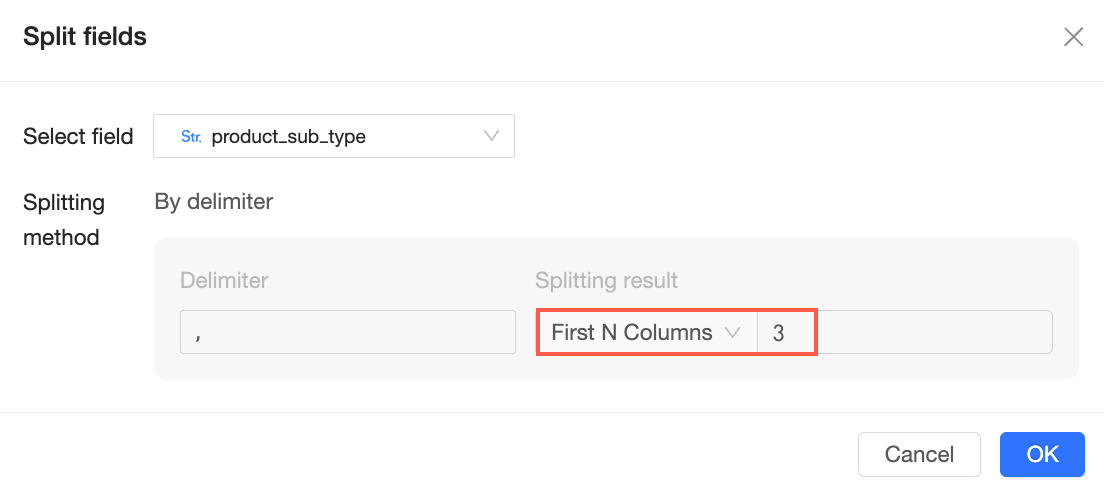
Three new fields are created. The result is shown below:
-
Split the field into the first N columns.
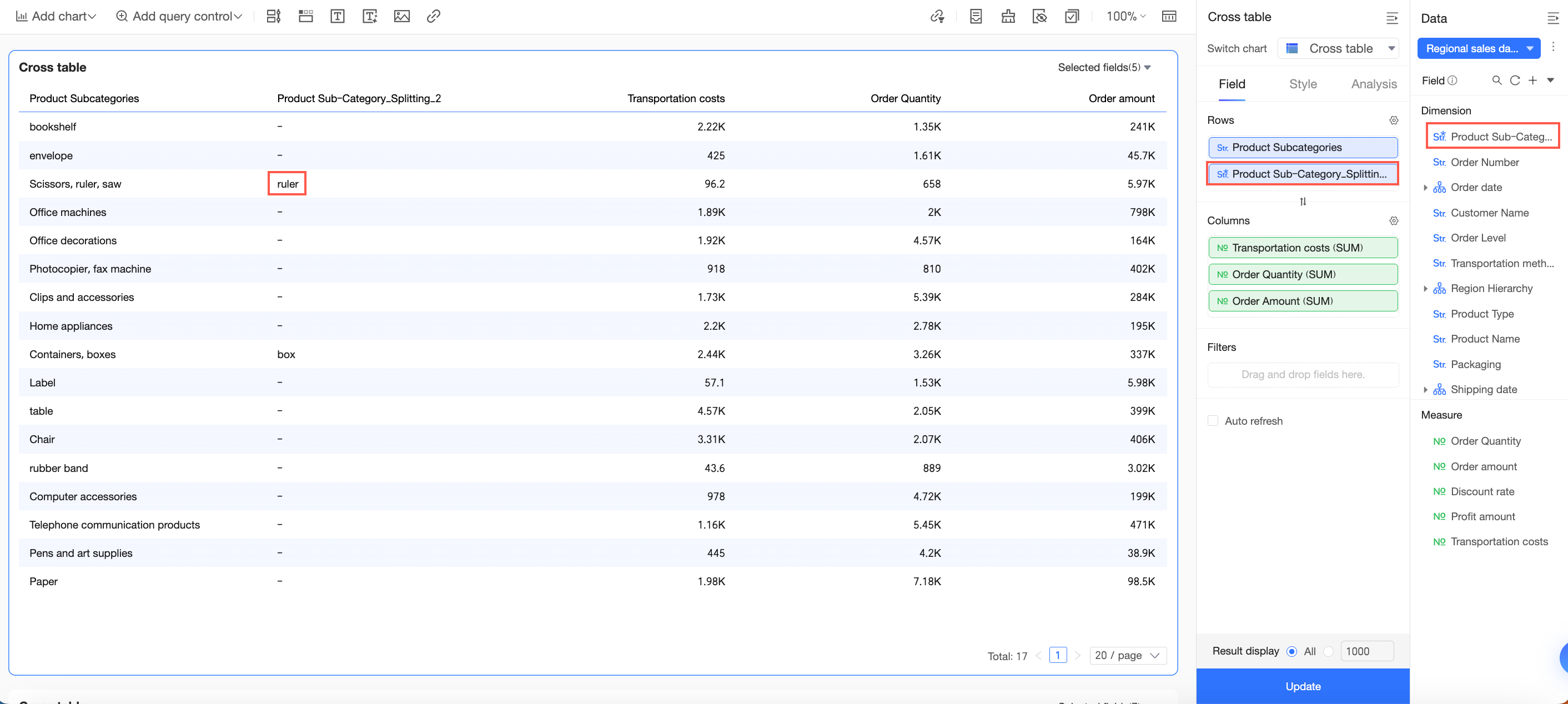
The Nth column option creates one new field that contains the value from the Nth position after the split. For example, if the Product Subcategory field contains "Scissors,Ruler,Saw", the separator is ",", and you choose to split the field into the 2nd column.
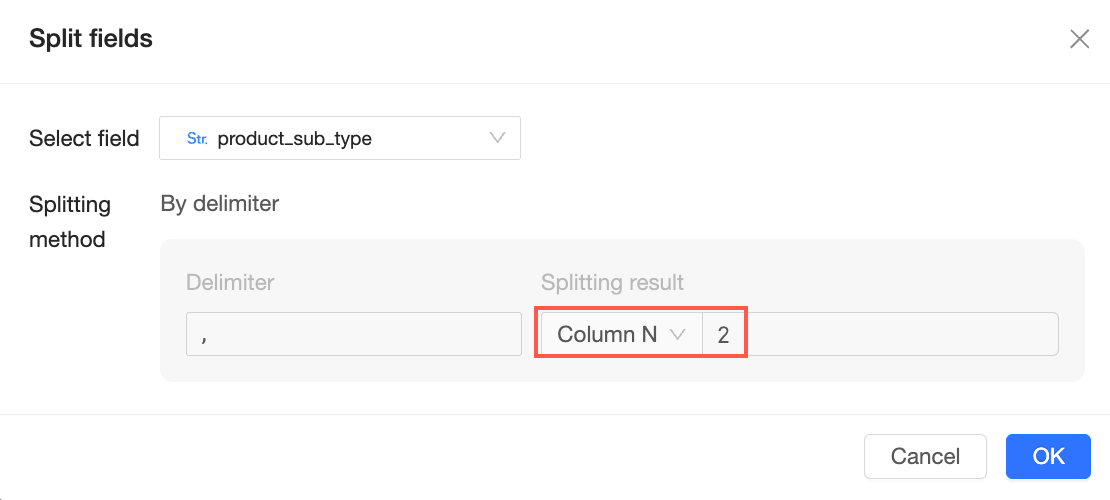
A new field is created with the value "Ruler". The result is shown below:
-
Merge fields
Combine multiple text fields into a single field using a connector.
-
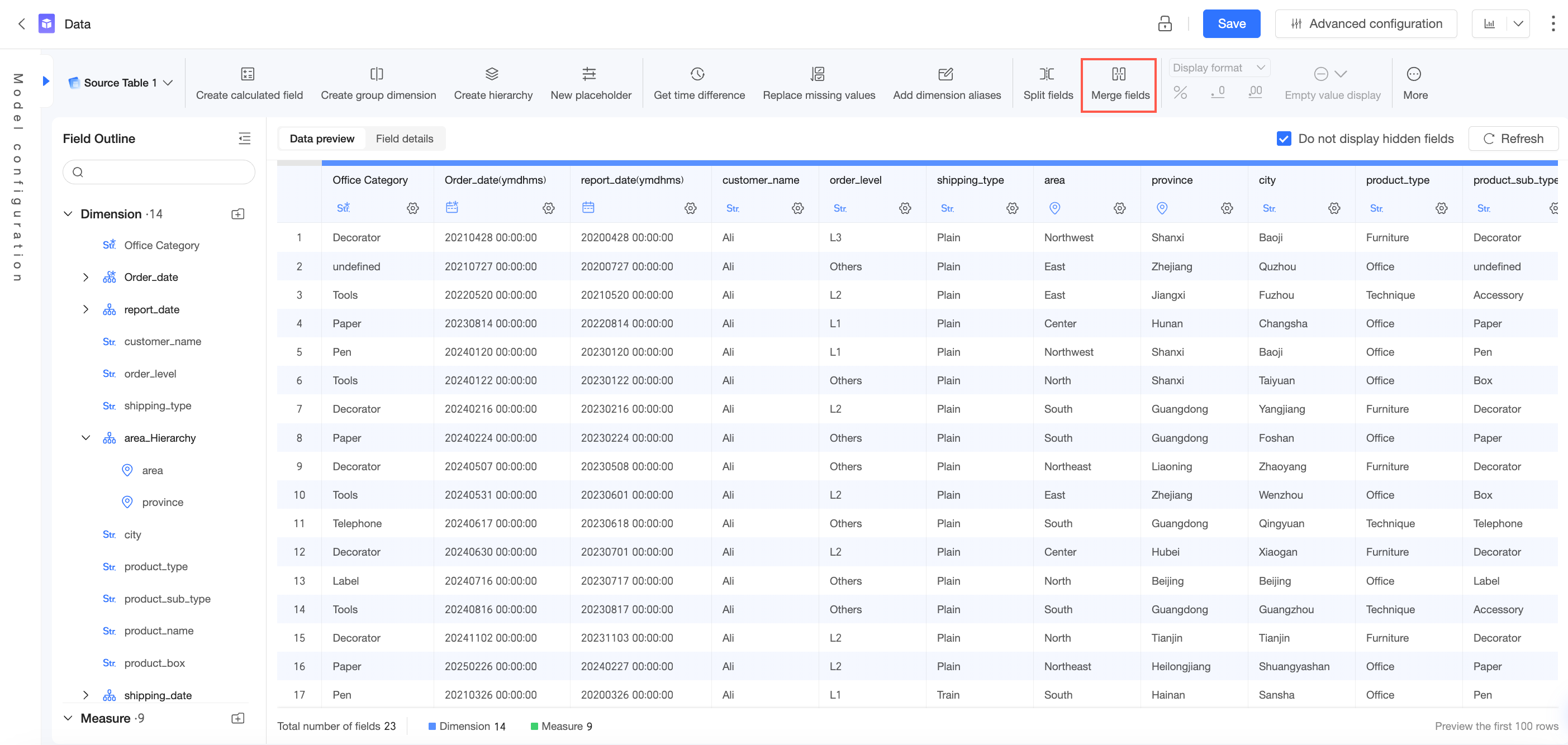
On the data processing page, click Merge Fields.
-
In the Merge Fields dialog box, enter a Field Name, select the fields to merge, specify the Connector, and then click OK.
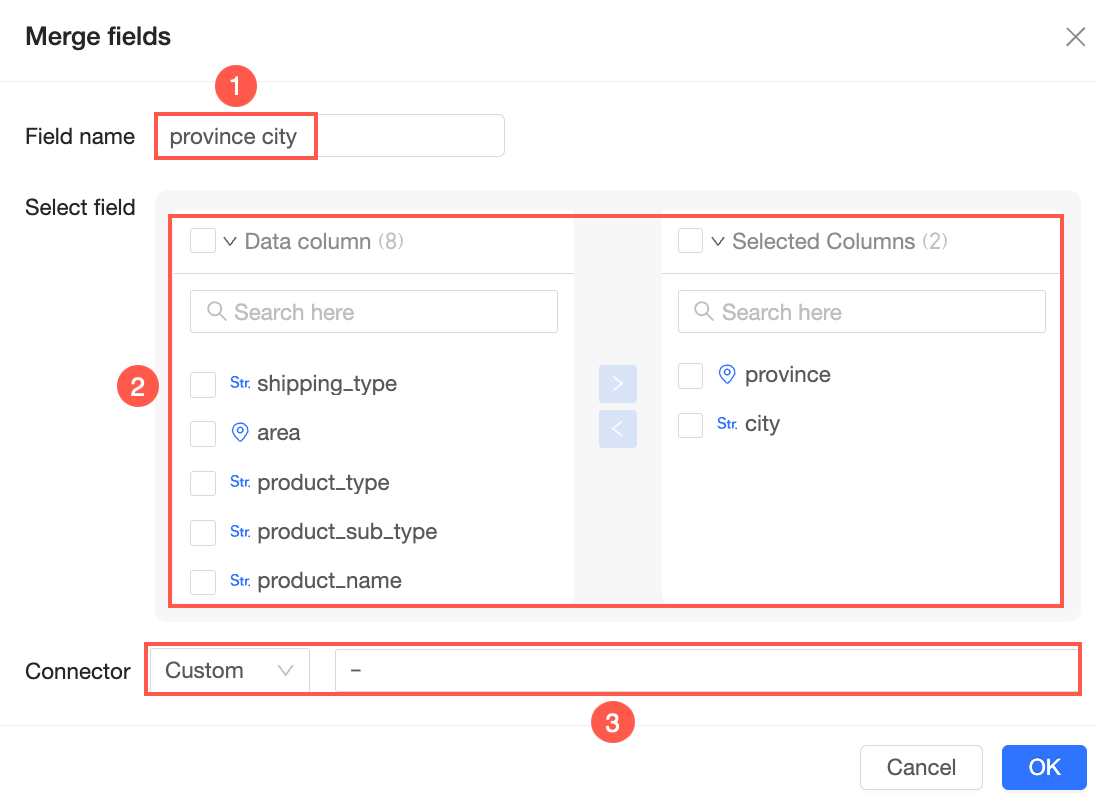
-
View the result.
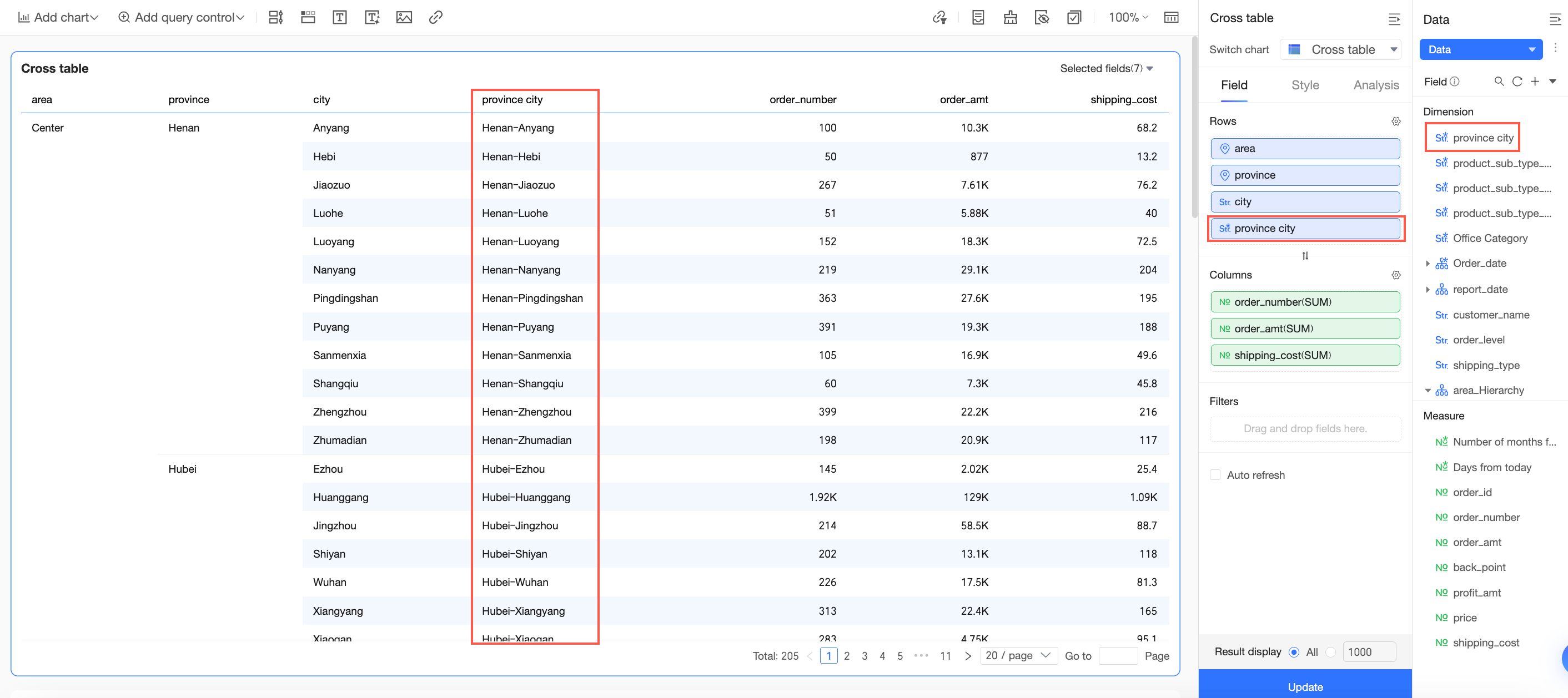
The new merged field is added to the dataset and can be used in dashboards, workbooks, data dashboards, and Downloads. For example, if you drag the merged field to the Rows area of a cross table on a dashboard, the result is shown below: