Configure a filter bar to query dashboard data by date fields such as year, month, week, or day.
Prerequisites
You have created a dashboard with charts that contain date fields.
An empty filter bar has been added to the dashboard. Create a filter bar.
Procedure
Configure the date filter bar as shown below.
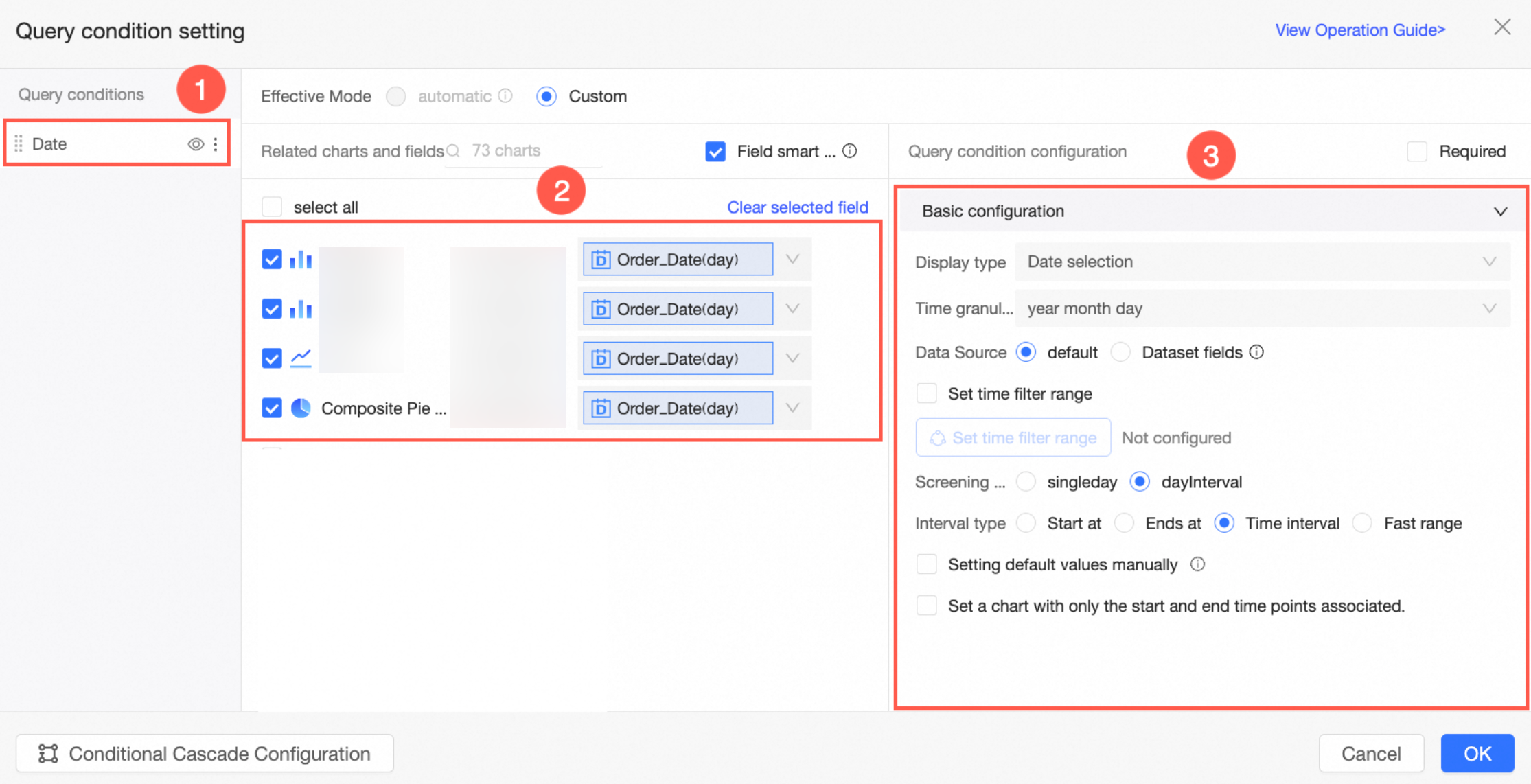
Basic configuration
Display type
Supports date selection.
Time granularity
Date fields such as Year, Quarter, Month, Week, Day, and Year-Month-Day-Hour-Minute-Second support switching time granularity and combining multiple granularities. Hour, Hour-Minute, and Hour-Minute-Second fields do not support granularity switching.
Date field | Time granularity |
Year (year) | Defaults to year. You can switch to year-quarter, year-month, year-week, or year-month-day. |
Quarter (quarter) | Defaults to year-quarter. You can switch to year, year-month, year-week, or year-month-day. |
Month (month) | Defaults to year-month. You can switch to year, year-quarter, year-week, or year-month-day. |
Week (week) | Defaults to year-week. You can switch to year, year-month, year-quarter, or year-month-day. |
Day (day) | Defaults to year-month-day. You can switch to year, year-quarter, year-month, or year-week. |
Year-Month-Day-Hour-Minute-Second (ymdhms) | Defaults to year-month-day-hour-minute-second. You can switch to year, year-quarter, year-month, year-week, or year-month-day. |
Hour (hour) | Defaults to hour. You cannot switch the time granularity. |
Hour-Minute (minute) | Defaults to hour-minute. You cannot switch the time granularity. |
Hour-Minute-Second (second) | Defaults to hour-minute-second. You cannot switch the time granularity. |
Selecting multiple time granularities is not supported in fiscal year scenarios.
Data source
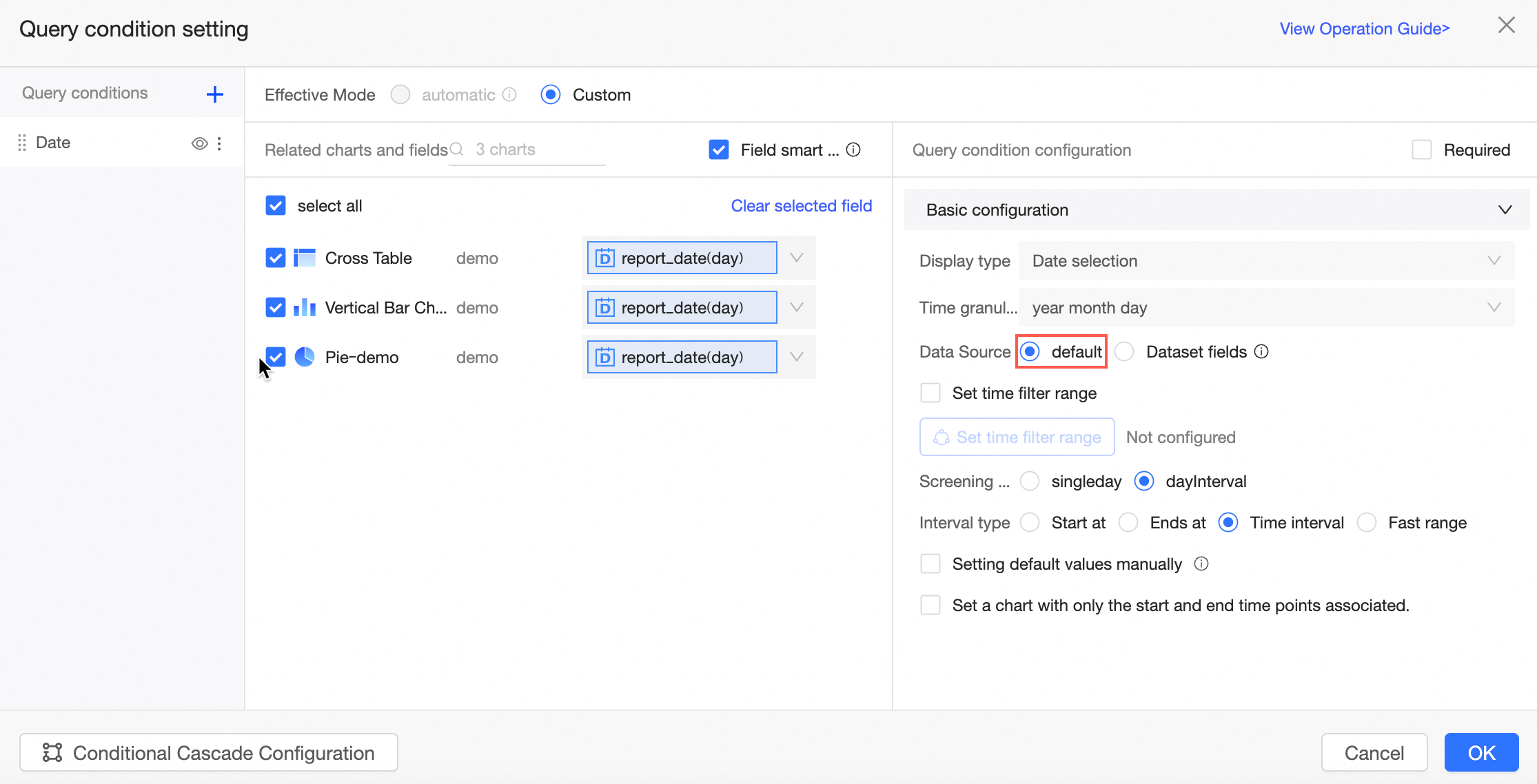
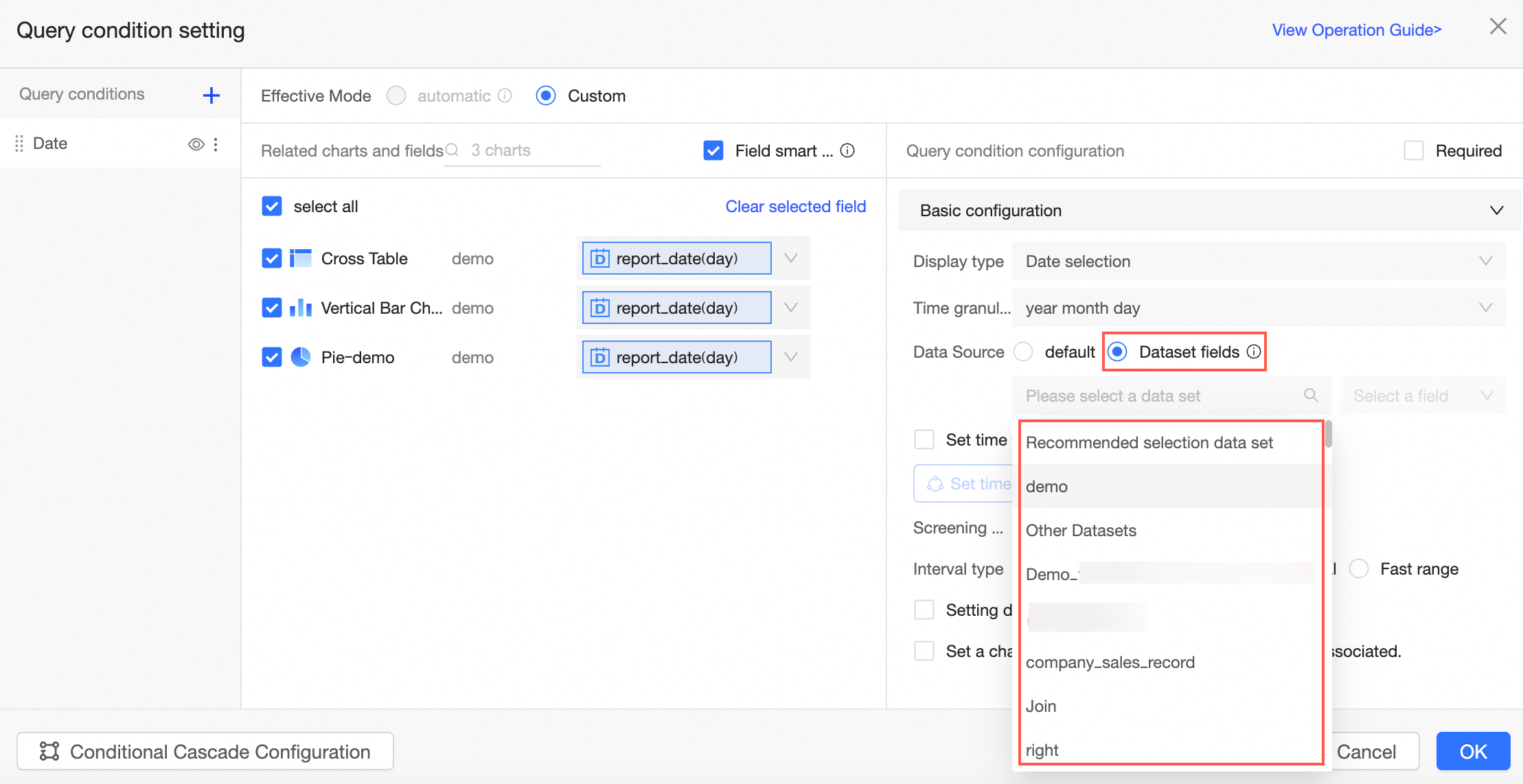
The filter bar's data source can be a Default date selector, which supports date cascading, or a dataset field, which supports same-source, cross-source, and date cascading.
Default date selector
Requires no external data source. Supports date cascading only, not cascading with other controls.
Dataset field
Uses a dataset as the data source. Supports date cascading and cascading with drop-down and tree controls.
Time filter range
Define a time range to restrict selectable dates in the filter.
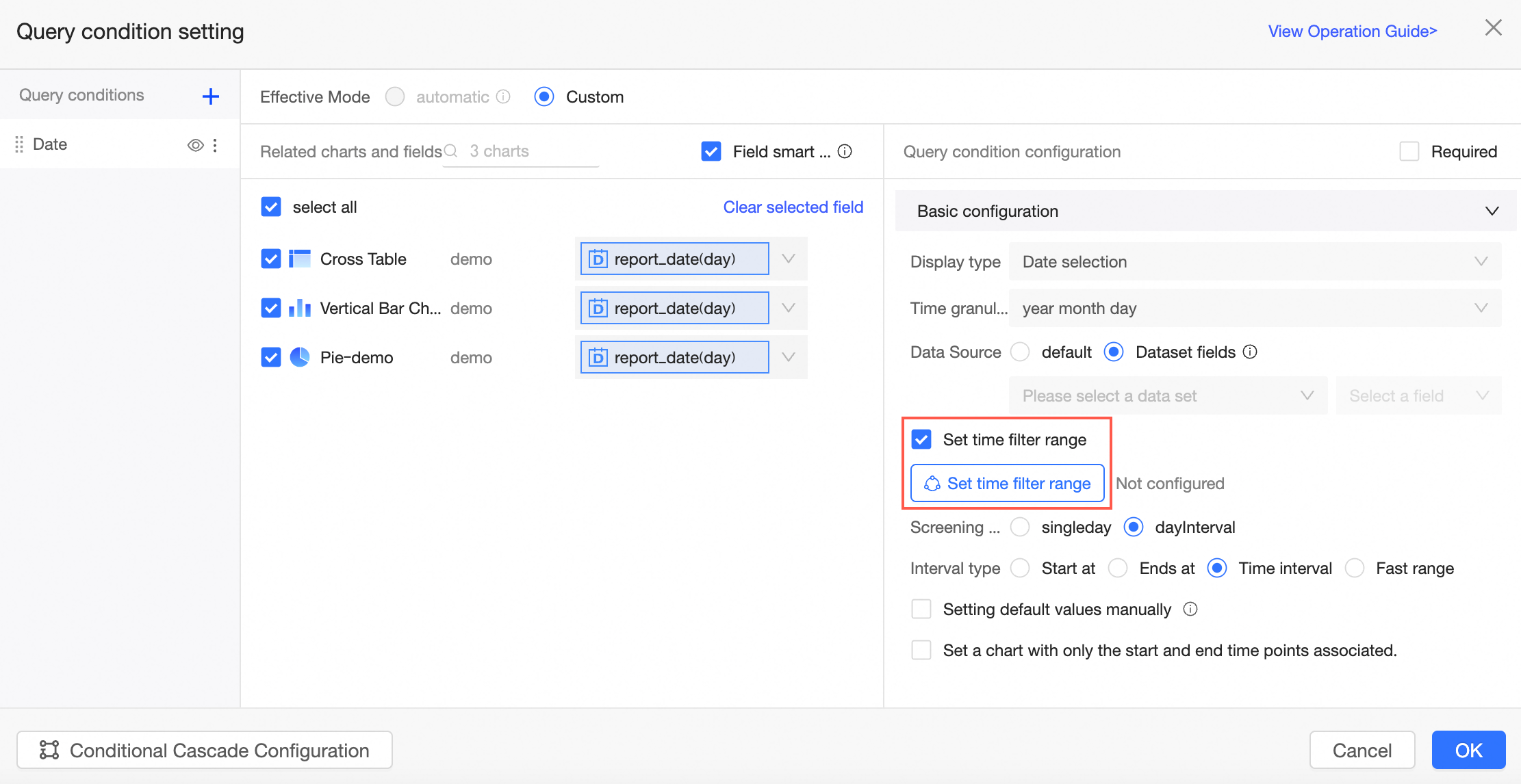
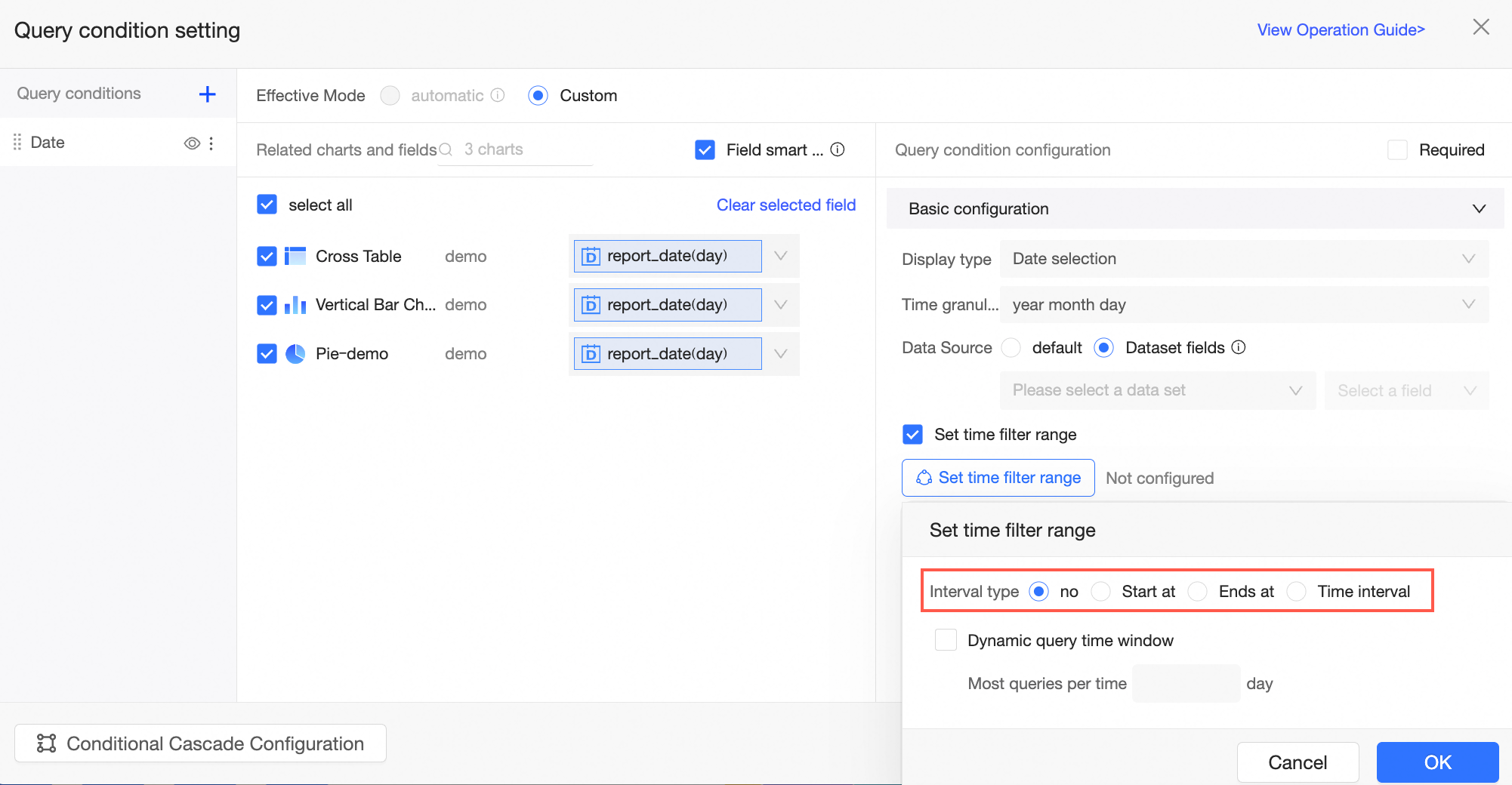
The default Interval type is None. Other options include Start at, Ends at, and Time interval.
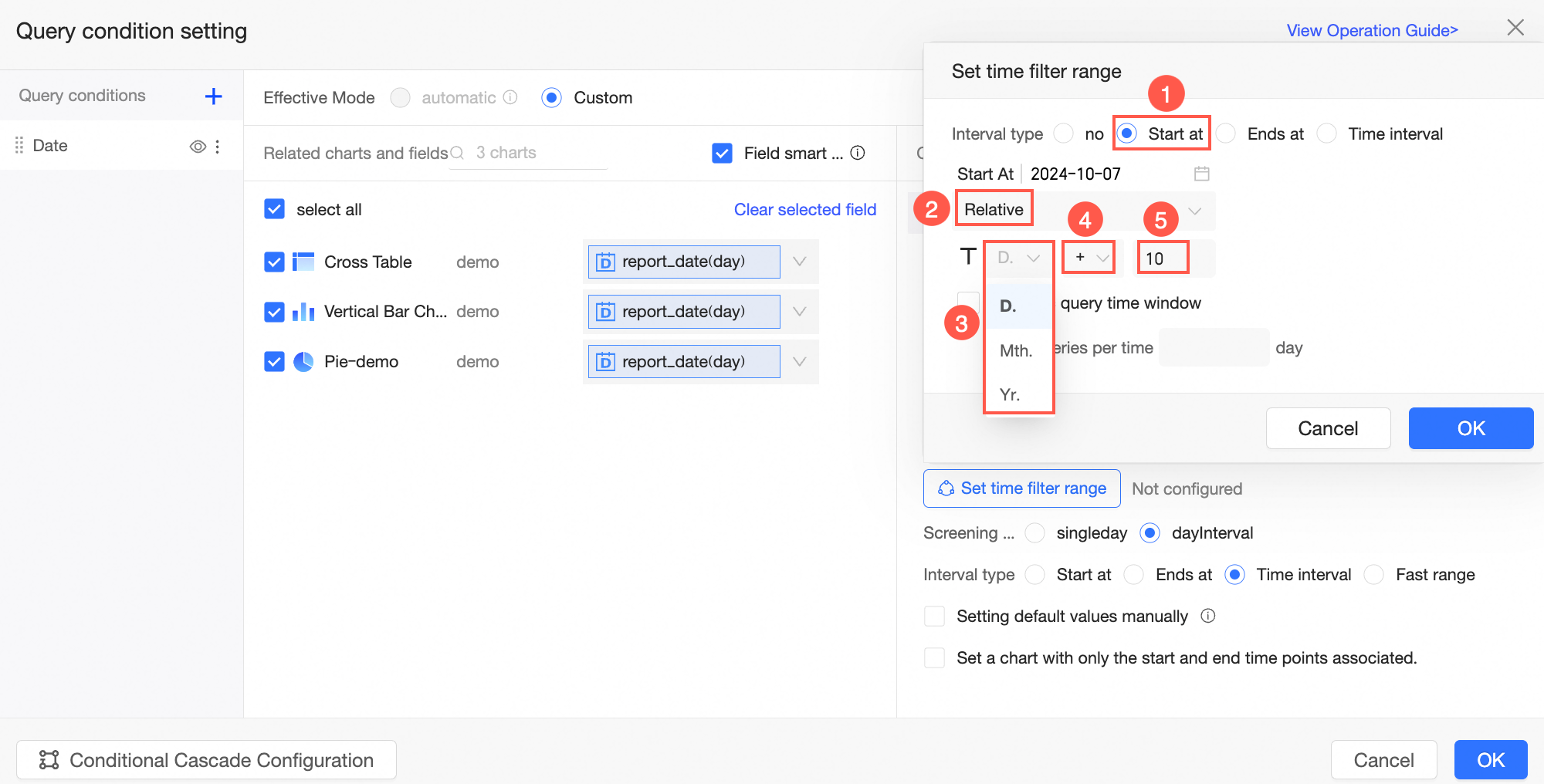
The following example shows how to set a relative time range when the Interval type is Start at. You can configure the relative time as shown in the figure.
 Note
NoteThe granularity of T can be selected from a drop-down list that includes all granularities that are part of the current time granularity. For example, if the current time granularity is year-month-day, you can select year, month, or day. If the current time granularity is year-month-day-hour-minute-second, you can select year, month, day, hour, minute, or second as the granularity for T.
For example, when the time granularity is year-month-day-hour-minute-second, calculating the relative time in seconds can be difficult. In this case, you can switch to a day granularity to quickly view data for different dates.
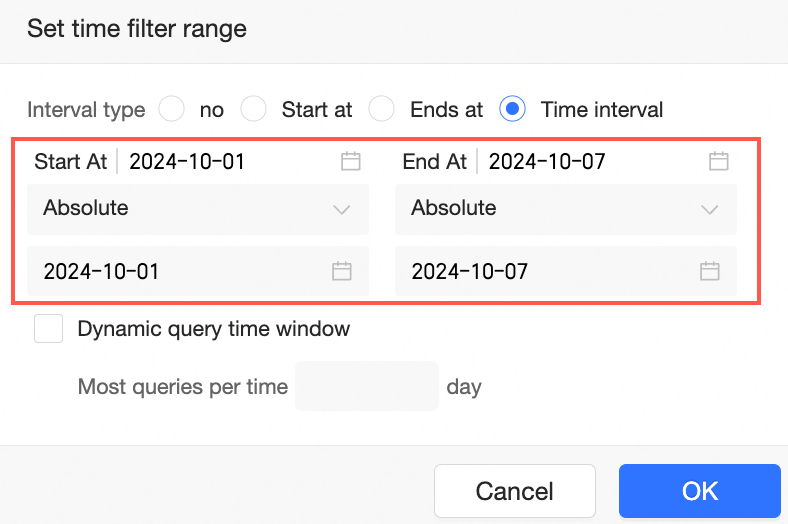
The following example shows how to set an absolute time range when the Interval type is Start at.
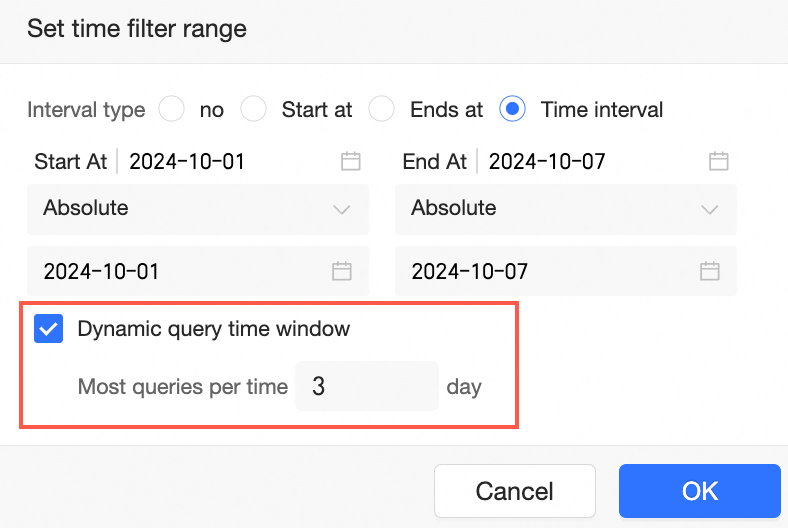
If you select Dynamic query time window and set the Maximum single query duration, you can limit the maximum allowed duration for a single query within the specified filter range.
Filter method
Supports single-day or date-range filtering. Configuration details and examples are provided in the Single-date query and Date range query sections below.
Default value
Set a default value using manual input or a dynamic function.
Manually set a default value using relative time or absolute time.
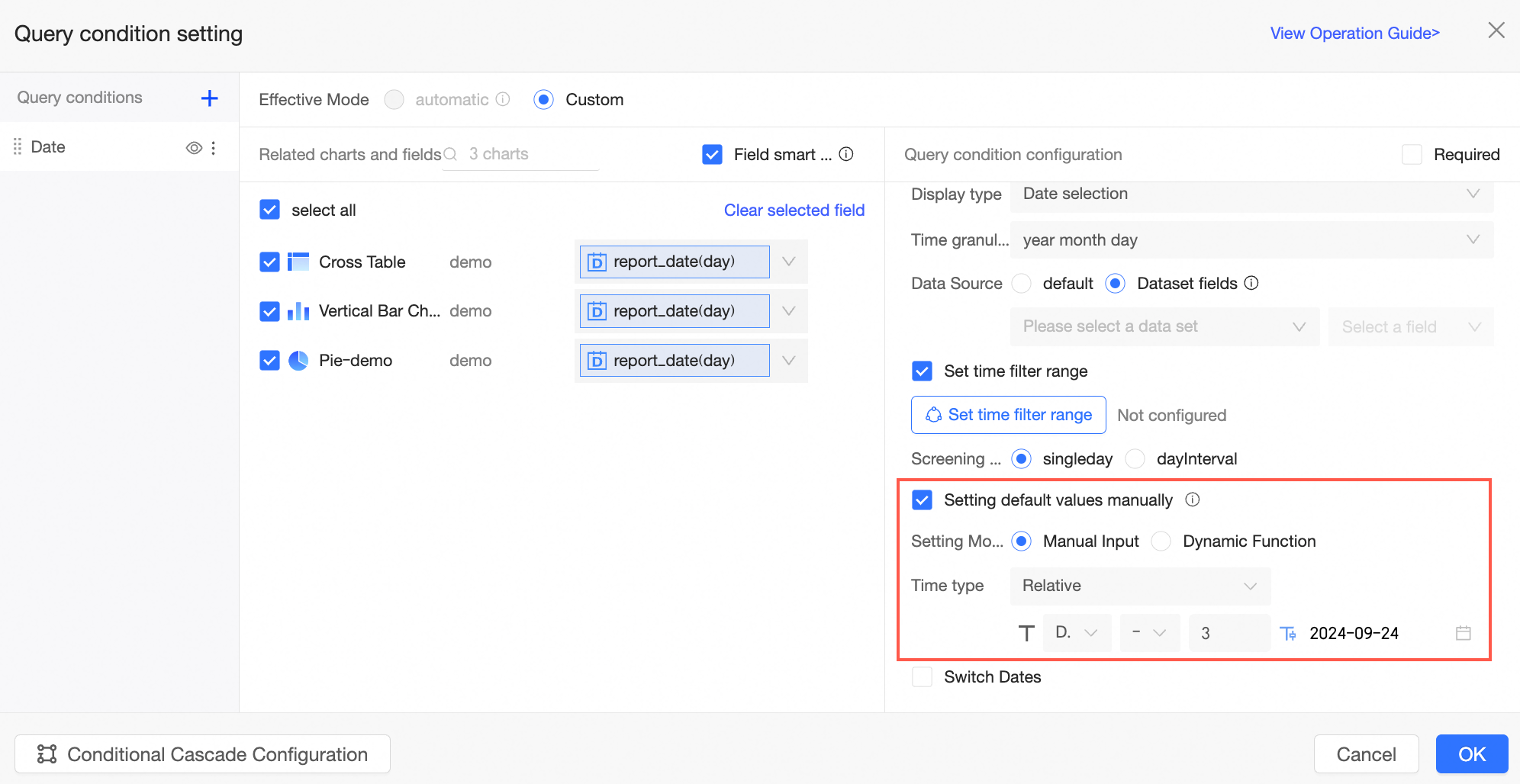
When current or previous day data is unavailable, use a dynamic function to retrieve the latest date with available data.
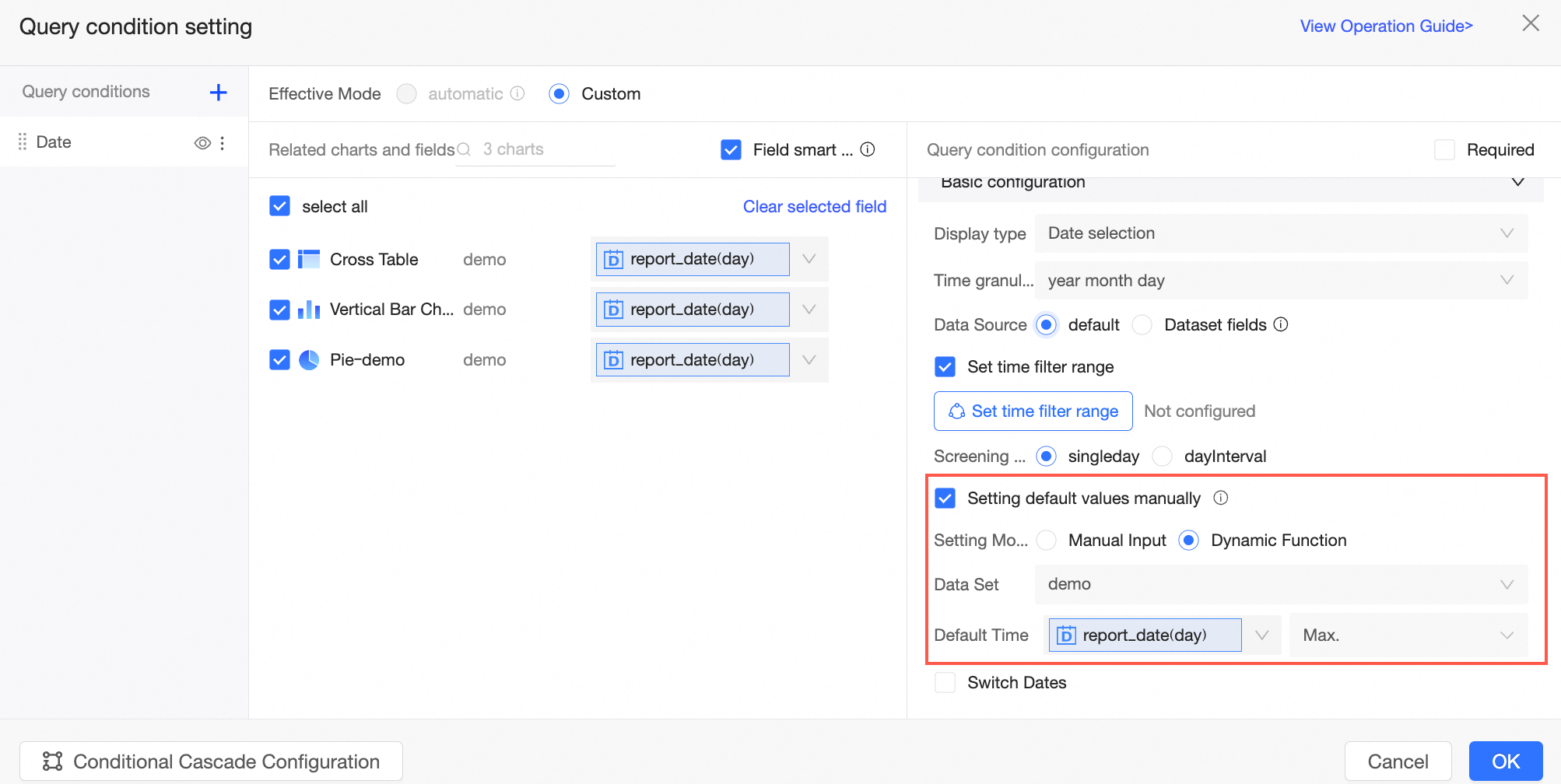
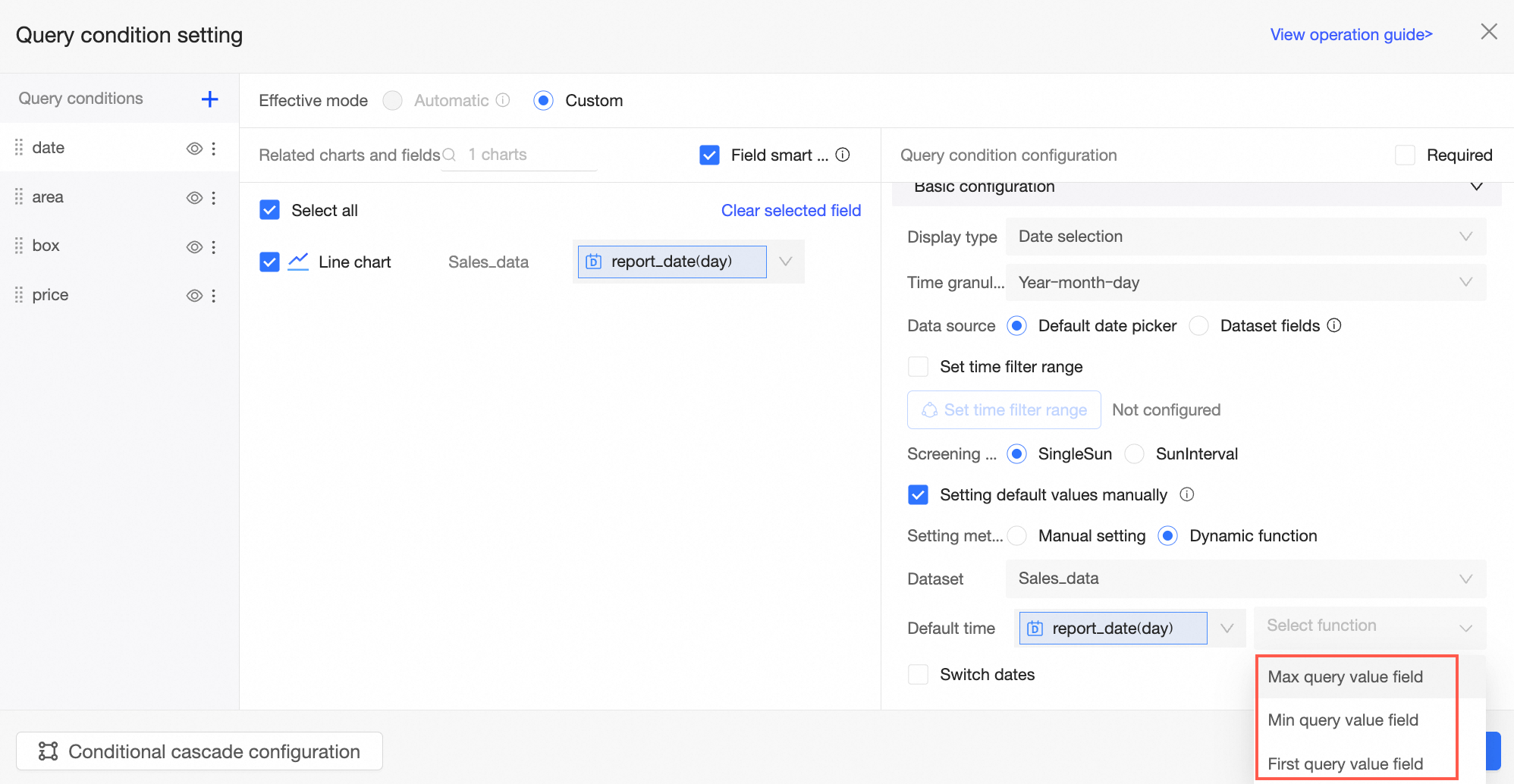
When the filter method is Single Day, the default time can be set to Maximum value of the query field, Minimum value of the query field, or First item of the query field.
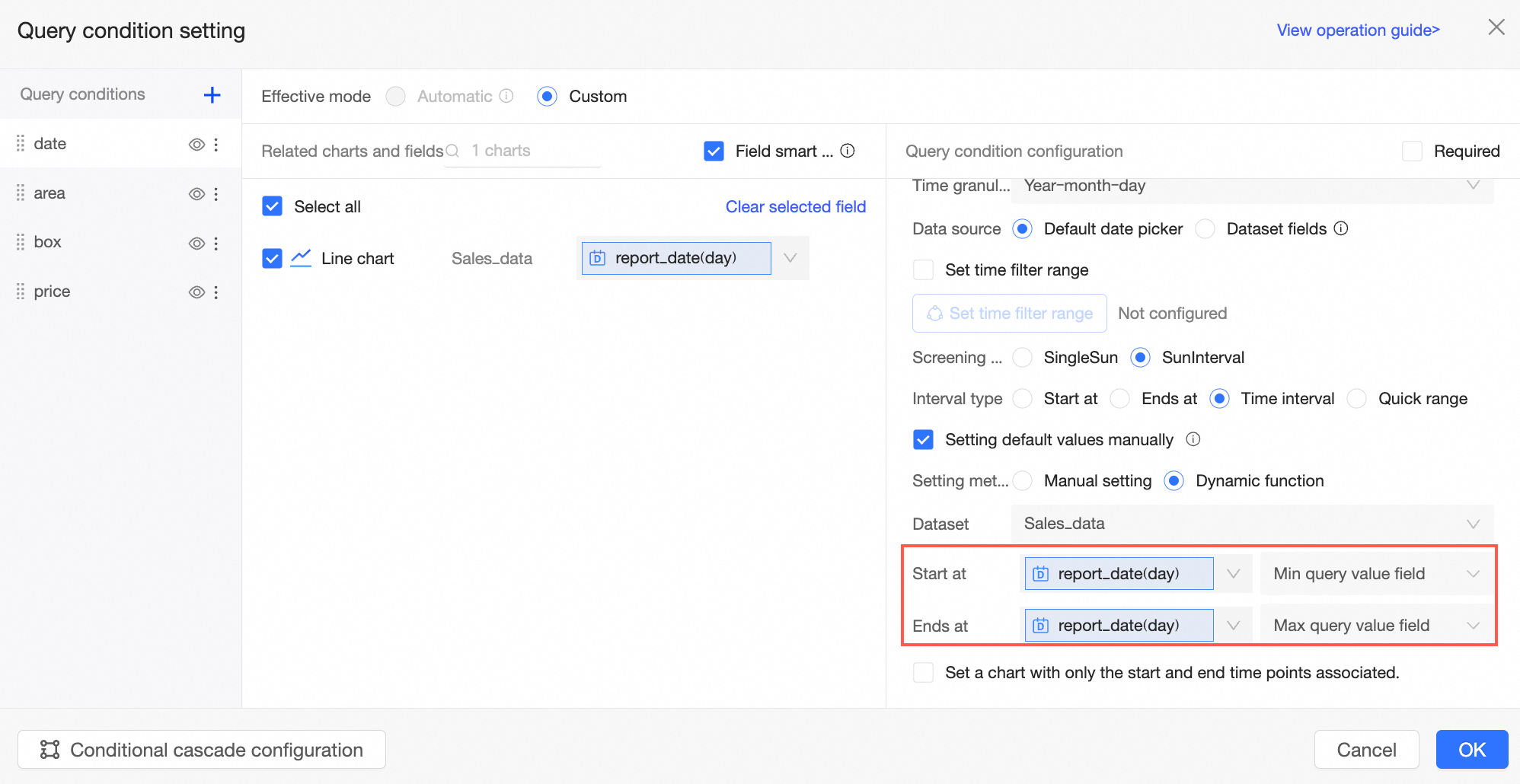
When the filter method is range (such as daily or monthly) and the range type is Starts at, Ends at, or Time range, a default time can be set. This default time can start or end at the minimum value of the query field or the maximum value of the query field.
NoteYou can set a value for just Starts at or just Ends at. If both a start time and an end time are set, the start time cannot be later than the end time.
Enable quick date navigation
Adds navigation arrows to the date filter on the report page for quick date switching.
This parameter is supported when the time granularity for a date is year, quarter, month, week, or day, and the filter method is single granularity.
Set the filter method to Single day and enable Enable quick date navigation. Navigation arrows appear in the date control on the dashboard. Click the arrows to switch between dates.
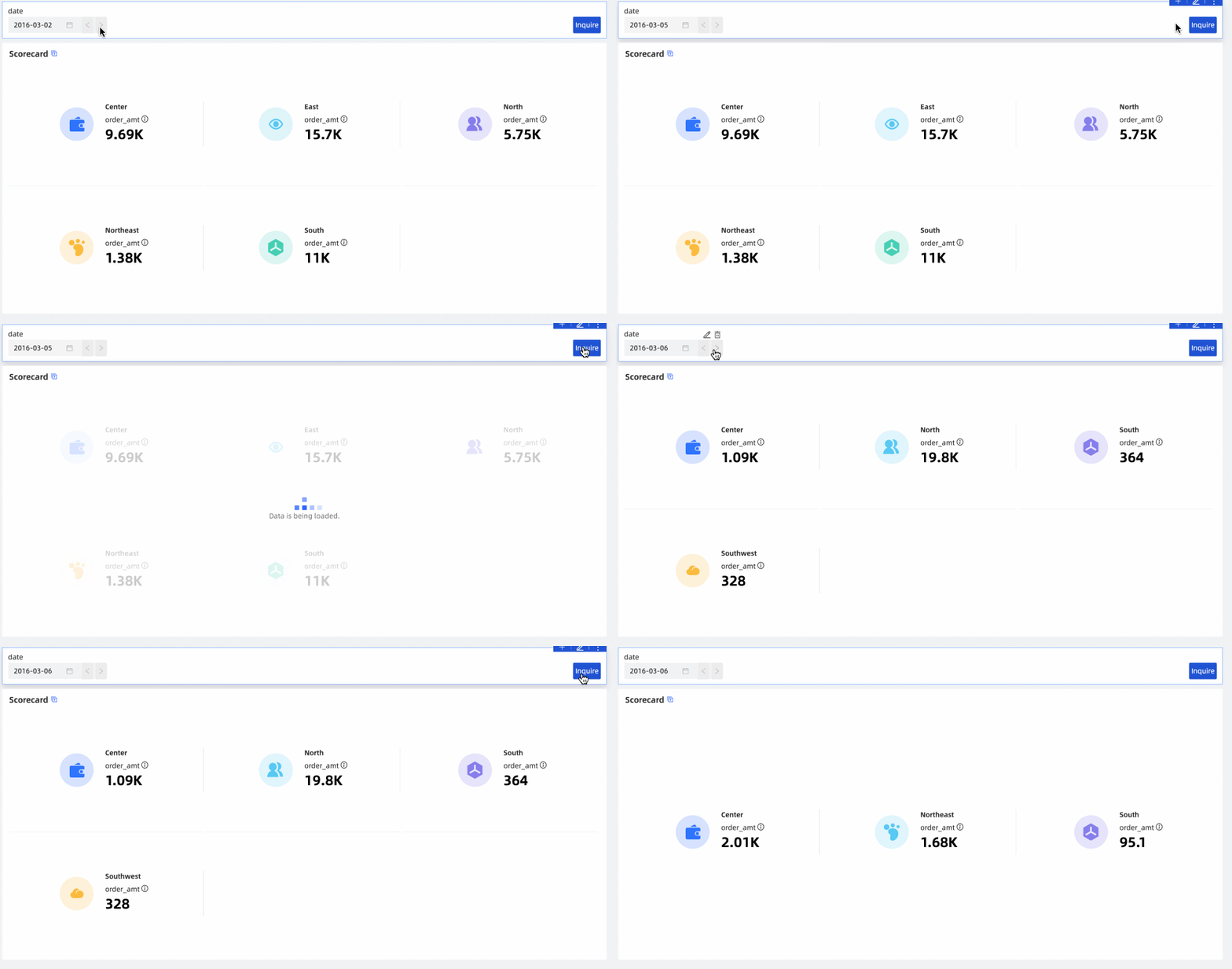
Navigation arrows work only when a specific date is selected.
If a time filter range is set, navigation arrows cannot switch to dates outside that range.
Single-date query
View sales data for a specific day using the order_date (day) field.
On the dashboard management page, select a dashboard that contains the required chart and filter bar.
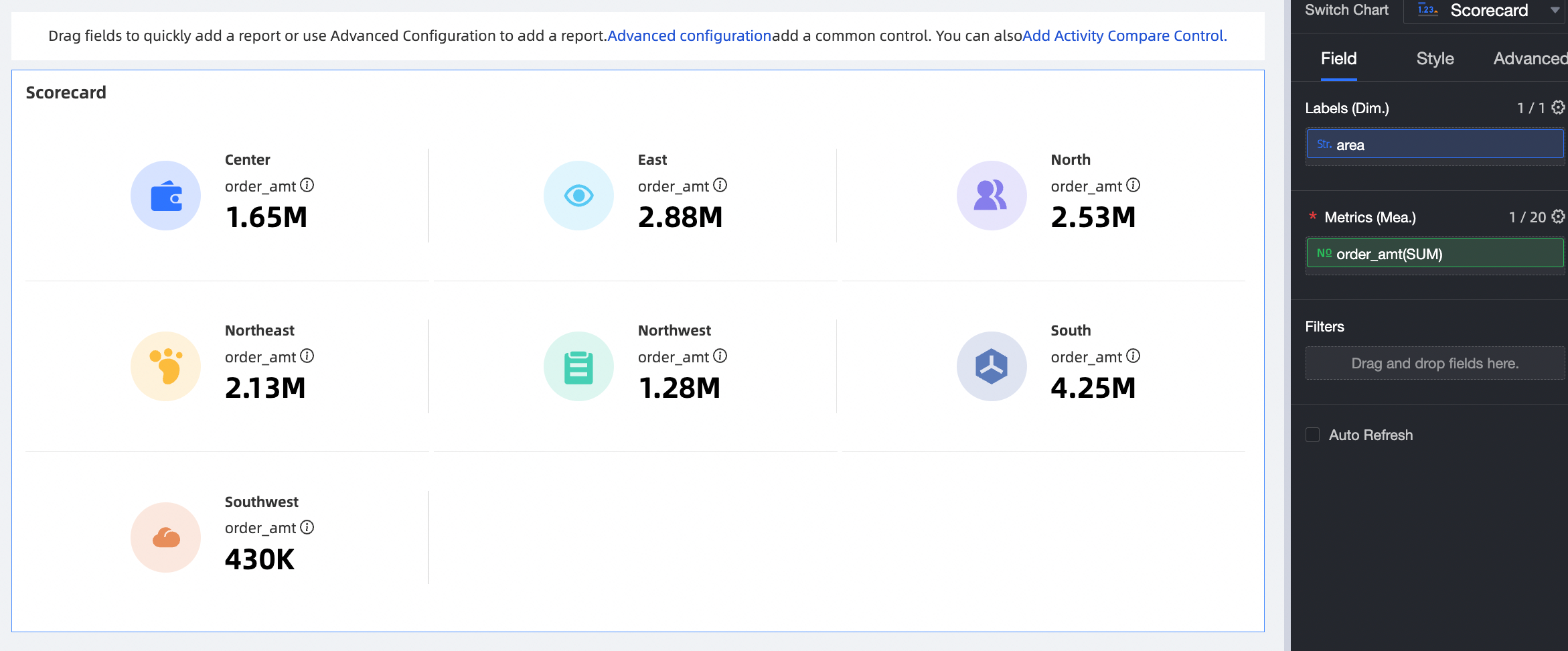
In the filter bar, click advanced configuration.
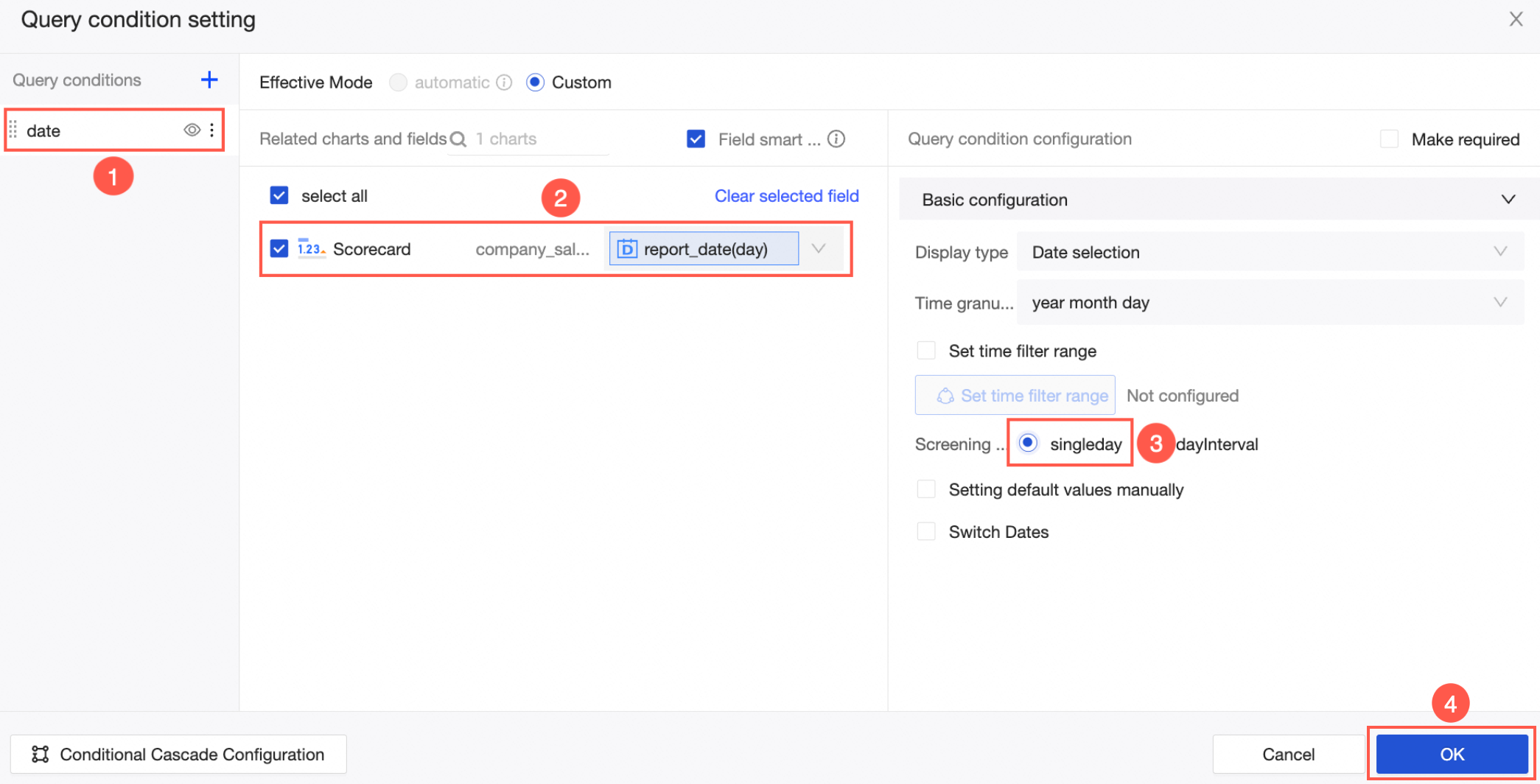
In the query condition setting panel, configure the filter conditions as shown in the following figure.
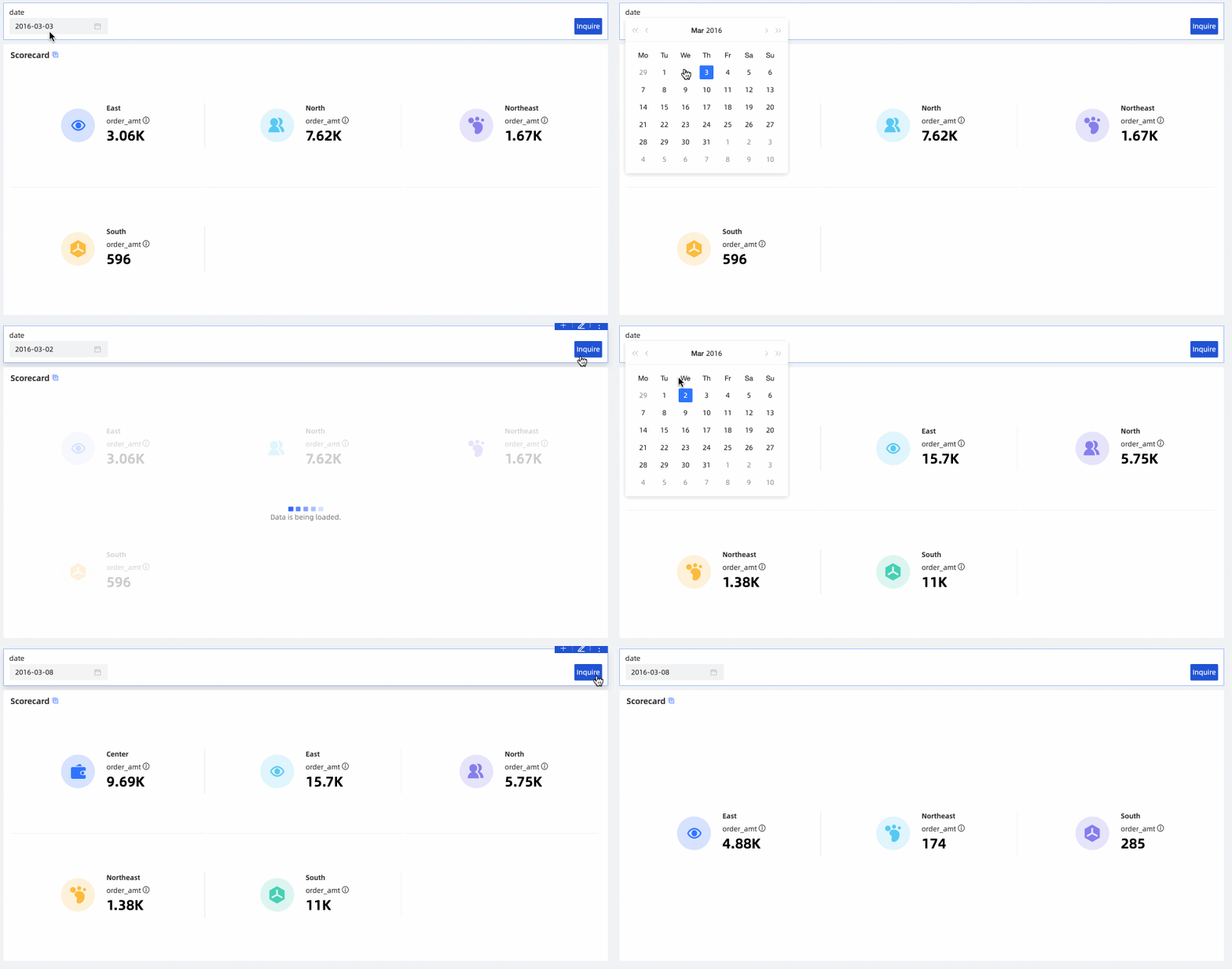
After you complete the configuration, select a date in the filter bar and click Query to view the sales data for that day.
Date range query
View a store's profit within a specific time period using the order_date (day) field.
On the dashboard management page, select a dashboard that contains the required chart and filter bar.
The charts on the dashboard must contain a date field.

In the filter bar, click advanced configuration.
In the query condition setting panel, configure the filter conditions as shown in the following figure.
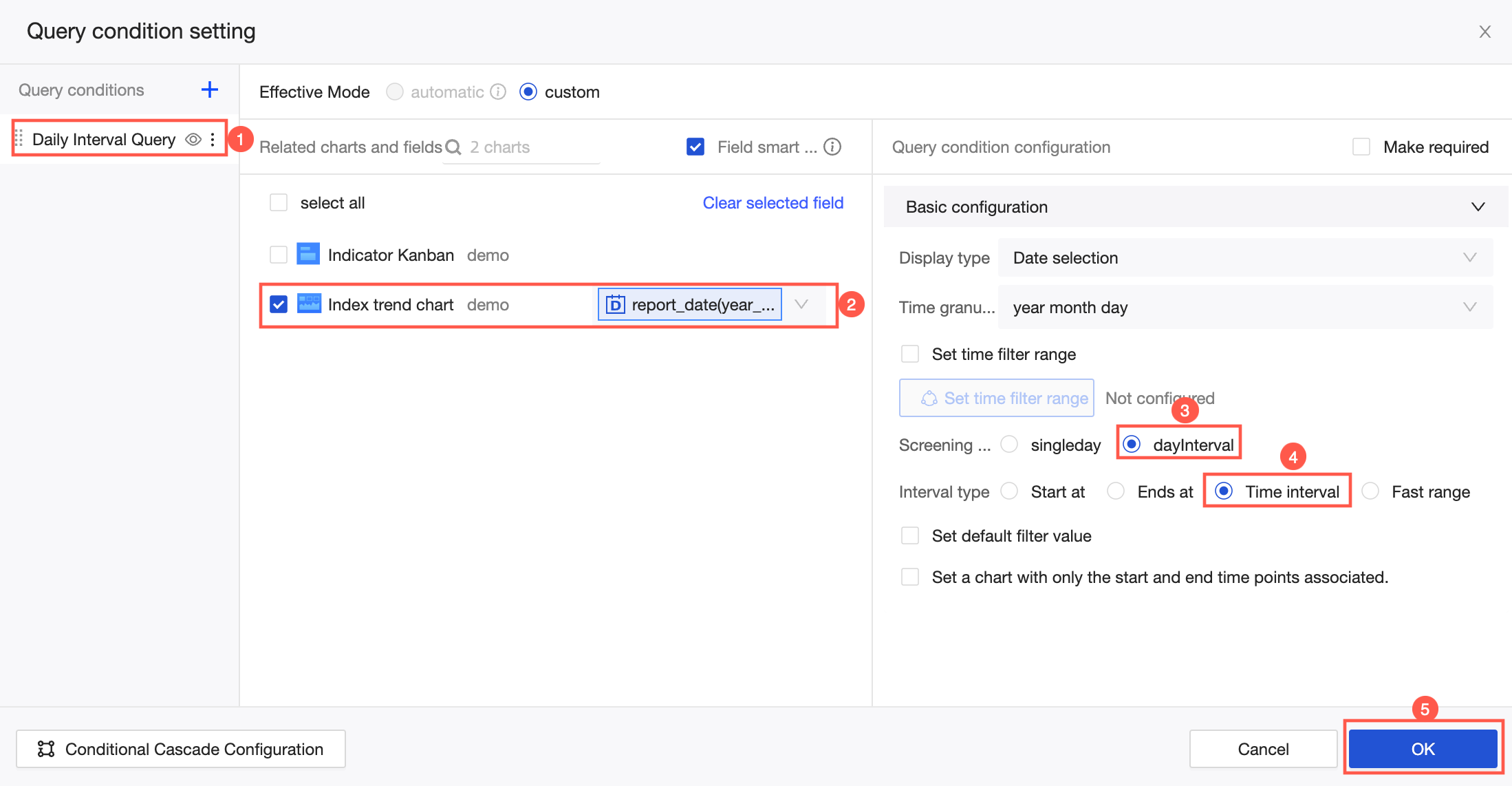
After you complete the configuration, select a date range in the filter bar and click Query to view the store's profit for that period.
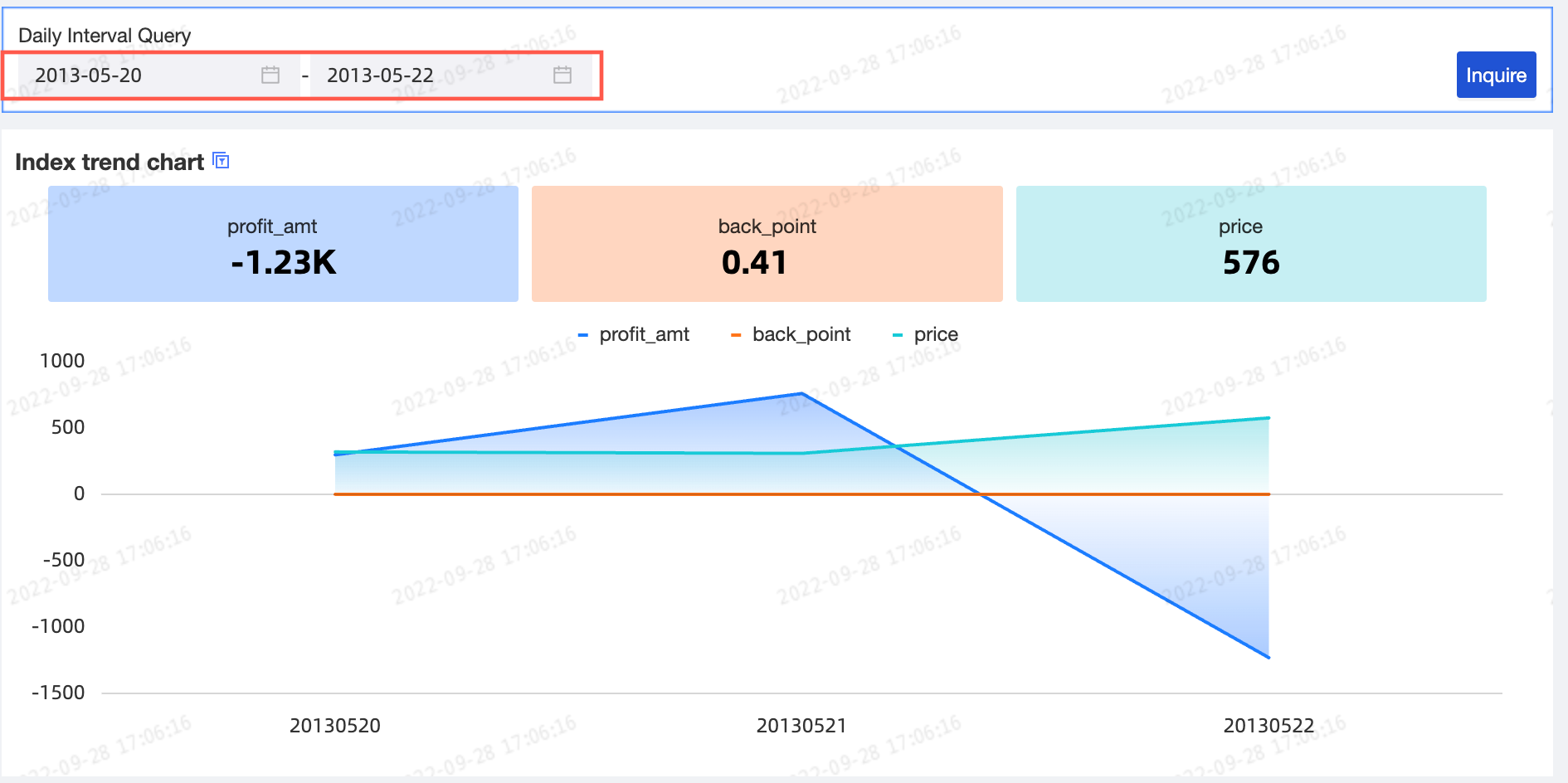
When the filter method is set to a range, you can also use the following features to enhance data viewing:
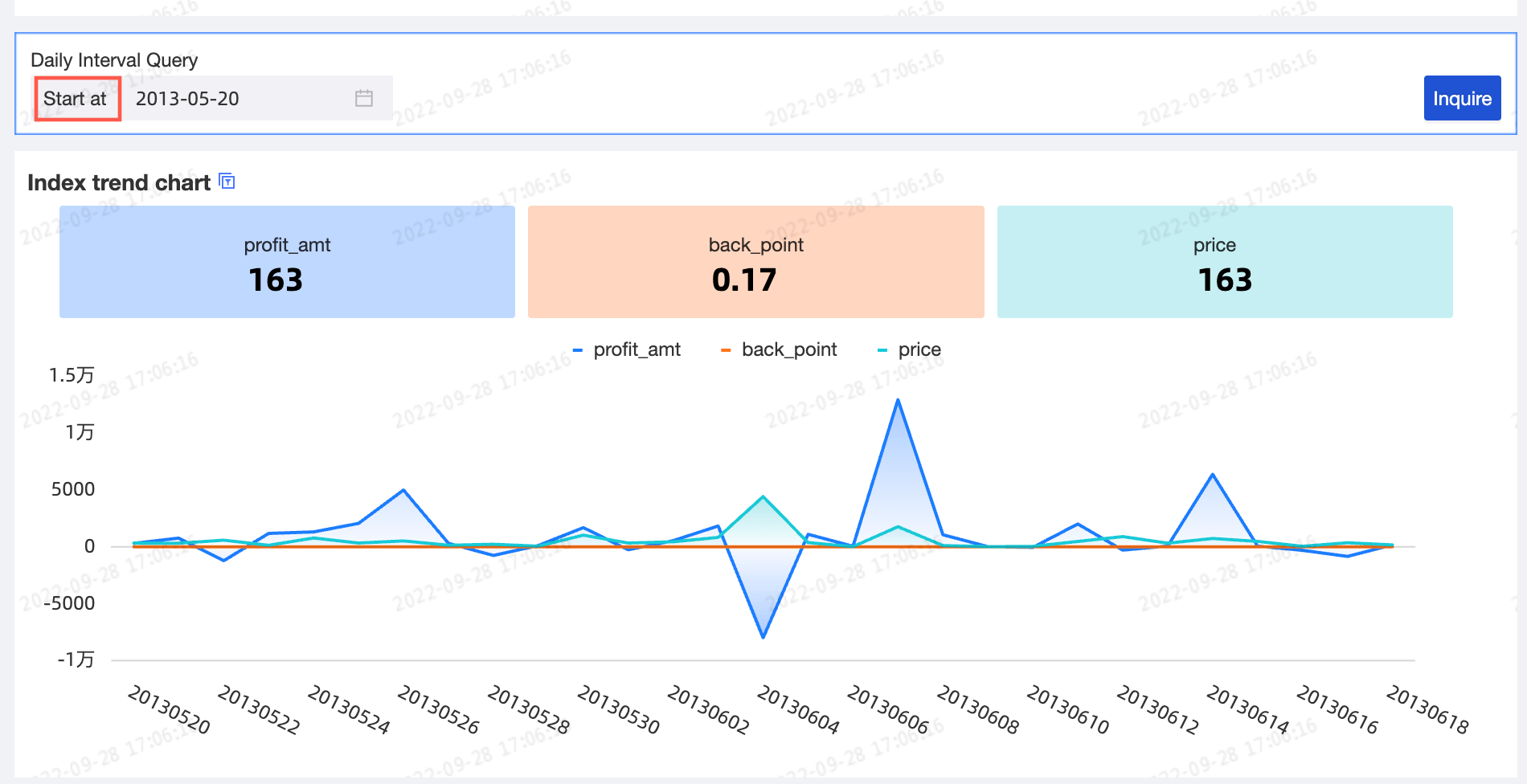
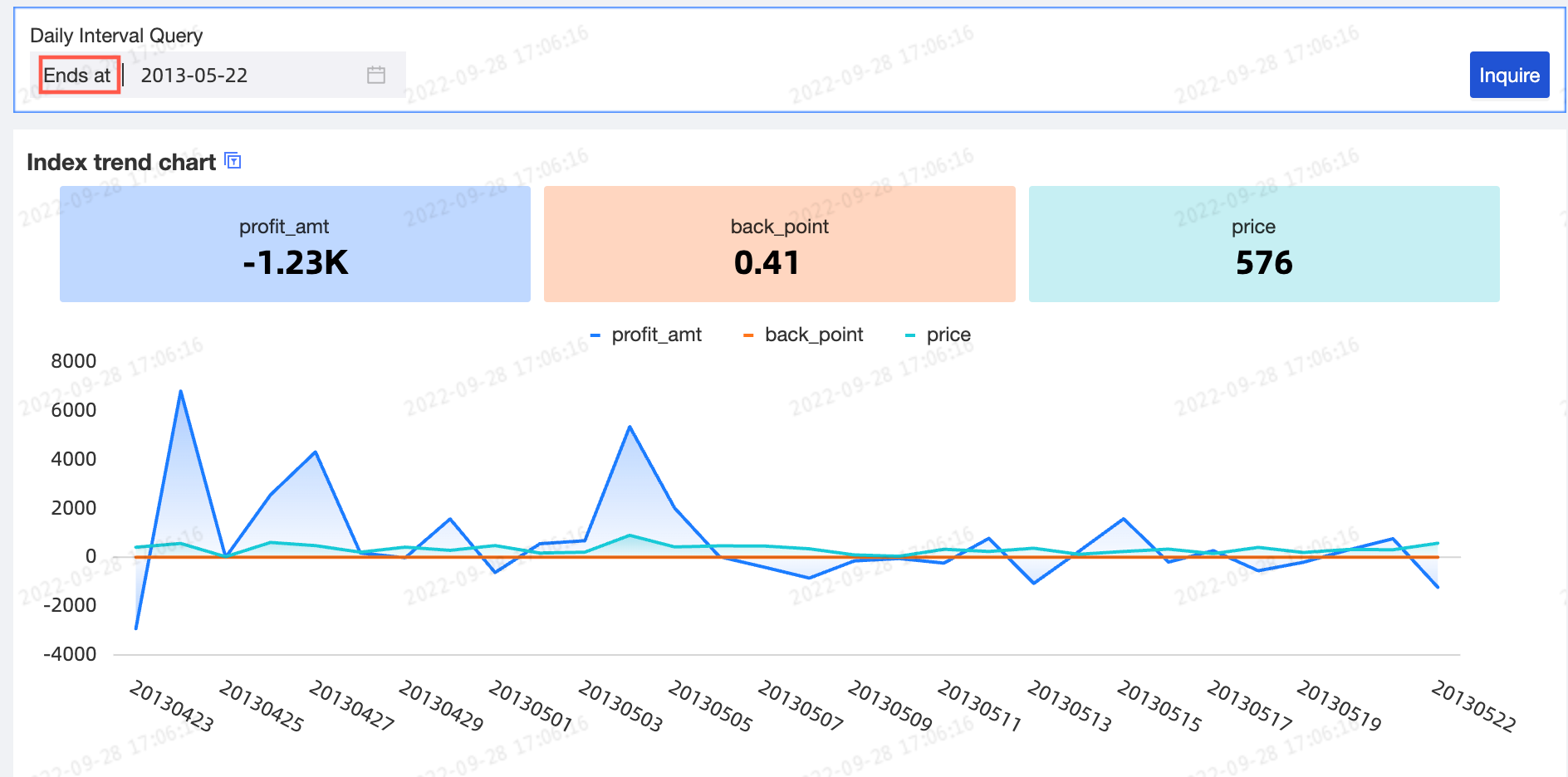
Interval type: Supports four types: Start at, Ends at, Time interval, and quick range.
Start at
Ends at
Time interval
 Quick range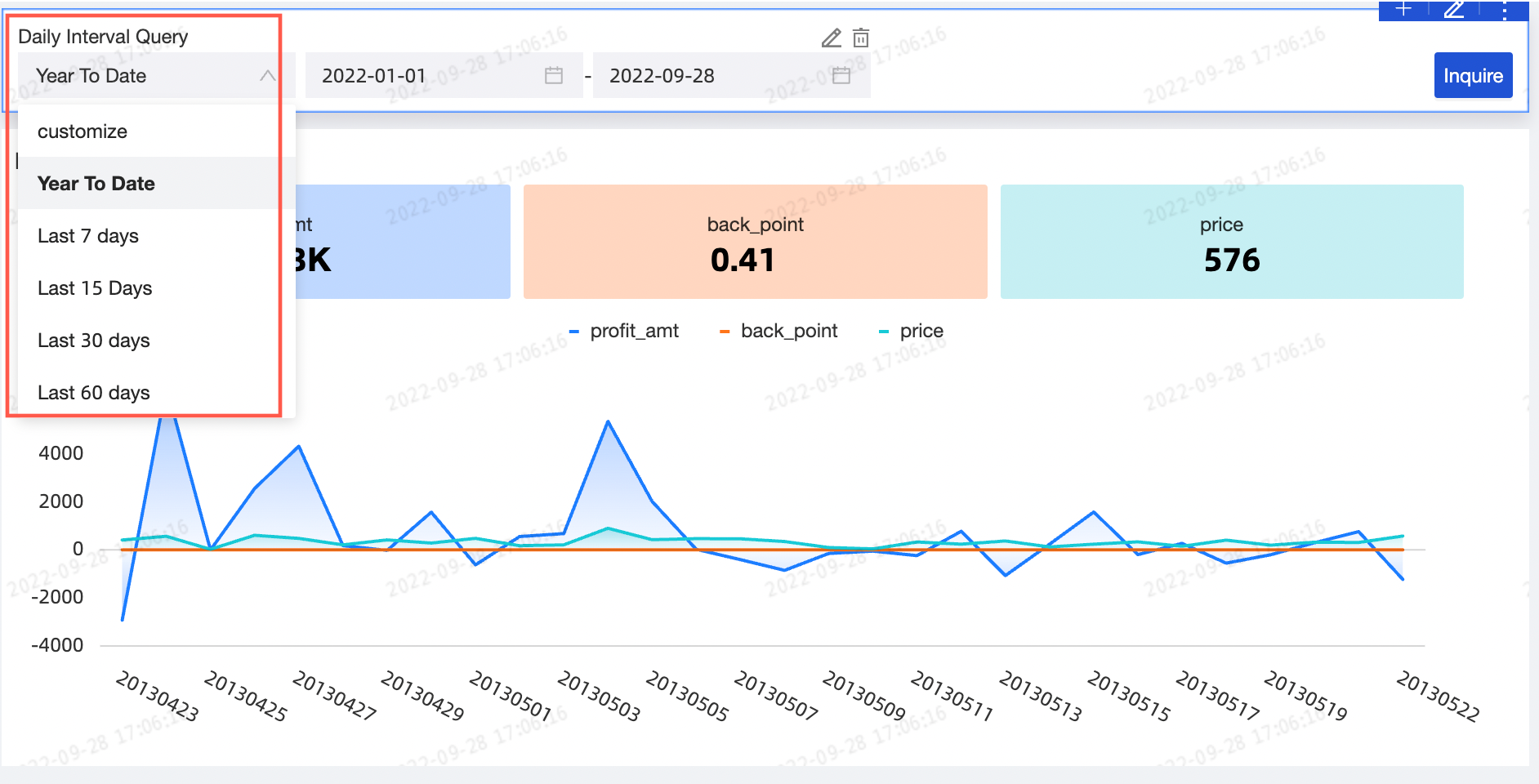
Customize quick range: Lets you define custom quick ranges for various scenarios. You can select from a drop-down list or add a custom quick range.
 Note
NoteThis option is available only when the Interval type is set to quick range.
You can quickly select a quick range from the drop-down list. The available quick ranges vary by time granularity. Query Type Configuration Display.

If built-in quick ranges do not meet your needs, click Add custom quick range to create one.
NoteA custom quick range applies only to the current query condition.

The custom quick range panel includes these options:

Parameter
Description
Range name
Name of the custom quick range.
Reference date
Base time can be Today, Yesterday, or Custom.
 Note
NoteT stands for today, example: T +1 stands for tomorrow, T-1 stands for yesterday.
The base time is the starting point for the date range. Subsequent ranges are calculated forward or backward from this point.
Example: If today is October 17, 2025, the base time is yesterday (October 16), and the range is the latest 3 days, the query covers October 14–16, 2025.

Range
NoteThe interval range needs to be configured after the reference time is set.
Latest xx interval range: Generates a dynamic range of the latest N cycles from the reference time. Available cycle options depend on the time granularity. For example, with day granularity, you can set the latest N days, months, or years.

Custom range: If the latest N cycles option does not meet your needs, set relative or absolute start and end times independently.

Preview
Preview updates in real time based on the selected base time and range. Verify the configured interval meets expectations.

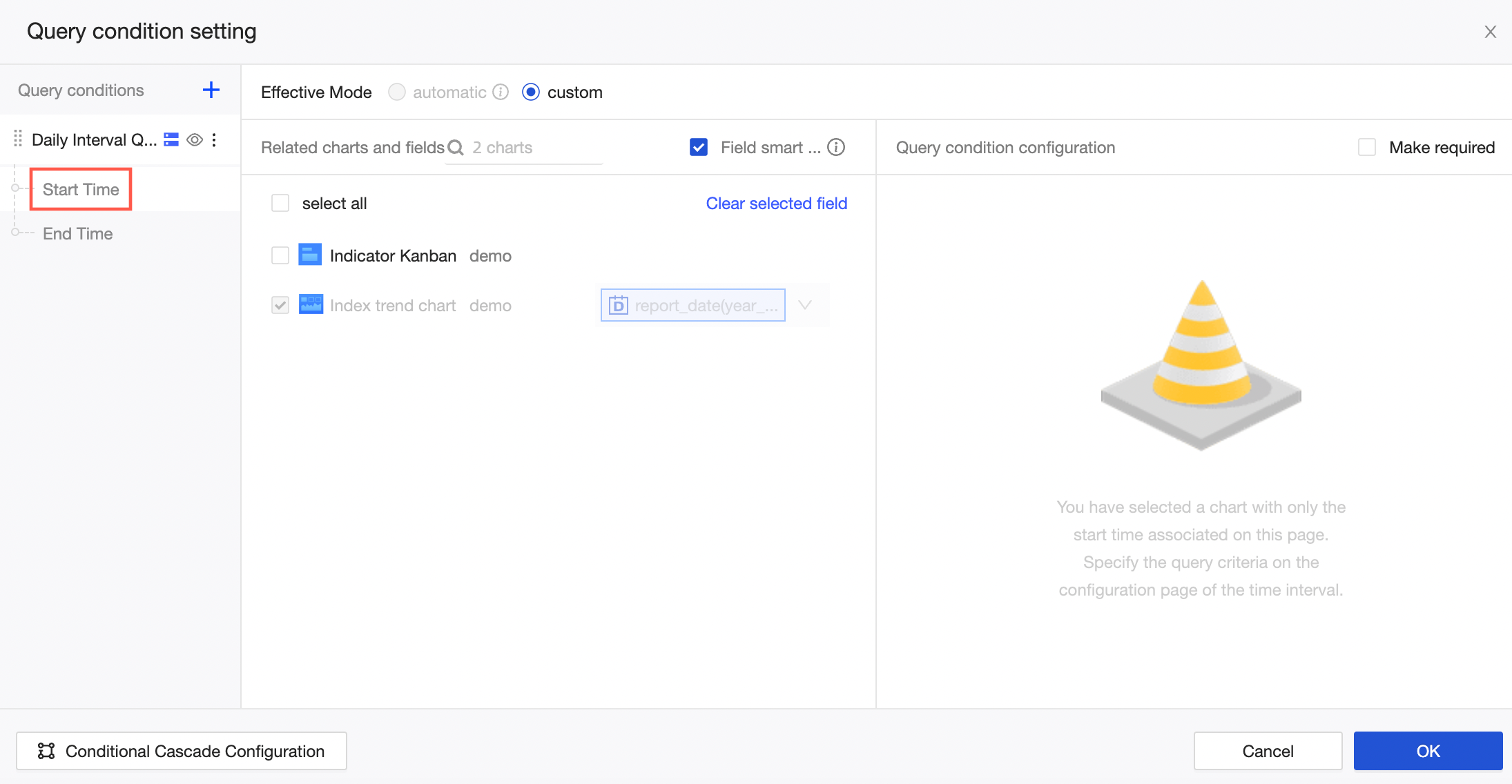
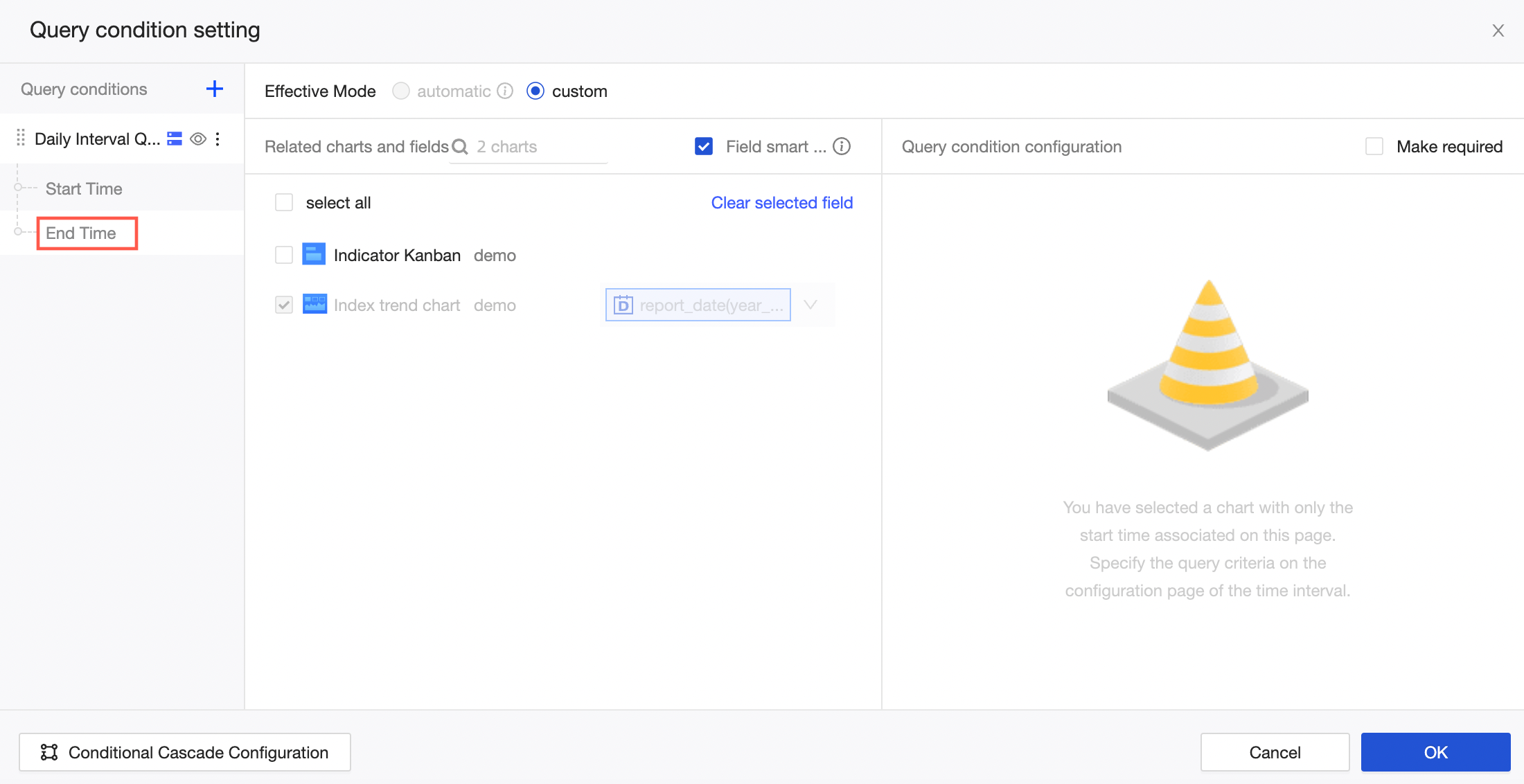
Associate charts with start and end time only: In a dashboard, associate charts with start and end time only to apply the same date range to different charts.
Three time range filter types are supported:
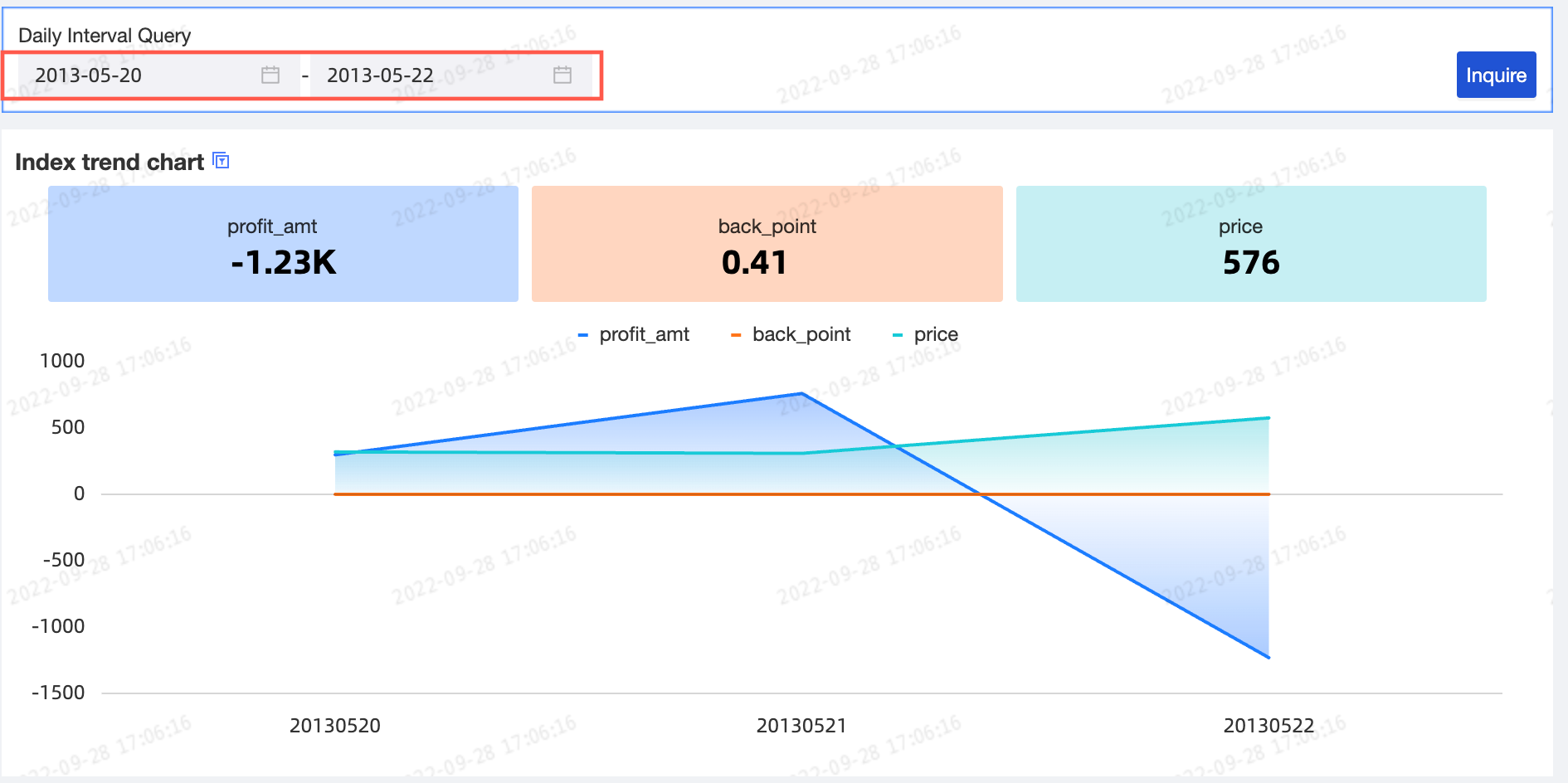
Specify start time
Specify end time
Specify time range
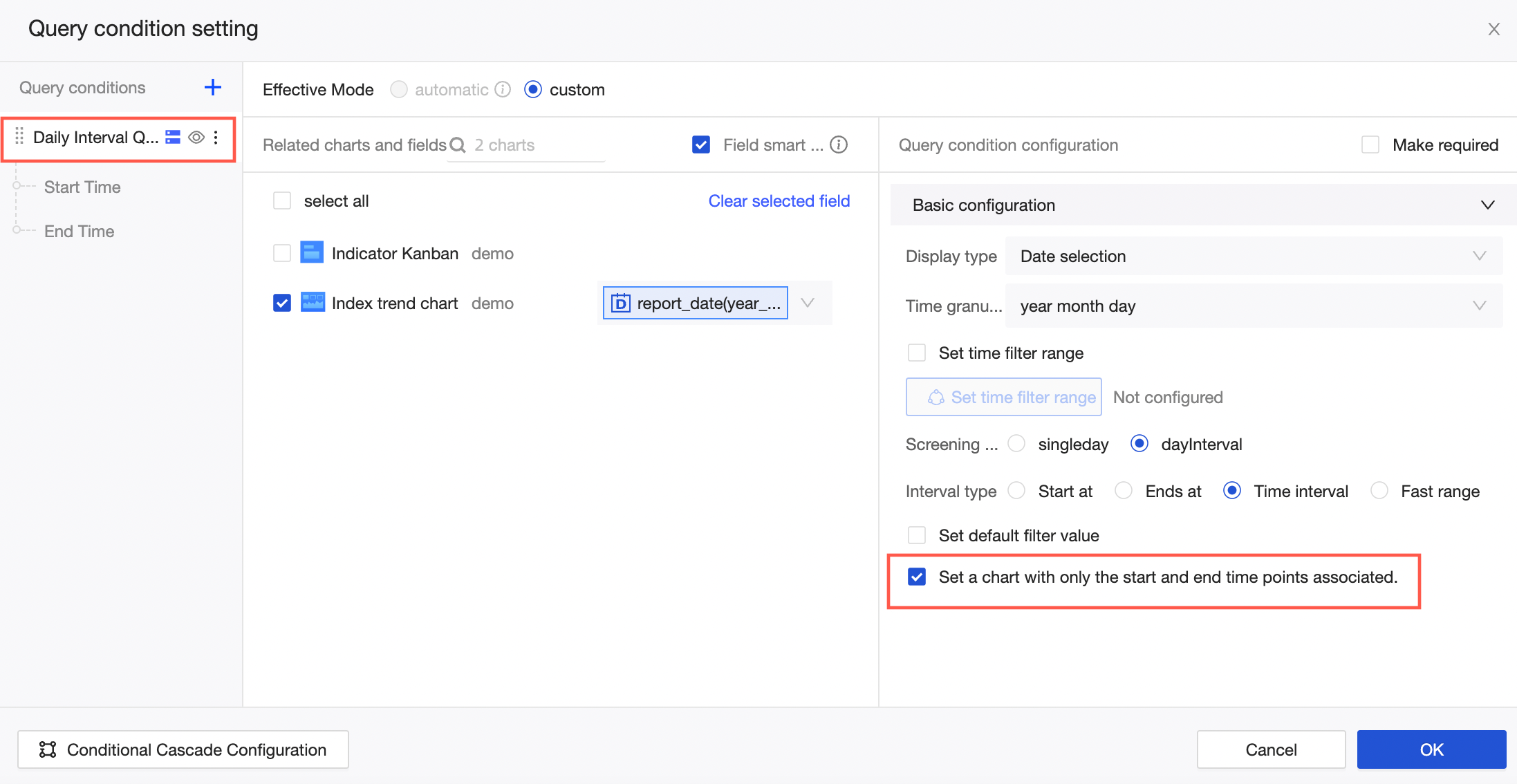
NoteThis option is supported only when Range type is set to Time range.
Switching date granularity
When the filter bar's associated field is a date type (year, quarter, month, week, day, or ymdhms), you can switch date granularity to view data at different time levels in a single chart.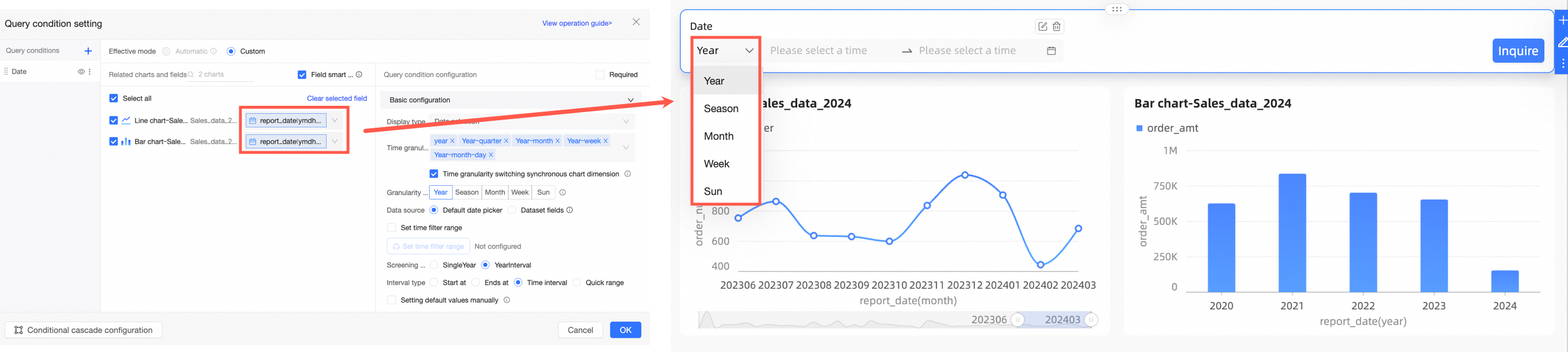
The date filter bar supports two modes:
Configuration method | Description | Example |
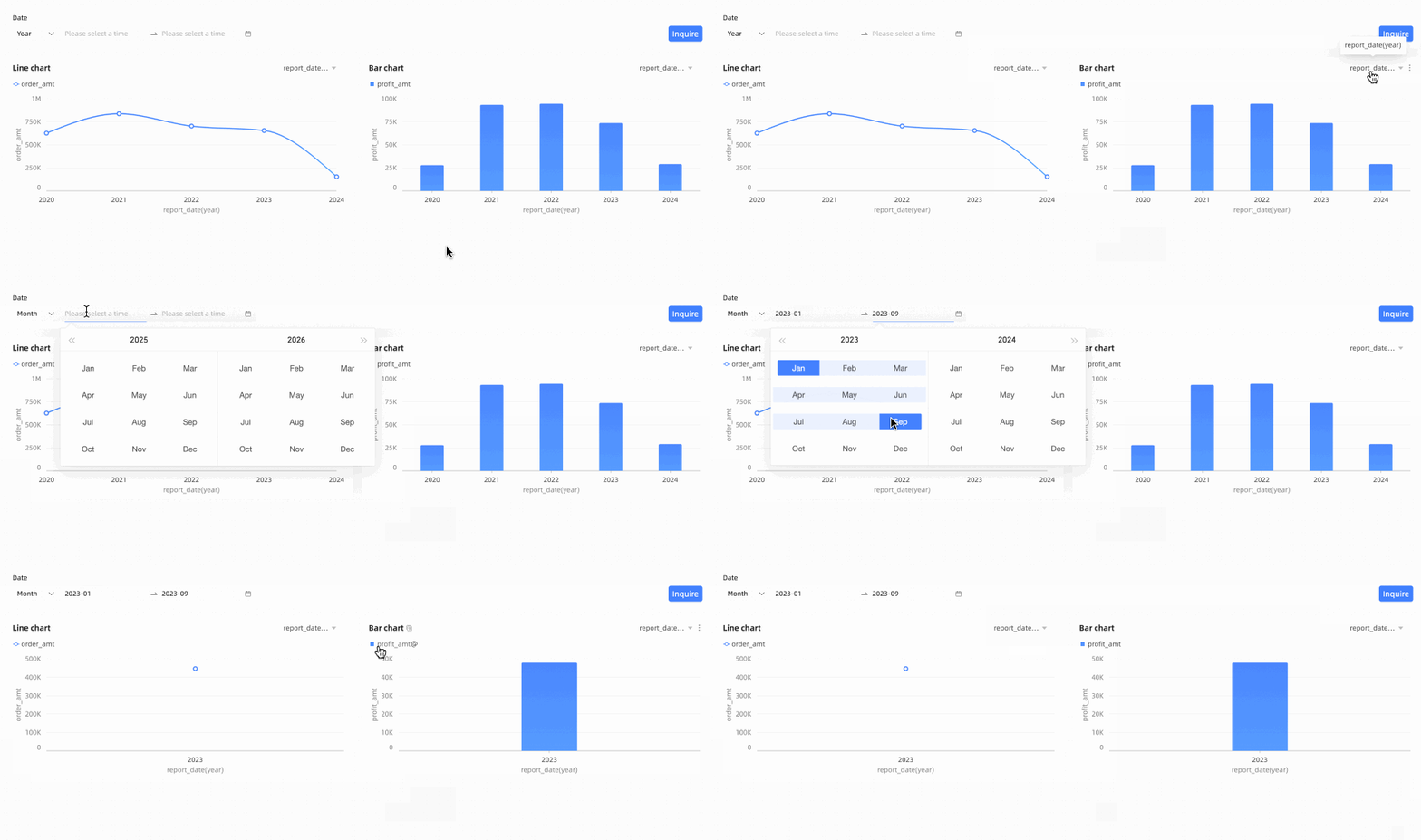
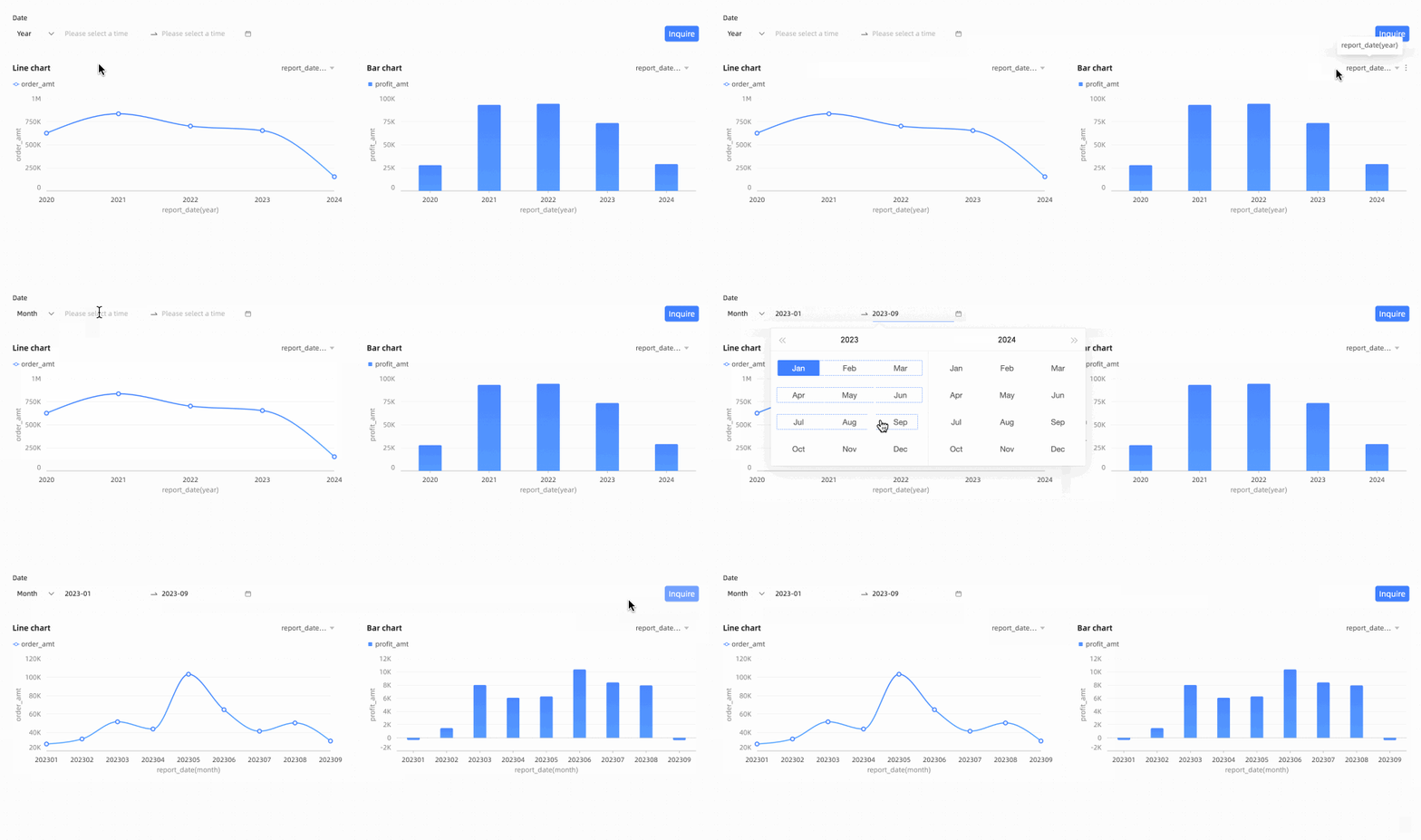
Granularity switching only controls the filter bar | Switching date granularity only changes the filter options, not the chart's display granularity. Use this mode when you only need to change the filter options without affecting the chart's time dimension. For configuration details, see Switching date granularity only controls the filter bar. | The chart displays data at yearly granularity. Setting the filter bar to monthly for January to September 2023 and clicking Query keeps the chart at yearly granularity, showing only aggregated data for that period. |
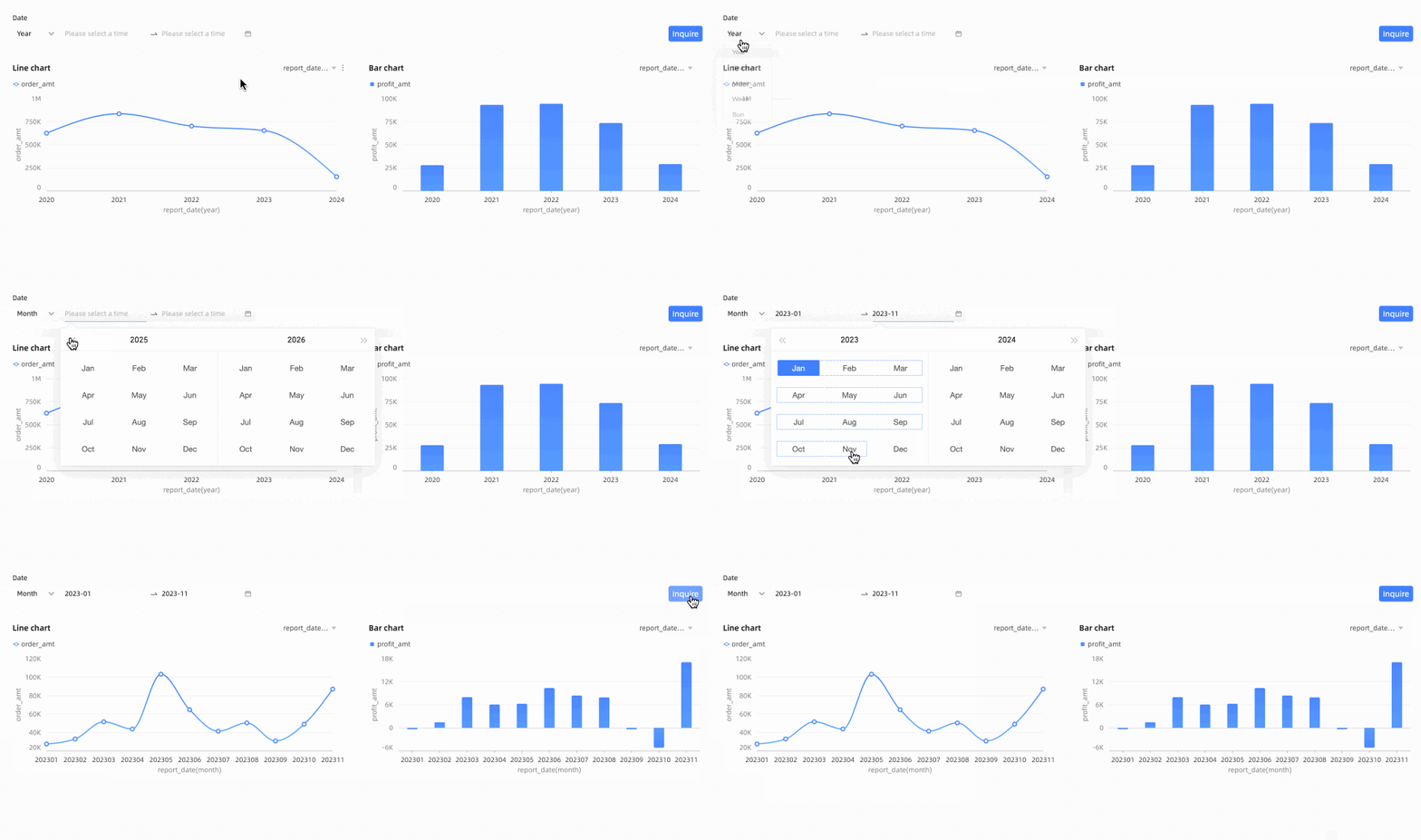
Granularity switching synchronizes with the chart | If a date dimension group is configured in the chart's Fields panel, the chart's display granularity automatically follows the date granularity selected in the filter bar. Use this mode when you need the filter bar to dynamically change the chart's time dimension. For configuration details, see Switching date granularity synchronizes with the chart. | The chart displays yearly granularity. Changing the filter bar to monthly and selecting January to November 2023 updates the chart to show monthly details. |
Switching date granularity only controls the filter bar
The date granularity value in the filter bar only affects the filter options. Configure as follows.
On the query condition setting page, set the query conditions as shown in the following figure.
In this example, the date field is set to
order date (ymdhms).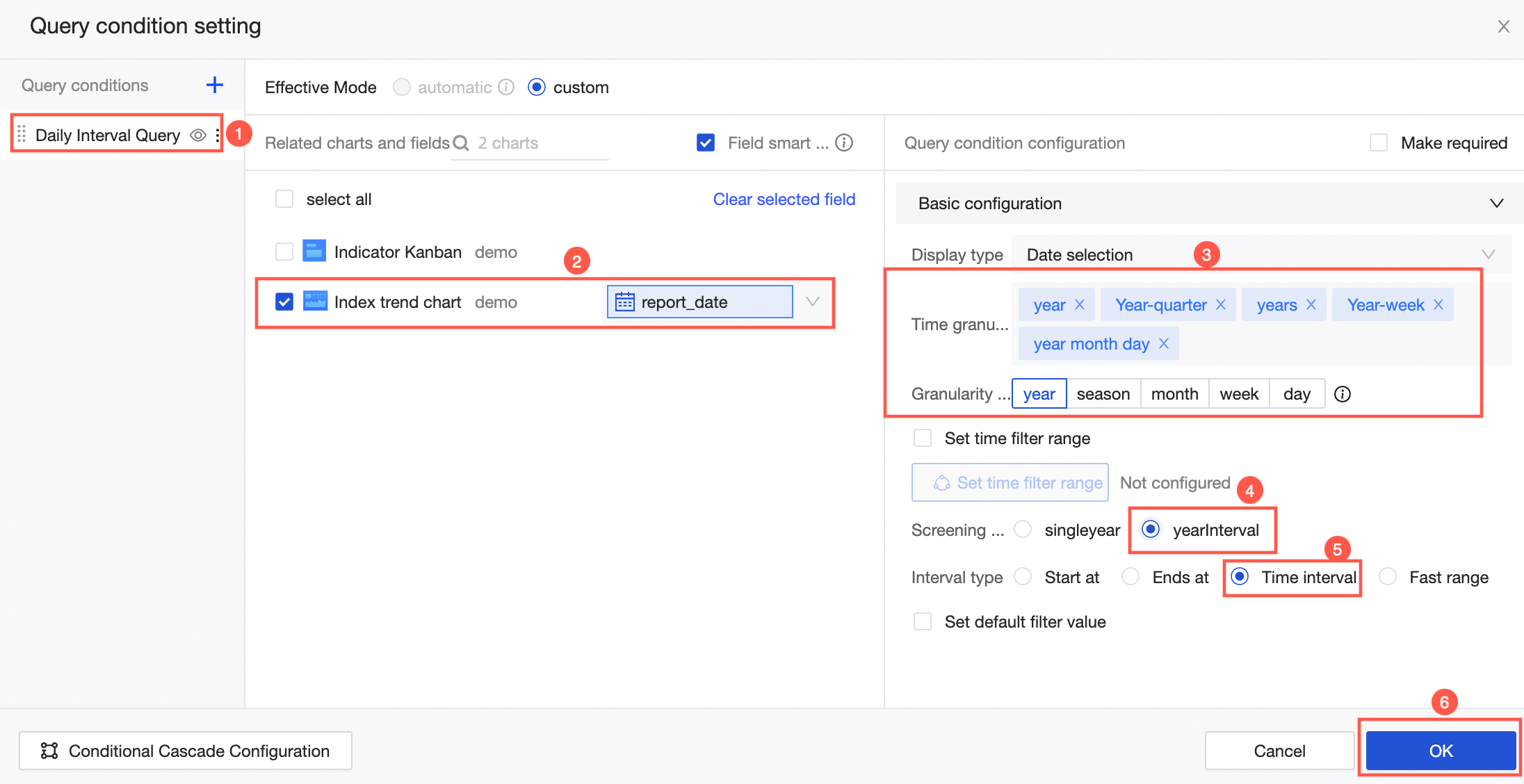
In the Basic Settings section, the parameters are described as follows:
Time granularity: After you select a time granularity field, a default value is automatically populated in the Time granularity list. The default value varies based on the field you select. For more information, see Time granularity.
Add or remove time granularities from the drop-down list as needed.
Granularity Grouping: Configure granularity grouping to quickly view data from different time perspectives on a dashboard page.
NoteGranularity grouping can be configured only when two or more values are selected for Time granularity.
Set default filter value: Set a default value for the filter bar.
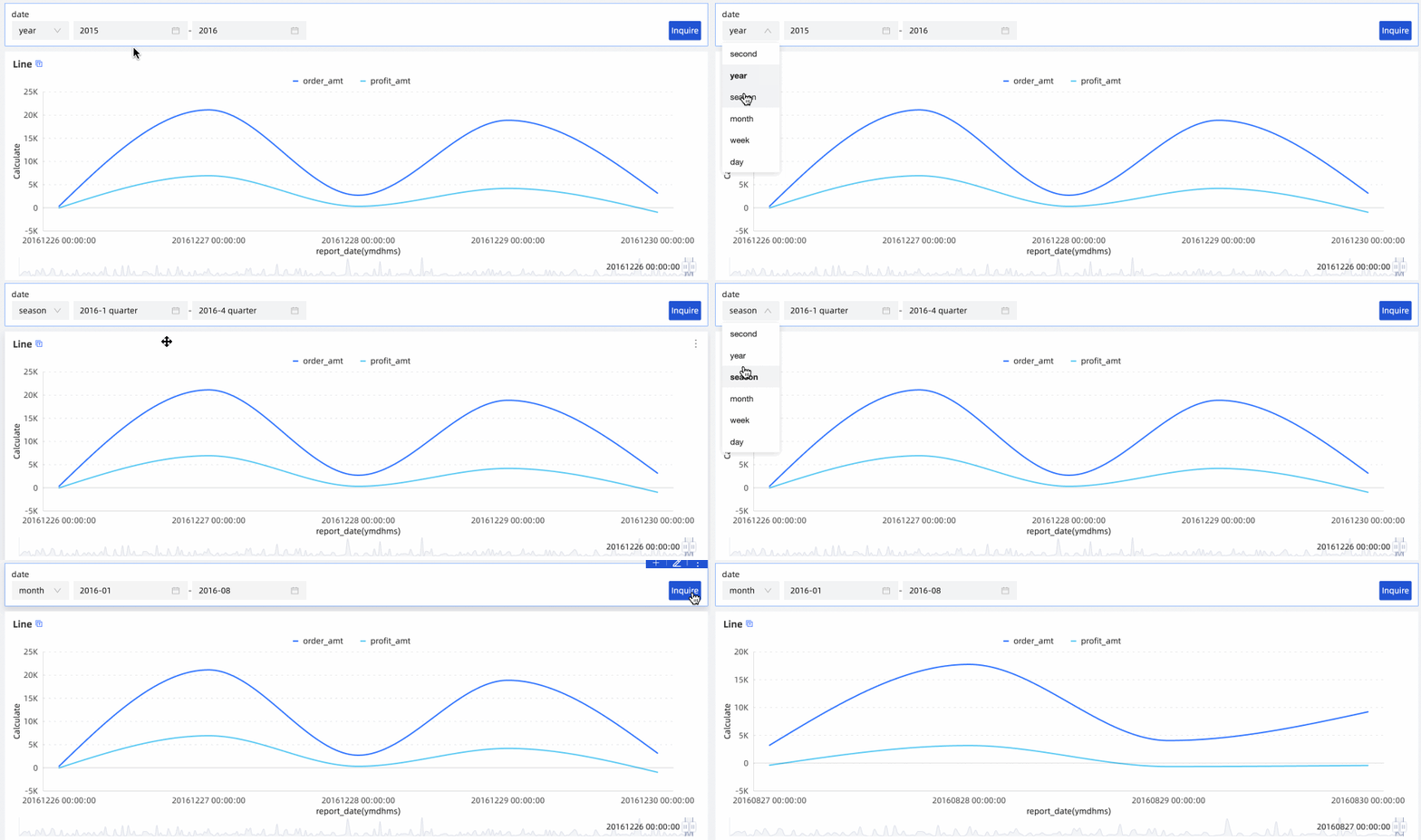
After you configure Granularity Grouping, you can also set a different default value for each time granularity. This lets you quickly query data when you switch between time granularities.
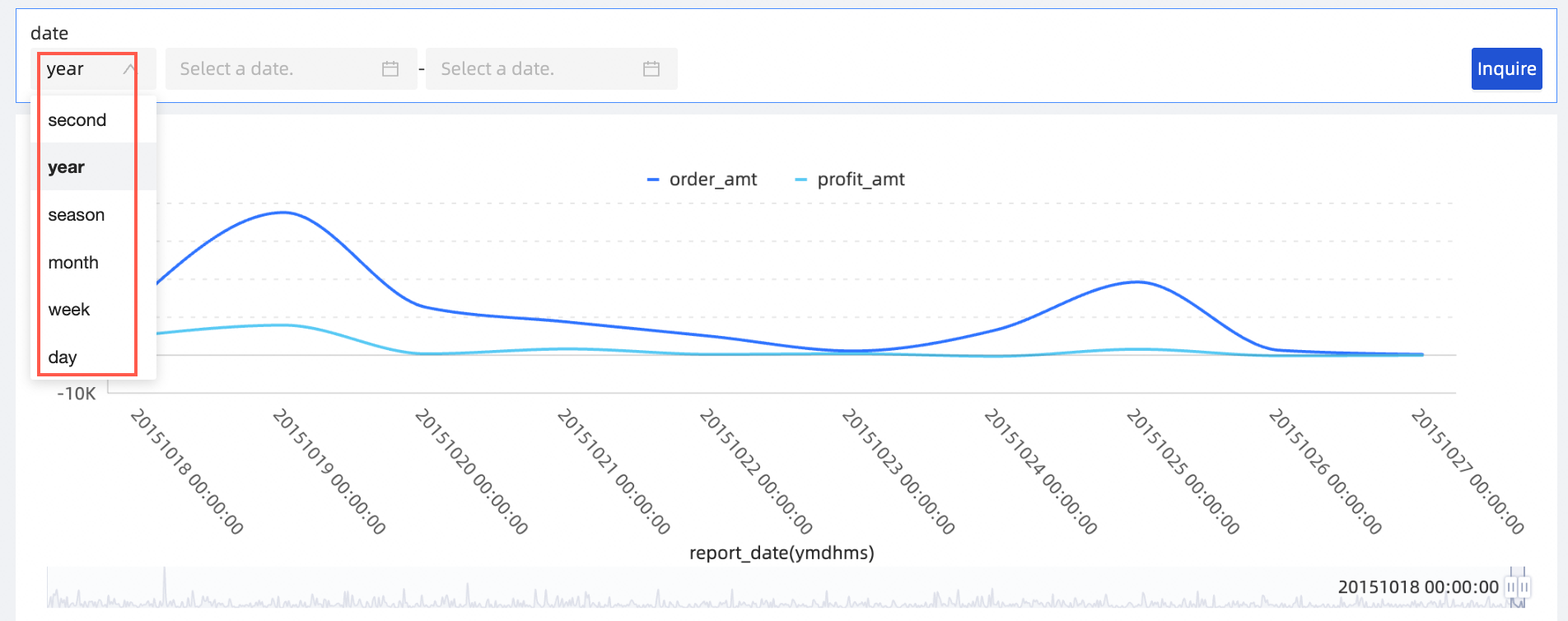
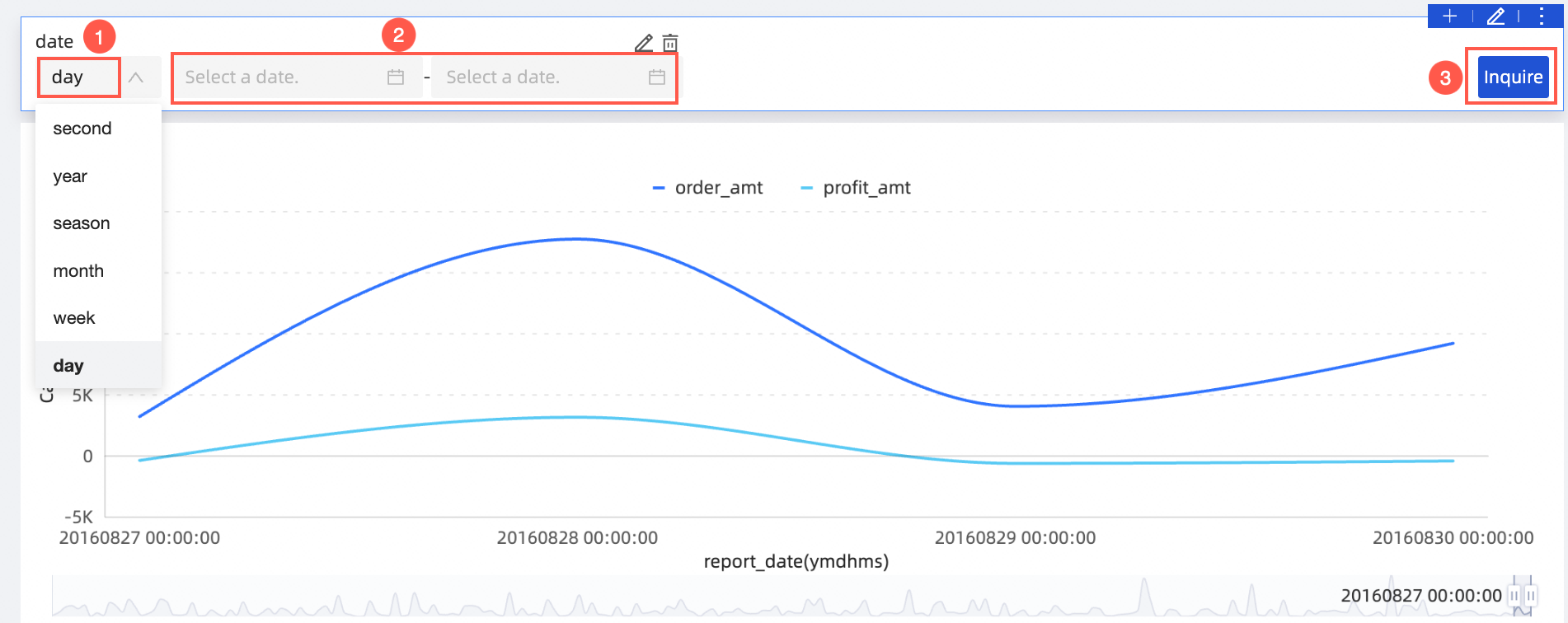
Switch the granularity in the filter bar, select a date, and click Query.
Switch granularity to quickly query data at different time levels.
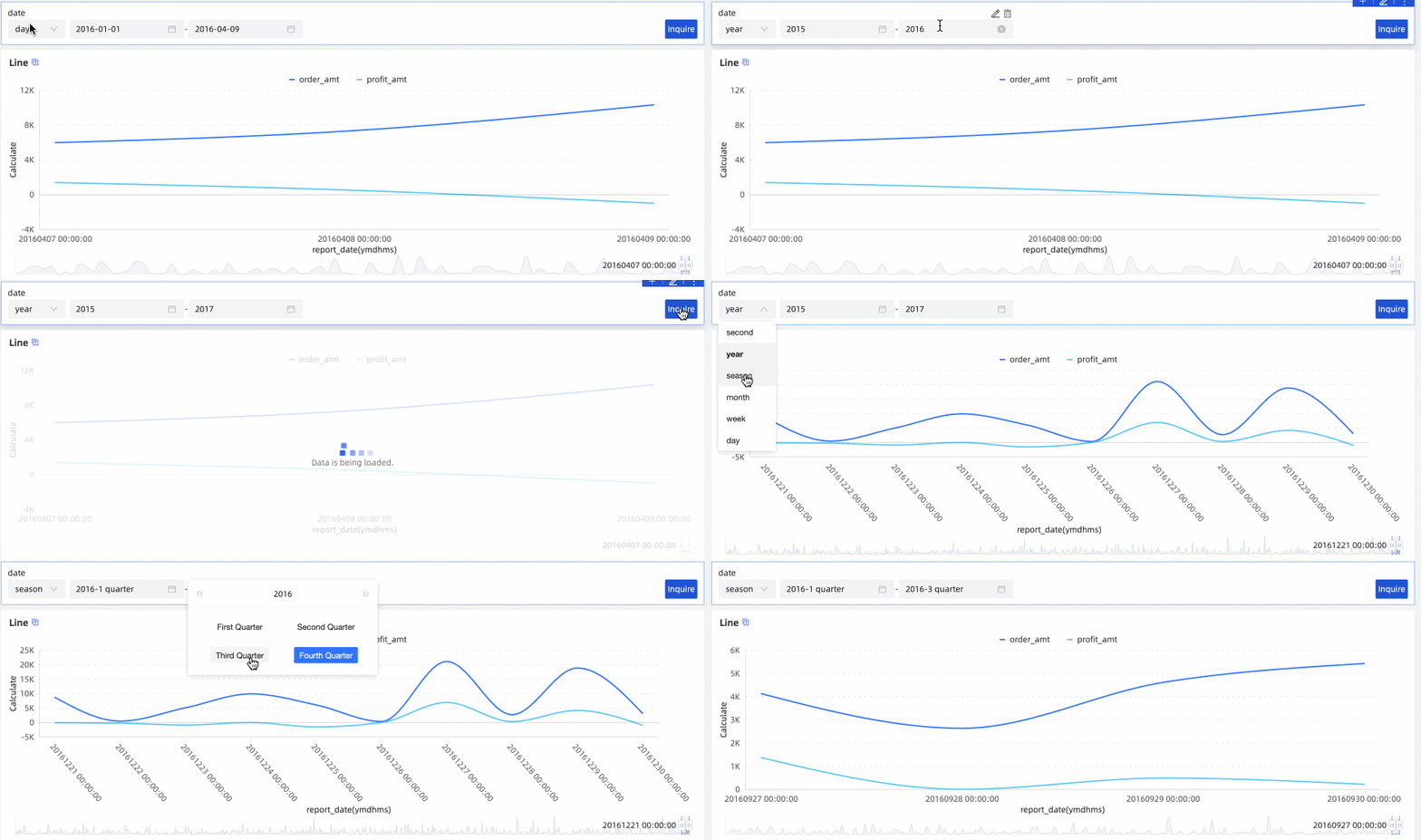
If a fiscal year is configured for the dataset, the Fiscal year starts on setting follows the dataset's field configuration and cannot be changed. Create a dataset.
Switching date granularity synchronizes with the chart
If a date dimension group is configured in the chart's Fields panel, you can set the filter bar to synchronize the chart's time dimension when switching granularity.
Configure a date dimension group for the chart that needs granularity synchronization.
In the chart's Data panel, click the
 icon and select New Dimension Group from the drop-down list.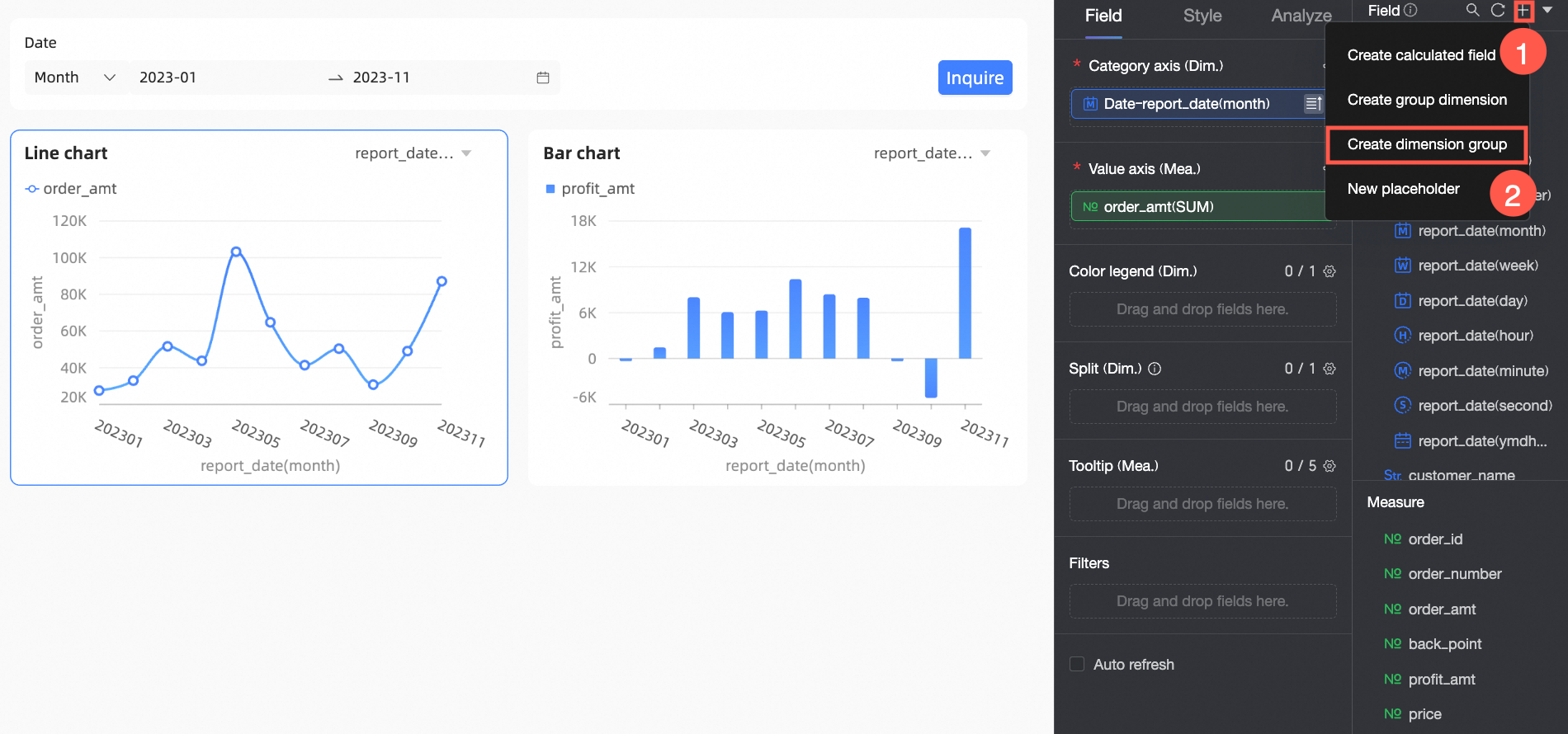
In the New Dimension Group Field dialog box, configure the date fields as needed, and then click OK.

Drag the created date dimension group field to the chart's Fields panel and click Update.
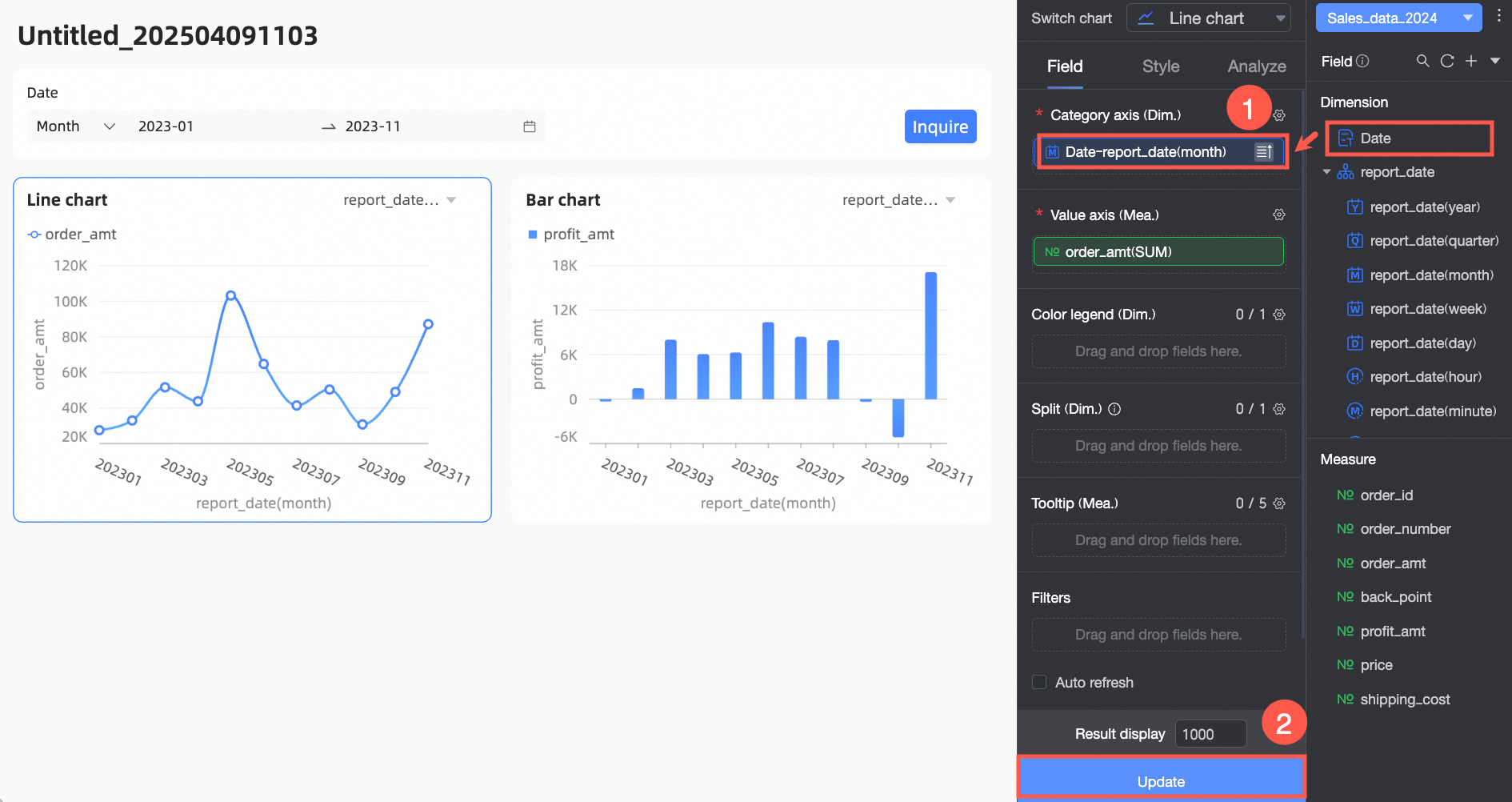
Add a filter bar and configure query conditions.
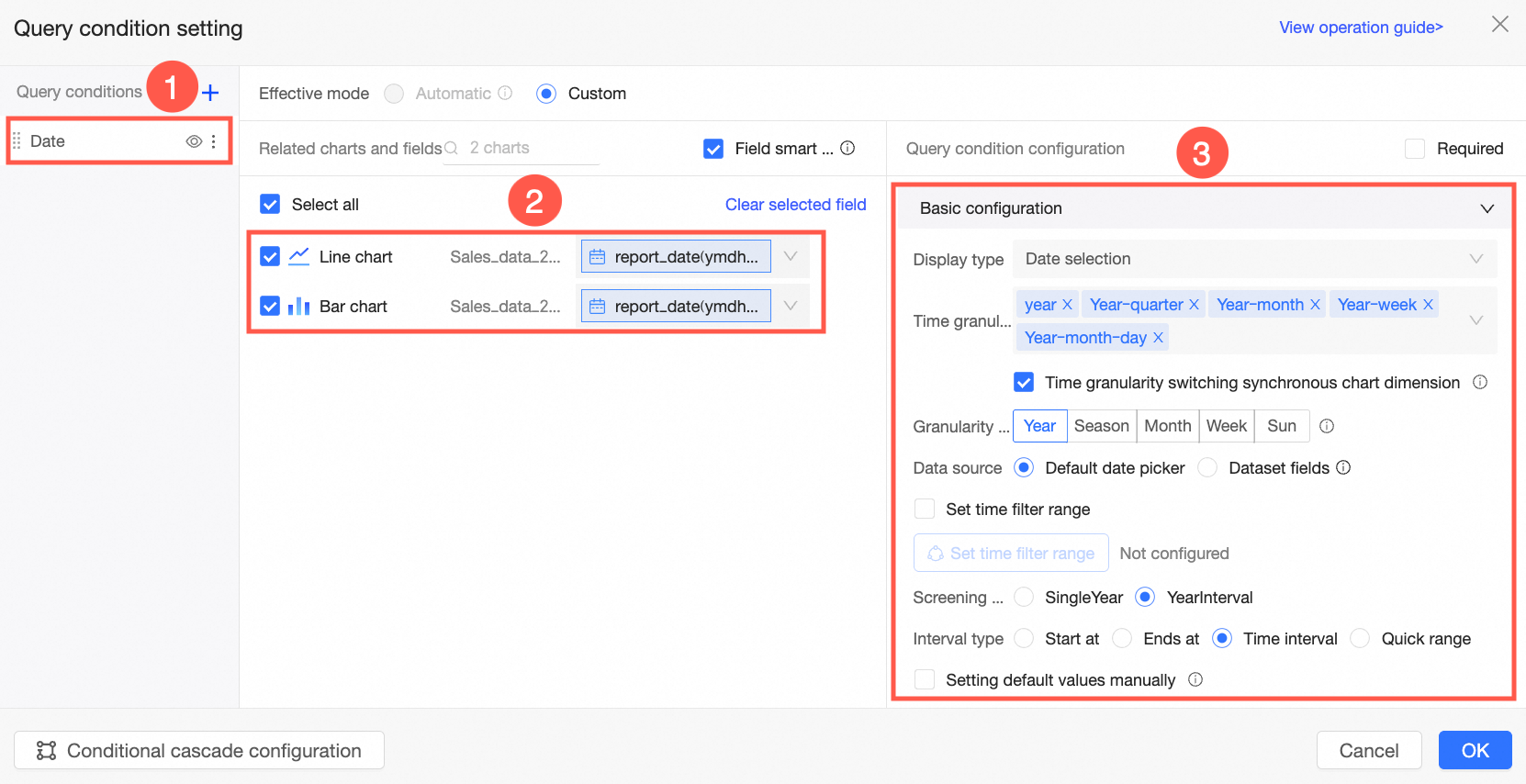
Configuration content
Description
Area ①
Filter bar name
Enter a custom name for the filter bar, such as
Date Filter.Area ②
Chart and associated fields
Select the chart to synchronize and the date field to associate.
NoteUnselected charts are not affected by granularity switching in the filter bar.
Selected charts without a dimension group are not affected by granularity switching.
Area ③
Basic Settings
Select Synchronize chart dimension with time granularity switching to sync the filter bar's granularity to the associated chart. Other settings are the same as in Switching date granularity only controls the filter bar.
NoteEnsure that the corresponding date dimension group field is configured for the chart that needs to be synchronized.
The time granularities in the control should correspond one-to-one with the time granularities in the chart's dimension group.
Select a time granularity and date range in the filter bar, then click Query. The associated chart updates its granularity accordingly.
 Note
NoteIf a fiscal year is configured for the dataset, the Fiscal year starts on setting follows the dataset's field configuration and cannot be changed. Create a dataset.