Configure feature permissions to control who can use and manage Q-Ask, and configure data permissions to control which datasets users can query.
Feature permission management
To use or manage Q-Ask, configure feature permissions by creating a custom organization role and adding users to that role.
For example, to give User A centralized management access over all Q-Ask resources, create an organization role, select Centralized Management, and add User A as a role user.
Only the Professional Edition supports custom roles for feature permission management.
If you use the Premium Edition, custom roles are not supported. Only organization administrators can configure query permissions.
Navigate to Role Management
Go to the Role Management page.
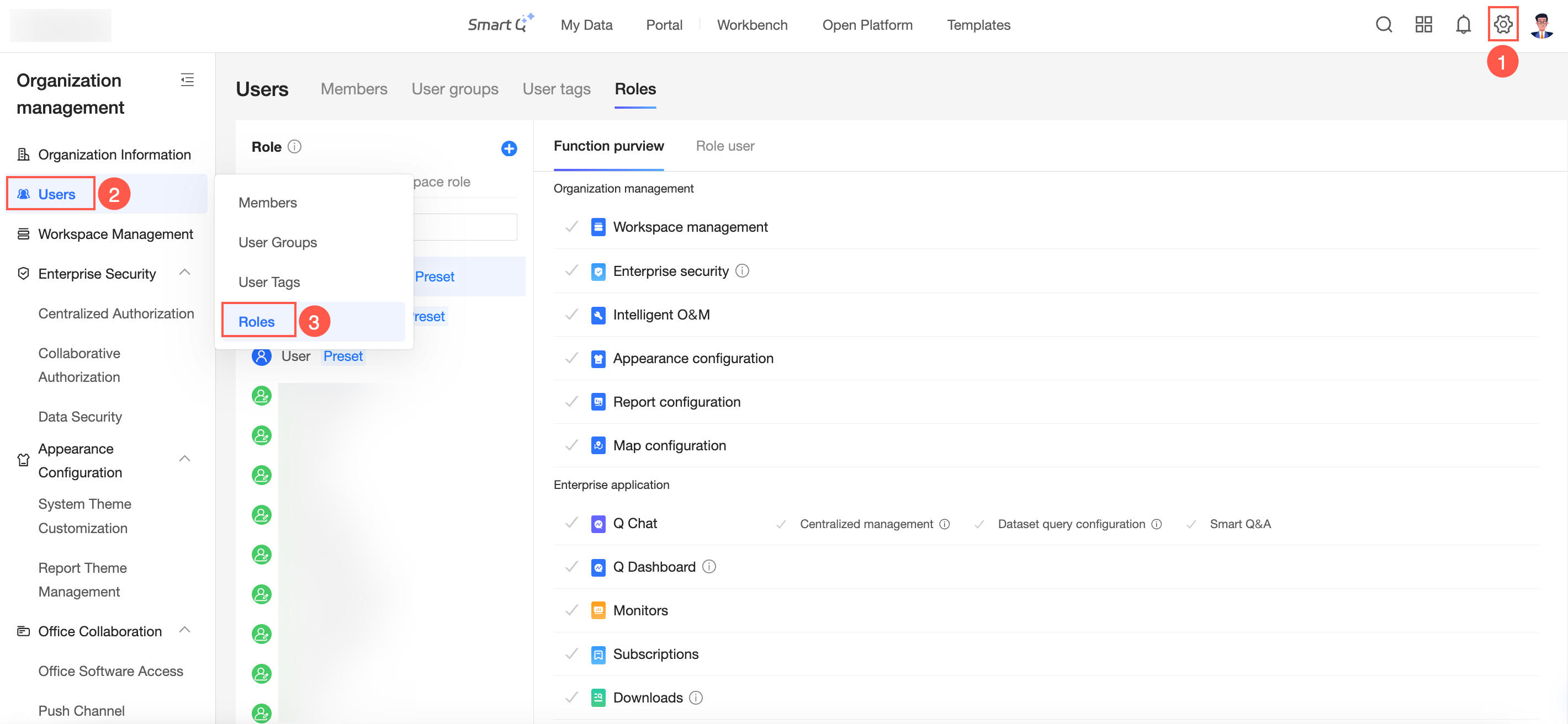
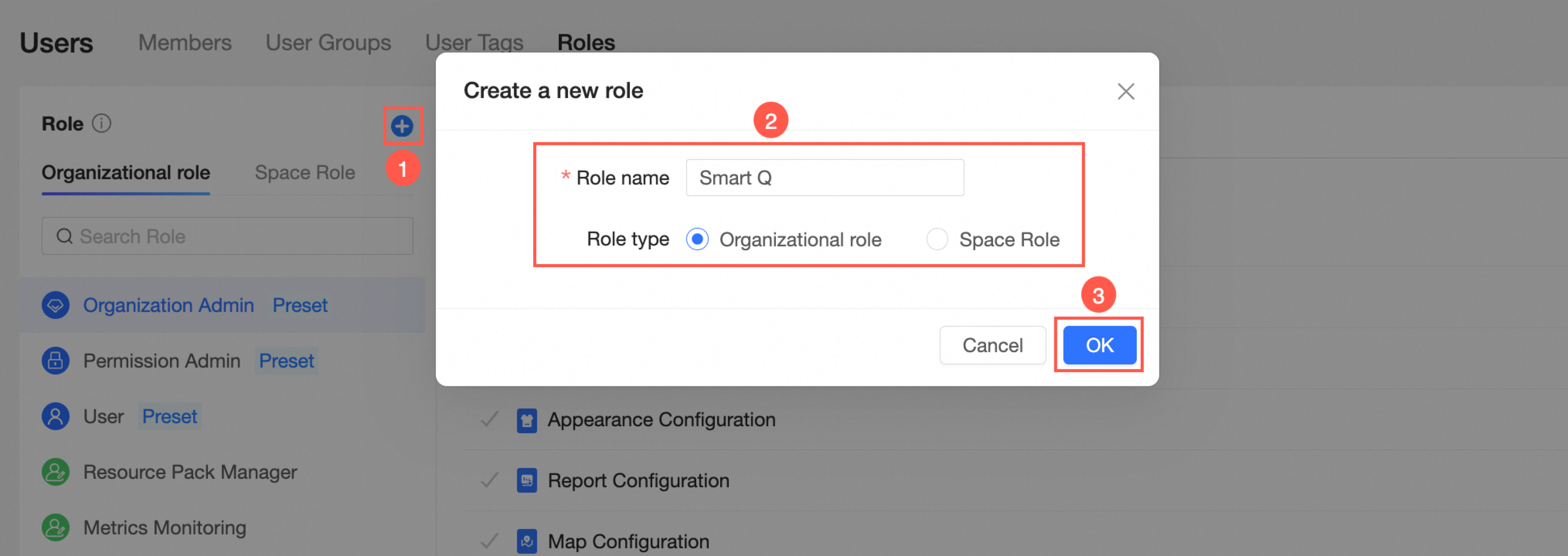
Create an organization role
On the Role Management page, create an organization role.
Configure feature permissions
On the Role Management > Feature Role page, configure the feature permissions for the role.
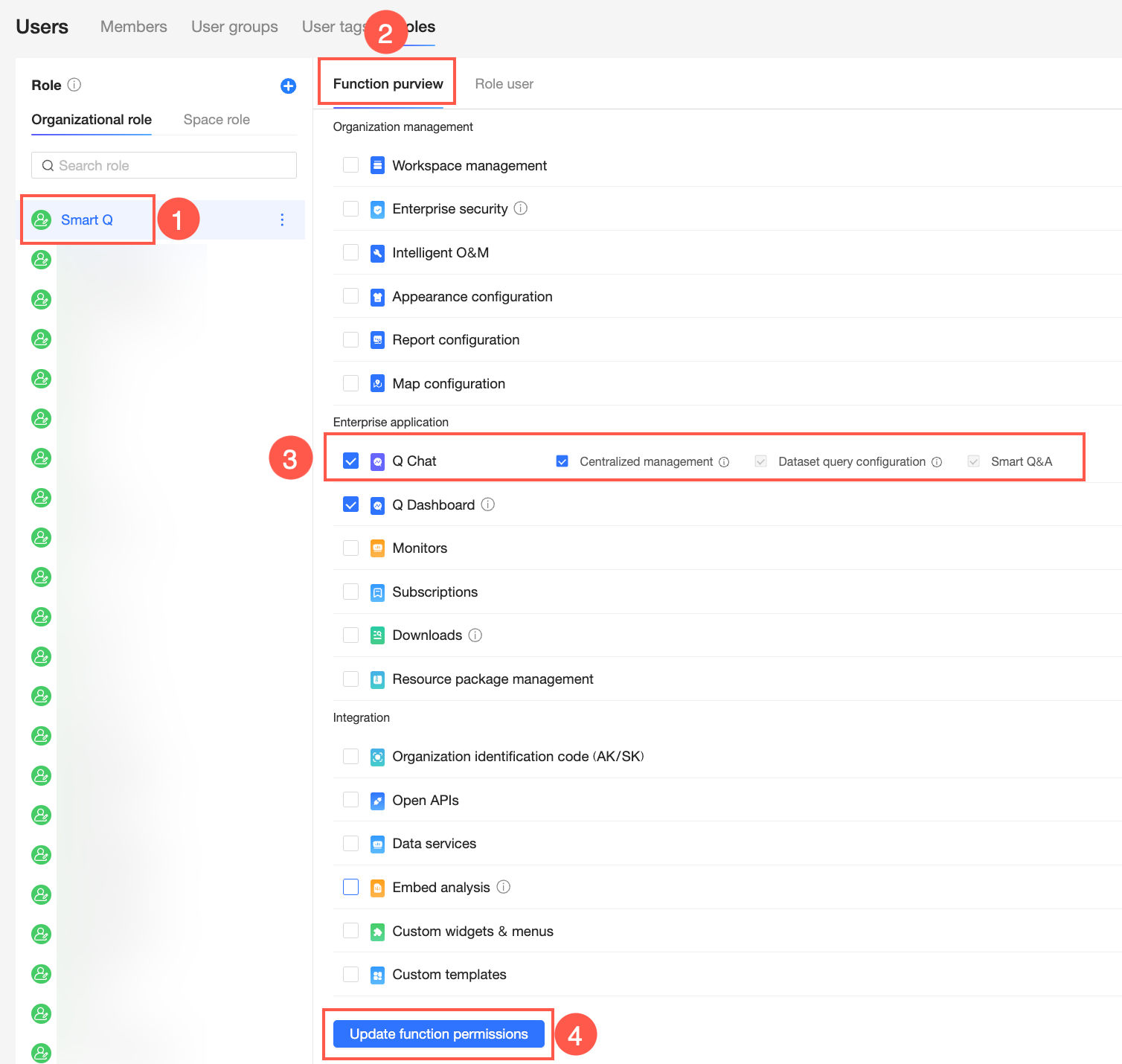
Q-Ask has three feature permissions:
Centralized Management: Manage and grant permissions for all Q-Ask resources on the Organization Management > Q-Ask page. This permission includes Dataset Query Configuration and Query by default.
Dataset Query Configuration: Run query configuration on datasets the user owns. This permission includes Query by default.
Query: Use the Q-Ask feature.
Organization administrators have all Q-Ask permissions. Permission administrators, regular users, and newly created custom organization roles have the Query permission by default. For more information about managing custom organization roles, see Role Management.
Add role users
On the Role Management > Role Users page, add users to the role.
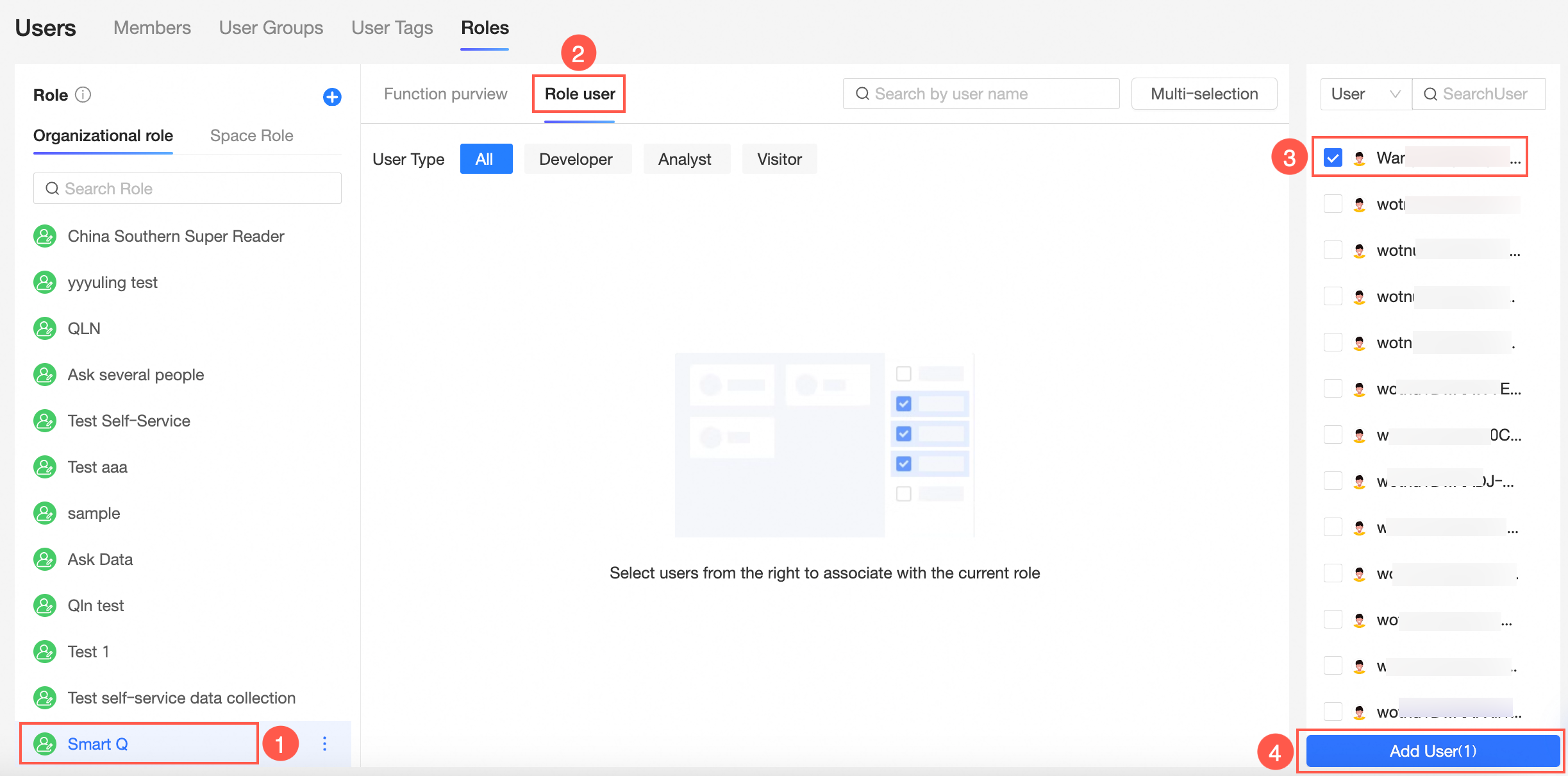
After users are added, they appear on the Role Management > Role Users page.
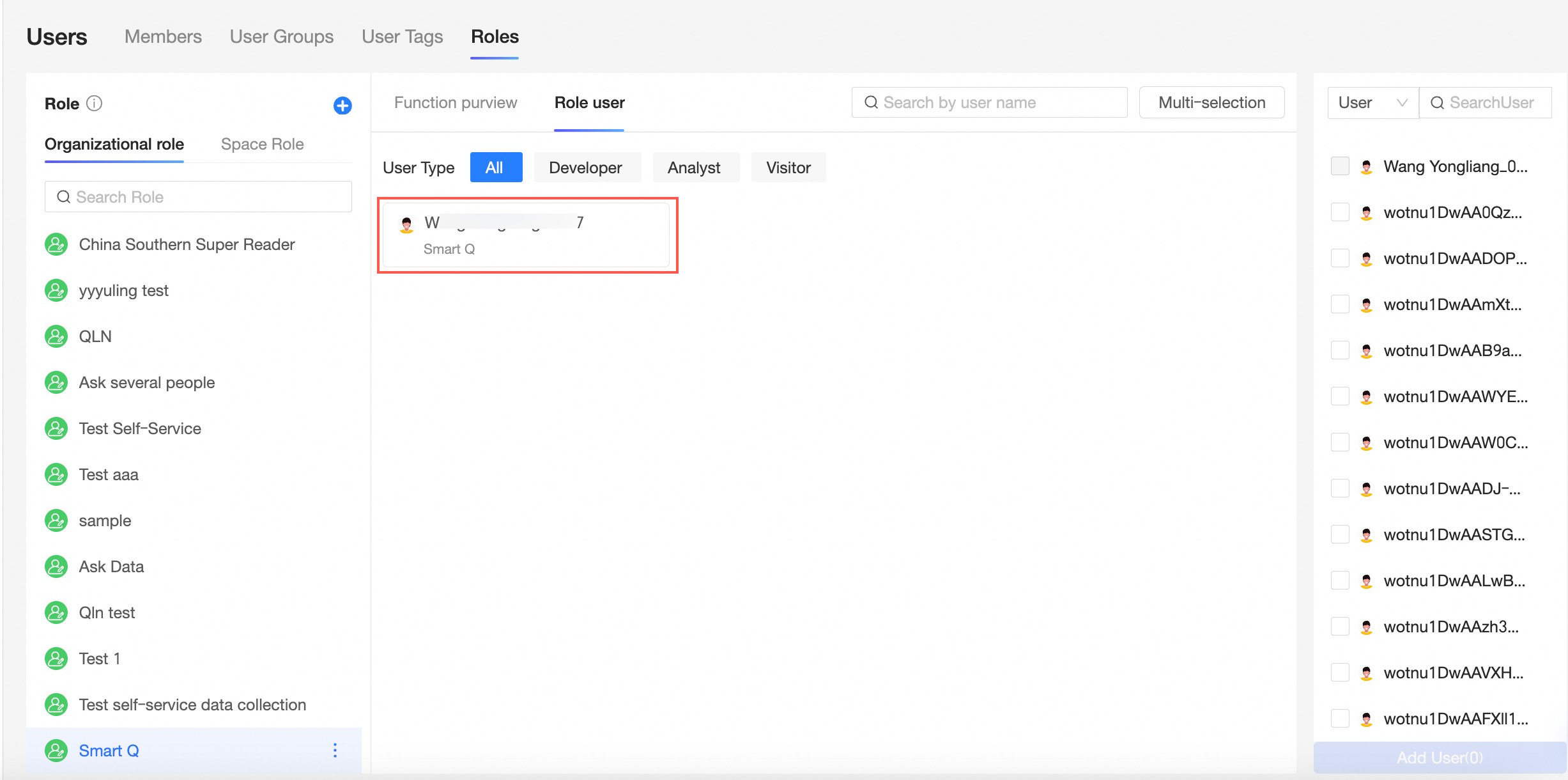
User A now has all Q-Ask permissions: Centralized Management, Dataset Query Configuration, and Query.
To grant users only Query or Dataset Query Configuration permissions, follow the same steps and select only the permissions you need.
Query permission management
If you have the Centralized Management permission for Q-Ask, you can manage data permissions for other users.
Prerequisites
Before you begin, ensure that you have:
Created datasets and configured queries
For details, see Data Preparation.
Navigate to Permission Management
Go to the Permission Management page.
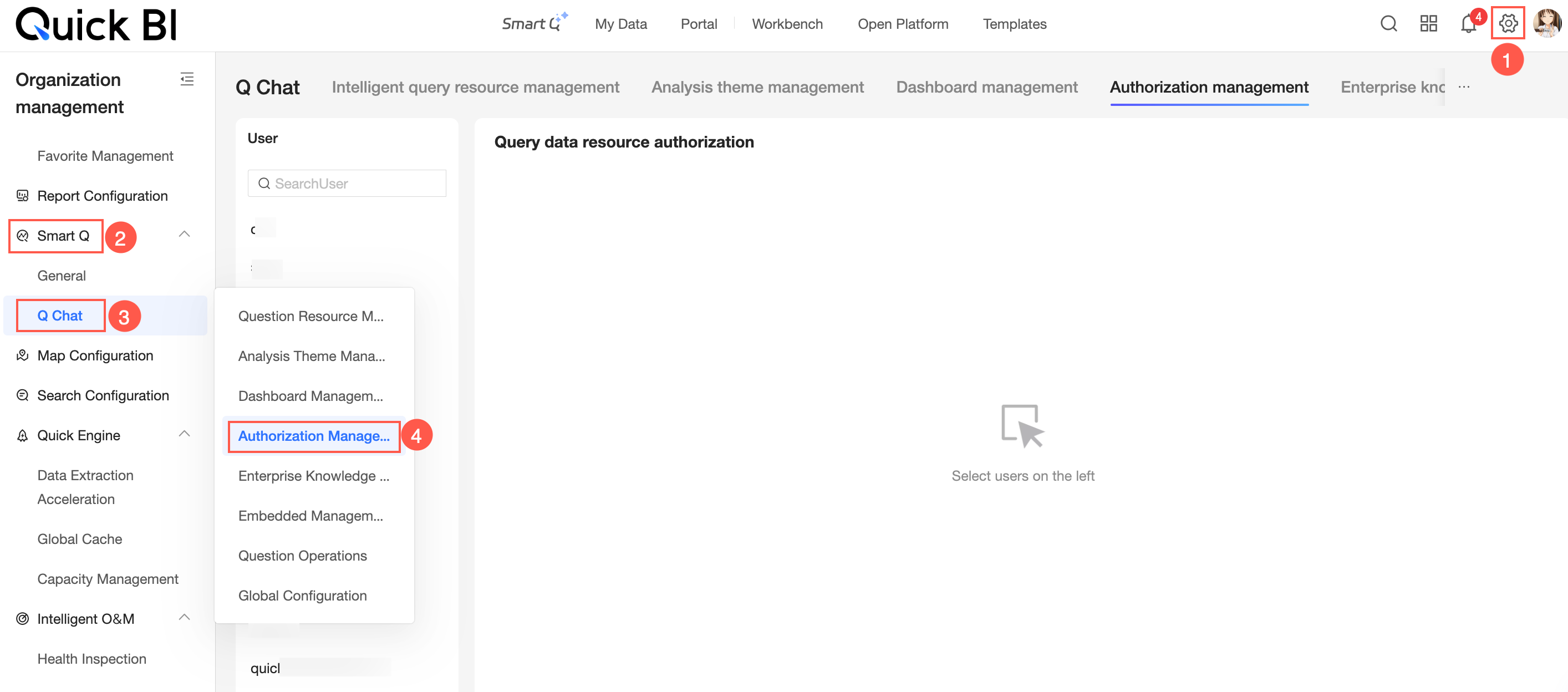
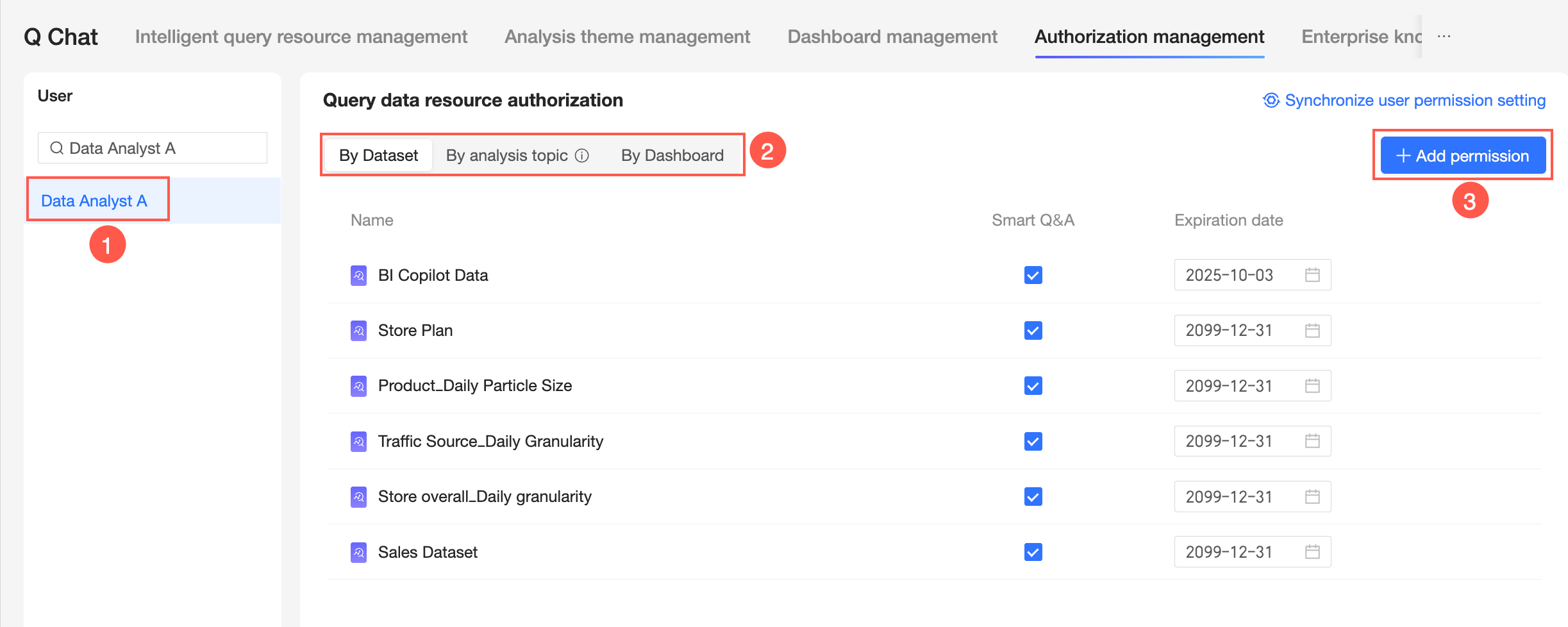
Add authorization
Select a user and choose how to grant permissions: By Dataset, By Analysis Subject, or By Dashboard.
-
In the Add Authorization dialog, configure the following:
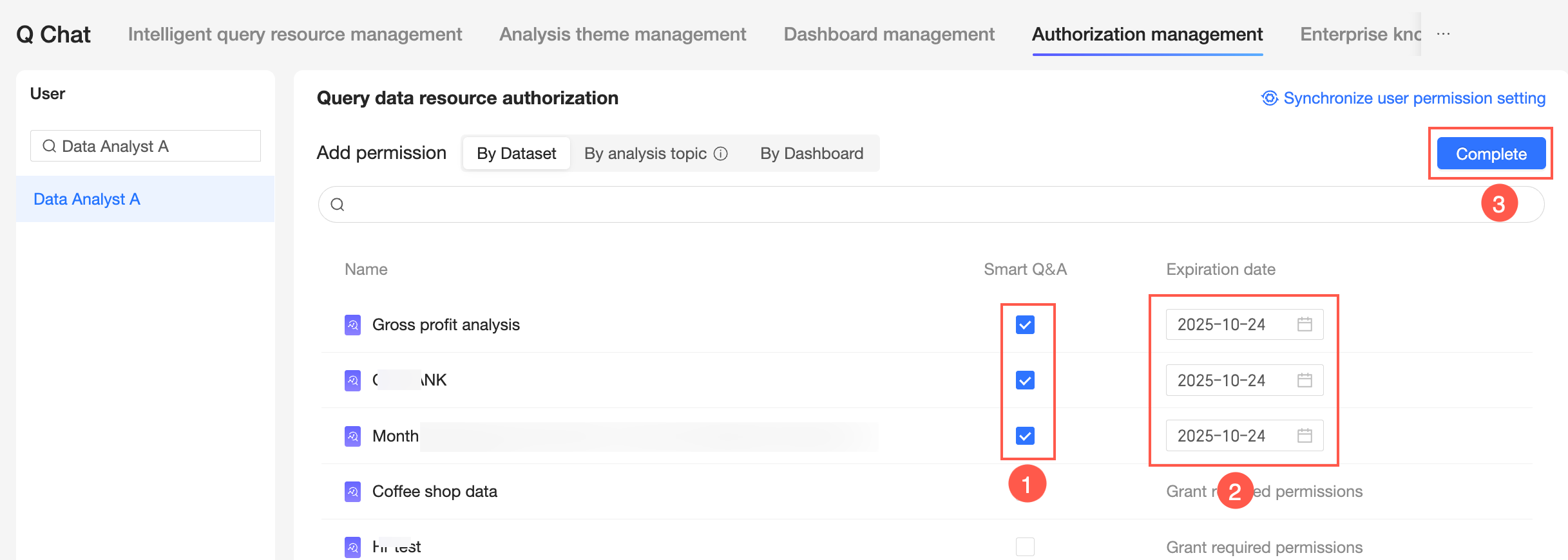 ① Select query resources.Note
The maximum number of query datasets is 200, and for analysis subjects, it is 100.
② Set the expiration date.
Select a specific date or choose a preset time period.
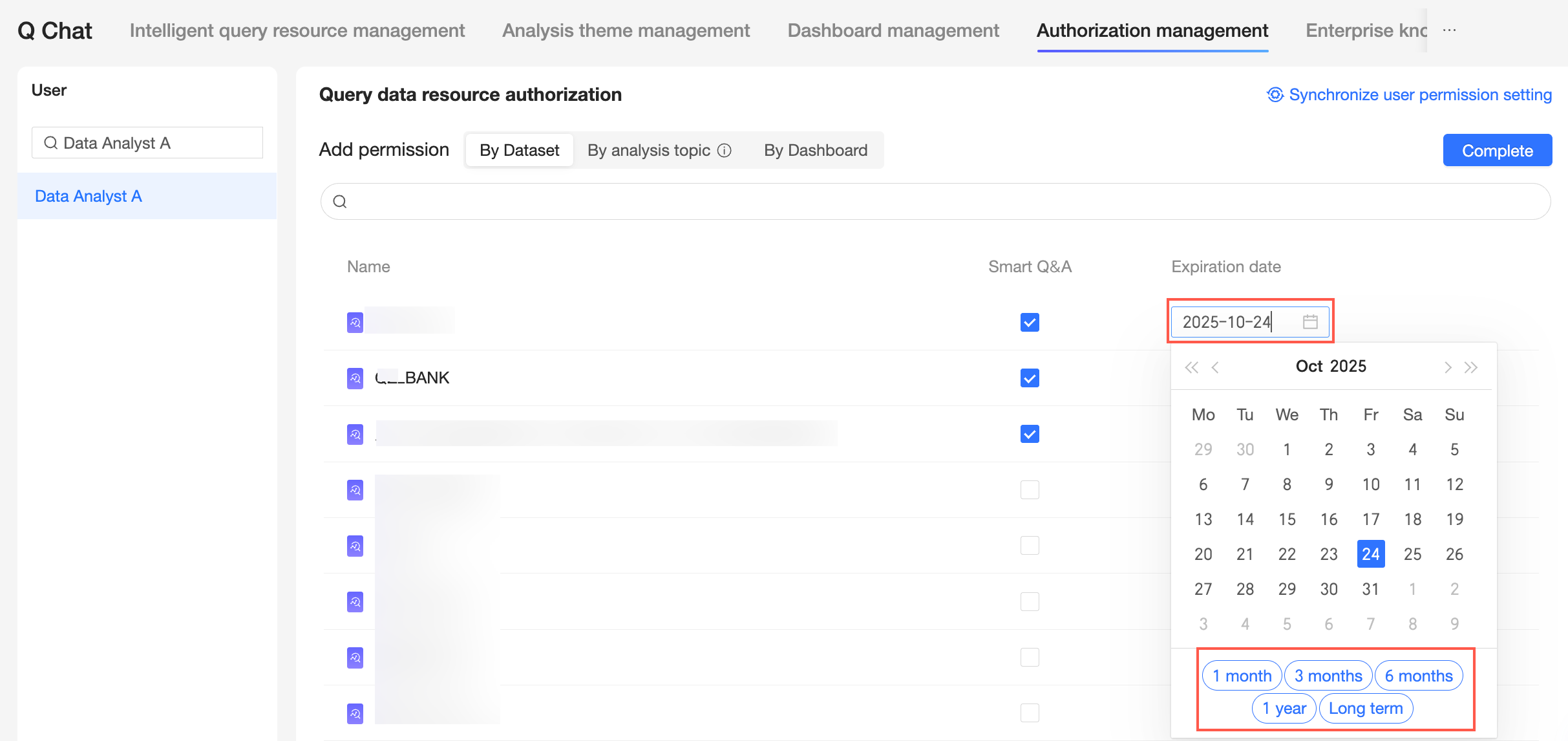
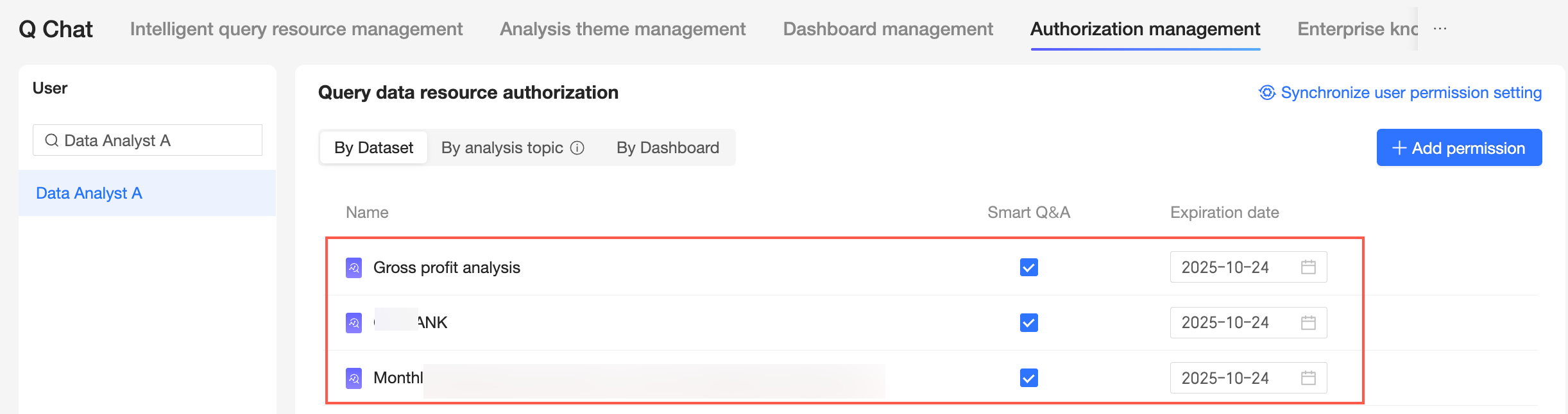
③ Click Complete. The authorized resources appear for the user, and you can revoke authorization, adjust the expiration date, or add more authorizations.
Sync permissions to other users
To copy a user's permissions to other users, use the sync function.
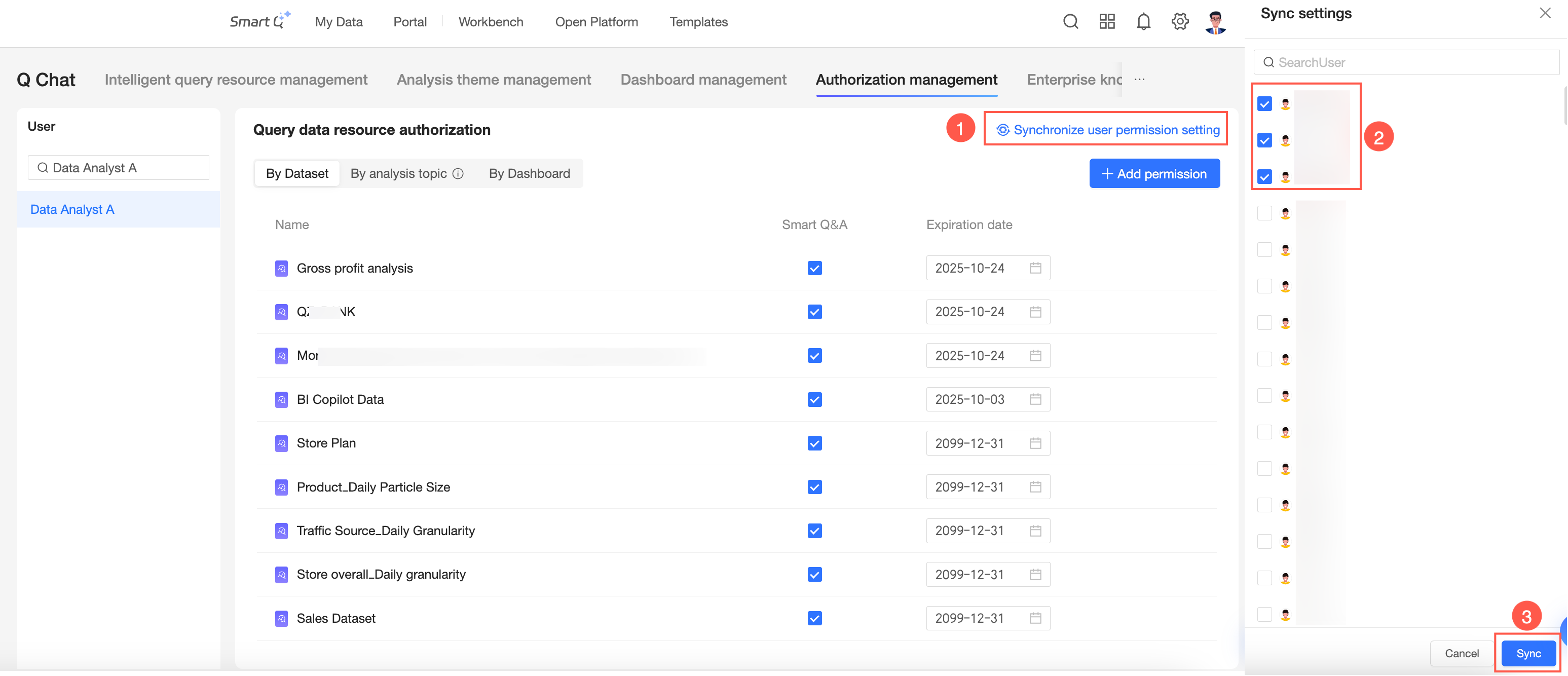
Synchronization is incremental — it adds permissions without removing existing ones.
Authorizations granted By Dashboard cannot be synced to other users.