A workbook is a spreadsheet-style reporting tool in Quick BI for building complex, regulation-ready reports. If your team already works in Excel, workbooks let you apply those skills directly — connecting multiple data sources, structuring multi-level headers, and consolidating data from multiple sheets into a single summary view. Workbooks are only available in workspaces of Premium Edition and Professional Edition.
Feature overview
Workbooks support complex Chinese-style regulatory reports that go beyond standard dashboards. Supported report formats include multi-level headers, merged headers, multi-level floating, grouping, diagonal headers, and multiple table bodies.
Supported report types include but are not limited to:
Business detail tables
Grouped reports
Cross-tabulation reports
Master-detail reports
Multi-column reports
Query reports
Data entry reports

Workbook interface
The workbook editor uses an interaction similar to Excel Online. Key capabilities include:
Online import and export of Excel files
Quick custom formula and function support
Connections to multiple data sources
Free-form table layout
Permission controls for editing, previewing, and exporting reports
The interface has three areas: ① toolbar, ② design area, and ③ data panel. 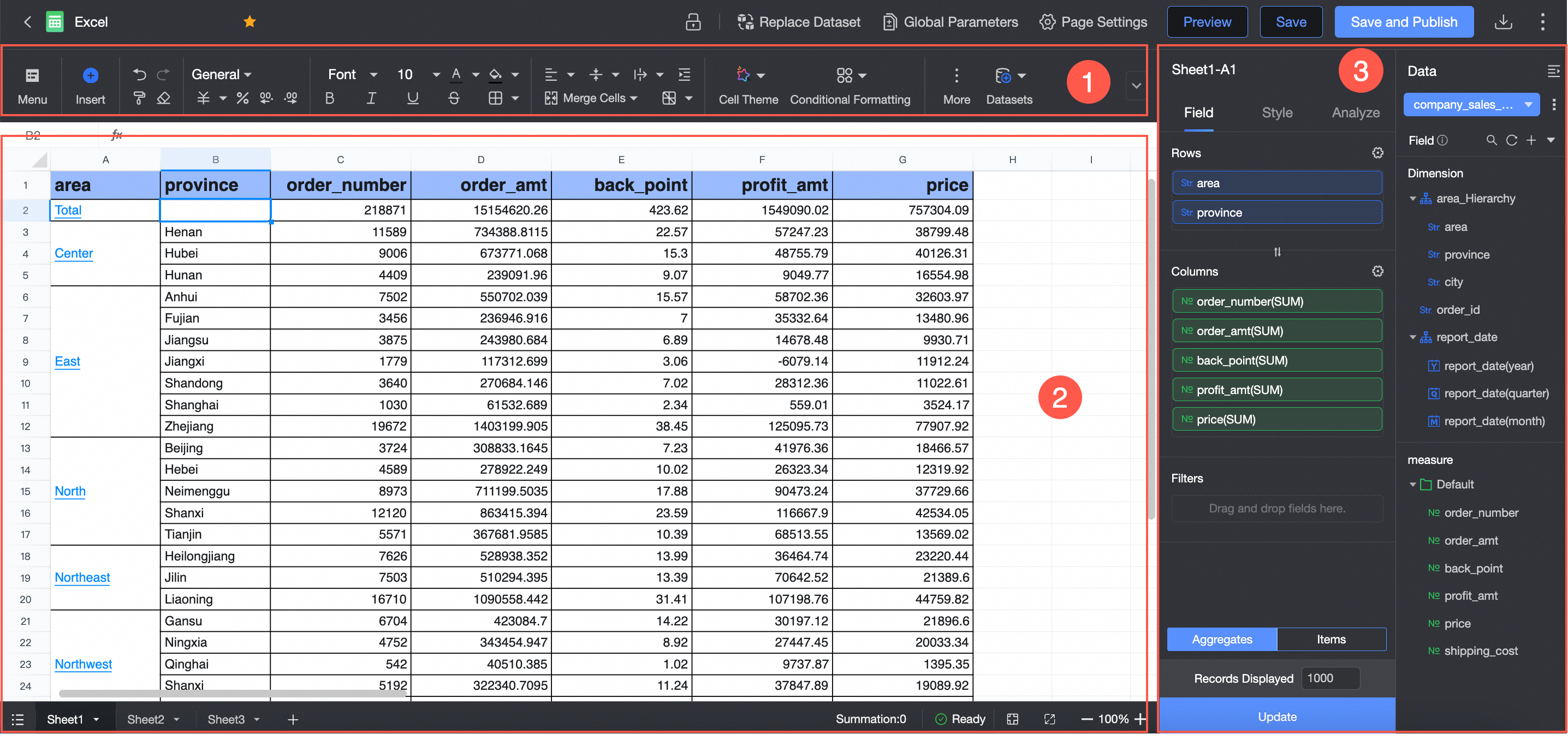
① Toolbar: Select the chart type and configure file, edit, format, data, view, and query controls.
② Design area: Arrange and reference data in cells to build your report layout.
③ Data panel: Switch between datasets and select dimension and measure fields listed according to the system's preset to bind to your chart.
Limits
The workbook module is automatically available in Professional Edition.
For Premium Edition, the workbook module must be purchased separately.
Starting from public cloud version 5.4.1, workbooks will no longer be specially adapted for IE browser. Thank you for your understanding and support.