Connect Quick BI to an Alibaba Cloud Lindorm database for data analysis and visualization. Quick BI supports connections to Lindorm over the public network.
Prerequisites
You have created an Alibaba Cloud database instance.
Limits
-
Creating Alibaba Lindorm data sources is supported only in the Professional and Pro Edition group spaces.
-
If the Lindorm database type is Wide table engine or Multi-model SQL, multi-table joins and merges are not supported during dataset building.
Procedure
-
Add to the whitelist.
Before connecting to the Alibaba Lindorm database via the public network, add the IP address of Quick BI to the Lindorm database whitelist. For more information, see setting the whitelist.
-
Log on to the or the international Quick BI console.
-
Access the data source creation interface via the data source creation entry.
-
On the Alibaba Cloud Database tab, select Lindorm data source.
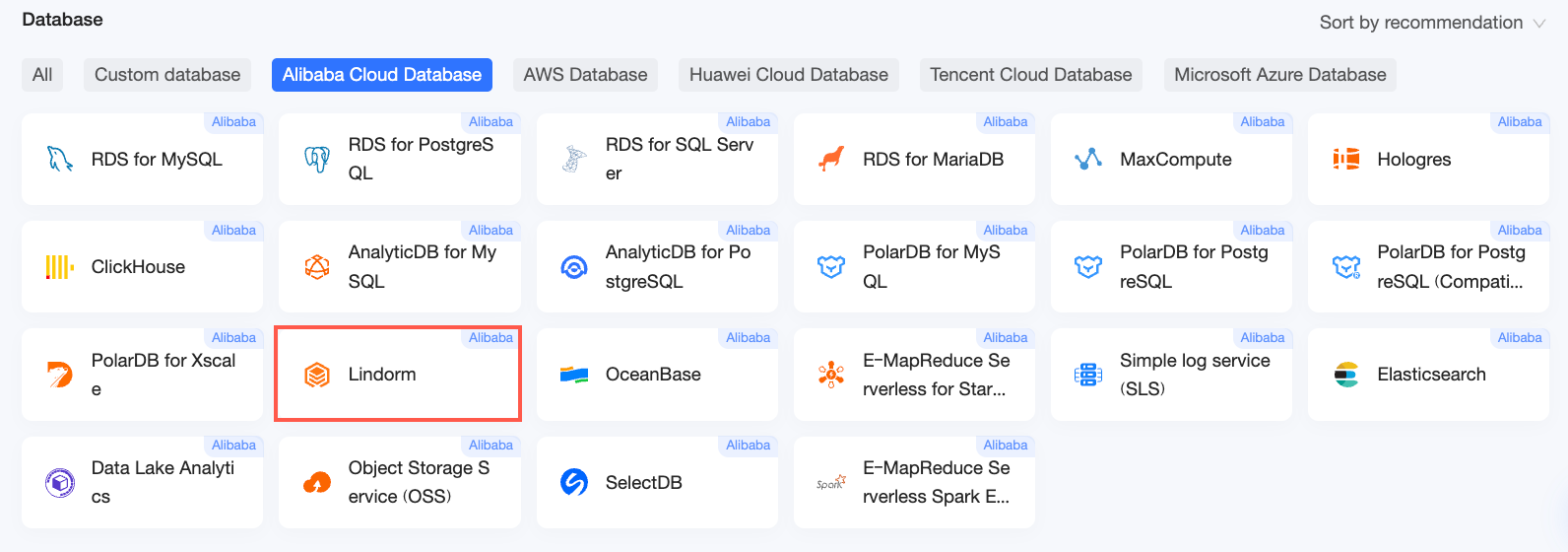
-
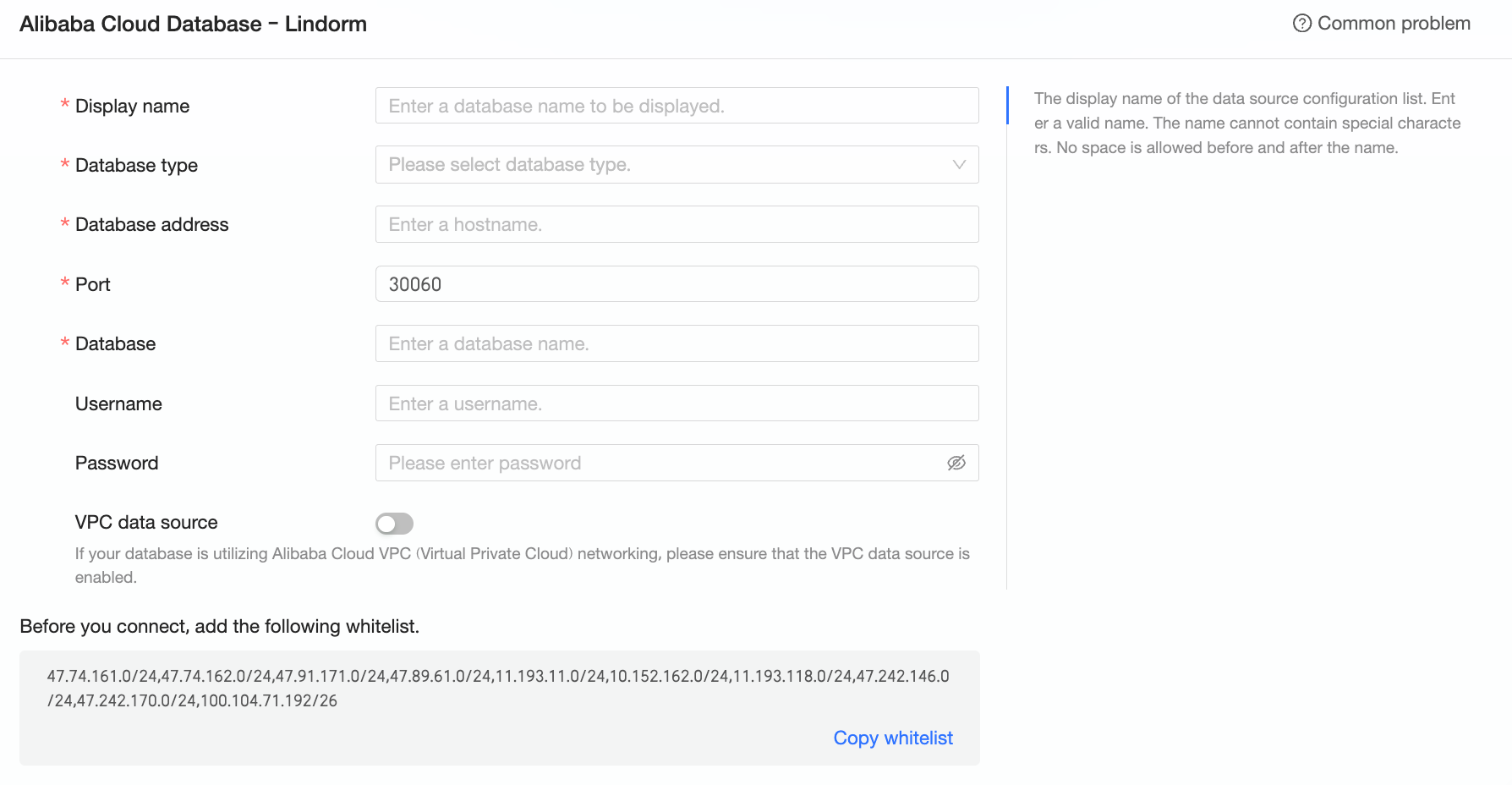
In the Configure Connection dialog box, configure the connection parameters as needed.
Name
Description
Display Name
The display name of the data source in the configuration list.
The name cannot contain special characters or start or end with spaces.
Database type
Select the type of database. The options are Multi-model SQL, Wide table engine, and Time series engine.
-
Multi-model SQL: If the database contains multiple data models such as column-oriented tables and wide tables, select Multi-model SQL.
-
Wide table engine: If the database belongs to the Lindorm wide table engine (including cases using search, column-oriented, vector, and other indexes), select Wide table engine.
-
Time series engine: If the database belongs to the Lindorm time series engine (LindormTSDB), select Time series engine.
Database address
The public endpoint of the Lindorm database.
Log on to the RDS management console, view connection details in the basic information area, and copy the public endpoint. Example: Id-xxxxxxxxxxxxxxxxxx.lindorm.rds.aliyuncs.com.
Port
The port number of the database.
Database
The name of the database to connect to.
Username And Password
The username and password used to access the database.
Ensure that the username has create, insert, update, and delete permissions on the tables in the database.
VPC data source
If you use an Alibaba Cloud VPC network, select VPC data source and configure the following parameters:
-
Purchaser AccessKey ID and Purchaser AccessKey secret: The AccessKey ID and AccessKey secret of an account that has access permissions for the target Lindorm database.
Ensure that the account has Read permission on the target instance. If it also has Write permission, the system automatically adds the IP address to the whitelist. Otherwise, you must manually add it. For instructions on creating custom policies, see creating custom policies.
You can log on to the RAM console to obtain the AccessKey ID and AccessKey secret.
-
Instance ID and Region: The instance ID and region of the Lindorm database. You can obtain this information from the RDS management console.
NoteIf you select VPC data source, enter the internal network address and internal network port for the database address and port.
Enable full table scan
Available when database type is Wide table engine.
We recommend that you enable full table scan. Lindorm wide table engine uses distributed storage, and filtering on non-primary key columns fails if full table scan is disabled.
-
-
Click Connection Test to verify the data source connectivity.

-
Once the test is successful, click OK to finalize the data source addition.
What to Do next
After the data source is created, you can create datasets and analyze data.
-
To add data tables from the Lindorm database or use custom SQL in Quick BI, see creating and managing datasets.
-
To add visualization charts, see creating a dashboard and an overview of visualization charts.
-
For advanced data analysis, see drill settings and display.