This topic primarily discusses how to view audit logs for logon, access, operation, and permission events.
Limitations
The access analysis feature is available only in the Pro and Professional Edition.
Only organization administrators and users with custom roles that include artificial intelligence for IT operations privileges have the ability to view and manage the access analysis feature.
A maximum of 10,000 records can be displayed on the audit log page.
Audit logs are retained for the following durations:
Logon: 30 days
Access: 30 days
Operation: 90 days
Permission: one year
Feature Entry
You can access the audit log page via the following methods:
Entry at the organization level
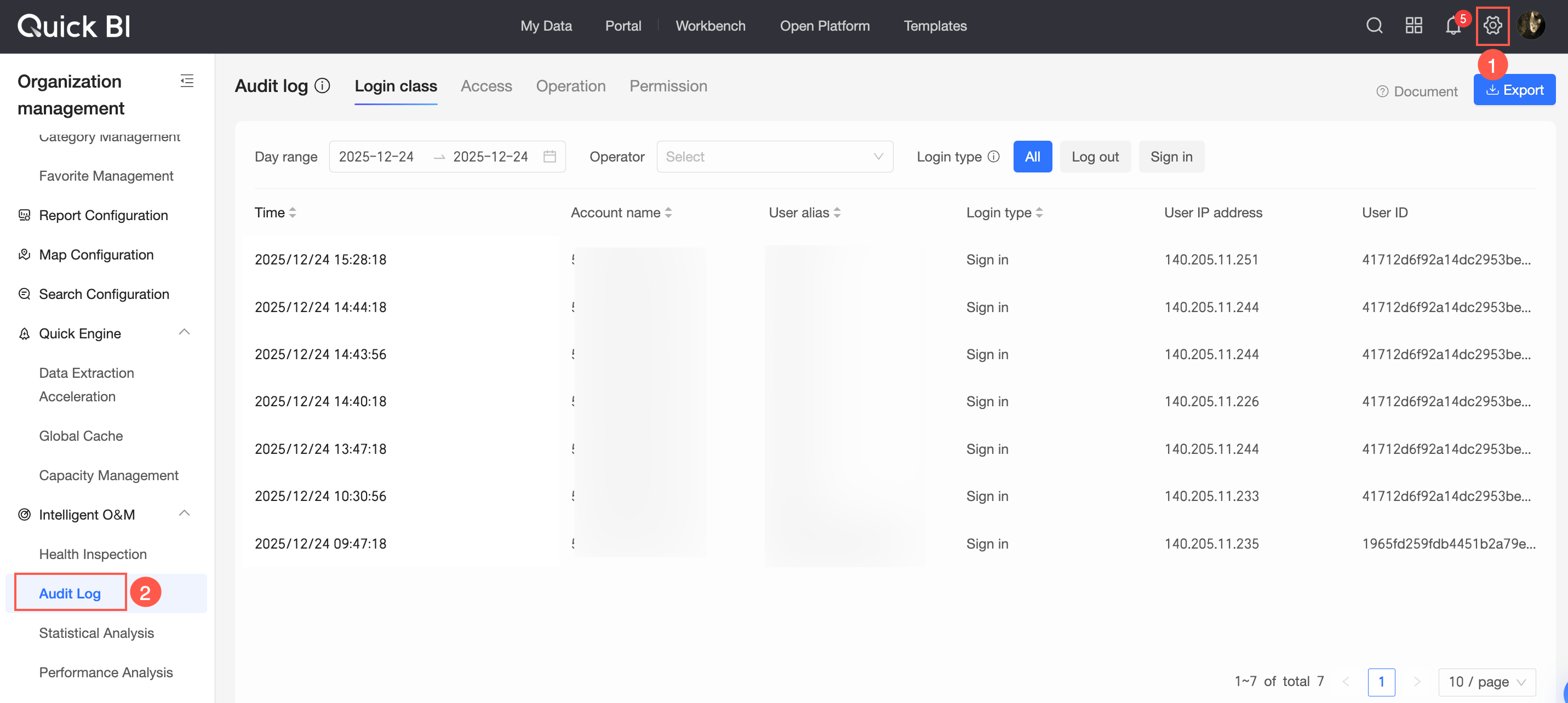
Entry at the workspace level

Panel Content Introduction
This page presents a detailed operator information list for a range of resources, categorized by various operation types (access, operation, permission, logon), in a row and column format, based on the filter box settings. You can export the query results to your local system in Excel format.
Logon
The logon tab displays details of logon operations within the current organization, including operation time, account name, user nickname, logon type, user IP, and user ID. You can refine your search using the filter box.
Logon operation logs are retained for 30 days, with a display limit of 10,000 records.

Date range: Select the time period for the operations you want to view, with options for quick selection such as yesterday, last seven days, and this month.
Operator: Choose the user nickname of the account that performed the logon, either from a drop-down list or by entering it manually.
Logon type: Select the type of logon operation, with options including all, log out, and log on.
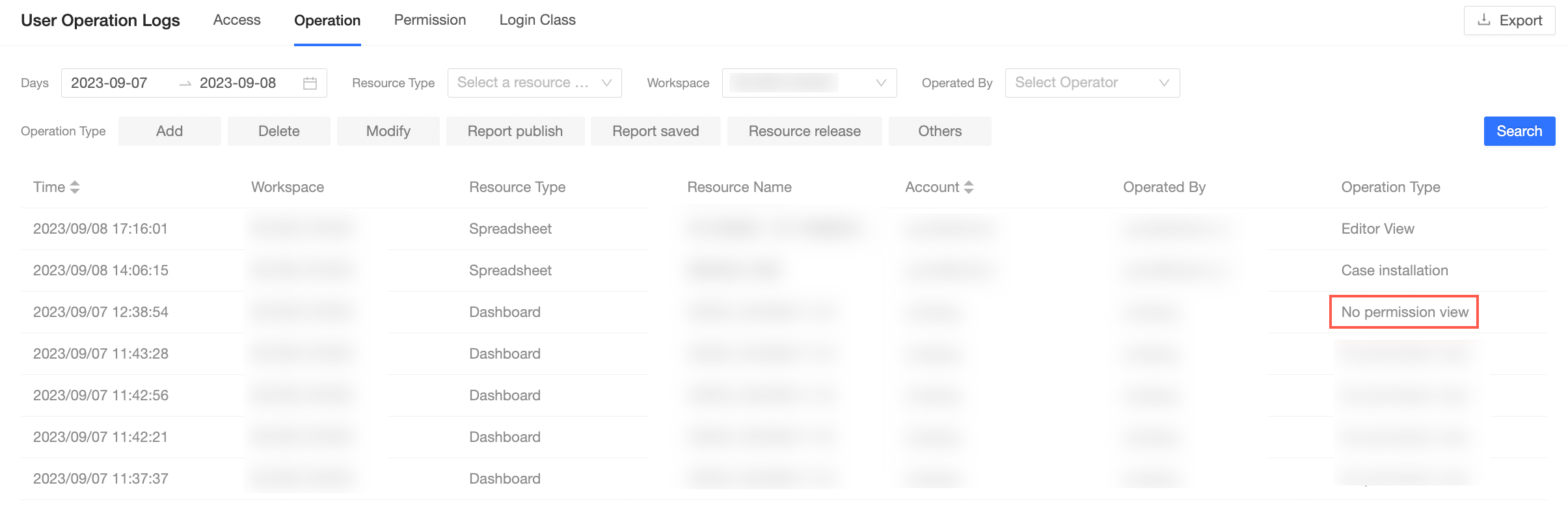
NoteShould a user click on a page for which they lack access privileges, an "unauthorized access" record will be created in the operation log.
Access
The access tab shows details of access operations, including operation time, resource name, resource type, workspace, account name, device, source, account, and access type. Use the filter box to quickly find specific data.
Access operation logs are retained for 30 days, with a display limit of 10,000 records.

Date range: Choose the time period for the operations you want to view, with quick selection options like yesterday, last seven days, and this month.
Operator: Select the user nickname of the account that performed the access, either from a drop-down list or by entering it manually.
Access type: Choose the type of access performed, with options including all, data exporting, download, and view.
Workspace: Select the workspace where the operation occurred, with the option to choose any workspace under the current organization.
Resource type: Choose the type of resource involved in the operation, with options including BI portal, dashboard, data dashboard, workbook, ad hoc analysis, Downloads, data preparation, data reporting, dataset, and data source.
Access device: Select the device used for the access operation, with options including mobile and PC.
Access source: Choose the source channel of the access operation, with options including normal access, embed report, public report, and embed card.
Operation
The operation tab provides details on various operations, including operation time, workspace, resource type, resource name, account, operator, and operation type. Filter conditions can be set in the filter box to locate specific data.
Operation logs are retained for 90 days, with a display limit of 10,000 records.

Date range: Select the time period for the operations you want to view, with quick selection options such as yesterday, last seven days, and this month.
Operator: Choose the user nickname of the account that performed the operation, either from a drop-down list or by entering it manually.
Operation type: Select the type of operation performed, with options including add, delete, modify, report publish online, report save, resource unpublish, and other.
Workspace: Choose the workspace where the operation took place, with the option to select any workspace under the current organization.
Resource type: Select the type of resource involved in the operation, with options including BI portal, dashboard, data dashboard, workbook, ad hoc analysis, Downloads, data preparation, data reporting, dataset, and data source.
Permission
The permission tab displays information related to permission operations, including operation time, workspace, resource type, resource name, account, operator, operation type, impact type, and impact object. Use the filter box to quickly locate specific data.
Permission logs are retained for one year, with a display limit of 10,000 records.

Date range: Choose the time period for the operations you want to view, with quick selection options like yesterday, last seven days, and this month.
Operator: Select the user nickname of the account that initiated the permission operation, either from a drop-down list or by entering it manually.
Permission type: This category defines the user's action, allowing choices such as grant, modify grant, cancel grant, publish, cancel publish, and other.
Workspace: Select the workspace where the permission operation occurred, with the option to choose any workspace under the current organization.
Resource type: Choose the type of resource involved in the permission operation, with options including BI portal, dashboard, data dashboard, workbook, ad hoc analysis, Downloads, data preparation, data reporting, dataset, and data source.