In Q-Assistant, you can group datasets from a specific domain or line of business into an analysis subject for business users to query. By embedding different analysis subjects into various business systems, you can integrate distinct datasets into multiple proprietary systems.
This feature is currently available only in the China (Hong Kong), Malaysia (Kuala Lumpur), and Singapore regions. Support for other regions is being rolled out.
Access method
Navigate to the Manage analysis subjects page as shown in the following figure.
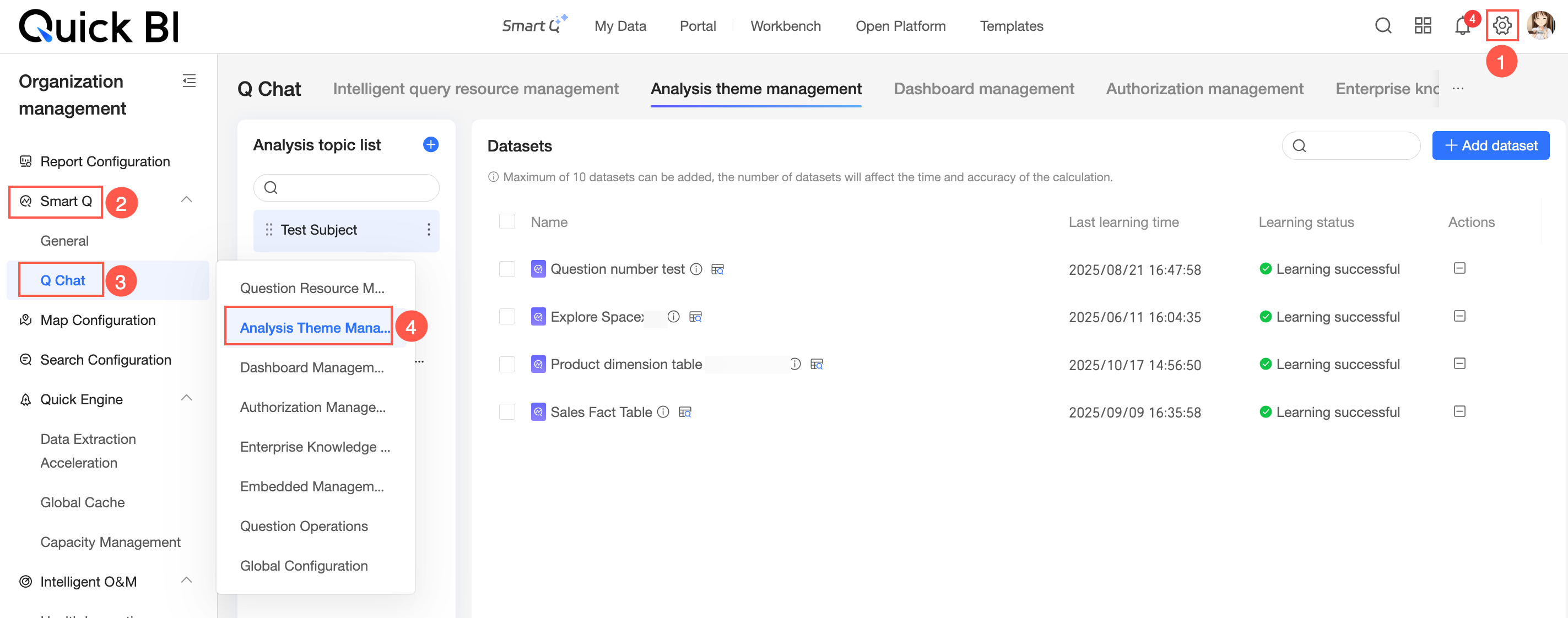
Create an analysis subject
-
Click the
 icon in the upper-right corner of the analysis subject list to open the Create Analysis Subject page.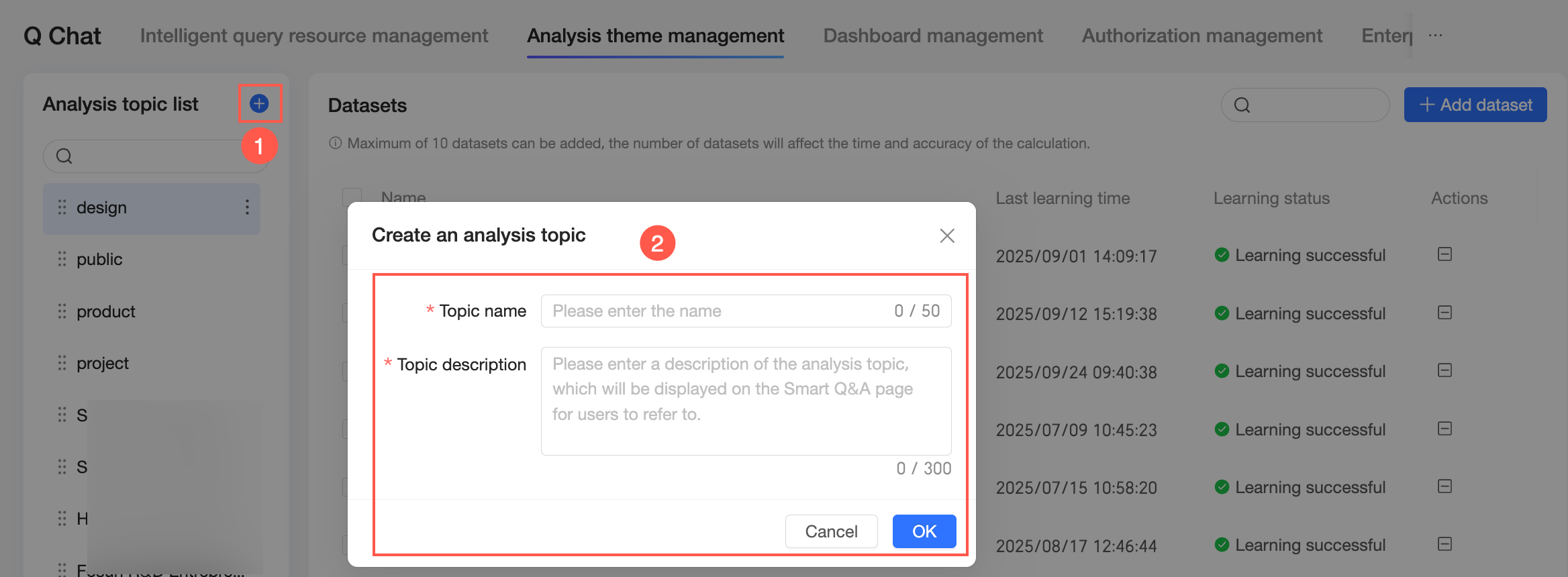
-
On the Create Analysis Subject page, enter a name and description for the analysis subject.
-
Analysis Subject Name: A custom name for the analysis subject.
NoteThis field is required. The name can be up to 50 characters long and must be unique.
-
Analysis Subject Description: A description of the analysis subject. This description is displayed on the query page for user reference.
NoteThis field is required. The description can be up to 300 characters long.
-
-
Click OK. The analysis subject is created.
The new analysis subject appears in the analysis subject list.
NoteYou can create a maximum of 100 analysis subjects.
Manage analysis subjects
-
Edit
To edit an analysis subject, open the Edit Analysis Subject page as shown in the following figure.
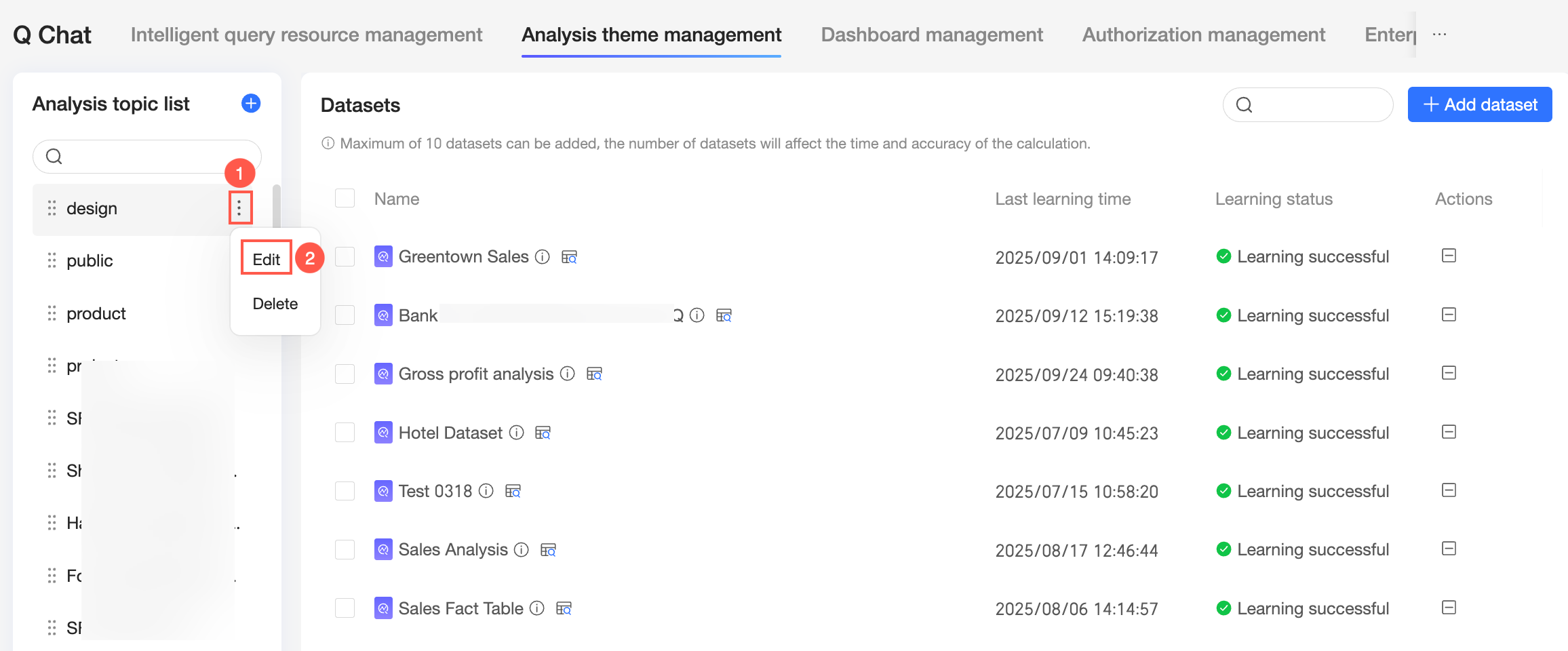 On the page, modify the name and description of the analysis subject, and then click OK.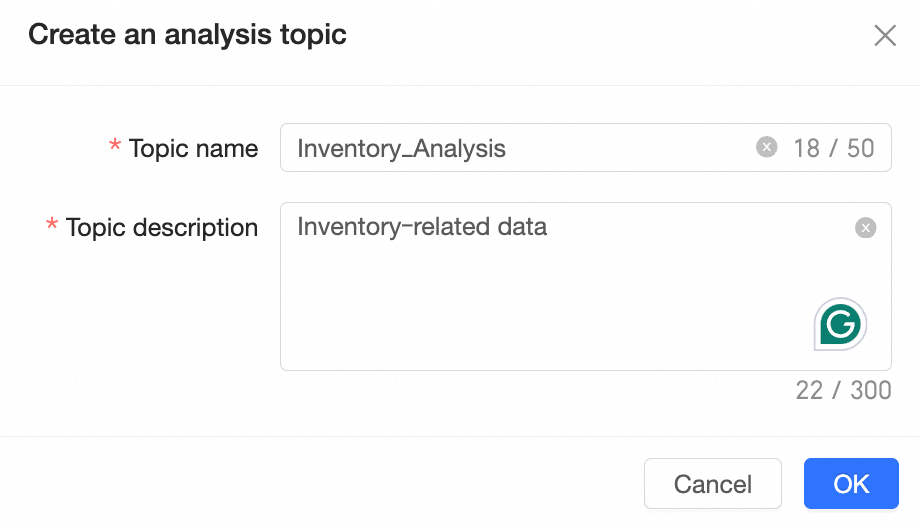
-
Delete
To delete an analysis subject, perform the action shown in the following figure.
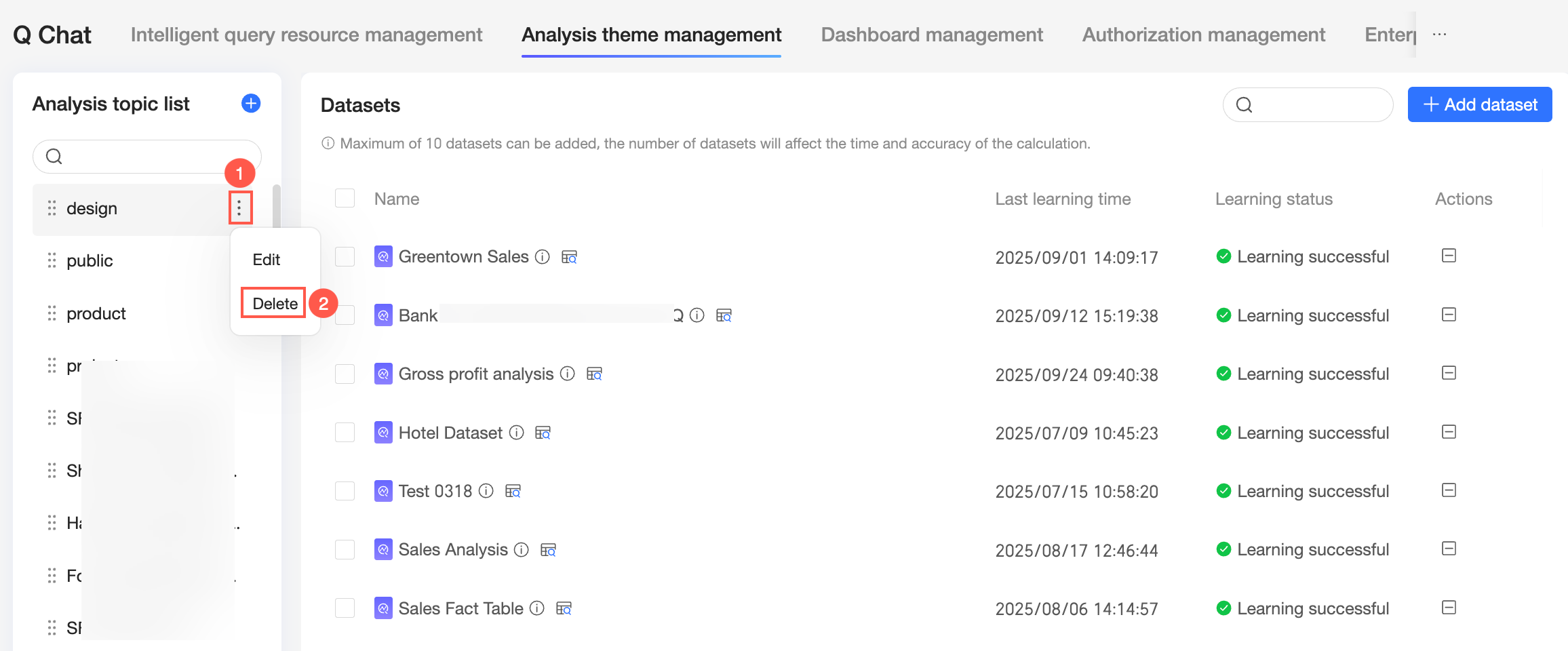 In the confirmation message that appears, click Delete.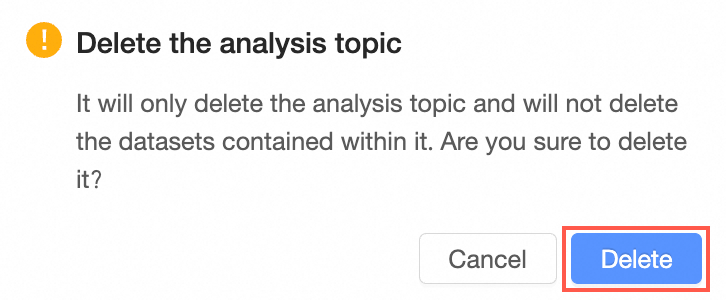
-
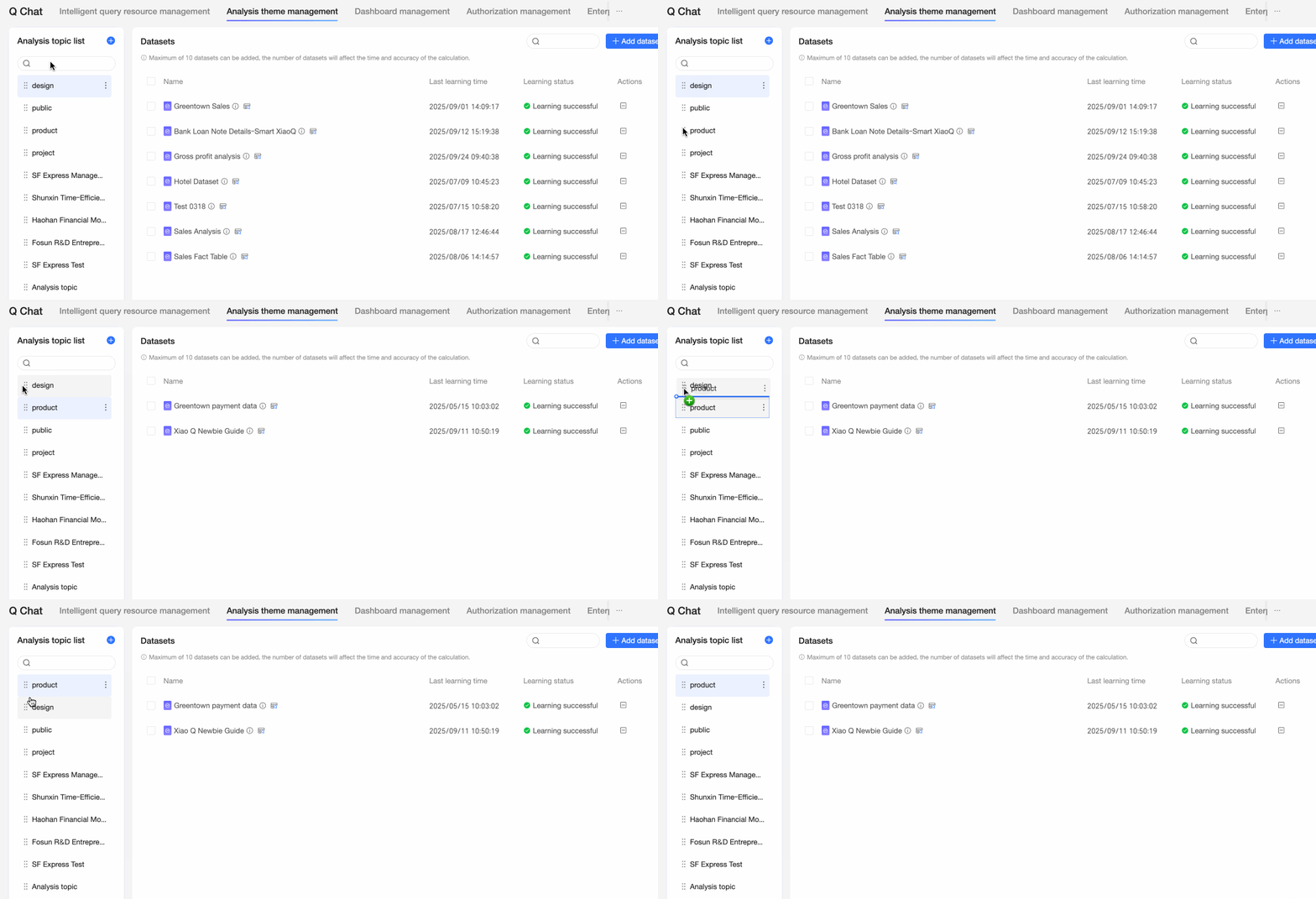
Sort
Drag and drop analysis subjects in the list to reorder them.
Add query resources
Each analysis subject supports up to 10 query resources. The number of resources affects calculation time and accuracy.
Add
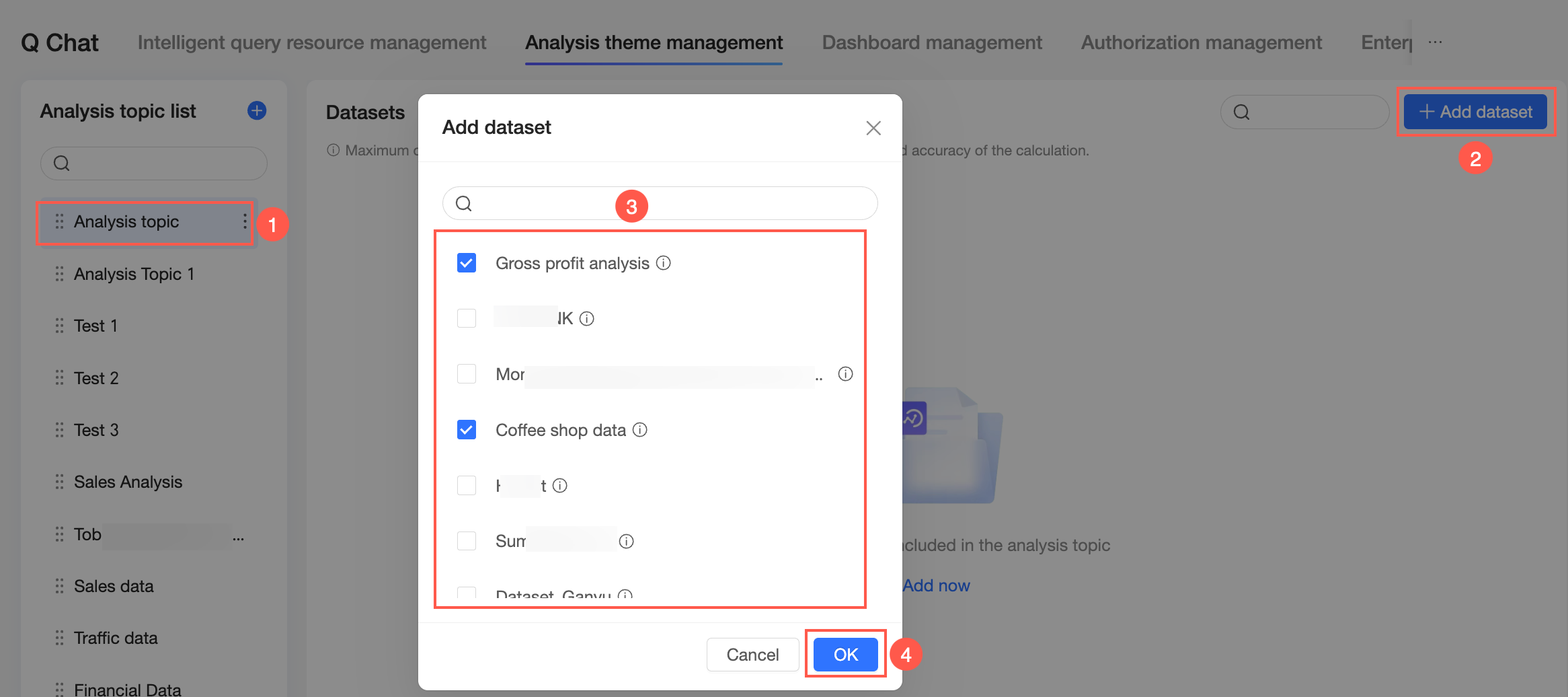
On the analysis subject list page, select an analysis subject and click Add Query Resource.
① Select an analysis subject.
② Click Add Query Resource.
③ Select a dataset.
④ Click OK.
View
-
You can view the name, last learning time, and learning status of each query resource.
-
Click the
 icon to view details of a query resource, including the dataset name, workspace, and modification time.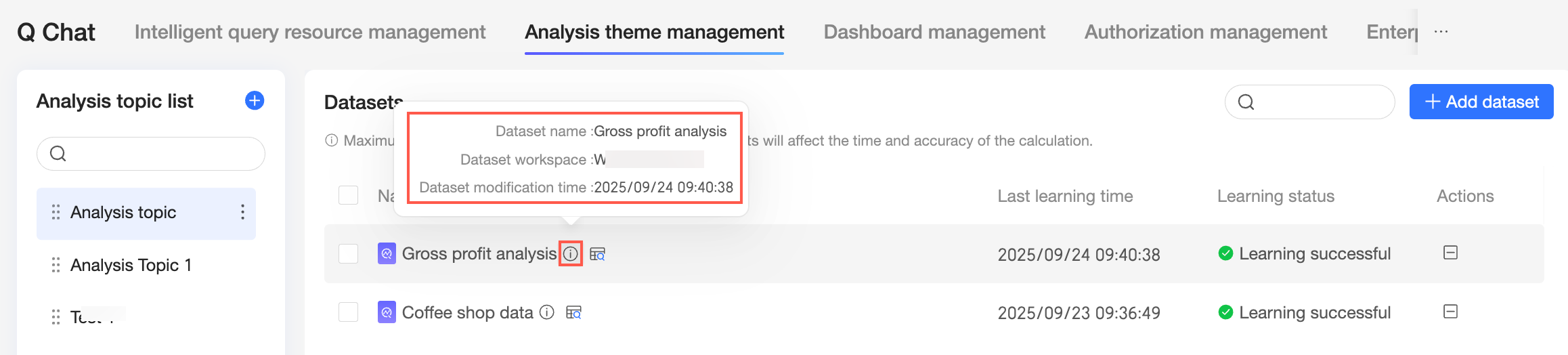
-
Click the
 icon to preview the data.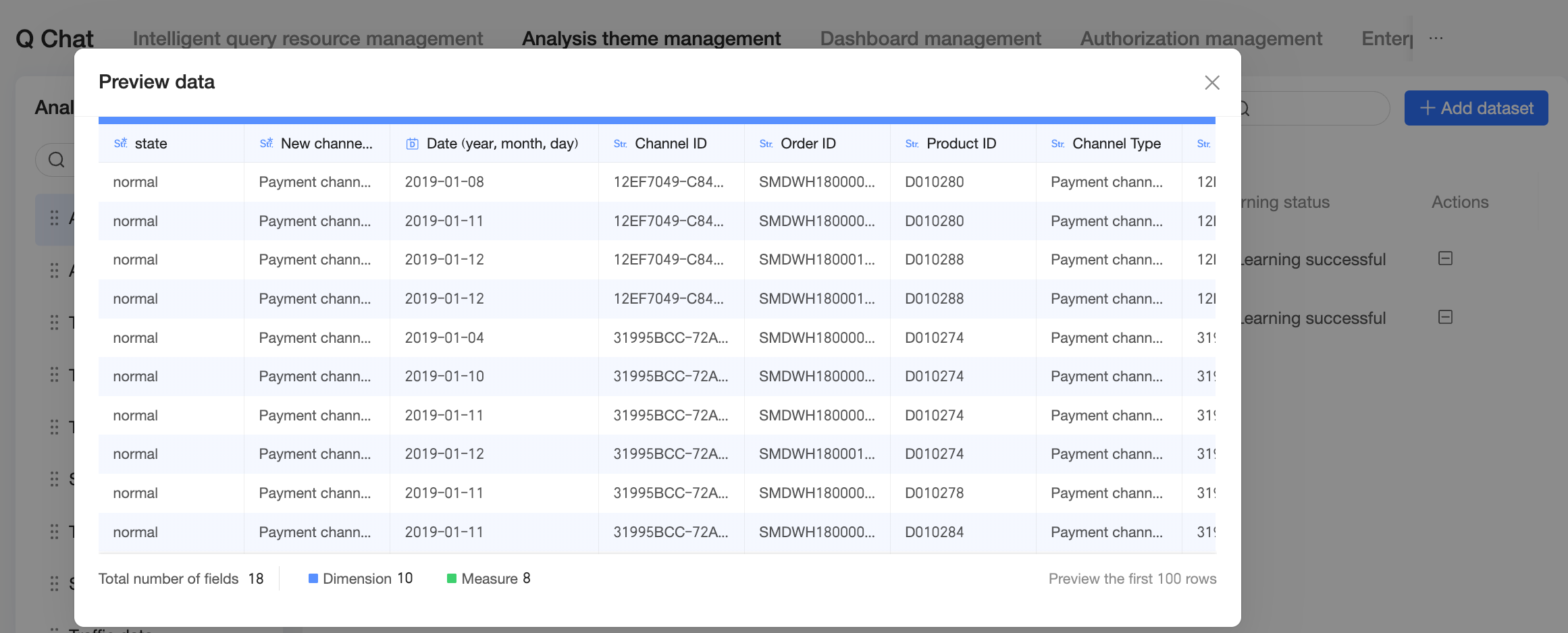
Remove
Click the remove icon to remove a query resource.
Examples
-
Q-Assistant conversation interface
After you configure an analysis subject, it appears on the Q-Assistant conversation interface. Select an analysis subject to start querying.
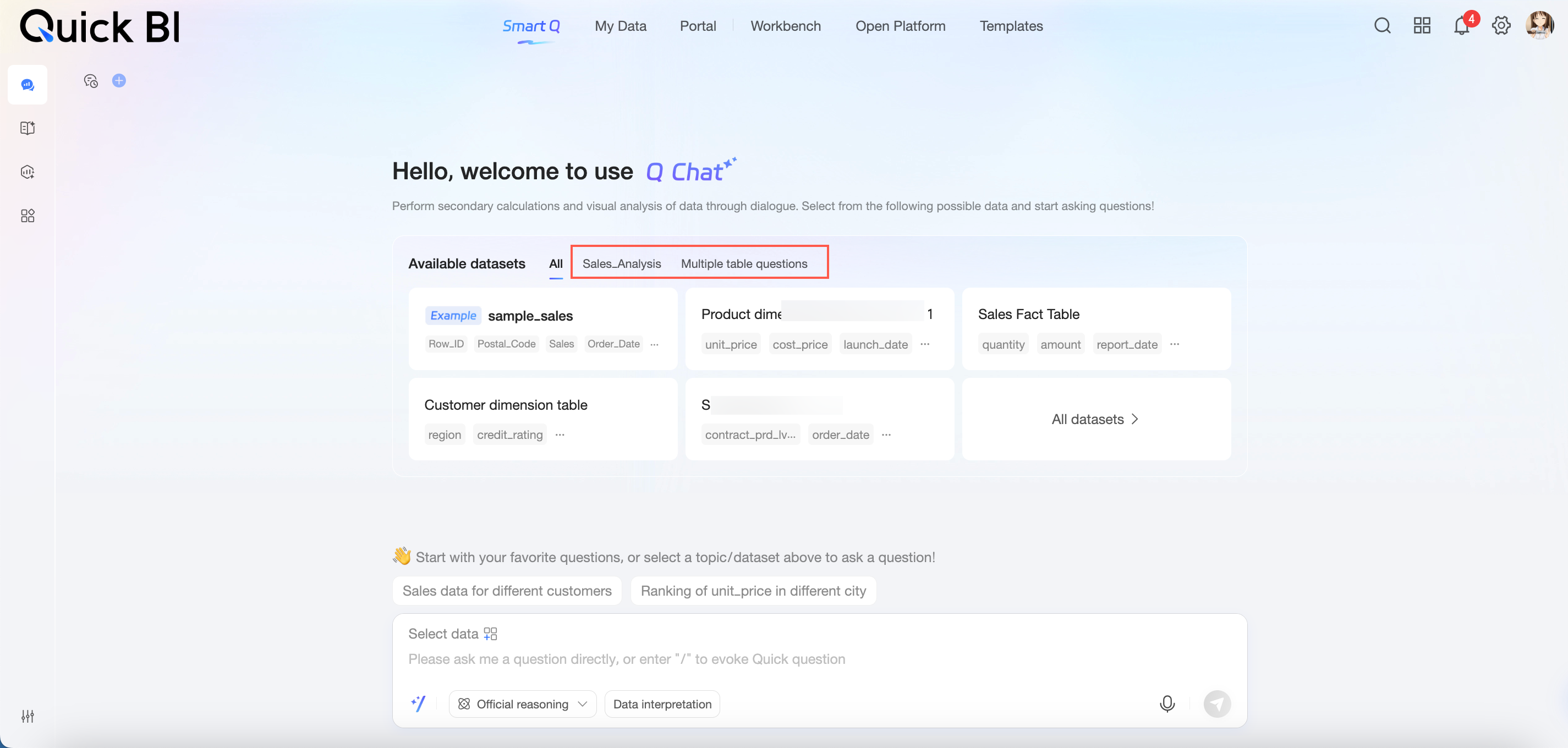 For more information about Q-Assistant operations, see Start a query.
 -
Query Resource Management page
On the Query Resource Management page, you can view the analysis subject associated with each query resource.
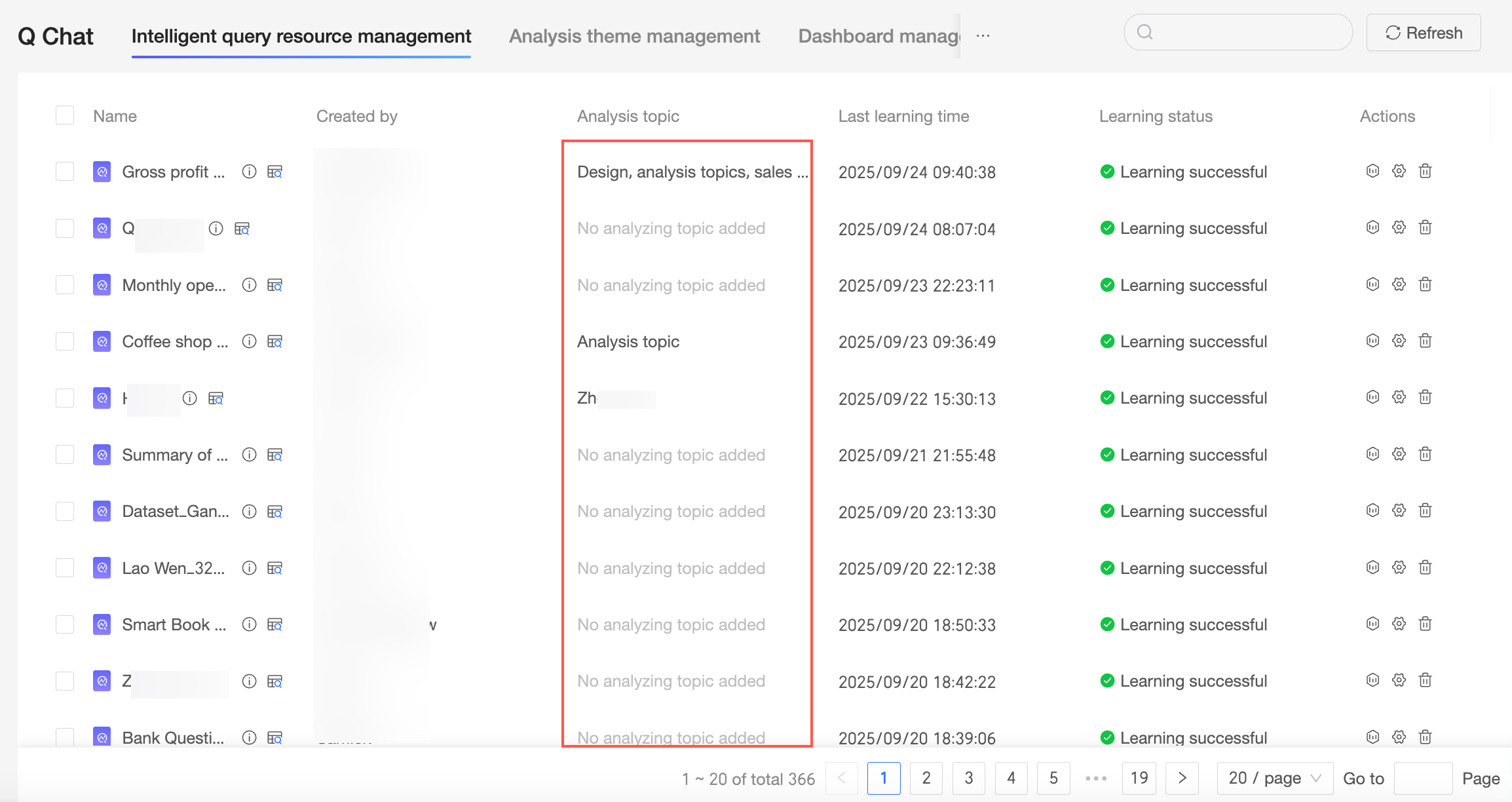
For more information about query resource management, see Permission Management.