Organization administrators can add RAM users to a Quick BI organization individually or in batches.
Prerequisites
You have obtained the RAM user information. For more information, see Obtain information about an Alibaba Cloud RAM account.
Background Information
Quick BI defines the following user types and roles at the organization level:
User Types
At the organization level, there are three user types:
developer: Includes corporate IT staff, data analysts, and data operations personnel.
analyst: A business user who analyzes data without needing deep technical skills.
Analysts analyze data by creating assets such as dashboards and spreadsheets.
viewer: A user who only views reports, such as an executive or a frontline business employee. Viewers can access dashboards, spreadsheets, and BI portals through URLs or subscriptions.
User Roles
Organization roles
At the organization level, Quick BI provides three pre-defined organization roles and supports the creation of custom organization roles.
organization administrator: Manages organization information, status, and members. They can also assign this role to other users.
We recommend assigning this role to 1 to 3 individuals, typically a project manager (PM) or BI platform administrators.
permission administrator: Manages permissions for resources within the organization. We recommend assigning this role to 1 to 3 individuals, typically BI platform administrators.
standard user: A user who is not an organization administrator or permission administrator.
custom organization role: Create custom roles based on your business needs. For more information, see Role Management.
Workspace roles
At the workspace level, Quick BI provides four pre-defined workspace roles and supports the creation of custom workspace roles.
workspace administrator: Has create (edit), use, and view permissions for all modules. This is the most privileged role in a workspace. Workspace administrators can also manage permissions and assets for other members in the workspace.
workspace developer: Has create (edit), use, and view permissions for all modules.
workspace analyst: Has create (edit) and view permissions for BI portals, dashboards, large-screen dashboards, spreadsheets, ad hoc analysis, self-service data retrieval, and data preparation modules. This role also has view permissions for data entry and data sources, and use and view permissions for datasets.
workspace viewer: Has view permissions for all modules.
custom workspace role: Create custom roles based on your business needs. For more information, see Role Management.
Limits
-
Only organization administrators can add RAM users as organization members.
-
This feature is available only in Quick BI Advanced and Professional editions.
Notes
To add RAM users in batches, you must upload an attachment to Quick BI:
-
We recommend that you use Google Chrome to upload the file.
-
We recommend that you download the template for adding user information in batches and fill in the user information as required by the template.
To avoid upload failures, check the attachment to ensure that none of the following conditions are met:
-
The file contains one or more accounts that already exist in the organization.
-
The file contains one or more aliases that already exist in the organization.
-
A specified user role does not exist in the system. You can specify up to three roles, separated by commas (,).
-
A specified user group path does not exist.
-
The number of entries exceeds 5,000.
-
The order of any columns is changed or any columns are deleted, except for columns whose names start with
tag_. -
The number of users to be added exceeds the license limit.
For more information about the license limits for different Quick BI editions, see Quick BI pricing (International).
-
Add a Single RAM User
-
Log in to the Quick BI console.
-
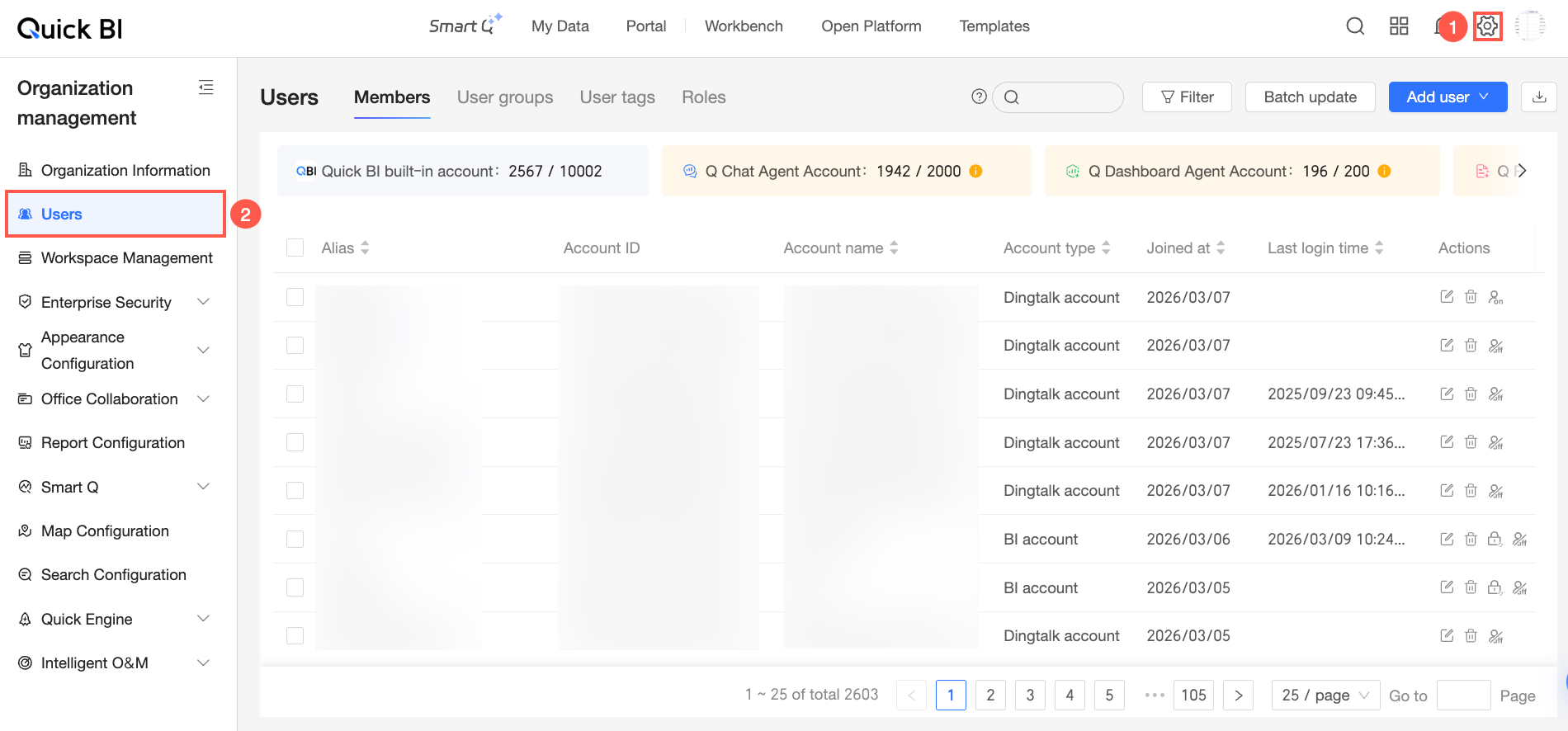
On the Quick BI homepage, follow the steps shown in the following figure to go to the User Management page.
-
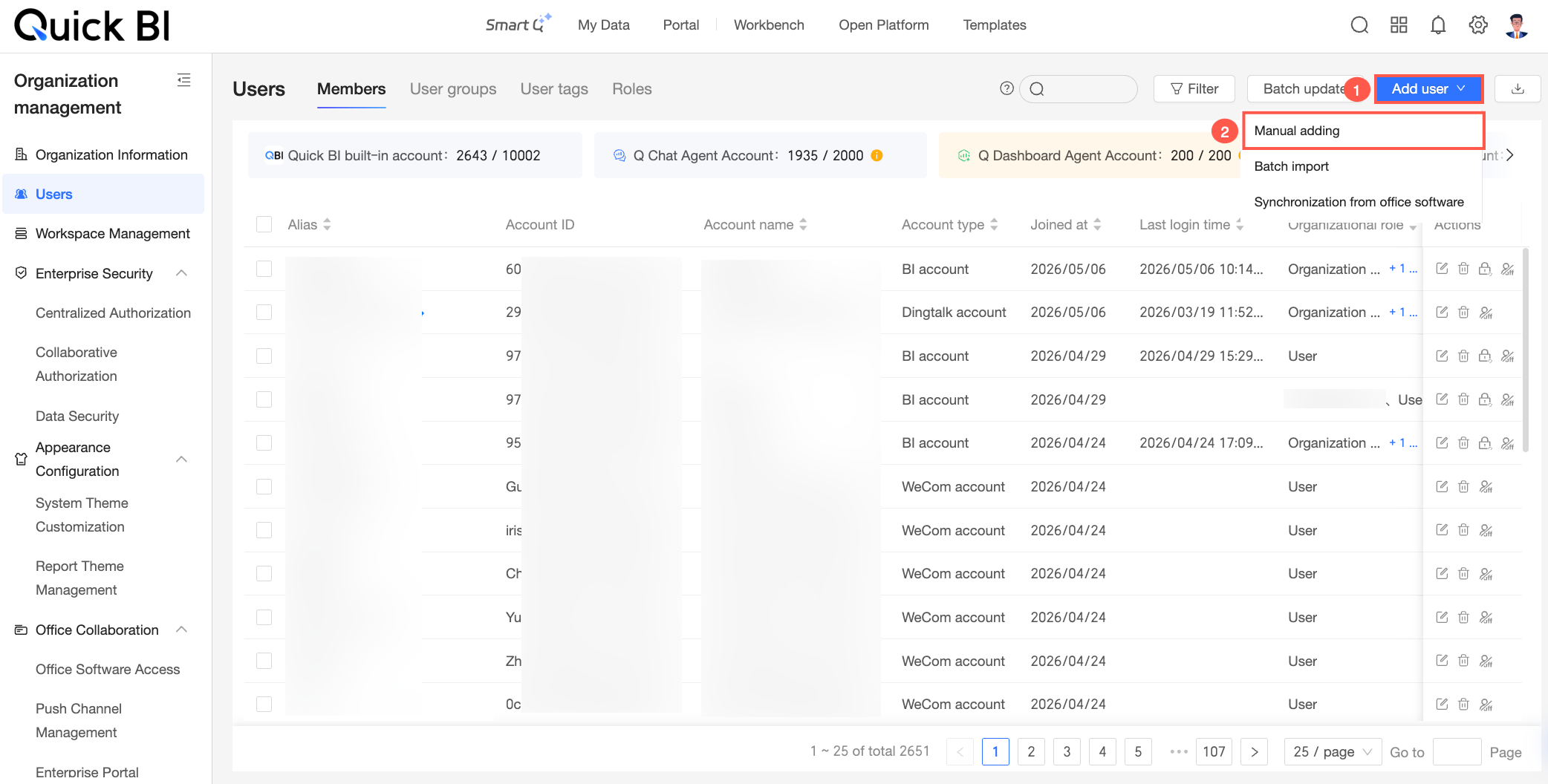
In the upper-right corner of the Member Management tab, choose .
-
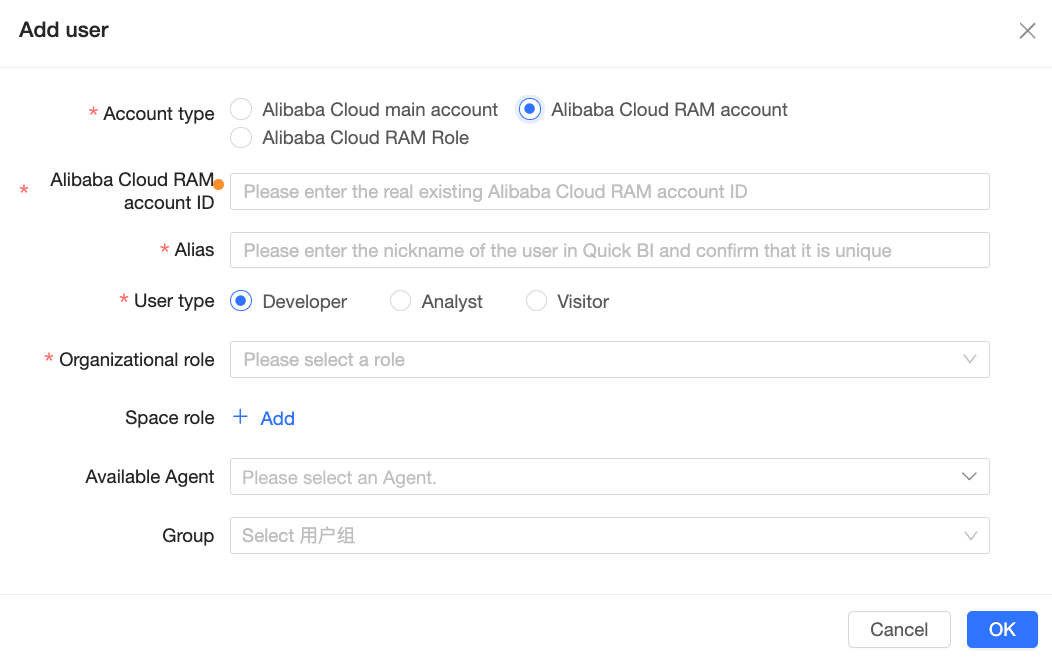
In the Add Member dialog box, set Account Type to Alibaba Cloud RAM Account and configure the following parameters.
Parameter
Required
Description
Alibaba Cloud RAM account ID
Yes
The ID of the RAM user to add. For more information, see Obtain the ID of an Alibaba Cloud RAM account.
Alibaba Cloud RAM account name
Yes
The account name is automatically retrieved after you enter the ID. You cannot manually enter or modify it.
Alias
Yes
The display name of the RAM user in Quick BI. You can customize the alias.
An alias can contain Chinese and English characters, digits, and the following special characters: underscores (_), forward slashes (/), backslashes (\), vertical bars (|), parentheses (), and brackets []. The alias can be up to 50 characters in length.
User type
Yes
Three user types are supported: developer, analyst, and visitor.
-
developer: Enterprise IT personnel, data analysts, and data operations engineers.
-
analyst: Business personnel who perform business analysis without requiring strong technical skills.
Analysts analyze data by creating dashboards, workbooks, and other assets.
-
visitor: A read-only user, such as an executive, manager, or frontline business employee who only needs to view data results. Visitors can view dashboards, workbooks, and sites through a URL or subscription.
Organization role
Yes
Three preset organization roles are available. You can also create custom organization roles.
-
organization administrator: Manages project information, status, and members. Can assign this role to other organization members.
We recommend assigning this role to one to three people, typically project managers or BI platform owners.
-
permission administrator: Manages permissions for project resources. We recommend assigning this role to one to three people, typically BI platform owners. A permission administrator grants the permission administrator role to other users and centrally manages permissions.
-
Regular user: A member who has not been assigned the organization administrator or permission administrator role.
-
custom organization role: A custom role that can be created. For more information, see Manage roles.
Workspace role
No
Four preset workspace roles are available. You can also create custom workspace roles.
-
workspace administrator: Has full create, edit, use, and view permissions for all modules. This role has the highest level of permissions within a workspace and can manage permissions and assets for other members.
-
workspace developer: Has create, edit, use, and view permissions for all modules.
-
workspace analyst: Has create, edit, and view permissions for the BI portal, dashboard, data visualization, workbook, ad hoc analysis, self-service data retrieval, and data preparation modules; view permissions for data entry and data sources; and use and view permissions for datasets.
-
workspace viewer: Has view permissions for all modules.
-
custom workspace role: A custom role that can be created. For more information, see Manage roles.
Available agents
No
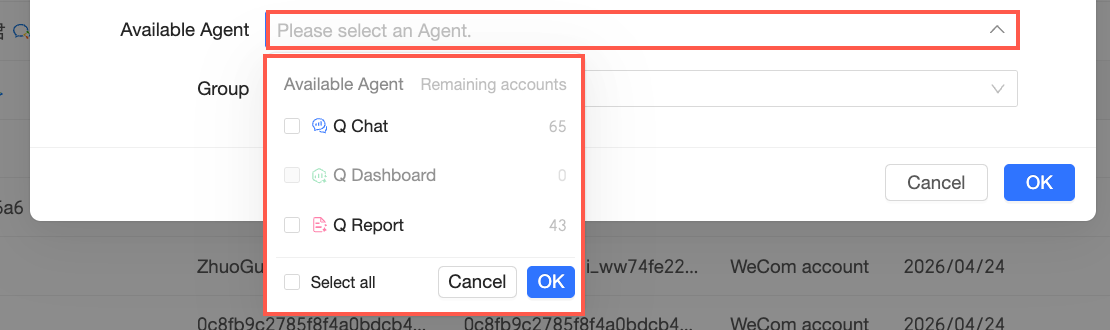
If your organization has purchased Agent capabilities, you can assign Agent seats to the user.
Click Select Agent. The drop-down list displays all available Agents and their remaining quotas. Select the Agents to assign to the user and click OK.
 Note
Note-
If User Type is set to visitor, the user cannot build Agents.
-
Ensure that the Organization Role assigned to the user has permissions to use the relevant Agent. Otherwise, the user cannot use Agent capabilities even with an assigned Agent seat. For more information about organization role permissions, see Organization roles.
-
For more information about how to purchase Agent capabilities, see Quick BI pricing (International).
User group
No
The user group to which the RAM user belongs.
-
-
Click OK to add the organization member.
Add RAM Users in Batches
-
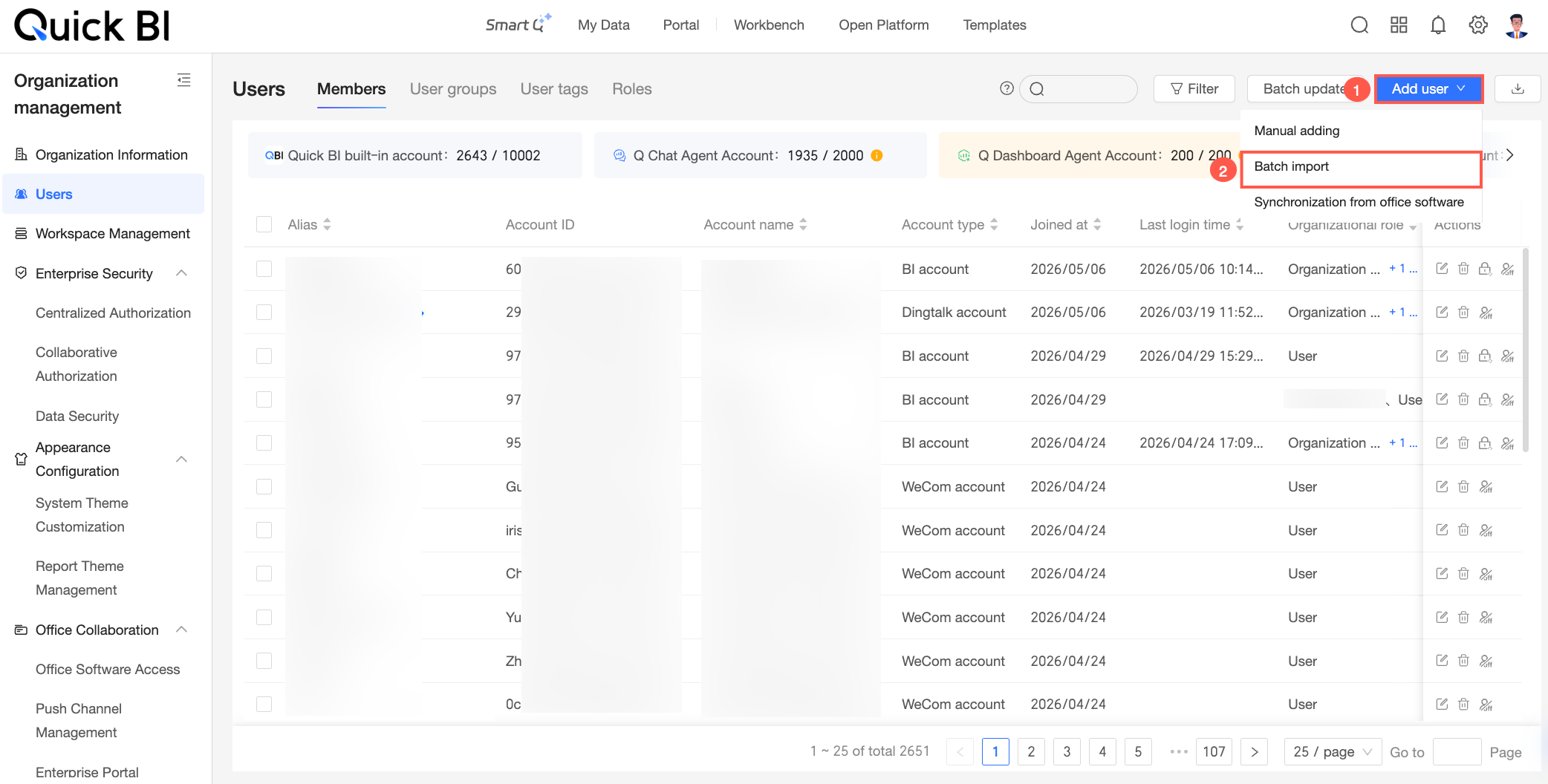
Follow the steps shown in the following figure to add users in batches.
-
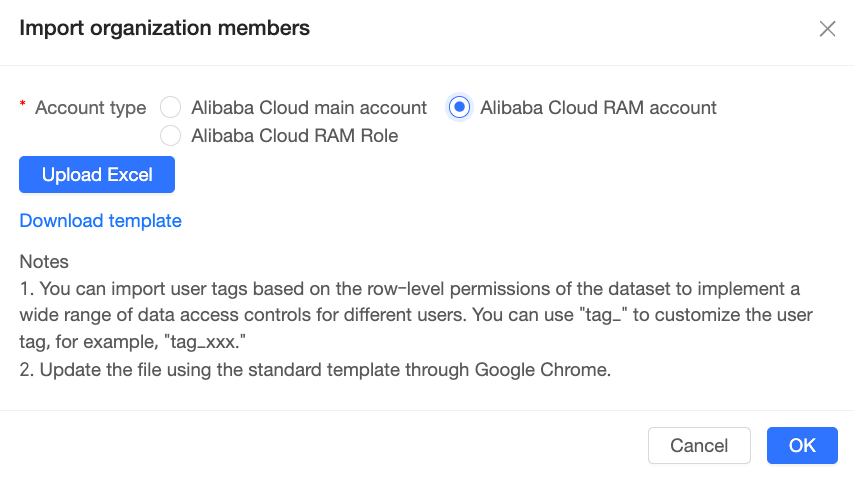
In the Add Members in Batches dialog box, click Download Template to download the user information template.
-
Enter the user information and save the template.
The following table describes the key fields in the attachment.
Parameter
Required
Description
Account ID
Yes
The ID of the RAM user.
Alias
Yes
The alias of the RAM user in Quick BI. You can customize the alias.
An alias can contain Chinese and English characters, digits, and the following special characters: underscores (_), forward slashes (/), backslashes (\), vertical bars (|), parentheses (), and brackets []. The alias can be up to 50 characters in length.
User type
Yes
Three user types are supported:
-
developer: Typically an enterprise IT professional, data analyst, or data operations engineer.
-
analyst: A business professional who performs business analysis without requiring strong technical skills.
Analysts analyze data by creating dashboards, workbooks, and other assets.
-
visitor: A read-only user, such as an executive, manager, or frontline business employee who only needs to view data results. Visitors can view dashboards, workbooks, and sites through a URL or subscription.
Available agents
No
The Agent capabilities available to the user. Enter Q-Answer, Q-Build, Q-Report, or Q-Explore. Separate multiple Agent names with commas (,).
For example, to assign Q-Answer and Q-Report seats to a member, enter
Q-Answer,Q-Report.Note-
If User Type is set to visitor, the user cannot build Agents.
-
Ensure that the organization role assigned to the user has permissions to use the relevant Agent. Otherwise, the user cannot use Agent capabilities even with an assigned Agent seat. For more information about organization role permissions, see Organization roles.
-
The entire upload task fails if any of the following conditions are met:
-
You add an Agent that has not been purchased.
-
The remaining quota is less than the required quota for new additions.
-
User role
Yes
Three preset organization roles are available. You can also create custom organization roles.
-
organization administrator: Manages project information, status, and members. Can assign this role to other organization members.
We recommend assigning this role to one to three people, typically project managers or BI platform owners.
-
permission administrator: Manages permissions for project resources. We recommend assigning this role to one to three people, typically BI platform owners. A permission administrator grants the permission administrator role to other users and centrally manages permissions.
-
Regular user: A member who has not been assigned the organization administrator or permission administrator role.
-
custom organization role: A custom role that can be created. For more information, see Manage roles.
Email
No
The email address associated with the RAM user.
Phone number
No
The phone number associated with the RAM user.
User group
No
The user group to which the RAM user belongs.
tag_example
No
You can add custom user tag fields. Column names for custom tags must start with the tag_ prefix, such as tag_example.
Value description:
-
$ALL_MEMBERS$: Indicates that the user has all data access permissions.
-
A specific value, such as north, indicates that the user has access permissions for data in the North region.
NoteIf a tag corresponds to multiple permissions, separate the values with a comma (,), for example,
north,east.
-
-
Click Select an Excel file to upload the user information file from your local computer.
-
We recommend that you use Google Chrome to upload the file.
-
We recommend that you download the template for adding user information in batches and fill in the user information as required by the template.
To avoid upload failures, check the attachment to ensure that none of the following conditions are met:
-
The user account already exists in the organization.
-
The account alias already exists in the organization.
-
The user group path does not exist.
-
The Excel file contains more than 5,000 rows.
-
The order of columns other than columns whose names start with tag_ is changed.
-
The number of users to be added exceeds the license limit.
-
-
-
Click OK to add the organization members in batches.
Log in as a RAM User
After a RAM user is added as an organization member, the user can log in to Quick BI with their username and password:
-
Log in to the Quick BI console.
-
In the lower-right corner, click RAM User Logon to open the RAM User Logon page.

-
On the RAM User Logon page, enter the RAM username. The username must be in the format of username@domain_name, such as
username@company.onaliyun.comorusername@company-alias.
-
Click Next, enter the Password, and then click Log On.
