Use workspace management to organize work across teams or brands within your organization. From the workspace management page, you can create workspaces, edit their names and descriptions, set a default workspace, manage members, and delete workspaces you no longer need.
Create a workspace
In the upper-right corner of the page, click
 Organizations and choose Workspace Management.
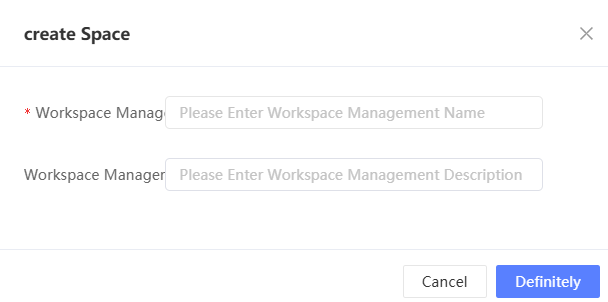
In the upper-right corner, click Create Space.
In the dialog box, enter a name and description, then click OK.
Manage workspaces
All workspaces in your organization are listed on the workspace management page. 
For each workspace, the following operations are available:
Edit: Click the
 icon. In the dialog box, modify the name or description and click OK.
Members: Click the
 icon to go to the Members page for the workspace. For more information, see Workspace Member Management.
Set as default workspace: The default workspace is where members are added automatically when you batch-add members to the organization. The default workspace is marked with a flag icon
 . When the organization is first initialized, the system automatically creates a workspace named Default Space. To change the default workspace, click
  /> Set as Default Space on the workspace you want to set as default.
Delete: Click
/> Delete to delete the workspace. For more information, see Delete a workspace.
Delete a workspace
Delete a workspace when you no longer need it and want to remove all its data and members.
You cannot delete a workspace if it is the only workspace in the organization.
Click
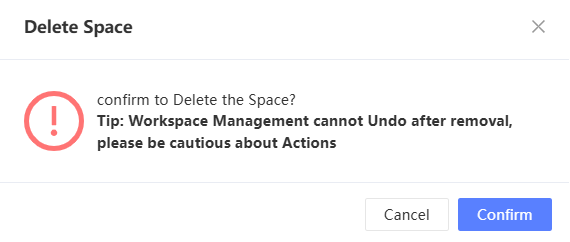
/> Delete.In the confirmation dialog box, click OK.
-
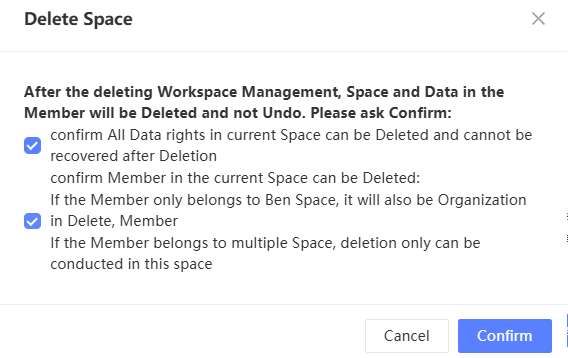
A dialog box lists the data and members to be deleted. Select the check box to confirm, then click OK.
ImportantIf a member belongs only to this workspace, the member is also removed from the organization.